Knowledge Base

How to integrate RecoveryManager Plus with a syslog server to forward audit logs

In this article:

Objective

This article helps you configure a syslog server to forward audit logs of all backup, recovery, and configuration actions performed in RecoveryManager Plus. The system logging protocol (syslog) is a standard protocol used to collect system and application logs and transmit them to a centralized server.

With this feature, administrators can integrate RecoveryManager Plus with a syslog log management solution to ensure critical audit logs are collected, analyzed, and retained securely for compliance, security auditing, and incident response.

Steps to integrate a syslog server with RecoveryManager Plus

  1. Log in to RecoveryManager Plus as an administrator.
  2. Navigate to Admin > Administration > Log Forwarding.
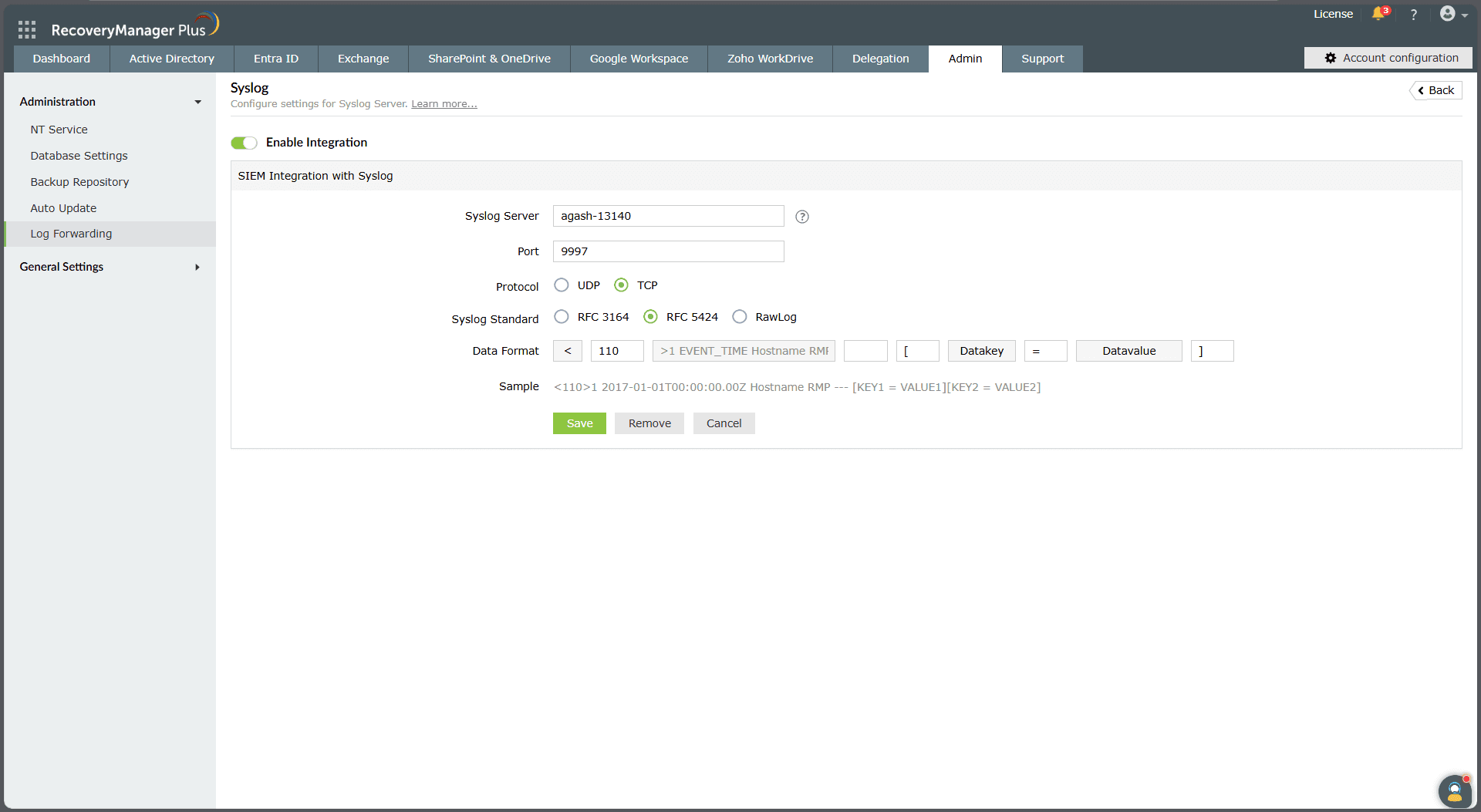
  3. Toggle Enable Integration on to configure the log forwarding settings for the syslog server (Fig. 1).
  4. Configure the following fields with the respective values:
    • Syslog Server: Enter the hostname of the syslog server.
    • Port: Enter the syslog port number.
    • Protocol: Select the appropriate protocol: TCP or UDP.
    • Syslog Standard: Select the desired syslog message format from the available options: RFC 3164, RFC 5424, or RawLog.
    • Data Format: Define the structure of the log message.
  5. Click Save.
Note: Refer to the formatting section below for details on the valid port and priority number ranges, message formats, and examples.

Supported actions

RecoveryManager Plus can forward backup, recovery, and configuration audit logs from AD, Entra ID, Microsoft 365, on-premises Exchange, Google Workspace, and Zoho WorkDrive backup and recovery operations.

1
 

Toggle this switch to activate or deactivate log forwarding to a syslog server.

1
 

Customize the structure of syslog messages sent from RecoveryManager Plus.

Integrating a syslog server to forward audit logs in RecoveryManager Plus.

Figure 1. Integrating a syslog server to forward audit logs in RecoveryManager Plus.

Toggle this switch to activate or deactivate log forwarding to a syslog server.
Customize the structure of syslog messages sent from RecoveryManager Plus.
Syslog message formatting and configuration parameters

This section outlines the rules and recommendations for configuring syslog message parameters, including the server name, port, protocol, standards, and priority numbers.

Server name

  • The hostname can include letters (A-Z and a-z), numbers (0-9), and hyphens (-).
  • Each label must begin and end with a letter or number.
  • Labels are separated by periods (.)—e.g., syslog.example.com.
  • The maximum length of the server name is 255 characters, and each label can contain up to 63 characters.
  • Do not use spaces, underscores, or other special characters.

Port number

The Port field specifies the network port where the syslog server accepts incoming logs. The valid range for the port number is 0-65535.

Priority number

A priority number (PRI) is an integer ranging from 0 to 191 that is included in the syslog header. It combines two components:

  • Facility: Identifies the message source (e.g., system process, mail, security)
  • Severity: Indicates the urgency or seriousness of the event

The priority number is calculated using the following formula:

Priority number = (facility × 8) + severity

Facility codes

Code Description
0 Kernel messages
1 User-level messages
2 Mail system
3 System daemons
4 Security/authorization messages
5 Messages generated internally by syslog
6 Line printer subsystem
7 Network news subsystem
8 UUCP subsystem
9 Clock daemon
10 Security/authorization messages
11 FTP daemon
12 NTP subsystem
13 Log audit
14 Log alert

Severity levels

Code Description
0 Emergency: The system is unusable
1 Alert: Immediate action is required
2 Critical: Critical conditions
3 Error: Error conditions
4 Warning: Warning conditions
5 Notice: Normal but significant events
6 Informational: General information
7 Debug: Debugging messages

For example, if the facility is 13 (log audit) and the severity is 6 (informational), then the PRI is (13 × 8) + 6 = 110.

Syslog protocol

Choose a protocol based on your organization's requirements:

  • UDP: Recommended for environments where minimal data loss is acceptable; it offers faster transmission with minimal overhead, making it ideal for high-volume logging scenarios
  • TCP: Recommended when log integrity is critical; it ensures reliable message delivery but may result in slower performance compared to UDP

Syslog standard

This defines the structure of the message:

  • RFC 3164: The original syslog format with a simple, unstructured message containing a priority value, timestamp, and hostname
  • RFC 5424: The updated standard with structured data fields, precise ISO 8601 timestamps, UTF-8 encoding, and versioning for enhanced log parsing and compatibility
  • RawLog: Forwards the unformatted log message without adding any standard syslog header information

Data format

The data format defines the structure of the message body forwarded by RecoveryManager Plus.

RFC 3164

  • Sample format:

    <PRI><Timestamp><Hostname> - [Key1=Value1][Key2=Value2]

    • PRI: The priority number calculated from the facility and severity
    • Timestamp: The event time
    • Hostname: The source system name
    • [Key=Value]: Key-value pairs where Key is the message ID and Value is the message body
  • Note: Including the message ID and body in square brackets is optional in RFC 3164.
  • Example: <110> Jan 1 2025 12:00:00 John-RMP: Action=Backup Status=Success User=Admin

RFC 5424

  • Sample format:

    <PRI><Version><Timestamp><Hostname> - [Key1=Value1][Key2=Value2]

    • PRI: The priority number calculated from the facility and severity
    • Version: The syslog version (typically 1)
    • Timestamp: The event time
    • Hostname: The source system name
    • [Key=Value]: Key-value pairs where Key is the message ID and Value is the message body
  • Note: It is mandatory to include the message ID and body within brackets in RFC 5424.
  • Example: <110> 1 2025-01-01T00:00:00.00Z John-RMP: [Action=Backup][Status=Success][User=Admin]

Benefits

  • Centralized tracking of actions performed across multiple enterprise applications
  • Streamlined auditing with consolidated logs for faster analysis and reporting
  • Improved security visibility and faster incident response
  • Secure, organized retention of audit logs to support compliance reviews and forensic analysis

Related topics and articles

Last updated on: 10-11-2025

Need further assistance?

Fill this form, and we'll contact you rightaway.

Request Support

  •  
  • *
     
  • *
     
  • *
     
  • By submitting you agree to processing of personal data according to the Privacy Policy.

"Thank you for submitting your request.

Our technical support team will get in touch with you at the earliest."

A single pane of glass for AD, Entra ID, Microsoft 365,
Google Workspace, Exchange, and Zoho WorkDrive backup.
  • » Personal WorkDrive backup
  • » Backup retention
  • » Incremental backup