
Configuring auto-install settings
Last updated on:
In this page
Overview
This page explains how to configure auto-install settings for rules in the Rule Library. This capability enables the automatic installation of rules based on their severity level.
Steps to configure auto-install settings
- In the Rule Library page, navigate to Settings.
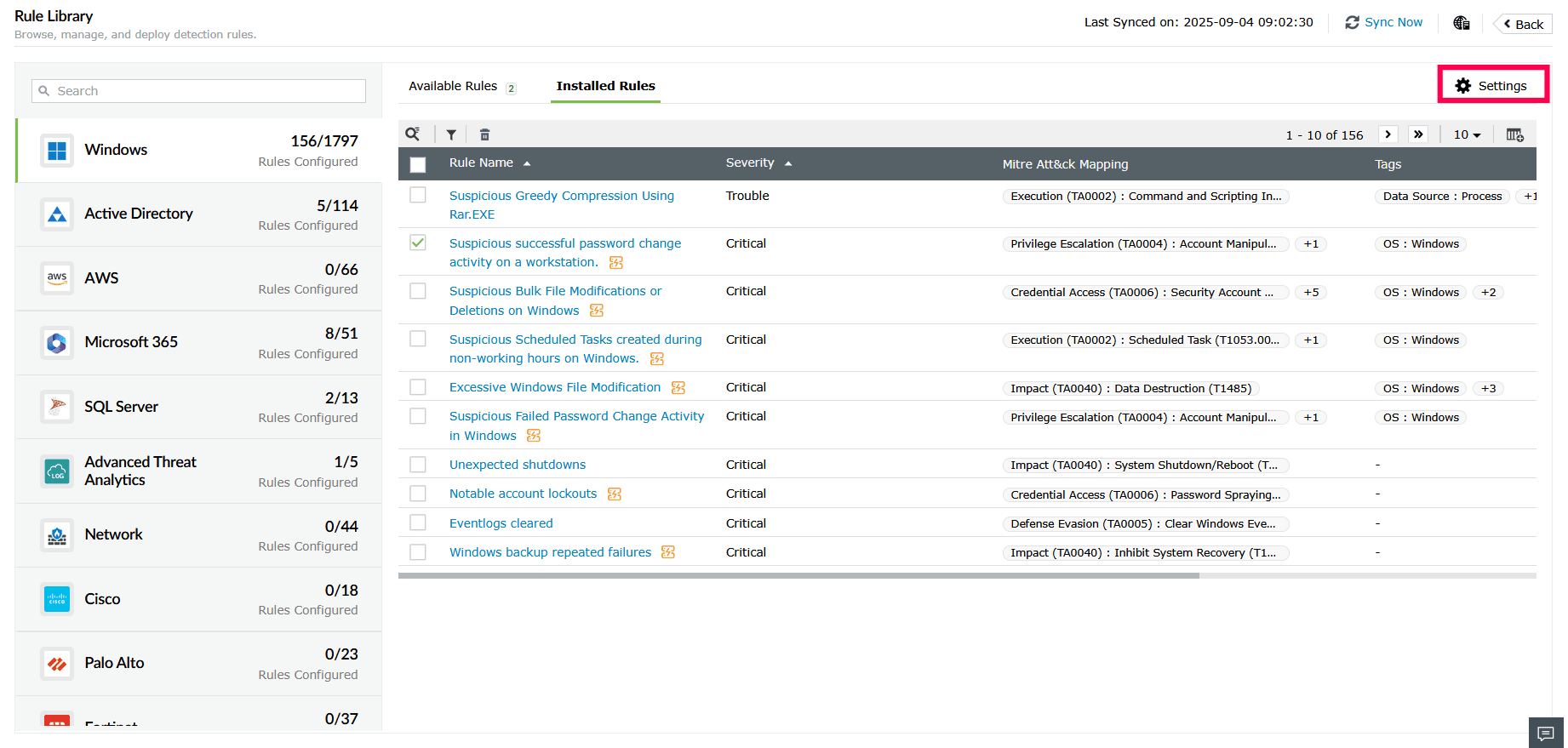
Figure 1: Configuring auto-install settings - From the Auto-Install Rules dropdown, select the severity levels for which rules should be automatically installed, such as Critical, Trouble, or Attention.
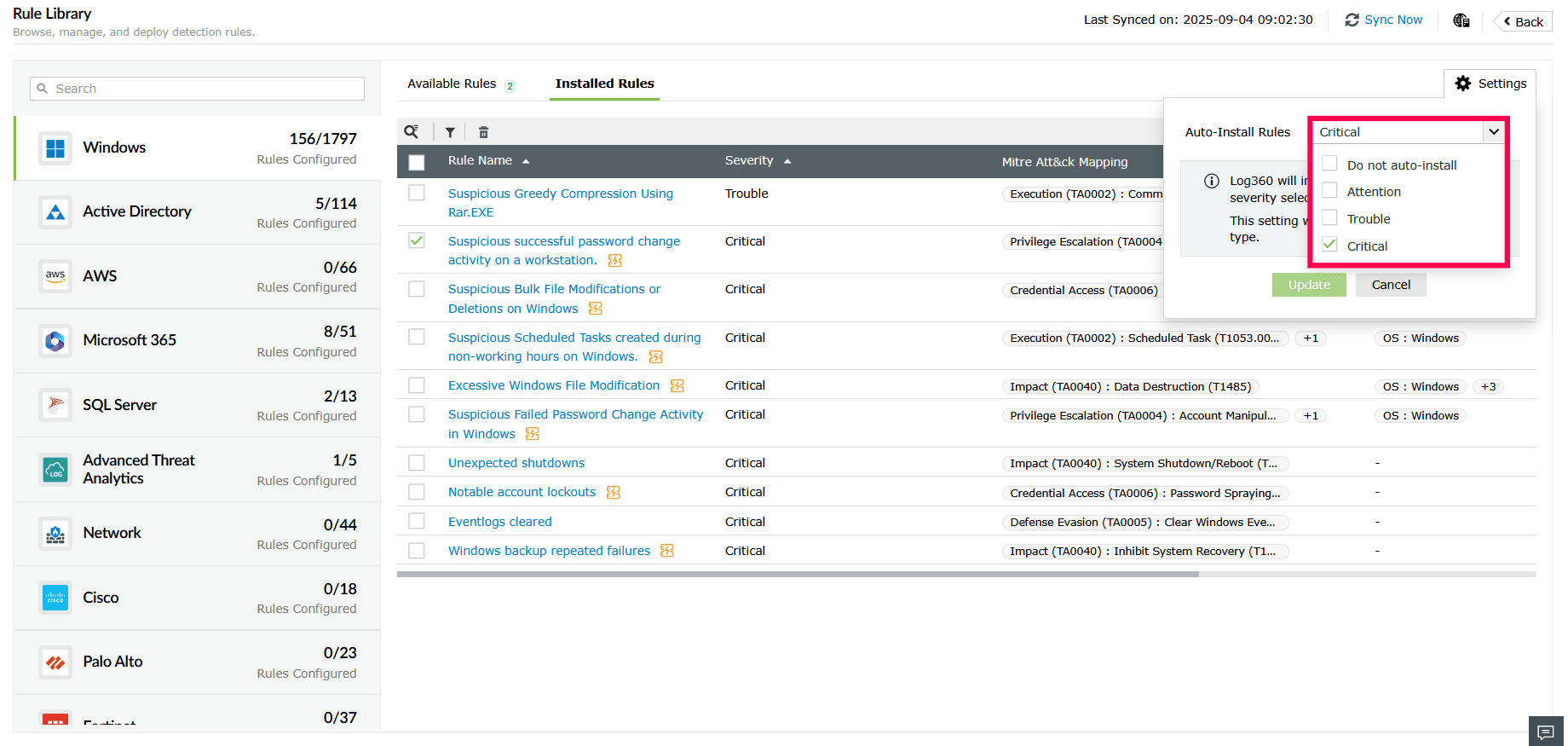
Figure 2: Configuring Auto-Install Rules - To disable auto-install, select Do not auto-install.
- Click Update to save your changes.
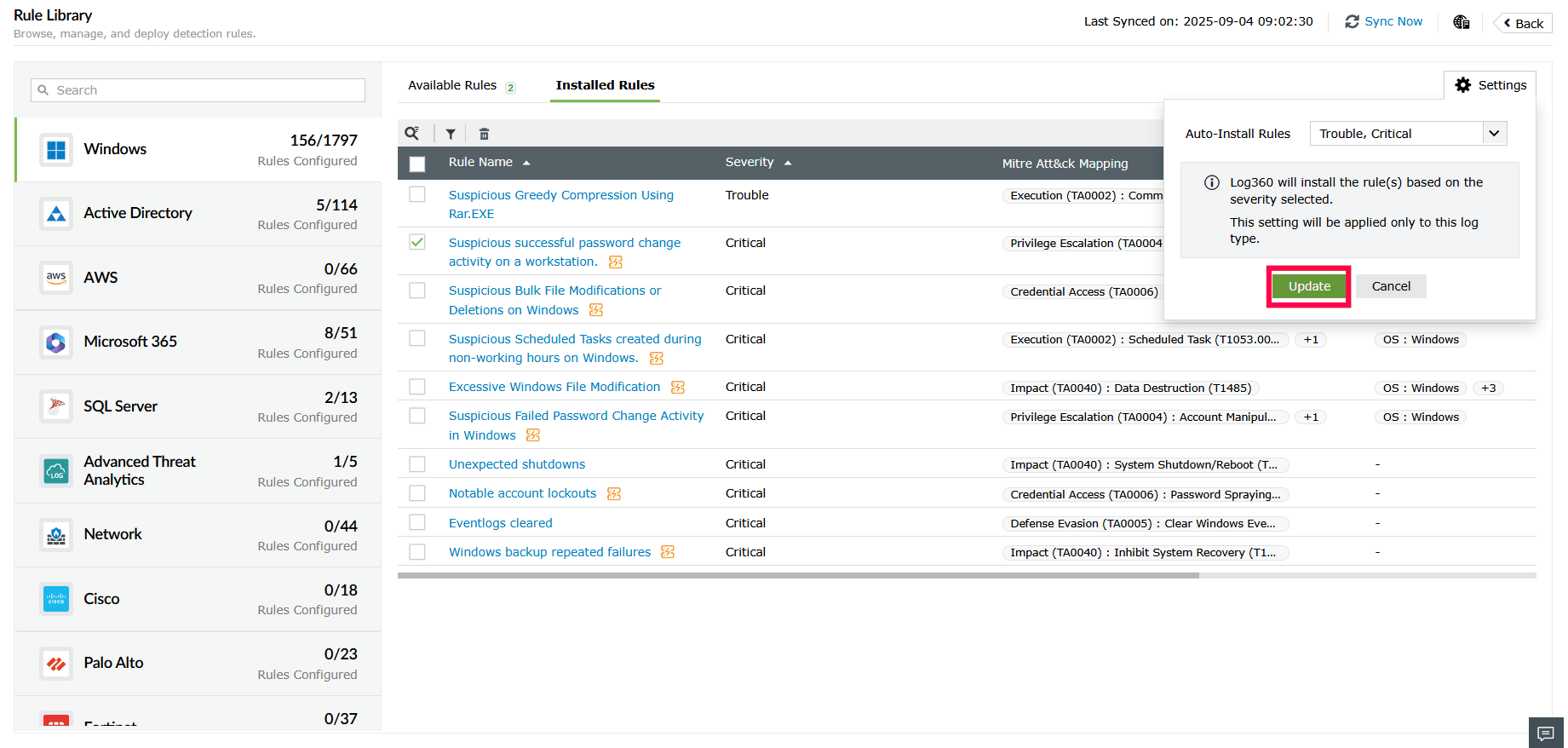
Figure 3: Configuring Auto-Install Rules NOTE Rules that are highly computational will be installed in a disabled state by default.
- Auto-install settings are applied per Rule Library category, so configure them individually for each category as needed.
- Rules installed through auto-install are activated automatically, but you must manually enable any associated alert profiles if required.
NOTE Severity of the pre-defined rules is provided by ManageEngine Log360 team at the time of creation.
Read also
This page explained how to enable automatic installation of rules based on severity levels. To learn how to manage and configure these rules in your environment, refer to: