What is Windows patch management?
Windows patch management (or the Windows patching process) involves updating and maintaining the Windows operating system and its related software to keep Windows-based environments secure, stable, and performing as expected. Microsoft patch management covers the entire workflow: Scanning and detecting missing patches, downloading and testing them, approving, and deploying to the required systems. Servers are a specific concern here. Windows server patching includes identifying and applying patches across every server in your IT environment and closing vulnerabilities before they can be exploited in infrastructure that typically runs business-critical workloads.
The Windows patch management process also includes generating reports of the deployment process for audits and compliance purposes. A well-organized Windows patch management strategy can significantly reduce the exposure to security risks and maintain a secure Windows-based environment. Using a patch management solution, the entire Windows patching process can be automated, so that admins don't need to go around to every computer and manually check whether all missing patches were identified and deployed. The Windows patch management software also generates reports for you to confirm if the Windows patches have been deployed properly.
A Windows patch management software is a solution that automates the Windows patching process in your enterprise network, from scanning and identifying the missing Windows patches to testing and deploying these updates to the required systems.
How to use patch management in Windows devices?
Microsoft releases security updates for all of its products on the second Tuesday of every month known as the Patch Tuesday. With a plethora of patches being released this week, it can be crucial for admins to prioritize the patches and then deploy them to the systems.
Here are some of the best practices that you can follow to perform Windows patching in your network:
1. Severity-based prioritization
Microsoft assigns severities for the patches released, based on how severe the vulnerabilities are. These can range from Critical to Low and Unrated in some cases. Before deploying the Windows patch, it is crucial to prioritize them based on the severity.
For example, Critical and High severity patches should be deployed urgently. Patches of lesser severity can then be prioritized based on the regular patching schedules.
2. Testing patches before deployment
While regular Windows patch management is of paramount importance, it is highly recommended to test the patches before deploying them to the systems. In case the patches aren't tested for bugs/functional correctness, they can cause system downtime and employee un-productivity in the enterprise network.
3. Broad deployment windows
Deploying a Windows patch across the multitude of endpoints in the network can be challenging. However, to ensure a correct balance between employee productivity and network security, admins should create broad deployment windows spread over multiple days/weeks.
This helps in streamlining Windows patching in the network as the broad window allows all the systems to be properly patched.
4. Re-deploying failed patches
Many a time, patch deployment can fail for certain systems due to inactivity or network issues. Not only does this affect system compliance but can also pave the way for critical vulnerabilities to exploit the systems.
Hence, it is highly recommended to generate patch deployment reports for a holistic view of the network's patch status. This further makes it easier for admins to detect the unpatched systems and re-deploy the patches to them.
Key features of the Windows patch management tool
Automated Patch Deployment (APD)
You configure scanning and deployment schedules once. After that, Patch Manager Plus runs the cycle without manual input. Critical patches get pushed the day they are approved. Lower-severity updates follow your defined cadence, weekly or monthly. This is what makes automated patch deployment practical at scale rather than theoretical.
Patch testing and approval workflow
Before any patch reaches production, you route it through a test environment. Admins approve, decline, or defer individual patches. If a patch causes problems after deployment, a rollback is available from the console. For patching Windows servers where downtime carries a real cost, this workflow matters more than most vendors acknowledge.
Windows server patching
Patch Manager Plus supports windows server patching across Windows Server 2008 through Windows Server 2025. Server-specific deployment policies and maintenance windows account for the fact that servers cannot be rebooted on the same schedule as workstations
Feature Pack and rollup deployment
Feature Packs carry large file sizes and dependency chains that trip up simpler patching tools. Patch Manager Plus resolves dependencies automatically before installing a Feature Pack. Rollup updates, which bundle hotfixes and security updates into a single cumulative package, are supported alongside standard monthly updates.
Third-party application patching
Windows OS patches cover one layer of your attack surface. Patch Manager Plus patches over 1,100 third-party applications in the same deployment cycle; so Chrome, Adobe Reader, Java, and hundreds of other apps do not fall behind while Windows updates go out.
EOL system detection
EOL Windows systems stop receiving patches from Microsoft. Patch Manager Plus identifies legacy EOL systems on the network and gives you two options: Upgrade them to a supported version or put isolation controls in place while remediation is planned. Leaving them unmanaged is the third option, however most organizations regret this.
Compliance and audit reporting
Predefined reports show patch status by system, severity, deployment success rate, and date. They are formatted for audit processes without requiring manual data extraction before a review.
How to patch Windows with a Patch Management Software?
Microsoft Windows is the most widely-used operating system. With frequent security patches and updates released, manually applying the Windows updates to all the endpoints in a network can be a headache.
What's more? Deploying Feature Packs in particular can be tricky across several endpoints, given their large sizes. To simplify the Windows patching process, you can use a Windows patch management software such as Patch Manager Plus to deploy patches across your enterprise's network automatically. This creates a consistently configured environment that is secure against known vulnerabilities found in Windows and all other applications.
Patch Manager Plus is a standalone patching solution that deploys patches to Windows, macOS, Linux, and over 1100+ third-party applications. If you're looking for end-to-end Windows patch management software, Patch Manager Plus checks all the boxes. It handles every aspect of Windows patch management, right from detecting and installing Windows updates, hotfixes, rollups, security updates, etc. to defending the Windows-based systems by testing patches before rolling them out to the production environment to ensure they don't cause any issues.
Here's a list of the Microsoft Updates supported by Patch Manager Plus:
- Security Updates (ranging from Critical to Low severity)
- Service Packs
- Feature Packs
- Rollups
- Preview Rollups
- Optional Updates
- Non-security Updates (ranging from Critical to Low severity)
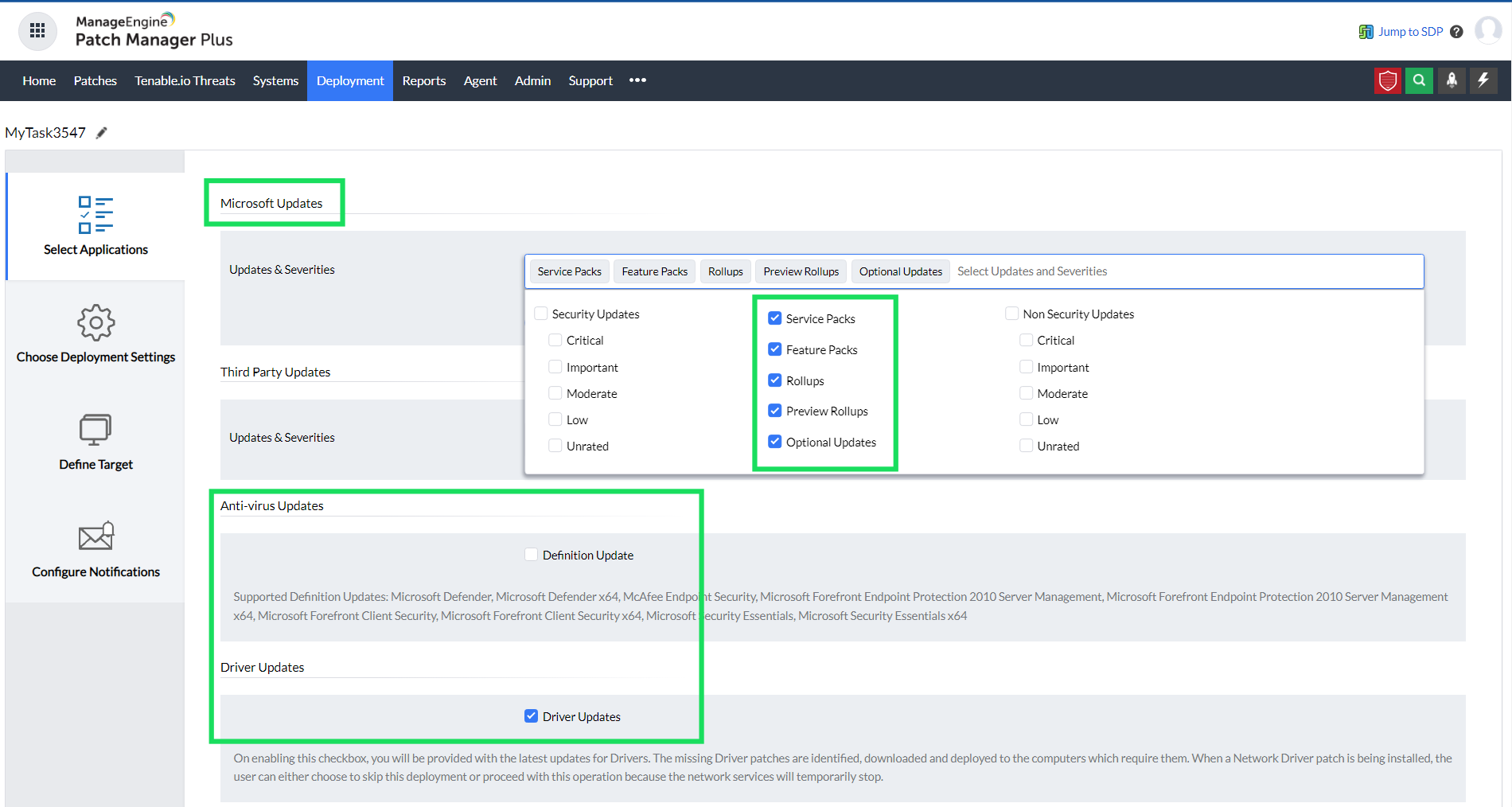
Not just updates for Windows, Patch Manager Plus also supports patching for over 1100 third-party applications, antivirus definitions, and driver updates.
In addition to Windows computers and workstations, this solution, also lets you perform Windows server patch management. Right from a centralized console, this Windows patch management software detects the missing Windows server patches and deploys them to the required systems.
Patch Manager Plus' Windows patch management software features:
Supports deployment of Feature Packs
Patch Manager Plus supports the installation of Feature Packs for Windows OS. Each Windows update comes with a lot of new features and enhancements to make a user's life easier. Patch Manager Plus automatically installs any dependency files before installing a Feature Pack.
Deploy Microsoft antivirus definition updates
If you're running Microsoft Forefront Client Security, Microsoft Defender, or any other antivirus on your network's computers, you can automate the antivirus definition updates with Patch Manager Plus. The Automate Patch Deployment (APD) functionality helps you schedule the frequency of scanning and updating the antivirus definitions in the systems.
Windows Rollup updates
Rollup updates are a cumulative setup of hotfixes that contains security updates and critical updates that need to be deployed immediately. In addition to Feature Packs, Quality Updates, and Optional Updates, admins can also deploy Rollups to the systems, right from the Patch Manager Plus console.
Supported versions
Patch Manager Plus' Windows patch management feature supports the following versions:
Windows OS
- Windows 11
- Windows 10
- Windows 8.1
- Windows 8
- Windows 7
- Windows Vista
Windows Server OS
When it comes to Windows server patching, here are the supported Windows Server operating systems:
- Windows Server 2025
- Windows Server 2022
- Windows Server 2019
- Windows Server 2016
- Windows Server 2012 R2
- Windows Server 2012
- Windows Server 2008 R2
- Windows Server 2008
How does Automated Windows patch management help your enterprise?
Patch Manager Plus automates the entire Windows patch management process with its Automated Patch Deployment (APD) feature. You can also view the System Health Status, based on the number of missing patches by using this Windows patch management tool.
Managing your Windows patching with Patch Manager Plus works for both Active Directory-based and workgroup-based networks. In addition, network managers can completely automate their Windows patch management routine with just a few clicks, right from a centralized console.
Benefits of using Patch Manager Plus Windows Patch Management Software
Patch Manager Plus' Windows patch management feature adds the following advantages to your network:
- Saves time and money: With the Automate Patch Deployment feature, the entire Windows patching process is automated, right from scanning for and deploying patches, to generating patch status reports.
- Bolster your network's security: Most cyberattacks leverage known vulnerabilities to steal data and cause disruptions. Patching the known vulnerabilities as well as zero-days promptly further strengthens the security of your network.
- Deploy the most up-to-date patches: Not just to thwart vulnerabilities, it is important to keep your Windows machines running with the latest Windows patches, so that you have access to the newer features and functionalities.
Detect, upgrade, and secure EOL systems: End-of-life systems pose a high risk to the security of the network, primarily because of the lack of security updates.
With Patch Manager Plus' Windows Legacy EOL Systems, admins can detect the legacy (EOL) systems in the network and can either upgrade them to the latest versions or take precautionary measures to safeguard them.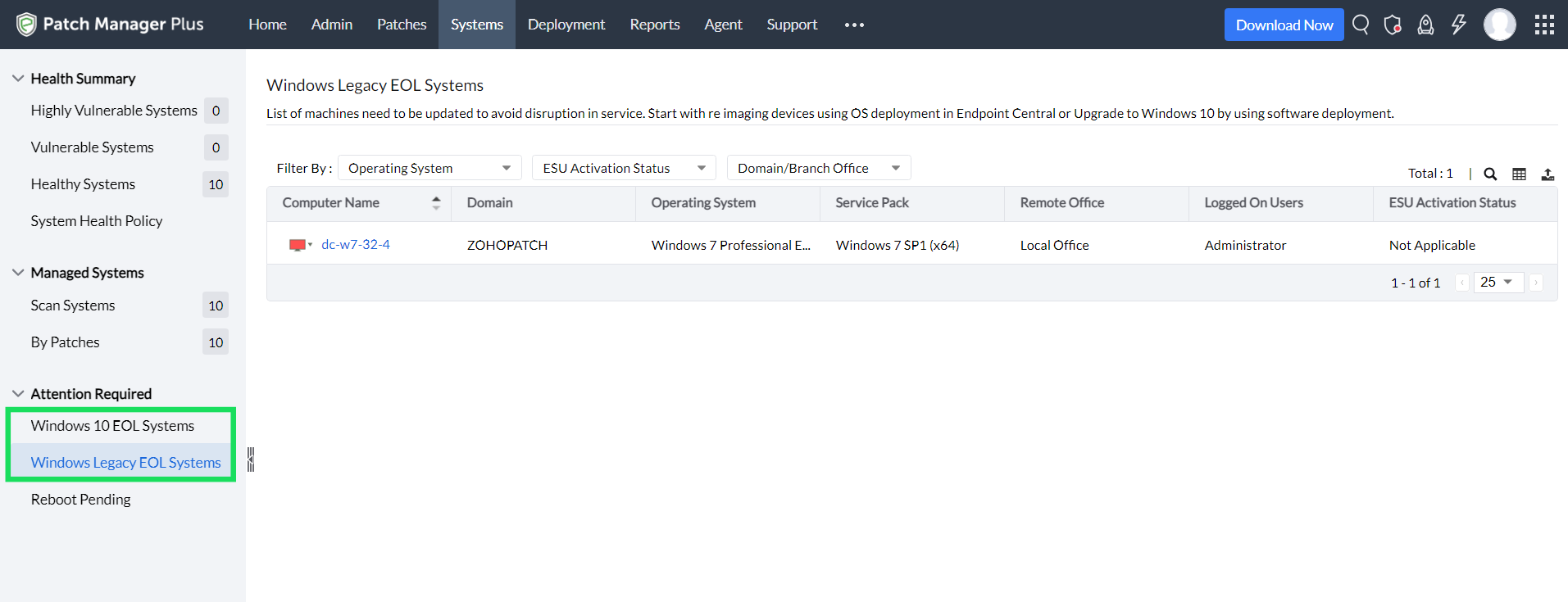
- Windows Server patching: While patching on a Windows server can be more challenging than for other systems, Patch Manager Plus lets you seamlessly achieve this with its wide patching support for the Windows Server operating systems. In addition, the Self Service Portal for patches coupled with the flexible deployment policies ensures minimal downtime with maximum patching capability.
Windows Patch Management Strategies
To perform Windows patch management using Patch Manager Plus, follow the steps below:
- First, navigate to the Patch Manager Plus console and click on Systems > Scan Systems to scan for missing patches in your network.
- Based on the severity of the missing patches, prioritize the missing patches with an important or critical severity level. You should approve these patches first, allowing the Automate Patch Deployment feature to patch your machines in the next available deployment window.
- For patches with low or moderate severity, you'll have time to test those patches in a non-production environment. If they're not found to cause any problems post-deployment, then they can be rolled out to the production environment.
- In the Patch Manager Plus console, navigate to Reports > System Health Report to see how your systems are performing post-deployment. The predefined patch management reports show you the patch status of your systems, amongst other things, allowing you to assess the security of your network quickly.
Patch Manager Plus vs. WSUS vs. SCCM vs. Intune
IT teams evaluating windows patch management tools typically compare Patch Manager Plus against Microsoft's own options.
| Feature / Criteria | Patch Manager Plus | WSUS | SCCM | Microsoft Intune |
|---|---|---|---|---|
| Deployment model | Cloud + On-premises | On-premises only | On-premises | Cloud only |
| Third-party app patching | Yes, 1,100+ apps | No | Limited | Limited |
| macOS and Linux support | Yes | No | Limited | Limited |
| Remote endpoint patching | Yes | Limited | Limited | Yes |
| Patch testing and rollback | Yes | No | Limited | No |
| Reboot scheduling | Configurable, with user notifications | Basic | Basic | Basic |
| Audit-ready reporting | Predefined compliance reports | Basic | Moderate | Basic |
| Setup complexity | Low | High | High | Medium |
WSUS is included in Windows Server licensing, but it covers only Microsoft updates. Third-party applications fall outside its scope entirely. SCCM extends that coverage but requires significant infrastructure investment and ongoing internal maintenance. Intune handles cloud-managed devices well and works for organizations that are fully cloud-native, but it is not designed for on-premises environments or mixed OS fleets.
Patch Manager Plus suits organizations that need genuine cross-platform coverage, third-party patching, and the ability to operate in cloud, on-premises, or hybrid environments without the infrastructure overhead that SCCM demands. Teams looking for the best patch management software for a mixed Windows environment should weigh those trade-offs against their current tooling before choosing.
Benefits of using Windows patch management software
Automated Patch Deployment feature runs the full Windows patching cycle on a schedule you define. Admins are not manually checking systems or pulling status spreadsheets. Scanning, deployment, and reporting happen without intervention.
Most cyberattacks exploit known, unpatched vulnerabilities. Patching critical and high-severity updates promptly reduces the attack surface directly. Zero-day coverage runs alongside the standard monthly update cycle, so newly disclosed vulnerabilities do not sit unaddressed between Patch Tuesday cycles.
Staying current on Windows patches also means access to new features, performance improvements, and compatibility with current software. Patch Manager Plus ensures that optional and non-security updates do not fall behind while security patches take priority.
EOL Windows systems stop receiving patches from Microsoft but remain on the network. Patch Manager Plus detects these legacy EOL systems and gives admins a path: upgrade to a supported version or put precautionary controls in place. Leaving them unmanaged is not a neutral choice.
Patching Windows servers is more involved than patching workstations. Maintenance windows, reboot policies, and application dependencies all require configuration. The Self Service Portal and flexible deployment policies give admins the control they need to patch servers without causing unplanned downtime.
Manage unlimited endpoints, free for 30 days.
FAQs on Windows patching software
Is Patch Manager Plus a WSUS alternative, or does it work alongside WSUS?
Patch Manager Plus works as a standalone WSUS alternative. It does not require WSUS. It pulls patches directly from Microsoft's update servers and supports the full Microsoft update catalog, including security updates, rollups, feature packs, and non-security updates, alongside 1,100+ third-party applications. Organizations running WSUS can migrate to Patch Manager Plus without disrupting existing deployments.
How does reboot scheduling and user notification work?
Admins configure reboot policies tied to maintenance windows, so reboots occur outside business hours. End users receive notifications before a scheduled reboot, with deferral options within admin-defined limits. Separate reboot policies apply to Windows servers, preventing overlap with business-critical workloads.
Cloud vs on-premises: which deployment should I choose?
The cloud-hosted version suits organizations managing remote or distributed Windows endpoints without on-premises infrastructure. On-premises deployment is the right choice when data residency requirements, compliance mandates, or air-gapped network environments are involved. Both models support the same Windows patching capabilities.
How quickly can I reach patch compliance after setup?
Most environments reach baseline compliance within the first deployment cycle after agent installation. Patch Manager Plus scans endpoints immediately after agent deployment. With Automated Patch Deployment configured, critical patches can be deployed the same day they are identified. Compliance reporting is available from day one.