Steps to configure SAML SSO for Zoho SalesIQ
About Zoho SalesIQ
A live chat and website visitor tracking tool that enables real-time engagement with website visitors. It helps sales and support teams convert leads and enhance customer experience through chatbots and analytics.
Bookmarks
You can add Zoho SalesIQ to the Identity360 end-user portal by creating a simple bookmark for the application and assigning it to users. The bookmark method enables users to directly login to Zoho SalesIQ from the Identity360 portal, allowing single-click access.
Note: ManageEngine Identity360 is part of the Zoho suite. So, logging into Identity360 enables SSO for all of the Zoho applications.
Steps to configure Bookmark for Zoho SalesIQ
- Log in to Identity360 as an Admin, Super Admin, or Technician with a role that has Application Integration and Single Sign-on permissions.
- Navigate to Applications > Application Integration > Create New Application, and select Zoho SalesIQ from the applications displayed.
Note: You can also find Zoho SalesIQ from the search bar located at the top.
- Under the General Settings tab, enter the Application Name and Description.
- Under the Choose Capabilities tab, choose Single Sign-On and click Continue.
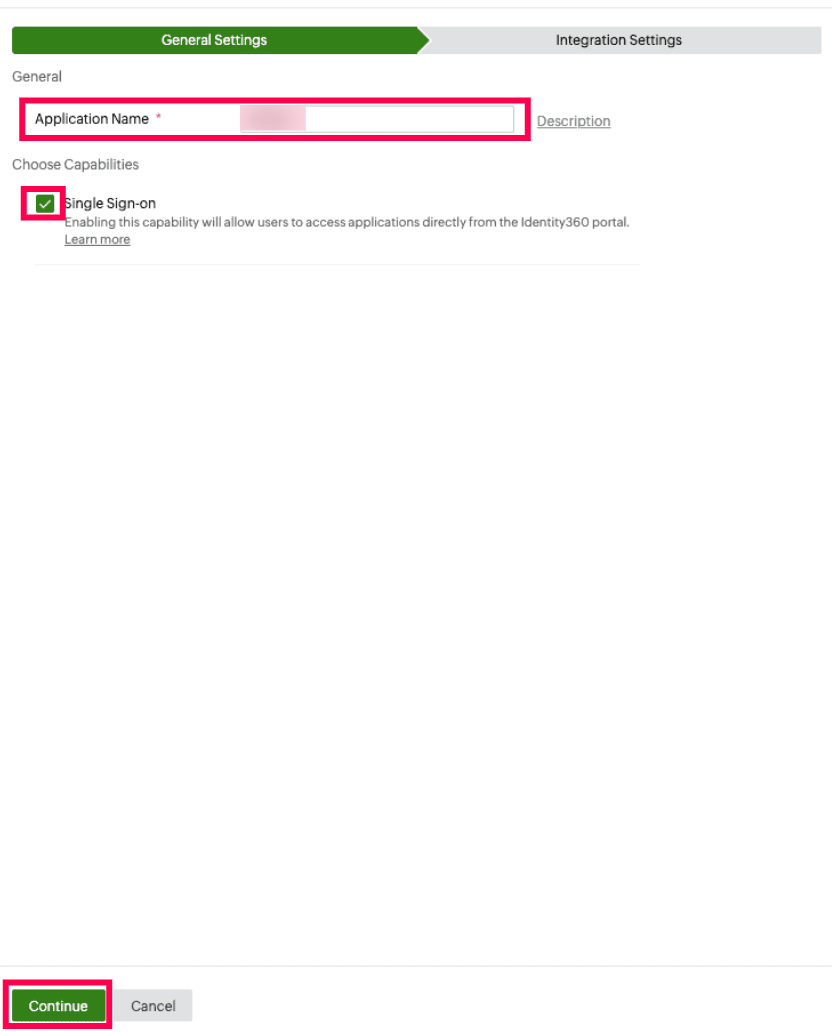 General Settings of SSO configuration for Zoho SalesIQ
- Under Integrations Settings tab, from Bookmark Configuration, select the respective Data Center.
Note: A data center is a facility that stores your enterprise data and from which the user can access the same. At Zoho, we host data in best-in-class data centers across the globe.
- Click Save.
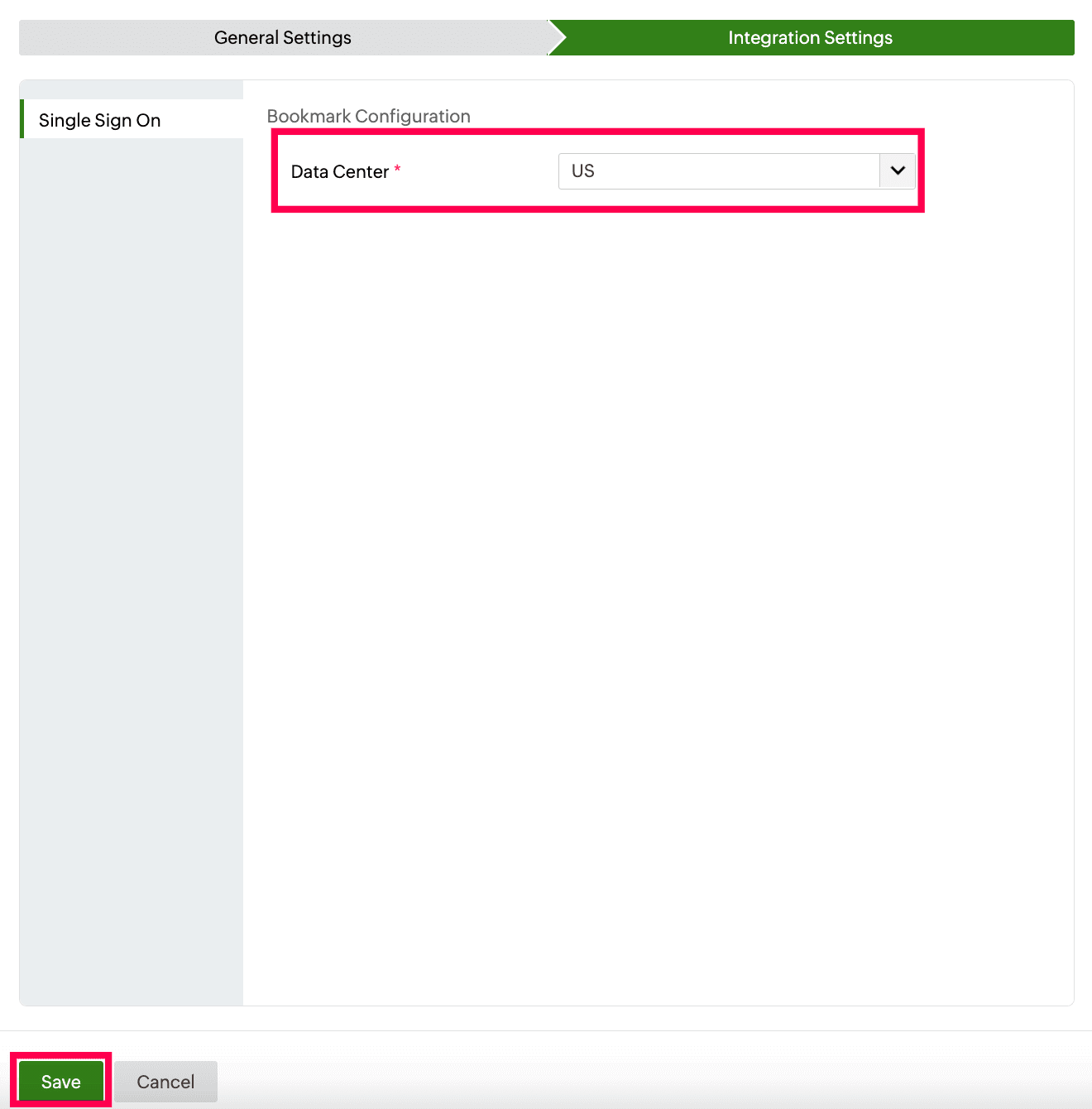 Data region selection for bookmark configuration of Zoho SalesIQ
To learn how to assign users or groups to one or more applications, refer to this page.
Note: No additional configuration settings are required on the Zoho SalesIQ end.
Steps to enable MFA for Zoho SalesIQ
Setting up MFA for Zoho SalesIQ using Identity360 involves the following steps:
- Set up one or more authenticators for identity verification when users attempt to log in to Zoho Mail. Identity360 supports various authenticators, including Google Authenticator, Zoho OneAuth, and email-based verification codes. Click here for steps to set up the different authenticators.
- Integrate Zoho SalesIQ with Identity360 by configuring SSO using the steps listed here.
- Now, activate MFA for Zoho SalesIQ by following the steps mentioned here.
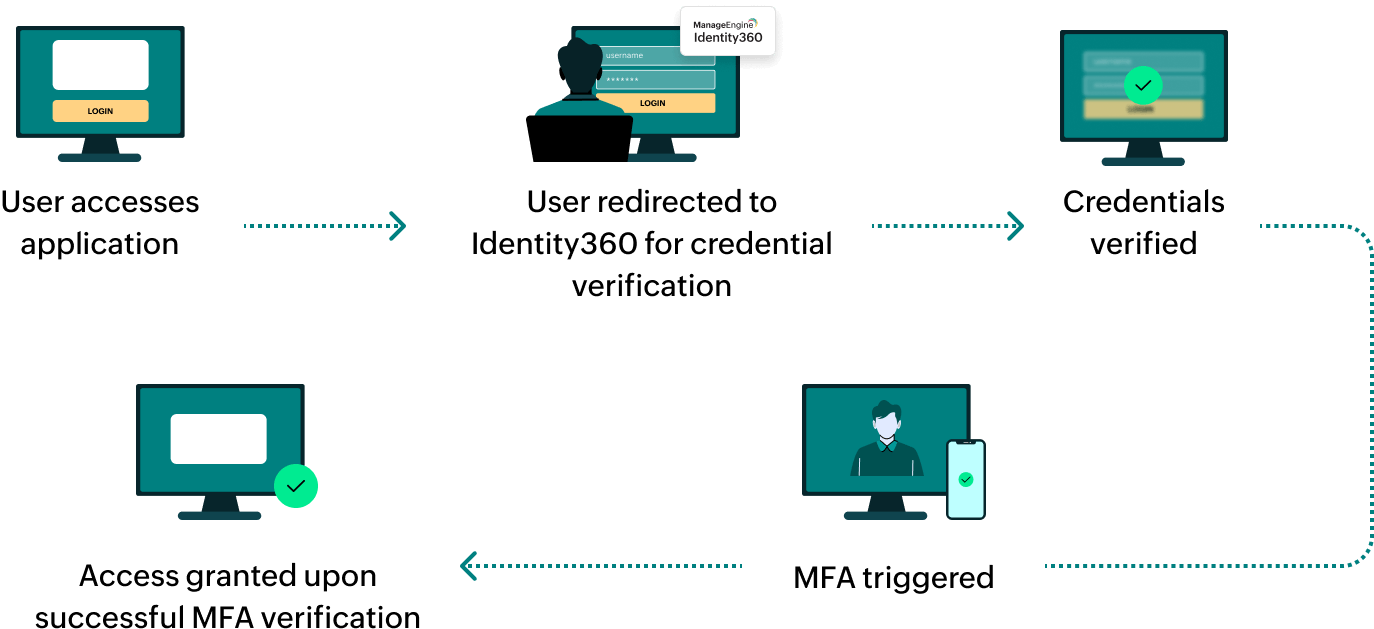
How does MFA for applications work in Identity360?