
Playbook library overview
Last updated on:
In this page
- Overview
- Key capabilities
- Workflow architecture
- Types of playbooks in the library
- Playbook library in the playbook lifecycle
- Accessing the playbook library
- Understanding prerequisites and requirements
- Extensions from marketplace
- Sub-playbooks used
- Requirement status and validation
Overview
The playbook library is the central catalogue of ready-to-use automation playbooks available in Log360 Cloud. It brings together all playbooks that are bundled with the product, as well as playbooks shipped through extensions, into a single, organized view. From this page, administrators and operators can discover which playbooks are available for their environment, understand what each one does, review its scope and requirements, and decide which playbooks to bring into their workspace.
Rather than building automation from scratch, you can browse the Playbook Library to find pre-built workflows that address common investigation and response scenarios—such as IP enrichment, user remediation, endpoint isolation, cloud instance control, or advanced hunting with endpoint security products. Each playbook in the library is developed by Log360's internal technical team or by extension vendors, and is based on standard security controls and best practices.
Key capabilities
The playbook library is designed to answer a few core questions for a security team before they commit to using an automation workflow:
- What playbooks are available for my environment?
You can see all built-in playbooks that ship with Log360 Cloud and all playbooks that come from installed extensions.
- What does this playbook actually do?
Each playbook has a detailed description, tags, and a visual preview of its workflow, so you can understand its purpose and logic at a glance.
- Where can this playbook be used?
The “applies to” information specifies where the playbook can be executed from alert/incident within the product.
- What does this playbook depend on?
A dedicated requirement section shows whether you need any extensions which has required functions, or sub-playbooks before you can use the playbook, and whether those requirements are already satisfied in your setup.
- Who created this playbook, and can I modify it?
The development source clarifies whether the playbook was built by the ManageEngine technical team or an extension vendor. Once a playbook is imported, it can be edited and tailored to your requirements; the library itself focuses on the pre-import view.
These capabilities help you make informed decisions about which playbooks to adopt and how they might fit into your existing incident response workflows.
Workflow architecture
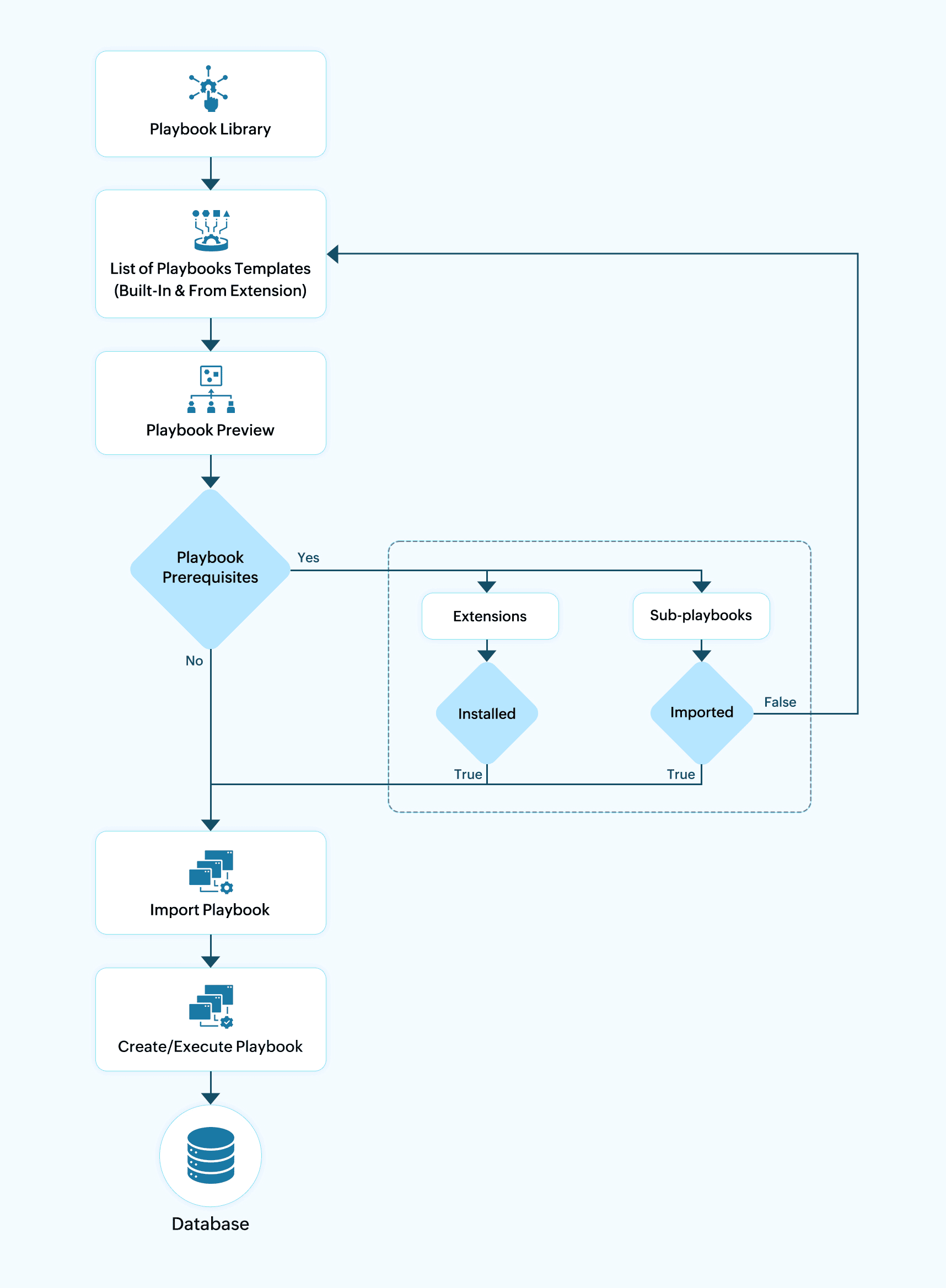
Types of playbooks in the library
The library separates playbooks by their origin and dependency model, so you can quickly identify what is available out-of-the-box and what is unlocked through extensions.
Built-in playbooks are sourced from ManageEngine's CDN, ensuring that the latest playbook definitions maintained by the internal technical team are always available in the library.
Built-in playbooks
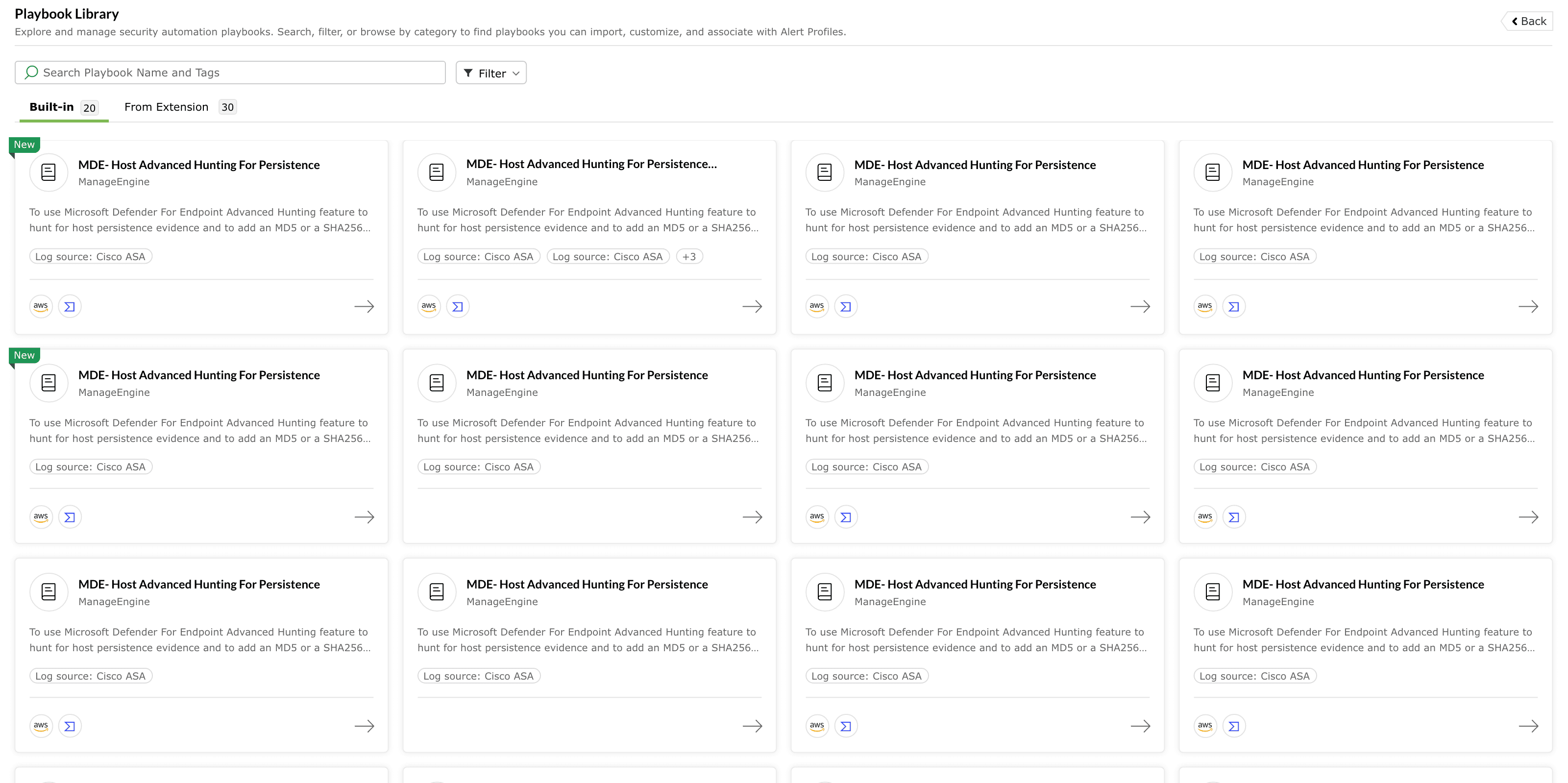
Built-in playbooks are shipped as part of Log360 and are maintained by ManageEngine’s internal technical team. They are typically designed to address recurring security operations patterns such as:
- Enriching and remediating suspicious IPs.
- Investigating persistence indicators on hosts.
- Performing user-oriented remediation actions.
Characteristics of built-in playbooks:
- They are always visible under the Built-in section of the library.
- They are developed, tested, and updated by ManageEngine.
- They can be imported multiple times and adapted to your environment after import.
When you select a built-in playbook, the detail page will explicitly mention that it is developed by ManageEngine. You can rely on this label to distinguish vendor-maintained content from extension-provided content.
Playbooks from extensions
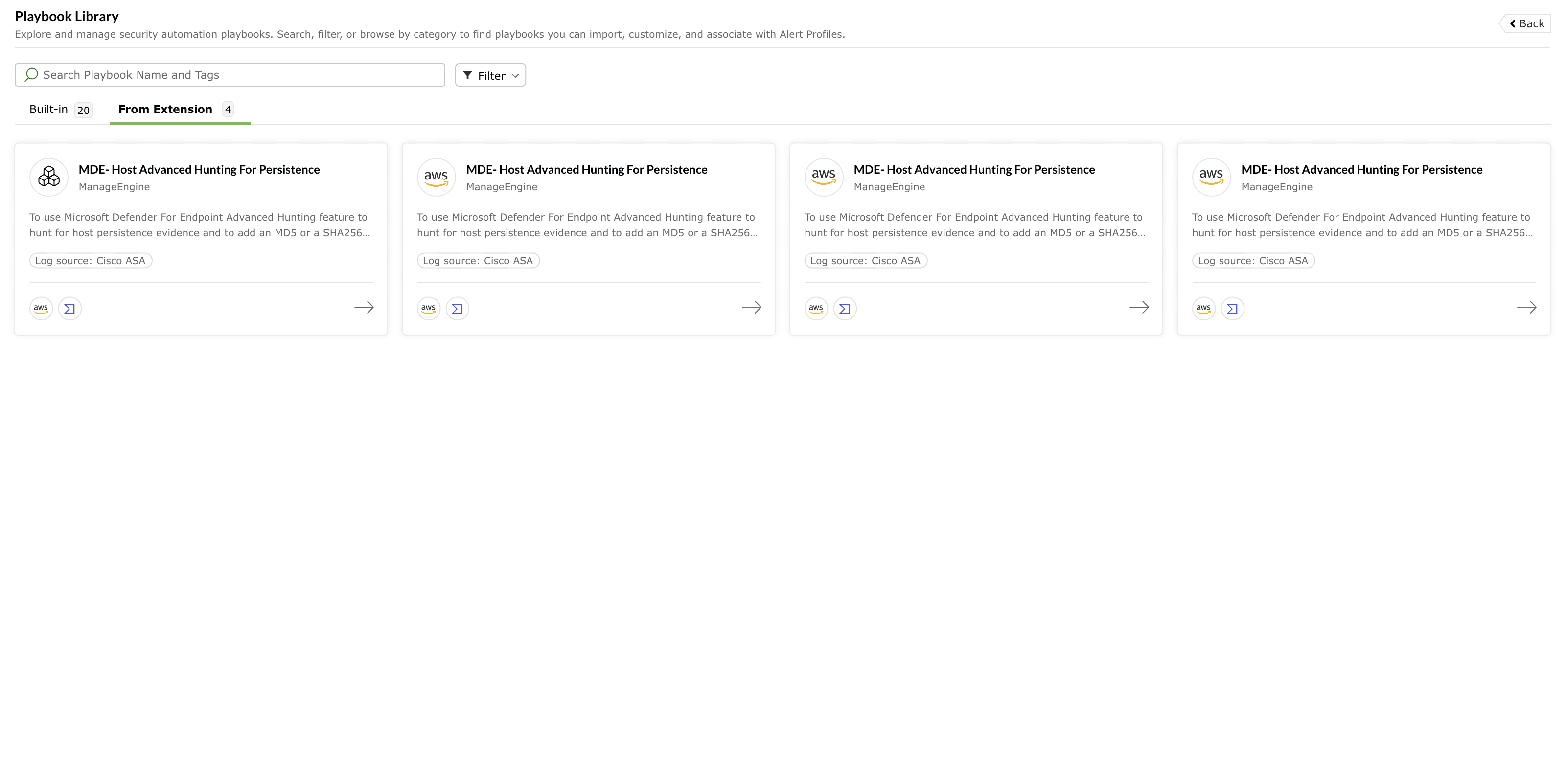
Extension-based playbooks are provided through integrations installed from the Extensions Marketplace. These playbooks leverage external systems and APIs such as:
- Cloud providers (for example, AWS).
- Threat intelligence or reputation services.
- Endpoint or security platforms that expose remediation actions.
Characteristics of extension playbooks:
- They appear under the From Extension section of the library.
- Their availability depends on which extensions are installed in your environment.
- They may require specific functions or versions to be present in the corresponding extension before import.
If you have not installed any extension that provides playbooks, the From Extension section will show an informational empty state prompting you to explore the Extensions Marketplace. This makes it clear that additional automation becomes available once the relevant integrations are in place.
Playbook library in the playbook lifecycle
The library is the first touchpoint in the playbook lifecycle. At a high level:
- Discovery - You browse the Playbook Library to see what playbooks are available, which entities and log sources they apply to, and how they behave.
- Readiness assessment - You check prerequisites, such as whether the required extensions and sub-playbooks are present in your environment.
- Import decision - Once you are comfortable with the behavior and requirements of a playbook, you proceed to import it into your own workspace.
- Customization and execution - After import, you can adjust certain details to match your environment and then run the playbook or associate it with alerts.
Accessing the playbook library
Playbook listing view
The primary playbook library view displays available playbooks as a grid or list of cards. Each card gives you enough information to decide whether you want to inspect the playbook further.
Typical elements on a playbook card include:
- Playbook name - The title of the automation workflow. This often reflects the main action or scenario (for example, “IP Enrichment and Remediation”, or “MDE - Host Advanced Hunting for Persistence”).
- Short description - A concise explanation of the playbook's purpose, usually one or two sentences that describe what the playbook achieves and which tools or services it interacts with.
- Source and developer - A label indicating whether the playbook is built-in or from an extension, along with the developer name (for example, ManageEngine or the extension vendor). Playbooks published under ManageEngine are created by our Detection Engineering team based on security controls and defensive measures from industry standards, leading cybersecurity frameworks, and modern SOC best practices.
- Tags and indicators - Visual tags that summarize important aspects such as log source, entity type (e.g., IP, user.) When the playbook is associated with a large number of tags or mappings, the UI groups them and can display a “+N” indicator; hovering over this reveals the full set of tags in a pop-over for better readability. If a playbook includes MITRE ATT&CK and/or MITRE D3FEND mappings, the associated tactics and techniques are displayed in the Tags section of the detail view to help analysts understand its security context.
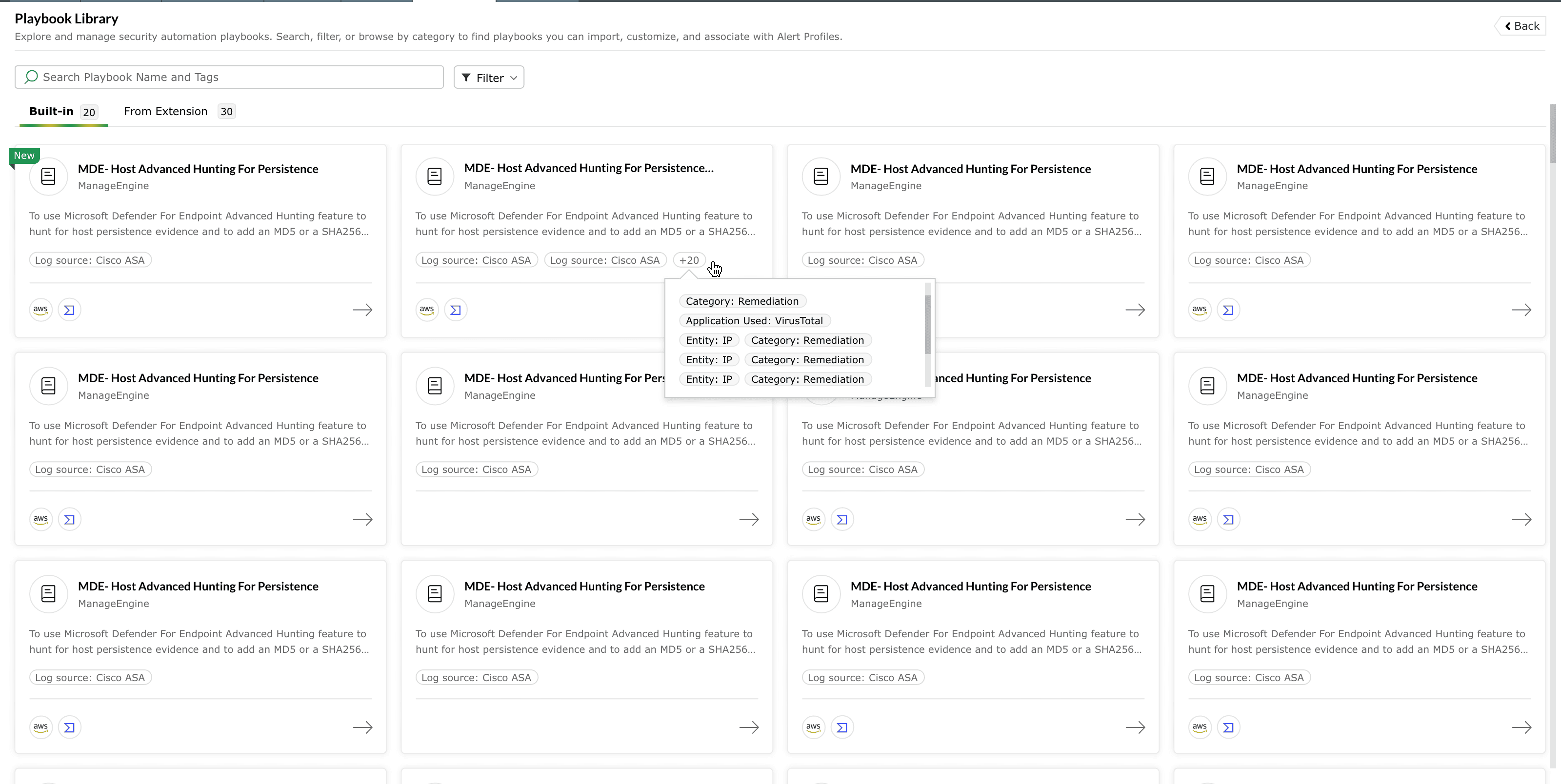
Image : Tags of a playbook available in ManageEngine Log360 Cloud - “New” marker for recently added playbooks - Newly released playbooks are highlighted with a “New” label on the card, so you can quickly discover the latest additions to the library without having to scan change logs.
This card-based overview is designed to give you a quick, comparable summary of playbooks across both tabs. You can skim through the list to find playbooks relevant to a particular technology stack or response scenario, then open the ones that interest you for more detailed inspection.
Searching and filtering playbooks
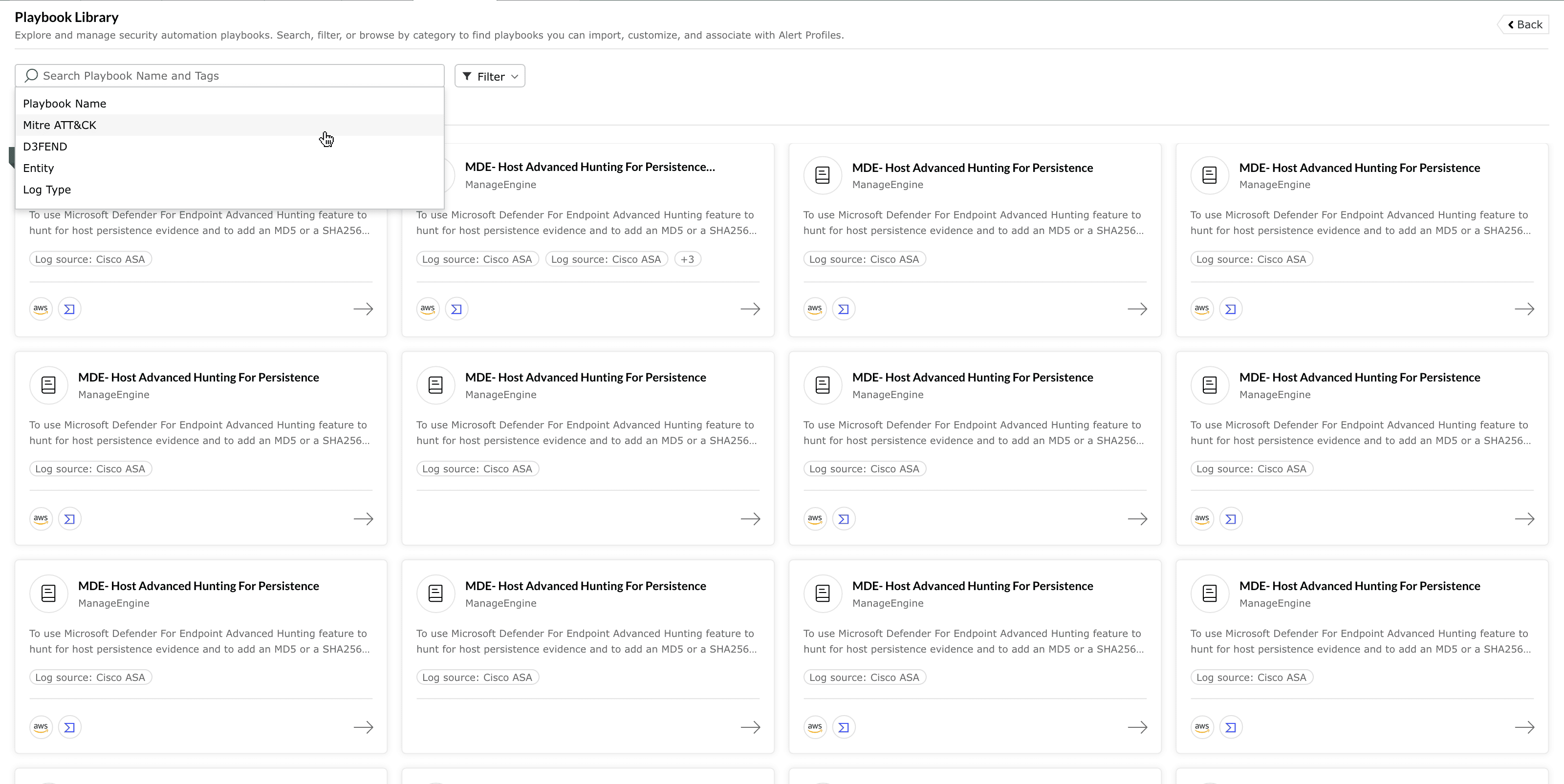
The Playbook Library includes a search bar and a configurable filter panel so that you can focus on a subset of playbooks instead of browsing the complete catalogue.
Search
The search bar lets you look up playbooks by name and tags. This is useful when you already have a scenario or vendor in mind—for example, you might search for “AWS” to find playbooks related to AWS resources, or search for “IP enrichment” to discover all workflows that perform IP reputation checks and remediation.
As you enter a search term, the list is narrowed down to only those playbooks that match your criteria. If no playbooks match, the interface displays a clear “no results” message along with an option to clear the search and return to the full listing.
Filter options
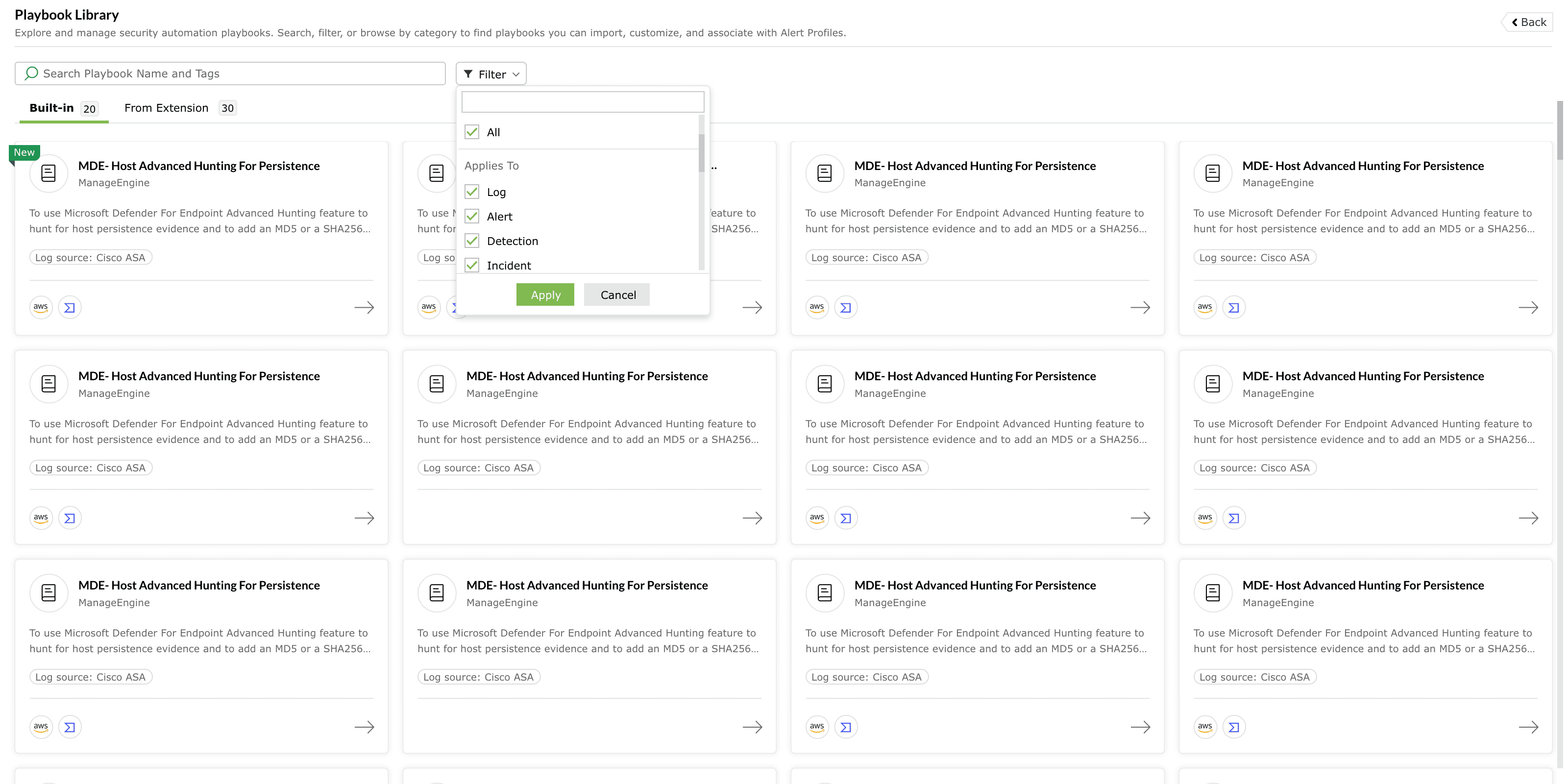
The filter section lets you refine results based on criteria such as:
- Playbook activity - You can distinguish between playbooks that have already been imported into your workspace and those that are not imported . This is helpful when you want to discover new automation, or when you want to review what is already in use.
- Installed extensions - When multiple extensions are installed, you can filter to show only playbooks associated with a particular extension or integration. For example, you might filter for a specific endpoint tool or cloud provider to see all the playbooks that leverage that integration.
- Additionally, you can also apply the filter based on the Applies to field configuration and New playbooks released.
Filters are applied on top of the currently selected tab (Built-in or From Extension) and search term, so you can combine these mechanisms to narrow down the list as finely as needed.
Playbook detail view
When you select a playbook from the library, the product opens a dedicated detail page for that playbook. This view gives you all the information you need to understand what the playbook does, where it can be used, and what it requires from your environment before you import it.
It provides additional context about the playbook, such as the type of investigation or remediation scenario it is designed to handle. This section helps analysts understand the overall objective of automation.
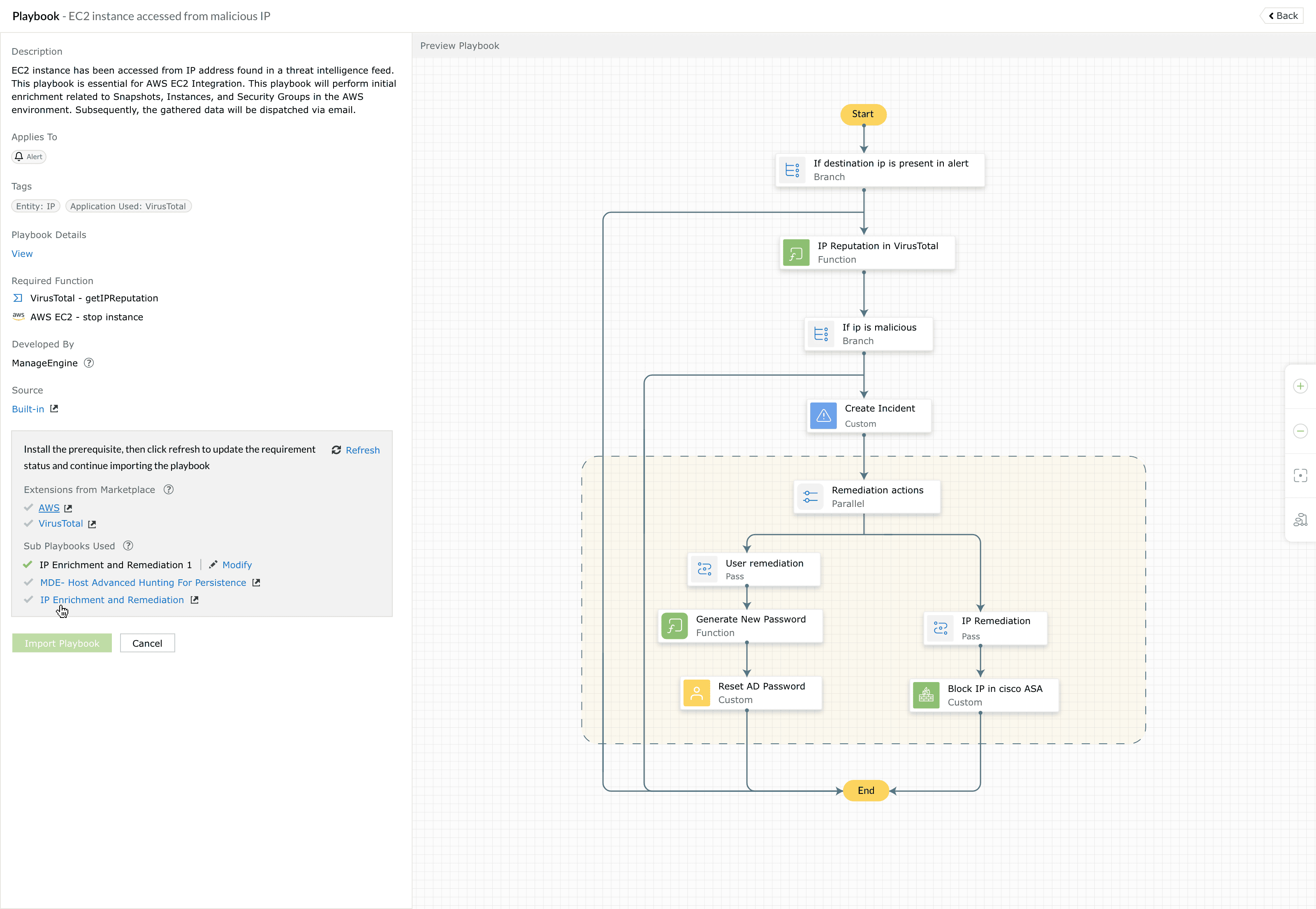
- Description - A brief explanation of the problem the playbook addresses and the actions it performs, such as enriching a suspicious IP, creating an incident, blocking the IP in a firewall, and notifying stakeholders.
- Applies to - This portion clarifies where in your environment the playbook is applicable. It specifies the type of data used by the playbook, such as the log source or alert source.
- Tags and mappings - The detail page might include a structured tag section that groups metadata such as entity type, application used, and possibly tactic/technique mappings to MITRE ATT&CK and/or MITRE D3FEND, if the playbook aligns with a known framework. These tags are reused in search and filter operations elsewhere in the library.
- Developed by and source - A label indicating whether the playbook is built-in or from an extension, along with the developer name (ManageEngine or the extension vendor). Playbooks published under ManageEngine are developed by the Detection Engineering team based on industry standards, cybersecurity frameworks, and SOC best practices, and can be customized after import.
Additionally, the below details can be accessed when you click on View present under the Playbook Details. These insights vary depending on the playbook configuration.
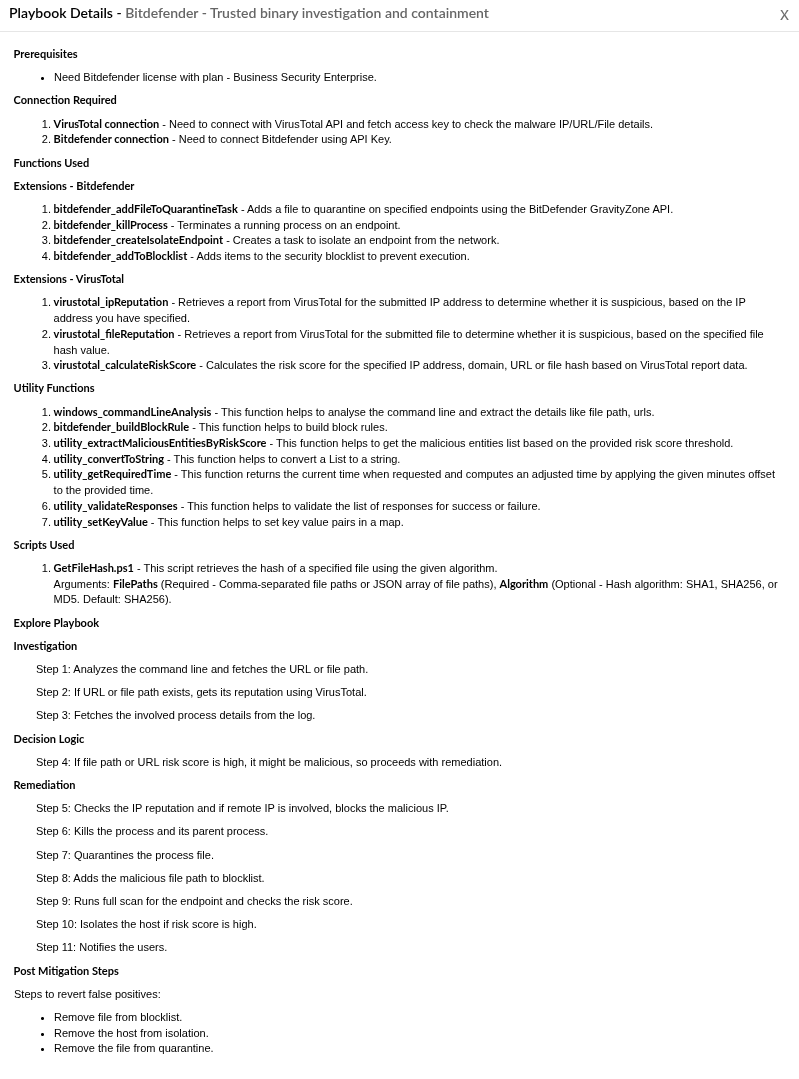
- Prerequisites - Lists the requirements that must be satisfied before the playbook can execute successfully. These may include administrative permissions, credentials, access rights, or environment configurations.
- Connection Required - Specifies the external service connections required by the playbook. These connections typically provide authenticated access to third-party platforms, APIs, or security tools used during automation.
- Functions Used - Identifies any reusable custom or built-in functions invoked by the playbook. Functions encapsulate specific logic or actions that are executed as part of the playbook workflow.
- Scripts Used - Lists the scripts used by the playbook to perform endpoint or system-level operations. These scripts may run on target systems to collect data, enforce remediation actions, or automate administrative tasks.
- Explore Playbook - Describes the sequence of automated actions performed by the playbook. This section outlines how the playbook processes inputs, evaluates conditions, and executes response steps during runtime.
- Post Mitigation Steps - Describes the recommended follow-up activities after the playbook completes its automated response. These steps help ensure that the environment is fully secured and that related threats are investigated further.
Understanding prerequisites and requirements
One of the core responsibilities of the Playbook Library is to surface all of the requirements that must be met before a playbook can be imported into your workspace. This is handled by a dedicated requirement section on the detail page, which pulls together different types of dependencies.
Broadly, the requirement section addresses the below concerns:
- Whether the necessary extensions are present.
- Whether any dependent sub-playbooks exist and are correctly associated.
Extensions from marketplace
For playbooks that rely on specific extensions, the library checks for the presence and health of those extensions. The requirement section indicates:
- Which extension(s) the playbook depends on.
- Whether they are already installed.
- Indicates whether the installed extension version is up to date or requires an update.
If a required extension is missing, the requirement section indicates that you need to install the extension from the marketplace. If the extension is already installed, the required functions are automatically made available, and an update is prompted only when the installed extension version differs from the required version. Once the extension is installed or updated, the requirement status allows you to proceed with the import.
Sub-playbooks used
Some playbooks are built on top of other playbooks. These “sub-playbooks” are reusable building blocks that encapsulate a smaller, focused automation sequence (for example, a generic IP enrichment and remediation routine that can be reused by multiple higher-level playbooks).
When a playbook uses sub-playbooks, the requirement section lists each one. The library also takes into account that multiple versions of a sub-playbook may exist in your environment:
- If only one suitable version is available, it is typically associated automatically.
- If several versions are installed, the detail view lets you choose which version should be used when this playbook runs.
- If no matching sub-playbook is presently available, the requirement section indicates that you need to import and create it in your workspace before this playbook can be imported.
By surfacing sub-playbook dependencies upfront, the library avoids surprises later and encourages a modular, reusable approach to automation design.
Requirement status and validation
The requirement section as a whole provides you with a clear, consolidated view of whether the playbook is ready to be imported into your environment or whether further preparation is needed. While the exact visual cues may include icons or status messages, the intent is simple:
- When all extension , and sub-playbook requirements are satisfied, the requirement section confirms that the playbook is ready to be installed.
- When one or more requirements are not met, the section explains what is missing and where to resolve it (for example, in the extensions marketplace).
Playbooks available in the library act as starting points rather than fixed, unchangeable logic. A single playbook in the library can be:
- Imported more than once, if you want multiple variations of that workflow for different contexts.
- Customized after import, so you can fine-tune conditions, actions, or integrations as required by your environment.
The playbook library therefore serves as a catalogue of reusable designs. It is explicitly not a repository of hard-coded templates; instead, it provides carefully prepared baselines that you are encouraged to adapt. This distinction is reflected in how the documentation and UI avoid template terminology while still highlighting that the underlying logic is editable after import.
Read also
This page explained how the playbook library helps you evaluate available automation workflows before importing them. To understand more about playbooks and installing, creating and managing them, refer to the below help documents: