Optimized features for monitoring large scale networks
Enterprise edition users can enable the following optmized features depending on the monitoring requirements of their large networks. The functionalities of the features have been discussed below.
Unified Console
This feature enables IT admins to perform various network monitoring actions across the Probes from the Central's UI. For example, you can perform network discovery and view real time monitoring data of your distributed network from the Central server. You can also view a particular Probe's UI on the Central server by selecting the specific Probe from the dropdown.
If any connected Probe is down, status can be viewed in the dropdown menu. Customers (using OpManager build versions 126322 and older) who want this feature for their monitoring requirements can enable this with just a few clicks.
How to enable Unified Console?
- In OpManager Central, navigate to Settings > General Settings > System Settings.
- Click on Enterprise Settings
- Enable Unified Console.
When this option is enabled, users (APM plugin and BV) created in the Central will be synced across the Probes.

Centralized Configuration
Centralized configuration enables you to manage and apply settings across multiple probes from a central server, eliminating the need for individual probe-level configuration.
In a probe-based setup, applying the same configuration across probes typically requires logging in to each probe, which can be time-consuming. To simplify this, OpManager allows you to configure settings in the central server and push them to selected probes.
For example, if a users wants to update the mail server settings, Go to settings → General settings → Mail server settings.
After configuring Mail Server settings, click Save.
Users will now be prompted to associate the updated configuration with specific probes. Select the required probes and click Associate to apply the changes.
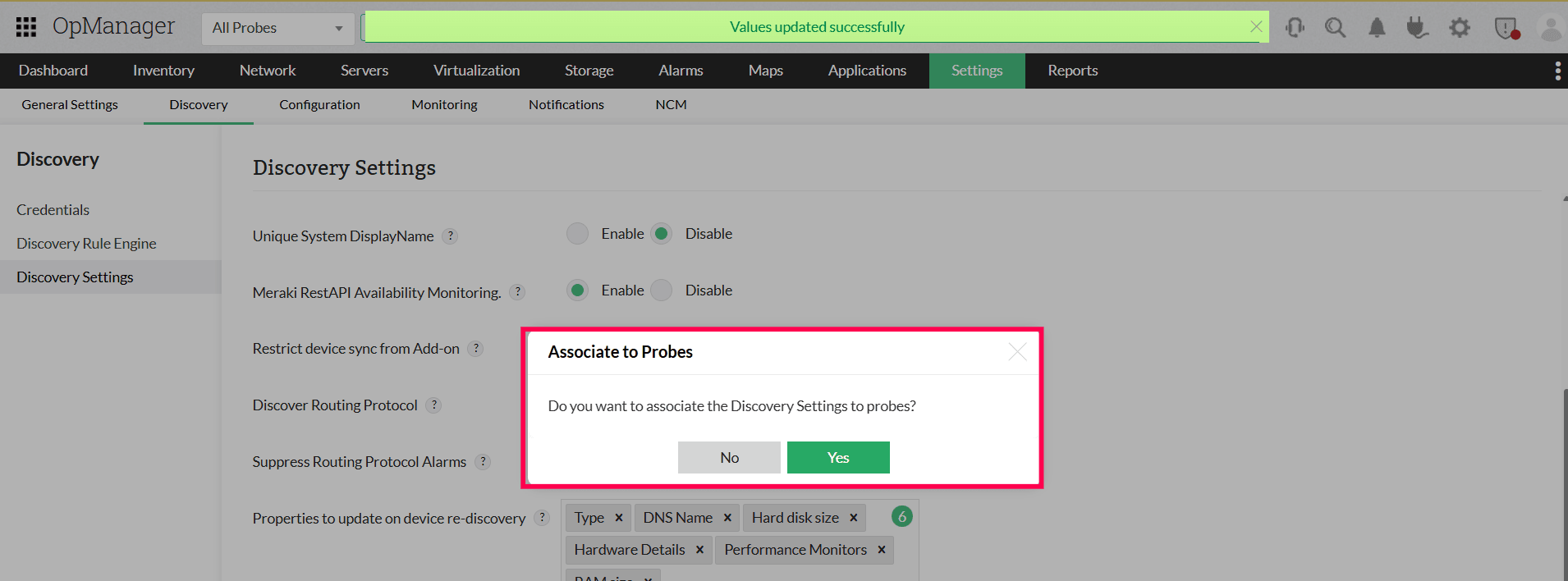
Alternatively, to apply configurations across all probes by default, navigate to System Settings → Enterprise Settings → Centralized Settings. Enable centralized configuration for the required modules and save the changes. Once enabled, the configuration will be applied to all probes.
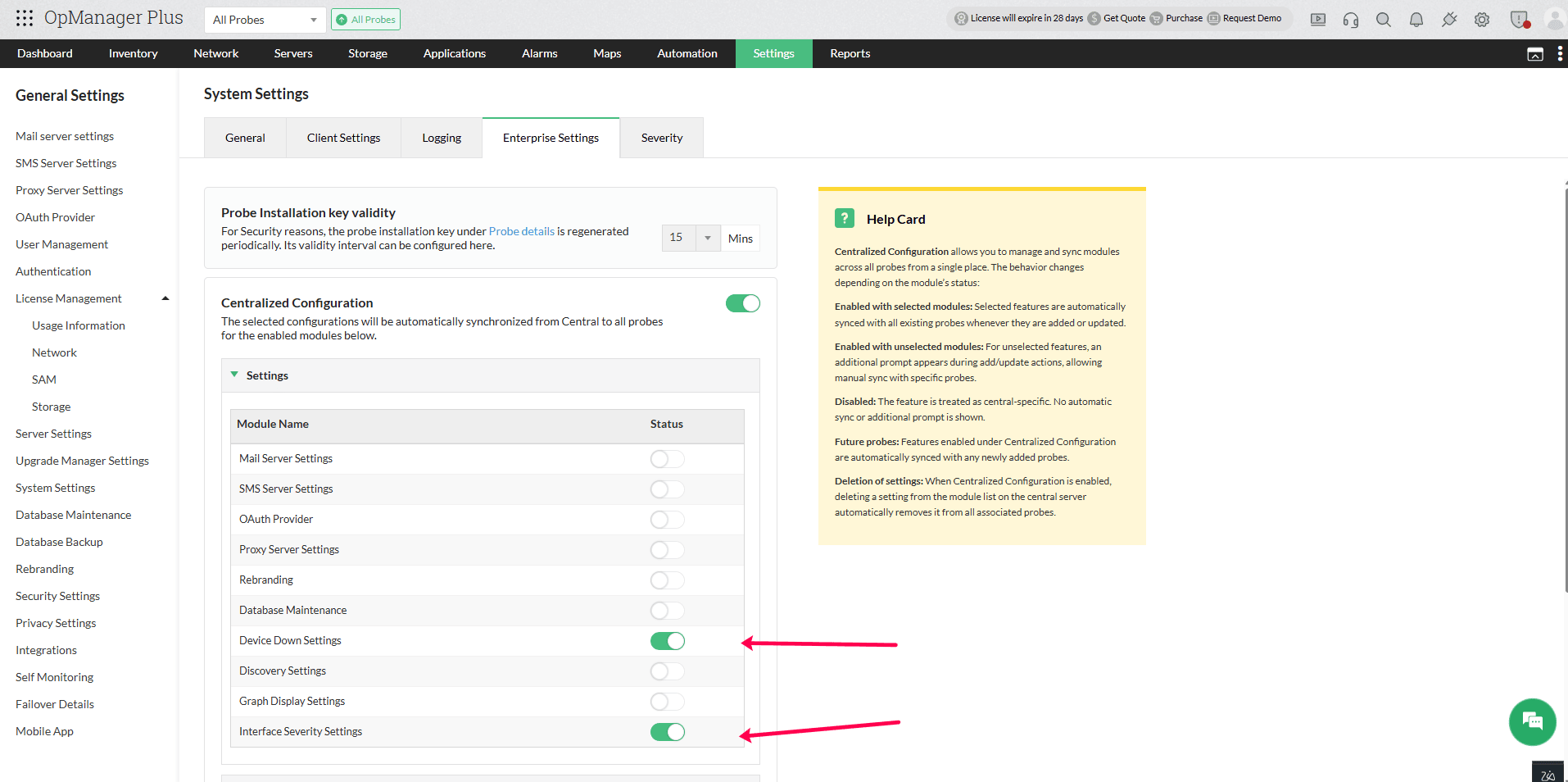
Note:
1. Ensure you click Save after making any changes. Configurations will not be pushed to probes unless they are saved.
2. When you push the configurations from central to probe, the changes will automatically be reflected.
The following configurations can be applied in the Central and synced to all the connected Probes by enabling this feature for users using build versions 12.8.608 and above.
- Credential Management
- Mail Server Settings
- OAuth Settings
- SMS Server Settings
- Rebranding
- Proxy Server Settings
- Database Maintenance Settings
- Graph Display Settings
- Discovery Settings
- Device Down Settings (from build versions 12.8.703)
- Interface Severity Settings (from build versions 12.8.703)
- Discovery Rule Engine (from build versions 12.9.105)
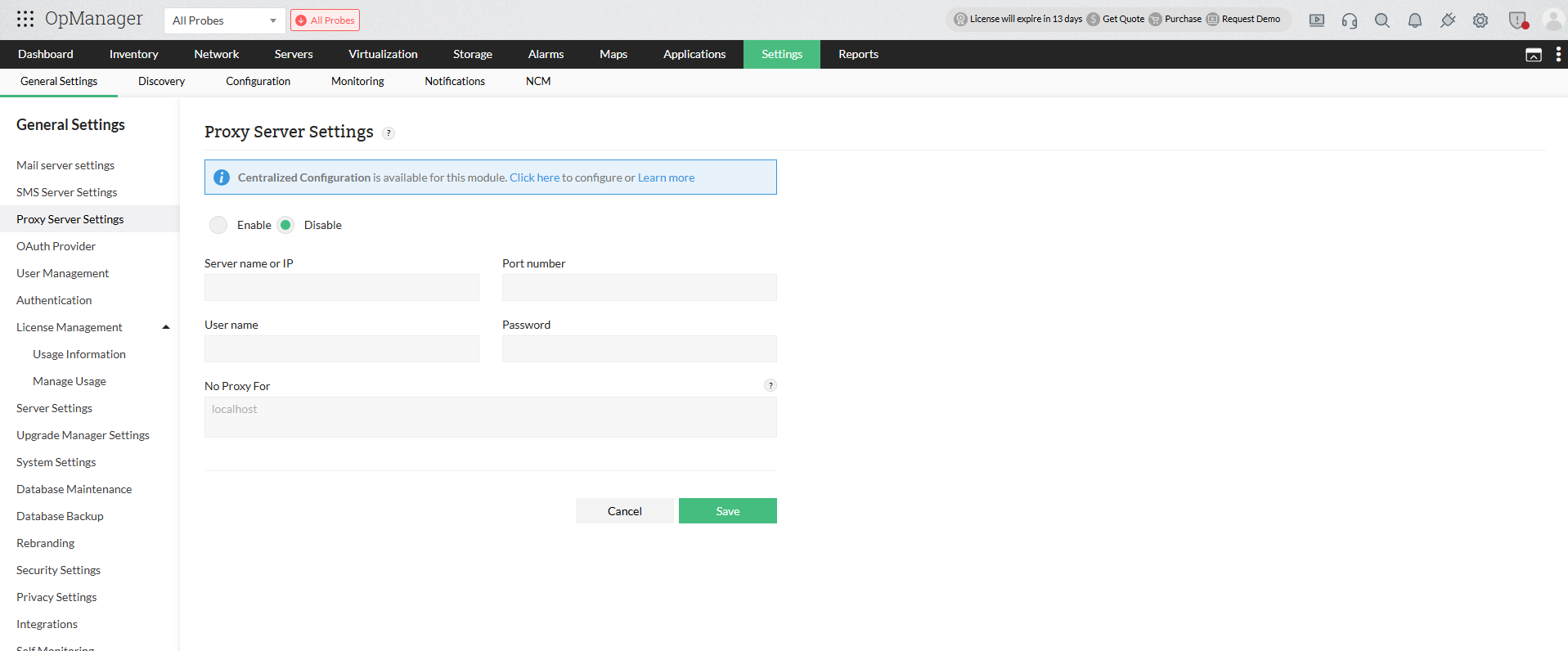
Note: A blue banner will be displayed at the top of modules that support centralized configuration. Once any changes are made (enable/disable), the banner will no longer be displayed.
The below configurations will be synced to all the connected probes and applied by default,
- User Management
- Custom Roles
- AD Authentication
- Radius Authentication
LiteCentral
You can enable the LiteCentral option if you plan to scale your network and monitor a greater number of devices. Click here to know about the maximum number of devices and interfaces that you can scale to using OpManager's Enterprise Lite Central.
When this option is enabled, the archived data (Reports) will be retained at the Probe level. However, a user can request (schedule) a report and the report data will be fetched from the respective Probe and will be generated in the Central server.
This option helps you to reduce the load on the Central server's database and in turn optimize its performance.
Please note that the LiteCentral option once enabled, cannot be disabled.