

- Free Edition
- Quick Links
- Active Directory Auditing
- Active Directory auditor
- Active Directory monitoring
- Account lockout analyzer
- Login monitoring software
- Active Directory change notifier
- User logon audit reports
- AD logon logoff tracker
- User logon failure auditing
- Login history tracking tool
- AD change auditor
- Insider threat detection software
- Permissions change auditing
- Entra ID reporting
- Privileged user monitoring
- User behavior analytics tool
- Active Directory security monitoring
- Group Policy auditing tool
- GPO change auditor
- Entra ID auditing
- Audit user account management
- OU change auditor
- Audit group membership changes
- Active Directory auditing and reporting tool
- GPO reporting tool
- Remote desktop monitoring software
- PowerShell logging and auditing
- Azure password protection auditing
- Azure sign-in risk detection
- File Server Auditing
- Windows Server Auditing
- Employee Tracking
- Workstations Auditing
- Compliance Auditing
- Other features
- SIEM Integration
- Windows DNS - Schema Auditing
- Windows security event log monitoring
- SIEM audit solution
- Schedule Active Directory change reports
- Reports from Archived Data
- Aggregated summary reports
- AD new/old attribute changes
- Audit trail
- Audit Active Directory LAPS
- Scheduled Reports & Alerts
- Account lockout examiner
- Industry
- Documents
- Success Stories
- Related Products
- Log360 (On-Premise | Cloud) Comprehensive SIEM and UEBA
- ADManager Plus Active Directory Management & Reporting
- EventLog Analyzer Real-time Log Analysis & Reporting
- ADSelfService Plus Identity security with MFA, SSO, and SSPR
- DataSecurity Plus File server auditing & data discovery
- Exchange Reporter Plus Exchange Server Auditing & Reporting
- M365 Manager Plus Microsoft 365 Management & Reporting Tool
- RecoveryManager Plus Enterprise backup and recovery tool
- SharePoint Manager Plus SharePoint Reporting and Auditing
- AD360 Integrated Identity & Access Management
- AD Free Tools Active Directory FREE Tools
How to change Group Policy Settings?
Group Policy is an easy way to configure computer and user settings on computers that are part of the domain. Windows offers a Group Policy management Console (GPMC) to manage and configure Group Policy settings.
Step 1- Log in to the domain controller as administrator
A standard domain user account is not in the local Administrators group and will not have the proper permissions to configure Group Policies.
Steps as follows:
Step 2 - Launch the Group Policy Management Tool
Choose Start → All Programs →Administrative Tools → Group Policy Management
Step 3 - Navigate to the desired OU
Group policy can be applied at domain level, OU level or at a site level. Navigate the forest to the default domain policies.
Step 4 - Edit the Group Policy
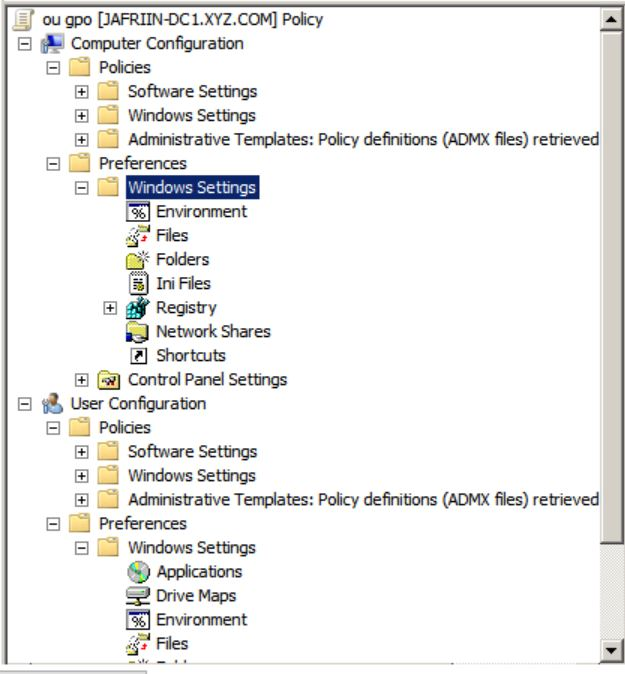
Right click on the desired GPO to edit the group policy settings. The group policy management console opens. Every GPO has two basic configurations :
- Computer configuration (applies to computers)
- User configuration (applies to user accounts)
Under each of these configurations are:
- Policies
- Preferences
Choose the configurations you wish to modify, and save them.
Finally, link your GPO to an OU. The group policy settings you have configured will take effect only if you link them to the appropriate container. It could be a domain, site or an organizational unit.