

- Free Edition
- Quick Links
- Active Directory Auditing
- Active Directory auditor
- Active Directory monitoring
- Account lockout analyzer
- Login monitoring software
- Active Directory change notifier
- User logon audit reports
- AD logon logoff tracker
- User logon failure auditing
- Login history tracking tool
- AD change auditor
- Insider threat detection software
- Permissions change auditing
- Entra ID reporting
- Privileged user monitoring
- User behavior analytics tool
- Active Directory security monitoring
- Group Policy auditing tool
- GPO change auditor
- Entra ID auditing
- Audit user account management
- OU change auditor
- Audit group membership changes
- Active Directory auditing and reporting tool
- GPO reporting tool
- Remote desktop monitoring software
- PowerShell logging and auditing
- Azure password protection auditing
- Azure sign-in risk detection
- File Server Auditing
- Windows Server Auditing
- Employee Tracking
- Workstations Auditing
- Compliance Auditing
- Other features
- SIEM Integration
- Windows DNS - Schema Auditing
- Windows security event log monitoring
- SIEM audit solution
- Schedule Active Directory change reports
- Reports from Archived Data
- Aggregated summary reports
- AD new/old attribute changes
- Audit trail
- Audit Active Directory LAPS
- Scheduled Reports & Alerts
- Account lockout examiner
- Industry
- Documents
- Success Stories
- Related Products
- Log360 (On-Premise | Cloud) Comprehensive SIEM and UEBA
- ADManager Plus Active Directory Management & Reporting
- EventLog Analyzer Real-time Log Analysis & Reporting
- ADSelfService Plus Identity security with MFA, SSO, and SSPR
- DataSecurity Plus File server auditing & data discovery
- Exchange Reporter Plus Exchange Server Auditing & Reporting
- M365 Manager Plus Microsoft 365 Management & Reporting Tool
- RecoveryManager Plus Enterprise backup and recovery tool
- SharePoint Manager Plus SharePoint Reporting and Auditing
- AD360 Integrated Identity & Access Management
- AD Free Tools Active Directory FREE Tools
How to set logon hours in Active Directory?
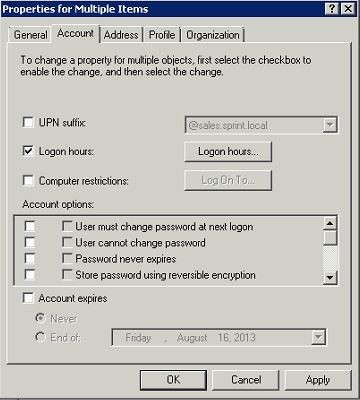
Logon hours restriction is done by editing a user's account in the following way:
- Open the user object whose account you want to restrict logon hours for.
- Select account tab and put a check against the Logon hours box. Click Logon hours button.
Click Logon hours button.
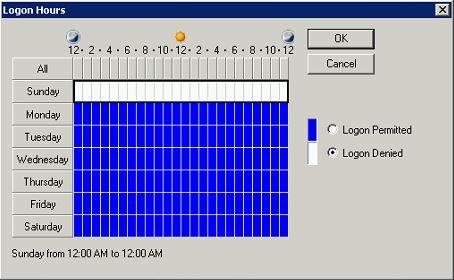
- In the next window, select the time that you want to restrict or allow them to logon.
Group policy allows you to lock a user out when their logon time expires. Follow the steps given below to configure this setting:
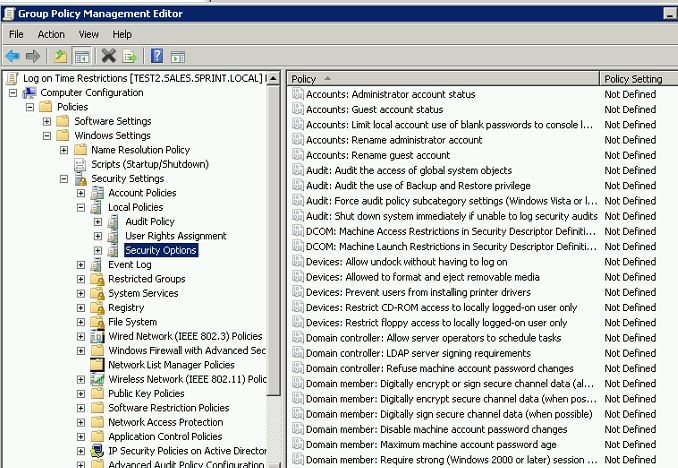
- Run → gpmc.msc and create a new GPO called "Logon restrictions" Right click on this GPO and click edit.
- Move to Computer configurations → Policies → Windows Settings → Security Settings → Local
Policies → Security Options.
- In the right pane of the Group Policy snap-in, double-click Microsoft network server: Disconnect clients when
logon hours expire. Click to select the Define this policy setting check box, click Enabled, and then click OK.
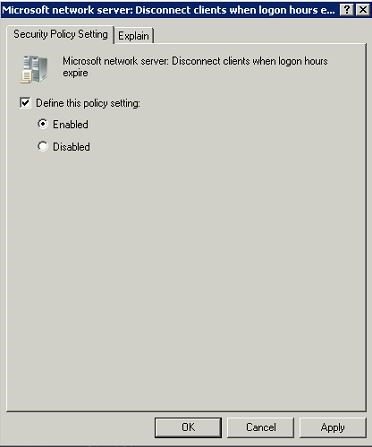
So using this GPO we can enforce clients to disconnect if there are active sessions running when the logon hours expire.