

- Free Edition
- Quick Links
- Active Directory Auditing
- Active Directory auditor
- Active Directory monitoring
- Account lockout analyzer
- Login monitoring software
- Active Directory change notifier
- User logon audit reports
- AD logon logoff tracker
- User logon failure auditing
- Login history tracking tool
- AD change auditor
- Insider threat detection software
- Permissions change auditing
- Entra ID reporting
- Privileged user monitoring
- User behavior analytics tool
- Active Directory security monitoring
- Group Policy auditing tool
- GPO change auditor
- Entra ID auditing
- Audit user account management
- OU change auditor
- Audit group membership changes
- Active Directory auditing and reporting tool
- GPO reporting tool
- Remote desktop monitoring software
- PowerShell logging and auditing
- Azure password protection auditing
- Azure sign-in risk detection
- File Server Auditing
- Windows Server Auditing
- Employee Tracking
- Workstations Auditing
- Compliance Auditing
- Other features
- SIEM Integration
- Windows DNS - Schema Auditing
- Windows security event log monitoring
- SIEM audit solution
- Schedule Active Directory change reports
- Reports from Archived Data
- Aggregated summary reports
- AD new/old attribute changes
- Audit trail
- Audit Active Directory LAPS
- Scheduled Reports & Alerts
- Account lockout examiner
- Industry
- Documents
- Success Stories
- Related Products
- Log360 (On-Premise | Cloud) Comprehensive SIEM and UEBA
- ADManager Plus Active Directory Management & Reporting
- EventLog Analyzer Real-time Log Analysis & Reporting
- ADSelfService Plus Identity security with MFA, SSO, and SSPR
- DataSecurity Plus File server auditing & data discovery
- Exchange Reporter Plus Exchange Server Auditing & Reporting
- M365 Manager Plus Microsoft 365 Management & Reporting Tool
- RecoveryManager Plus Enterprise backup and recovery tool
- SharePoint Manager Plus SharePoint Reporting and Auditing
- AD360 Integrated Identity & Access Management
- AD Free Tools Active Directory FREE Tools
How to setup a domain controller?
As the domain controller is vital for the functioning of Active Directory, configuration should be done carefully to avoid any errors. Follow the steps below to make sure your domain controller is set up perfectly.
Before you begin, ensure you assign static IP address to your Domain Controller to help Active Directory objects locate the Domain Controller easily.
Step 1: Install Active Directory Domain Services (ADDS)
Log into your Active Directory Server with administrative credentials.
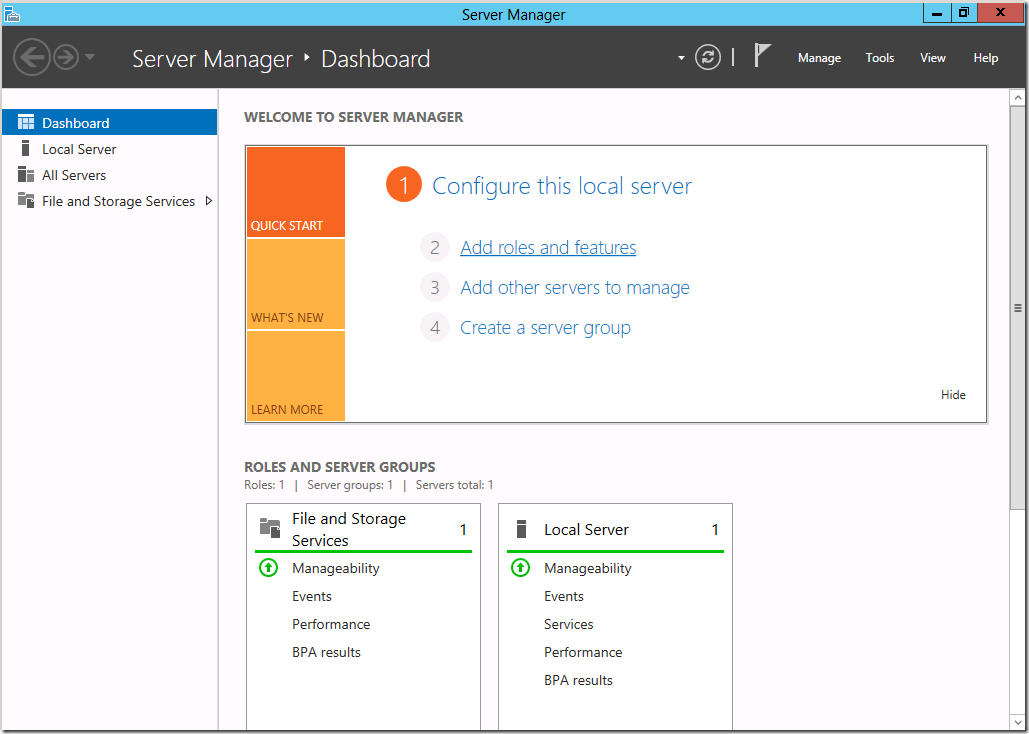
Open Server Manager → Roles Summary → Add roles and features
The "Before you begin" screen, which pops up next, is purely for an informational purpose. You may read through it and click "next".
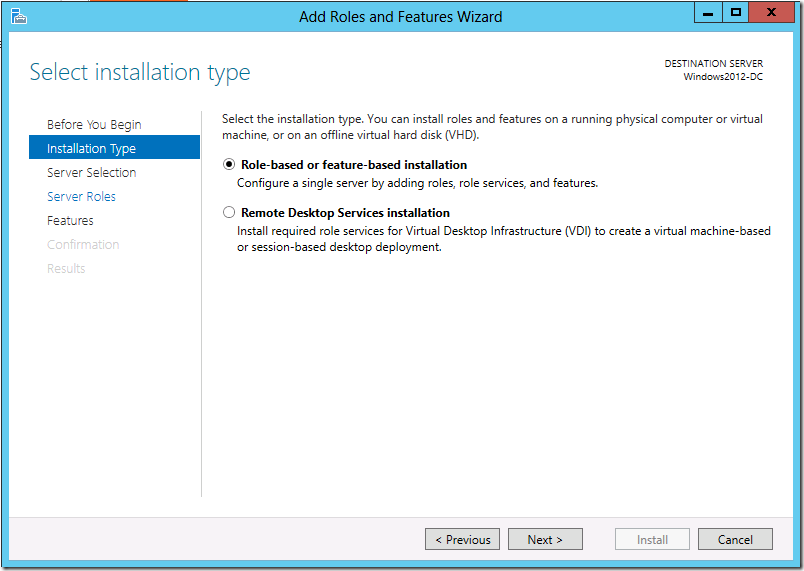
Select the installation type. If you're going to deploy your DC in a virtual machine, choose Remote Desktop Services installation. Else, choose Role-based or Feature-based installation.
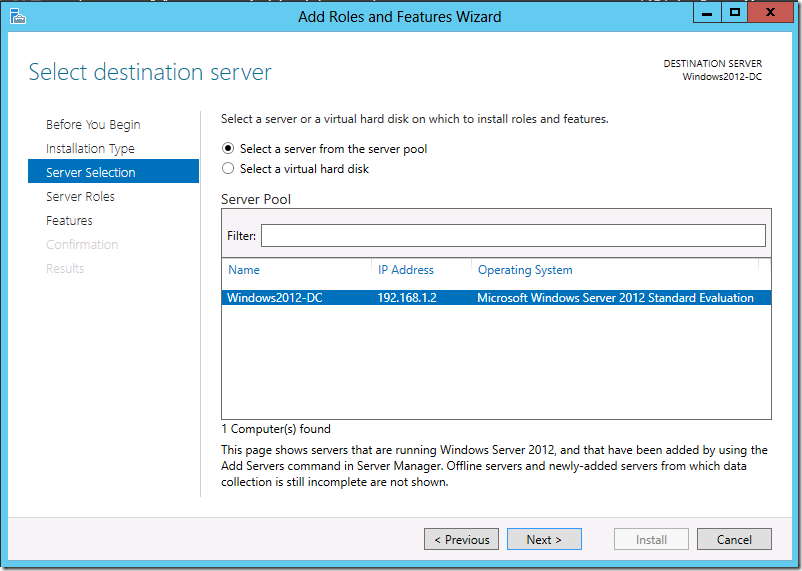
Now, select the destination server on which the role will be installed. Make sure the IP address points to the selected server. Else, close the server manager and retry.
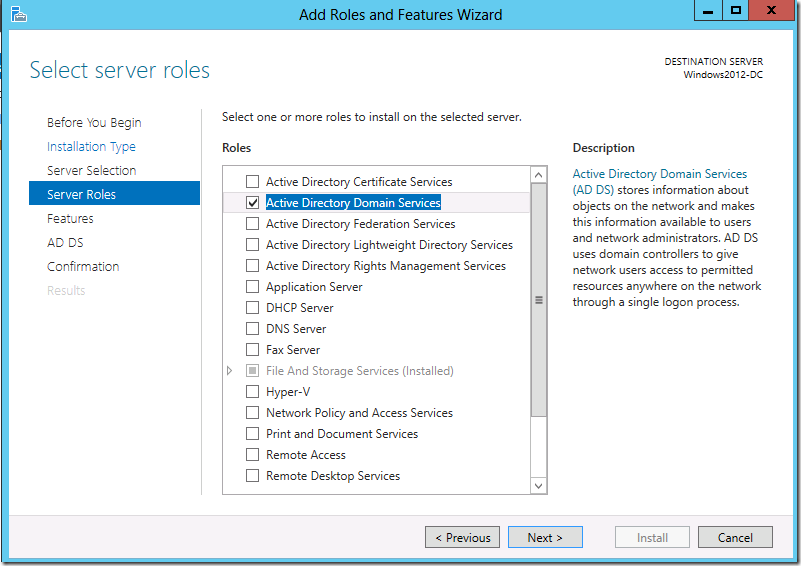
Select the roles you want to install on this server. The basic requirements to promote this server into a domain controller is Active Directory Domain Services.
The basic features required for proper functioning of this role are selected by default. Click next to install them.
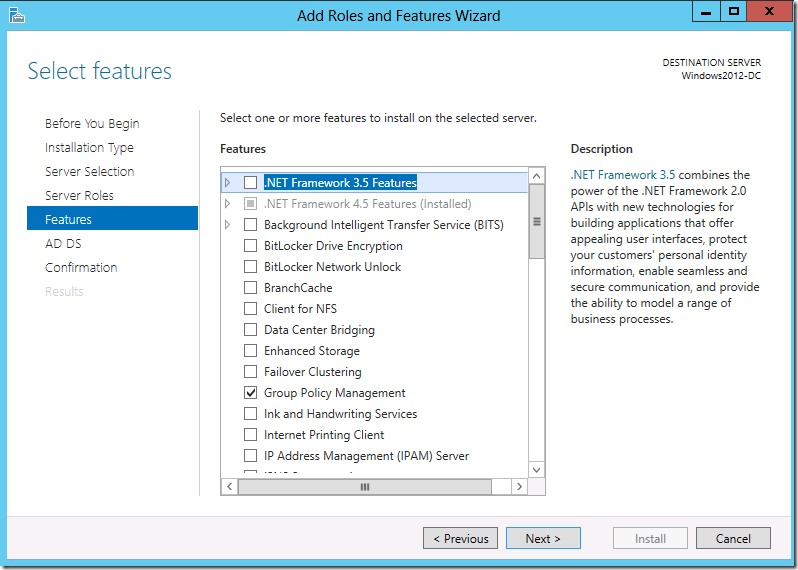
Confirm your installation selections. It is recommended to select the "Restart the destination server automatically if required" button. Select "Install" and once installation is complete, close the window.
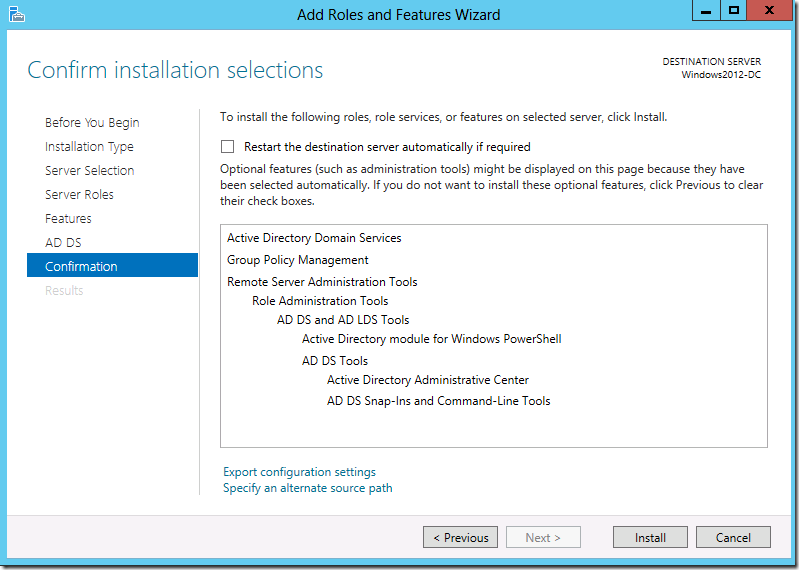
Step 2: Promote the server into a domain controller
Once the ADDS role is installed in this server, you will see a notification flag next to the Manage menu. Select "Promote this server into a domain controller"
Select “Add a new forest” and enter Root domain name. This domain name will also be the forest name.
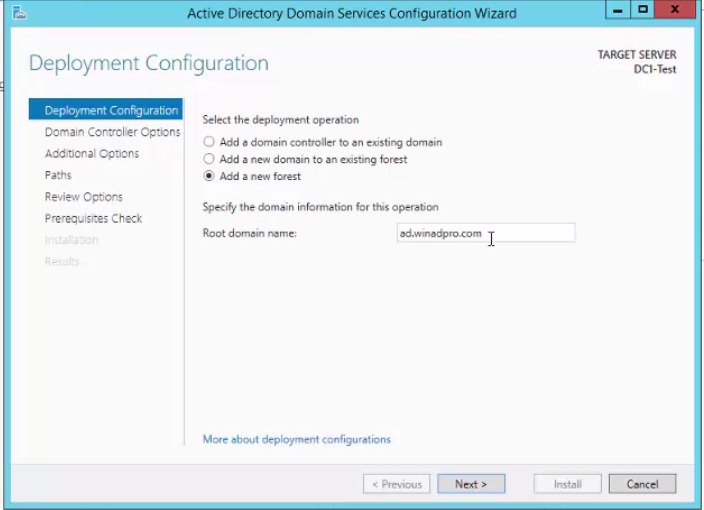
Select a forest functional level and a domain functional level of your choice. Ensure that the domain functional level is equal to or higher than the forest functional level. Since this is the first domain controller, it automatically becomes the DNS server and also the Global Catalog (GC).
Enter a unique Active Directory Restore Mode password used to retrieve Active Directory data.
Since a DNS Server is being configured as part of our efforts, you’ll be warned that a delegation for this DNS server cannot be created. This can be safely ignored.
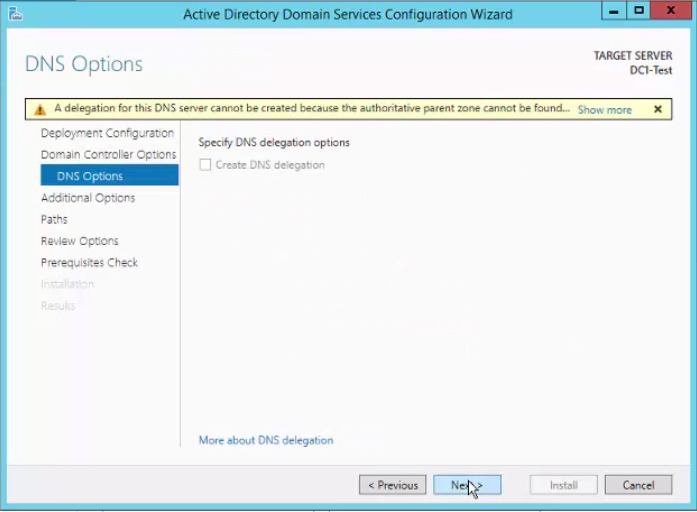
Enter a NetBIOS name for your domain. It is preferable to match the NetBIOS name with the root domain name. For more information on NetBIOS name restrictions, see
https://support.microsoft.com/en-us/kb/909264
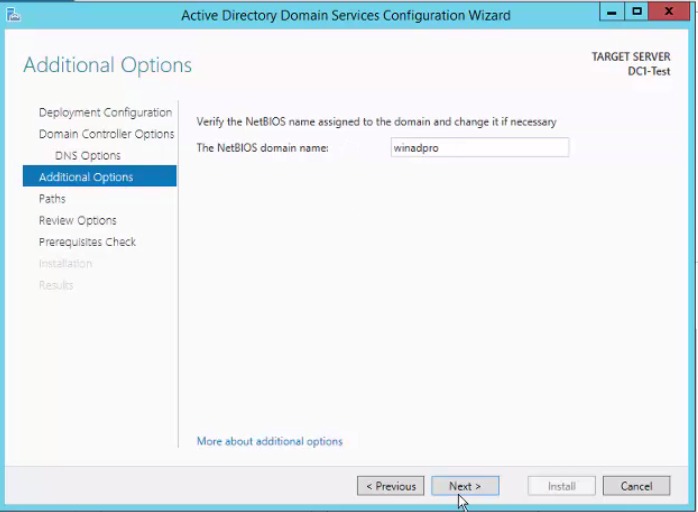
Select the folder where your database, log files, and SYSVOL will be stored. It is recommended to stick to the default settings.
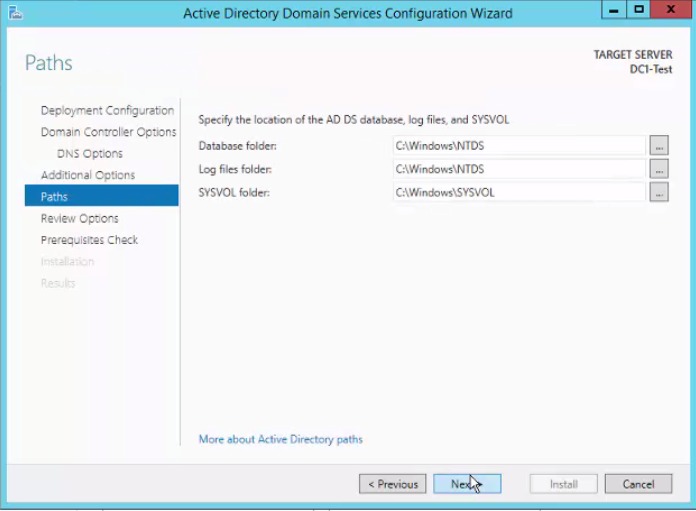
Review your options and click Next. A prerequisites check will be done by Active Directory. Once it is completed, click Install.
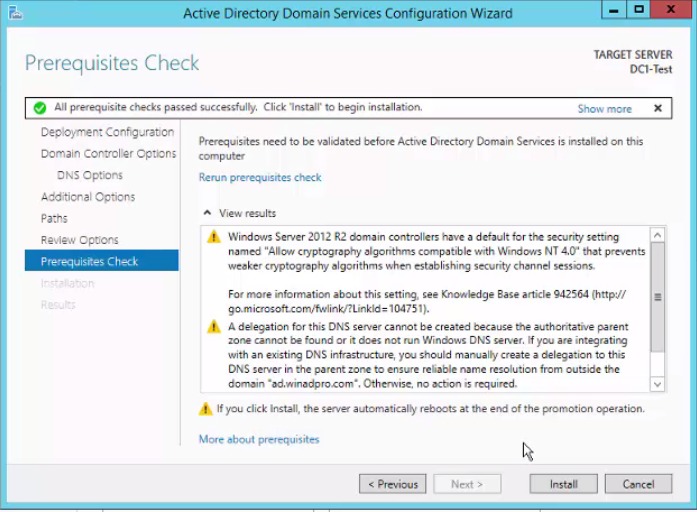
Your system will be rebooted automatically for the changes to take effect. Verify the health of the domain controller by running the command dcdiag /v from the command line.