Unmanaged Applications: Request Access
Let users request access to blocked applications in Strict Mode — keeping security intact while avoiding unnecessary productivity loss.
Overview
How Request Access works
Request Access lets users request permission to run blocked applications for legitimate needs.
Purpose of Request Access
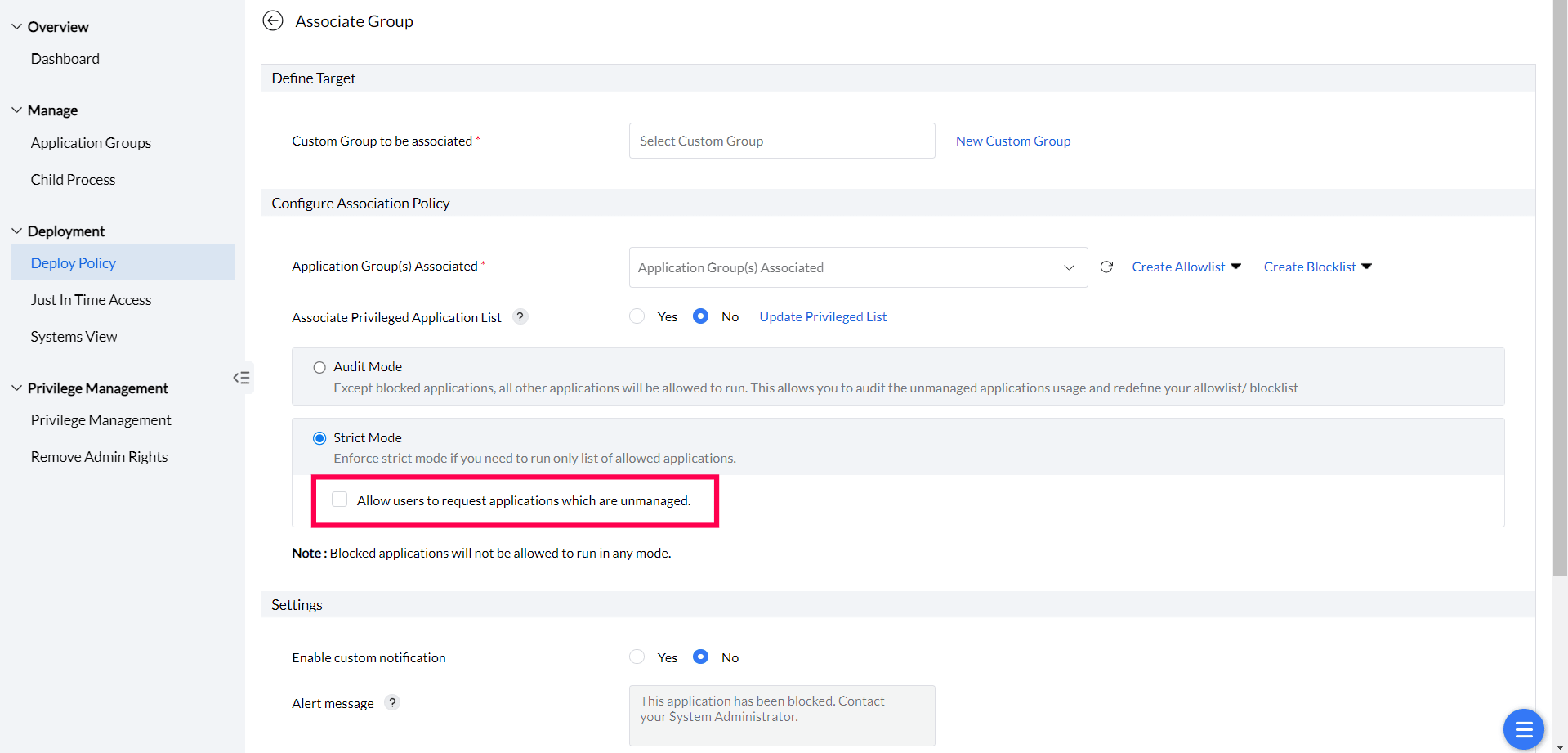
When an application control policy runs in Strict Mode, unmanaged applications are blocked by default. Request Access gives users a way to surface legitimate needs without bypassing security — users submit a request with a justification. An administrator reviews it, and the response determines what happens to the application.
Administrators receive email notifications for incoming requests and can act on them directly from the dashboard. This reduces delays for users with legitimate needs while administrators control approvals.
Workflow
Submit an access request
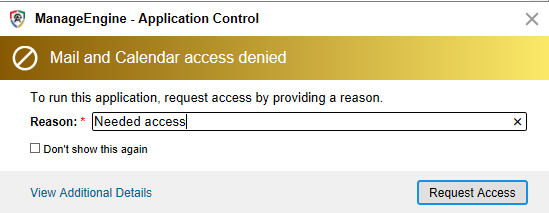
When users launch a blocked application in Strict Mode, a prompt lets them request access immediately.
The request prompt
When a user attempts to launch an unmanaged application in Strict Mode, they see a notification explaining that the application is blocked. From this notification, the user can submit a request by providing a written reason for needing access.
Review
Review and respond to requests
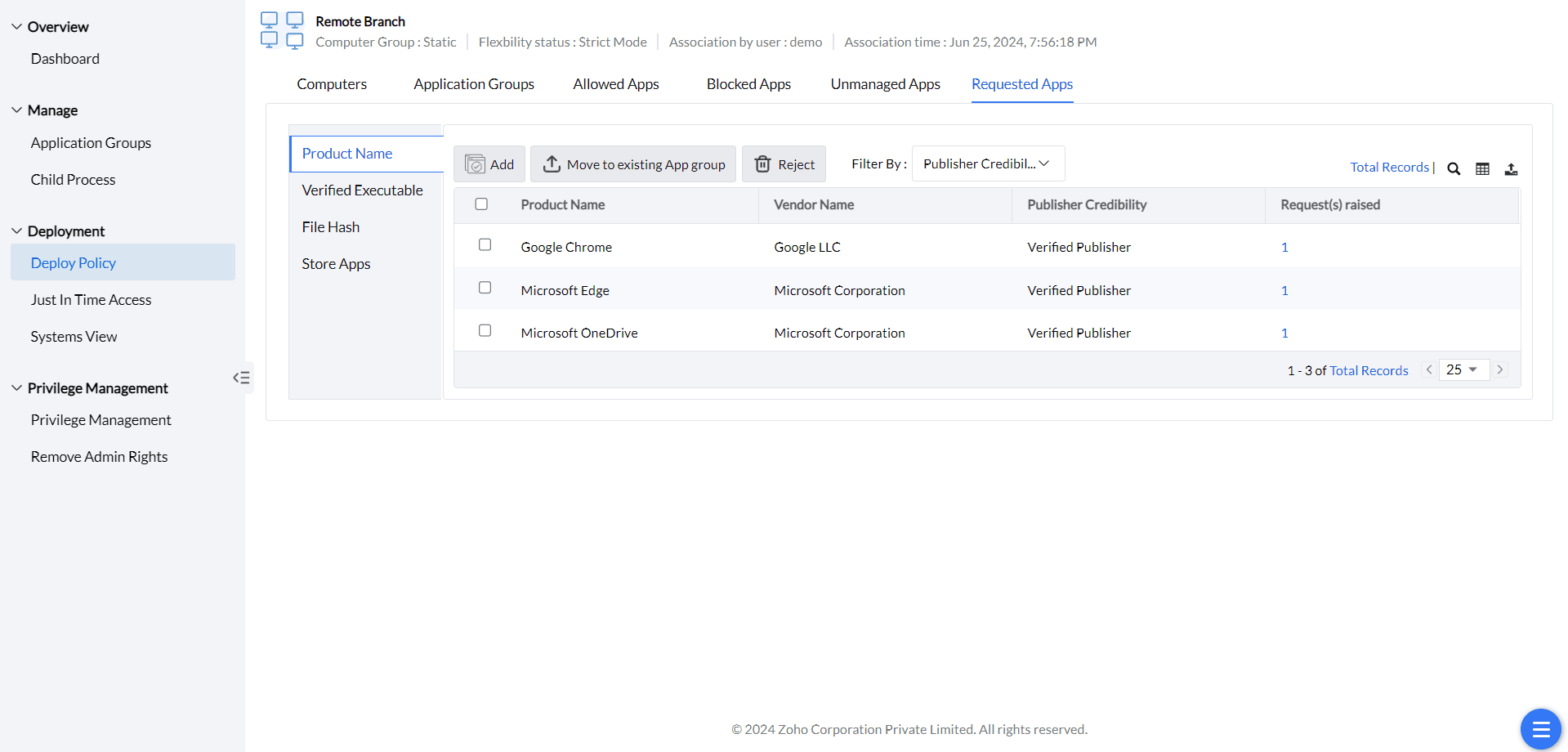
Administrators review incoming requests from the dashboard and choose an action for each application.
Request response options
When a request arrives, review the user's justification and select one of the following actions:
- Add to Allowlist — grants access and moves the application into the allowlisted group.
- Add to Blocklist — explicitly denies access and moves the application into the blocklisted group.
- Reject — declines the request without any policy change; the application remains unmanaged.
- Move to Existing App Group — places the application into an already-defined application group.
Notifications
Configure email alerts for requests
Set up email notifications to alert administrators immediately when a new request arrives.
Email notification setup
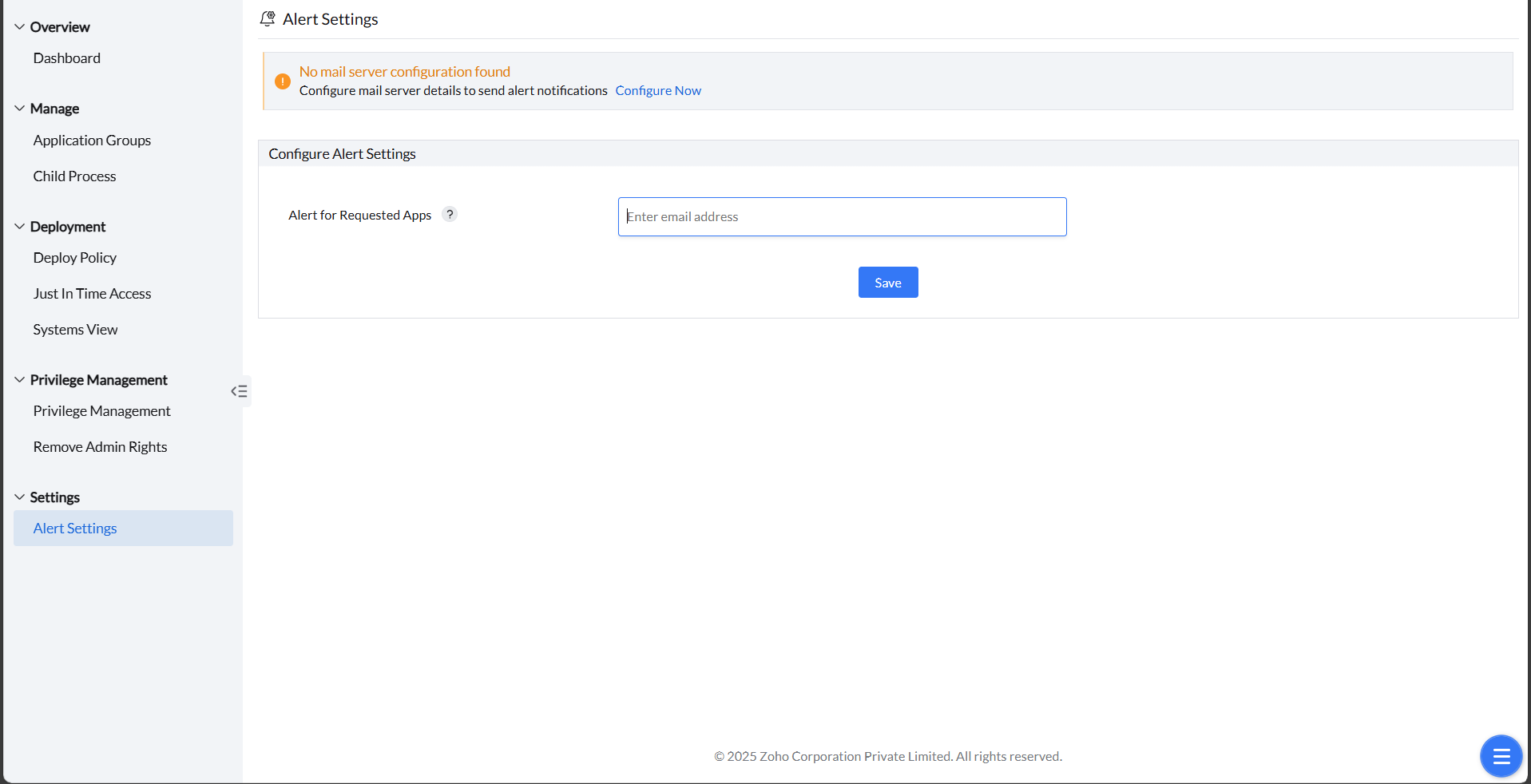
Incoming access requests are sent by email to the configured address. To configure email notifications:
- Go to Alert Settings under Settings.
- Enter the required email address(es) in the Alert for Requested Apps field.
Alert for Requested Apps applies to unmanaged-application access requests. JIT privilege-elevation requests use a separate review workflow. Review pending elevation requests under Just-In-Time Access; do not assume that enabling this email field configures notifications for every request type.
- Click Save.