Unmanaged Applications
Understand what unmanaged applications are, why they matter, and how to bring them under policy control.
Overview
Unmanaged application definition
Any application that exists outside your defined allowlists and blocklists is unmanaged — and unmonitored.
The risk of over-relying on basic lists
An unmanaged application is any executable that exists on an endpoint but is not included in any allowlist or blocklist. Because no policy governs it, its behavior is unmonitored. Using only a basic allowlist — without accounting for every application present in your environment — leaves gaps that weaken overall security.
Create policies that cover all discovered applications, including those used infrequently. This helps secure the network and enforce zero tolerance for unmanaged software.
Balance security and productivity
You can allow unmanaged applications or block them. A strict Zero Trust approach favors blocking, but an overly restrictive allowlist creates operational friction — access requests pile up and newly installed applications are blocked by default until reviewed.
Management
Use flexibility modes to assess unmanaged applications
Start in Audit Mode to understand what's running, then move to Strict Mode once your lists are complete.
Audit Mode for discovery
In Audit Mode, both allowlisted and unmanaged applications run simultaneously while events are collected. This lets administrators review actual application usage before deciding what to block.
After analysis, each unmanaged application can be resolved by adding it to an allowlist or blocklist. After addressing all unmanaged applications, switch the policy to Strict Mode for full enforcement.
Resolve unmanaged applications
Unmanaged applications per policy are visible in the deployment view and can be resolved in several ways.
View unmanaged applications
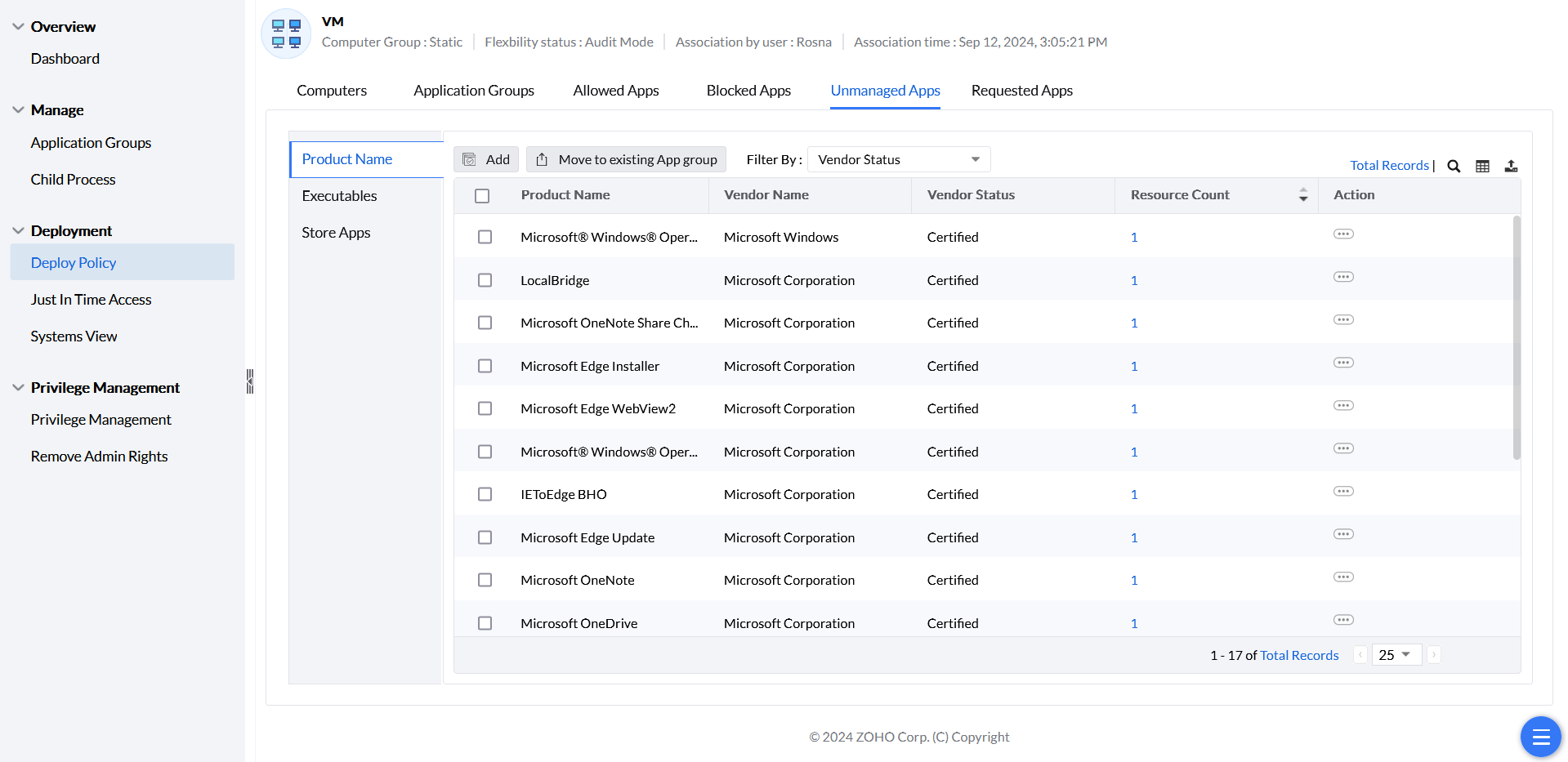
Unmanaged applications for each deployed policy are visible under Unmanaged Apps within the relevant group in Deploy Policy. From there, handle each application in one of three ways:
- Add to Allowlist or Blocklist — select the application and add it directly to an existing list.
- Move to Existing App Group — move the application into an application group, automatically associating it with the custom group that the policy is deployed to.
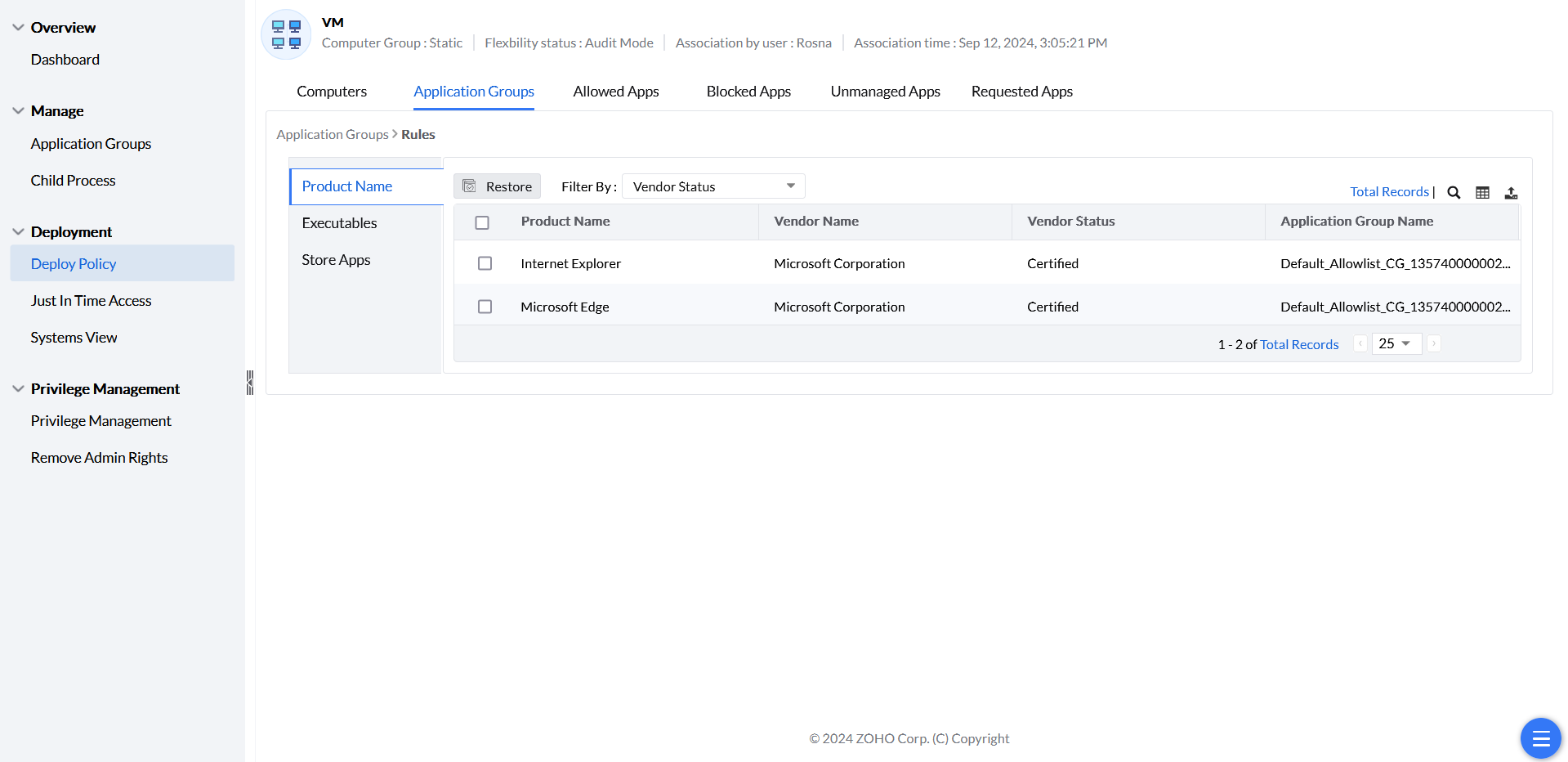
- To use Restore, open the relevant custom group’s policy summary and its Application Groups view, then select the applicable policy-specific allowed or blocked entries and choose Restore. This differs from editing the global application-group definitions under Manage. Review other matching rules before concluding that restoring one entry changes the device’s effective decision.
An unmanaged application is different from an unregulated computer. A computer can have no associated policy, or a policy that has not yet applied; that is a policy-coverage issue rather than an application-list decision. Review policy coverage and associate and deploy the intended policy.
Uninstalling an application does not guarantee that every report changes immediately. Check that the affected agent is communicating and that current discovery information has reached the server. Also check whether the same product is still present on other computers. If the record remains stale, provide the server/agent builds, affected computer and latest scan/contact details to support. Do not assume a universal 90-day interval after uninstall.