×![]()
×
×![]()
×
×
Integrate with Syslog Server
Endpoint Central supports forwarding audit logs (Admin → Audit → Action Log Viewer) to external Syslog servers using the standardized RFC 5424 format, enabling organizations to centralize audit data in platforms like SIEM tools for enhanced visibility, real-time threat detection, and compliance readiness.
Note
This feature is available in Endpoint Central version 11.4.2524.01 or later.
Key Benefits of Integration
- Centralized Audit Log Management: Consolidate Endpoint Central audit logs with logs from other systems into a centralized repository, simplifying log analysis, long-term retention, and reporting.
- Enhanced Security Monitoring: Streamline near real-time security monitoring by forwarding logs to SIEM tools that support alerting, correlation, and visualization of critical events.
- Compliance and Audit Support: Maintain a consistent, tamper-evident record of console activities to support internal audits and meet regulatory compliance standards.
Steps to Integrate Endpoint Central with Syslog Server
- In the Endpoint Central web console, navigate to Admin → Integrations → All Integrations.
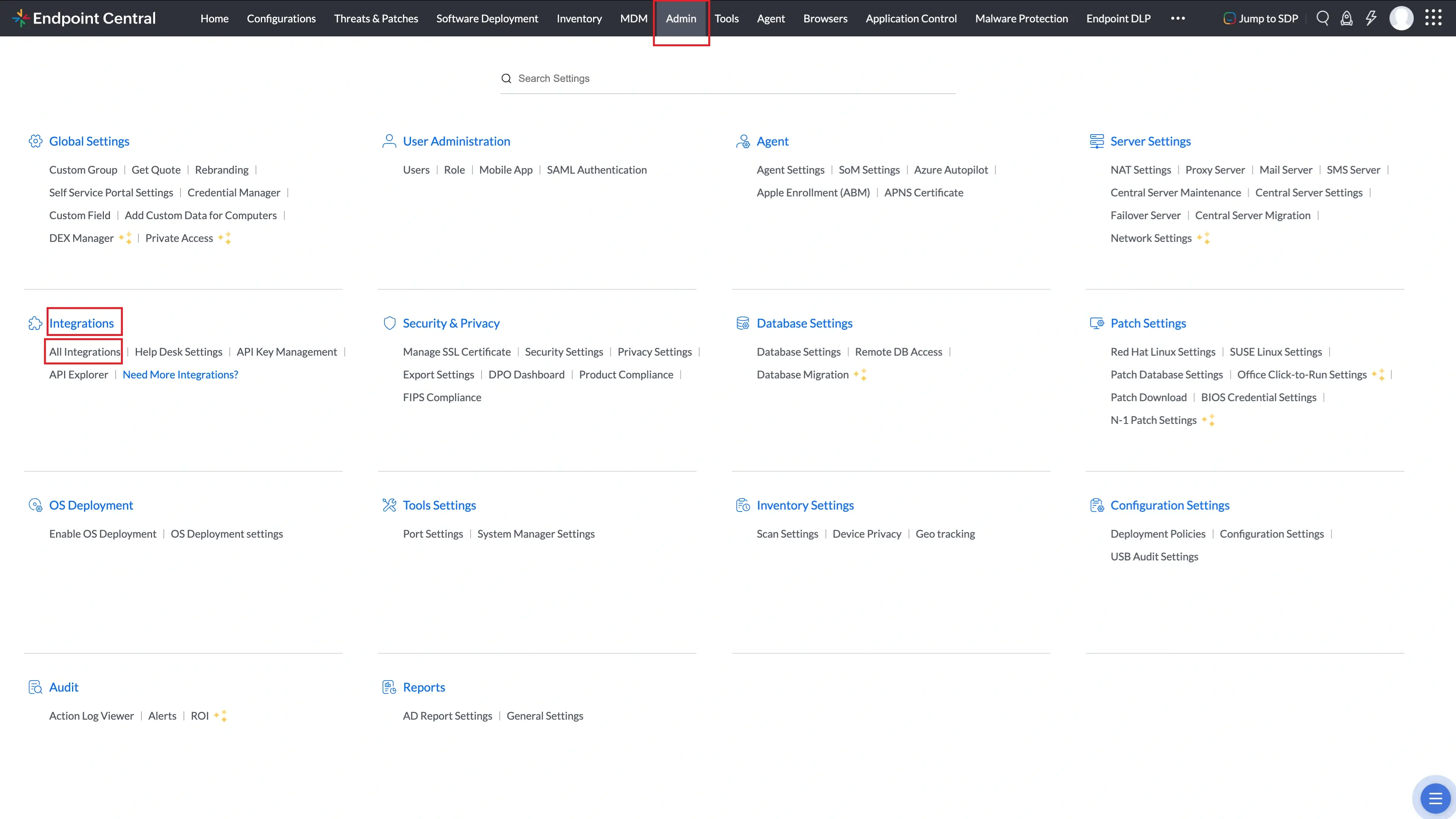
All Integrations page under Admin → Integrations in Endpoint Central. - Search for Syslog and click Configure.
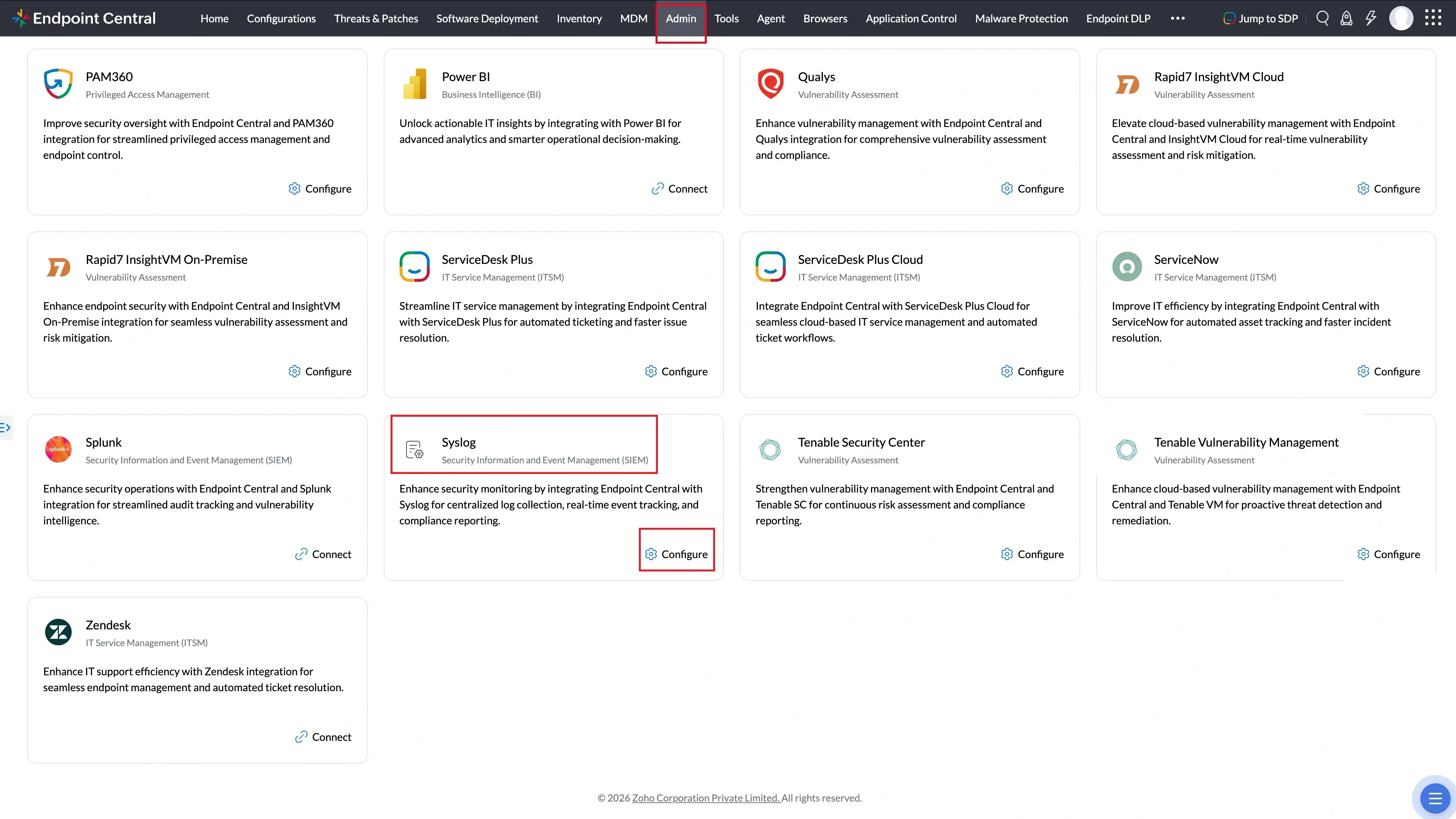
Syslog in the All Integrations search results with the Configure option. - Enter the Syslog server details:
- Syslog Server Address: Enter the IP address or hostname of your Syslog server.
- Protocol: Choose between
TCPorUDP. - TLS Enabled: Enable this only if your Syslog server supports and is configured for TLS to ensure secure communication.
- Server Port: Specify the listening port of the Syslog server.
NoteIf FIPS Compliance is enabled, only the TLS protocol is permitted for Syslog integration to ensure encrypted communication. - Optionally, enable notifications for integration failure:
- Email Address: Add email recipients to receive notifications.
- Mobile App: Select technicians to be notified via the mobile app.
- Click Save to complete the integration.
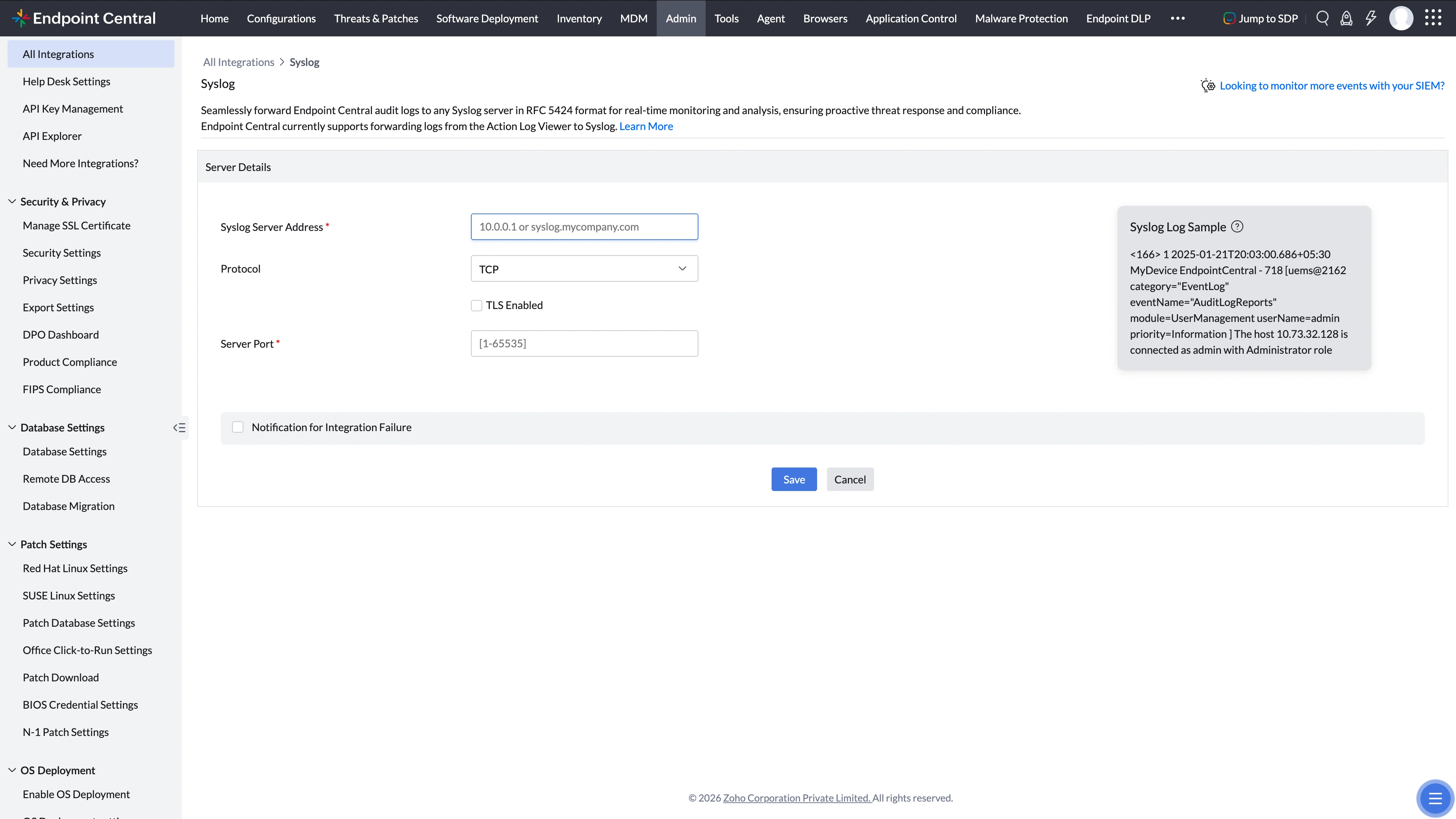
Syslog server configuration panel showing all required fields and the Save button. - If your Syslog server is using an SSL certificate that Endpoint Central does not recognize, you must verify and trust the certificate.
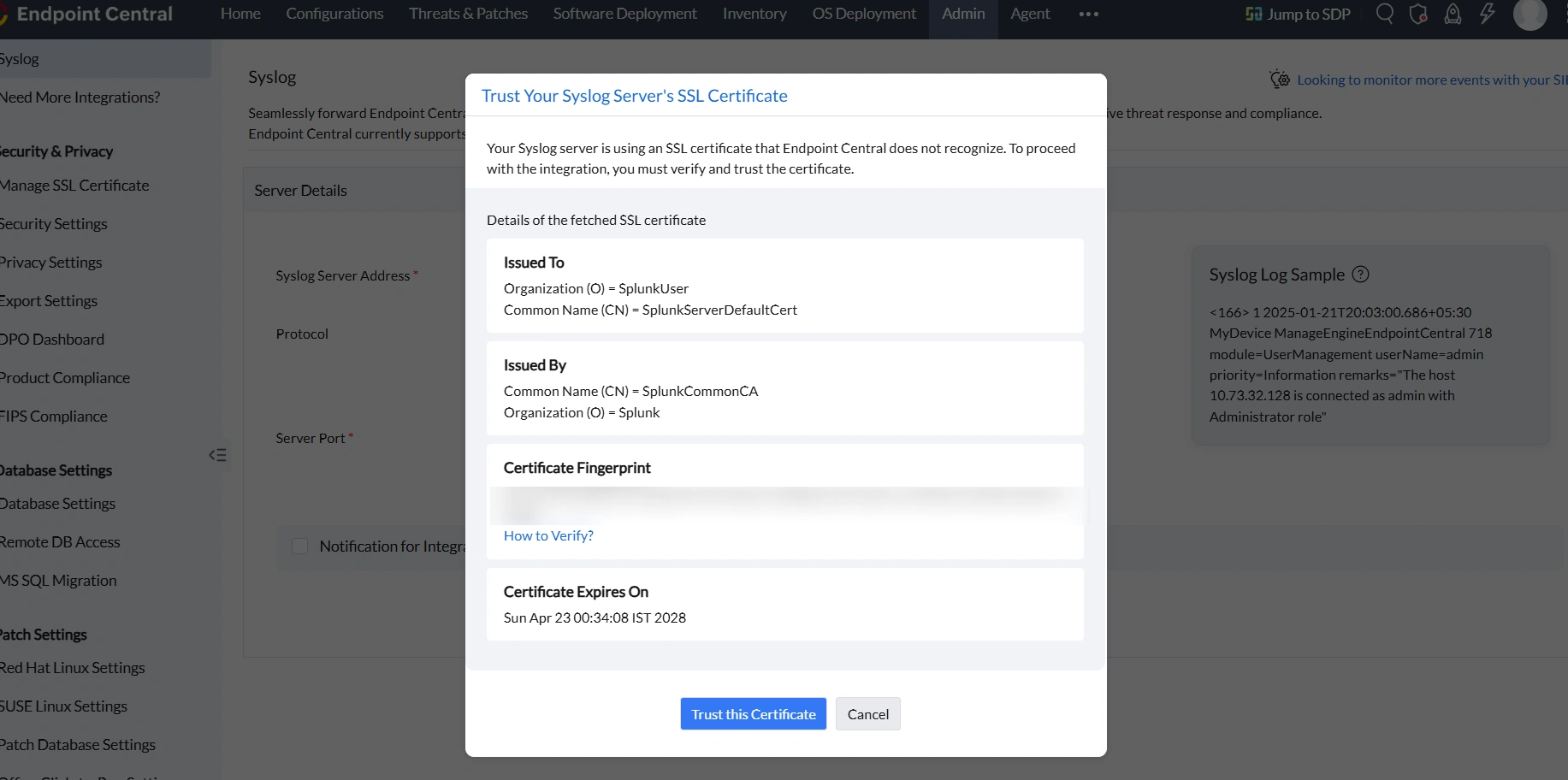
Trust certificate dialog for verifying the Syslog server SSL certificate. - Confirm your consent by clicking Yes, Proceed to allow Endpoint Central to share Action Log Viewer data with your Syslog server.
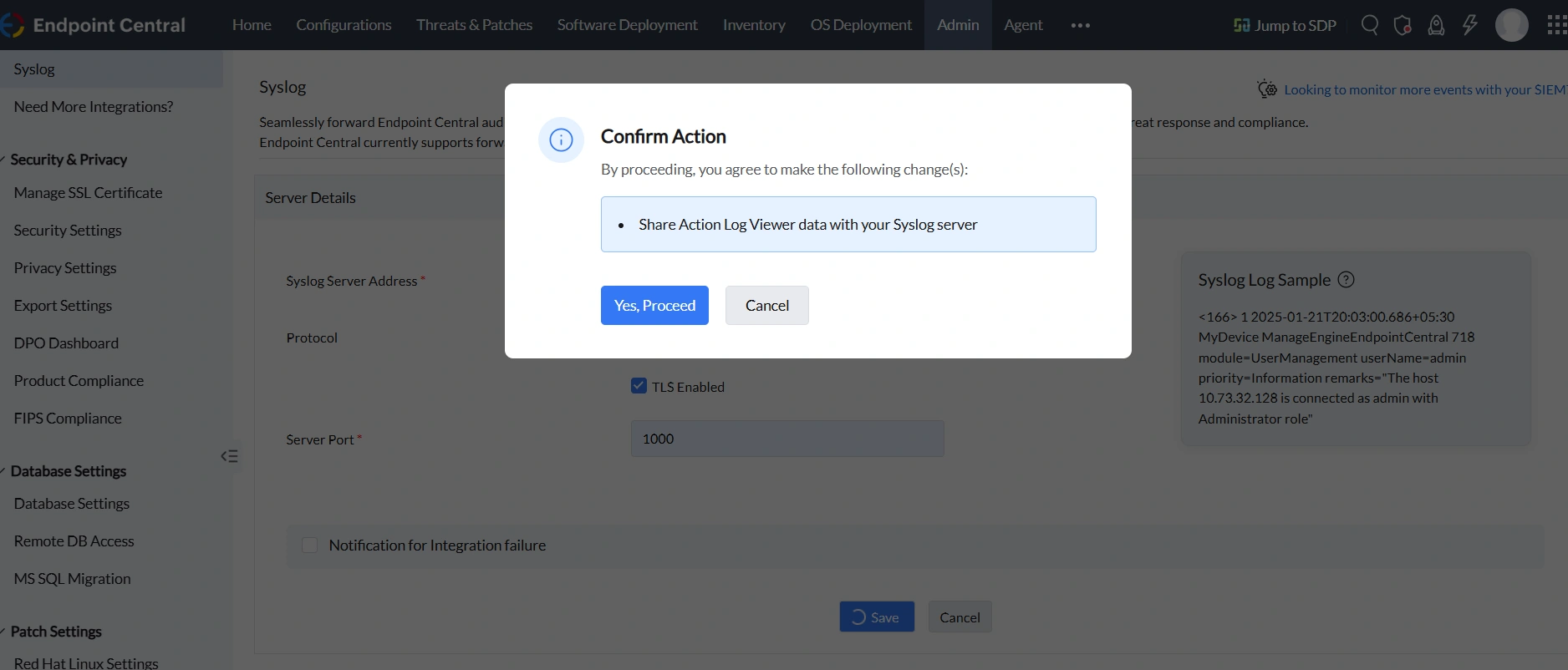
Consent confirmation dialog for sharing Action Log Viewer data with the Syslog server. - Endpoint Central is now integrated with your Syslog server successfully.
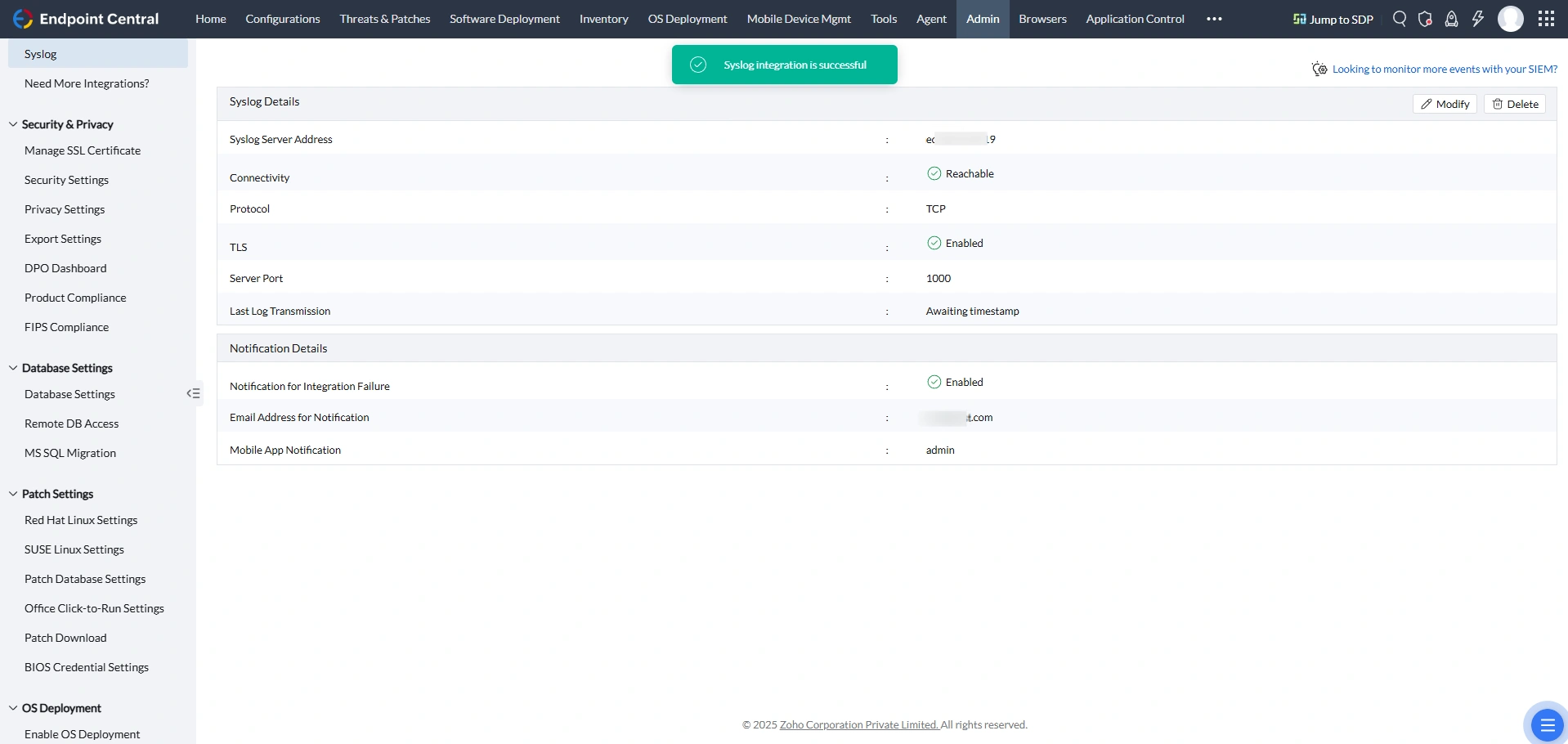
Syslog integration details view showing the active integration status.