Integrating Buypass Go SSL Certificate Authority with Key Manager Plus Cloud
Key Manager Plus Cloud facilitates integration with Buypass Go SSL—the certificate authority (CA) that uses the Automatic Certificate Management Environment (ACME) protocol to provide secure SSL certificates. This integration with Buypass Go SSL helps you achieve an end-to-end life cycle management of Buypass Go SSL certificates installed on your domains from a single interface.
This document details the steps to establish a connection with your Buypass Go SSL account, acquire, deploy, renew and perform all certificate management related operations from Key Manager Plus Cloud.
Follow the step-by-step procedure below to integrate Buypass Go SSL with Key Manager Plus Cloud:
- Creating a Buypass Go SSL Account
- Creating a Certificate Request
- Procuring and Saving Certificates
- Managing Certificates Issued by Buypass Go SSL CA
1. Creating a Buypass Go SSL Account
To begin the process of requesting SSL certificates from Buypass Go SSL, you should have one legitimate Buypass Go SSL account (skip to the next section if you already have an account). This is a one-time process and can be done directly from Key Manager Plus Cloud. To create a Buypass Go SSL account, follow the steps below:
- Navigate to Integrations >> ACME Integrations >> Buypass Go SSL >> Manage.
- Under the Account tab, click New Registration.
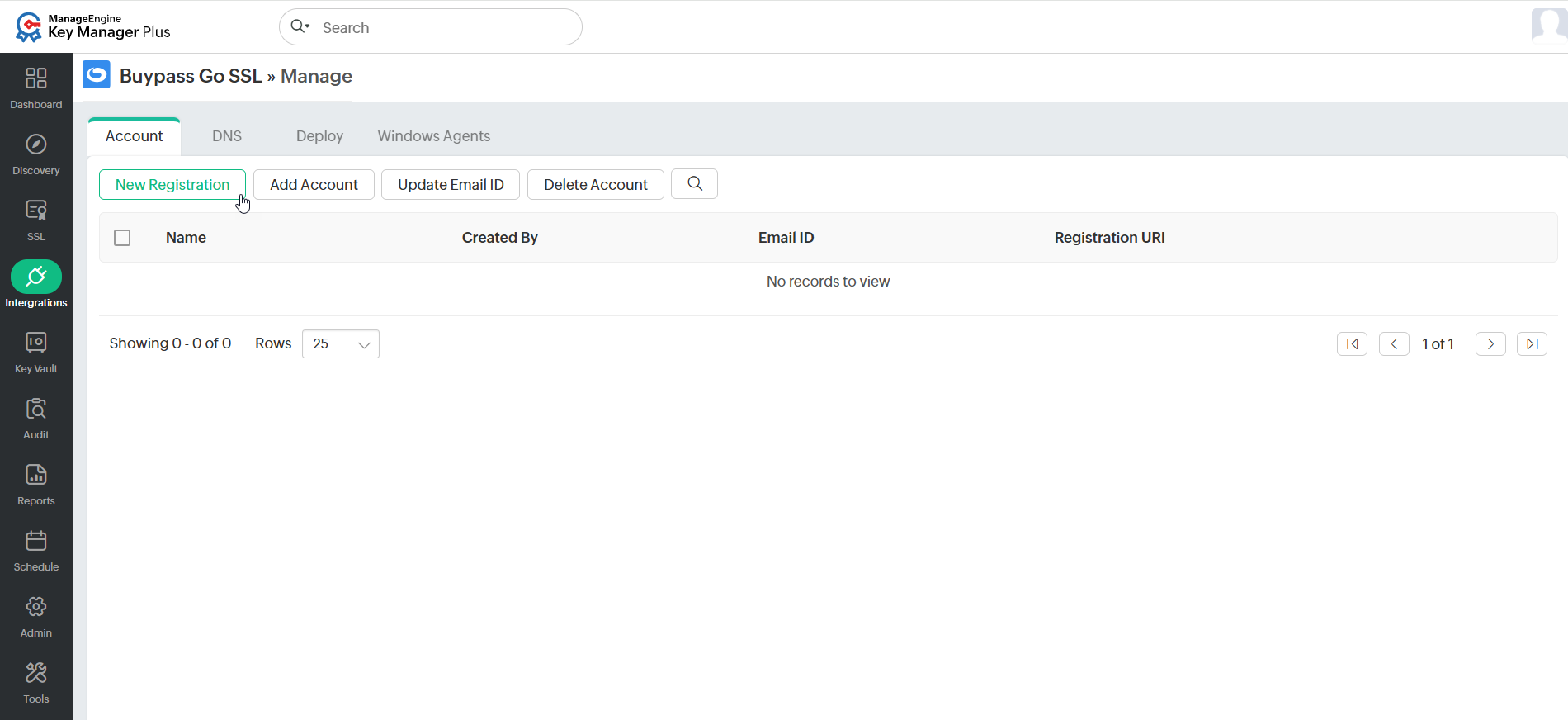
- In the pop-up window that opens, enter an account name and a valid email address.
- Choose either Production or Staging, based on the URL that will be used.
- Select the checkbox to accept the Buypass Go SSL subscriber agreement and click Register.
Now, an account with Buypass Go SSL is created. Users can update the account email address, delete it from Key Manager Plus Cloud, or deactivate the account entirely. Please note that deleting the account only removes it from Key Manager Plus Cloud. Even if you delete the account here, it will still be active on the Buypass Go SSL portal.
To add the same account back to Key Manager Plus Cloud, export the key and use the Add Account option with the same procedure used before. However, if the account has been Deactivated instead of delete, then the Buypass Go SSL account will be removed completely and the users cannot add it back to Key Manager Plus Cloud using the same details.
Caution
Only administrators can perform the above operation. Also, only one Buypass Go SSL account can be created from Key Manager Plus Cloud.
2. Creating a Certificate Request
Once your Buypass Go SSL account is registered, you can proceed with creating certificate requests to the CA. To complete a certificate request, you will be presented with a challenge verification to fulfill in order to validate your domain and issue the certificate you have requested.
Follow the steps below to raise a certificate request:
- Navigate to Integrations >> ACME Integrations >> Buypass Go SSL and click Certificate Request.
- On the page that appears, fill in the domain name, select the Challenge Type, Key on Renewal, Algorithm Length, Signature Algorithm, Keystore Type, and enter the Keystore Password.
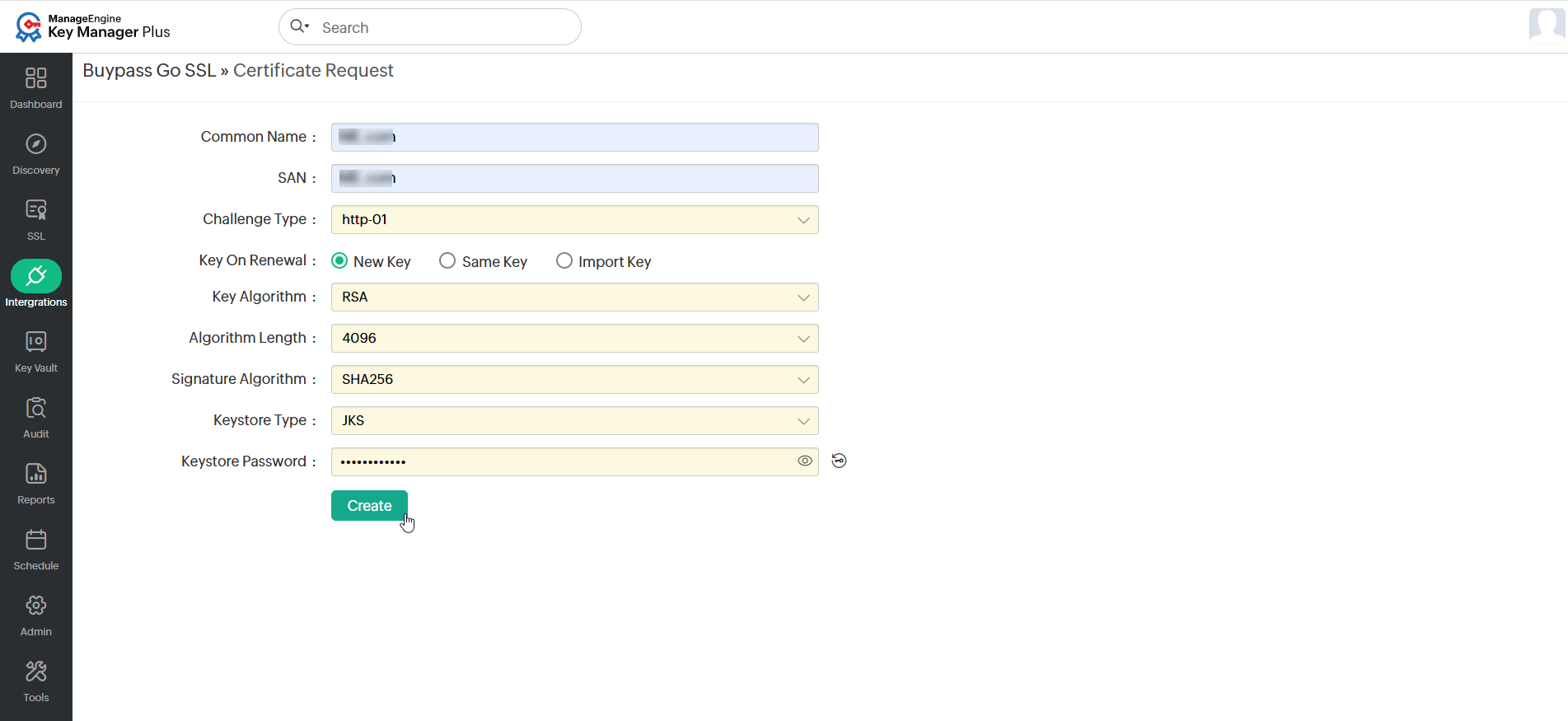
- For dns-01 challenge type, choose and assign a DNS account from the dropdown if there is already a DNS account configured. This will be used for automatic challenge verification for all the domains specified in the request. For information about adding a DNS account in Key Manager Plus Cloud, refer to this document.
- Click Create to create a certificate request.
- In addition, users have options to change the private key whenever the certificate is renewed.
- Select New Key to change the key on each renewal.
- Select Same Key to retain the key on each renewal.
- Select Import Key to use your own key. This key will be used for the first time when the certificate is generated and also for subsequent renewals.
Upon creating a certificate request, you have to verify the ownership of your domain through HTTP-01 and DNS-01 challenges (currently Azure, Cloudflare, Amazon Route 53, RFC 2136 DNS update, GoDaddy DNS, ClouDNS, and DNS Made Easy). For the process to take effect, you have to initially map the end-server details to Key Manager Plus Cloud, which is a one-time process. For more details about domain verification and challenge deployment, refer to this document.
3. Procuring and Saving Certificates
On successful verification, Buypass Go SSL issues the requested certificate and the window automatically redirects to a page which displays the certificate and its status (status is marked as Available if the challenge verification is successful, and Failed if the challenge verification failed).
To procure and save the certificate, follow the steps below:
- Click the Available button to save the certificate in Key Manager Plus Cloud and email or export it.
- On saving, the certificate gets added, which can be viewed from the SSL >> Certificates tab.
- If the challenge fails, click New challenge to obtain another set of challenges and repeat the above process.
4. Managing Certificates Issued by Buypass Go SSL CA
This section explains how the certificates issued by Buypass Go SSL CA can be renewed, revoked, or deleted by users from the Key Manager Plus Cloud interface.
Additional Detail
To view the history of the certificates issued by Buypass Go SSL CA, click the Certificate History icon in the certificate list.
4.1 Renewing Certificates
Certificates issued by Buypass Go SSL have a life-time of 180 days after which they are not valid. To renew a certificate manually, follow these steps:
To renew a certificate manually, follow these steps:
- Navigate to Integrations >> ACME Integrations >> Buypass Go SSL.
- Select the certificate you want to renew and click Renew Certificate from the top menu.
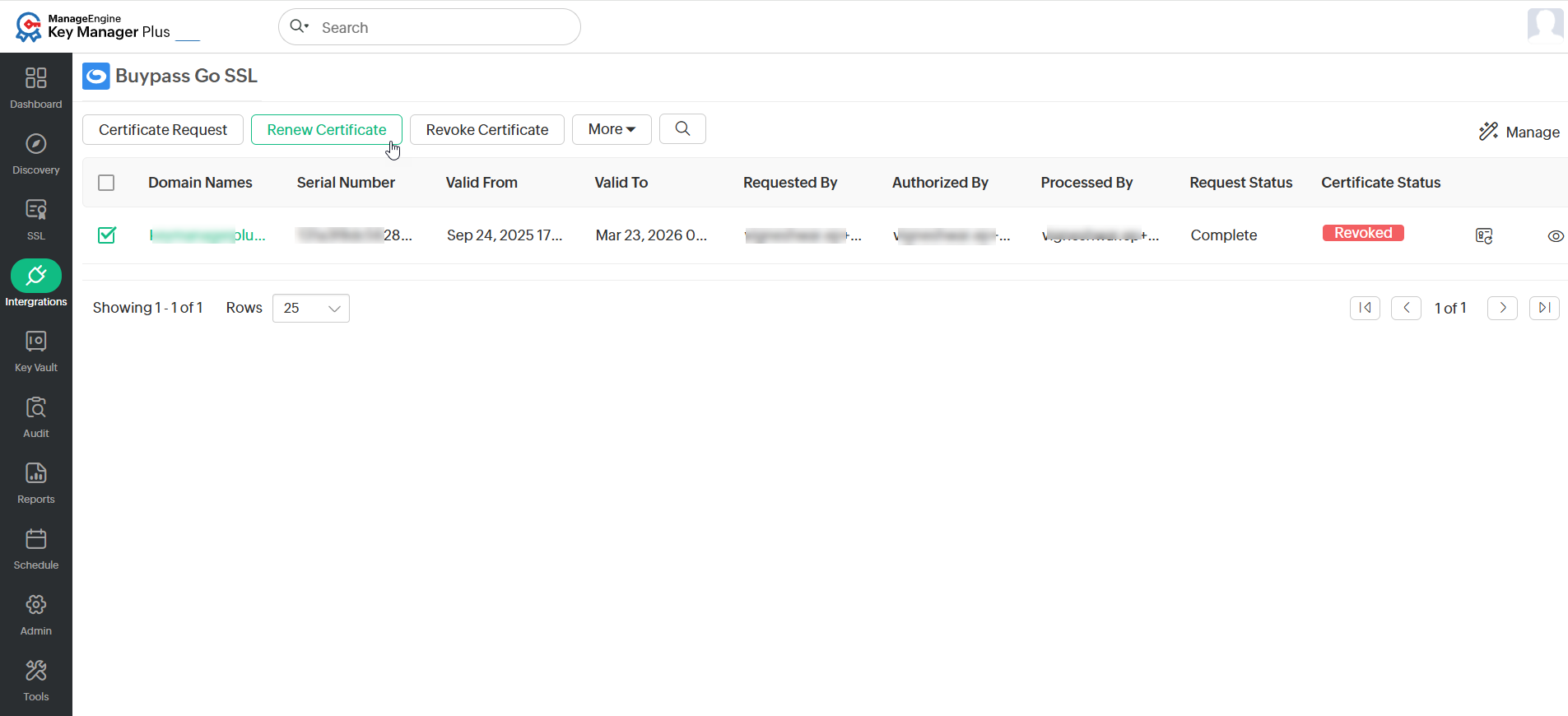
- Once the renewal is complete, the certificate status will be updated to Renewed in the Certificate Status bar.
- Click on it to save the renewed version of the certificate to Key Manager Plus Cloud.
Additional Detail
The certificate should be saved after renewal in order to be updated in the certificate inventory. Else, only the old version of the certificate will continue to remain in the inventory.
4.2 Revoking Certificates
Revoking a certificate renders the certificate invalid and immediately removes the HTTPS from the website.
To revoke a certificate, follow the steps below:
- Navigate to Integrations >> ACME Integrations >> Buypass Go SSL.
- Select a certificate you want to revoke and click Revoke Certificate from the top menu.
The certificate will be revoked and no longer remains valid.
4.3 Deleting Certificates
Deleting a certificate removes the certificate from Key Manager Plus Cloud, but the certificate remains valid.
To delete a certificate, follow the steps below:
- Navigate to Integrations >> ACME Integrations >> Buypass Go SSL.
- Select the certificate you want to delete and click More >> Delete.
- In the confirmation pop-up that appears, click OK.
Now, the certificate will be deleted from Key Manager Plus Cloud.