Integrating GlobalSign SSL Certificate Authority with Key Manager Plus Cloud
Key Manager Plus Cloud facilitates integration with GlobalSign Certificate Authority (CA), making it possible for enterprises to automate the end-to-end management of web server certificates signed and issued by GlobalSign from a centralized platform. This document discusses the steps to manage the entire lifecycle of SSL certificates issued by GlobalSign, directly from Key Manager Plus Cloud, right from importing existing orders, certificate request and provisioning, to deployment, renewal and thereupon.
Follow the step-by-step procedure below to integrate GlobalSign CA with Key Manager Plus Cloud:
- Adding a GlobalSign Account
- Importing Existing Certificate Orders
- Creating New Certificate Orders
- Managing Certificates Issued by GlobalSign CA
1. Adding a GlobalSign Account
Follow the below steps to add your GlobalSign account into Key Manager Plus Cloud:
- Navigate to Integrations >> Public CA Integrations >> GlobalSign.
- Click Manage >> Add. In the pop-up window that appears, enter your GlobalSign Username and Password and click Save.
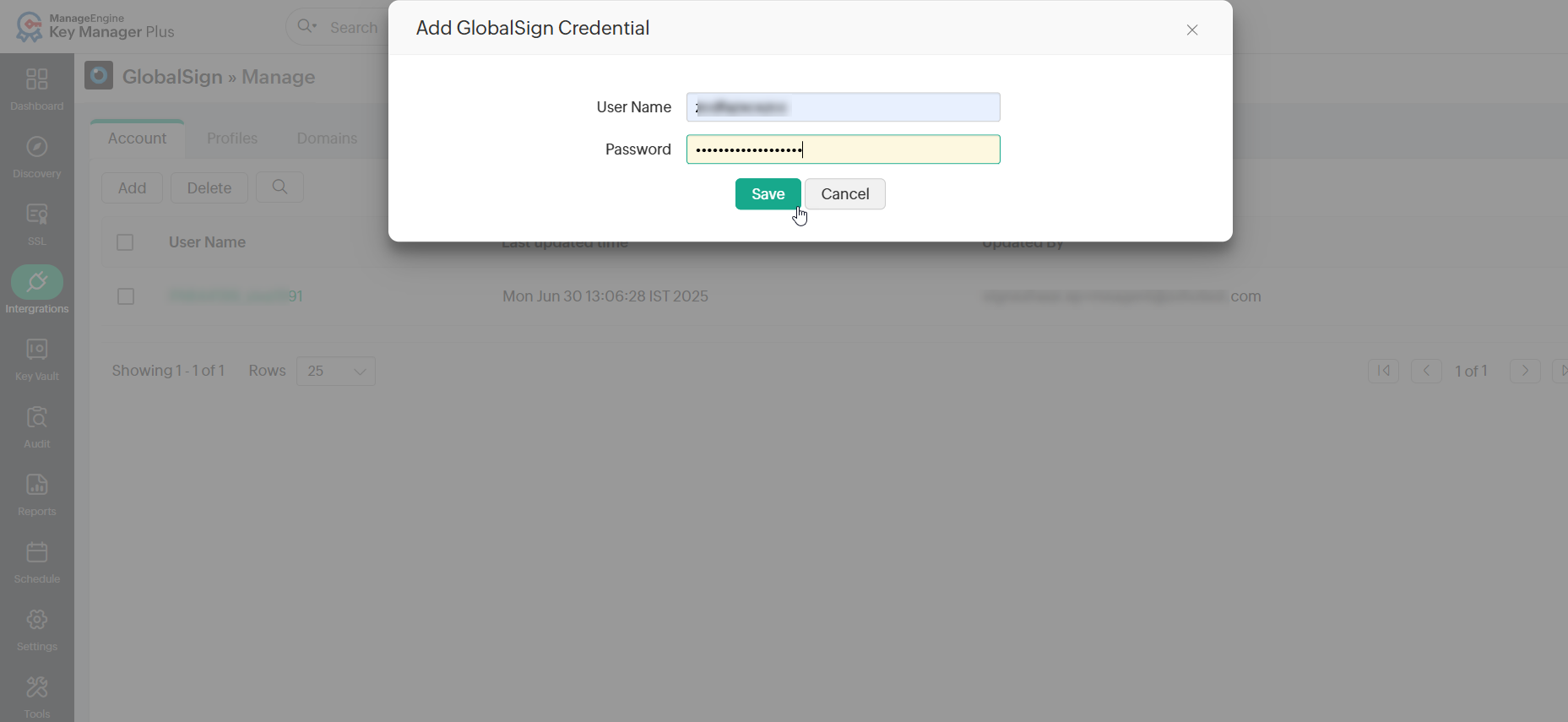
- Once your GlobalSign account is verified and added, proceed with placing certificate order and domain control validation.
- If the GlobalSign account fails to get added to Key Manager Plus Cloud, contact the GlobalSign support, get an exception for the user's IP address and try again.
Additional Detail
Users can find the user's IP address from the Audit section in Key Manager Plus Cloud.
Upon configuring the GlobalSign credentials, you can leverage GlobalSign's API to generate Certificate Signing Requests (CSRs), place orders, procure, and manage certificates directly from Key Manager Plus Cloud.
2. Importing Existing Certificate Orders
Key Manager Plus Cloud allows you to import the already existing certificate orders placed within your account from GlobalSign and track their statuses. Upon adding your GlobalSign account in Key Manager Plus Cloud, follow the steps below to import the existing certificates from GlobalSign CA:
- Navigate to Integrations >> GlobalSign.
- Click More >> Import Existing Orders from the top menu.
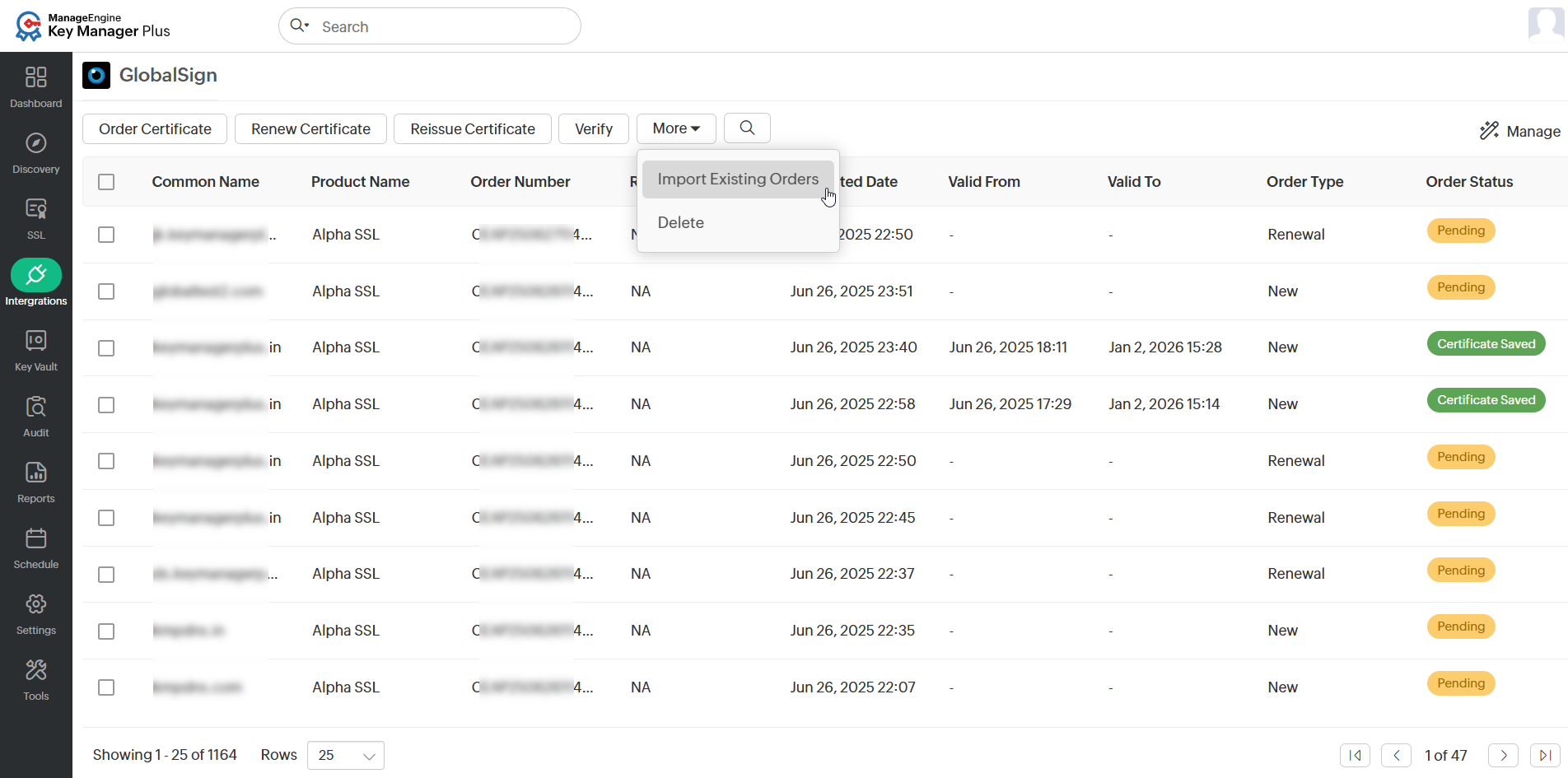
- In the pop-up window that appears, select the Username from the dropdown and click Import.
The existing certificate orders will be imported into Key Manager Plus Cloud.
3. Creating New Certificate Orders
This section details how to create a new certificate order from GlobalSign CA directly from the Key Manager Plus Cloud interface.
3.1 Creating a Certificate Order With Domain Control Validation
To create a new certificate order in GlobalSign with a Domain Control Validation (DCV), follow the steps below:
- Navigate to Integrations >> Public CA Integrations >> GlobalSign and click Order Certificate from the top menu.
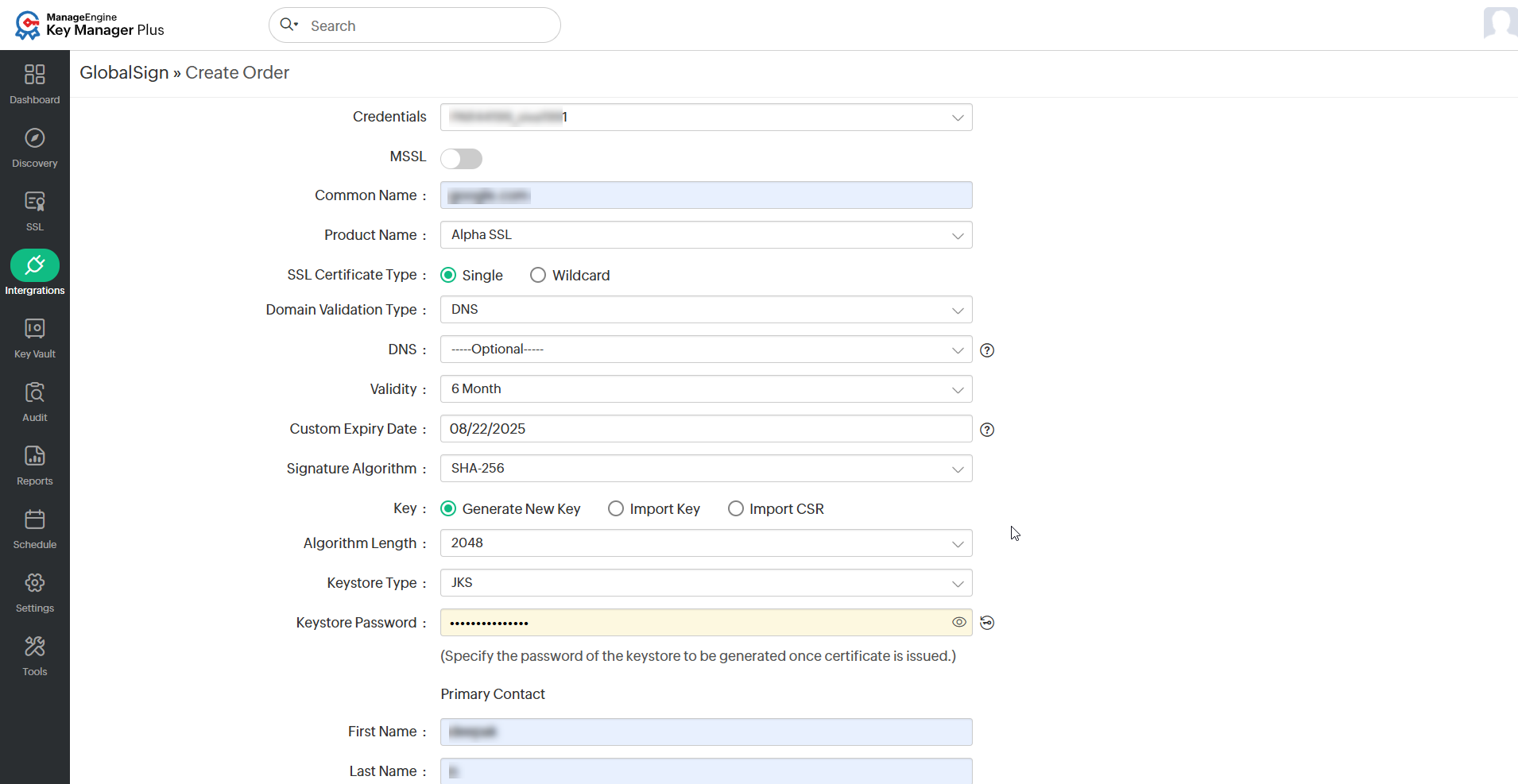
- In the window that opens, select the GlobalSign account credentials and enter the Common Name, Product Name, SSL Certificate Type, Domain Validation Type, and Validity.
- If the Product Name is chosen as Domain SSL, enter the SSL Certificate Type as Single or Wildcard.
- For any Product Name other than Domain SSL, provide the UCC SAN, and Validity for the same.
- Key Manager Plus Cloud supports all three domain control validation methods: DNS-based, File-based, and Email validation.
- If you have selected Domain Validation Type with Email, the approver email ID is the email ID to which DCV verification mail will be sent. The approver email ID should take either of the following formats:
- <admin@domain>, <administrator@domain>, <hostmaster@domain>, <webmaster@domain>, or <postmaster@domain>
- Any administrator, registrant, tech, or zone contact email address that appears on the domain’s WHOIS record and is visible to the CA system.
Additional Detail
For DNS-based domain validation in the certificate order, configure the DNS account in Key Manager Plus Cloud and specify it in the 'DNS' field in the order for automating the challenge verification procedure. To configure your DNS account, refer to this document.
- If you have selected Domain Validation Type with Email, the approver email ID is the email ID to which DCV verification mail will be sent. The approver email ID should take either of the following formats:
- Provide the Signature Algorithm, Algorithm Length, Keystore Type, Keystore Password, Primary Contact, and Secondary Contact details. Users also have the option to import and use an already existing CSR or private key.
- Provide the organization details (applicable for organization validation and extended validation order types only), administrator contact details, and contact details of the technician placing the certificate order.
- After filling in all the required details, click Create.
You will be taken to a window where you can see the list of certificate orders placed along with their statuses displayed to the right of the table view.
3.2 Creating a Certificate Order With Managed SSL
To create a new certificate order using Managed SSL (MSSL) with pre-validated domains, follow the steps below:
- Navigate to Integrations >> Public CA Integrations >> GlobalSign and click Order Certificate from the top menu.
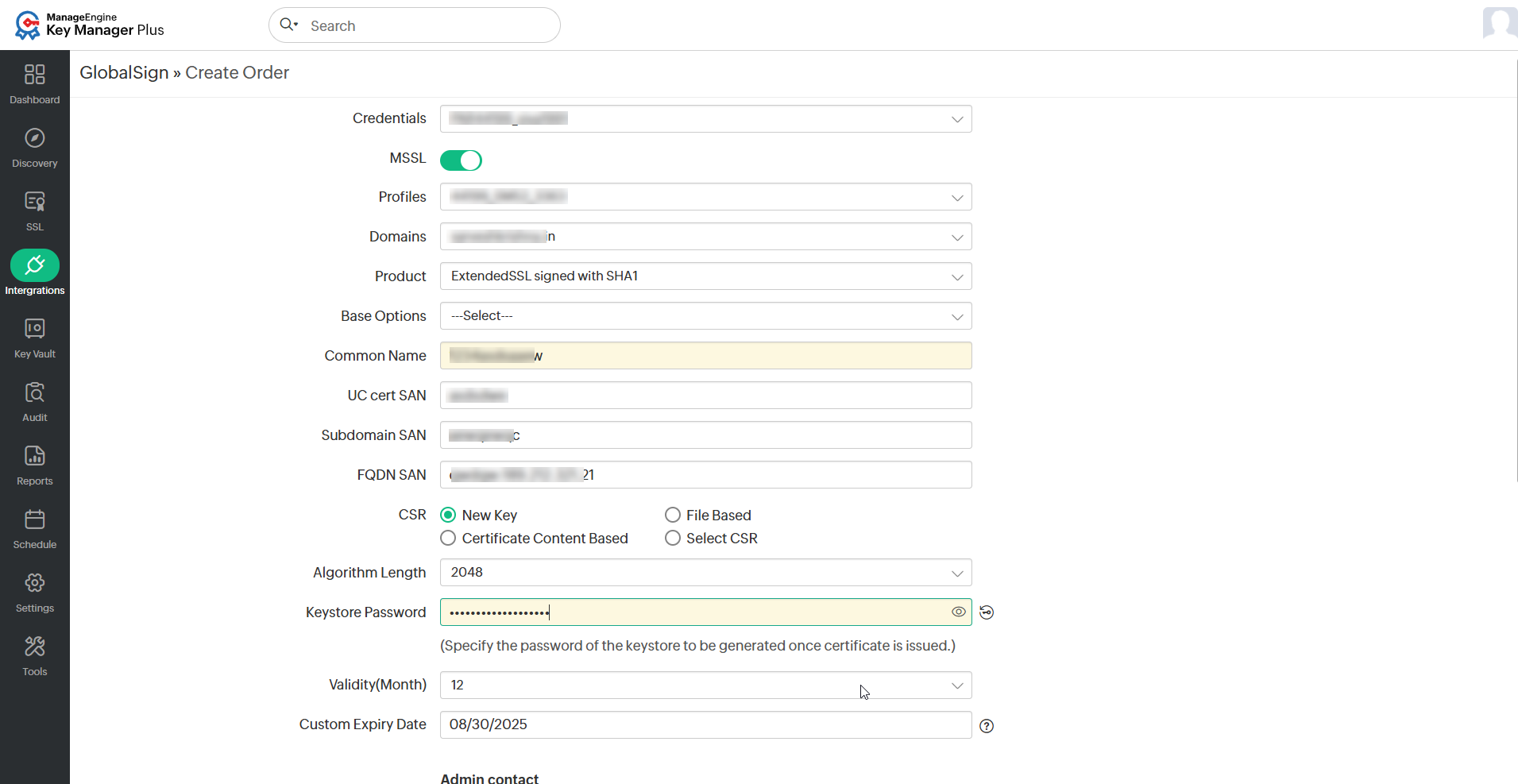
- In the window that opens, select the GlobalSign account credentials and select the Profile, Domain, Product, and Base Options.
- Enter the Common Name and the relevant Subject Alternative Names (SAN) based on the selected SSL product.
- Provide the Algorithm Length, Keystore Password, Validity, and Admin Contact details. Users also have the option to import and use an already existing CSR or private key.
- After filling in the required details, click Create.
You will be taken to a window where you can see the list of certificate orders placed along with their statuses displayed to the right of the table view.
Additional Detail
Certificate orders created under MSSL do not require domain validation using file-based, email-based, or DNS.
Once you have created new certificate orders, validate your ownership of the domain by proceeding to the Domain Control Validation (DCV) procedure. Upon completing the DCV, you will receive the certificates from GlobalSign CA. For detailed information, refer to this document.
4. Managing Certificates Issued by GlobalSign CA
Users can renew, reissue, verify, and delete certificate orders placed to third-party certificate authorities from Key Manager Plus Cloud.
4.1 Renewing Certificates
The below sections details renewing the certificates issued by GlobalSign CA:
4.1.1 Manual Certificate Renewal
To renew the desired certificates manually, perform the steps that follow:
- Navigate to Integrations >> Public CA Integrations >> GlobalSign.
- Select the required order and click Renew Certificate from the top menu.
- In the form that appears, ensure that the necessary details of the certificate order are correct.
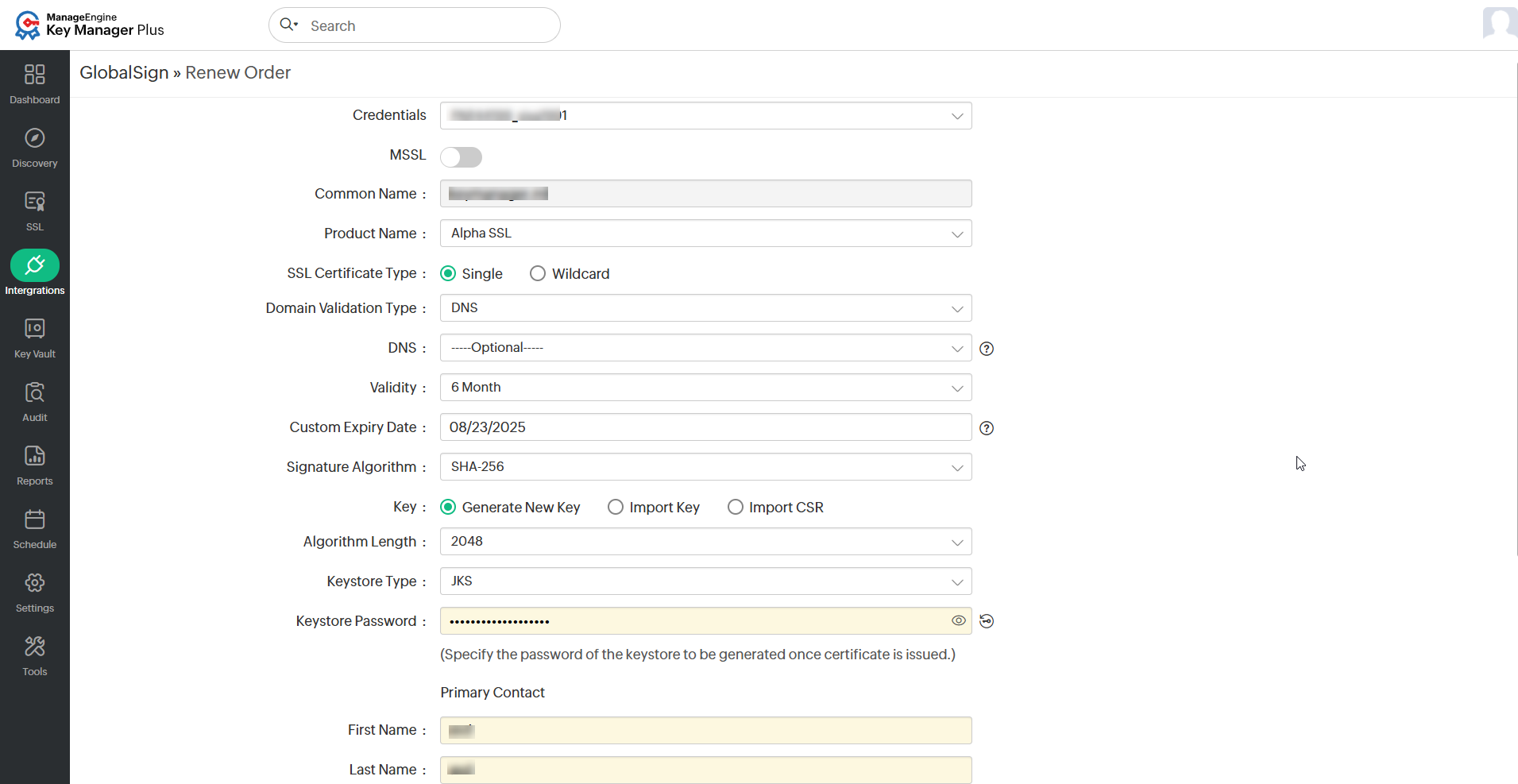
- Choose the Custom Expiry Date and enter or generate the Keystore Password.
- Click Create and complete the DCV procedure.
On successful validation, the certificate is issued and the new version is automatically updated in the SSL >> Certificates tab. The certificate renewal is allowed only 90 days before the expiry date of the selected certificate.
4.1.2 Automated Certificate Renewal
To configure the auto-renewal process for the desired certificates, perform the steps that follow:
- Navigate to Integrations >> Public CA Integrations >> GlobalSign and click Manage from the top right pane.
- From the page that appears, navigate to the Auto-Renewal section and enable the Auto-Renew button.
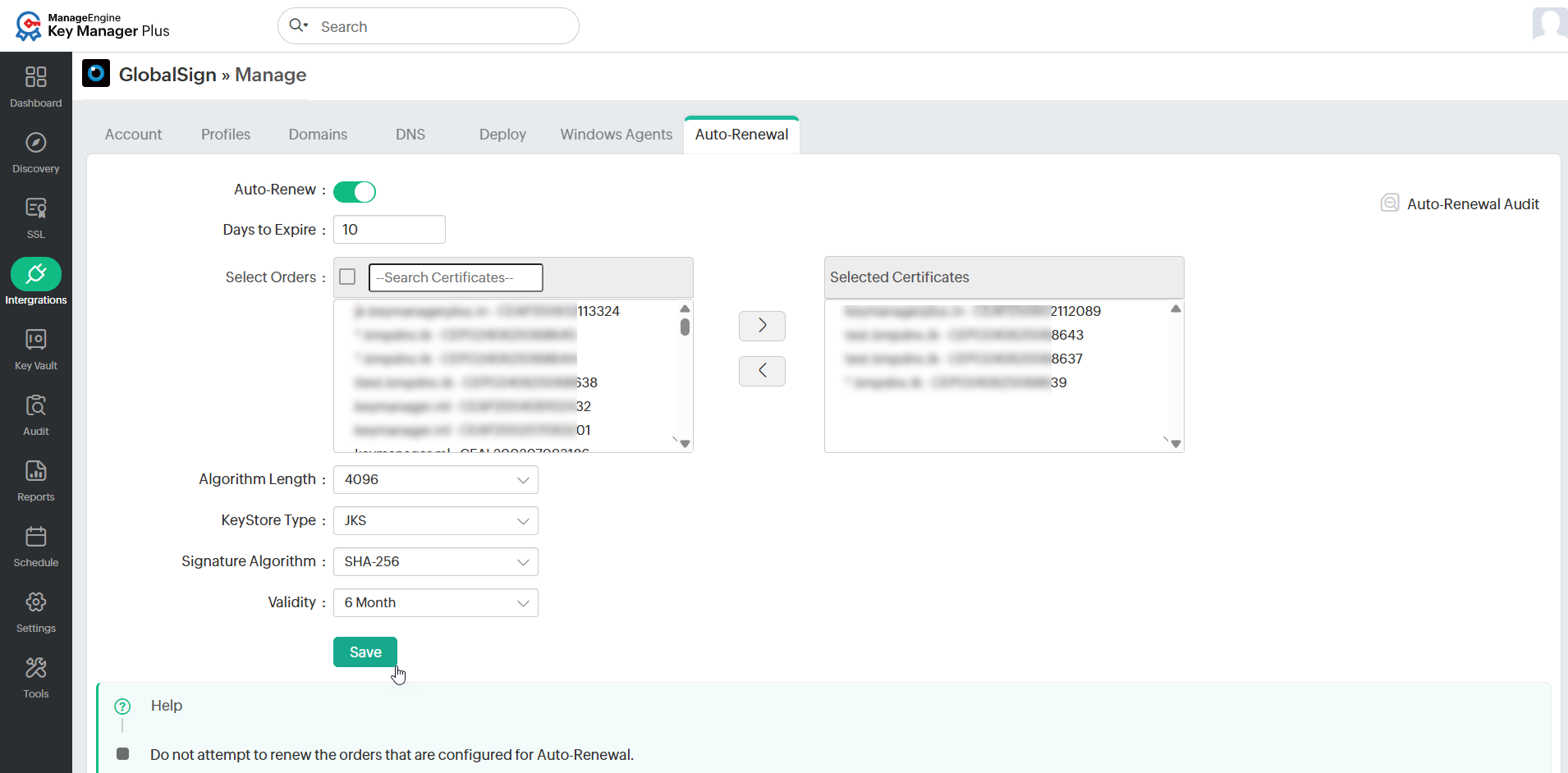
- Enter the number of days before expiry in which the auto-renewal process is to be carried out.
- Select the desired certificates that are to be auto-renewed.
- Select the Algorithm Length, KeyStore Type, Signature Algorithm, and Validity for the newly renewed certificate and click Save.
- Based on the configured details, the auto-renewal process will be carried out. Click the Auto-Renewal Audit to get insights about the certificates renewed through the auto-renewal process.
4.3 Reissuing Certificate
To reissue the required certificates, follow the steps that follow:
- Navigate to Integrations >> Public CA Integrations >> GlobalSign.
- Select the required certificate order and click Reissue Certificate from the top menu.
- In the form that appears, fill in the required details and click Reissue.
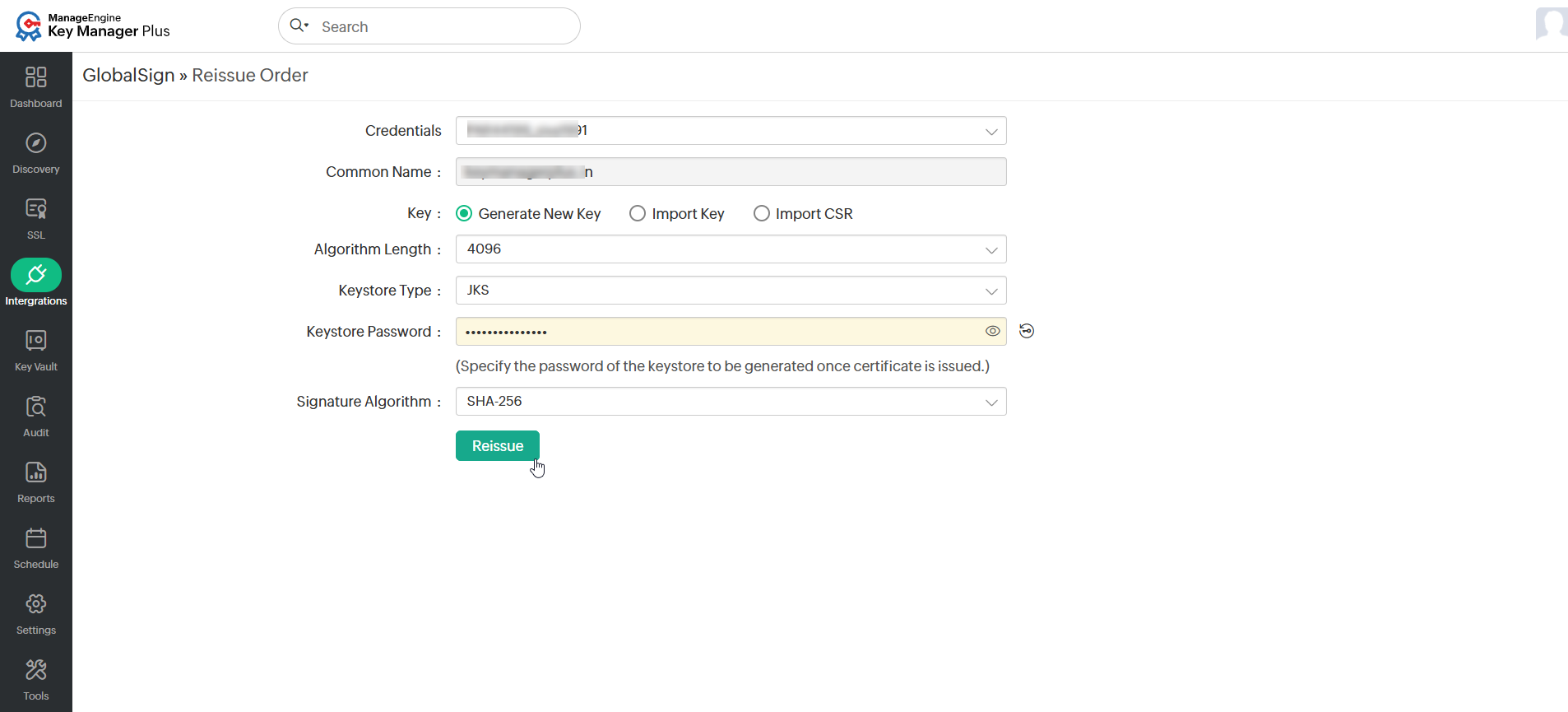
The certificate is reissued and automatically updated in the SSL >> Certificates tab.
4.4 Verifying Certificate Requests
To verify a certificate request, do the steps that follow:
- Navigate to Integrations >> Public CA Integrations >> GlobalSign.
- Select a certificate order that is pending and click Verify from the top menu.
- In the pop-up window that appears, select the Username and click Sync.
- If the selected certificate is a Domain Validation certificate, then Key Manager Plus Cloud will perform Domain Verification and URL Verification with GlobalSign and issue the certificate once the verification is complete. The issued certificate will be added to the SSL certificate repository in Key Manager Plus Cloud.
- If the selected certificate is not a Domain Validation certificate, then Key Manager Plus Cloud will fetch the status of the certificate alone from GlobalSign.
4.5 Deleting Certificate Orders
To delete the certificates, follow the steps that follow:
- Navigate to Integrations >> Public CA Integrations >> GlobalSign.
- Select the required certificate and click Delete from the More top menu.
- In the pop-up dialog box that appears, click OK to confirm the deletion of the certificate order.
The certificate request is deleted from Key Manager Plus Cloud.
Additional Detail
When a certificate request is deleted, it is removed only from Key Manager Plus Cloud. Users can find the order being open on the GlobalSign website for the account and they can import it into Key Manager Plus Cloud as needed using the Importing Existing Orders option under Integrations >> Public CA Integrations >> GlobalSign >> More.