Creating Self-Signed Certificates in Key Manager Plus
Key Manager Plus allows administrators to create their own self-signed certificates using Java keytool. These certificates are automatically imported into the Key Manager Plus repository on successful creation.
To create a self-signed certificate using Key manager plus:
- Navigate to the SSL >> Certificate tab and click Create in the top pane.
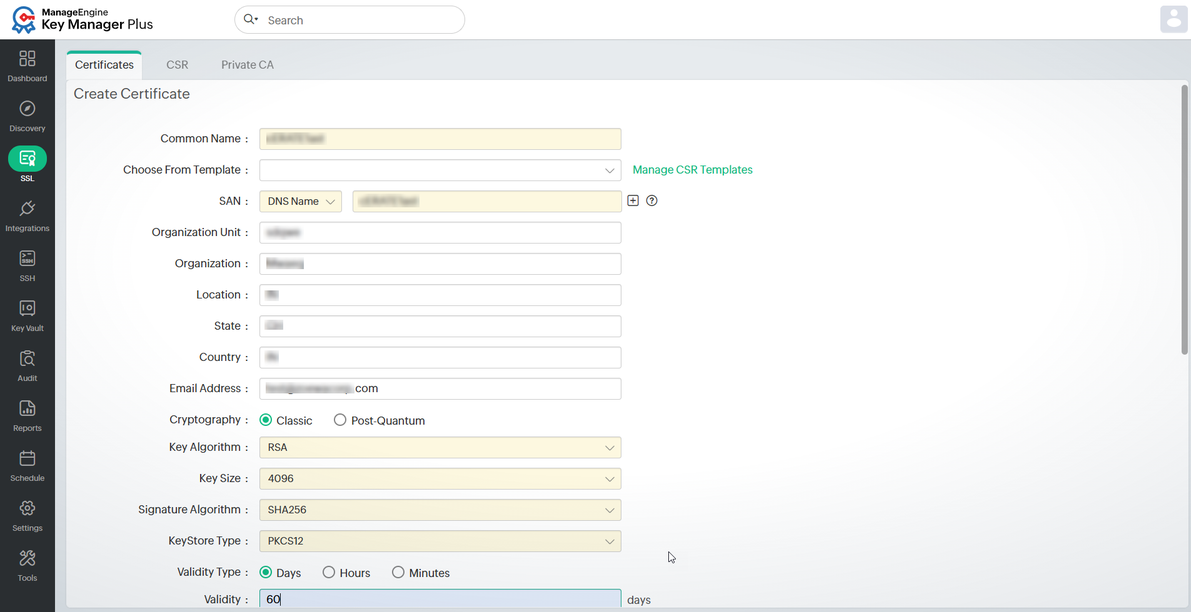
- In the Create Certificate form, enter a name (domain name) for the certificate in the Common Name field, and provide the required organizational and certificate-specific details:
- Organization Information - Enter the organization unit, organization name, location, state, country, and email address.
- Key Configuration - Select either Classic or Post-Quantum as the Cryptography.
Note: Post-Quantum Cryptography is available from build 7220 and above only.
- If you have selected Classic cryptography, select Key Algorithm, Key Size, Signature Algorithm, and KeyStore Type from the respective drop-down fields.
- If you have selected Post-Quantum cryptography, select the Key Algorithm from the dropdown. By default, the KeyStore Type will be PKCS12 and it cannot be changed. Refer to this help document for complete details on the supported key algorithms of the post-quantum cryptography.
- Certificate Validity - Choose Validity Type as Days, Hours, or Minutes depending on your requirement. Enter the validity duration in the next field. For short-term testing or temporary use, you can create ephemeral certificates with validity in hours or minutes.
- Provide a Store Password to protect the certificate.
- Enter an email address to receive alerts before the certificate expires, helping you ensure timely renewal.
- To designate the certificate as a root certificate, enable the Generate root certificate checkbox.
- Click Advanced Options to specify additional key usage attributes, if required. Here, there are two categories of options, Key Usage and Extended Key Usage. Select the required options to set the preferred flags for the certificate to denote the purpose for which the new certificate may be used. The Key Usage options include Non Repudiation, Digital Signature, Data or Key Encipherment, Server/Client Authentication etc. You can choose the properties and mark them as critical by selecting the Critical checkbox.
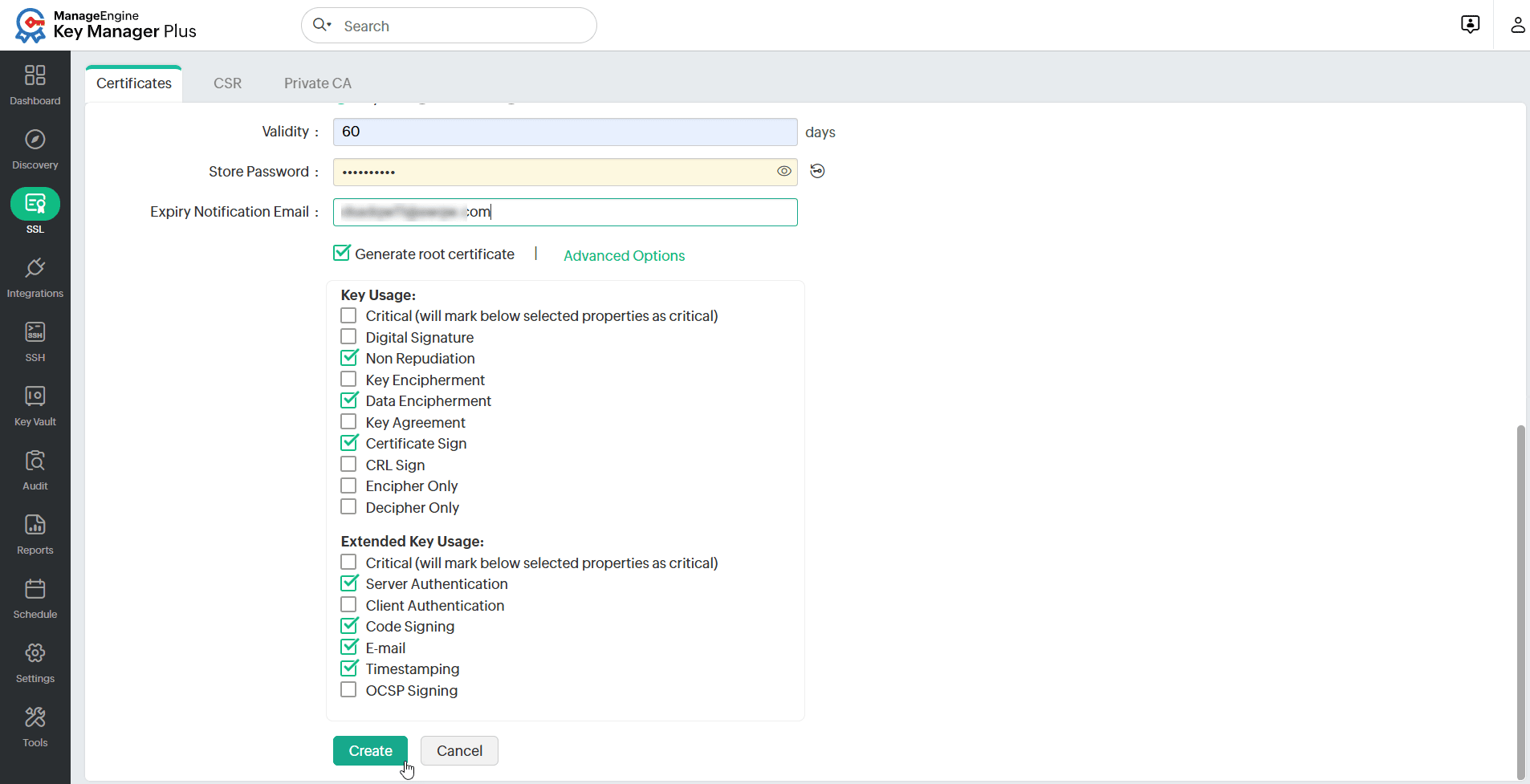
- Click the Create button. You will be redirected to the certificate window where the certificate content is displayed.
- You can copy the certificate content, or export the certificate to required email or system.
- Email — Select this check box to send the certificate file via email to the specified mail id.
- Export — Select this check box to export the file to your system.
- Both the options take effect once you click the Save button.
- Click the Save button to save the certificate in the Key Manager Plus repository, and export the certificate file, if opted in earlier step.
Notes:
- From Key Manager Plus build 5920 onwards, users can include a wildcard domain in the SAN field, in addition to having it in the Common Name field, when creating a self-signed certificate. Wildcard certificates allow securing an unlimited number of subdomains under a registered base domain. For example, for the base domain zoho.com, a wildcard certificate *.zoho.com can secure any subdomain such as mail.zoho.com, accounts.zoho.com, or support.zoho.com, where the asterisk (*) represents any valid subdomain.
- From build 7070 onwards, users can specify multiple DNS names in the SAN field in a comma-separated format when creating certificates.
Top