
Log Collection Filter
Last updated on:
In this page
Overview
Log360 allows you to collect and process only the necessary logs by configuring log collection filters. The log collection filter enables you to control which event logs are collected and stored in the product. By applying filters, you can exclude unwanted events and focus only on the logs that are relevant to your monitoring needs. This helps reduce noise, optimize performance, and streamline log analysis.
How it works
The filter determines what type of logs should be collected and what should be skipped, based on your configuration. You can configure the filter in two ways:
- Exclude specific events: The event IDs you specify will be ignored. All other events will be collected.
- Collect only specific events: Only the event IDs you specify will be collected. All other events will be skipped.
When to use
Use the log collection filter when:
- You have a large number of events (for example, 500+) but only need to monitor a smaller set.
- You want to reduce unnecessary noise in the product.
- You need to optimize log collection by reducing the number of logs ingested, especially when high events per second (EPS) affect performance.
Steps to create a log collection filter
- In Log360, navigate to Settings -> Admin Settings -> Log Collection Filters.
- Click on the +Add New Filter button.
- Specify an unique name for the filter in the Filter Name field.
- Choose the log format in the Select Log Format drop-down menu and select any one of the following log formats displayed:
- Windows Logs
- Syslog Logs
- IBM AS/400 Logs
- Application Logs
- Cloud Sources
- Click on the + button present in the Select Device(s) field to select a device group.
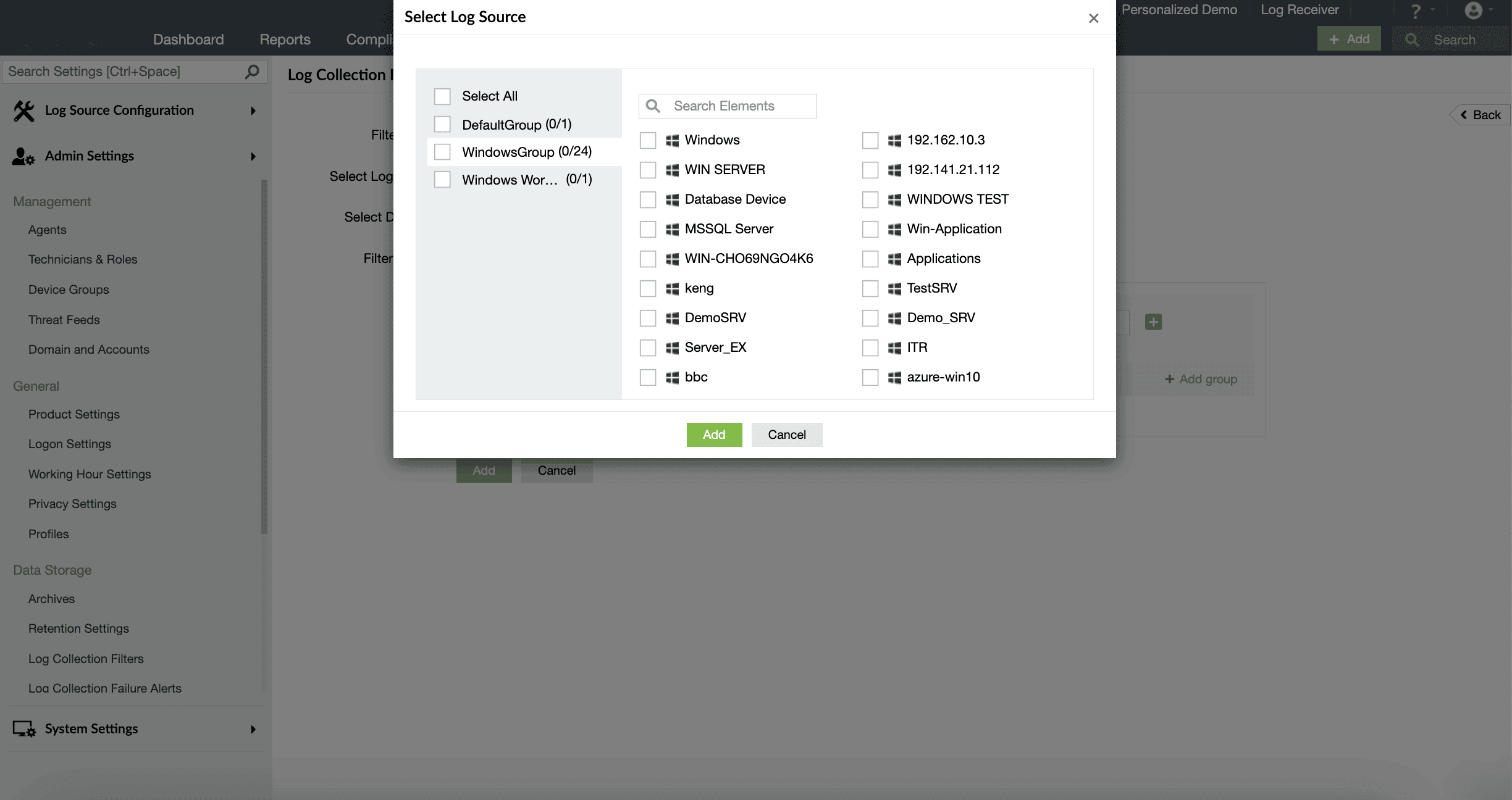
Image 1: Adding devices for log collection - In the Select Device pop-up menu, you can either search and select particular devices in your network to apply the filter to, or select entire device groups by selecting the respective check boxes on the left pane and clicking on Add.
- In the Filter Criteria box, you will see the Exclude and Collect Only drop-down menus to configure a filter to perform either of the following actions:
- Exclude all the logs that satisfy the specified filter criteria.
- Collect only the logs that satisfy the specified filter criteria.
NOTE The log collection filter can be configured to perform only one action- either Collect Only or Exclude.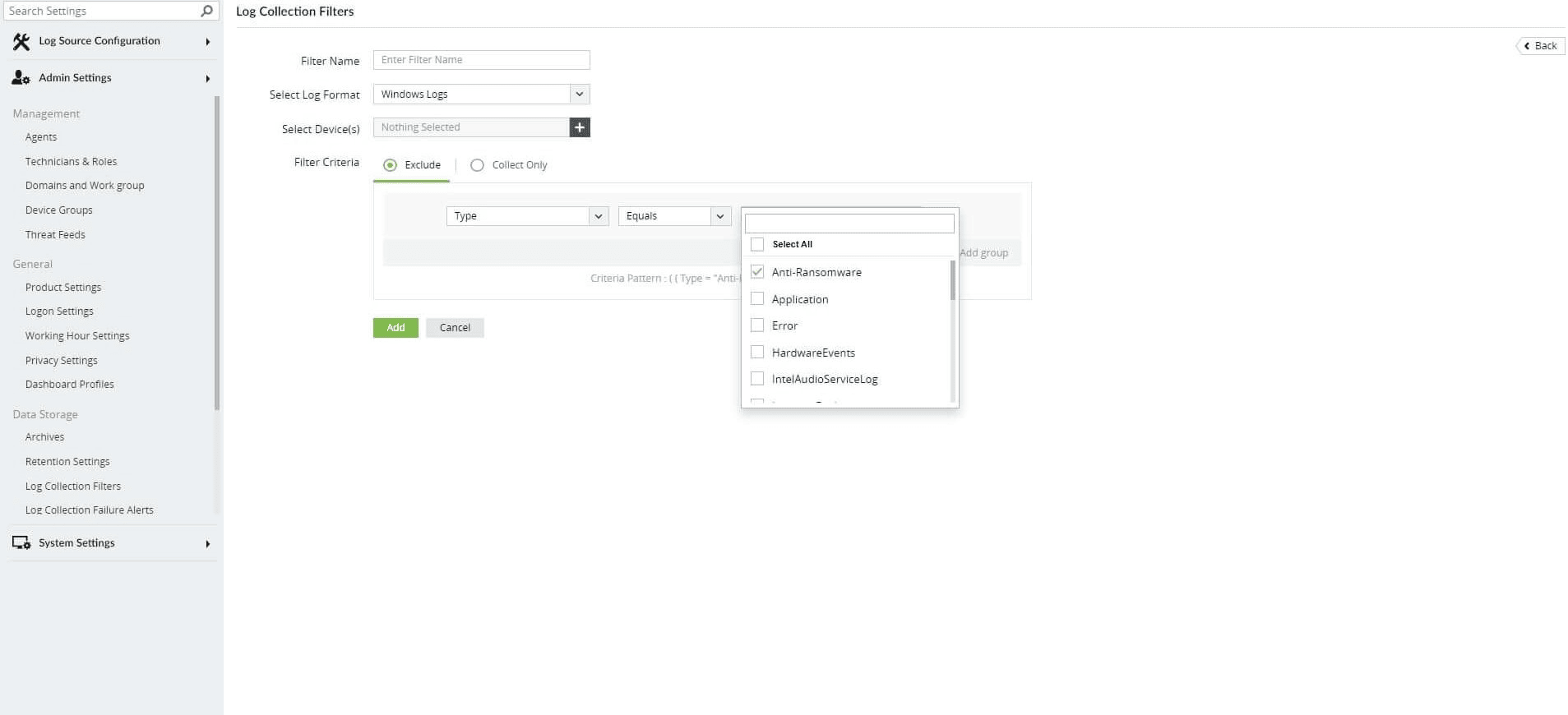
Image 2: Configure a filter using the filter criteria box - Click on the + sign to add multiple filter criteria by using conditional operators such as AND and OR.
- You can also configure multiple filter groups by clicking on +Add Group and link them using AND or OR operators to create a high-level filter.
- Click on Finish to save the created filter.
Updating log collection filters
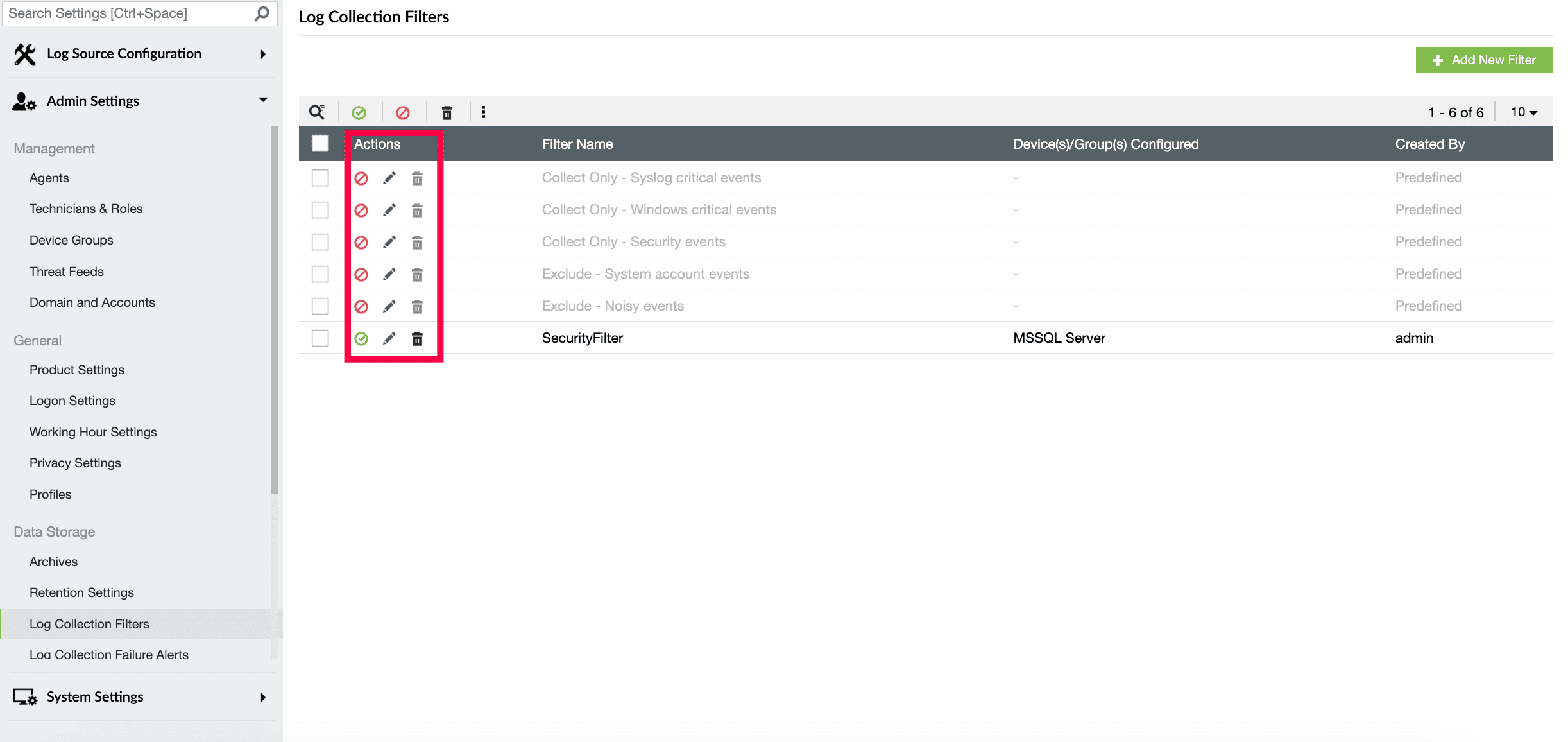
You can view, enable or disable, edit, and delete all the created filters on the Log Collection Filters page by clicking on the respective icons provided. Please note that the default filters present on this page can only be disabled and not deleted.
You can see the list of devices associated with a particular filter by hovering your mouse pointer over the Device(s)/Group(s) Configured section. The More Actions drop-down menu allows you to select and enable, disable, export, and import multiple filter profiles.
The list of all the sources for which the log collection filter option is available is provided below:
-- Windows logs.
-- IBM/400 logs.
-- Microsoft 365 logs.
-- Only Unix, Cisco, SonicWall, Juniper, PaloAlto, Fortinet, CheckPoint Device, NetScreen, WatchGuard, Sophos, Brracuda, Huawei, Meraki, HP, Syslog, PfSense, FirePower, F5, Stormshield, Dell, ForcePoint, Topsec and Sangfor under Syslog log format.
-- Only Sysmons, IIS Server (event viewer logs only), Oracle, Terminal, Printer, MSSQL Server Logs(event viewer logs only) and Syslog Application under Application log format.
-- Only AWS and SalesForce under Cloud Sources log format.
Read also
This page explained how to create, configure, and manage log collection filters to control which events are collected or excluded. It also covered use cases, step-by-step setup, and actions you can perform on existing filters to optimize log collection and reduce noise.