
Nginx overview
Last updated on:
In this page
Overview
Nginx is a high-performance web server, reverse proxy, and load balancer designed for modern web architectures. It's known for its efficiency, stability, and low resource consumption, making it ideal for handling high-traffic websites.
Nginx extension scope
The Nginx extension for Log360 Cloud enables integration of Nginx logs into the Log360 Cloud ecosystem. This extension provides features such as log collection, parsing, reporting, alerting, correlation, and advanced log search capabilities for monitoring web traffic and server performance.
Configuring Nginx log format
To configure Nginx and define a custom access log format, follow these steps:
1. Open the Nginx configuration file
Locate Nginx configuration file on your system:
- Windows: Navigate to NginxDirectory/nginx.conf and open it using a text editor.
- Linux: Run the following command to open the file: sudo nano /etc/nginx/nginx.conf
2. Define the custom access log format
Inside the http block of the nginx.conf file, add the following log format definition:
log_format log360cloud_custom_format 'time_local="$time_local" connection="$connection" realip_remote_addr="$realip_remote_addr" remote_addr="$remote_addr" host="$host" remote_port="$remote_port" remote_user="$remote_user" server_name="$server_name" server_addr="$server_addr" server_port="$server_port" request="$request" uri="$uri" http_referer="$http_referer" http_user_agent="$http_user_agent" request_filename="$request_filename" http_cookie="$http_cookie" sent_http_content_type="$sent_http_content_type" http_x_forwarded_for="$http_x_forwarded_for" proxy_host="$proxy_host" status="$status" bytes_sent="$bytes_sent" https="$https" request_time="$request_time" ssl_cipher="$ssl_cipher" ssl_protocol="$ssl_protocol" upstream_addr="$upstream_addr" upstream_status="$upstream_status" upstream_bytes_received="$upstream_bytes_received" upstream_response_time="$upstream_response_time" upstream_cache_status="$upstream_cache_status"';
3. Configure the log destination
Choose one of the following methods for your log destination: Log Import (file-based) or Syslog Forwarding.
A. Configure for Log Import
Specify the access log location:
Inside the HTTP block, define where the access logs should be stored and apply the custom log format. Please refer to the following example:
Format:
access_log location log_format_name;
Example:
access_log /var/log/nginx/access.log log360cloud_custom_format;
B. Configure for Syslog Forwarding
Set the syslog destination inside the http block.
Inside the http block, add the following line:
access_log syslog:server=<Log360Cloud_Agent_IP>:<Syslog_Port>,facility=local7,tag=nginx,severity=info log360cloud_custom_format;
-- Ensure you replace <Log360Cloud_Agent_IP> with the IP address of your Log360 Cloud's Agent, and <Syslog_Port> with your designated syslog listening port (typically 514.)
Example:
access_log syslog:server=192.168.2.1:514,facility=local7,tag=nginx,severity=info log360cloud_custom_format;
4. Reload Nginx to apply changes
Once the configuration changes are made, reload Nginx for the updates to take effect.
- Windows: Run the following command in the command prompt:
nginx -s reload
- Linux: Run the following command:
sudo systemctl reload nginx
Configuring in Log360 Cloud
For Import
After installing the Nginx Extension in Log360 Cloud, configure the scheduled import for the access.log file from the Nginx server file path. Ensure that the correct file path is used during configuration.
Navigate to Settings → Configuration Settings → Log Source Configuration → Import Logs → From Device.
For Syslog
- After installing the Nginx Extension in Log360 Cloud, Navigate to Settings → Configuration Settings → Log Source Configuration → Applications → Other Applications
- Select Nginx from the Log Source Type dropdown.
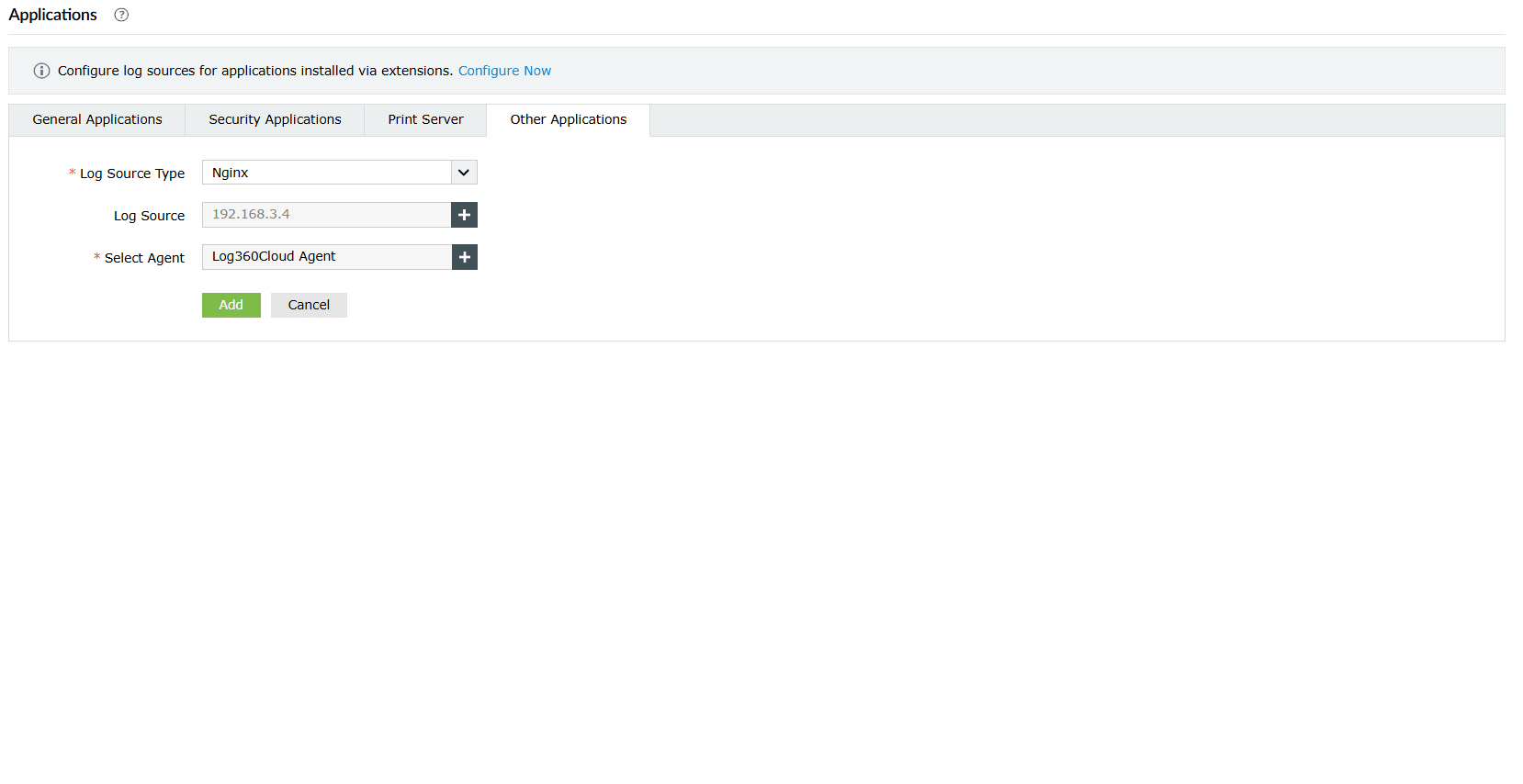
- Click the + icon to add a new device.
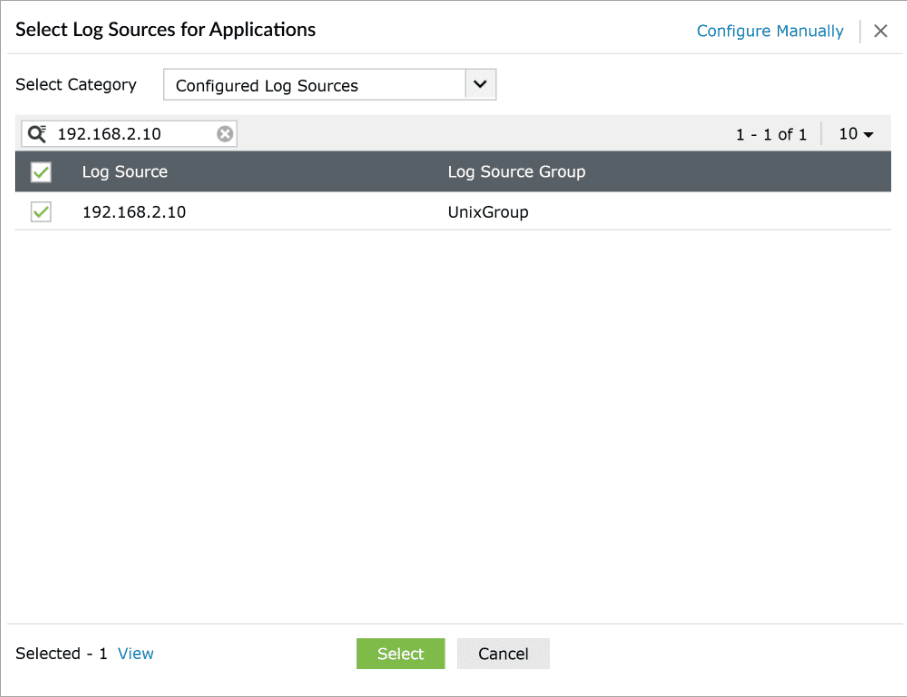
- Choose a pre-configured host where Nginx Application is installed. If the host is not pre-configured, click Configure Manually and enter the hostname or IP.
- Use the Select Agent dropdown to choose the preferred agent for log forwarding.
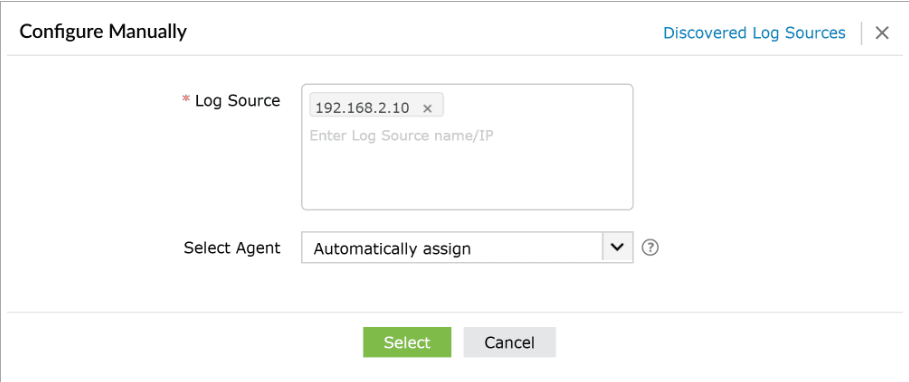
- Click Select to add the log source, then click Add to save the configuration.
Managing Nginx integration
Audited Nginx events
Here are the types of audited events captured from Nginx in Log360 Cloud:
| Category | Events |
|---|---|
| Nginx web server events | Web server traffic, Request rate, Requests per session, URI accessed, Virtual server events, Files accessed, SSL success events, SSL handshake failure |
| Web server HTTP status code | Success events, Redirection events, Client-side errors, Server-side errors. |
| Nginx upstream events | Upstream request, Upstream redirection, Cache efficiency |
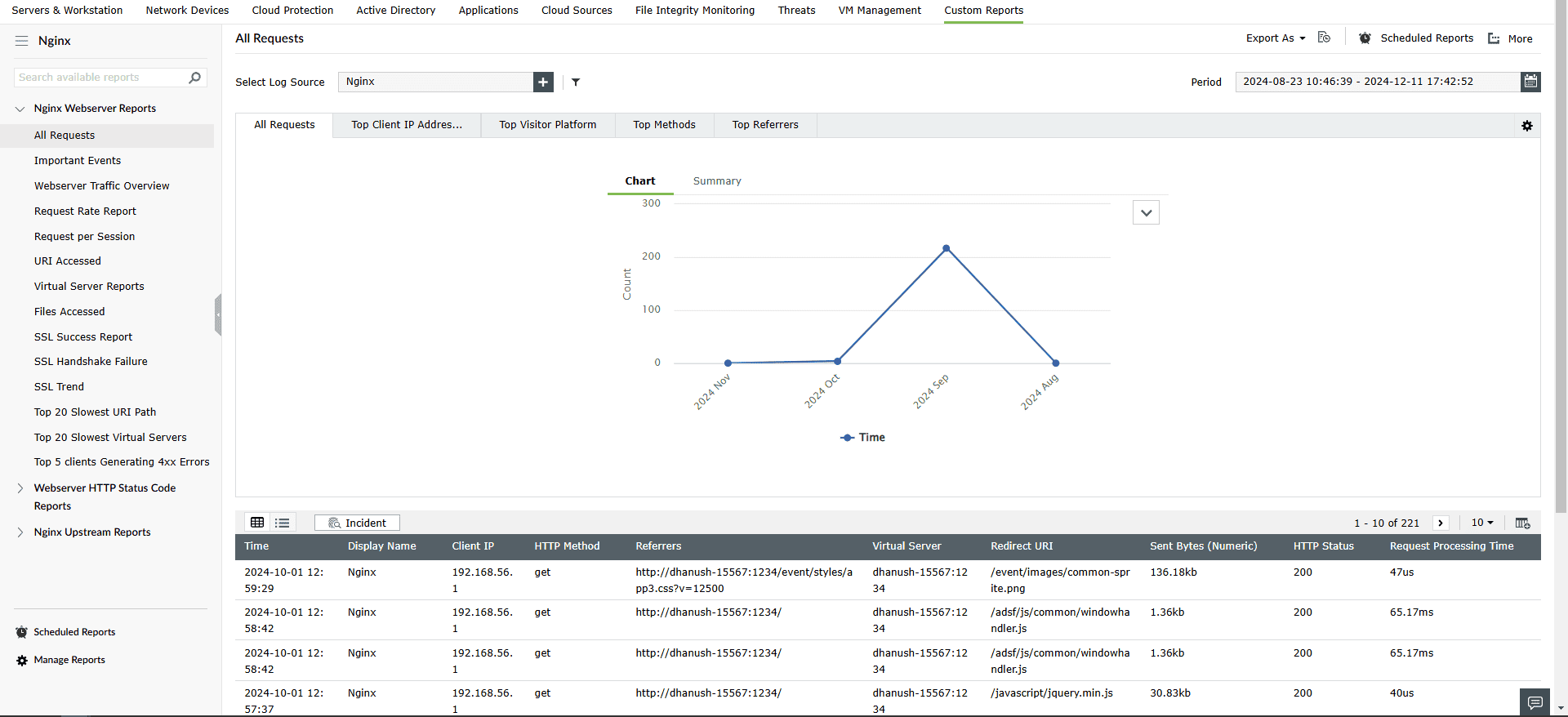
Viewing Nginx reports
To view Nginx reports, navigate to the Reports tab and select Nginx from the Custom Reports sub-tab.
Enabling Nginx Alerts
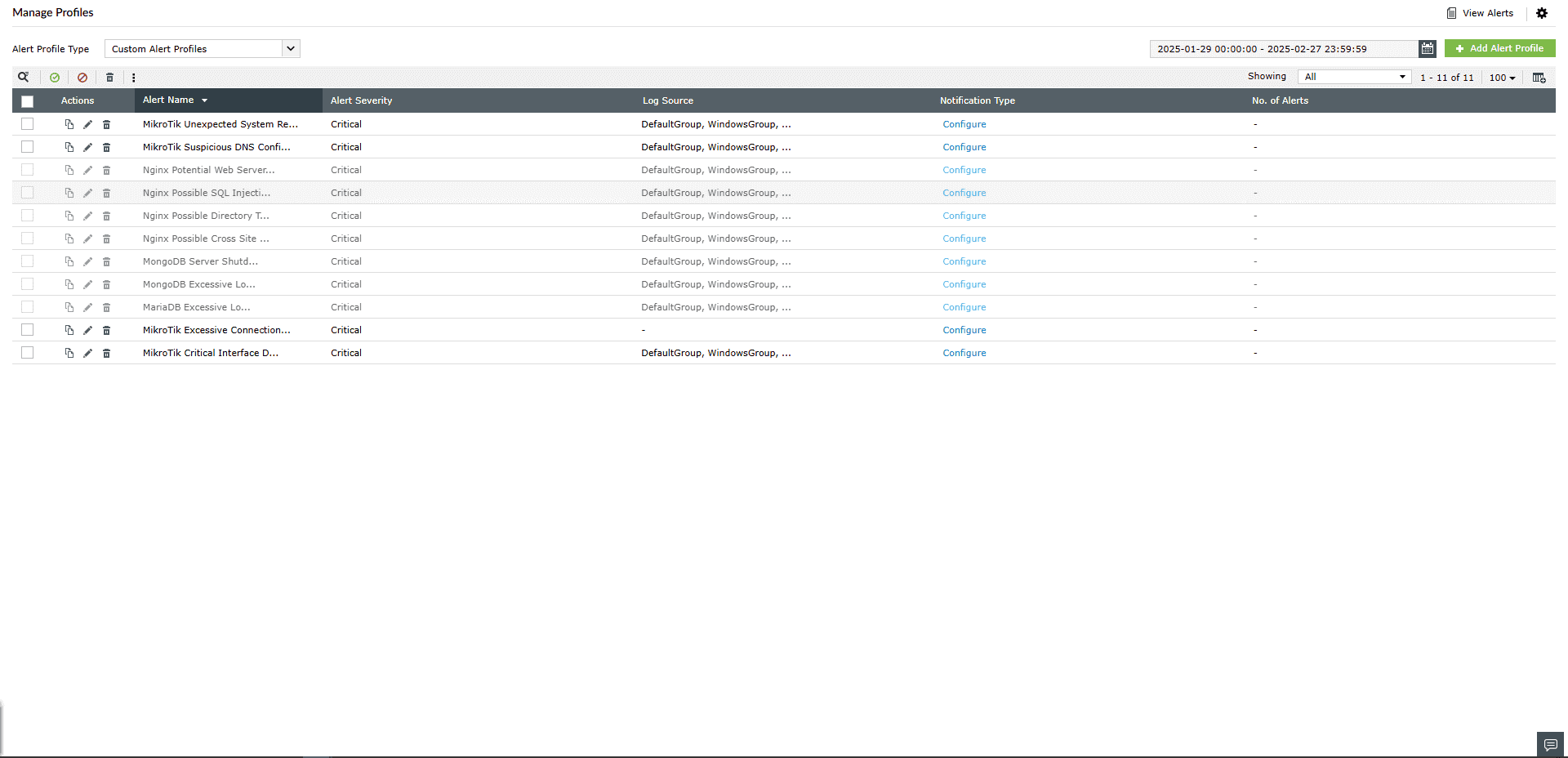
To view the Alerts, navigate to the Alerts tab -> Manage Alert Profiles.
- In the Manage Alert Profiles page, select Custom Alert Profiles as the Alert Profile Type. Click the search icon and add Nginx to filter out the alert profile(s). Select the profile(s) and click the green check mark icon
 to enable the alert profile.
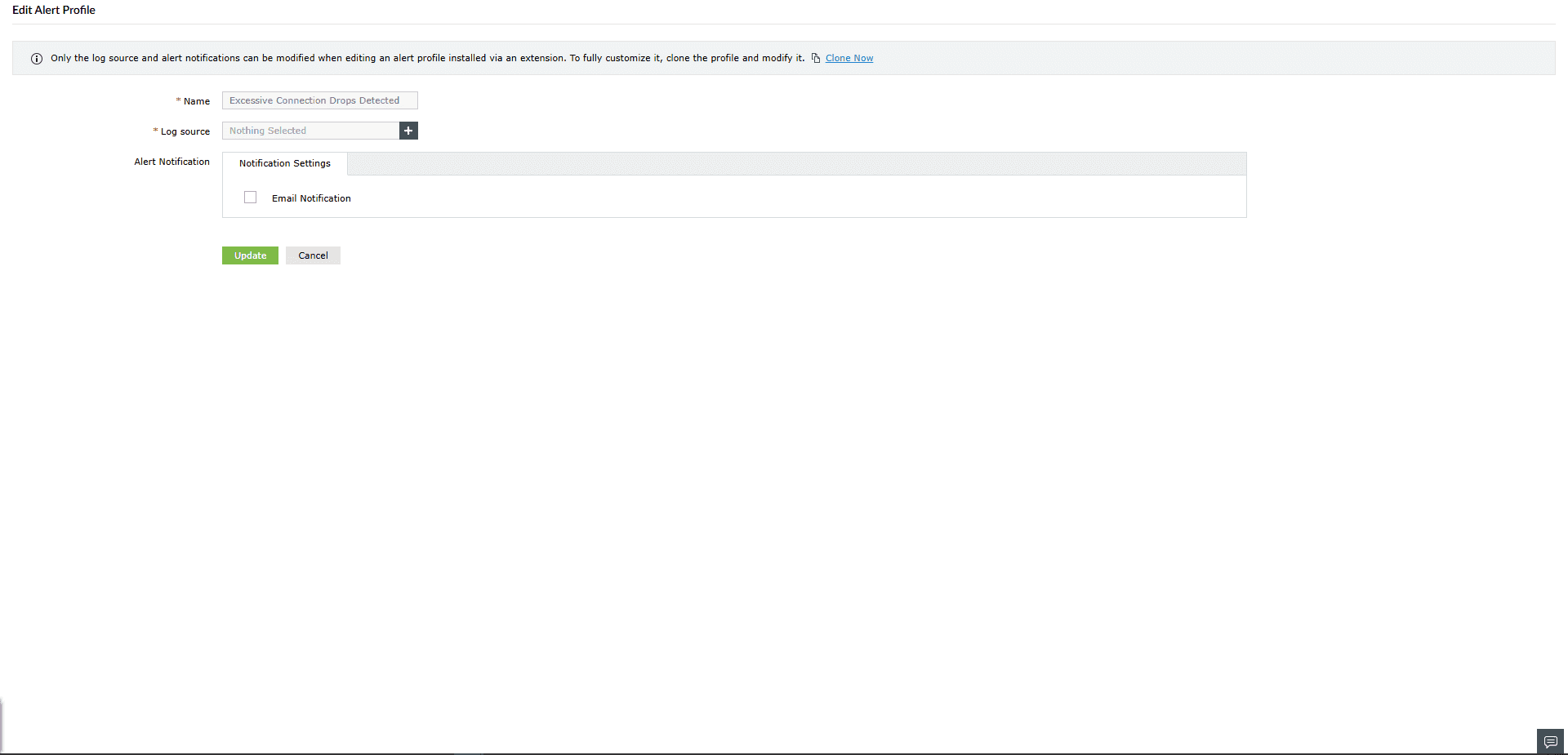
- To associate the log source, click the edit icon to open the Edit Alert Profile window. In the Log Source field, click the add button and select the configured log source for Nginx. Click Update to save the changes.
Read also
This page explained how to configure Nginx log collection and integrate Nginx logs into the product for monitoring and analysis. Refer to the following documents to learn more about related capabilities: