
Configuring Failover Cluster
Last updated on:
Overview
This page explains how to configure failover and module-based failover. Learn how to set access modes (Active-Passive or Active-Active) and ensure redundancy for critical server roles to maintain continuous log management and high availability.
Configuring failover
- Log in to your account.
- Go to the Settings tab.
- Under Admin Settings, navigate to Enterprise
Essentials and select Failover.
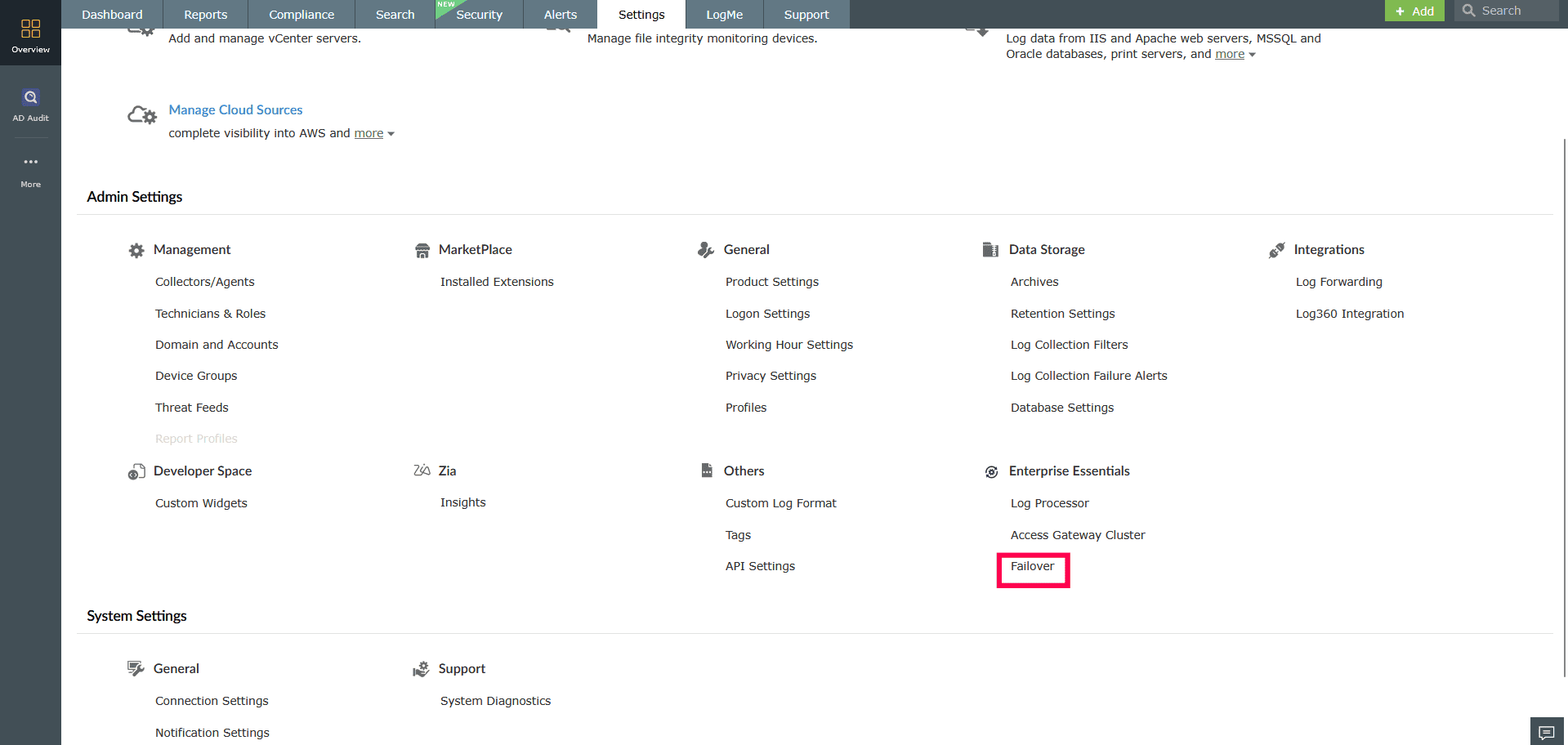
Figure 1: Navigating to Failover - Click Configure Log Processor to proceed. You will be redirected to the Log Processor configuration page.
-
NOTE: If the Log Processor is already configured, you will be automatically redirected to the Failover Configuration page.
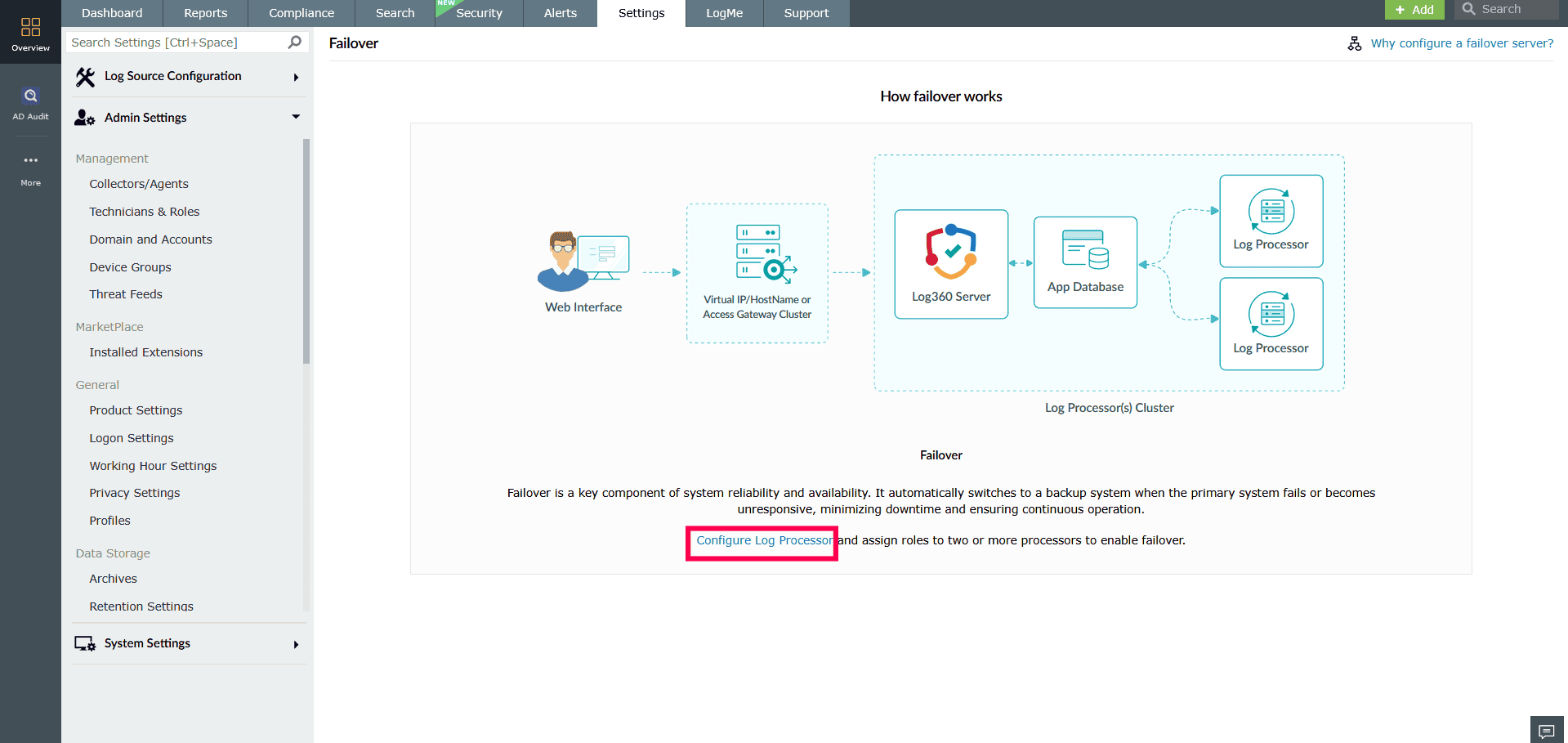
Figure 2: Configuring Log Processors NOTE: To enable failover, you must assign roles to two or more Log Processors. Refer to this help document to configure Log Processors. - Once you have configured the Log Processors, return to the Failover configuration page.
- If the Failover Status displays Common Access Mode has not been
configured, click
Configure next to Access Mode.
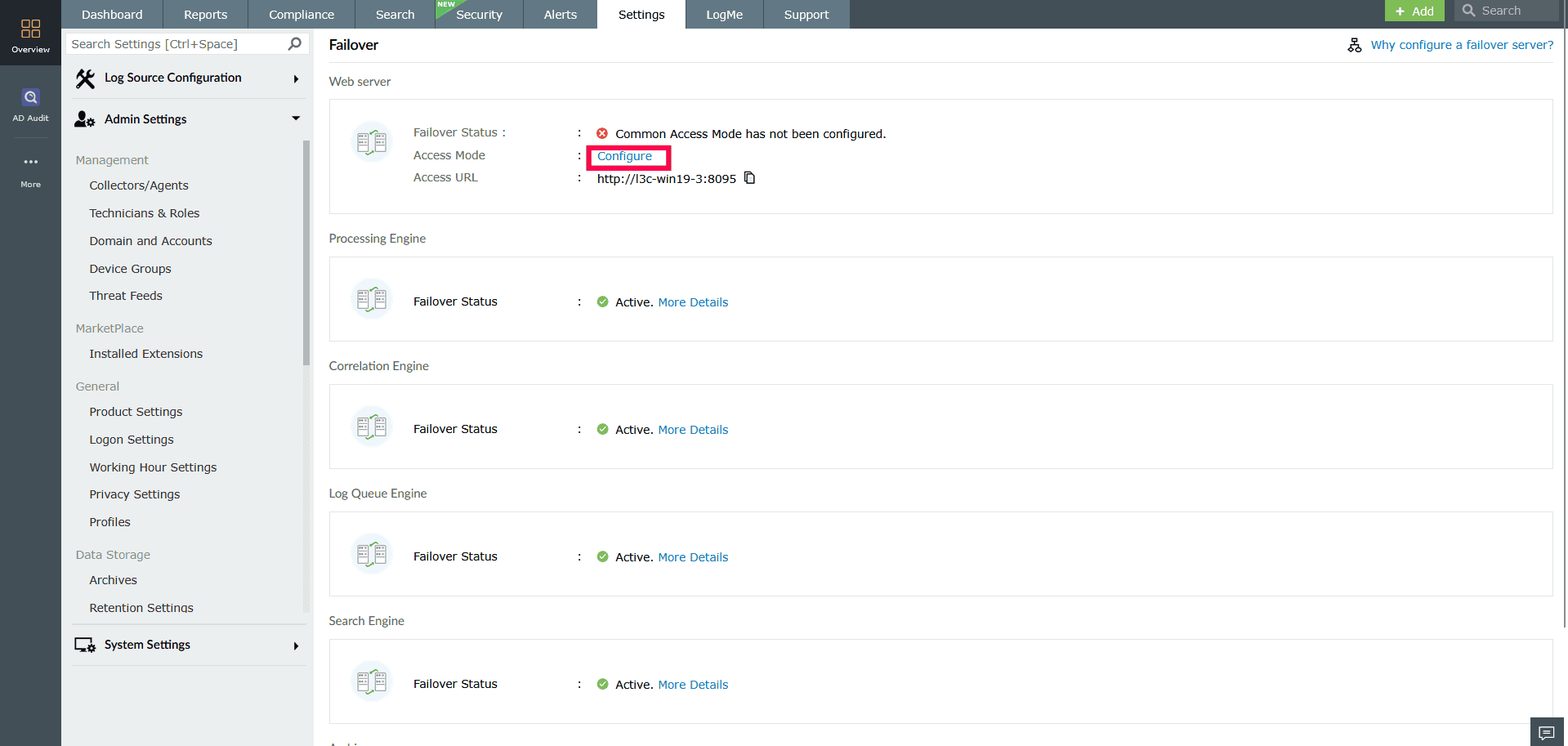
Figure 3: Failover configuration - In the Access Mode Configuration window, choose one of the following
deployment types:
- Virtual IP/HostName (Active-Passive): Suitable when servers are on the same subnet.
- Access Gateway Cluster (Active-Active): Select this mode if an Access Gateway Cluster has already been configured and will be used to route external requests.
- If you choose Active-Passive (Virtual IP/HostName):
- In the Access Mode Configuration window, select Virtual
IP/HostName.
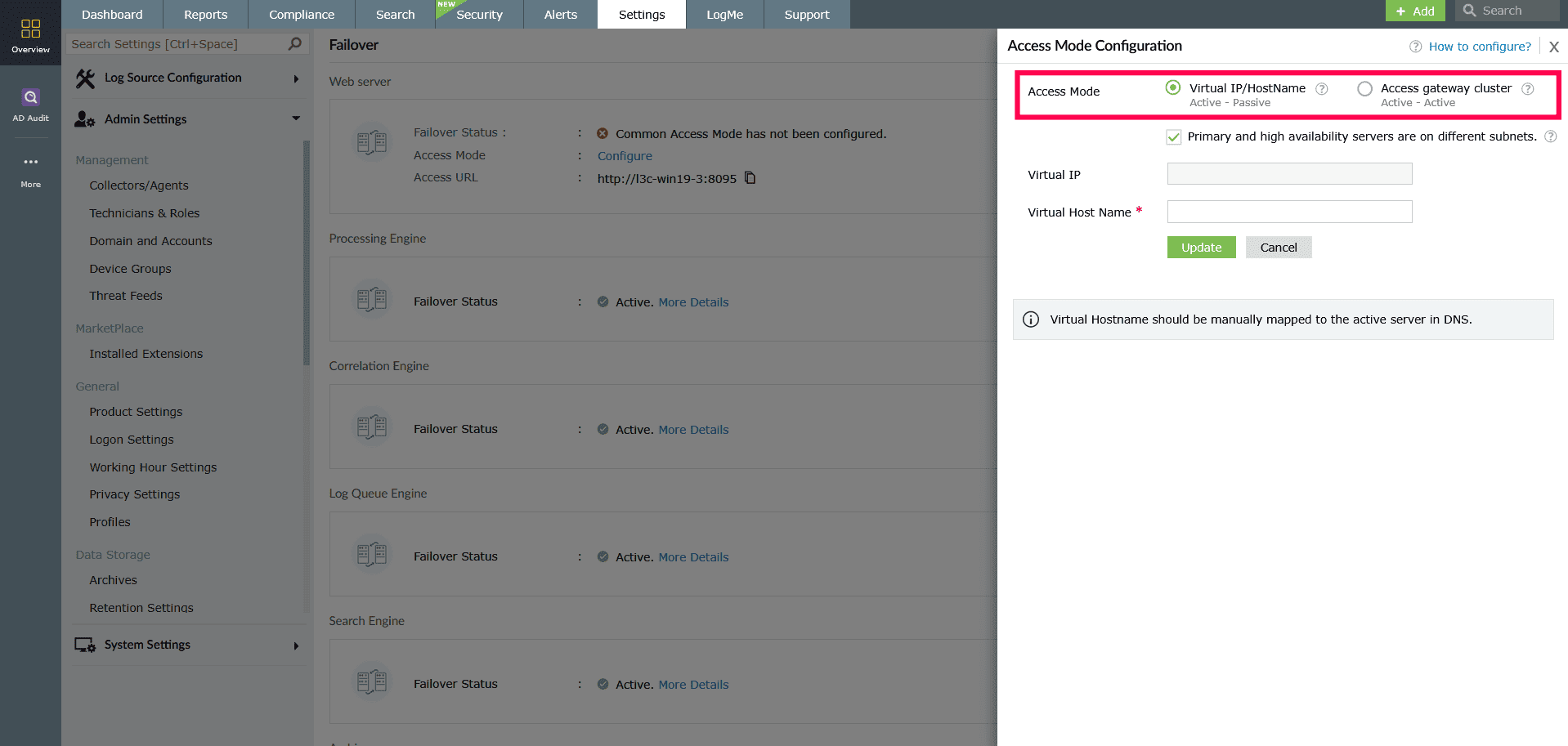
Figure 4: Access Mode Configuration - Select the checkbox if the primary and high availability servers are on
different
subnets.
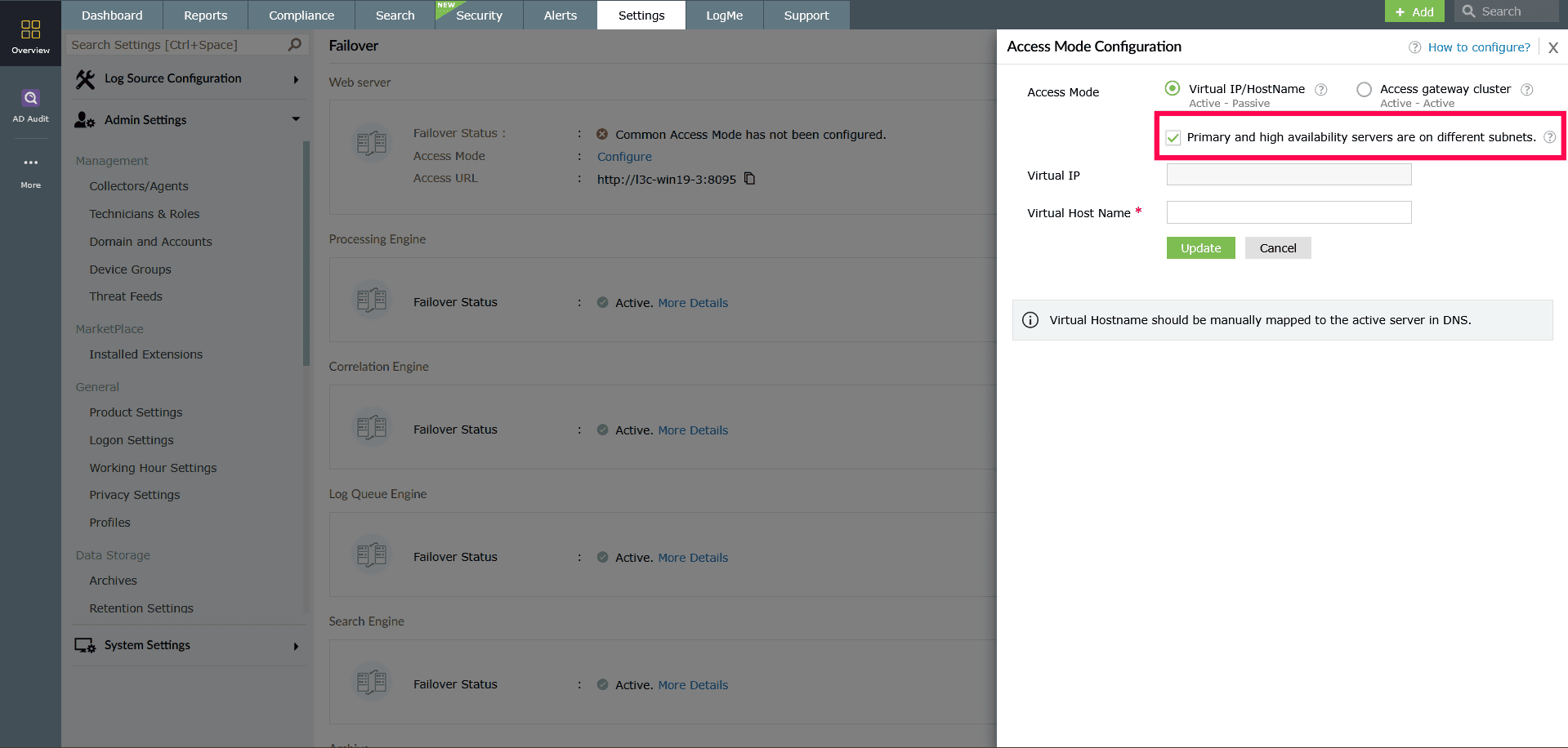
Figure 5: Access Mode Configuration - Enter the Virtual IP or Virtual Hostname to be
used for routing traffic.
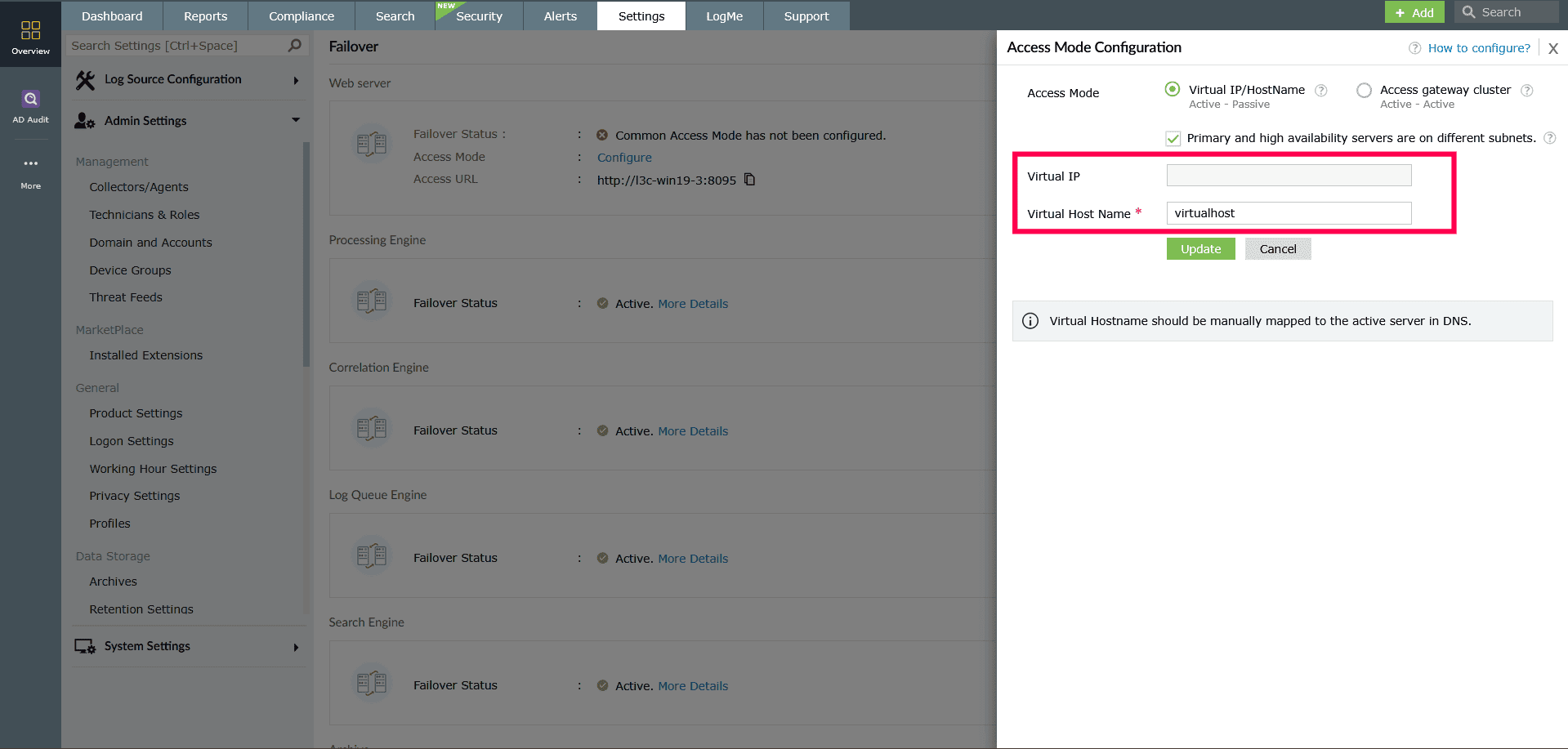
Figure 6: Configuring Virtual IP Host Name - Click Update to save the configuration.
- In the Access Mode Configuration window, select Virtual
IP/HostName.
- If you choose Active-Active (Access Gateway Cluster):
- Select Access Gateway Cluster in the Access Mode
Configuration window.
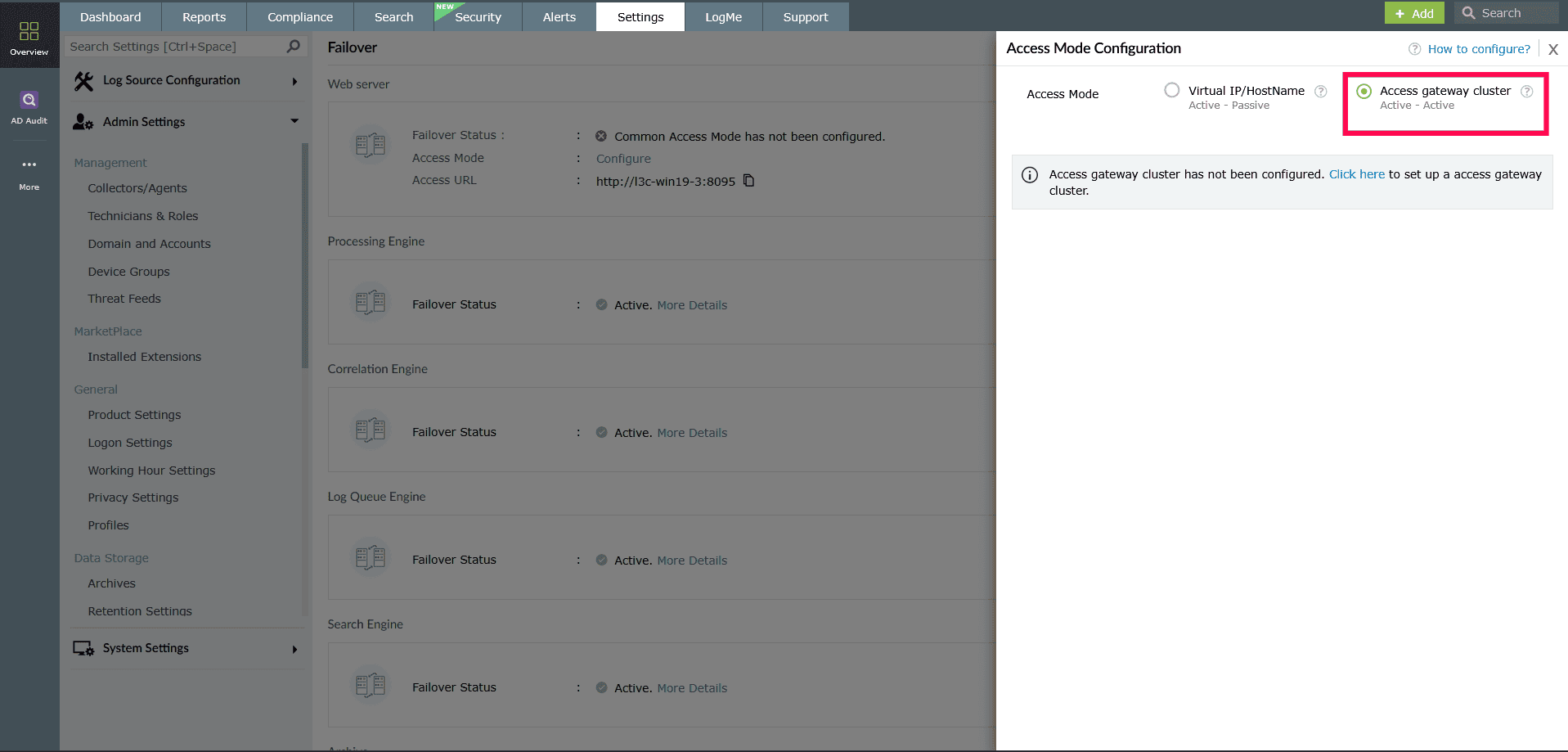
Figure 7: Access Mode configuration - If an Access Gateway Cluster has not been configured, select the Click
here link. You
will be redirected to the Access Gateway Cluster configuration
page.
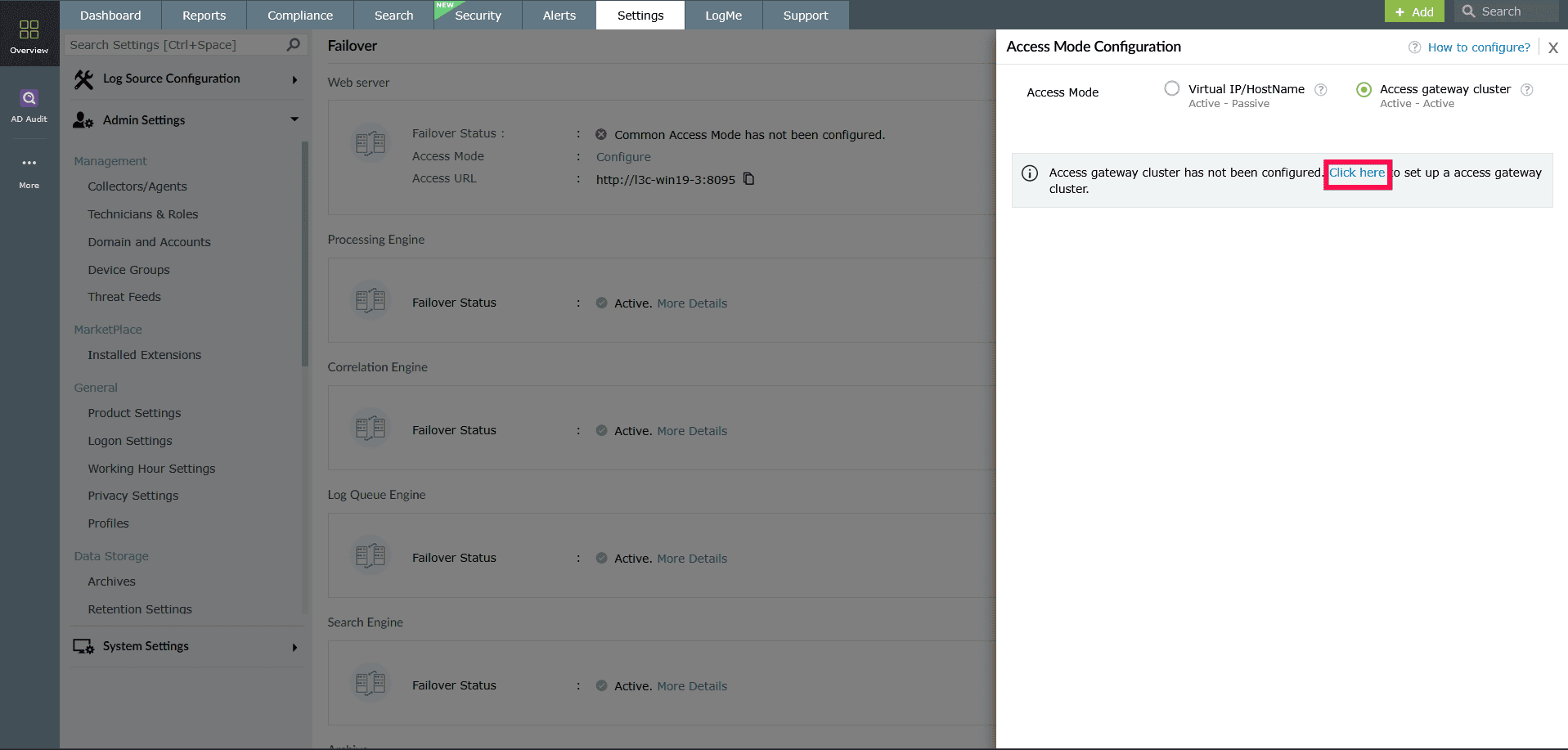
Figure 8: Access Mode configuration - Follow the configuration steps to set up the Access Gateway Cluster.
- Once configured, return to the Access Mode Configuration screen
and click Update to
apply the settings.
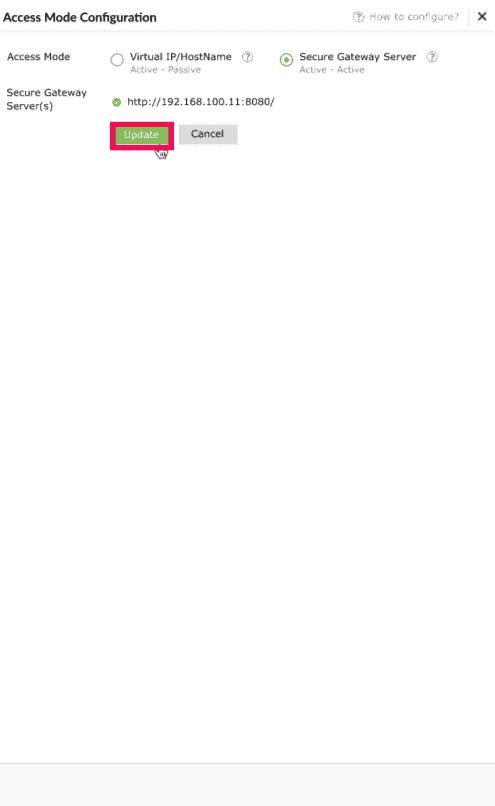
Figure 9: Access Mode configuration - Click View More to see the list of configured Access Gateway
Clusters.

Figure 10: Viewing configured Access Gateway Clusters 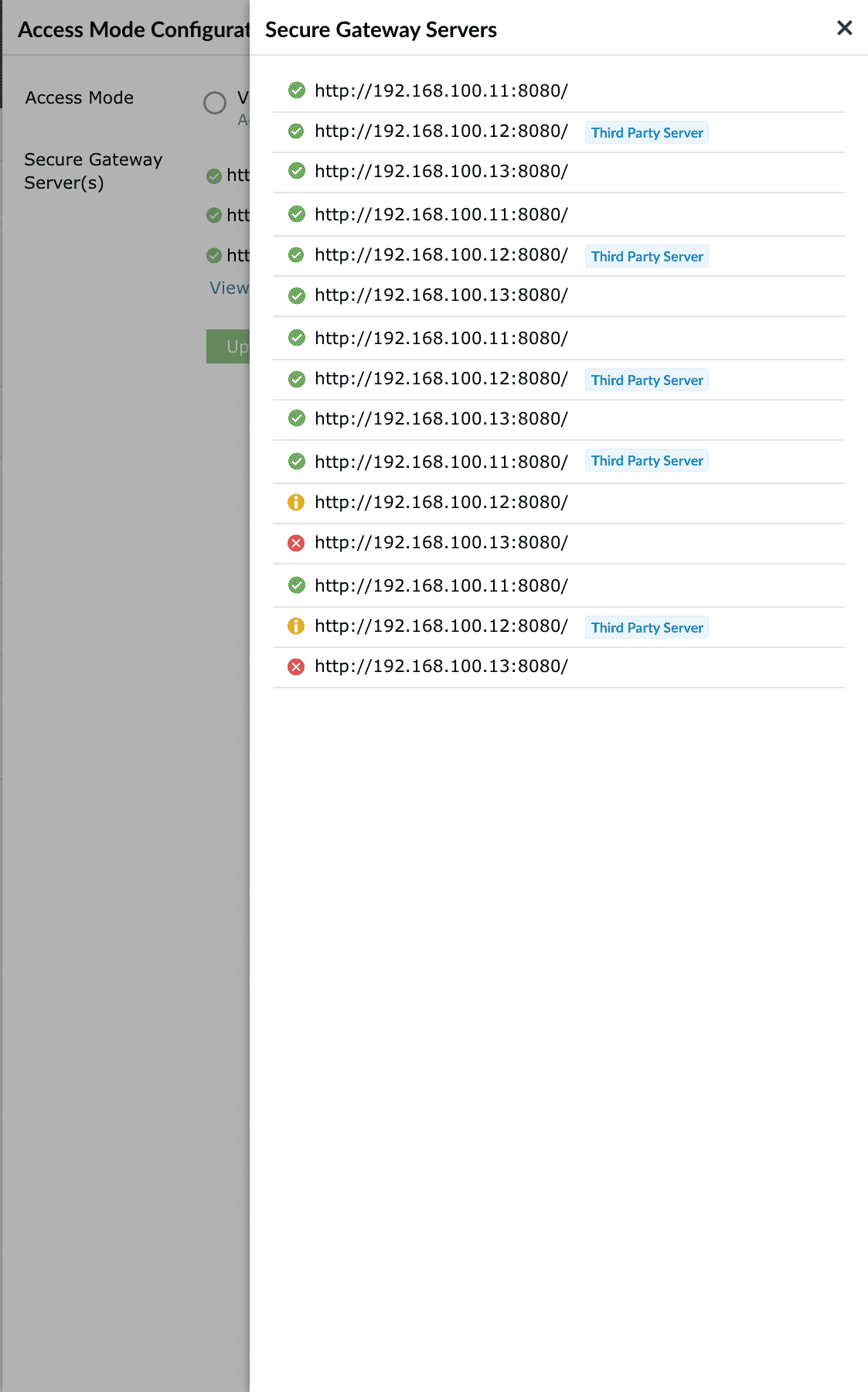
Figure 11: List of configured Access Gateway Clusters
NOTE: Refer to this help document for detailed instructions on configuring Access Gateway Cluster. - Select Access Gateway Cluster in the Access Mode
Configuration window.
Configuring module-based failover
Follow the steps below to configure failover for a specific component.
- Log in to your account.
- Go to the Settings tab.
- Under Admin Settings, navigate to Enterprise Essentials and select Failover.
- In the Failover page, locate the section for which you want Failover to be enabled.
- Click Configure next to the message Failover Server Not
Configured.
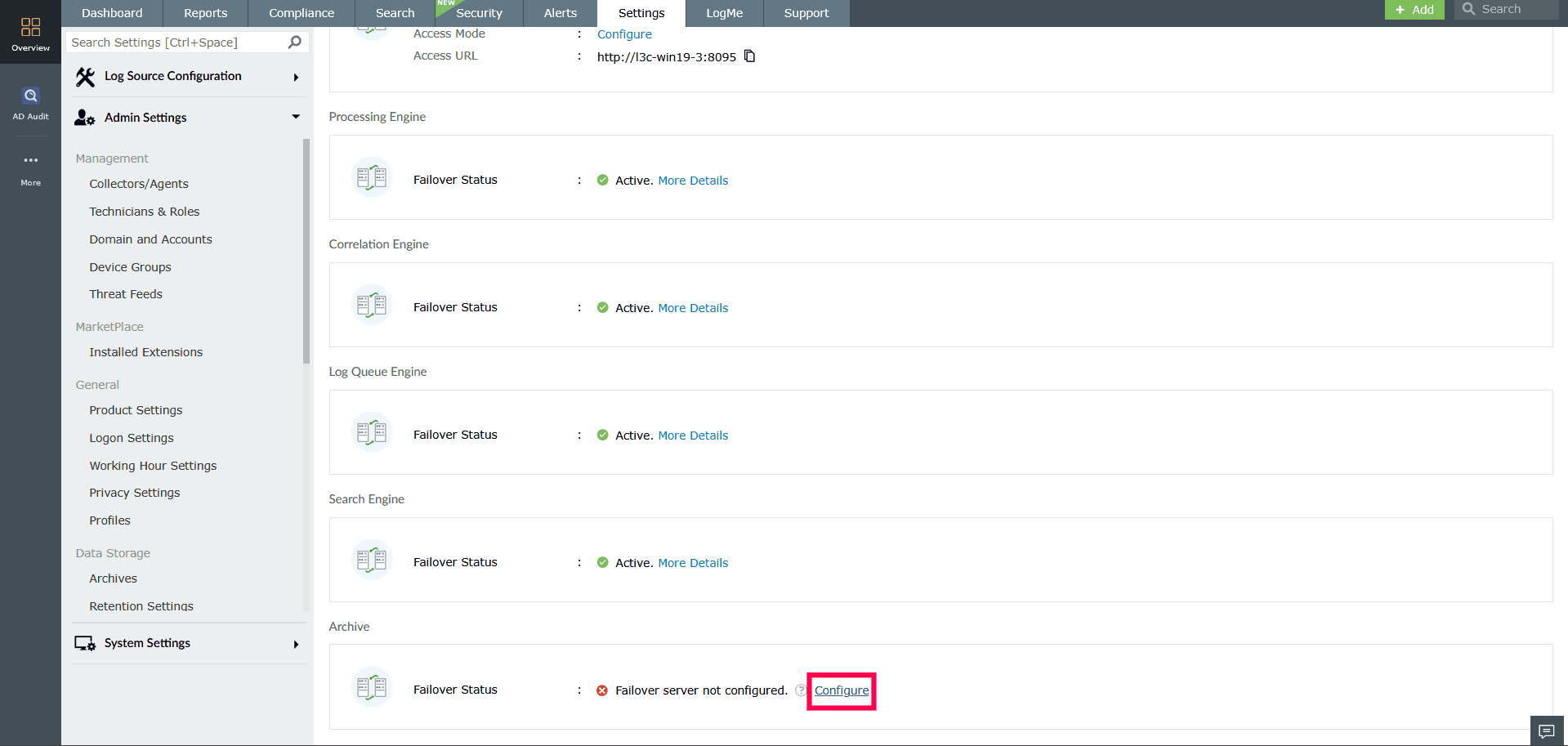
Figure 12: Failover Server configuration - You will be redirected to the Log Processors page. Under the
Associated Role(s) column, select Archive.
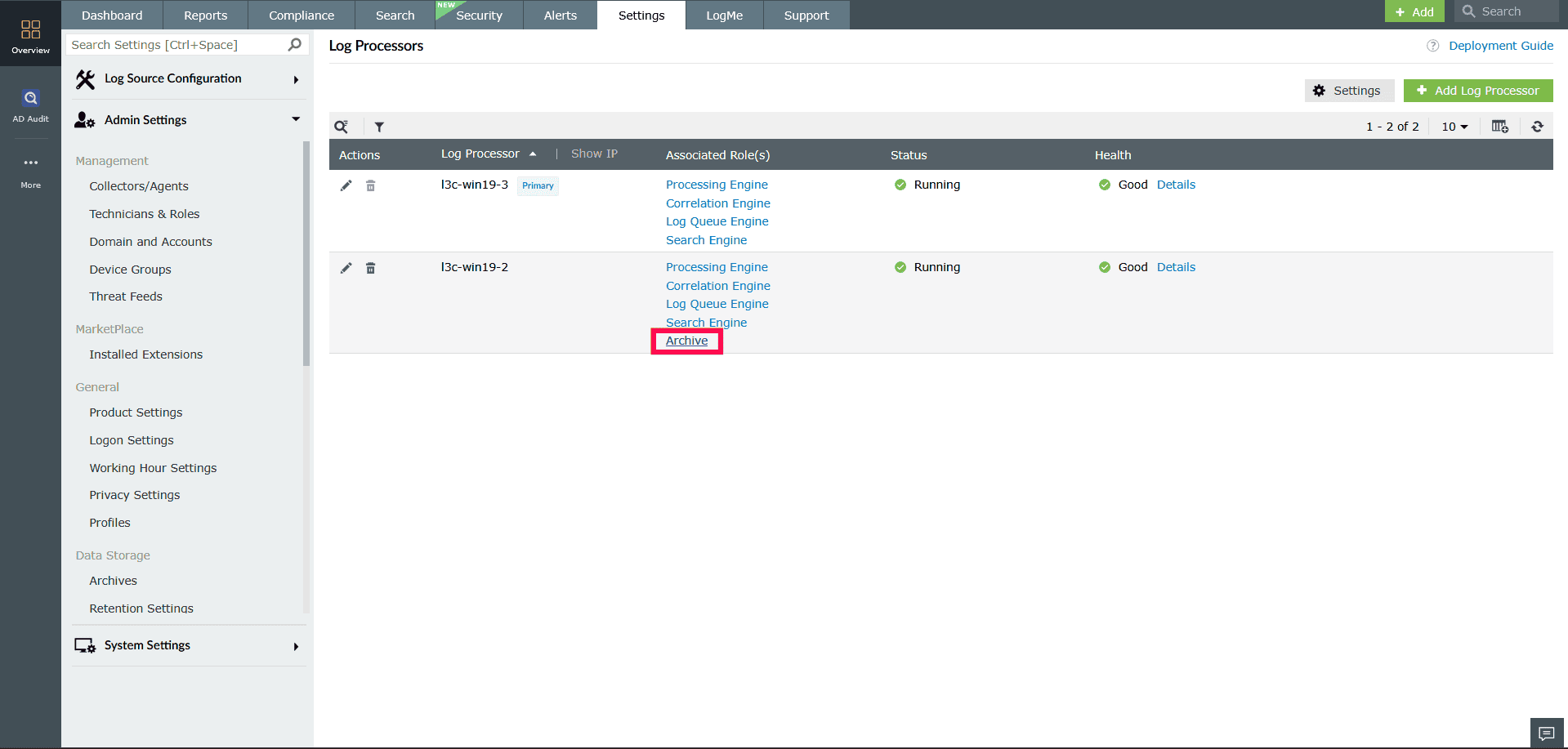
Figure 13: Configuring Log Processors - Ensure the toggle next to Archive Status is enabled.
NOTE: Repeat this step for at least one additional processor to ensure failover is supported. To learn how to add additional Log Processors, refer to this help document.
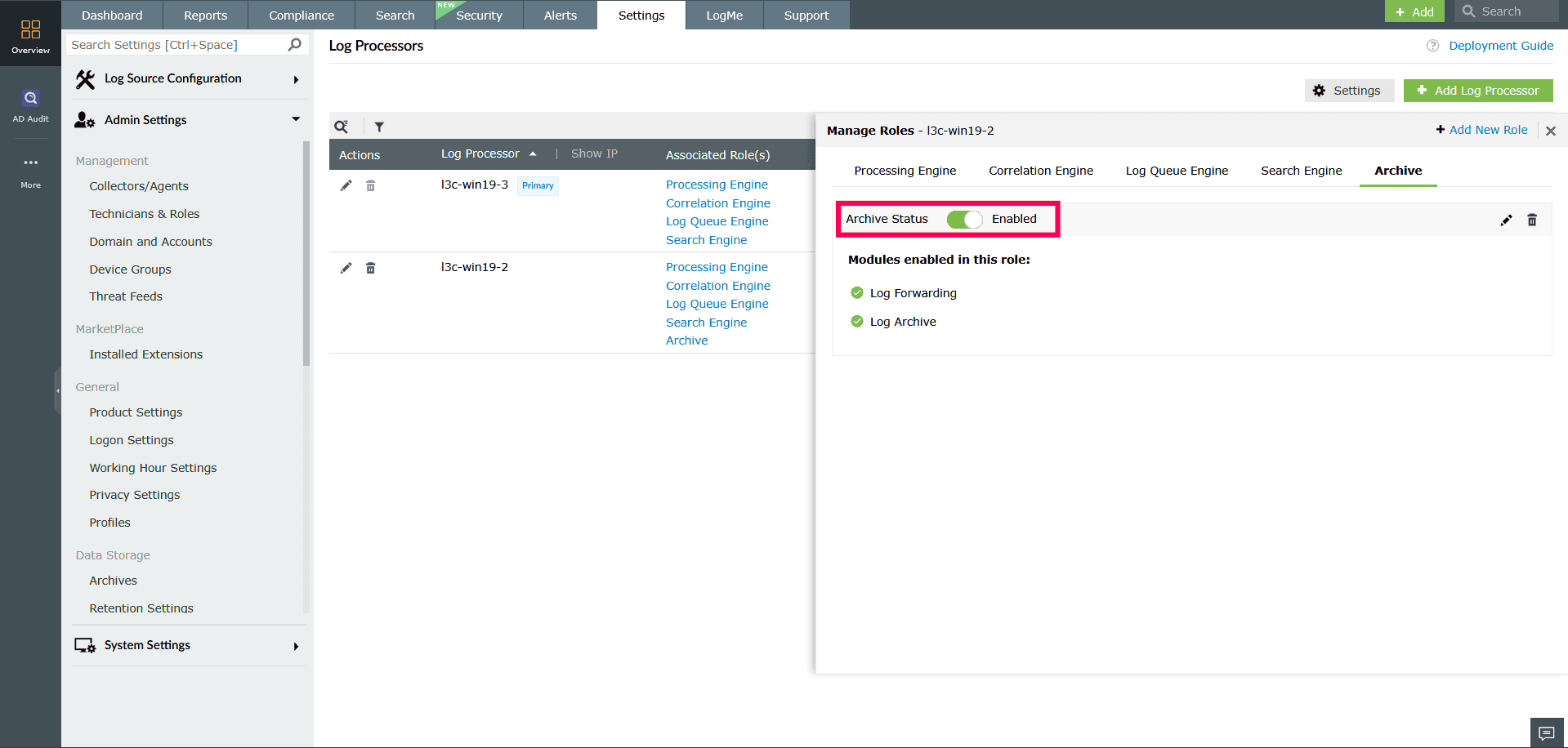
Figure 14: Managing roles - After assigning the role to two or more processors, return to the
Failover page. The Failover Status for the component
will now display as Active.

Figure 15: Failover Server configuration
Read also
This page explained how to configure failover and module-based failover in Log360. To learn how to manage failover cluster refer to the following articles: