
Navigating across components
Last updated on:
In this page
Overview
Once the components are integrated, Log360 provides a centralized interface for seamless navigation between modules. Administrators can switch between components without separate logins, ensuring a unified experience.
This section explains the navigation options available for accessing different components within Log360.
Steps to navigate across components
- Click the
 icon at the top-left corner of the console.
 - In the Related Products pop-up, select the required component.
- If the component is not listed in the pop-up, click Show All to display all available components.
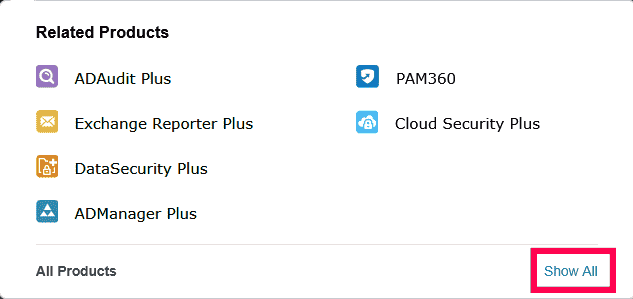
Figure 1: Accessing components - Alternatively, select the component from the app pane if it is displayed there.
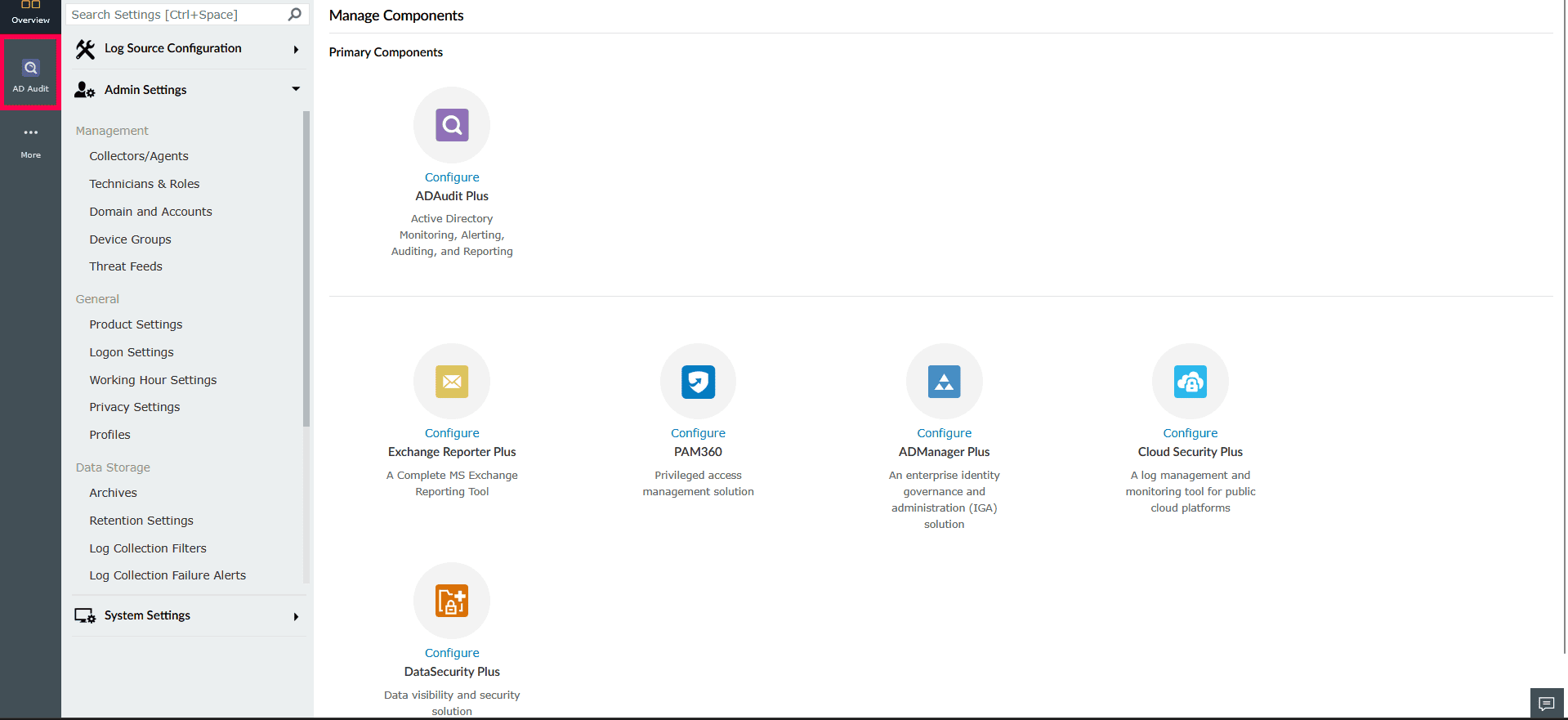
Figure 2: Selecting components from the app pane - If the component is not visible in the App Pane, click More in the left navigation panel to locate and select the component.
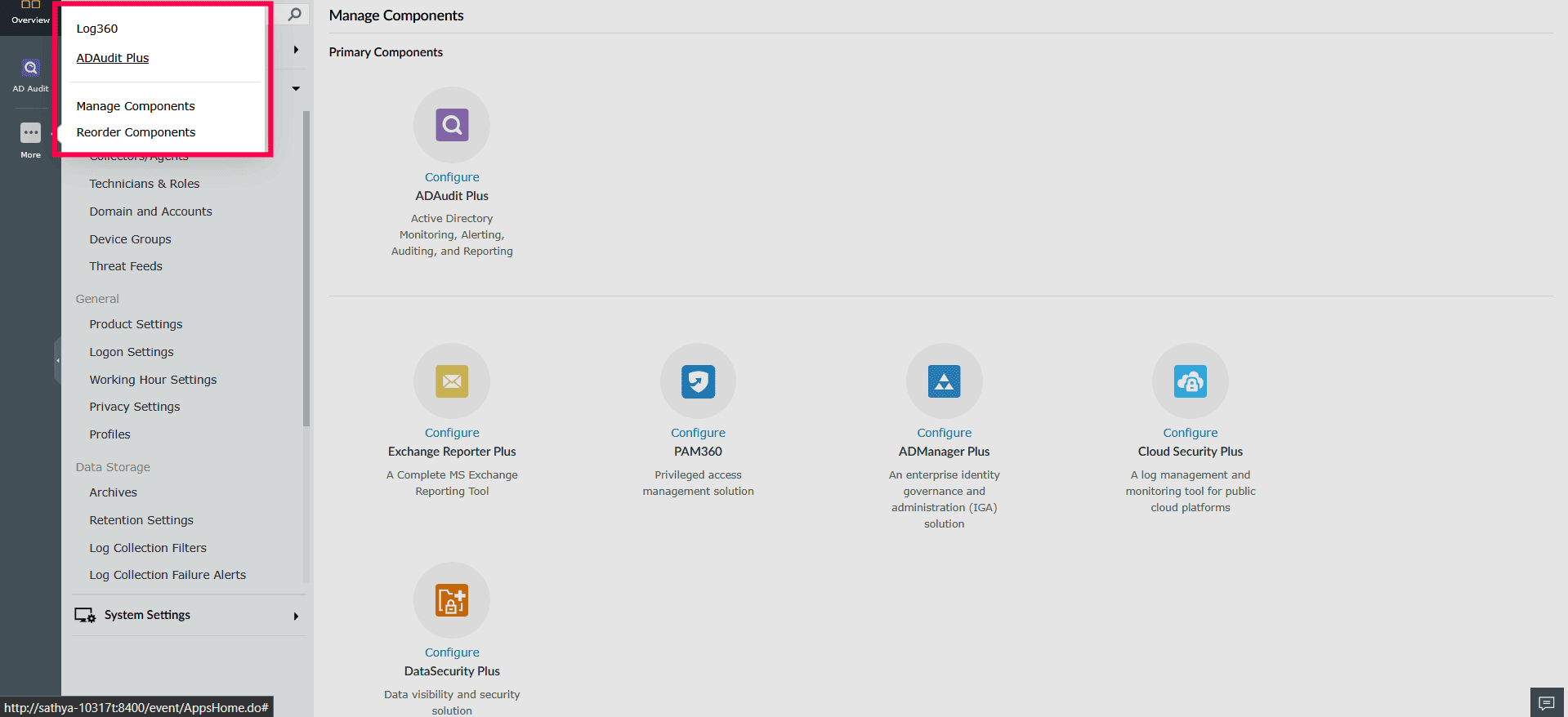
Figure 3: Locating components from the app pane - To customize the order of components, click Reorder Components.
- In the Reorder Components window, click and drag the
 icon next to a component name to rearrange the order.
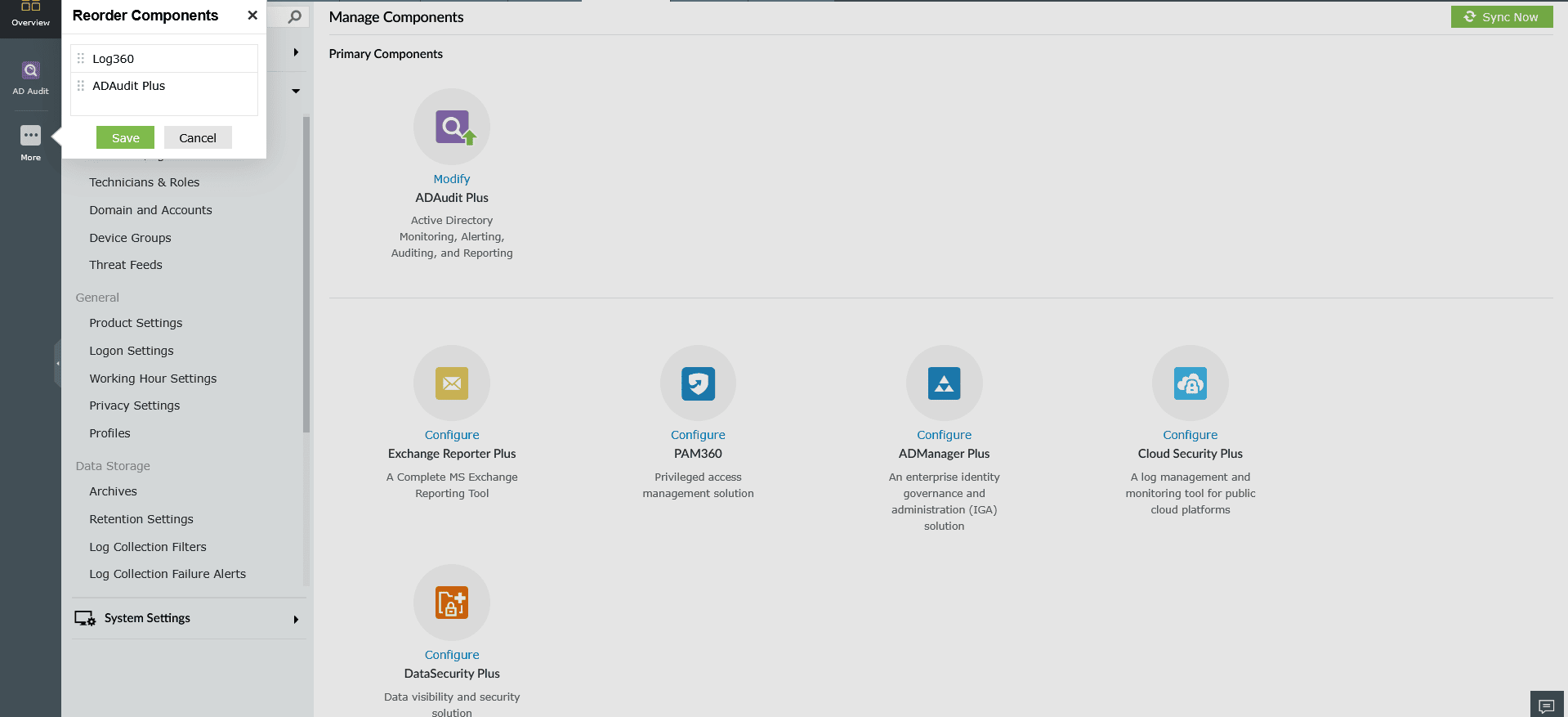
Figure 4: Re-ordering components - After rearranging, click Save to apply the changes.
Read also
This page covered how to switch between integrated components. To learn how to use integration capabilities effectively, refer to the following articles: