
Scheduled detection reports
Last updated on:
In this page
Overview
The Scheduled Detection Reports in the Manage Rules module enables administrators to generate automatically and export reports for rule-based detections at regular intervals. You can create schedules, define frequency, select rules, choose export formats, and configure notifications.
These reports offer visibility into detection trends over a specified time range, helping you monitor anomalies, meet compliance requirements, and perform in-depth security analysis.
Additionally, the Session Activity Reports allow you to track user and device sessions across your network. These reports focus on audit-oriented insights such as login durations, session times, and VPN access details, rather than security detections.
Scheduled detection reports (via the Manage Rules module)
Provides logs detected for a particular rule over a specified period of time.
-
You can access these reports by clicking on the Scheduled Detection
Reports option in the Manage Rules module as highlighted
below.
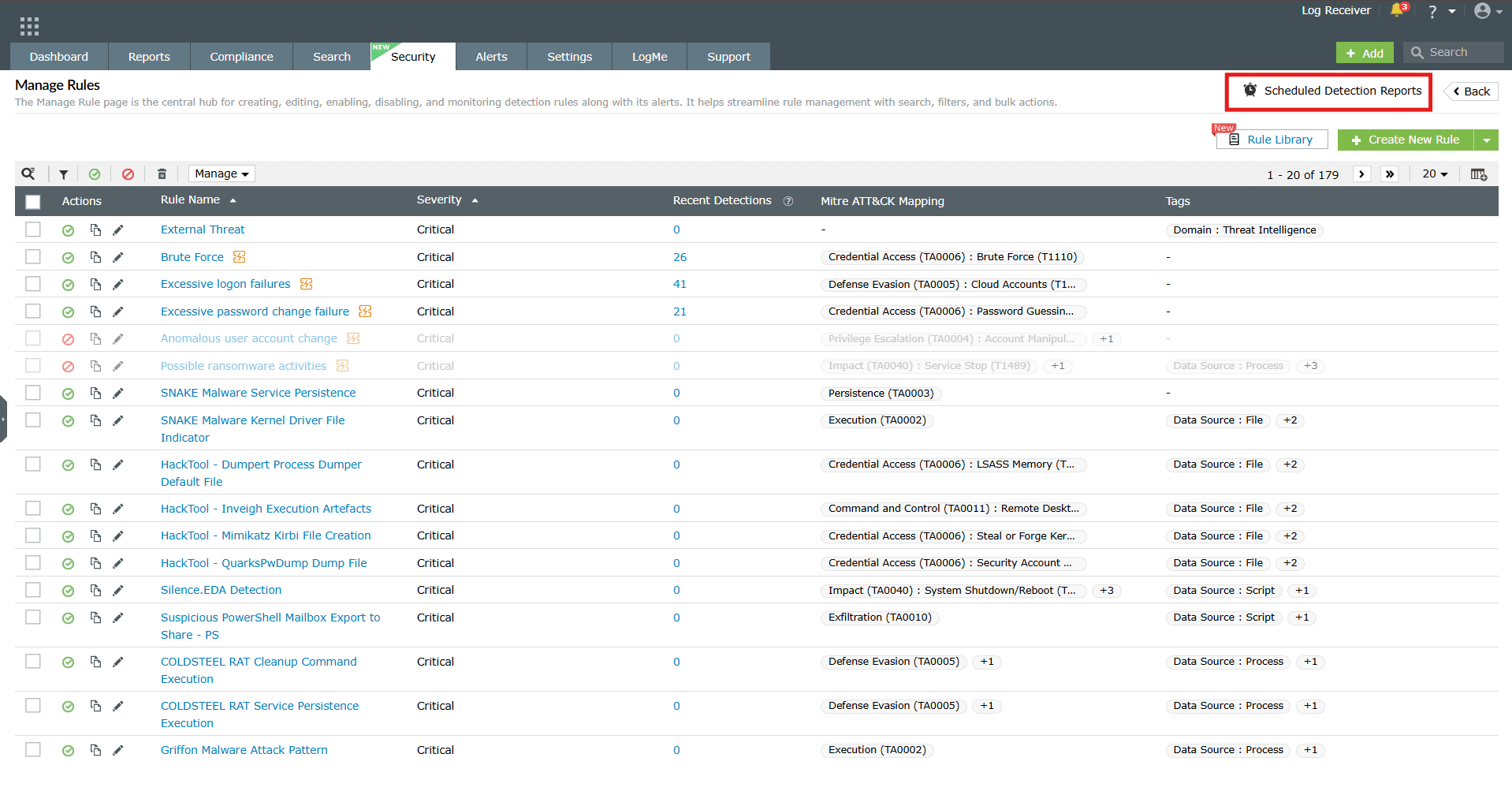
Image 1: Scheduled reports in the manage rules module - You will be taken to the Scheduled Reports module.
To create a new schedule for the report(s)
-
Click on the Create New Schedule button as highlighted below.
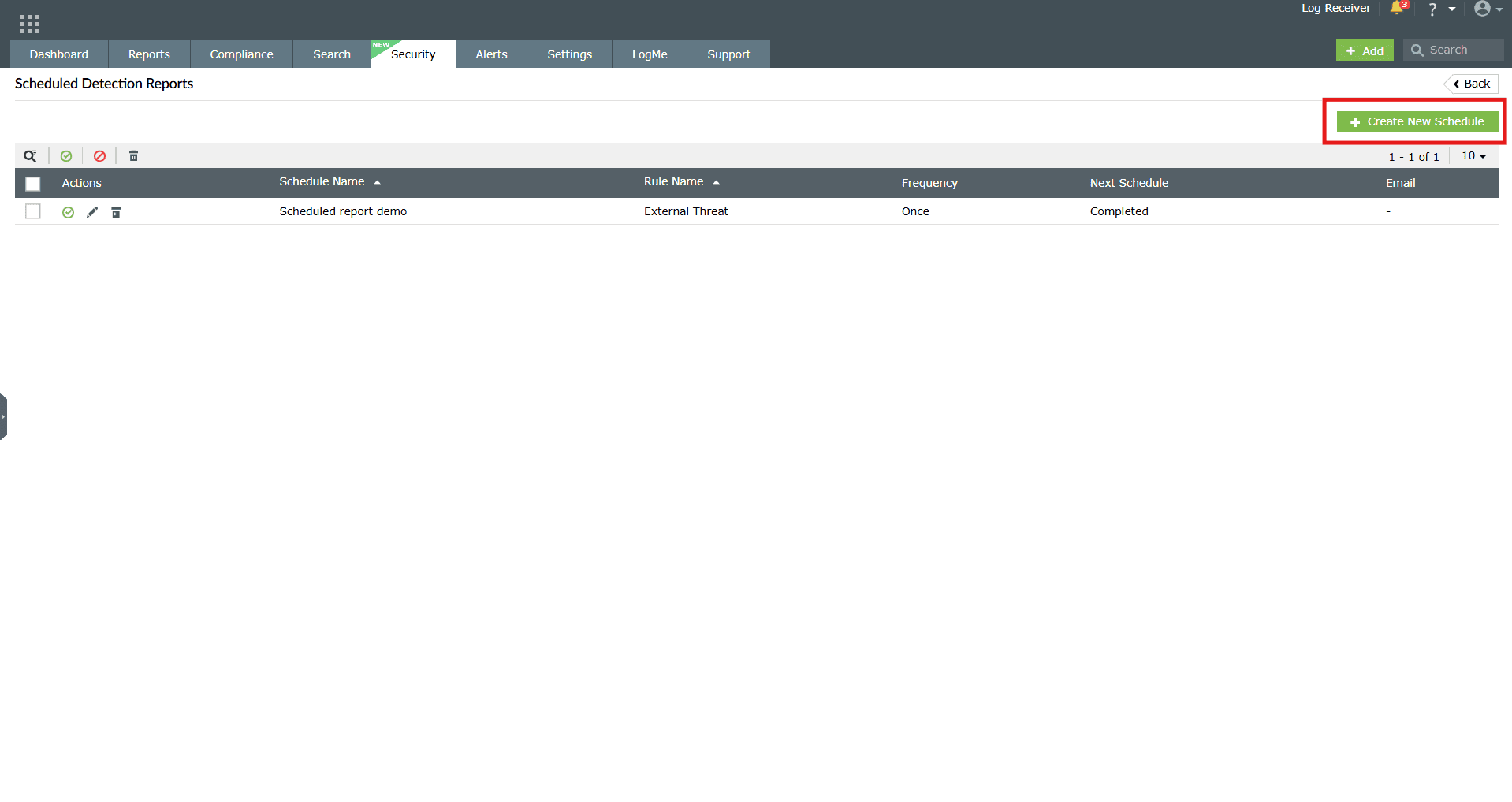
Image 2: Create scheduled reports in the manage rules module -
You will be taken to the Create Schedule module.
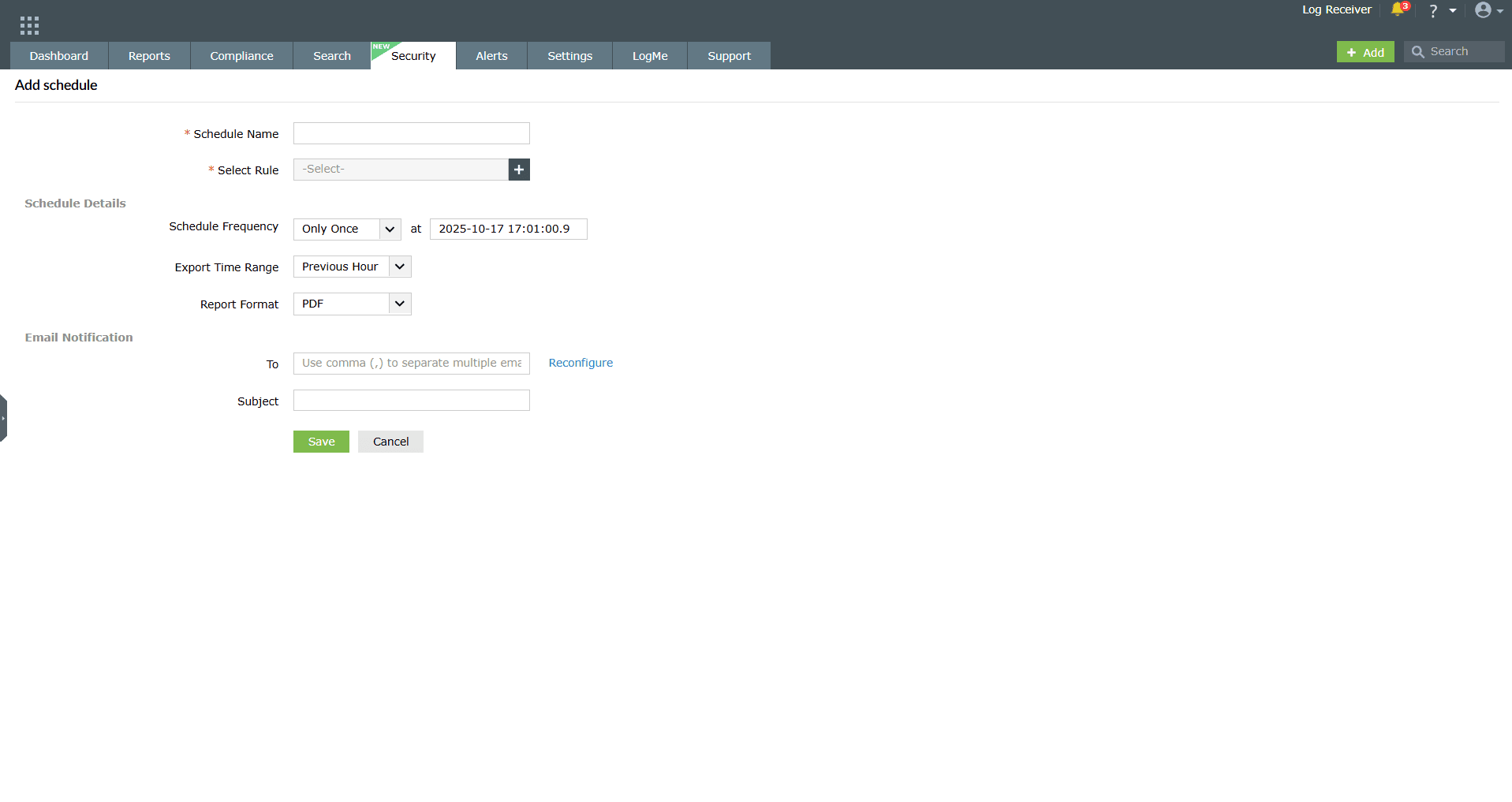
Image 3: Create scheduled reports in the manage rules module - Schedule Details
- Schedule Name: Assign a unique name to the schedule.
- Schedule Frequency: Define how often the schedule should run (hourly, daily, weekly, or monthly).
- Export Time Range: Specify the time range of data to include (e.g., last 24 hours, last 7 days, or custom).
- Report Format: Choose the preferred format for the exported report (PDF, CSV, XLS).
- Notification
- Select Template: Pick a predefined report template or customize one.
- Rule Details
- Select Rule: Choose the anomaly rule(s) you want to associate with the schedule. Reports and alerts generated will be based on the selected rules.
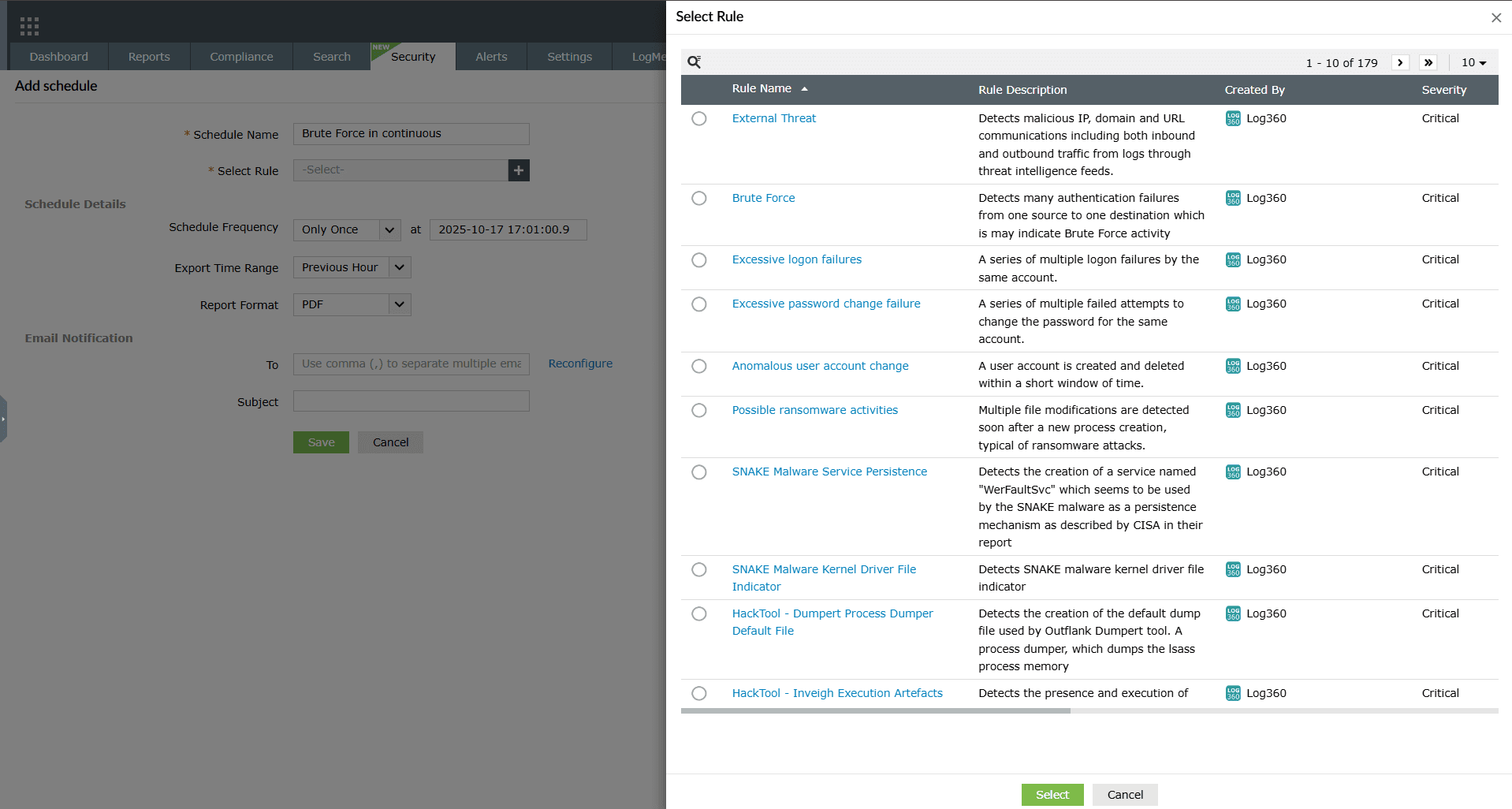
Image 4: Create scheduled reports in the manage rules module - Schedule Details
-
Click on Save after making all the required configurations. Upon
successful completion of action, the below pop-up appears.

To enable/disable a schedule for report(s)
Enabling a schedule
-
Click on the currently disabled icon
 under the Actions column to enable
the schedule.
under the Actions column to enable
the schedule.
-
As soon as you perform this action, the icon indicates that the schedule is now enabled
 and the below pop-up message appears briefly.

Disabling a schedule
-
Click on the currently enabled icon under the Actions column to disable
the schedule.
-
As soon as you perform this action, the icon indicates that the schedule is now disabled and the below pop-up message appears briefly.

To edit a schedule for report(s)
-
In the Scheduled Reports module, click on the edit
 icon under the
Actions column.
icon under the
Actions column.
- The Edit Scheduled Reports module appears on the screen.
-
Make the necessary edits and click on the Update button. Upon
successful completion of action, the below pop-up appears.

To delete a schedule for report(s)
-
In the Scheduled Reports module, click on the delete
 icon under the
Actions column.
icon under the
Actions column.
-
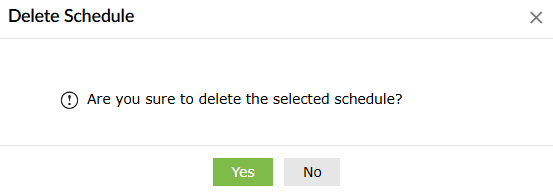
A Delete Schedule pop-up appears to confirm the action. Click on
Yes.
-
Upon successful completion of action, the below pop-up appears.

Read also
This document explained how to schedule detection reports, configure report details and notifications, and manage actions like enabling, disabling, editing, or deleting schedules. To learn more about related functionalities, refer to the below help documents: