How to monitor your Microsoft 365 MFA setup using Entra ID workbooks
Multi-factor authentication (MFA) is an essential layer of security for Microsoft 365 environments, protecting user accounts and sensitive data from unauthorized access. However, maintaining a balance between strong security and user convenience can be challenging, especially when frequent authentication prompts disrupt productivity. Monitoring and understanding authentication prompts involves analyzing various factors, including user behaviors, device compliance, and application-specific trends. Using Microsoft Entra ID audit logs to track MFA events can provide raw data but lack the actionable insights needed to identify anomalies or optimize user experiences effectively.
Microsoft Entra ID workbooks simplify this challenge by transforming raw log data into visually intuitive dashboards and reports. The Authentication Prompts Analysis workbook offers a detailed view of how authentication prompts occur across users, devices, and applications, helping IT teams detect inefficiencies, troubleshoot issues, and refine policies for improved security and usability.
In this blog, we’ll examine the key features of the Authentication Prompts Analysis workbook, explore its reports, and provide recommendations for optimizing your Microsoft 365 MFA setup to balance security with user satisfaction.
How to Access the Authentication Prompts Analysis Workbook
To access the Authentication Prompts Analysis workbook in Microsoft Entra ID, follow these steps.
- Log in to Microsoft Entra ID using an account with permissions to access workbooks.
- Navigate to Identity > Monitoring & Health > Workbooks.
- Select the Authentication Prompts Analysis workbook from the available templates.
- You can filter the workbook using the following filters.
- Time: Select a specific time range to analyze prompt activity within a defined period.
- AuthMethod: Filter prompts by the authentication method used, such as passwords, Microsoft Authenticator, or phone-based authentication.
- DeviceState: Differentiate between managed and unmanaged devices to assess authentication behaviors.
- AppDisplayName: Focus on prompts generated by specific applications to identify app-specific trends.
- UserDisplayName: Isolate prompts for particular users to troubleshoot or analyze user-specific issues.
- AuthStatus: View prompts based on their outcome, such as successful authentications, failures, or interrupted attempts.
- OS: Analyze prompts by the operating systems involved, such as Windows, macOS, iOS, or Android.
Once opened, this workbook provides interactive dashboards that break down authentication prompts across various dimensions, such as users, devices, methods, and policies.
Microsoft Entra ID Authentication Prompts Analysis workbook explained
The Authentication Prompts Analysis workbook is structured into sections that help administrators identify trends, troubleshoot issues, and optimize MFA prompts. The reports under this workbook include:
- Authentication prompts summary
- Authentication prompts by authentication method
- Authentication prompts by device
- Authentication prompts by user
- Authentication prompts by application
- Authentication prompts by process detail
- Authentication prompts by policy
1. Authentication prompts summary
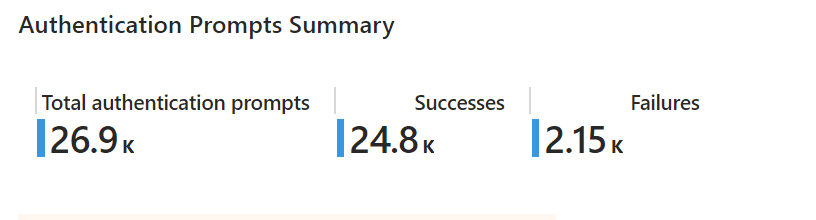
This report provides the total number of authentication prompts over the set period and the number of successful and failed prompts.
2. Authentication prompts by authentication method
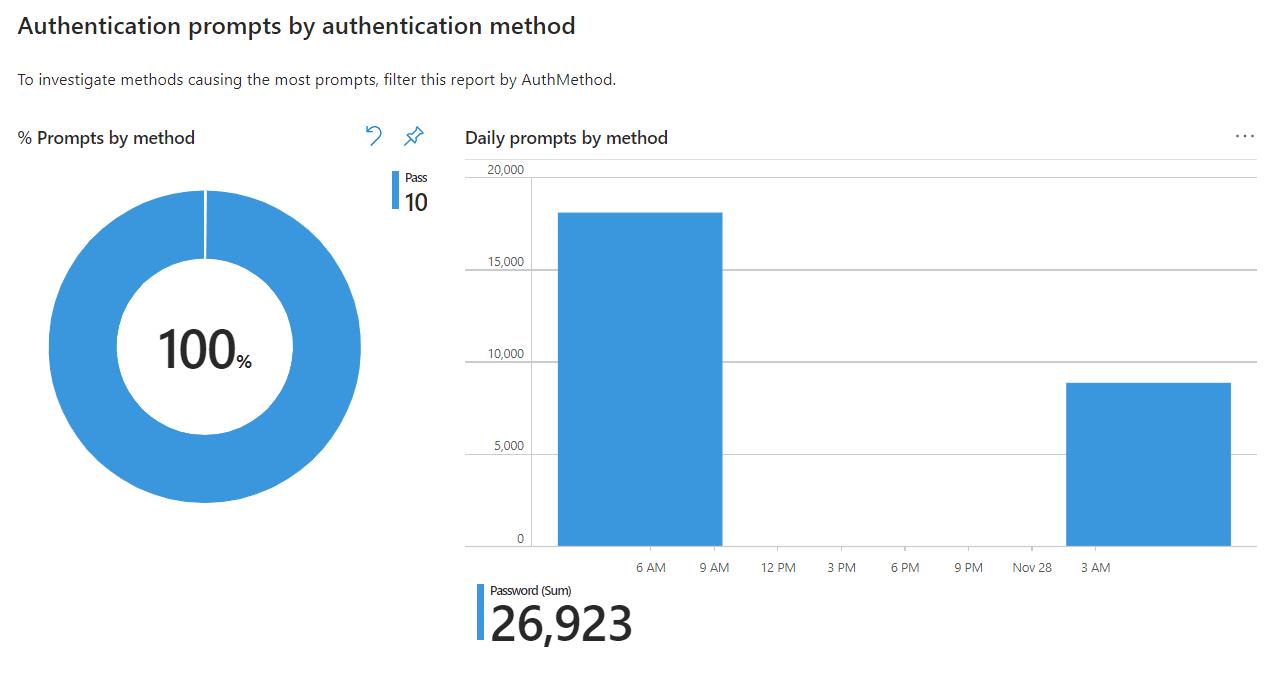
This section provides an overview of authentication prompts in your environment by providing the distribution of authentication methods used as a pie chart and a graph of the number of different authentication methods over the set period.
Understanding which methods generate the most prompts allows administrators to identify inefficiencies and consider alternatives like passwordless solutions.
3. Authentication prompts by device
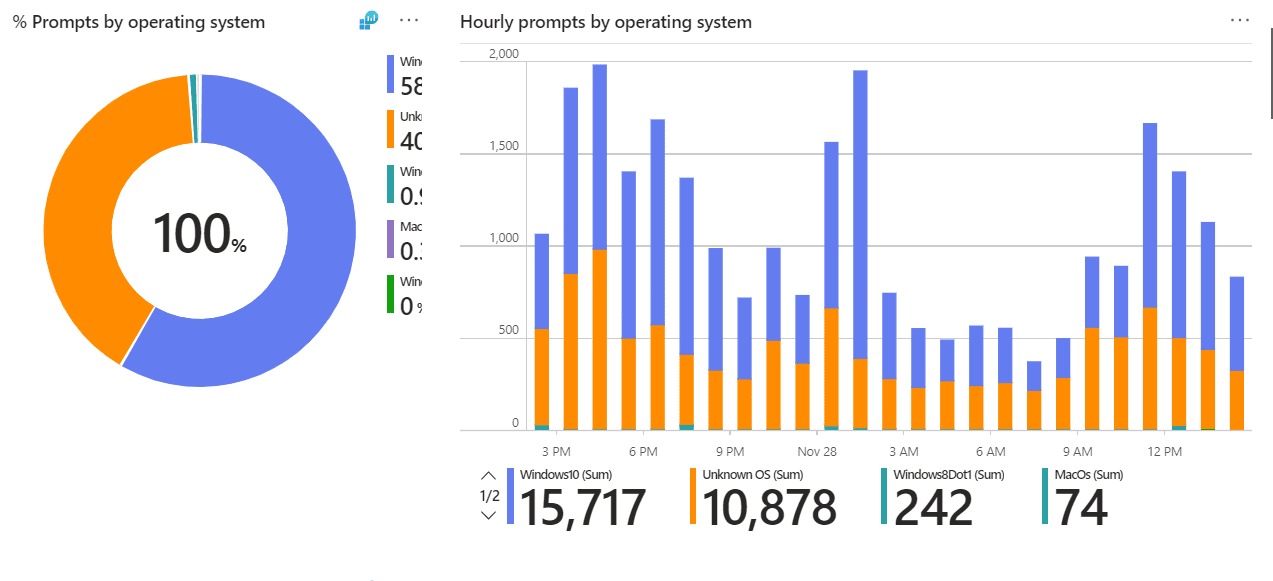
Prompts by operating system
This report shows the distribution of authentication prompts from different operating systems. This can highlight platform-specific issues or misconfigurations.
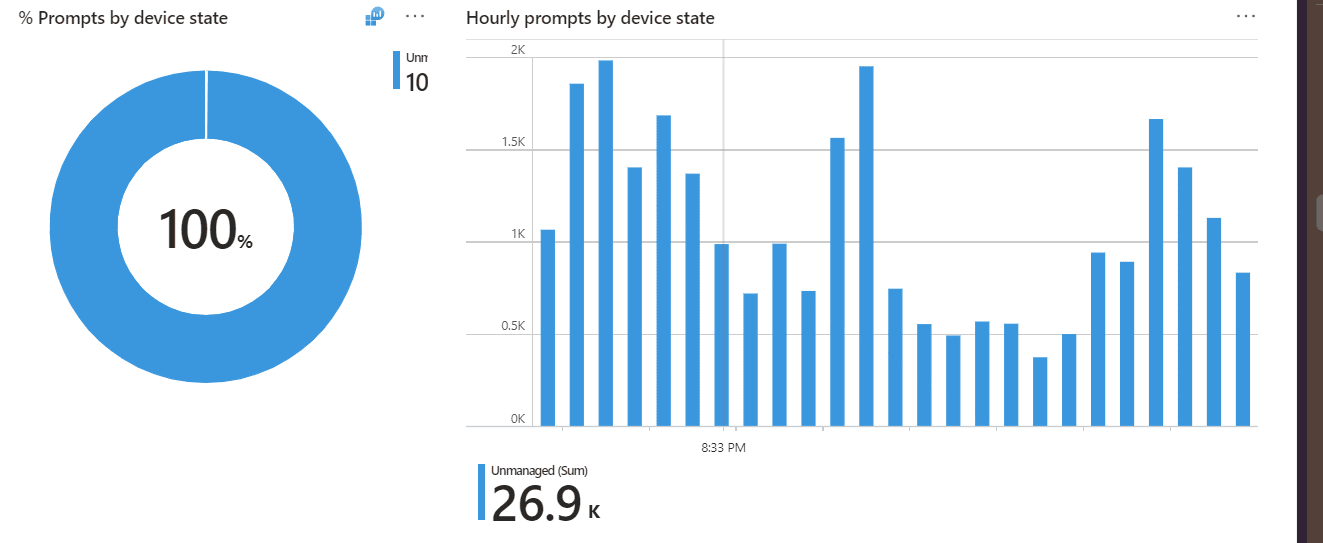
Prompts by Device State
This report shows the distribution of prompts across managed and unmanaged devices.
These insights help refine device-specific conditional access policies.
4. Authentication prompts by user
This section focuses on individual user activity, helping administrators understand how users interact with MFA prompts. It identifies users who encounter frequent authentication prompts.
This is useful for troubleshooting individual user complaints about excessive prompts and detecting suspicious behavior, such as unauthorized access attempts targeting specific users, or providing tailored user education on MFA policies.
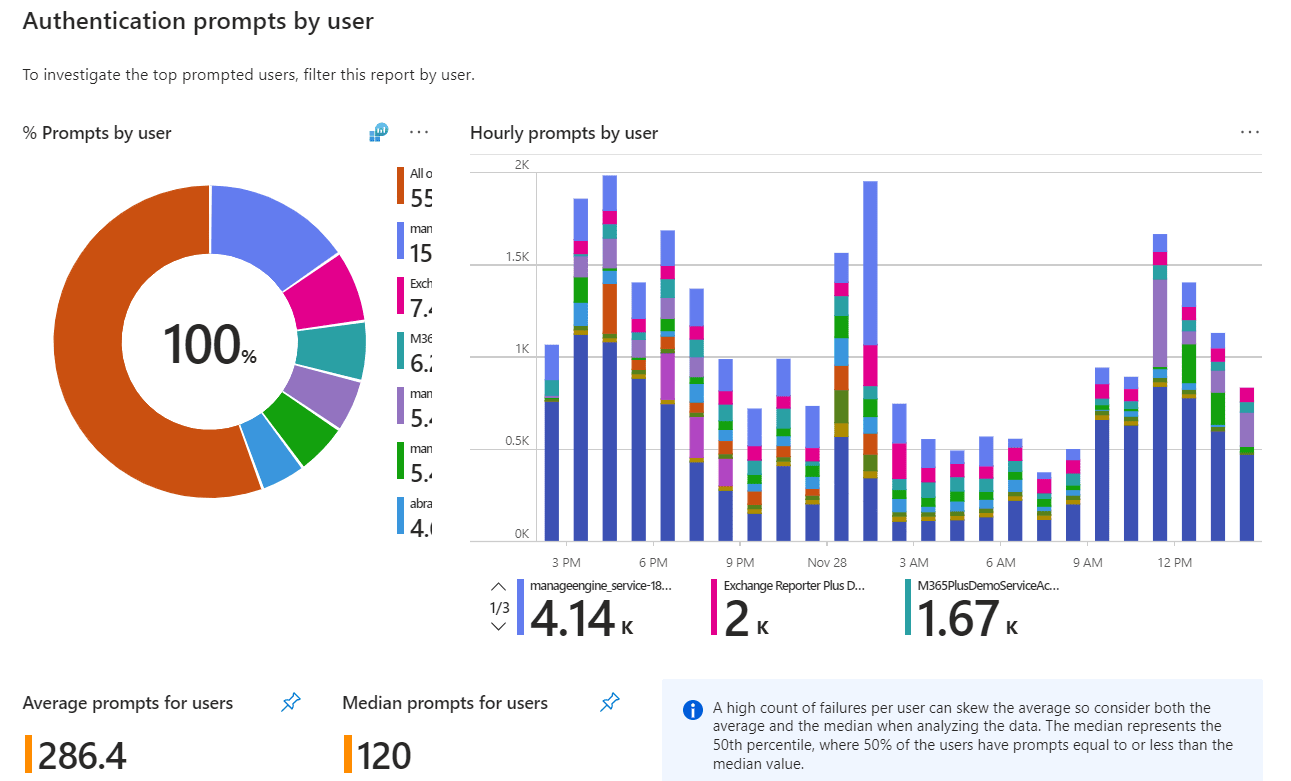
You can also focus on user-specific data, identifying individuals who encounter frequent prompts using the Prompts by user with additional meta data report. it includes the sign-in location, device type, and the number of prompts requested by the user,
Administrators can use this data to provide targeted support and identify potential misuse.
5. Authentication prompts by application
This report helps you analyze how MFA prompts are distributed across the applications in your Microsoft 365 environment. It offers a clear understanding of application-specific trends that can inform policy optimizations.
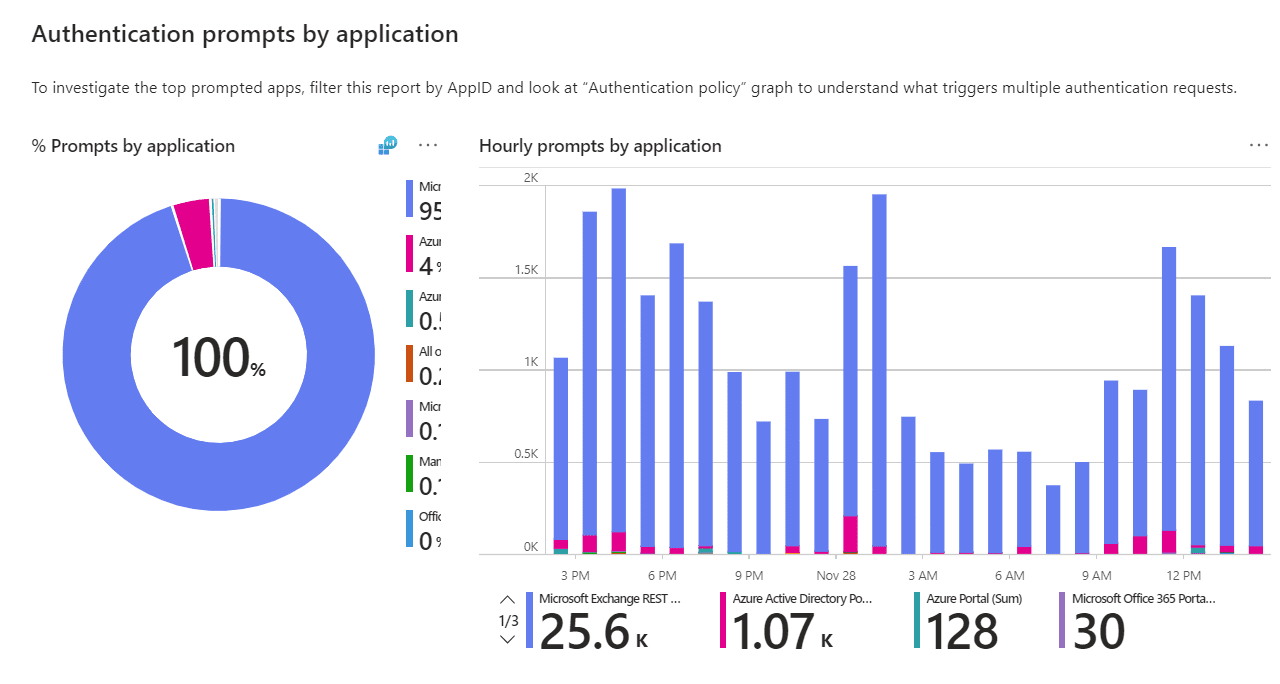
You can also focus on user-specific data, identifying individuals who encounter frequent prompts using the Prompts by application with additional meta data report. It includes the application name, the time of sign-in, the result of the authentication attempt, and the number of tries.
Analyzing this data helps optimize app-specific authentication policies.
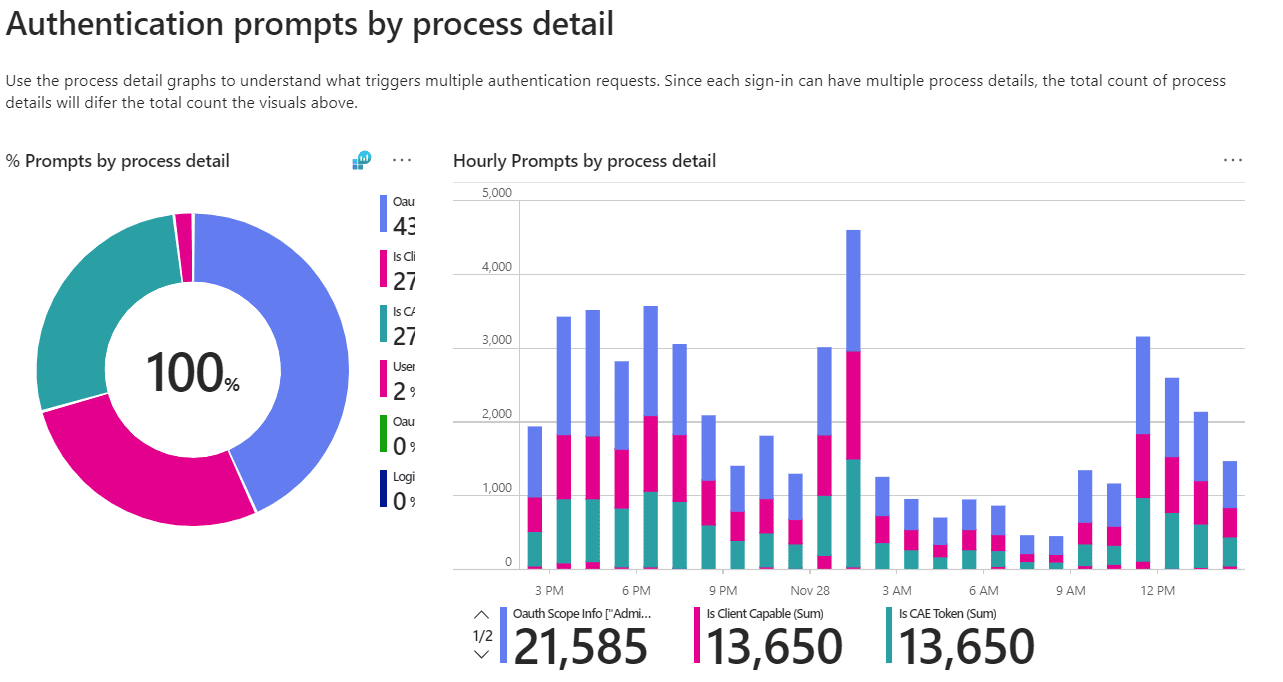
6. Authentication prompts by process detail
This report dives into the specific processes triggering authentication prompts, providing:
- Details of workflows or processes generating multiple prompts.
- Patterns in repeated authentications within particular scenarios.
- Policies triggering frequent re-authentication for unmanaged devices.
- MFA enforcement rules that require repeated verification based on user location.
- Filter your reports just once and save them as custom reports that you can access in just a few clicks.
- Export reports generated in M365 Manager Plus in not just CSV, but also in other presentable formats such as HTML, PDF, and XLSX.
- Delegate granular permissions to technicians without elevating their Microsoft 365 privileges and create custom roles with any combination of reporting, management, and auditing tasks.
- Easily manage users, groups, contacts, mailboxes, teams, and sites in bulk without PowerShell scripting.
- Keep tabs on even the most granular user activities in your Microsoft 365 environment.
- Configure alert profiles in M365 Manager Plus to notify you of specific activities that take place outside of business hours or occur at unusual frequencies.
- Monitor the health and performance of Microsoft 365 features and endpoints around the clock.
This granular level of detail enables administrators to troubleshoot complex authentication issues effectively.
7. Authentication Prompts by Policy
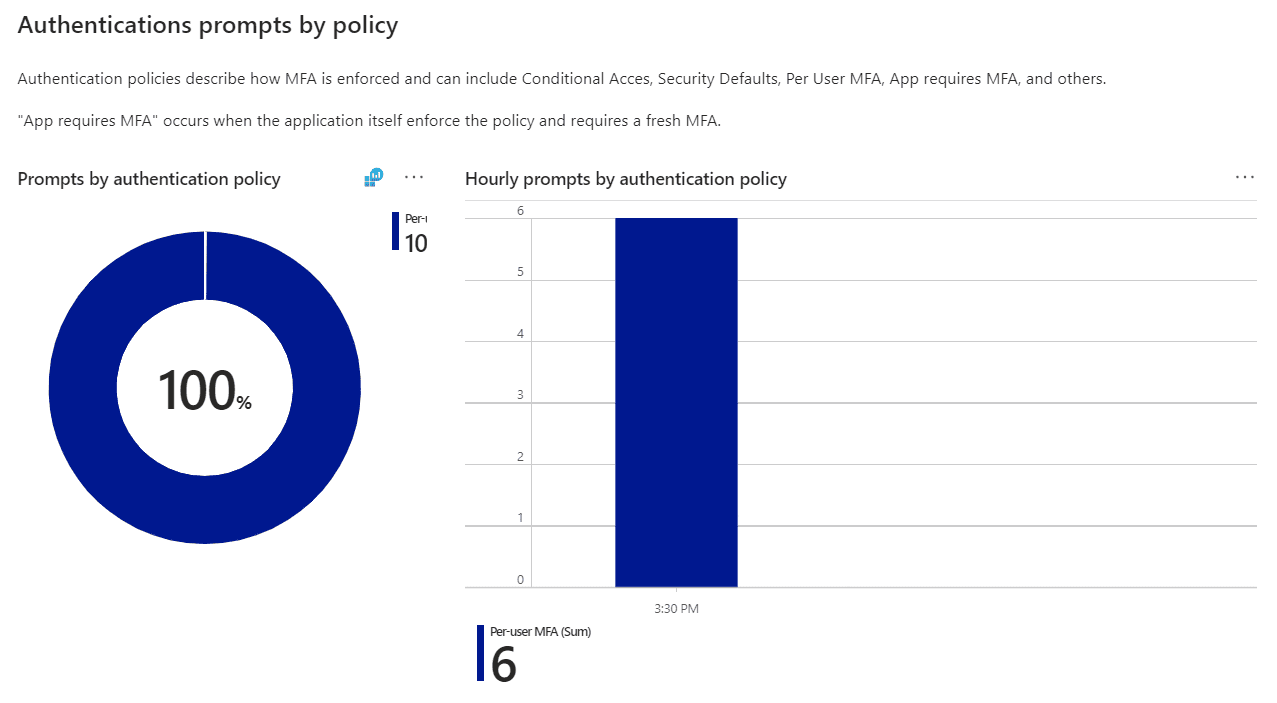
This section maps prompts to specific conditional access and MFA policies. For example:
By correlating prompts with policies, administrators can adjust configurations to minimize unnecessary disruptions.
Recommendations for reducing prompts and improving user experience
Reducing authentication prompts not only enhances user satisfaction but also improves productivity without compromising security. Here are some actionable recommendations displayed in the Authentication Prompts Analysis workbook:
Managed Devices
Enroll devices in management solutions like Microsoft Intune to allow seamless authentication through conditional access policies. You can verify the enrollment of your devices with the % | Count of Managed Devices report displayed in this section.
Windows Hello for Business
Implement Windows Hello for Business for passwordless sign-ins using biometrics or PINs tied to trusted devices.You can verify this with the %WHFB | Count of Windows Devices report displayed in this section.
Mobile Authentications
Optimize mobile workflows by leveraging app-based authentication methods like Microsoft Authenticator for smoother user experiences. You can verify this with the % Auth App Authentications | Count of Android/iOS Devices report displayed in this section.
Mac OS Authentications
Ensure macOS users benefit from native authentication support and implement certificate-based authentication for a seamless experience. You can verify this with the % | Count of Mac Authentications report displayed in this section.
Get a clear overview of your Microsoft 365 environment with M365 Manager Plus
ManageEngine M365 Manager Plus is a comprehensive administration and security solution for Microsoft 365 used for reporting, managing, monitoring, auditing, and creating alerts for critical activities in your Microsoft 365 environments. You can gain a thorough understanding of your environment not just in Microsoft Entra ID, but also Exchange Online, SharePoint Online, OneDrive for Business, and other Microsoft 365 services, with detailed reports and intuitive visualizations, all from a single console.
There are also other benefits to using M365 Manager Plus to manage and monitor your Microsoft 365 environment
Effortlessly schedule and export reports on your Microsoft 365 environment.
Try now for freeStreamline your Microsoft 365 governance and administration with M365 Manager Plus
Get Your Free Trial