How to view Microsoft 365 successful logins with Graph PowerShell and Microsoft Entra ID
Monitoring successful logins in Microsoft Entra ID is a key part of maintaining visibility into user activity across your Microsoft 365 environment. While failed sign-in attempts often trigger alerts and investigations, reviewing successful sign-ins is equally important, especially for compliance, access audits, and policy refinement.
By tracking successful logins, you can identify patterns such as access from unexpected locations, time-based anomalies, or unauthorized device usage. This information can be used for drafting targeted Conditional Access policies, enforcing location-based restrictions, and ensuring that only trusted sign-ins are granted access to sensitive resources.
In this guide, we'll walk through how to view successful logins using Microsoft Entra ID sign-in logs, by filtering through the Microsoft Entra admin center and generating them directly using Microsoft Graph PowerShell.
Get Microsoft 365 successful logins with Microsoft Graph PowerShell
You can use the Microsoft Graph PowerShell cmdlet mentioned below to generate a list of successful Microsoft 365 logins. Before you run the cmdlet, you will have to replace the parameters with the following:
- $startDate with the earliest date from which you wish to generate the audit data.
- $endDate with the latest date up to which you wish to generate the audit data.
Search-UnifiedAuditLog -RecordType 'AzureActiveDirectoryStsLogon' -Operations 'UserLoggedIn' -StartDate $startDate -EndDate $endDate
View Microsoft 365 successful logins using Microsoft Entra ID and M365 Manager Plus
If you are looking for a more intuitive way to access these details, Microsoft Entra ID can help track logins in your Microsoft 365 environment with audit logs. This can be filtered for specific users, groups, or other attributes. ManageEngine M365 Manager Plus, a comprehensive tool used for reporting, managing, monitoring, auditing, and creating alerts for critical activities in your Microsoft 365 environments, can also be used to monitor the login activity of Microsoft 365 users.
Microsoft Entra ID
Steps to view Microsoft 365 successful logins with Microsoft Entra admin center
- Log in to the Microsoft Entra admin center with an account that has at least a Reports Reader role assigned to it.
- Navigate to Identity > Users > All Users.
- Click Sign-in Logs in the side pane.
- You will be able to view the login history of all users in your tenant.
- Filter this report for successful logins by clicking Add Filters, selecting the Status option and the Success value, and clicking Apply.
M365 Manager Plus
Steps to view Microsoft 365 successful logins using ManageEngine M365 Manager Plus
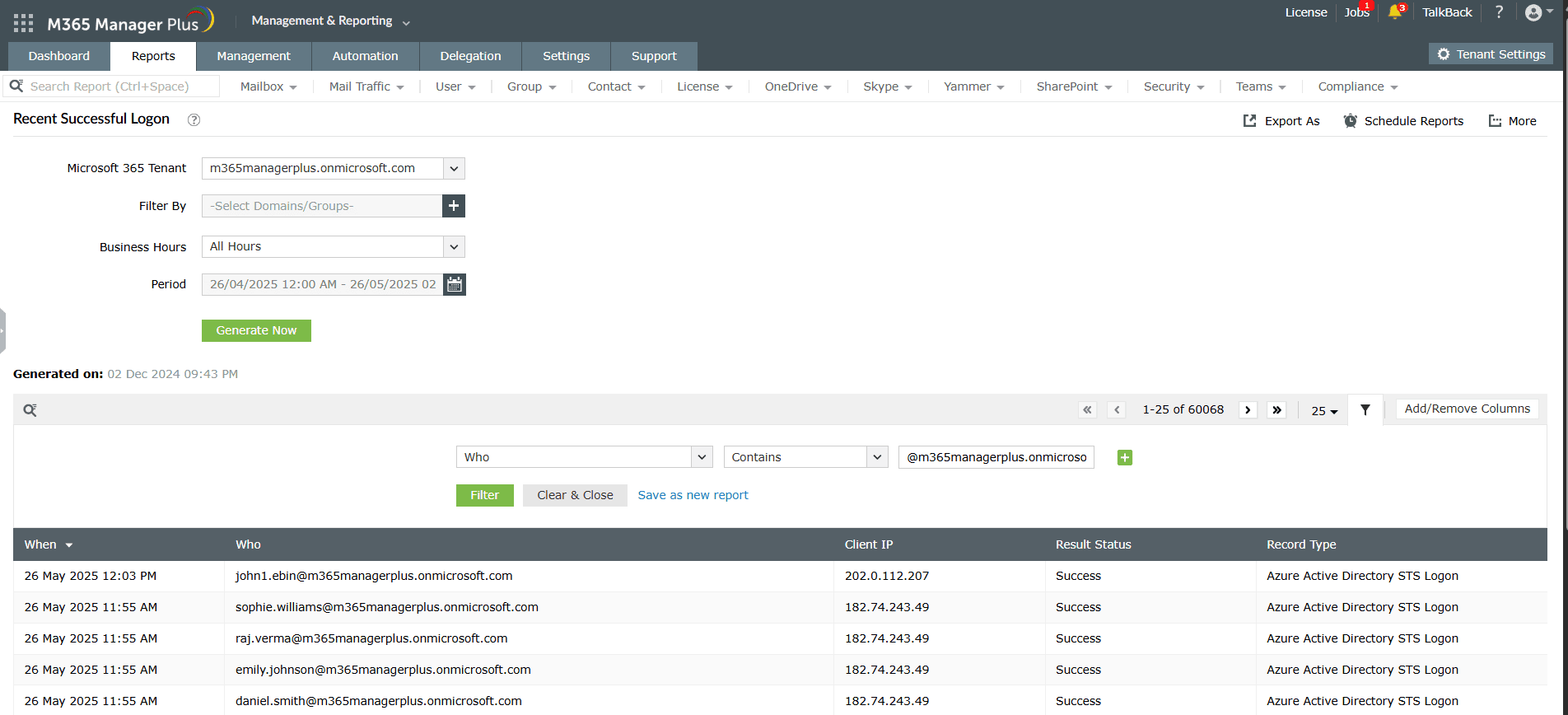
- Log in to M365 Manager Plus and navigate to Reports > Azure Active Directory > User Reports and select Recent Successful Logon.
- Select the Microsoft 365 Tenant, the groups that you want to track using the Filter By field, and the Period for which you want to generate your login history for, and click Generate Now.
- You can also filter for a specific user or activity by clicking the icon and selecting the attribute and value that you want to filter for.
Note: To view the most recent login activity of your Microsoft 365 users, check out this page on How to get the last logon date of Microsoft Entra ID users.
Limitations of using Microsoft Entra ID to view successful Microsoft 365 user logins
- Reports will have to be filtered every time they are generated, and the filters cannot be saved, which can get exhausting if a filter is required to generate data that you require frequently.
- Reports generated using Microsoft Entra ID can only be exported in CSV and JSON formats.
- Administrators must be assigned at least the Reports Reader role to access the reports displayed in Microsoft Entra ID.
- Assigning granular permissions to execute individual tasks in a broad category is not possible.
Benefits of using M365 Manager Plus to view Microsoft 365 successful logins
- Filter your reports just once and save them as custom reports that you can access in just a few clicks.
- Export the generated reports to CSV, PDF, XLSX, and HTML formats.
- Delegate granular permissions to technicians without elevating their Microsoft 365 privileges, and create custom roles with any combination of reporting, management, auditing, and monitoring tasks.
- Gain a thorough understanding of your environment not only in Microsoft Entra ID, but also other Microsoft 365 services such as Exchange Online, SharePoint Online, and OneDrive for Business with detailed reports from a single console.
- Create and customize alert profiles that can email you alerts for suspicious logons and other crucial events in your Microsoft 365 environments.
Effortlessly schedule and export reports on your Microsoft 365 environment.
Try now for freeStreamline your Microsoft 365 governance and administration with M365 Manager Plus
Get Your Free Trial