Last updated: July 24, 2026
How to migrate Apple devices from your existing MDM to ManageEngine MDM without a factory reset
Explains how to migrate Apple devices from a third-party MDM to ManageEngine MDM without a factory reset, using Apple's native migration feature (macOS/iOS/iPadOS 26+) via Apple Business Manager. Devices must be ABM-enrolled; admins document configurations and apps, configure APNs, and add ManageEngine to ABM. In ABM, assign devices to ManageEngine with a deadline; users enroll from Device Management settings. Managed apps and FileVault keys can be preserved if licensed. BYOD, Shared iPad, and unsupported devices require the UEM Migration Tool.
Description
Earlier, switching devices from one MDM to another required a factory reset and re-adding the device. This process was slow and disruptive for users.
From macOS 26 and iOS/iPadOS 26, Apple introduced a new MDM migration feature integrated with Apple Business Manager (ABM). This makes it possible for IT admins to move devices from third-party MDM solutions to ManageEngine MDM smoothly, with minimal impact on users.
This guide walks you through using Apple’s MDM migration feature to transition macOS and iOS/iPadOS devices to ManageEngine MDM.
Prerequisites
- Devices must be running macOS/iOS/iPadOS 26 or later.
- Devices must already be enrolled in Apple Business Manager (ABM) or Apple School Manager (ASM).
- For migration, ensure that any device enrolled manually using Apple Configurator has completed the 30-day provisional period before proceeding.
- The admin must assign the device to the user in the ME MDM console before starting the migration. Ensure this is configured beforehand for smoother enrollment.
Note: Test migration on a small set of devices before performing bulk migration, to ensure all configurations work as expected.
Pre-migration
Before initiating the migration, make sure to complete these five key preparation steps.
1. Keep a record of your devices
- Prepare a clear blueprint of all devices, including device model, OS version, ownership type (corporate or user-owned), etc.,
- This step is critical since Apple’s migration feature depends on specific OS versions. Having this information upfront helps avoid unexpected issues.
2. Document configurations in current MDM
- Before making changes, record all existing MDM configurations, including:
- Profiles: Passcode settings, restrictions, Wi-Fi, VPN, email, and certificates.
- Security settings: FileVault and firewall settings.
- Apps: All deployed apps and their distribution method (VPP, App Store, custom).
3. Configure the Apple Push Notifications (APNs) certificate
- On the ME MDM server, create and upload an APNs certificate. This certificate allows MDM to communicate with Apple devices securely.
4. Add ManageEngine MDM to Apple Business Manager (ABM) or Apple School Manager (ASM)
- Integrate ManageEngine MDM server with ABM/ASM, by following the steps given in this document.
5. Set up MDM Configurations in ManageEngine MDM
- Using the configurations documented in step 2, manually replicate the same configurations in the ManageEngine MDM.
Note: Always test the replicated MDM configurations on a test device before rolling them out to production.
Preserving Managed Apps (iOS/iPadOS)
Prerequisite: Ensure that VPP app licensing and distribution are configured. Refer to VPP App Management for setup details.
Normally, when a device un-enrolls from MDM, managed apps and local data are removed. With Apple’s new migration feature, supported apps can be preserved, ensuring:
- Users keep the same apps after migration.
- No data is lost.
- Migration is faster since apps don’t need to be re-downloaded.
Requirements for ManageEngine MDM:
- Each VPP App Store app must have a valid license in Apple School Manager (ASM) or Apple Business Manager (ABM).
- Ensure that all VPP apps used in the previous MDM are also assigned to the same device groups in ManageEngine MDM where the Apple devices are enrolled.
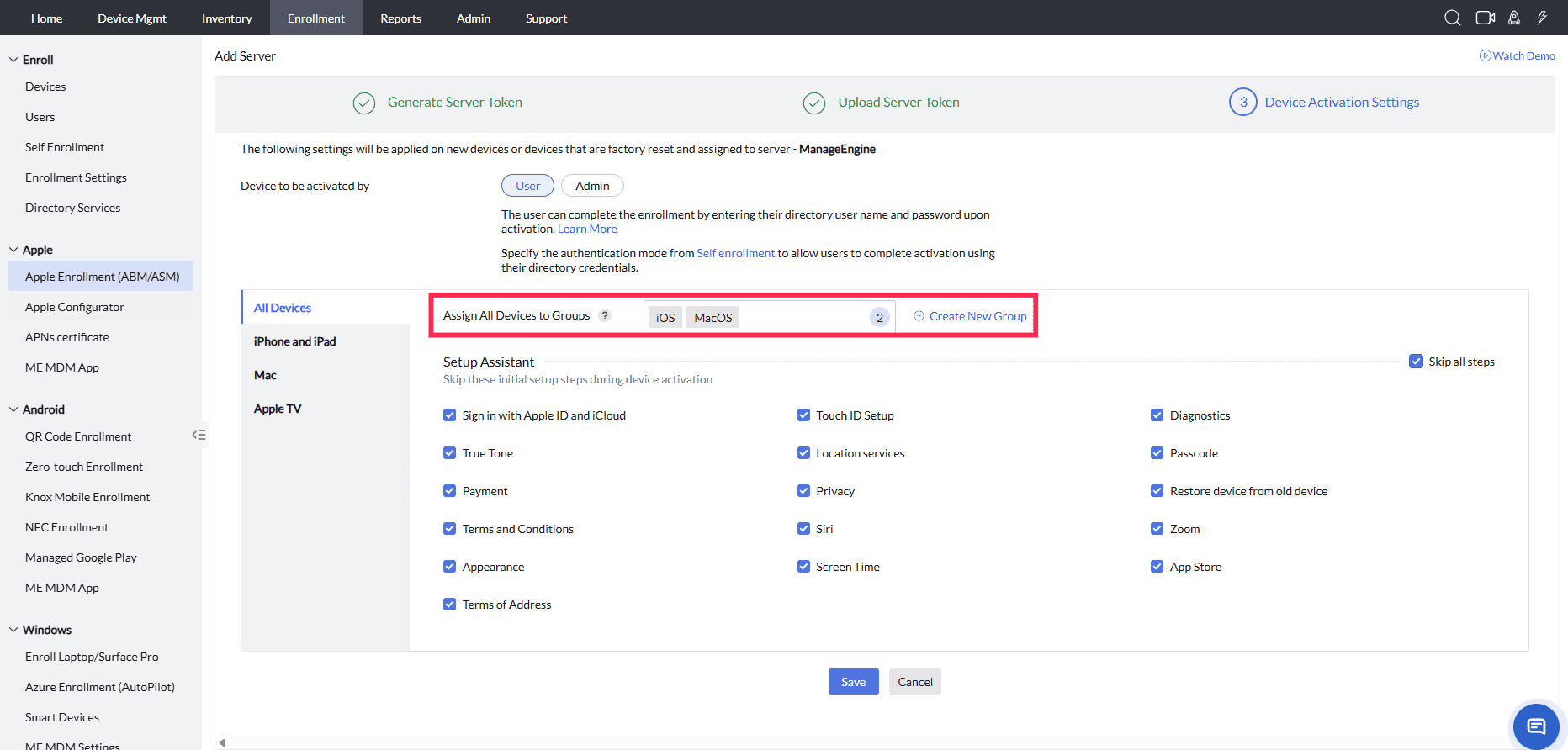
Example:
If five VPP apps were managed in the source MDM, the same five apps must be assigned to the Apple device group in ManageEngine MDM.
Note: After migration, devices compare the preserved apps with the apps in ManageEngine MDM. Any apps not reinstalled by ManageEngine will be removed.
Preserving FileVault Recovery Keys (macOS)
- Create a FileVault profile in ManageEngine MDM and associate it to the group.
- Create a FileVault profile by navigating to Device Mgmt → Profiles → Create macOS Profile, configure the FileVault payload, and associate it with the required groups. Learn more
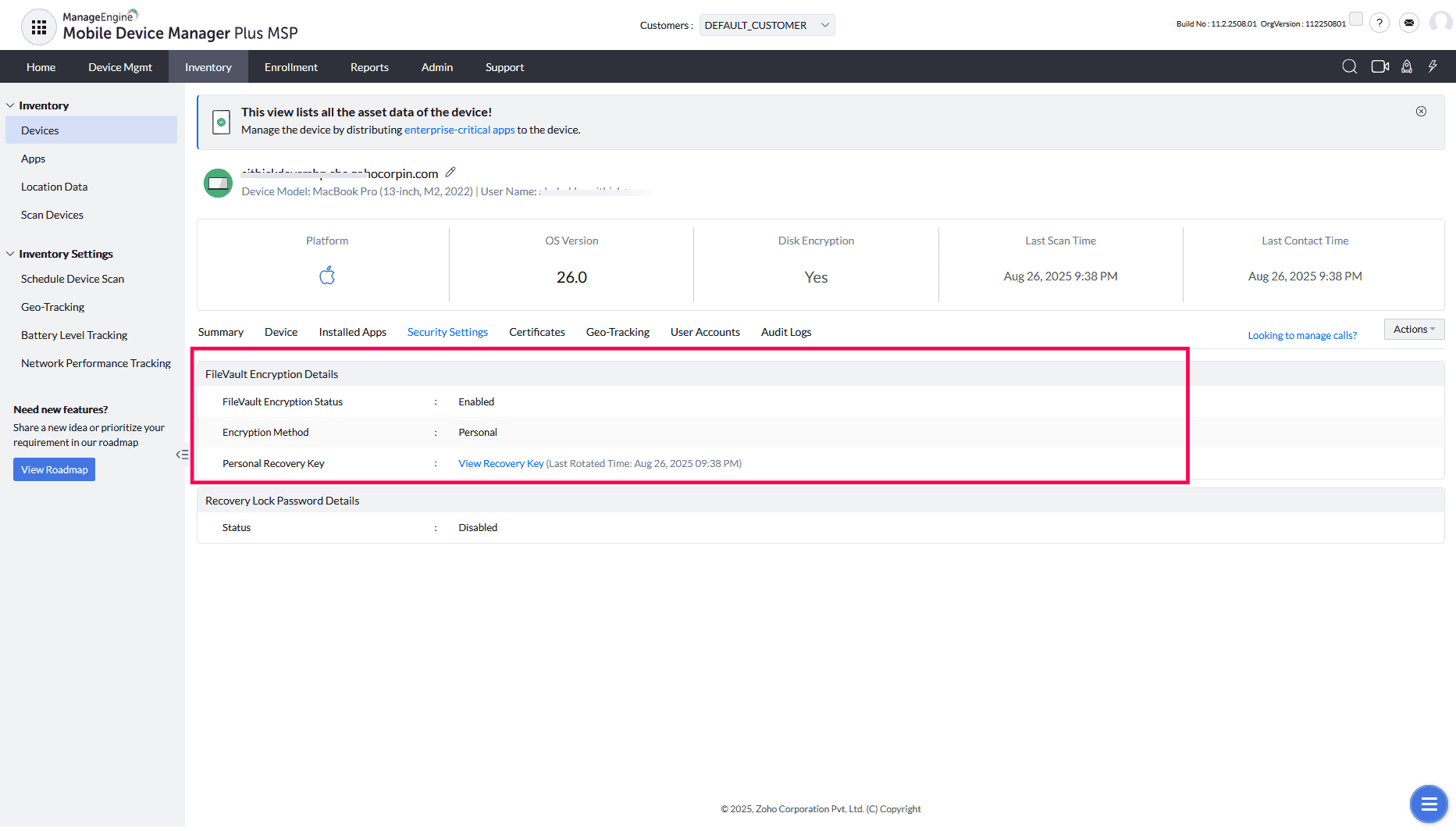
- ManageEngine will automatically rotate the Personal Recovery Key after migration.
Note: When migrating devices to ManageEngine MDM through Apple Business Manager (ABM) settings, the admin must manually assign users and groups from the ME MDM console. Only then will Apple’s supported preserve actions be applied, allowing the device to be fully managed.
Migration steps to be performed by Admin

- Log in as an Admin or Device Enrollment Manager in Apple Business Manager (ABM).
- Before you begin: Use the Eligible Devices filter in Apple Business Manager (ABM) to quickly identify which devices support Apple’s MDM migration feature.
- Select the device (or multi-select devices) and click Assign Device Management.
- In the Assign Device Management , choose ManageEngine under the Device Management service to set it as the server.
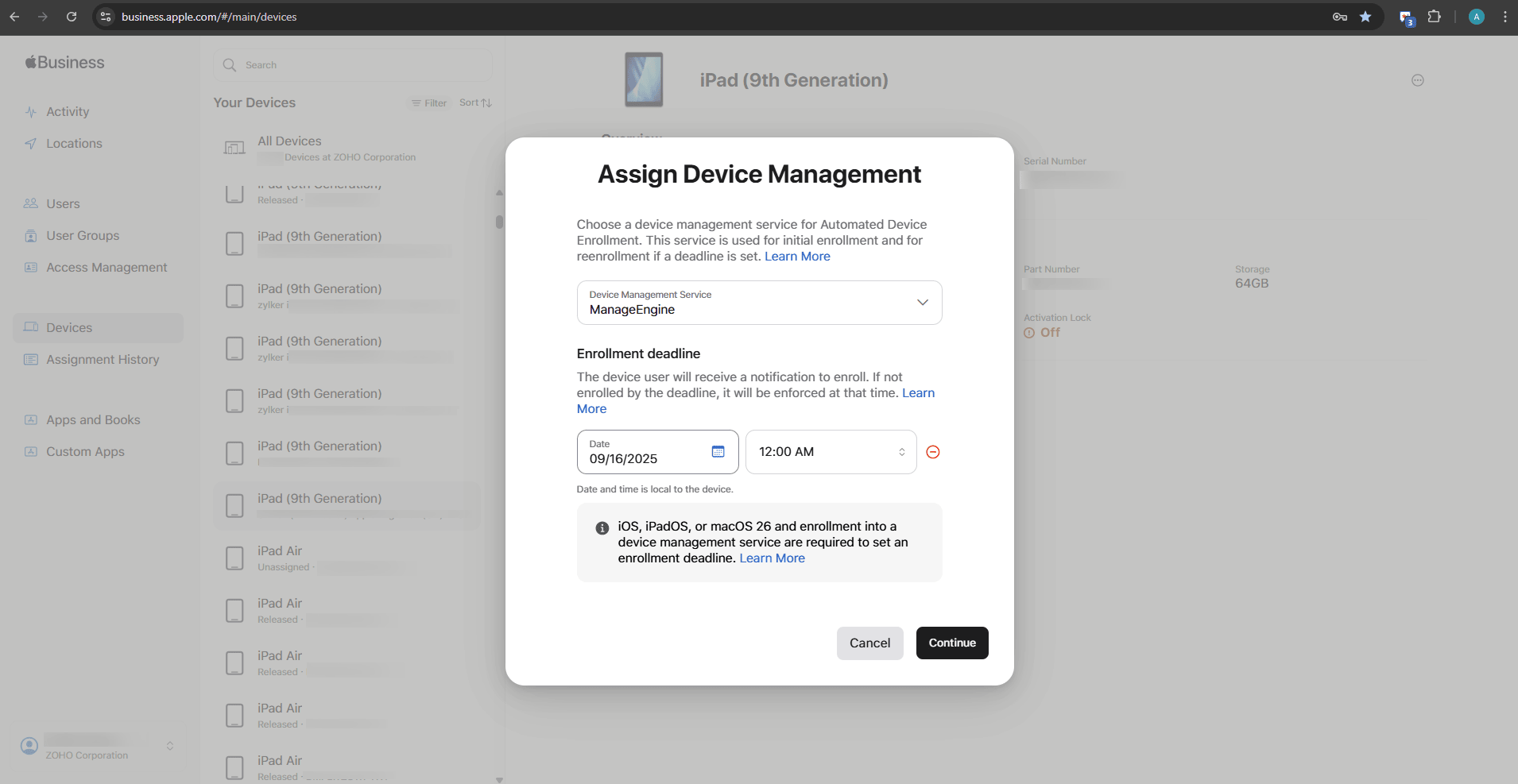
- Then, click Add Deadline to set a deadline for enrollment.
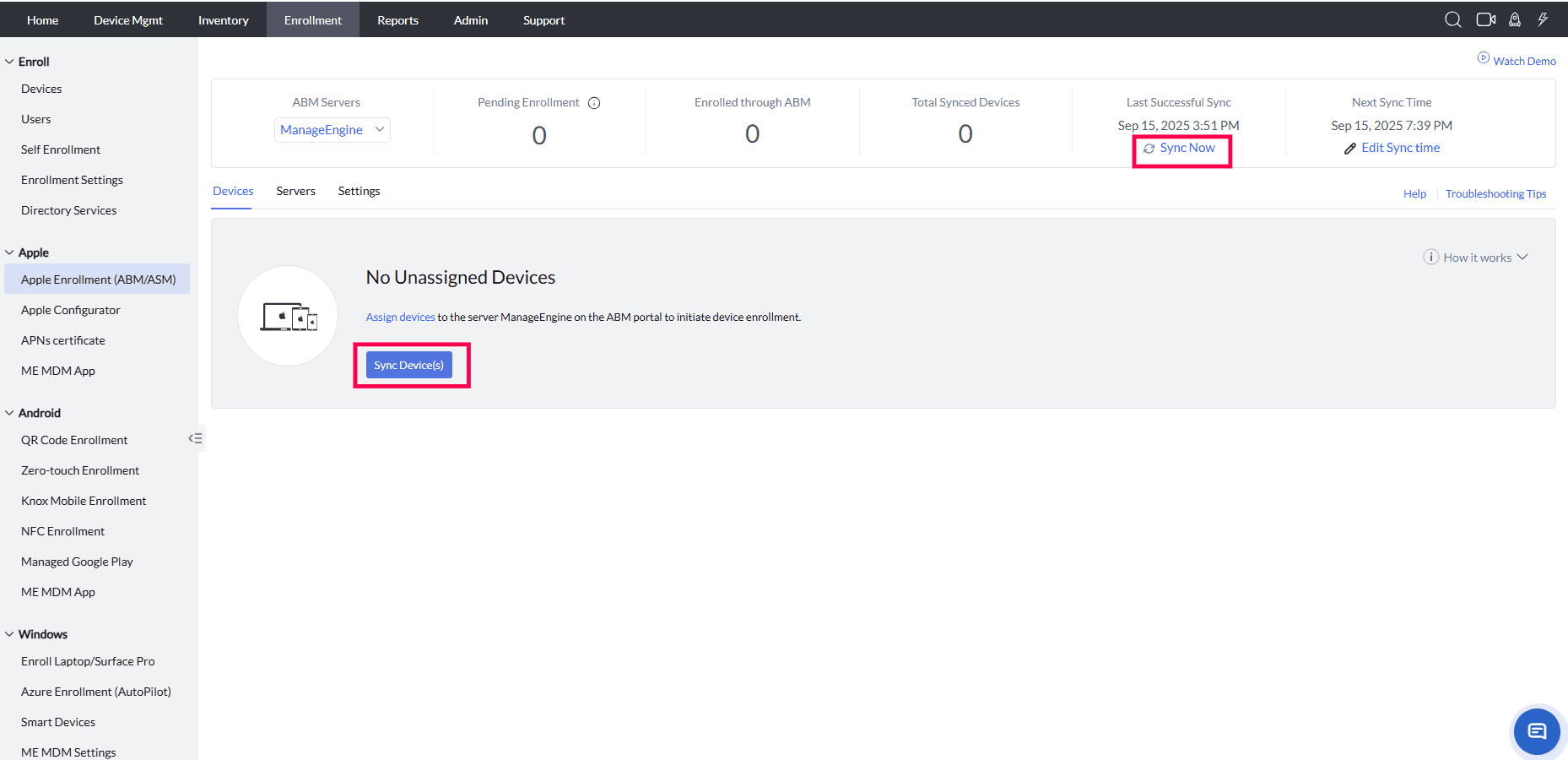
- Then, Sync devices in ManageEngine MDM console to fetch the updated assignments from ABM.
- The user will receive a notification to enroll. If the user does not enroll by the deadline, enrollment will be enforced automatically.
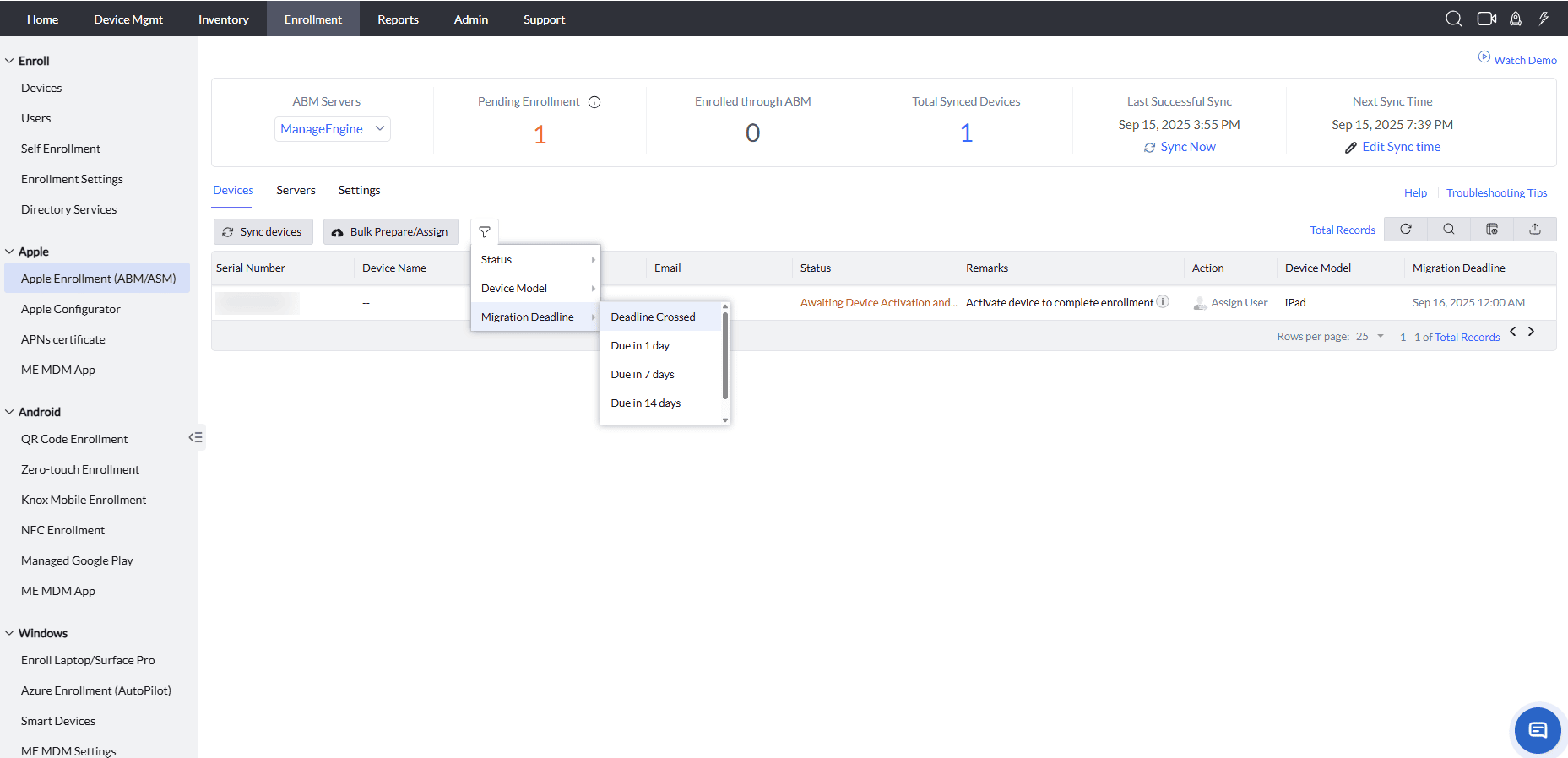
- Verify enrollment in ManageEngine MDM. The migration deadline configured by the admin becomes visible in the ManageEngine MDM console once the device receives the migration assignment.
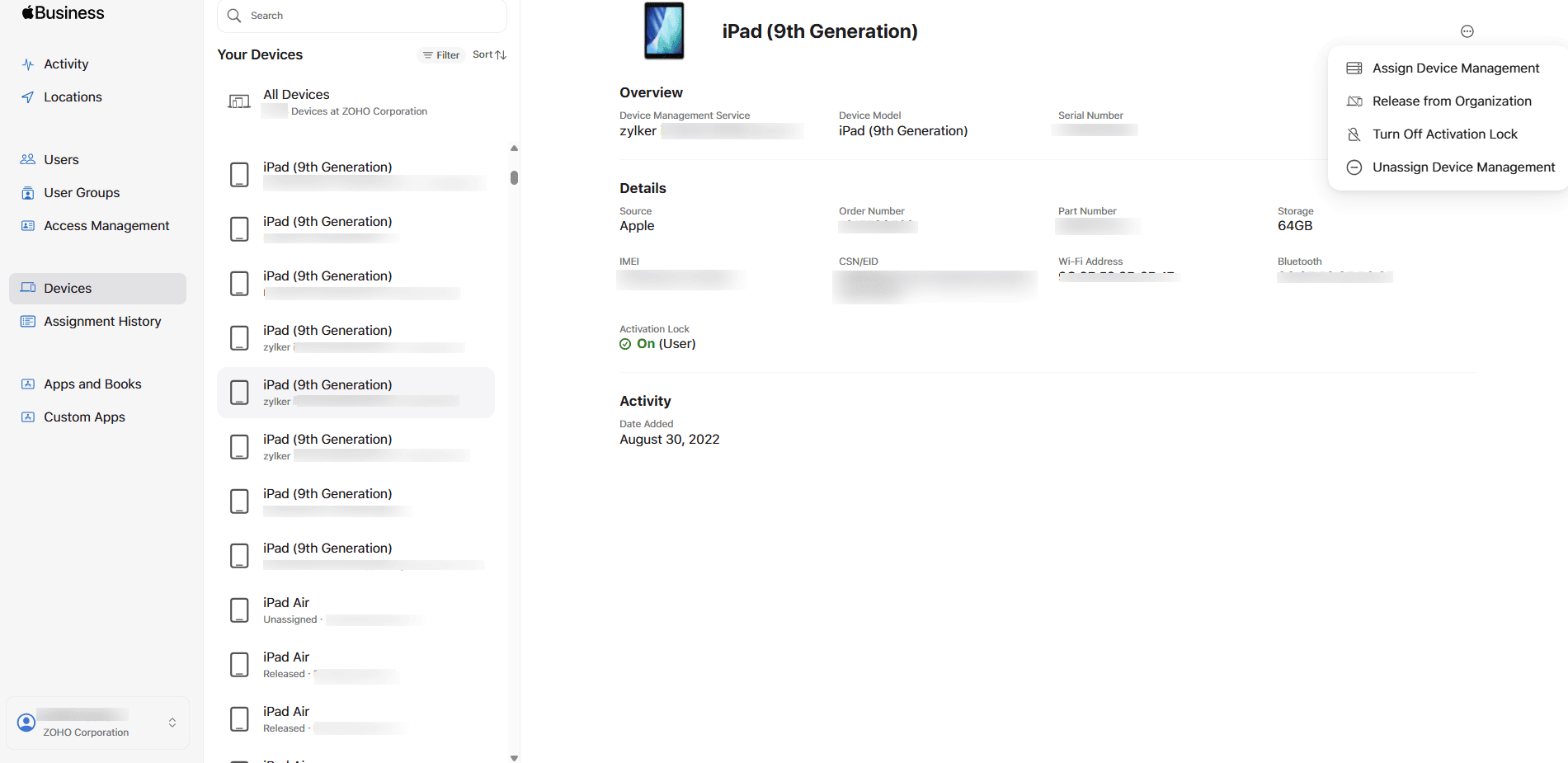
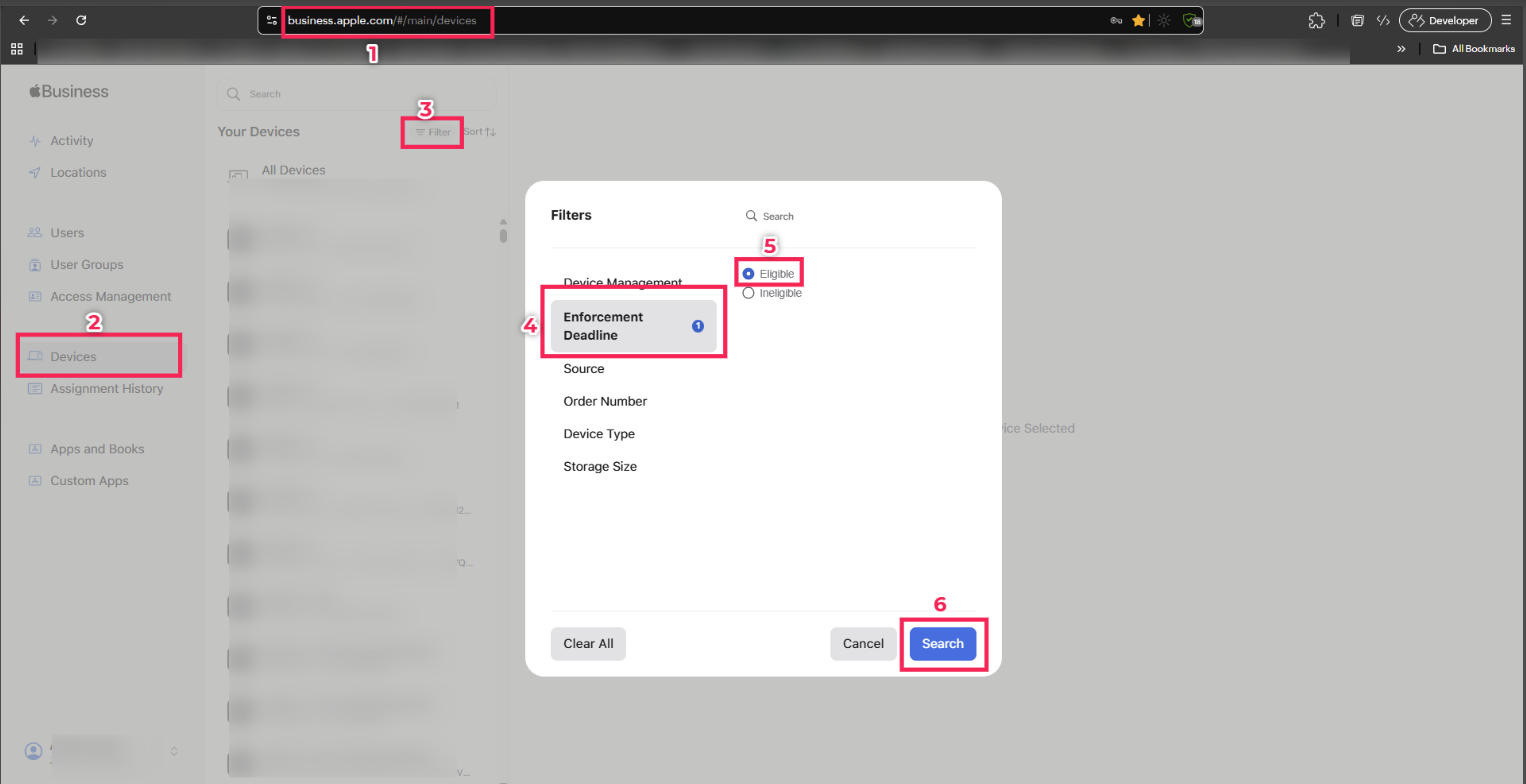
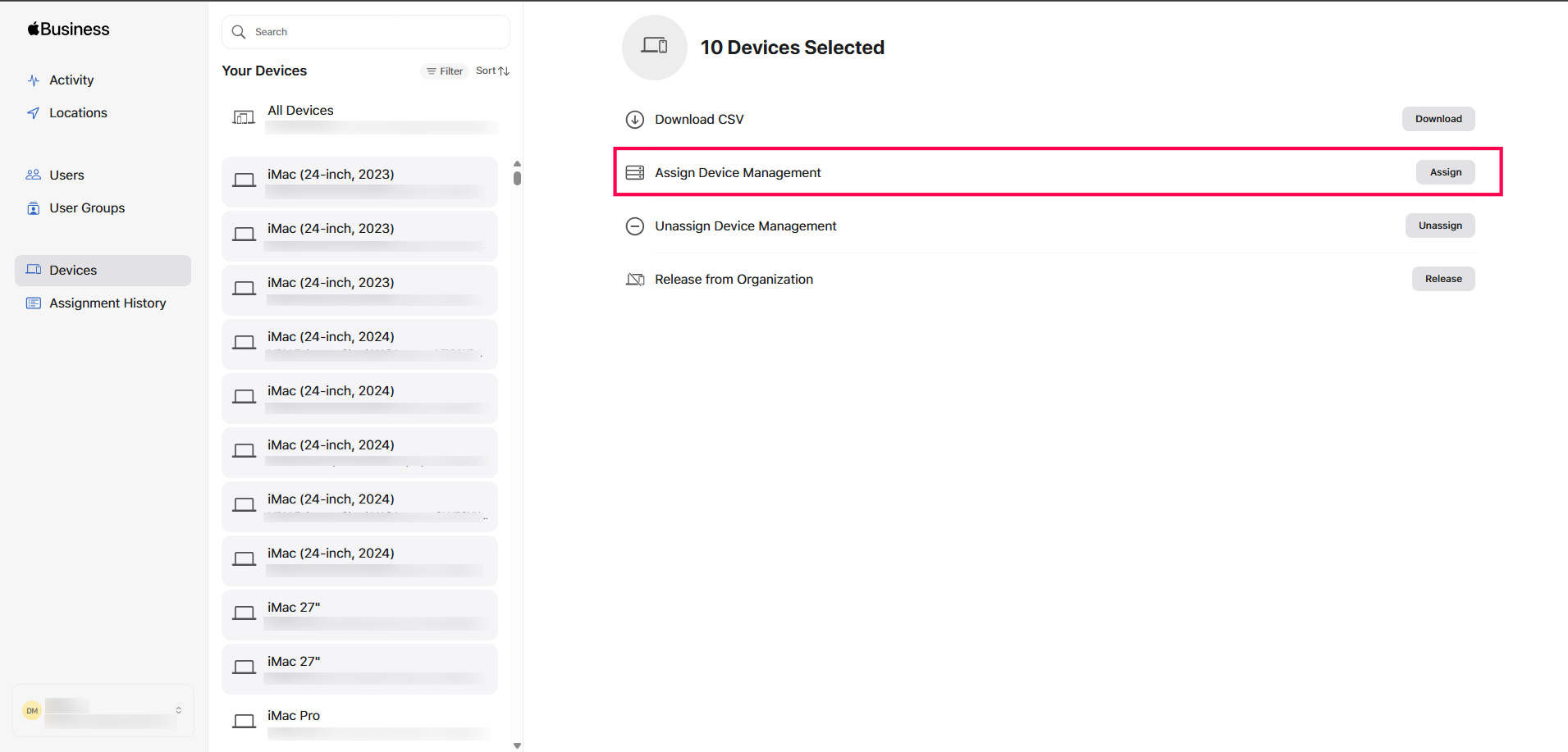
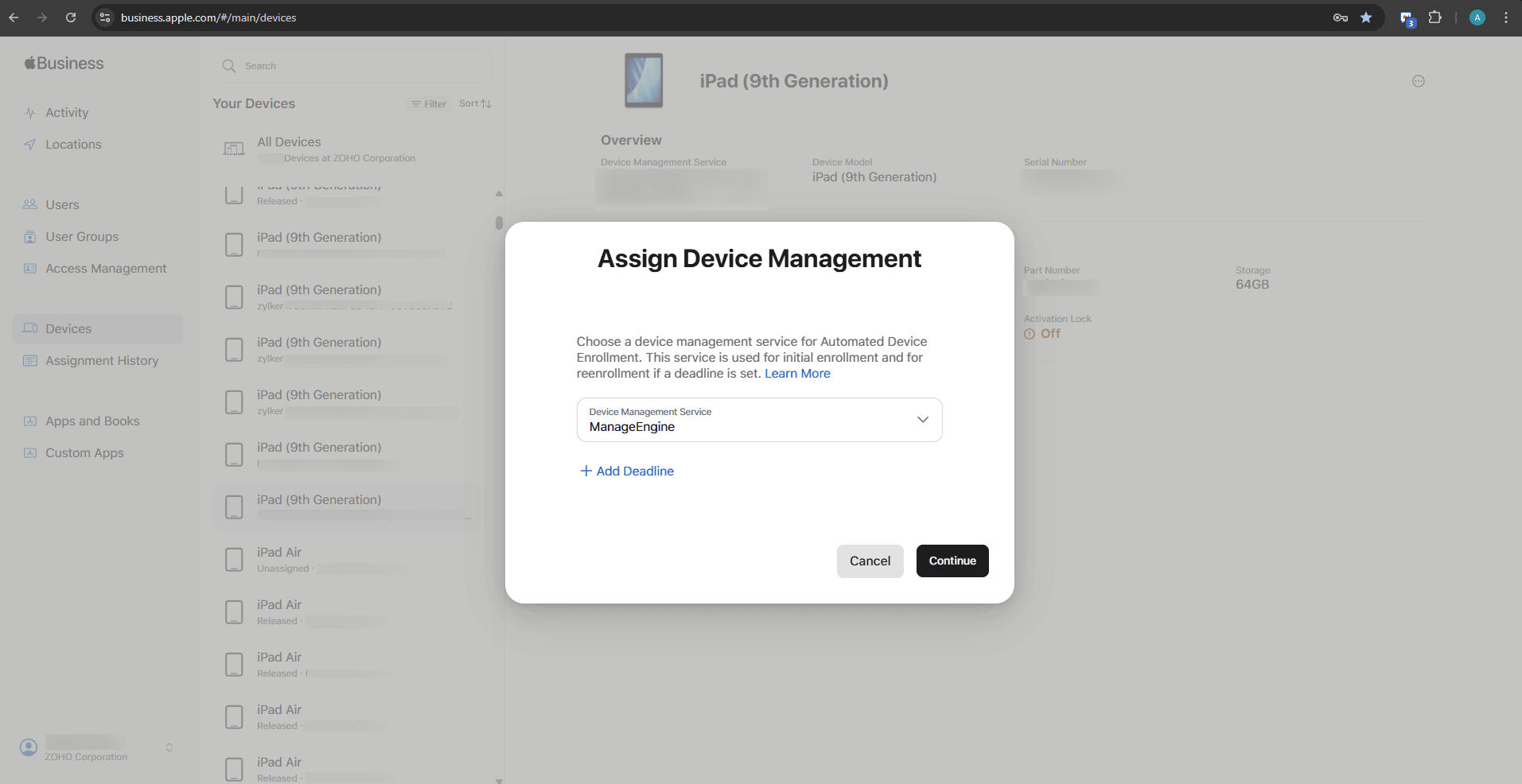
To set an enforcement deadline for multiple devices in the ABM portal, multi-select the devices, choose Assign Device Management, select the appropriate Device Management server, and then configure the Enforcement Deadline.
If the Add Deadline option is not available, the device does not qualify for this migration.
Migration steps to be performed in the device
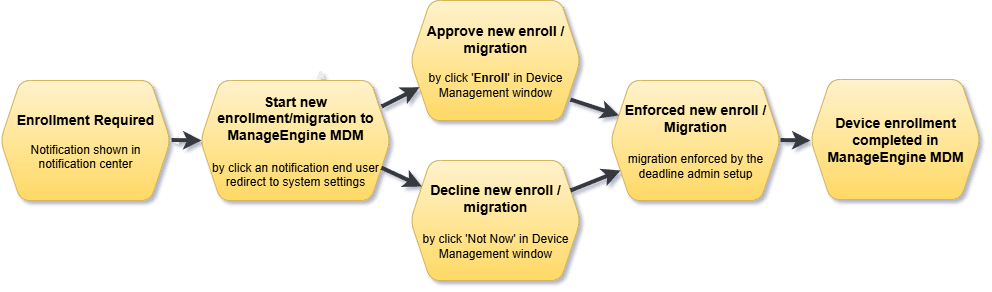
- A notification is shown in the device’s notification center prompting enrollment.
- The end user can either start enrollment or postpone it.
- The system redirects the user to the device management settings.
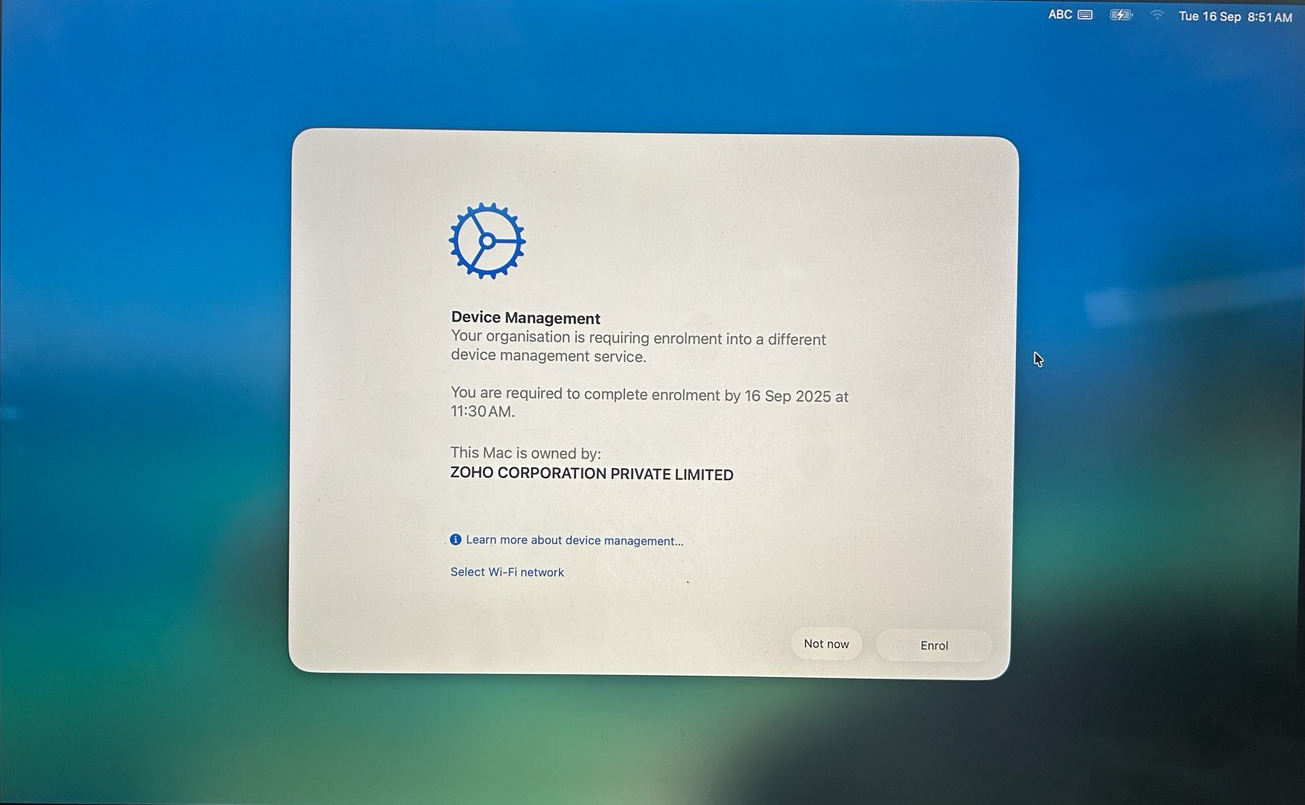
- In the Device Management window, the user clicks Enroll. If the user clicks Not Now, migration is postponed.
- If the user does not approve in time, migration is automatically enforced according to the deadline set by the admin.
- Once migration is complete, the device is fully managed by ManageEngine MDM.
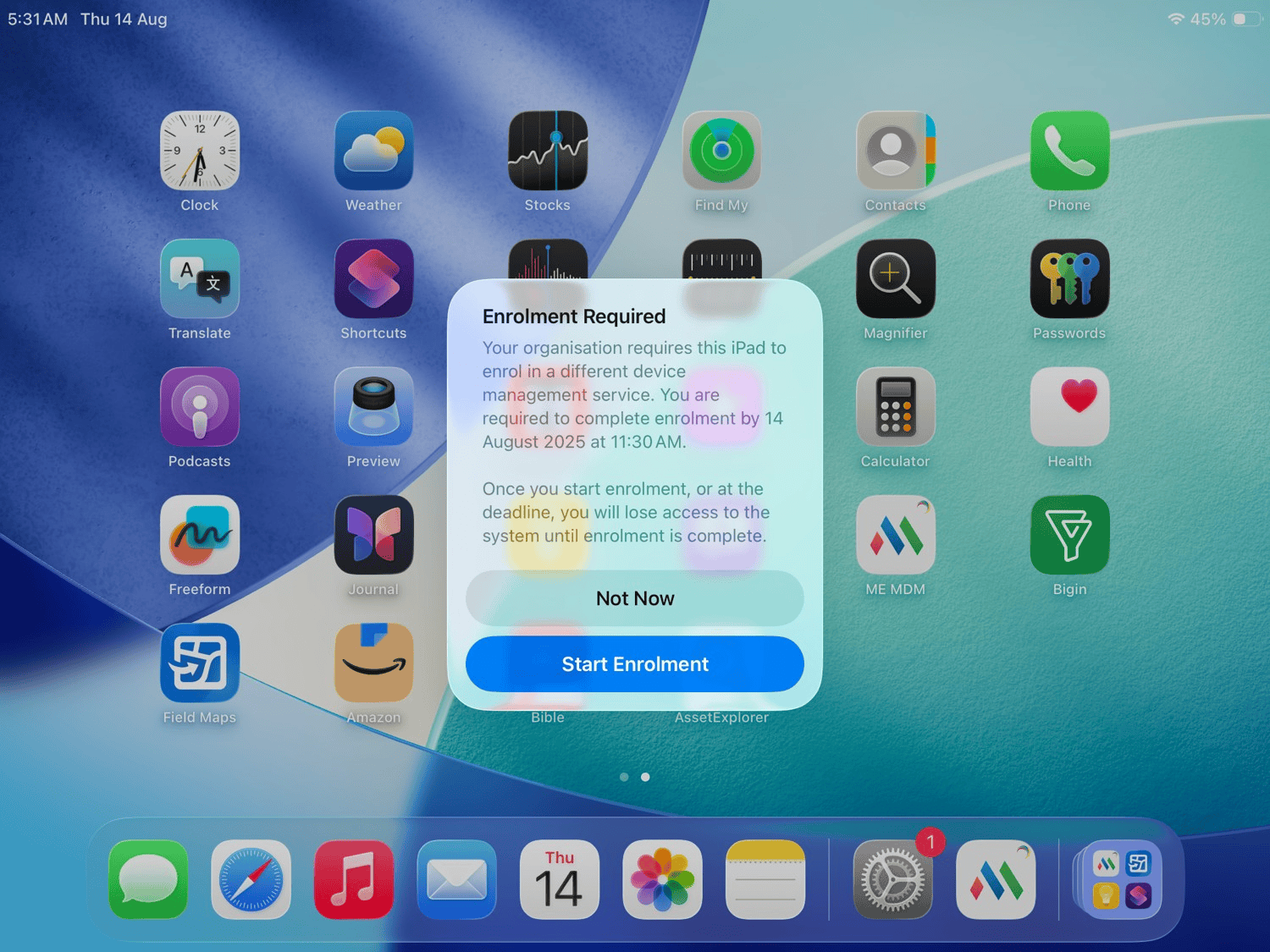
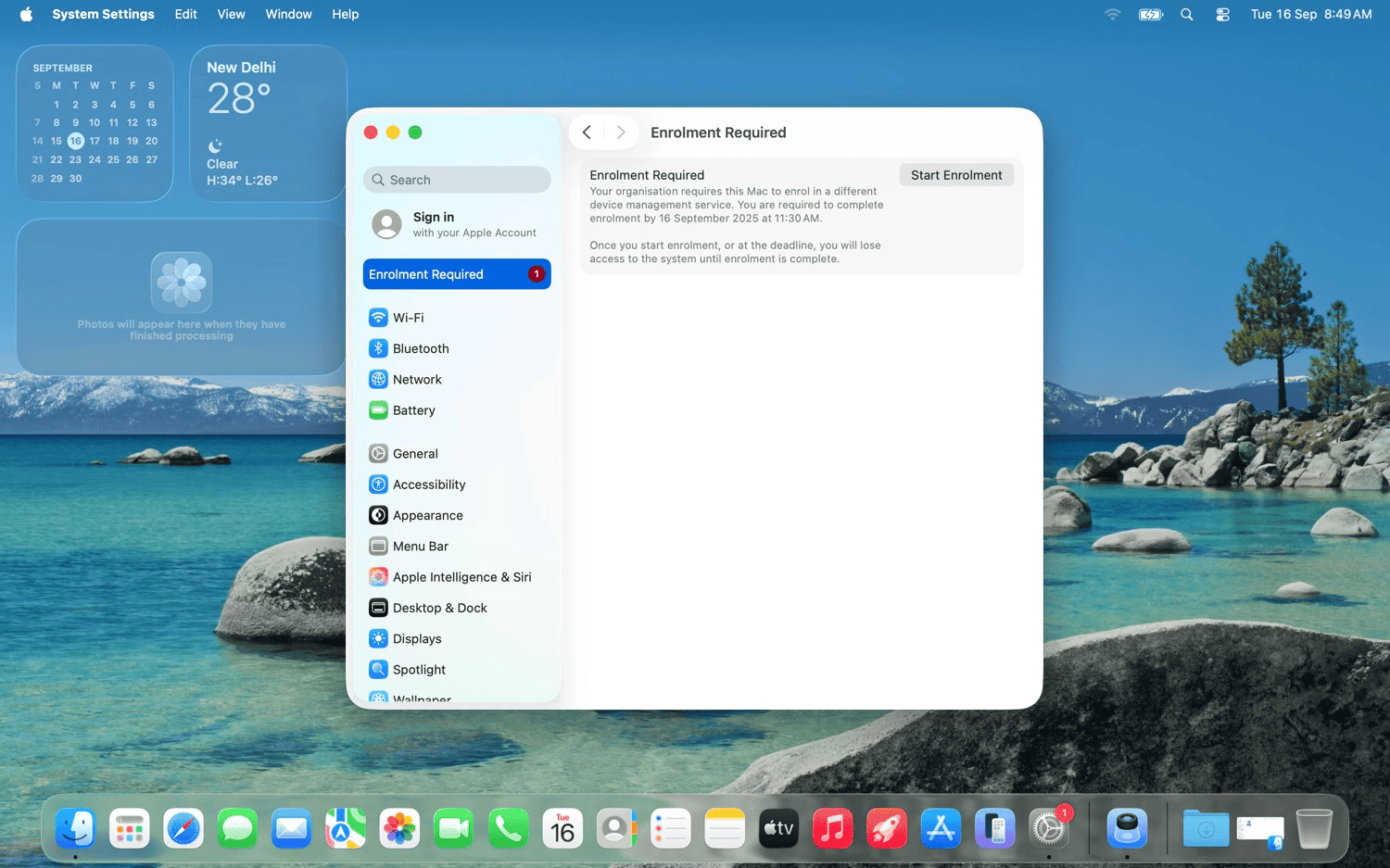
Note: After the enrollment deadline has passed, the Not now option will no longer be available and the device must be enrolled to continue.
Post-migration steps
After migration, confirm everything works:
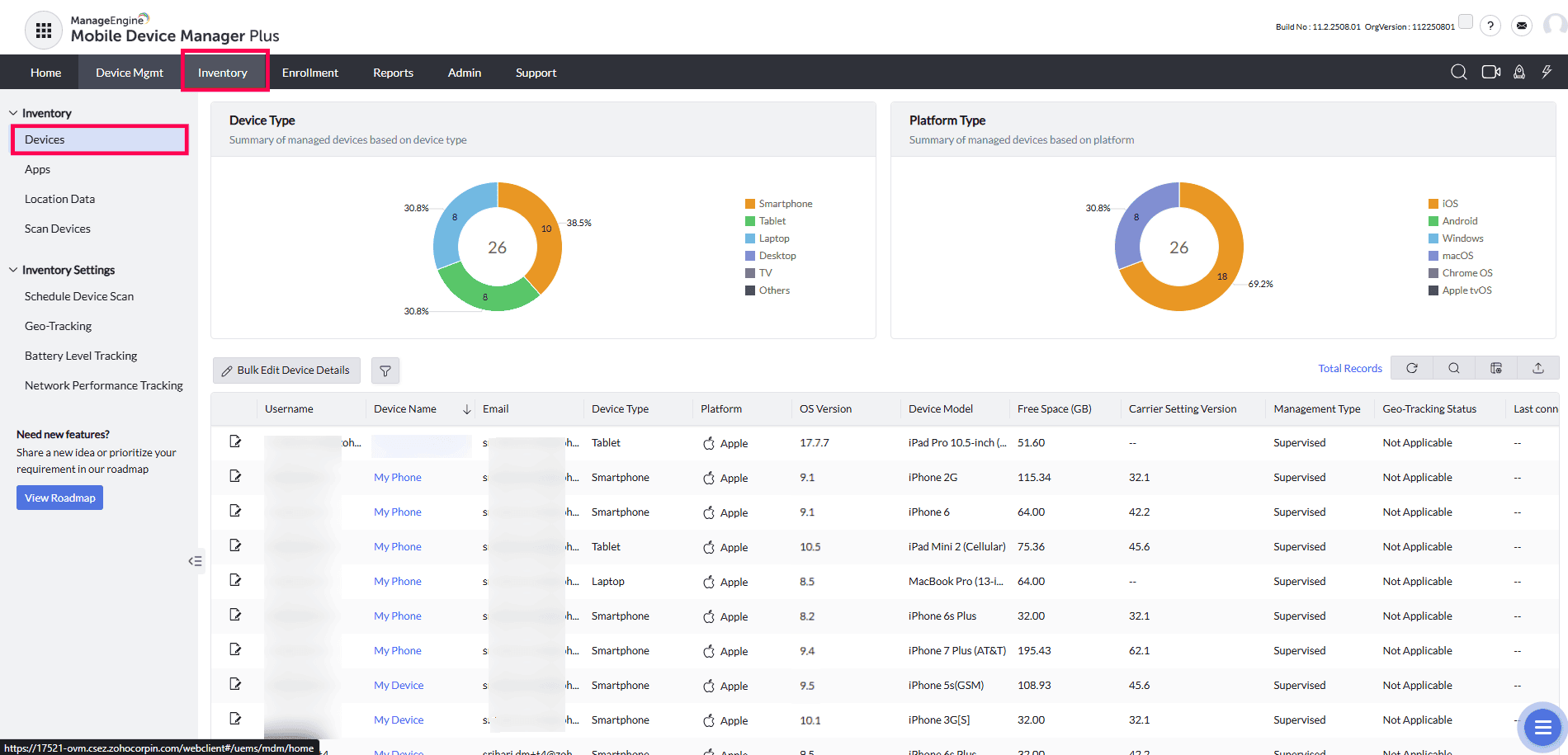
- Go to ManageEngine MDM → Inventory → Devices.
- Verify migrated devices appear to confirm device enrollment.
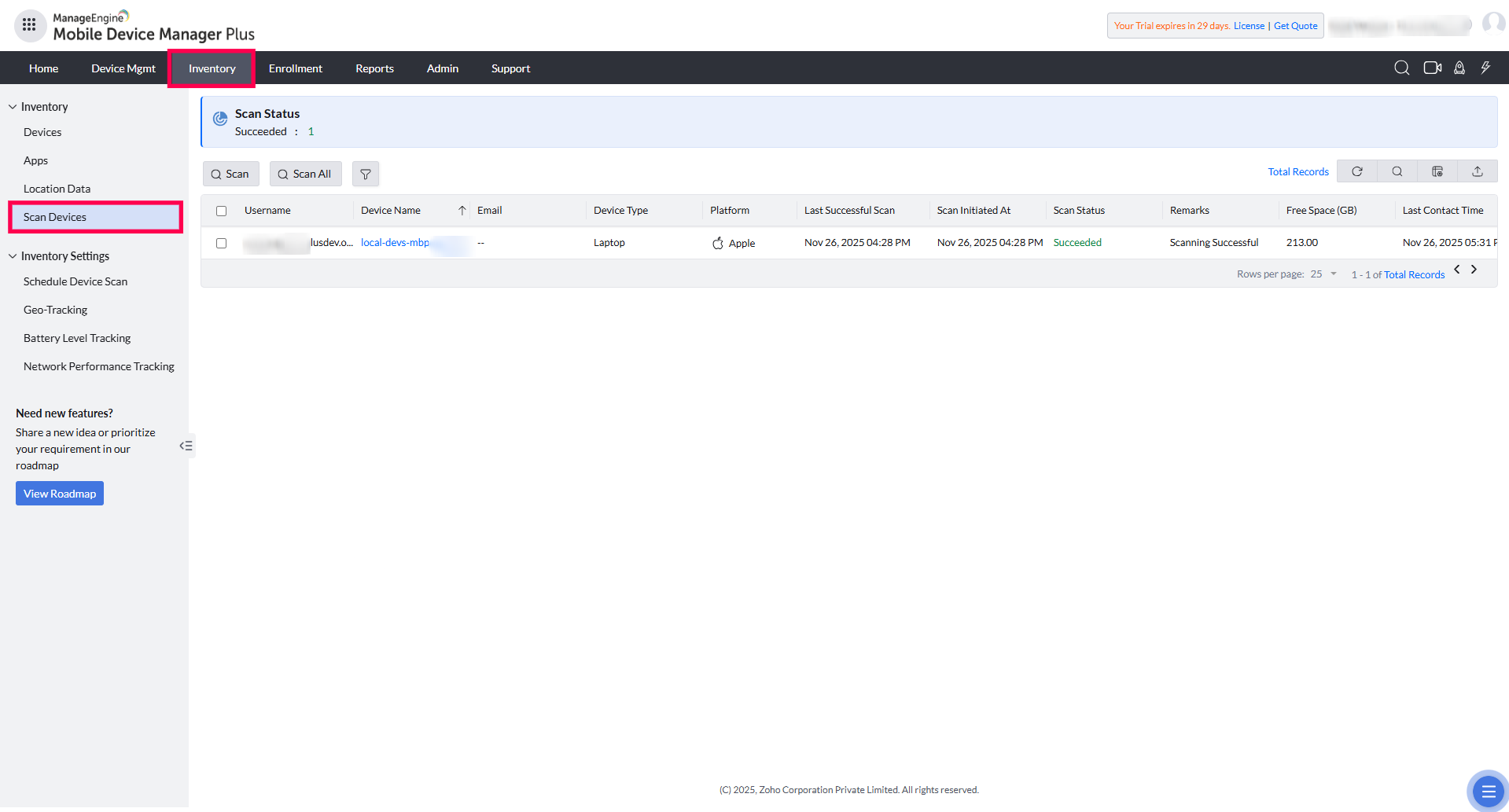
- Navigate to Inventory → Scan Devices.
- Select migrated devices → Click Scan All.
- Verify the scan completes successfully.
- Verify managed apps: Check that preserved apps are still available.
- Verify FileVault Recovery Key (macOS): Navigate to Inventory → Mac Device → Security Settings. Confirm the recovery key has rotated.
- Check Source MDM: Confirm migrated devices are listed as Unmanaged.
Migration is now complete. Devices are fully managed by ManageEngine Mobile Device Manager Plus.
Migration Method for Unsupported Devices
Apple’s MDM migration feature can only be used on corporate devices enrolled through Apple Business Manager (ABM) or Apple School Manager (ASM) and running iOS/iPadOS 26 or later, or macOS 26 or later . All other devices must be migrated using the UEM Migration Tool.
- Devices that cannot be upgraded to iOS/iPadOS 26 or later, or macOS 26 or later
- BYOD devices, even if they are running OS 26 or later.
The UEM Migration Toolhelps in migrating devices that are not eligible for Apple’s native migration feature.
For more information, refer to the official help document on UEM migration tool: UEM Migration Tool Help Documentation.
Additional Notes
- Shared iPad devices are not supported for Apple’s MDM migration feature. Learn more
- Paid App Store apps cannot be retained during migration. Only VPP (Apps and Books) apps with valid ABM/ASM licenses can be preserved.
- BYOD (User-enrolled) devices are not supported and must be re-enrolled manually.
Frequently asked questions
Can Apple devices be migrated to ManageEngine MDM without a factory reset?
Yes. This page describes the Apple migration workflow for supported devices that can move to ManageEngine MDM without a factory reset.
Which devices are not supported by Apple’s native migration workflow?
Devices that do not meet the required OS version, BYOD devices, and devices outside the Apple-supported migration scope must use the UEM Migration Tool instead.
How do I verify that migration completed successfully?
After migration, verify the device appears in inventory, run a scan, confirm managed apps are present, and check the FileVault recovery key rotation for macOS devices where applicable.