Last updated: July 24, 2026
How to migrate Android devices between the different deployment modes of Mobile Device Manager Plus?
This guide explains how to migrate Android devices between the different deployment modes of Mobile Device Manager Plus (on-premises, Endpoint Central, and MDM Cloud) using the Agent Migration profile. After setting up the new server, integrating directory services, configuring profiles/apps, and creating groups, administrators enable the hidden migration profile, then configure it with the new server's URL and distribute it to devices, which land in the Staged view on the new server for reassignment. A test migration is recommended first, and audit logs are not carried over.
Description
Device migration is simplified by the use of UEM migration tool. Migration tool helps in migrating server data such as users, groups, profiles, apps. If you wanted to migrate only android devices, then you can follow the below steps.
Prerequisites
- Set up MDM Server
- Integrate your directory services to sync AD users and groups
- Configure profiles and add enterprise apps to the new server
- For migrating Managed Google Play with Google account, you can use the UEM migration tool. You can remove the old account and add it in the new server for migrating Managed Google Play with Google Workspace account.
- Create Groups on the new server. Associate profiles and distribute apps to the new group.
Steps
Enabling Migration profile
- Stop the MDM server (either through Start -> Programs -> ManageEngine Mobile Device Manager Plus -> Stop or right click MDM logo in the notification area of Task bar and click Stop Service).
- Right click on the enableAgentMigration.xml file, click on Save As and paste the file in <Installation directory>
/bin. - Navigate to <Installation directory>
/bin and open the command prompt. - Execute the following command Executequery.bat enableAgentMigration.xml
- Start the MDM server (either through Start -> Programs -> ManageEngine Mobile Device Manager Plus -> Start or right click MDM logo on the Notification area of Task bar and click Start Service)
Configuring Migration profile
Once the Agent Migration profile is enabled, configure the Agent Migration profile as given below:
- Open your current MDM web console and navigate to Device Mgmt -> Profiles -> Create Profile -> Agent Migration.
- Copy the JSON from Knox Mobile Enrollment tab in the new server.
- Paste it in the Server URL field in the agent migration profile on the existing server.
- Now you can distribute the profile to the devices to be migrated.
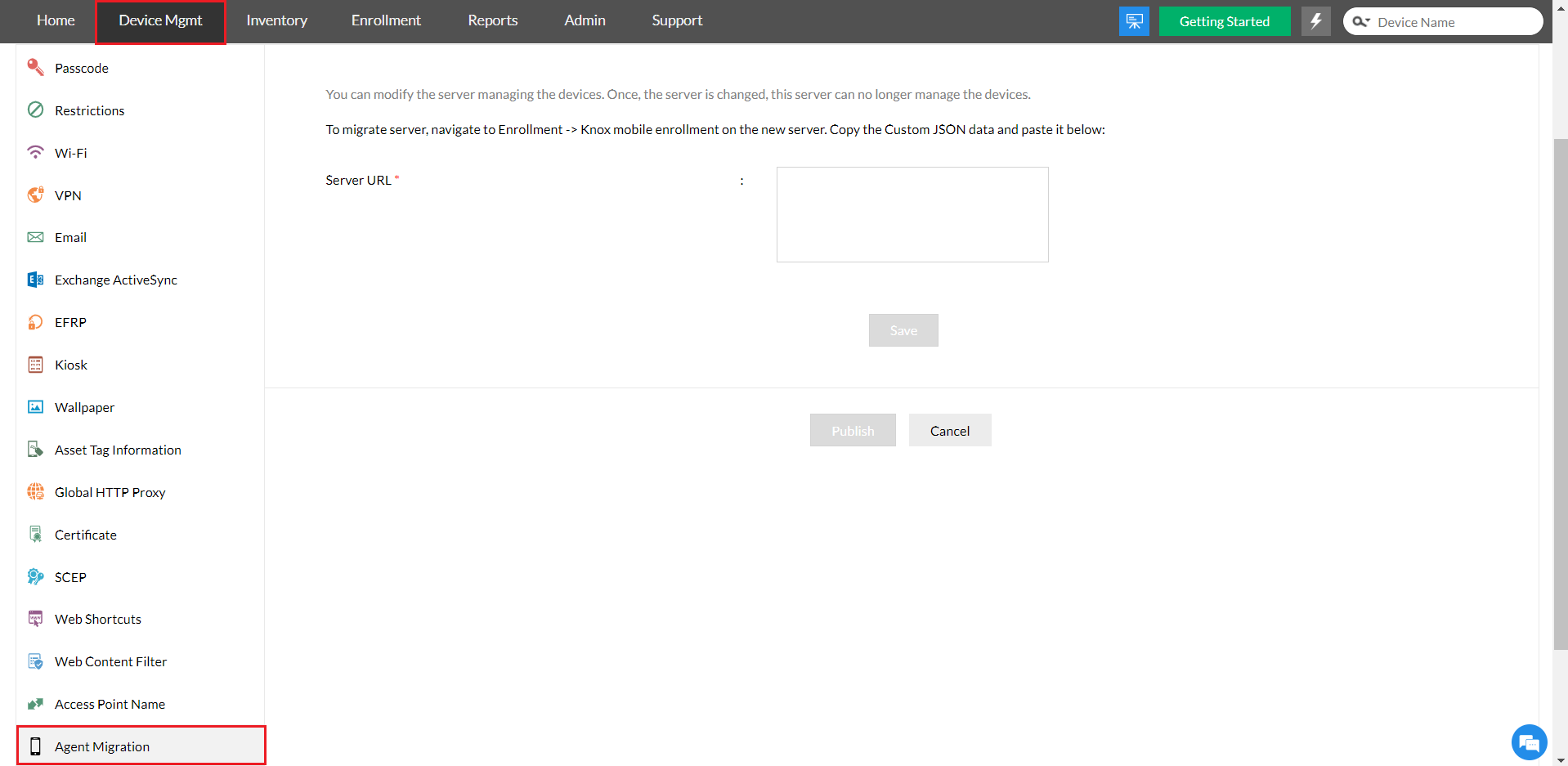
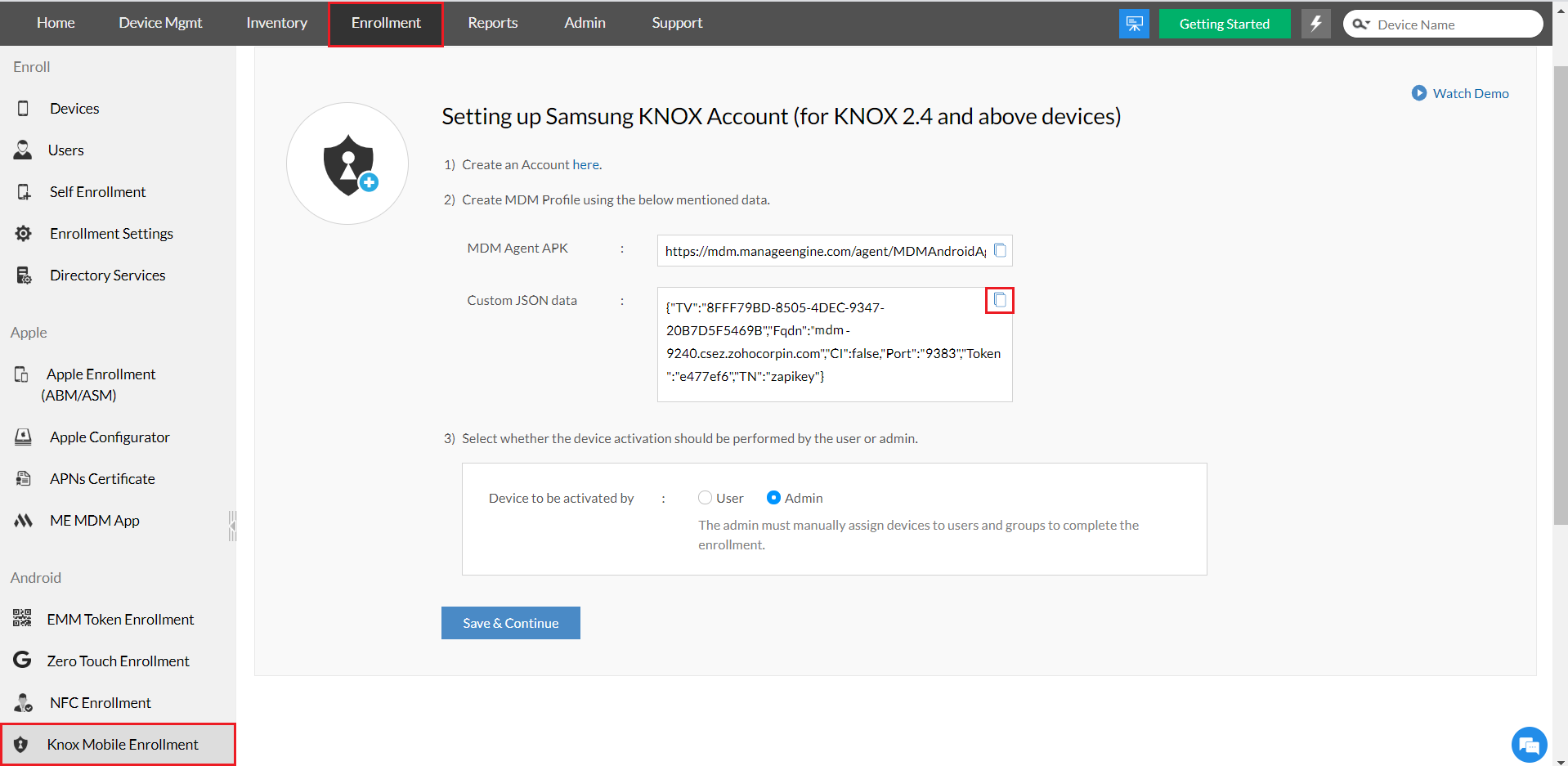
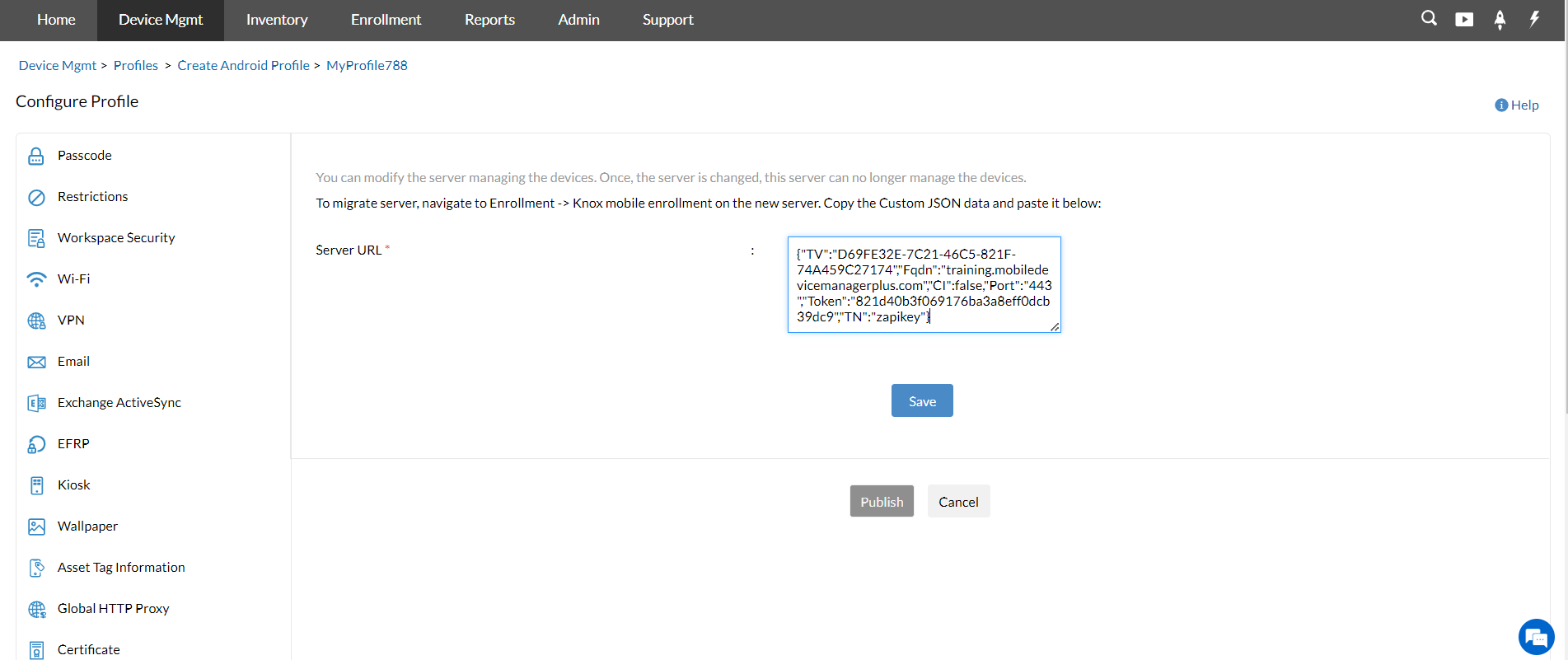
Once the profile is successfully applied, the devices will be migrated automatically to Staged view(Enrollment-> Devices-> Staged) in the new server. You can assign the users and manage the devices.
Note:
- Ensure the MDM agent version is above 9.2.500.A and the devices to be migrated are running the updated Self Service app (previously ME MDM app).
- Audit logs will not be exported to the new server.
- Ensure both the servers are reachable from the devices to be migrated.
- Distribute the migration profile to a test device and verify if the test device is successfully migrated before distributing the profile to devices in your production environment.
Frequently asked questions
What do I need to set up before migrating Android devices to a new deployment?
Set up and configure the new MDM server, integrate your directory services to sync AD users and groups, configure profiles and add enterprise apps on the new server, and create the groups you'll assign migrated devices to, with profiles and apps already associated.
Will my audit logs and app licenses carry over automatically?
Audit logs are not exported to the new server. For Managed Google Play with a Google account, use the UEM migration tool, or remove and re-add the account on the new server if you're using Google Workspace.
What device requirements must be met before migrating?
The device's MDM agent version must be above 9.2.500.A and running the updated Self Service app (previously ME MDM app). Confirm both the old and new servers are reachable from the device before distributing the migration profile.