Integrate OpManager with SiliconFlow
Connect OpManager to SiliconFlow-hosted language models to generate alarm, device, device group, and problem summaries, script templates, and SNMP OID suggestions without leaving the platform. You need a SiliconFlow account and an API key. The integration works alongside any other configured AI vendor.
Privacy: To safeguard sensitive data, OpManager applies a PII masking layer before any information is sent to SiliconFlow. Device and user identifiers (including IP addresses, hostnames, and serial numbers) are masked prior to transmission and automatically restored in the response, ensuring generated summaries and scripts remain accurate without exposing sensitive details to the AI vendor.
Configuration in OpManager
To enable AI-generated summaries in OpManager, you must first configure the SiliconFlow integration. This requires generating an API key from your SiliconFlow account and entering it in OpManager to establish a secure connection between the two systems.
The base URL used to connect to SiliconFlow depends on which domain your API key is provisioned for. An API key works only with the domain on which your SiliconFlow account was created: accounts created on siliconflow.cn use the cn domain, and accounts created on siliconflow.com use the com domain.
By default, OpManager uses the cn domain (https://api.siliconflow.cn/v1). If your account was created on siliconflow.cn, skip this step. If your API key requires the com domain, follow the steps below before completing the integration:
- Open the file
serparameters.conf, located at:<OPM_HOME>\conf\OpManager\serparameters.conf - Add the following entry:
SILICON_FLOW_GLOBAL true - Save the file, and restart OpManager.
After restarting, OpManager will connect to SiliconFlow using: https://api.siliconflow.com/v1
To revert to the cn domain at any time, either set SILICON_FLOW_GLOBAL to false or remove the entry entirely, then restart OpManager.
- Go to Settings → General Settings → Integrations → GenAI → SiliconFlow.
- Enter your Organization Name (optional).
- In the API Key field, paste the key copied from your SiliconFlow account.
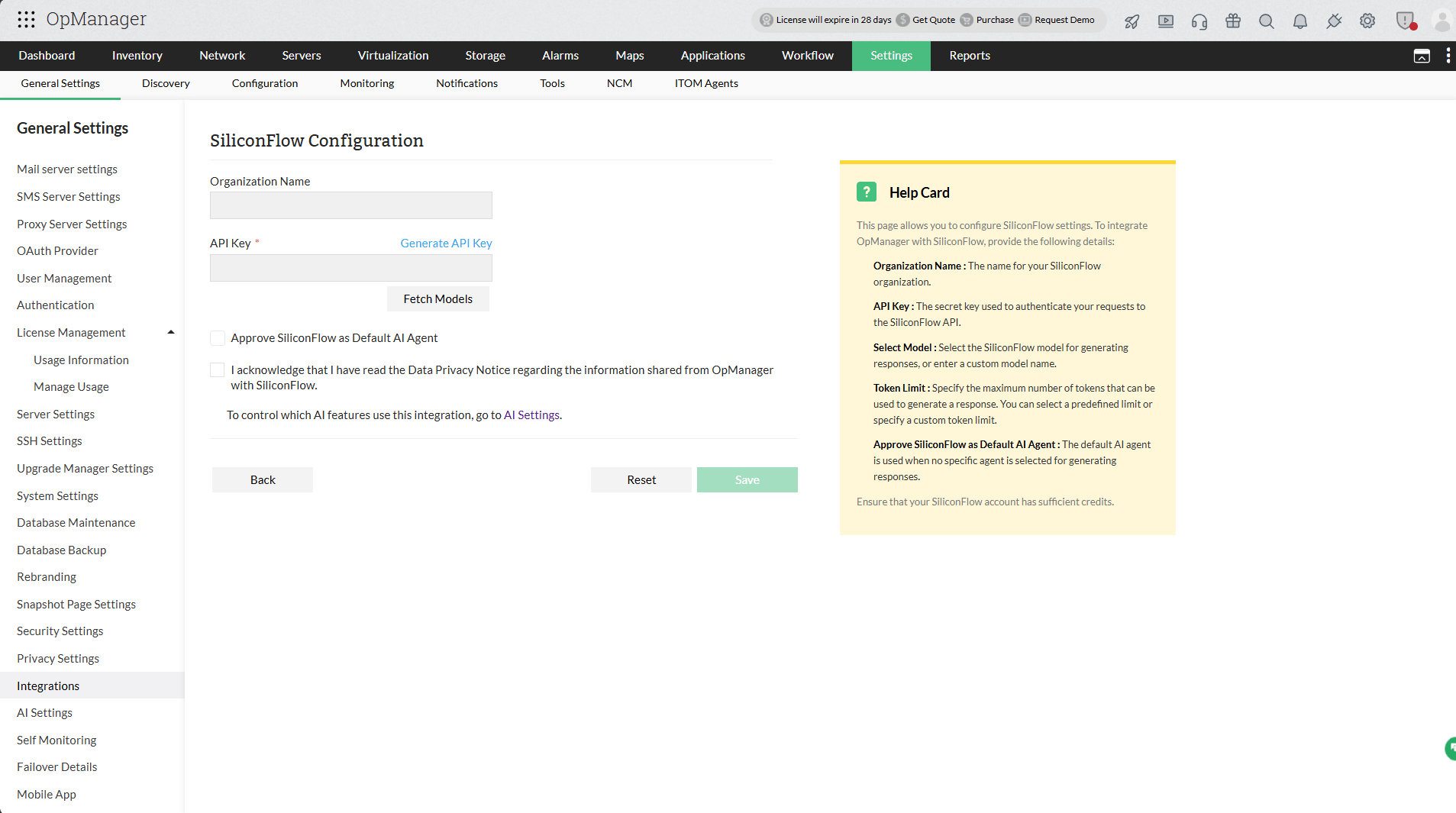
- Click Fetch Model to retrieve all models available for the provided API key.
- Select the desired model from the Model dropdown.
- Set the Token Count as required for your environment. Use the following guidance:
- What it controls: Token Count sets the ceiling on the number of tokens the model can use to generate a response. A higher value helps accommodate more detailed summaries and scripts, if the model generates them.
- Recommended range: 1,000 to 2,000 tokens for Device Summary, Device Group Summary, All Alarms Summary, and SNMP OID generation; 2,000 to 3,000 tokens for Individual Alarm Summary, Problem Summary, and Script Generation. Do not exceed the maximum output limit of the selected model.
- Treat these values as a starting point rather than a fixed rule. The tokens needed depend on the model and how much reasoning it applies. One model may produce a summary in under 1,000 tokens, while a more reasoning-heavy model may need 4,000 to 5,000 tokens for a basic device summary. In general, the ranges above work well.
- Trade-offs: Higher values increase SiliconFlow usage cost and response time. Values that are too low can truncate the response, especially for features that use more tokens, such as Problem Summary and Script Generation.
- Acknowledge the data privacy notice and click Proceed.


- Click Save.
SiliconFlow has successfully been integrated with OpManager.
AI Settings: assigning vendors per feature
After completing the integration, navigate to the AI Settings page to control which vendor and model powers each AI feature in OpManager.
- Go to Settings → General Settings → AI Settings.
From this page, you can:
- Enable or disable individual AI features using their toggle.
- Assign a vendor and model independently for each feature using the Vendor and Model dropdowns.
- Apply a single vendor and model to all features at once by enabling the Apply to all features checkbox.
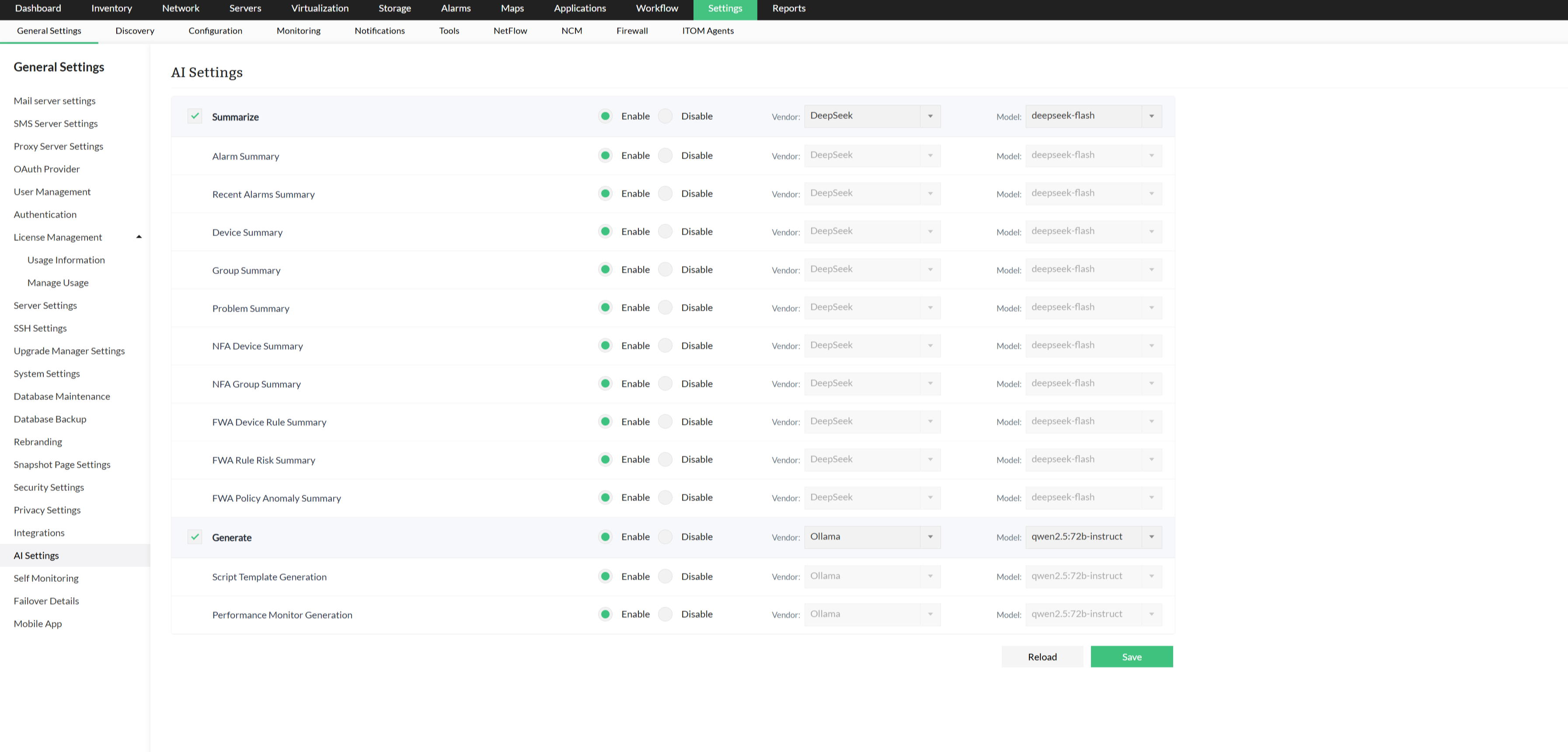
The following features can be configured independently:
| Feature | Description |
|---|---|
| All Alarms Summary | Consolidates all active alarms into a single prioritized summary |
| Individual Alarm Summary | Analyzes a single alarm for probable cause and remediation steps |
| Device Group Summary | Summarizes health and performance trends across a device group |
| Device Summary | Generates a focused health overview for a single device |
| Problem Summary | Analyzes correlated alarms and identifies the probable root cause |
| Script Generation | Produces script templates from a natural-language description |
| SNMP OIDs for Performance Monitors | Fetches relevant SNMP OIDs based on a plain-language description (available from OpManager version 12.9.120 onward) |
When multiple vendors (such as Ollama, OpenAI, or DeepSeek) are configured, each feature can be assigned a different vendor. For example, alarm summaries can run on SiliconFlow while script generation uses a locally deployed Ollama instance.
AI features powered by SiliconFlow
With the SiliconFlow integration configured and enabled in AI Settings, the following features become available:
- All alarms summary
- Individual alarm summary
- Device group summary
- Device summary
- Problem summary
- Script generation
- SNMP OIDs for Performance Monitors
All Alarms Summary
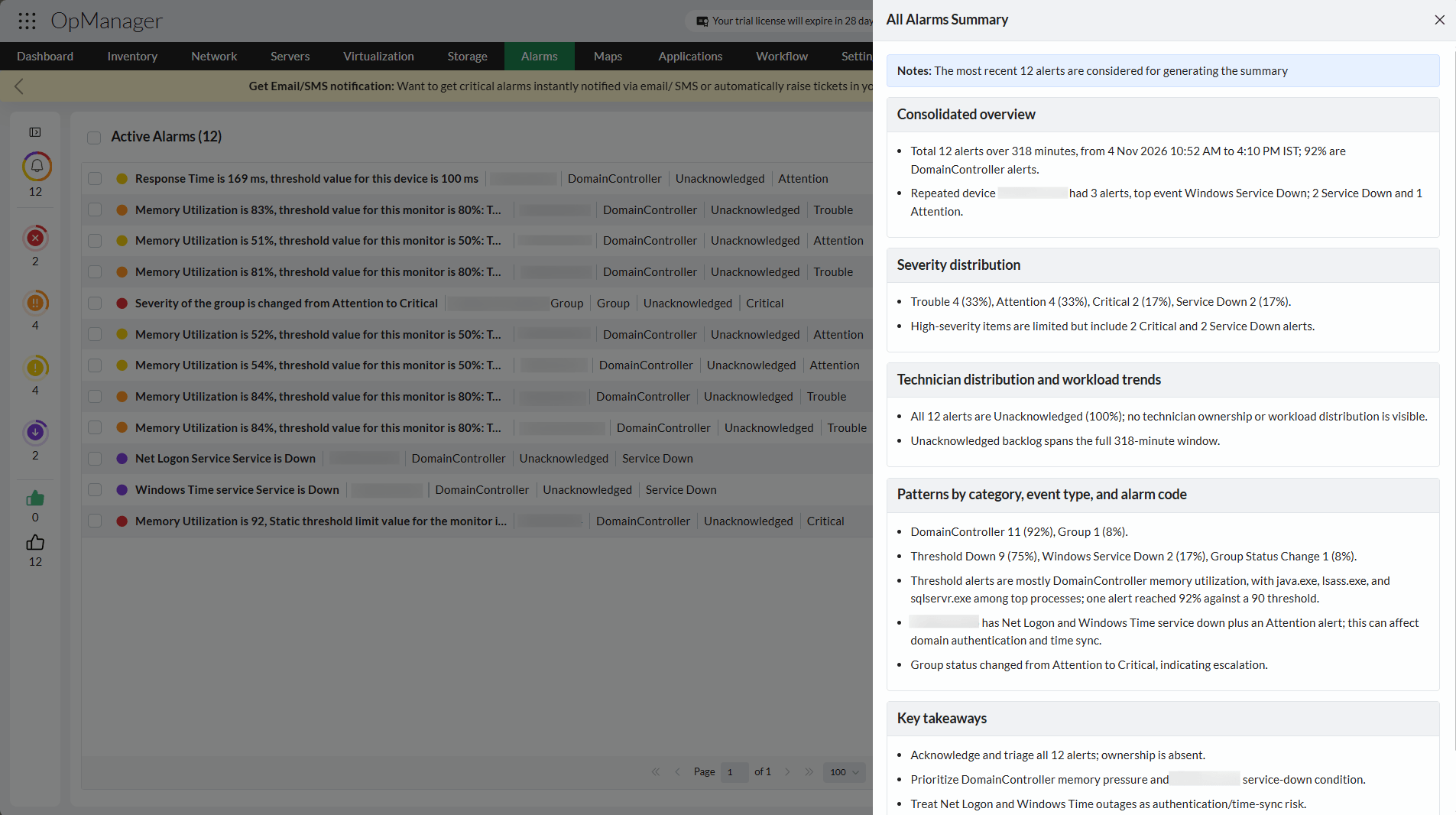
OpManager can consolidate all active alarms into a single, easy-to-read summary highlighting the most critical details across your monitored infrastructure.
- Navigate to Alarms and select the Summarize tab in the top-right corner. OpManager will instantly generate the summary without any additional input.
Individual Alarm Summary
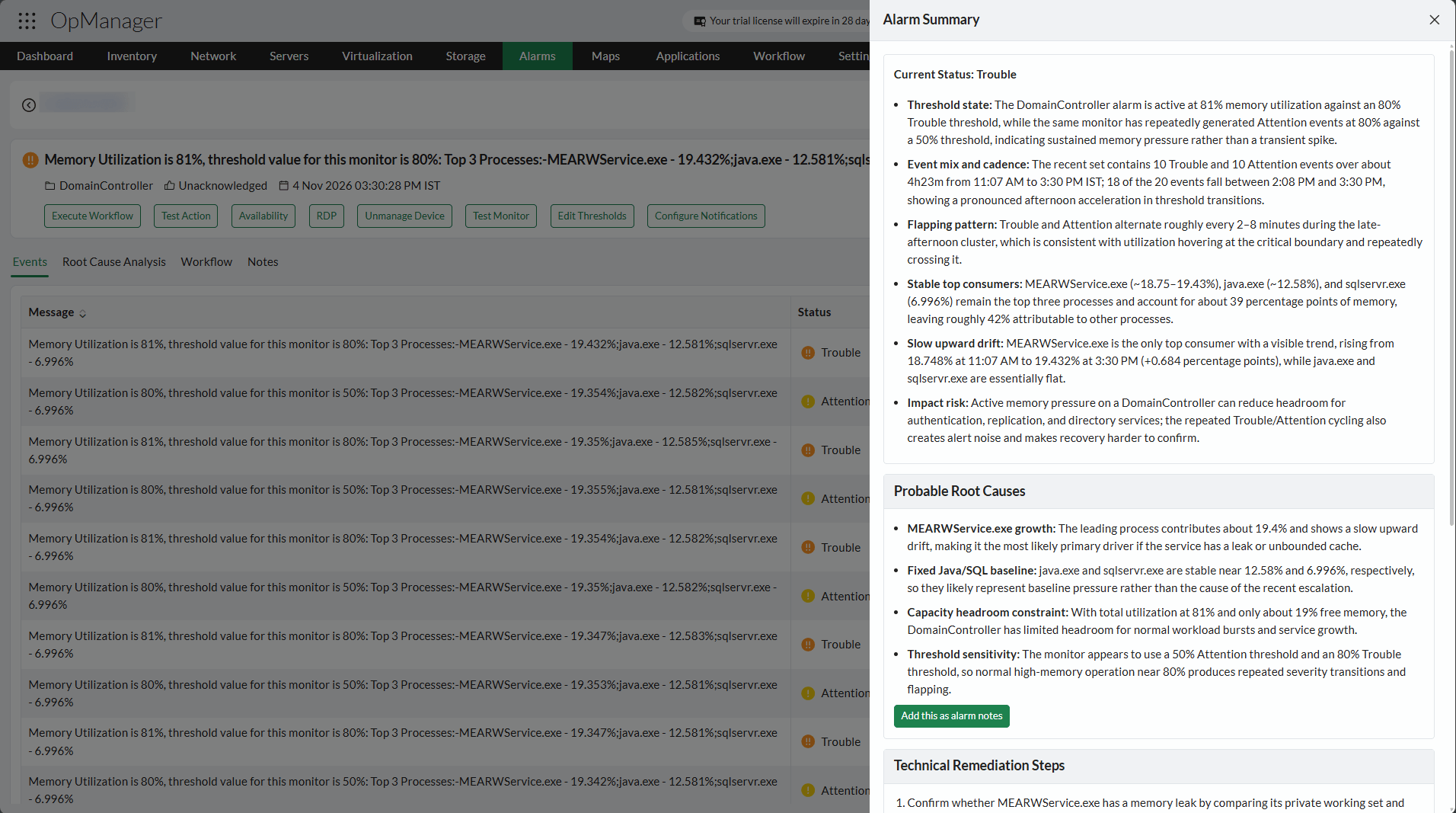
OpManager's SiliconFlow integration can analyze individual alarms in detail, identifying the alarm type, listing probable causes, and generating a detailed, actionable summary for that specific alarm.
- Navigate to Alarms and open any alarm of your choice, and select the Summarize tab to generate a detailed summary for that alarm.
Device Group Summary
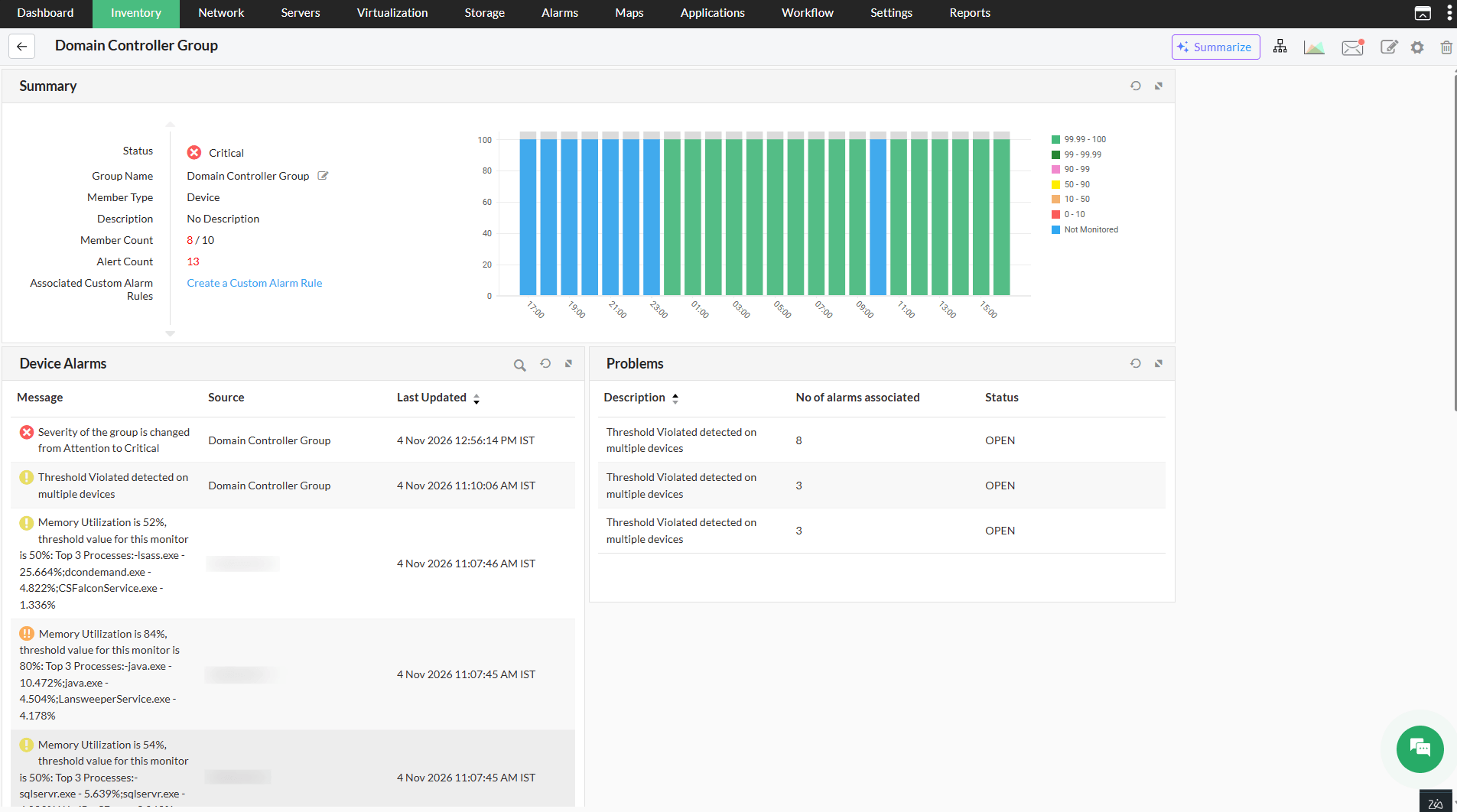
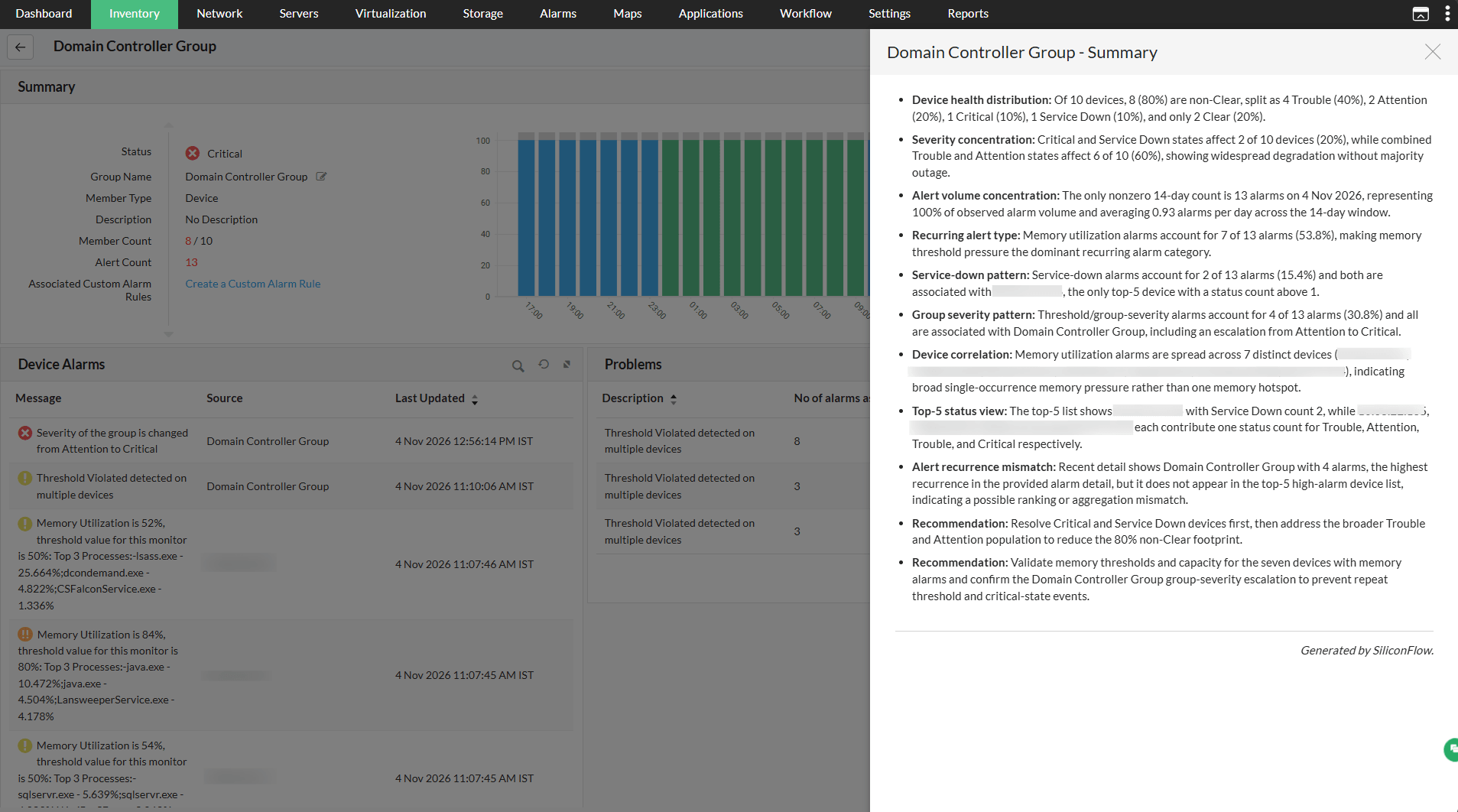
The SiliconFlow integration enables AI-generated summaries for device groups in OpManager, providing a consolidated snapshot of device conditions, key performance metrics, and actionable recommendations across all devices within the group. Group-level summaries are better suited for monitoring large network segments, offering a broader view that helps identify patterns and issues across multiple devices at once.
- Go to Settings → Configurations → Groups. Device groups can also be accessed directly from Inventory.
- Select a device group and click the Summarize tab to generate the AI-powered summary.
Device Summary
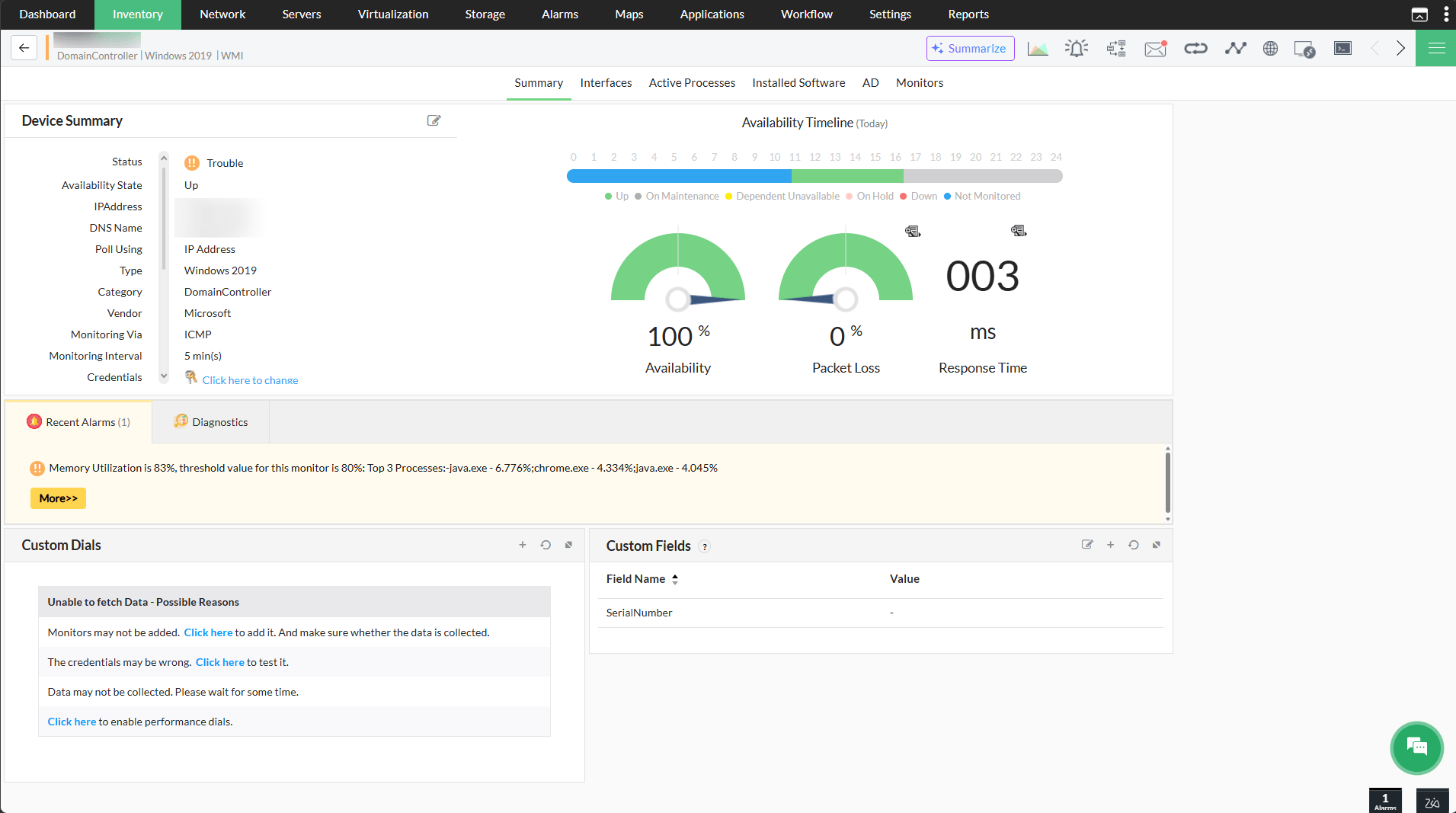
OpManager's SiliconFlow integration can generate a focused summary for any individual device, covering its overall health status and key performance metrics in a single consolidated view.
- Navigate to Inventory and select a device to open its snapshot page.
- Click the Summarize tab within the snapshot page to trigger the AI-generated summary.

Problem Summary
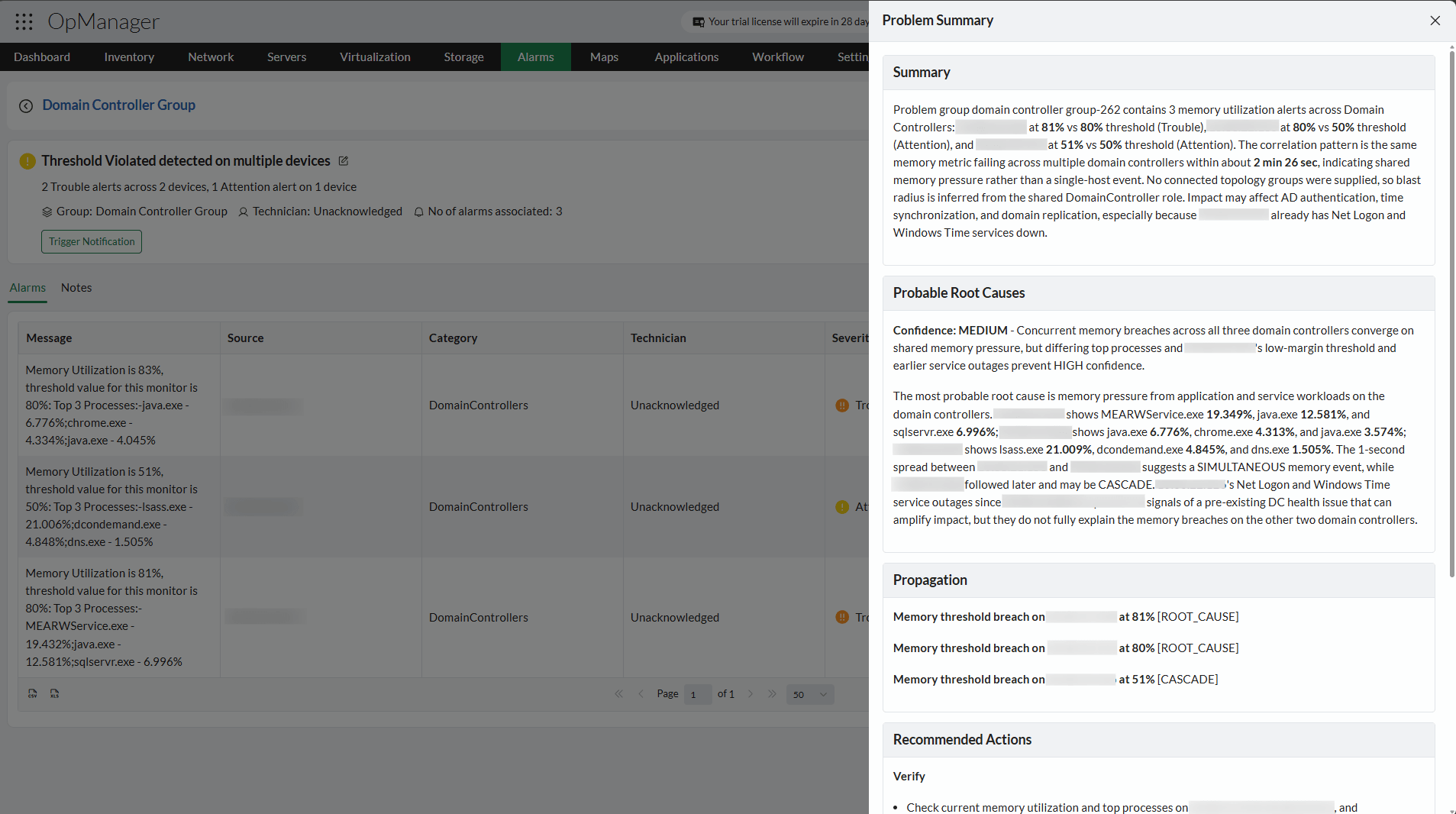
OpManager's SiliconFlow integration extends AI analysis to correlated Problems. When related alarms are grouped into a single Problem through Event Correlation, SiliconFlow analyzes the associated alarms and identifies the probable root cause, tagged with a high or medium confidence level, along with suggested remediation steps.
- Navigate to Alarms → Problems and open the Problem you want to analyze.
- Click Analyze with AI to generate the summary.
Script Generation
OpManager's script monitoring supports the execution of custom scripts (including PowerShell, Shell, VBScript, Perl, and Python) to monitor devices and capture script outputs as metrics. The SiliconFlow integration extends this capability by allowing script templates to be generated automatically using AI. Instead of writing scripts manually, a plain-language prompt can be entered and SiliconFlow will produce the required script instantly.
- Go to Settings → Monitoring → Script Templates.
- Click Add and fill in the required monitoring details.
- Under the Script Details section, click Generate with AI to open the SiliconFlow prompt interface.
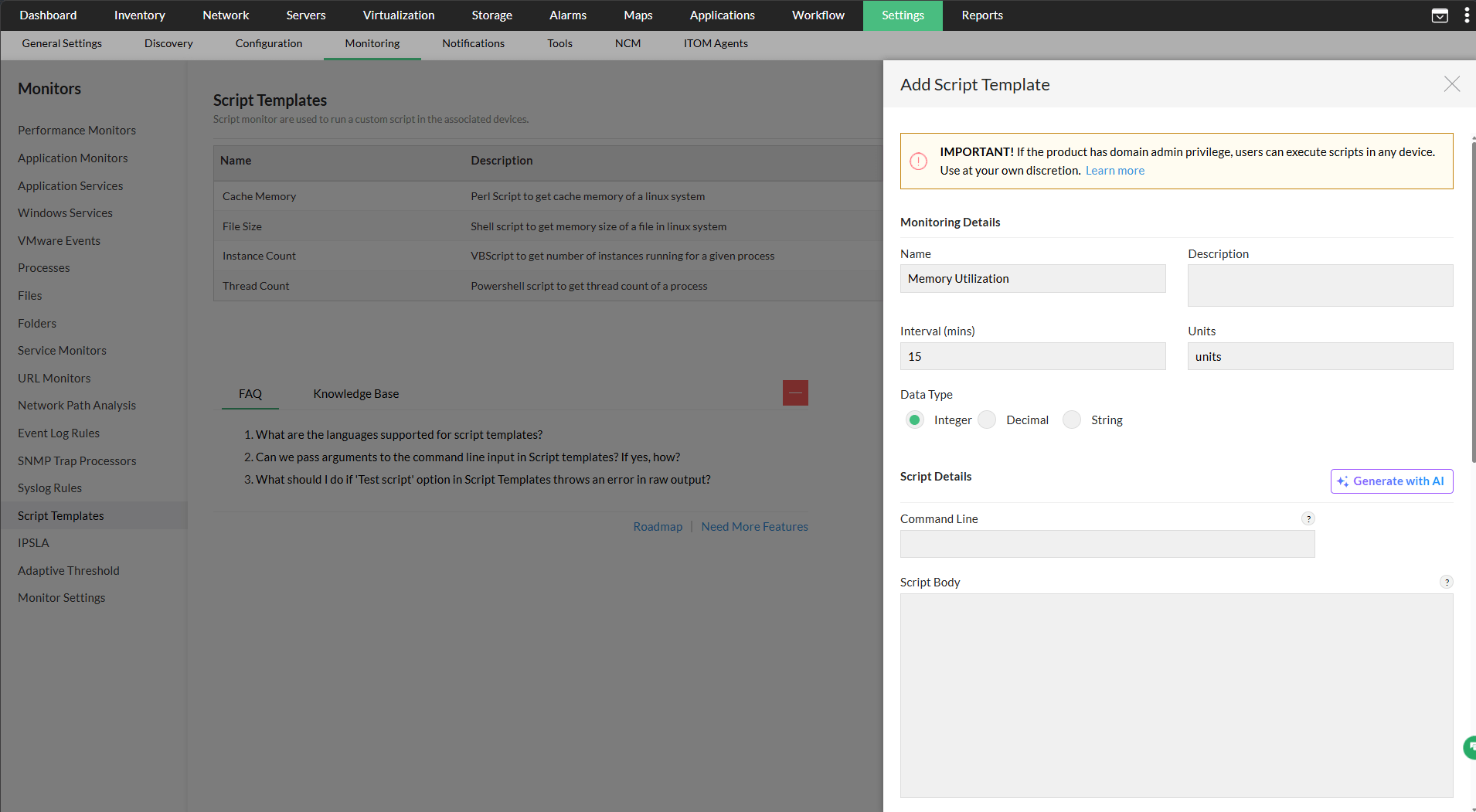
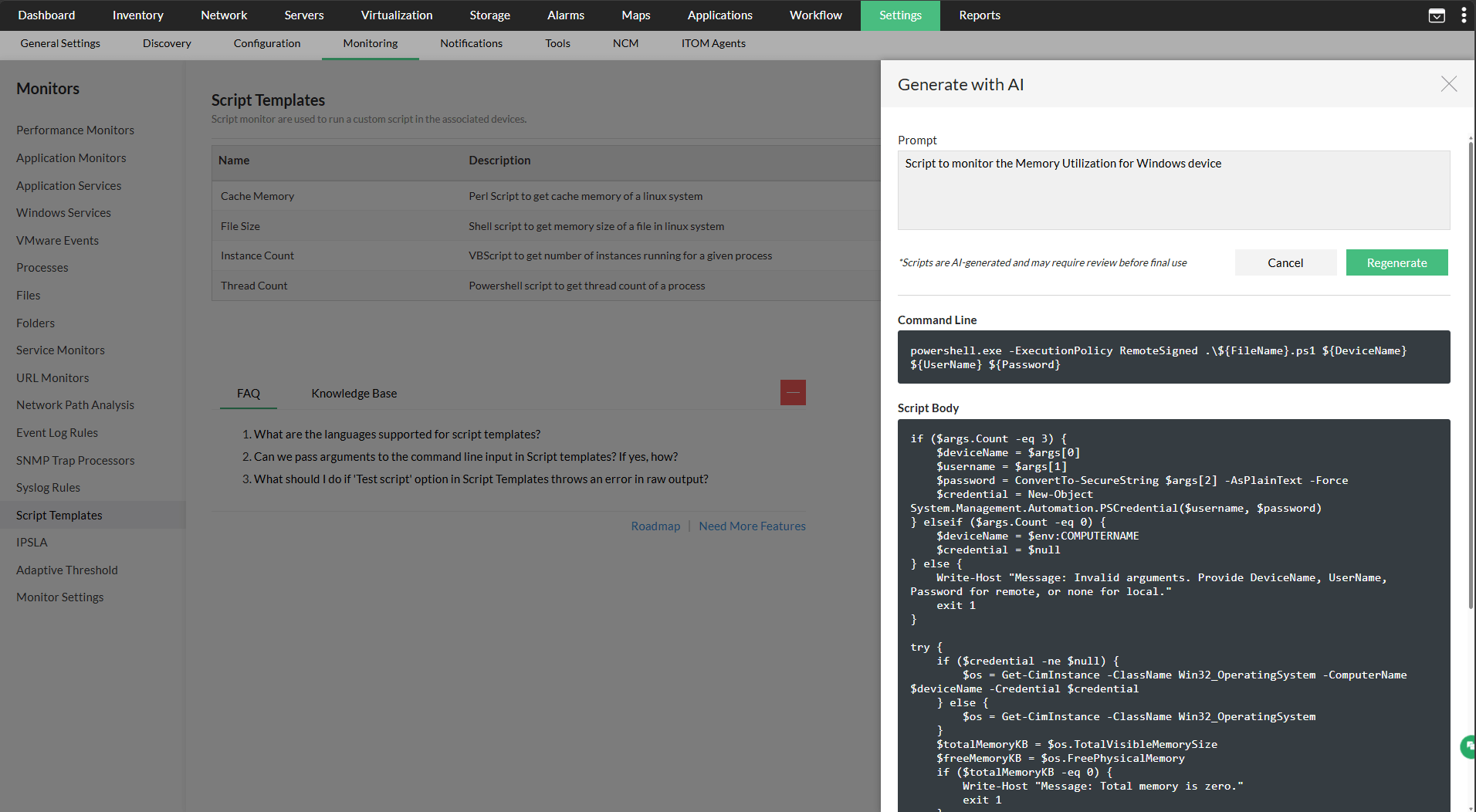
- In the prompt window, enter a description of the script to be generated (for example: PowerShell script that returns free space percentage on C: as a number).
- Click Generate for SiliconFlow to process the prompt and produce the script automatically.
- Review the generated script and save it as a template to use for device monitoring.
Caution: AI-generated scripts can contain errors or unintended commands. Always review the generated script, and test it on a non-production device, before saving it as a template and deploying it for monitoring.
SNMP OIDs for Performance Monitors
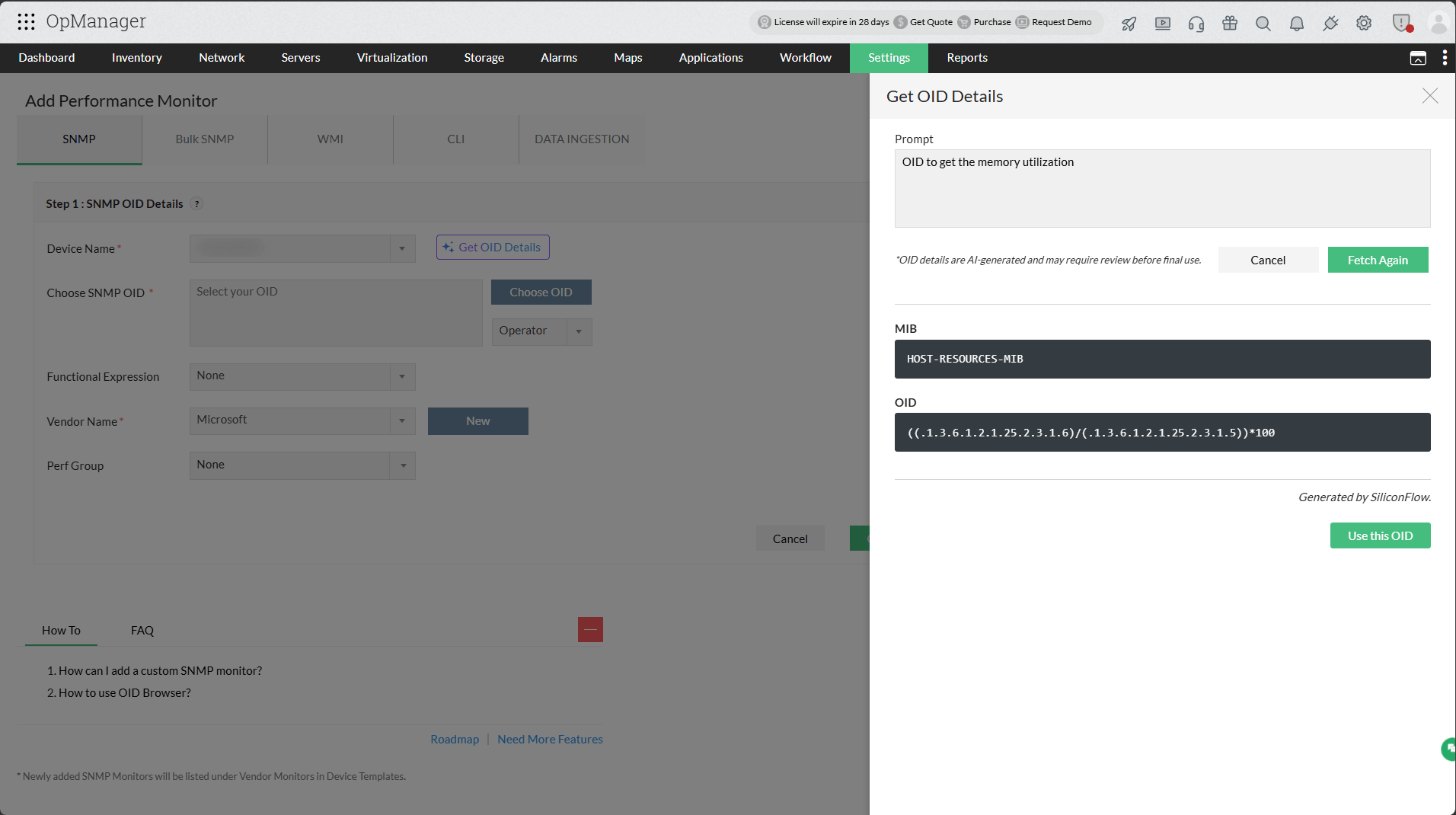
From OpManager version 12.9.120 onward, SiliconFlow can fetch relevant SNMP OIDs based on a plain-language description of the metric you want to monitor, eliminating the need to look up OIDs manually.
- Navigate to Settings → Monitoring → Performance Monitors and open or create a performance monitor.
- Enter a description of the metric you want to capture (for example: Interface input error rate on a Cisco Catalyst 9300).
- Click Fetch OIDs with AI. SiliconFlow will return the relevant OIDs automatically.
The OpManager—SiliconFlow integration consolidates AI-powered summaries, real-time insights, automated script generation, and SNMP OID lookup into a unified workflow, significantly reducing the need for manual analysis and enabling faster, more informed decision-making across network operations.