How to connect to remote devices and execute commands using PuTTY and command prompt?
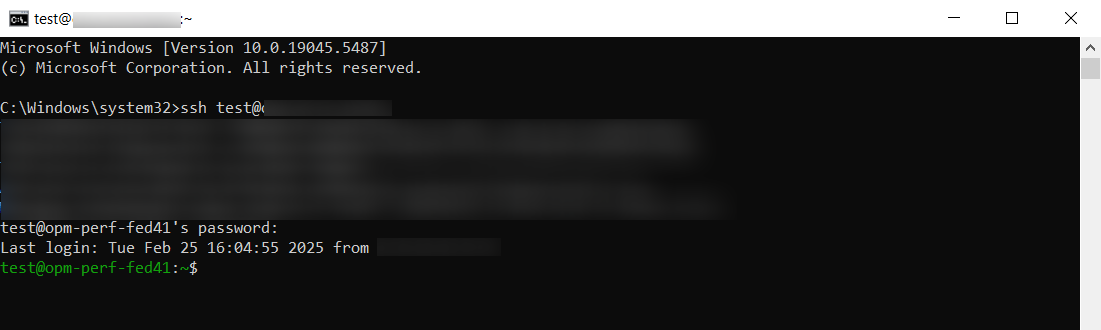
CLI access can be tested in two ways:
Connection and command execution via PuTTY
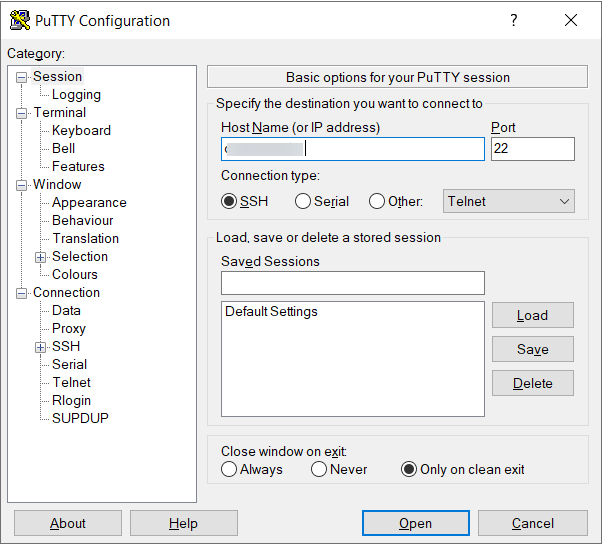
- Launch the PuTTY application on the OpManager server. The PuTTY Configuration window should appear.
- In the Host Name (or IP address) field, enter the remote machine name.
- In the Connection type field, choose either SSH or Telnet.
- Based on the connection type, the default port number will be updated in the Port field. If the remote machine is configured to use a different port, update the port number accordingly.
- Click Open to initiate the connection.
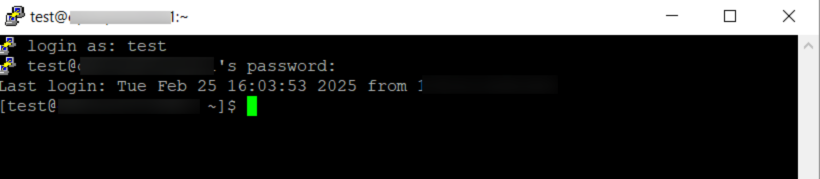
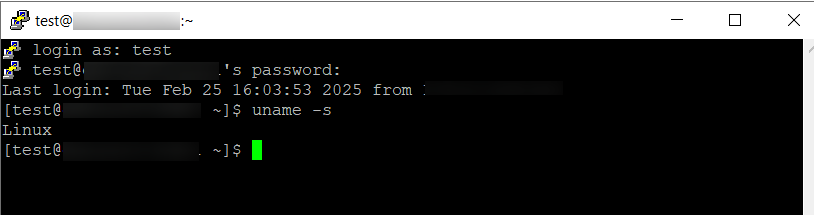
- Once the connection is established, a terminal window will open.
- Enter the username and password associated with the remote machine in OpManager.
- After authentication, the remote machine will be connected via the terminal.
- Once logged in, execute the required CLI commands.
- The output of the command will be displayed on the terminal.
Note: The remote machine name will be either the DNS Name or IP Address, depending on the poll-using option set in OpManager.
Note: The connection type and port number must match the credential profile associated with the device in OpManager.
Connection and command execution via Command Prompt
- Open the Command Prompt on the OpManager-installed server in administrator mode.
- Enter the following command to establish a remote connection:
connectionType username@deviceName -p portNo - Replace the placeholders as follows:
- connectionType: Use either SSH or Telnet.
- username: The remote machine's username associated with the device in OpManager.
- deviceName: The remote machine's DNS Name or IP Address, based on the poll-using option set in OpManager.
- portNo: The port number based on the connection type. The default port for SSH is 22, and for Telnet, it is 23.
- Example:
ssh test@devicename -p 22 - Enter the proper password and press Enter.
- If the details are correct, the remote machine will be connected via the command prompt.
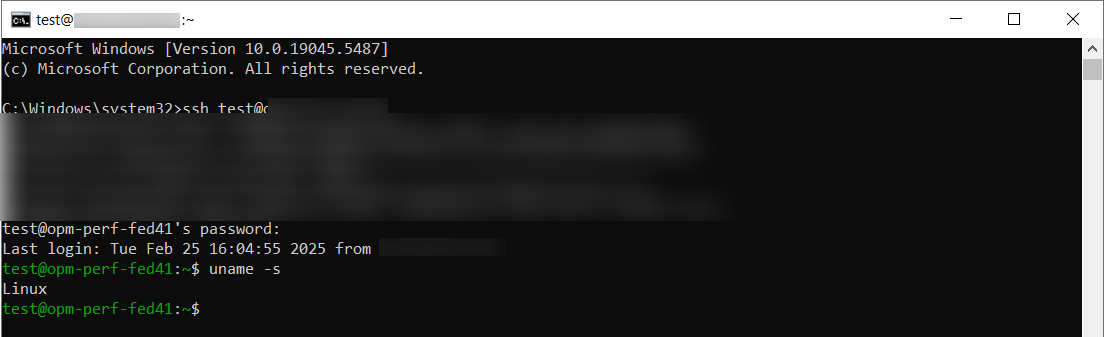
- After a successful login, execute the required CLI commands.
- The output of the command will be displayed in the command prompt.