Discover Certificates in the Organization
PAM360 streamlines the discovery of certificates across your organization, enabling centralized management through its robust repository. Regardless of the Certificate Authority (CA), PAM360 can automatically locate all certificates within your network. This can be done on-demand or scheduled to run periodically for ongoing management.
The discovery options are highly flexible, catering to diverse needs. Whether it's retrieving certificates from a single server, multiple servers, or various ports in a single scan, PAM360 has you covered. Additionally, expired and soon-to-expire certificates can be quickly rediscovered using the Certificate Expiry widget on the Keys Dashboard, ensuring no certificate is overlooked.
- Discover Certificates On Demand
- Discover Certificates from SMTP Servers
- Discover Certificates from Load Balancers
- Discover Certificates from Shared Directory Path
- Discover Certificates Mapped with Active Directory User Accounts
- Discover Certificates from Microsoft Certificate Store
- Discover Certificates using SSL Agent
- Discover Certificates Hosted on AWS (ACM & IAM)
- Discover Certificates using ManageEngine Mobile Device Manager Plus
- Discover Certificates via Schedules
- Post-Discovery Operations
Caution
Certificate files with extensions such as .keystore and .pfx require additional authentication for import, as they are encrypted and protected by passphrases. Upon discovery these files are not automatically added to the certificate repository and must be manually imported with their respective passphrases. To import these files into PAM360:
- Click JKS / PKCS at the top-right corner of the discovery window.
- In the pop-up window, select the certificate files you wish to import and click Import from the top menu.
- In the subsequent pop-up, enter the required passphrases for the selected files and click Import to complete the process.
Once the passphrase is validated, the certificate files are successfully imported into PAM360's certificate repository, ensuring they are securely managed within the system.
1. Discover Certificates On Demand
To discover the certificates manually on demand, follow these steps:
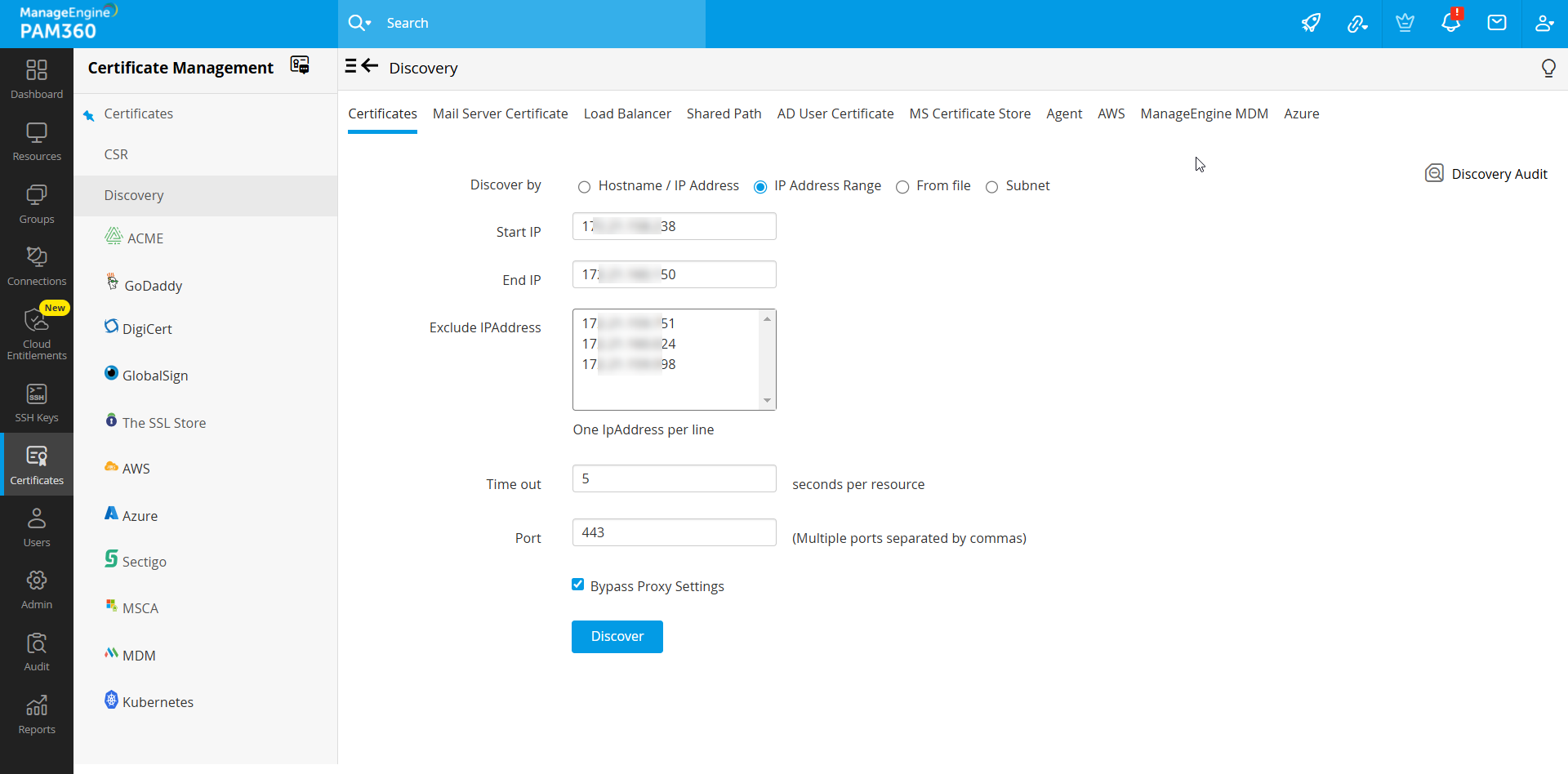
- Navigate to Certificates >> Discovery >> Certificates.
- Select any of the following Discover By option:
- Hostname/IP address: Enter the host name or IP address of the server from which the certificates are to be discovered.
Caution
If you want the host name to resolve to a specific IP address, provide the IP address after host name separated by colon (:) as shown here: amp2k19:172.168.203.56
Same format should be provided for From file discover option. - IP address range: Specify an IP range and discover all the certificates available in the servers falling under the range.
- From file: If you have a list of the servers in which certificates are available in your network saved as a text file, it can be loaded directly and all these certificates can be discovered.
Caution
The file imported must be a text file containing the hostname or IP addresses of individual servers, entered on separate lines. Enter the ports to scan on each server separated by a space, entered on separate lines as illustrated below:
- 0.0.0.0 6565
- test-username-10 443
- 192.168.20.20 7272
- Subnet: Use this option to discover resources from specific subnetworks within an IP range.
- Hostname/IP address: Enter the host name or IP address of the server from which the certificates are to be discovered.
- For bulk discovery using IP Address Range and Subnet options, there is an Exclude IP Address field that allows you to exclude specific resources from being discovered. Specify the IP addresses of the resources that need to be excluded one below another.
Additional Detail
During certificate discovery or when manually adding certificates to the PAM360 repository, you can exclude specific certificates by providing their details (common name and serial number) under Admin >> SSL Configuration >> Exclude Certificate. The specified certificate will be excluded from being imported into the PAM360 certificate repository during discovery or manual addition.
- Specify values for the Time out and the Port options.
- Time Out: Refers to the number of seconds the application tries to discover the certificates (each). The default value is 5 seconds.
- Port: It refers to the port on the end terminal used for SSH communication. Port 443 is used by default for certificates.
Additional Detail
You can specify multiple ports separated by commas for the discovery of certificates in a single discovery instance.
- Select the Bypass Proxy Settings checkbox to bypass proxy server settings if you have enabled them under Admin Settings. If this option is selected, PAM360 will bypass the proxy server and directly perform online certificate discovery. In addition, you can bypass proxy server during scheduled certificate discovery as well.
- Click Discover. You will be redirected to the Discovery Status page where the status of the current discovery instance is updated.
2. Discover Certificates from SMTP Servers
You can discover certificates used by mail servers present in your network and consolidate them in PAM360's centralized certificate repository. To perform mail server certificate discovery:
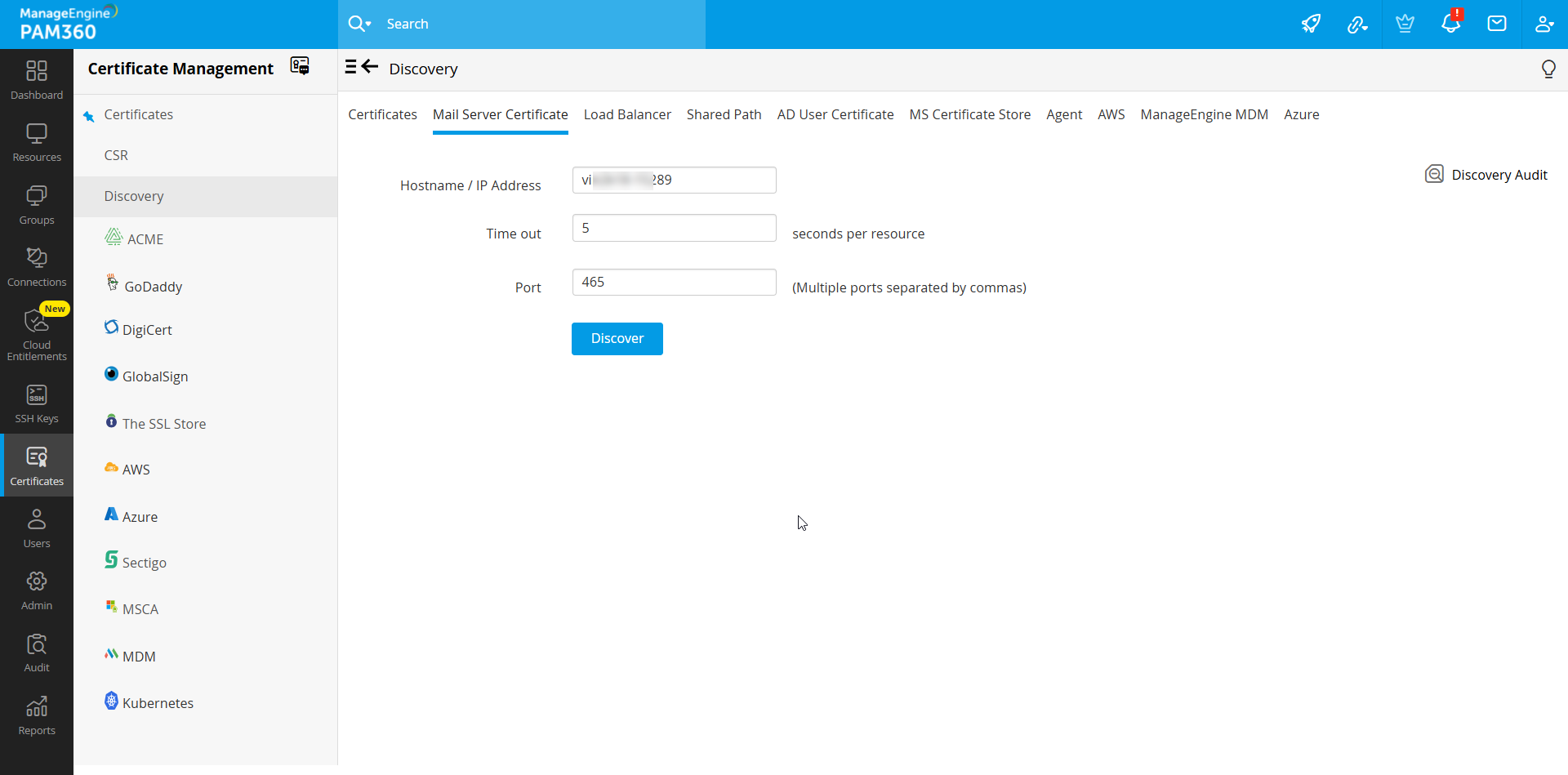
- Navigate to Certificates >> Discovery >> Mail Server Certificate.
- Provide the Hostname / IP address from which the certificate is to be discovered and specify the port number. You can specify multiple port values by separating them with commas.
- Click Discover. On successful discovery, the certificates are fetched from the specified resources and added to PAM360's repository.
3. Discover Certificates from the Load Balancers
PAM360 allows you to discover certificates deployed to load balancers, within your network, and consolidate them in its secure, centralized repository. PAM360 supports discovery of certificates from Linux-based load balancers processed via tunneled SSH. To perform load balancer certificate discovery:
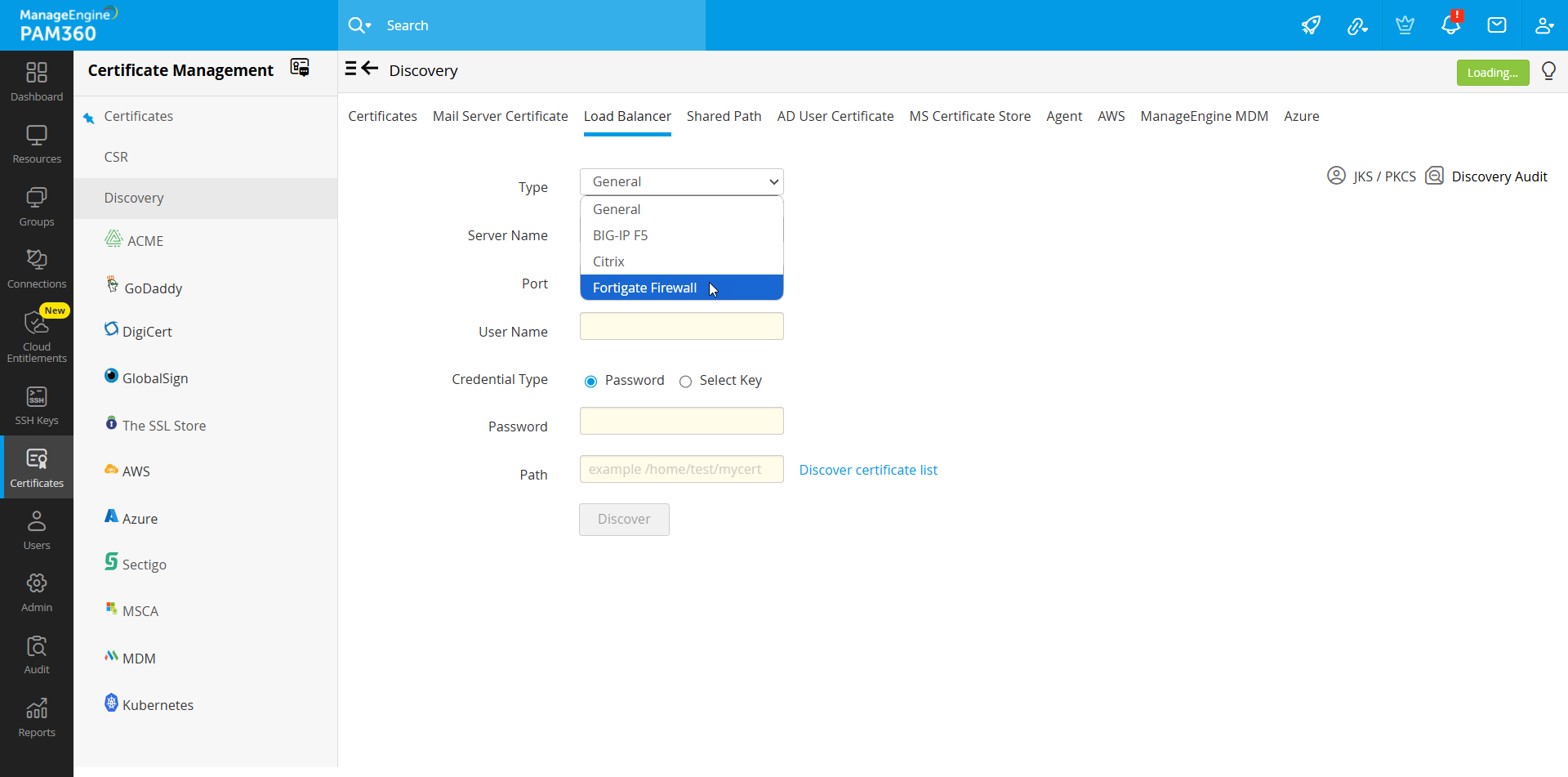
- Navigate to Certificates >> Discovery >> Load Balancer.
- Select a load balancer type from the Type drop-down. PAM360 supports four types of Load Balancer discovery: General, BIG-IP F5, Citrix, and FortiGate Firewall.
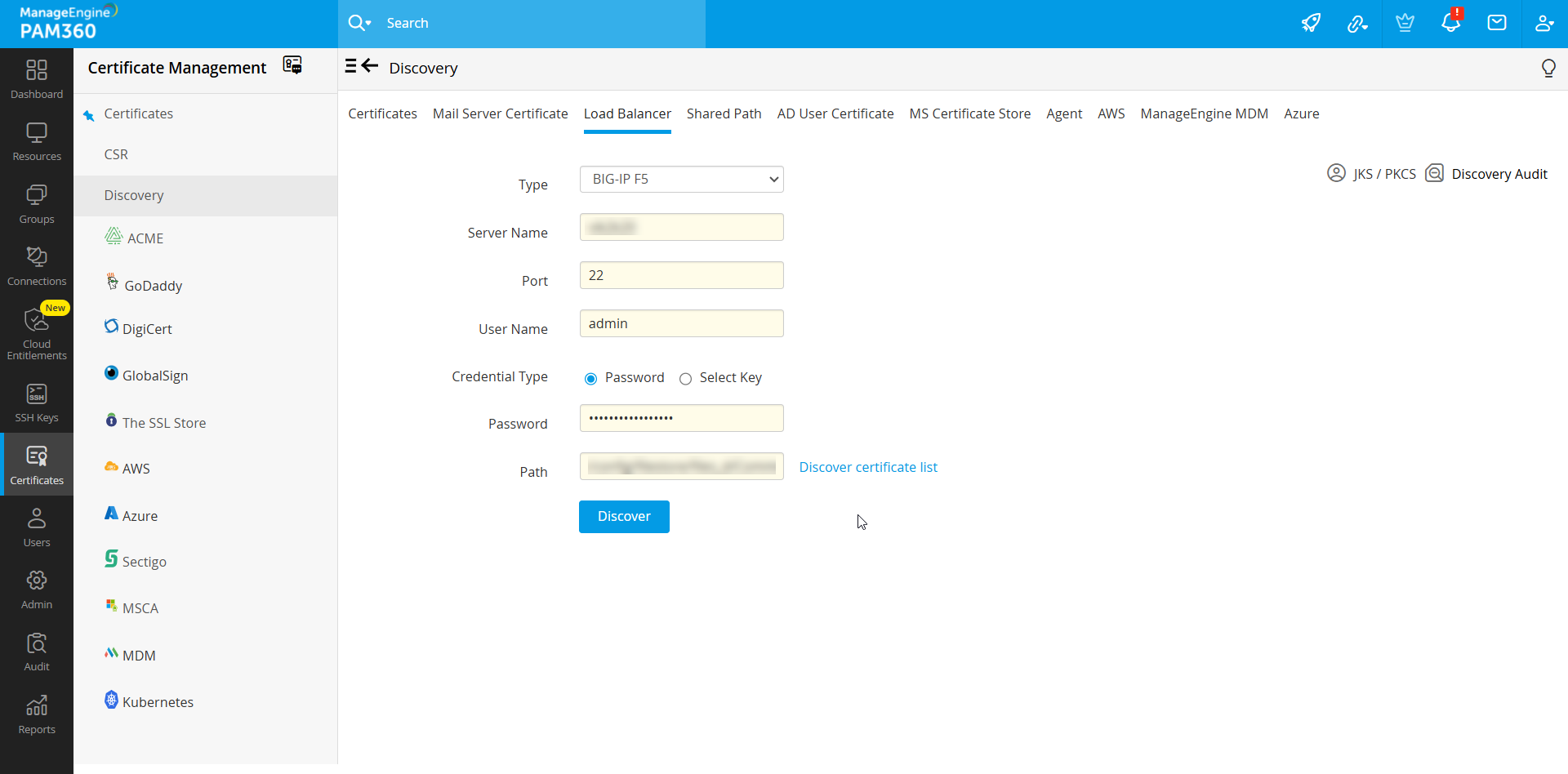
- If you have selected the Load Balancer Type as General, BIG-IP F5 or Citrix, follow these steps as applicable:
- Specify the Server Name, Port, User Name, and Password.
- Specify the Path in the server from which certificates have to be discovered.
- You can opt for key-based authentication for password-less resources by choosing the Select Key option. Upload the private key associated with the required user account and specify the key passphrase.
- Click Discover certificate list option to fetch all the certificates available in the specified path. This helps you to choose the certificates that you wish to discover and import.
- Upon clicking the Discover button, the certificates are successfully discovered and imported into PAM360's centralized certificate repository.
Caution
During the Citrix REST API-based load balancer discovery, the user credentials you provide must have sufficient permissions to read files and for REST API access. Therefore, to ensure success of the discovery, it is recommended that you supply the credentials of an account which has the super admin role.
- If the above method fails for Citrix load balancer, follow the below steps to discover the certificates from the Citrix load balancers:
Additional Detail
You can perform Citrix type discovery in two ways: using CLI commands and using REST API. By default PAM360 uses CLI commands for discovery and fetching certificates.
- Click Manage Credentials to add or delete a credential.
- In the pop-up that appears, click to Add and mention the Credential Name, Server IP, Citrix Username and Citrix Password.
- Click Test Login to test the credential and click Save Credentials.
- To delete a credential, select a credential you want to delete and click Delete, and in the pop-up that appears, click OK.
- Select a Citrix Credential from the dropdown, enter the Path, and Discover again.
- If the above method too fails, follow the same procedure again with checkbox Use REST API (By default PAM360 uses CLI commands for discovery and fetching certificates) enabled.
- During Citrix load balancer discovery using REST API, you can choose to bypass your proxy server settings by selecting the Bypass Proxy Settings checkbox. This option is allows you to bypass the proxy server you have enabled under Admin Settings directly perform Citrix load balancer discovery through the internet.
- Please note that you can choose to bypass proxy server settings for Citrix load balancer discovery only if you select the Use REST API (By default PAM360 uses CLI commands for discovery and fetching certificates) option. The bypass proxy server option is also available during scheduled Citrix load balancer discovery.
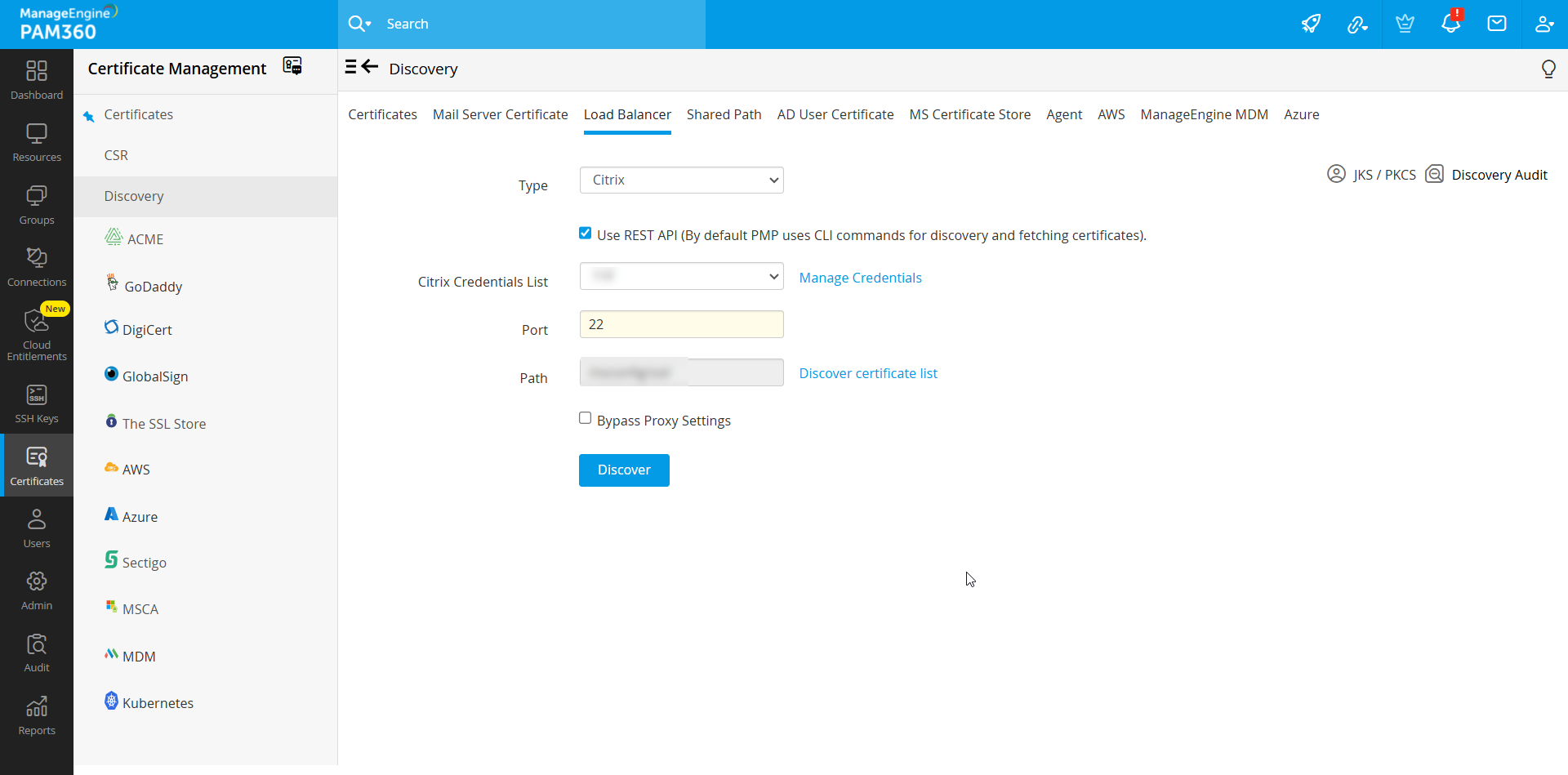
- The certificates will be successfully discovered in any of the above three methods and will be imported into PAM360's centralized certificate repository. You can view them from the SSL >> Certificates tab.
- Click Manage Credentials to add or delete a credential.
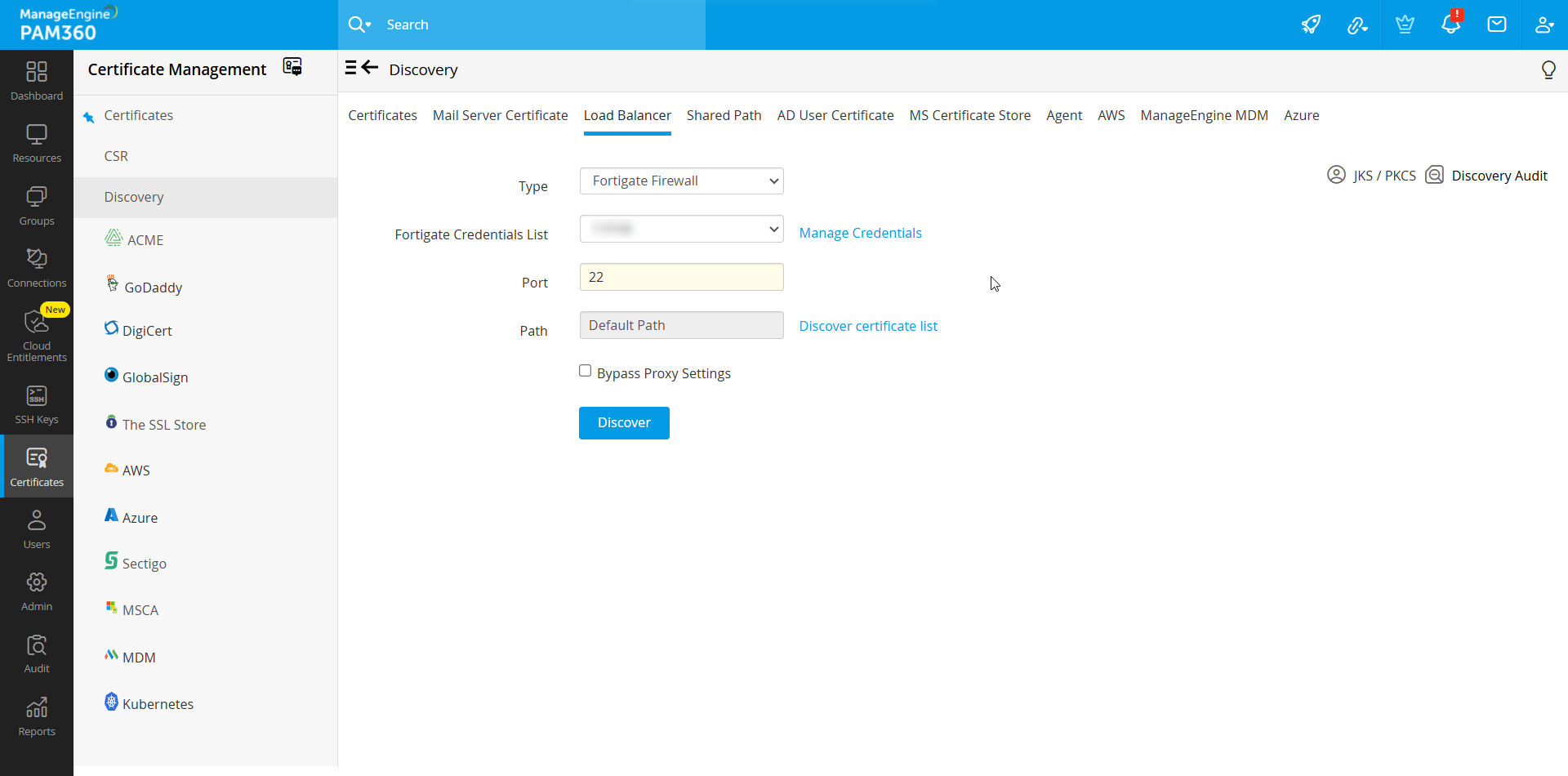
- To discover certificates deployed to the FortiGate Firewalls within your network follow the below steps:
- Select FortiGate Firewall from the Type drop-down.
- Select a FortiGate Credential from the FortiGate Credentials List drop-down.
- Click Manage Credentials to add or delete a credential. In the pop-up that appears:
- To add a credential, click Add and enter the Credential Name, Server IP, and API Key.
- Click Save Credentials to add a new FortiGate Firewall credential.
- To delete a credential, select a credential that you want to delete and click Delete.
- In the pop-up that appears, click OK to delete the selected credential.
- Specify the Port number. By default, the port number will be 22.
- Enter the Path, and click the Discover Certificate List. From the list that opens, select the required certificates to be added to the centralized certificate repository of PAM360.
- In addition, you can bypass your proxy server settings by enabling the Bypass Proxy Settings checkbox. This option allows you to bypass the proxy server that you have enabled under Admin Settings directly, to perform the FortiGate Firewall discovery through the internet.
- Upon clicking the Discover button, the certificates will be successfully discovered and imported into the centralized certificate repository of PAM360.
4. Discovering Certificates from a Shared Directory Path
PAM360 allows you to discover certificates that are saved in a shared directory path within your network and consolidate them in its secure, centralized repository. Using this option, you can discover all the certificate files saved in a particular folder and then, either add all the certificates to the repository or choose the ones you want to import. During the discovery process, PAM360 will scan only the folder specified in the path and nowhere else in the target machine. Follow the below steps to discover and import certificates from a shared directory path:
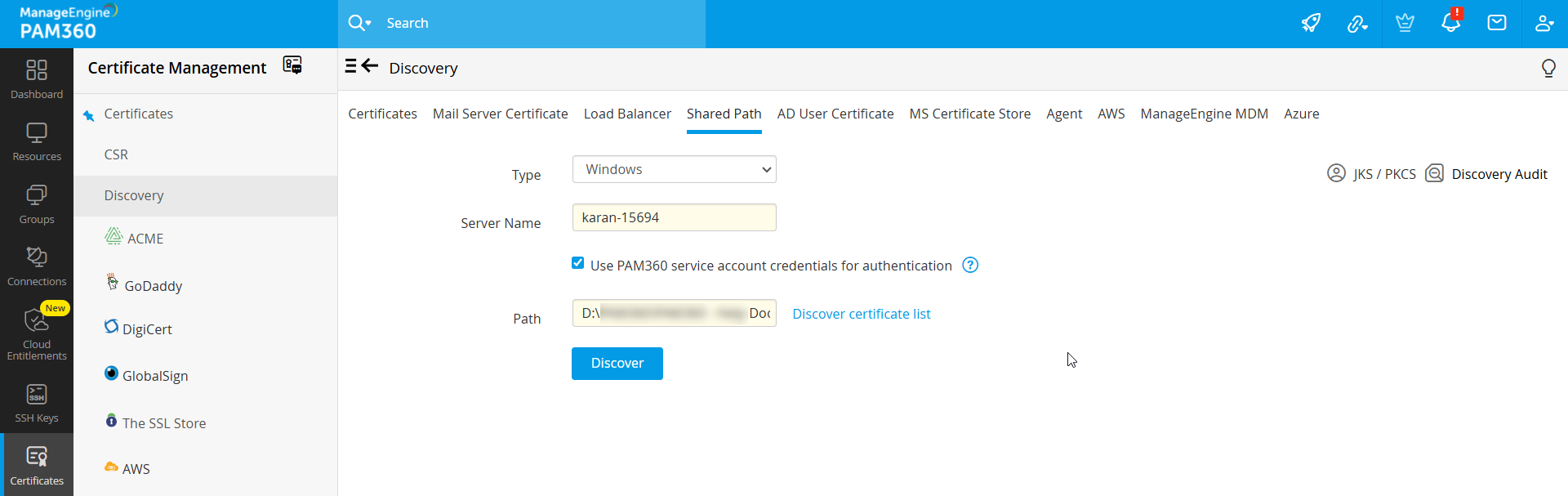
- Navigate to Certificates >> Discovery >> Shared Path. Choose Windows or Linux/Mac OS from the Type drop-down.
- Follow the below steps for discovery in Windows:
- Enter the Server Name of the target machine where the shared path resides; leave this field empty if you are entering a directory path from your local machine.
- Select the checkbox to Use PAM360 service account credentials for authentication or provide a username and password.
- Specify the directory path of the target machine. Example: D:\sharedpath\subsharedpath.
- Follow the below steps for discovery in Linux/Mac OS:
- Enter the Server Name of the target machine where the shared path resides, the port, and the username.
- For authentication, either choose the Password option and enter the password directly or choose the Select Key option and upload a private key with its passphrase for SSH key-based authentication.
- Specify the directory path of the target machine. Example: \home\test\shared.
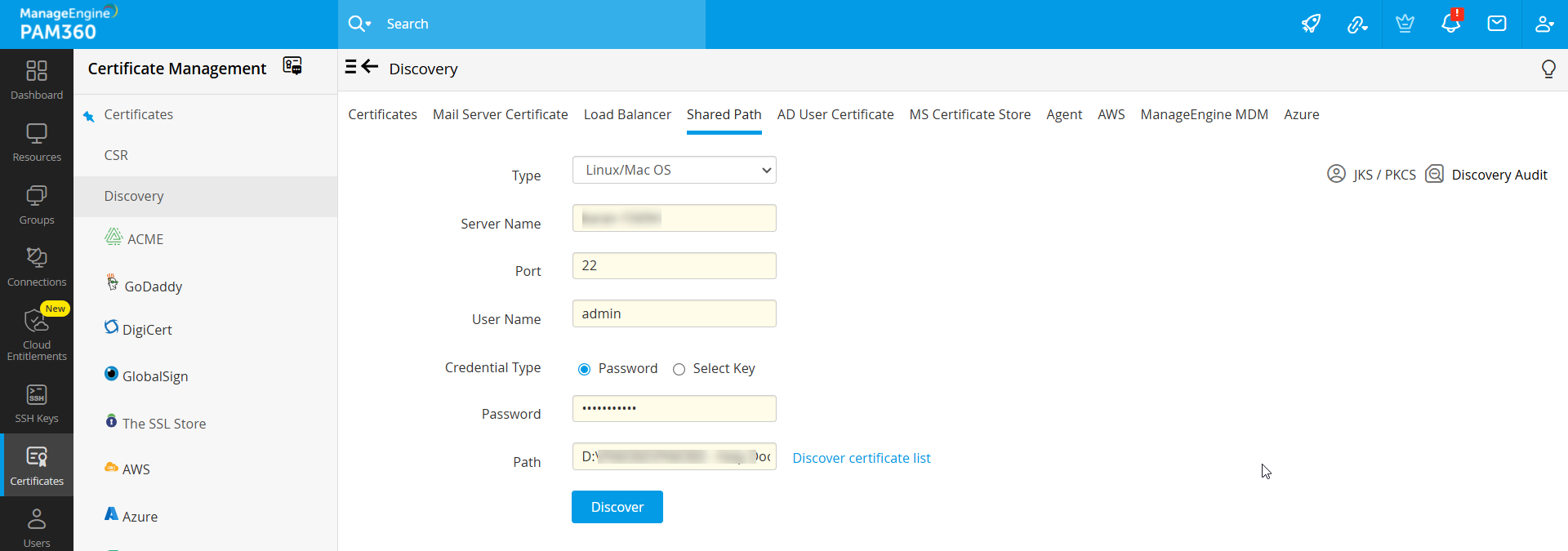
- Click the Discover certificate list option to fetch all the certificates available in the specified path. From this list, choose certificates that you require and click Discover. If you don't choose any specific files, all certificate files found in the shared path will be imported.
To check the status of the discovery, click the Discovery Audit tab.
Caution
Certificate files that are over 30 KB in size will not be imported during this discovery operation.
5. Discover Certificates Mapped to User Accounts in Active Directory
PAM360 helps you discover and manage the certificates mapped to user accounts in Active Directory. To perform AD user certificate discovery,
- Navigate to Certificates >> Discovery >> AD User Certificate.
- Select the required Domain Name, which forms part of the AD from the dropdown.
- Specify the DNS name of the domain controller. This domain controller will be the primary domain controller.
- In case, the primary domain controller is down, secondary domain controllers can be used. If you have secondary domain controllers, specify their DNS names in comma separated form. One of the available secondary domain controllers will be used. When you use SSL mode, make sure the DNS name specified here matches the CN (common name) specified in the certificate for the domain controller.
- Enter a valid user credential (User Name and Password) of an user account within the particular domain. Then enter the users / user groups / OUs in which you want to perform the certificate discovery and click Import. To perform certificate discovery for groups/OUs as a whole, choose Groups/OU tree Import type and select the required groups from the drop down list.
- PAM360' also provides an option to import AD users while performing the certificate discovery. Enable the check box Import AD users to import those AD user accounts into PAM360 for which the certificate discovery is done.
The discovered certificates automatically get added to the certificate repository of PAM360.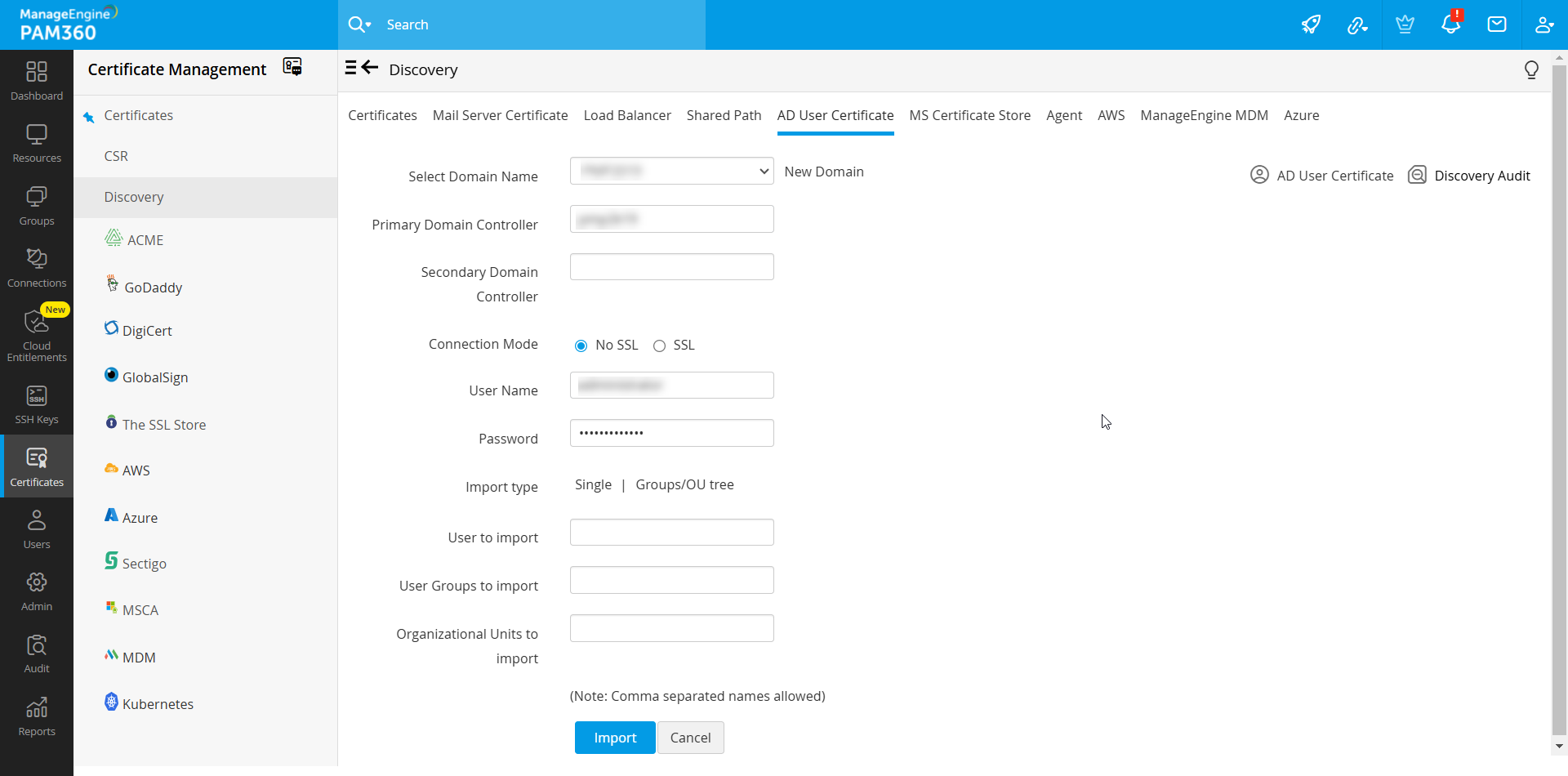
6. Discover Certificates from MS Certificate Store
PAM360 helps you request, acquire, discover, consolidate, track and manage certificates from MS Certificate Store and those issued by Local certificate authority. Before importing / acquiring certificates from MS Certificate Store and Local CA, ensure that you use your domain administrator account as PAM360' service logon account.
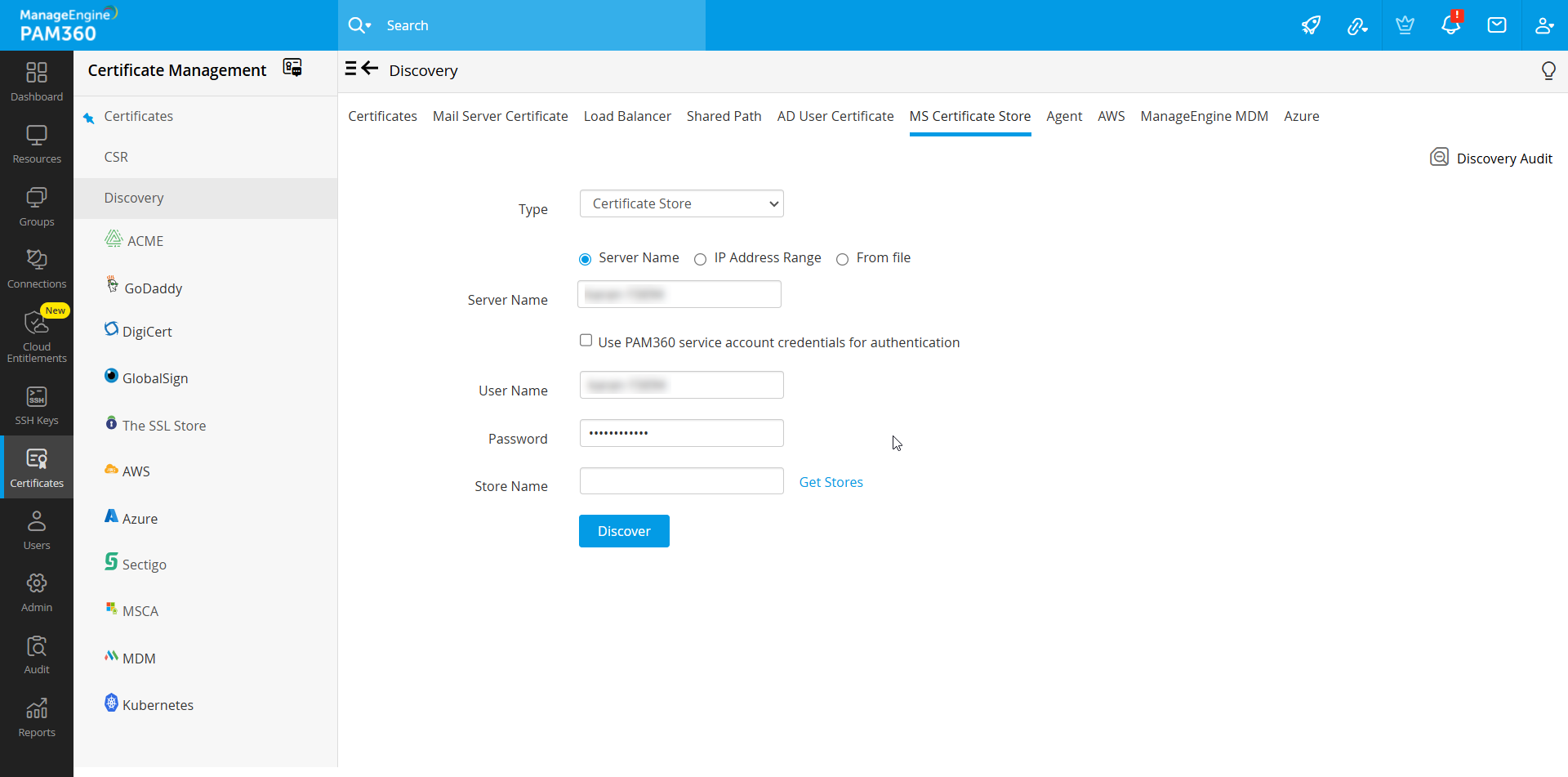
- Navigate to Certificates >> Discovery >> MS Certificate Store.
- Choose the type of discovery to be performed from the Type drop-down. You can discover certificates from the Certificate Store or the Microsoft Certificate Authority.
- If you select Certificate Store, follow these steps:
- Select the discovery method:
- Server Name - Enter the name of the server from which PAM360 should discover the certificates.
- IP Address Range - Specify the Start IP and End IP to discover the certificates.
- From file - Upload a text file containing the list of servers from which the certificates are to be discovered. From build 8710 onwards, PAM360 also supports discovering certificates from multiple Microsoft Certificate Stores across multiple PAM360 agents using file-based discovery. The file must contain the agent names and their corresponding certificate stores in the following format, with each agent on a separate line:
Agent:AgentName1:storename1,storename2,storename3
Agent:AgentName2:storename1,storename2,storename3
- Server Name - Enter the name of the server from which PAM360 should discover the certificates.
- For Server Name and IP Address Range discovery, specify the certificate store name in the Store Name field, or click Get Stores to fetch the list of stores available on the Windows Domain Controller. Then, select the required certificate store from which the certificates are to be discovered. Use the following format when specifying the certificate store name: \server_name\store_name
- server_name\Root (To discover certificates from trusted root certification authorities)
- server_name\My (To discover personal certificates)
- Select the checkbox to Use PAM360 service account credentials for authentication or specify the User Name and Password.
- PAM360 supports MS Certificate Store discovery through periodic schedules using Server Name, IP Address Range, and From file methods. Explore this link for more information about adding MS Certificate Store discovery schedules.
- Select the discovery method:
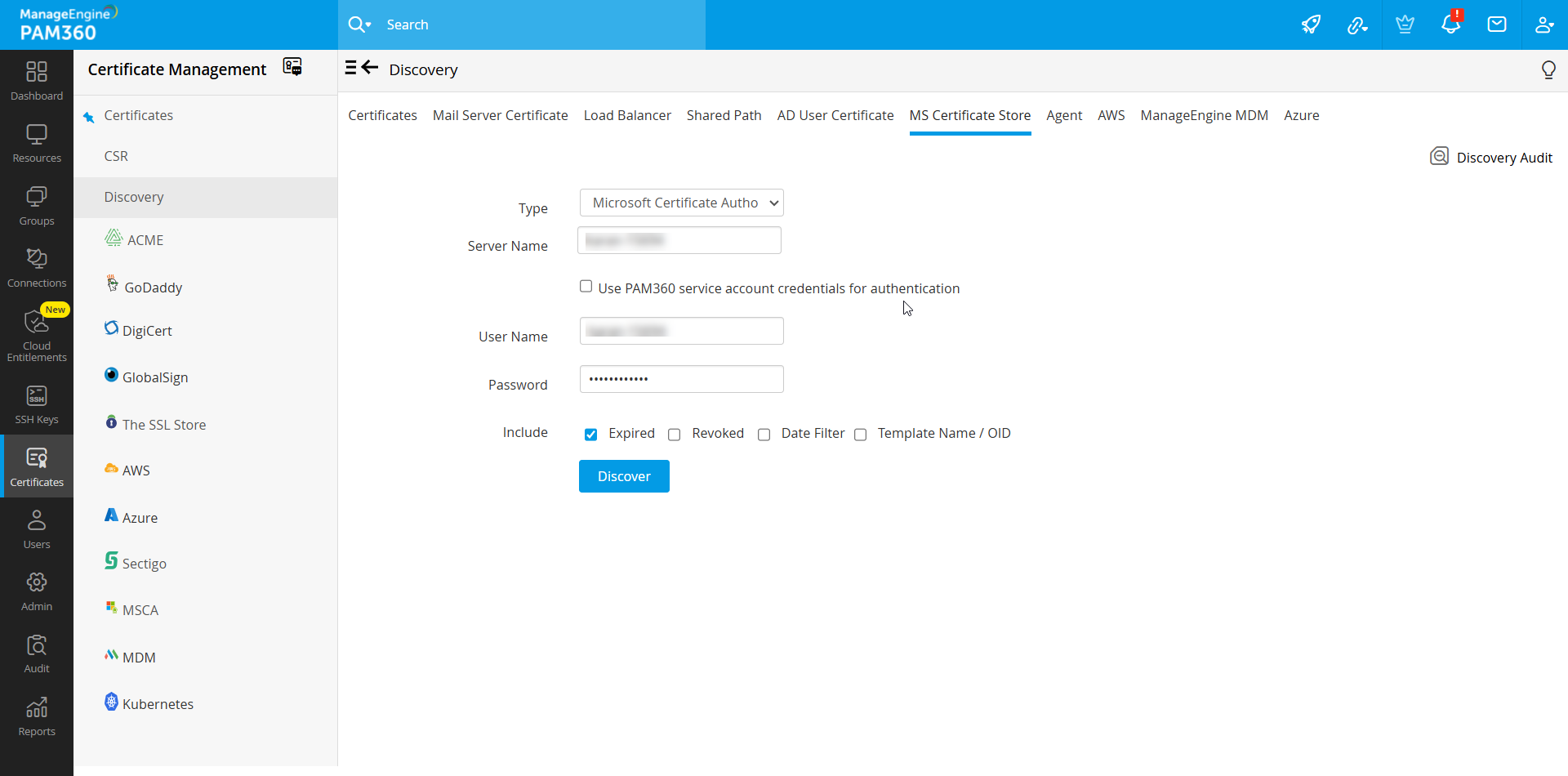
- Enter the name of the server where the Microsoft Certificate Authority is hosted in the Server Name field.
- Select the checkbox to Use PAM360 service account credentials for authentication or specify the User Name and Password.
- Under Include, you can choose to include expired or revoked certificates by selecting the respective checkboxes. Select Date Filter and enter a date range to filter the discovered certificates. Select Template Name / OID to choose certificate templates. You can add up to five certificate templates for each discovery operation.
Additional Detail
During Certificate Store discovery, if the target server name is not specified, choosing Get Stores option will list down all the certificate stores available in the local host.
Caution
PAM360 should be started with a domain administrator account to manage certificates from the Microsoft Certificate Store or those issued by a Local CA. If PAM360 runs using a domain service account, ensure it is part of the local admin group.
7. Discover certificates using SSL Agent
You can discover certificates deployed across your network using the SSL agent right from the PAM360 web interface. This functionality enables you to download and deploy Windows SSL agent to target systems. It also allows you to discover and import the certificates from those systems into a centralized certificate repository directly from the PAM360 web interface. The servers in which the agent is deployed is connected to the PAM360 server via a secure HTTPS connection.
Discovering certificates through the SSL agent is helpful in the following scenarios:
- When the administrative credentials of the target servers required to perform the discovery operation are not available in the PAM360 server.
- When you have to discover the certificates from servers that PAM360 does not have direct access to—say, for instance, the servers in demilitarized zones (DMZs). In such cases, the agent is usually installed in an intermediate jump server which has the permission to access the remote servers and pass on the required information to the PAM360 server.
To discover the certificates using the SSL agent, you need to download and install the agent first. Follow the steps below:
7.1 Discover Certificates via SSL Agent
- Navigate to Certificates >> Discovery >> Agent.
- Choose the type of discovery you want to perform—Domain-based, Certificate Store or certificates issued by Microsoft Certificate Authority.
- Select the required agent from the dropdown to perform the operation.
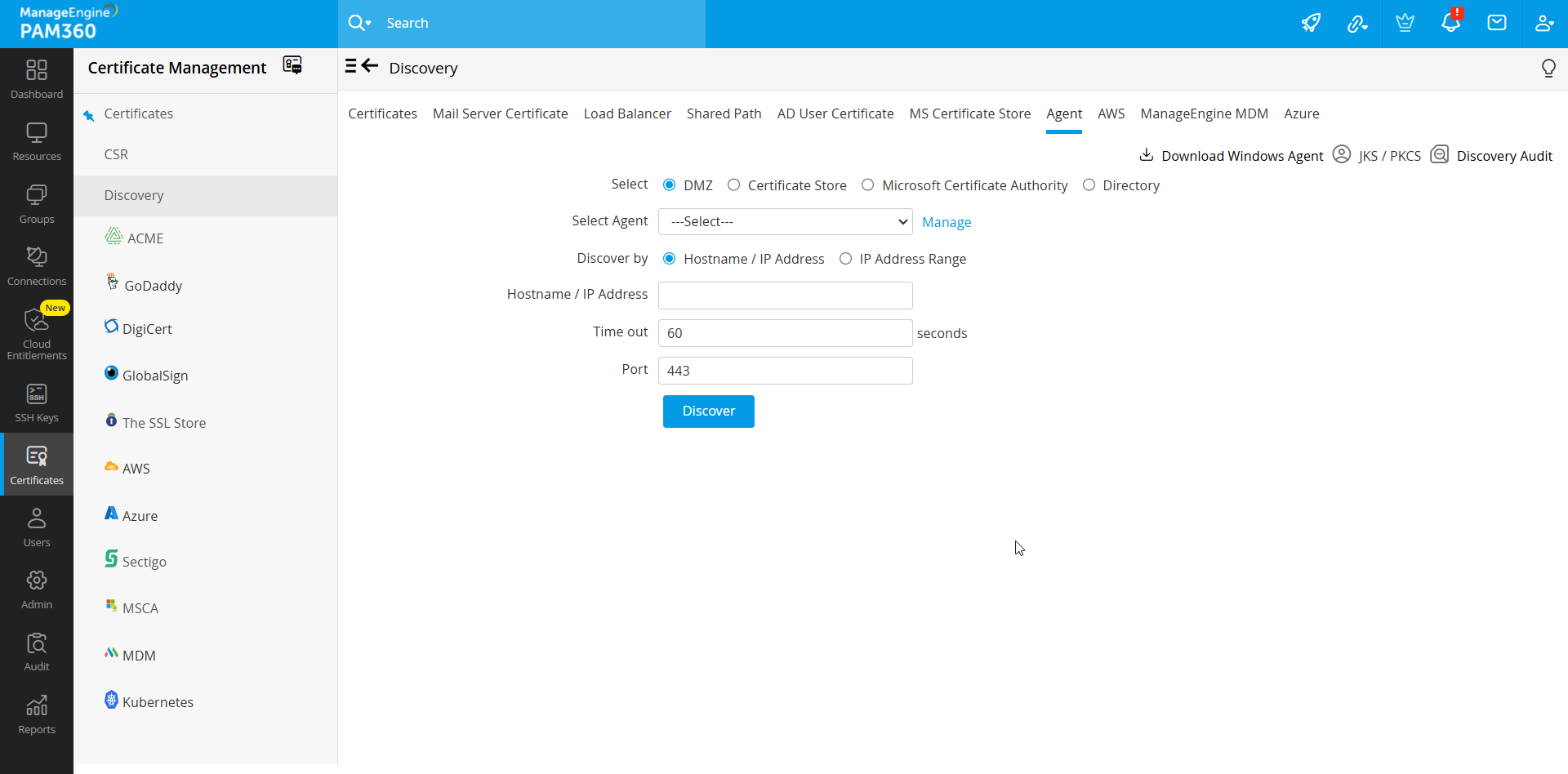
- If the agent is busy, wait and try again after sometime.
- For Microsoft CA discovery, you can choose to exclude expired / revoked certificates or perform discovery based on issue date or certificate template using the filters provided.
- Click Discover.
The certificates are discovered from the servers in which the agent is installed and imported into PAM360's certificate repository.
7.2 Discover Certificates from a Directory Path in a Remote Machine
PAM360 allows you to discover certificates that are saved in a directory path in a remote machine that is not directly accessible by the PAM360 server—this is achieved through the PAM360 SSL agent. Once the certificates are discovered, you can consolidate them into PAM360's centralized repository. Using this option, you can discover all the certificate files saved in a particular folder and either add all the certificates to the repository or select only the ones you require. During the discovery process, the SSL agent will scan only the folder specified in the path and nowhere else in the target machine.
Follow the below steps to discover and import certificates from a directory path in remote machine:
- Navigate to Certificates >> Discovery >> Agent and choose Directory as the type of discovery.
- Select an agent from the drop-down menu.
- Specify the directory Path of the target machine, e.g. D:\shared path\subsharedpath.
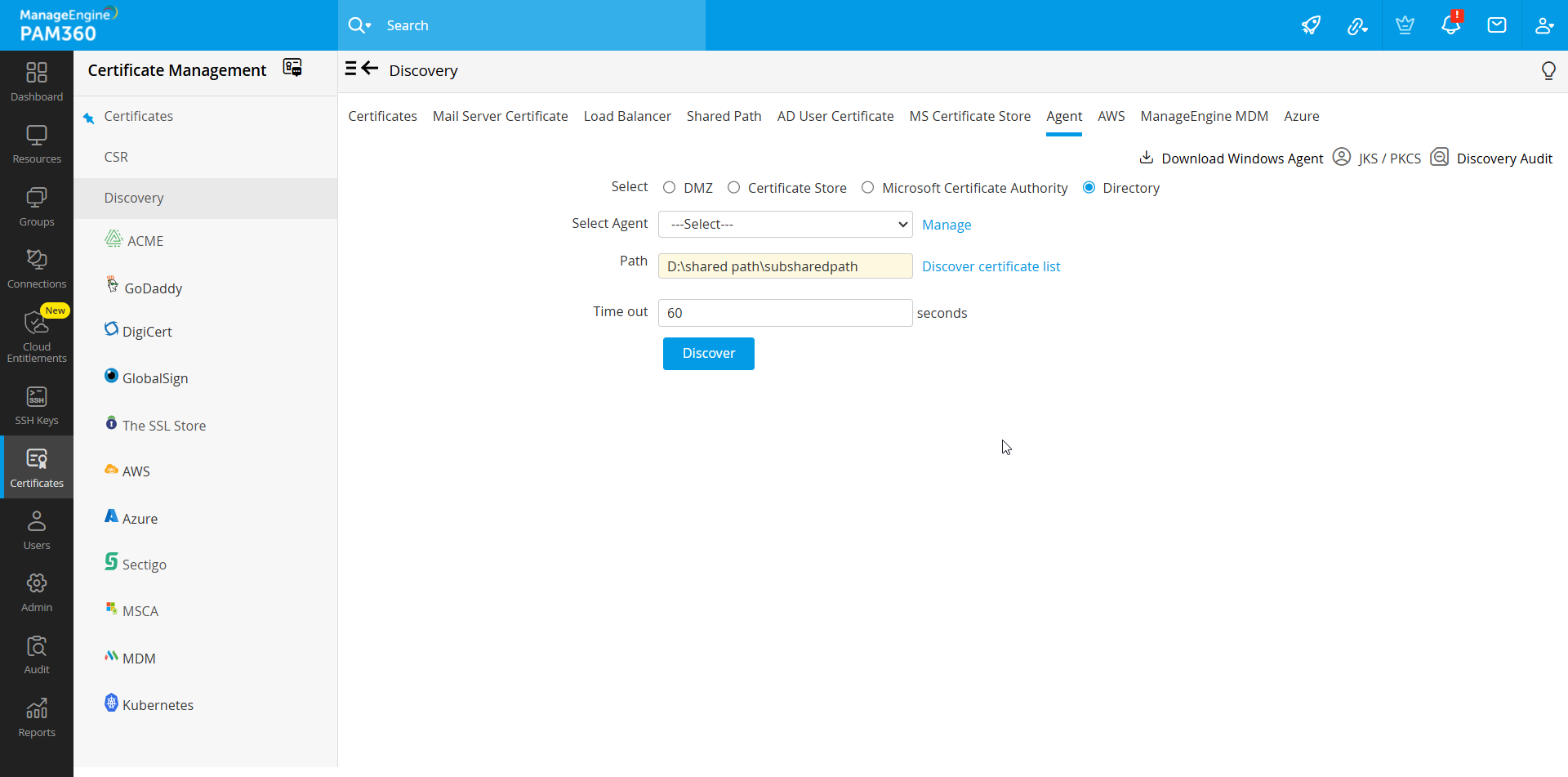
- Click the Discover certificate list option to fetch all the certificates available in the specified path.
- Enter a Time out interval in seconds.
- From this list, choose certificates that you require and click Discover.
To check the status of discovery, click the Discovery Audit tab.
Caution
Certificate files that are over 30 KB in size will not be imported during this discovery operation.
8. Discover Certificates Hosted on AWS (ACM & IAM)
PAM360 enables you to discover, import, and configure expiry notifications for certificates hosted in the following Amazon Web Services: AWS Certificate Manager (ACM) and AWS Identity and Access Management (IAM). Follow the steps below to discover and import certificates from ACM / IAM into PAM360.
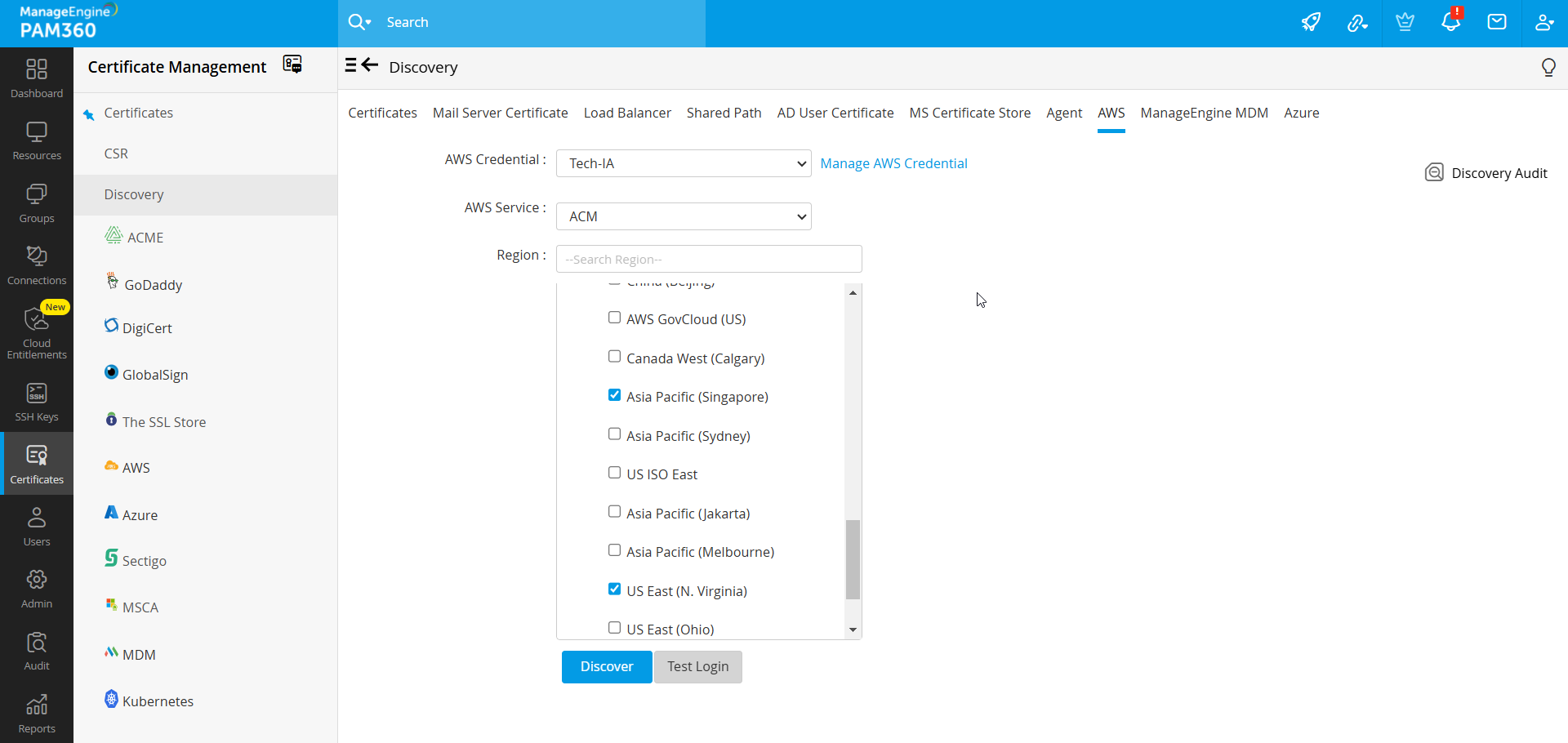
- Navigate to Certificates >> Discovery >> AWS.
- If you have not added an AWS-IAM resource in PAM360, follow the below steps:
- Click Manage AWS Credential and click Add.
- In the Create AWS Credentials window that opens, provide the Credential Name, Description, Access Key and Secret Key.
- Use the Test Login option and check if the login is successful. You will be notified if the login is successful
- Then click Save. The credentials are successfully saved in PAM360.
- Now, navigate to Certificates >> Discovery >> AWS and choose the appropriate AWS Credentials from the dropdown or provide your Access Key and Secret Key manually.
- If you have already added an AWS-IAM resource in PAM360, follow the below steps:
- Choose if you want to Specify the access key and secret key manually or Use an access key and secret key stored in PAM360.
- If you have chosen Specify the access key and secret key manually, enter your Access Key and Secret Key.
- If you have chosen Use an access key and secret key stored in PAM360, select the Resource Name, Access Key and Secret Key from the dropdown.
- Now, choose the required AWS Service from which certificates need to be imported: ACM or IAM.
- To import certificates from ACM, select ACM under AWS service and choose the service Region.
- Click Discover.
- Certificates are discovered from resources in the selected region and imported into PAM360.
- To import certificates from IAM, specify the required AWS User Name(s) or use the List AWSUser Names option to retrieve the usernames. Choose the required usernames and click Discover.
- You can also choose to import server certificates for the corresponding AWS users by checking the Include Server Certificate option.
9. Discover Certificates using ManageEngine's Mobile Device Manager Plus
PAM360 integrates with ManageEngine Mobile Device Manager Plus (MDM). Once the integration is done, you can discover and import certificates from the devices managed through your MDM server and store the certificates in the PAM360 repository. You can also deploy certificates from PAM360 to the mobile devices listed in your MDM environment. Refer to this document for steps on how to discover certificates using ManageEngine MDM.
10. Discover Certificates Automatically Through Schedules
Certificate discovery can also be scheduled to occur at periodic intervals.
- Navigate to Admin >> PKI Management >> Schedules.
- Click the Add Schedule button.
- In the Add Schedule window, enter a name for the schedule and select the type of schedule as SSL Discovery.
- Specify the start and end IP addresses and the port on the end terminal to check for SSL certificates.
- Select the recurrence type — hourly, daily, weekly, monthly, or once only. Set the starting time, date, or day corresponding to the option chosen.
- Enter the email addresses of the users to be notified. The email settings can be configured from the Settings >> Mail Server Settings tab.
- Click the Save button.
You will get a message confirming addition of a new schedule.
11. Post-Discovery Operations
11.1 Centralized Certificate Repository
All the discovered certificates, those that are discovered manually as well as those discovered through scheduled discovery operations are automatically added to the centralized repository of PAM360. You can view these certificates under the Certificates>>Certificates option in the user interface.
PAM360 also allows you to search certificates using Common Name, DNS Name, Issuer, Key Size, Signature Algorithm, Description, additional fields, etc. Click the search icon present on the right corner of the table header and mention the search phrases in the text boxes that appears.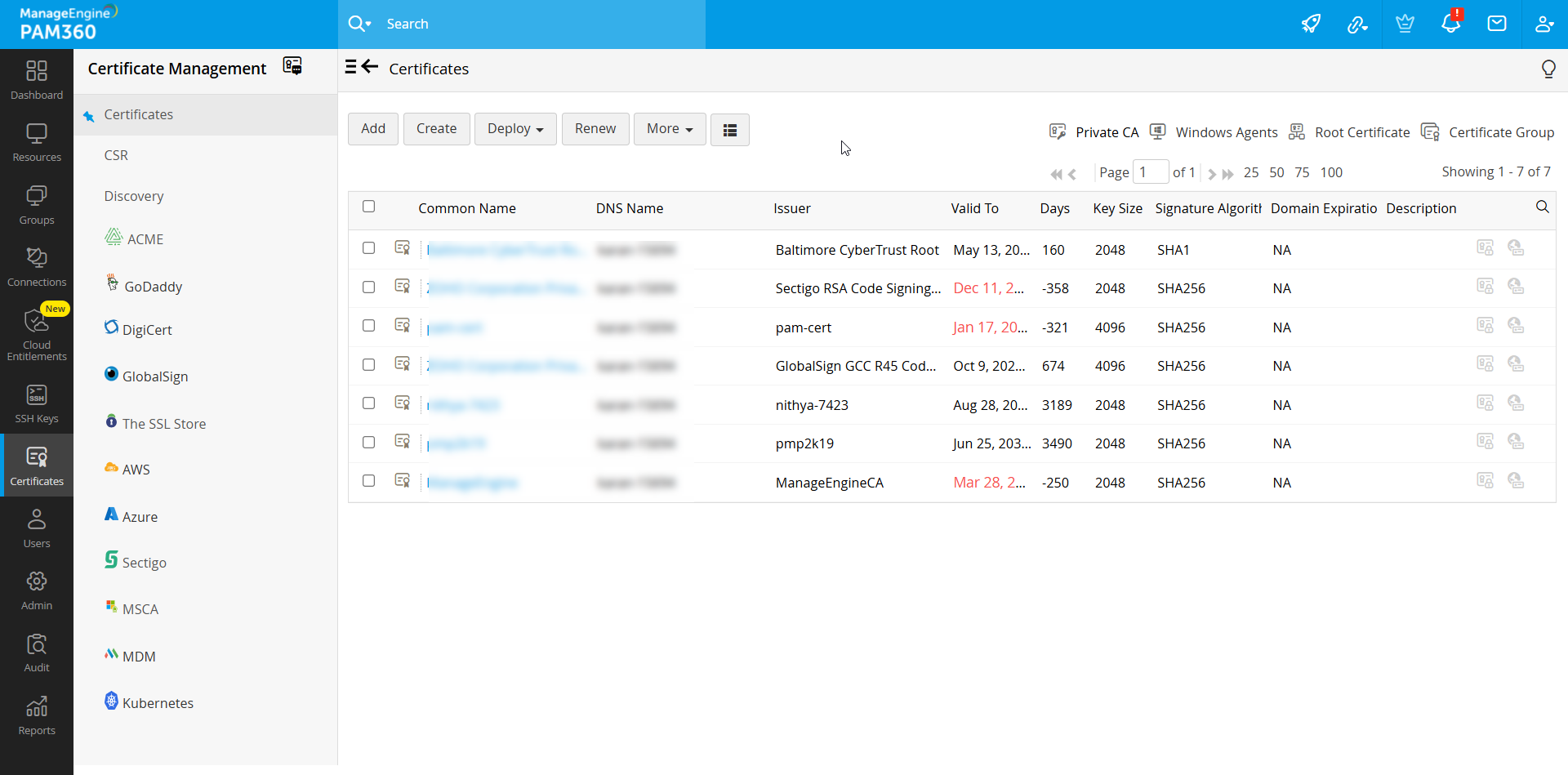
11.2 Rediscover Certificates
From build 5300 onwards, PAM360 allows you to rediscover certificates from the same source using the server details entered during the previous discovery operation. Navigate to the Certificates tab and select the required certificates and click More >> Re Discover.
The rediscovery operation begins immediately. You can track the discovery status in the Discovery Audit page. Please note that for agent-based discovery to work properly, upgrade SSL Agent to version 6000 before commencing the discovery operation.
11.3 Exporting Private Key/Keystore File
PAM360 allows you to identify and export the private keys / keystore files of certificates stored in the certificate repository. You can also export certificates in other formats such as PKCS12/PFX or PEM format. Click the Keystore icon enabled beside the certificates for which the private keys are managed using PAM360. To export the private key or the certificate file, follow these steps:
- Navigate to Certificates >> Certificates.
- Click the Keystore icon beside the certificate for which you need to export the private key.
- From the dropdown, choose from the following options as per your requirement:
- Export Keystore / JKS: The keystore file of the selected certificate will be downloaded.
- Export PKCS12/PFX: The selected certificate will be downloaded in the PFX format.
- Export PEM: The selected certificate will be downloaded in the PEM (Privacy Enhanced Mail) format.
- Export Private Key: The private key of the selected certificate will be downloaded.
- The corresponding certificate is downloaded in the selected format.
11.4 Managing Certificate Versions
Sometimes, there occurs a situation where you have to use different certificates on different end-servers for the same domain. Under such circumstances, it is necessary for you to track the usage and expiry of all these certificates individually even though they represent a common domain. Monitoring various such certificate versions manually is daunting and error-prone. PAM360 helps you simultaneously track and manage the usage and expiry of various certificate versions from a single window. To track certificate versions,
- Navigate to Certificates tab.
- Click the certificate history icon present in the right corner of the table view, corresponding to the required certificate.
- In the certificate history window that opens, choose the certificate version you wish to manage and click the certificate settings () icon. Click Manage Certificate.
- The particular certificate version is set for managing and PAM360 starts tracking the usage and expiry individually for that version.
- Repeat the same procedure for all the certificate versions that you wish to manage.
11.5 Updating Servers with Latest Certificate Versions
In case of wildcard certificates or single certificate deployed to multiple servers, it is necessary to keep track of servers in which the certificate is deployed and also check if the latest certificate version is in use. PAM360 helps you ensure this.
- Navigate to Certificates >> Certificates tab.
- Click the Certificate History icon corresponding to the required certificate.
- A window opens listing the various versions of the certificate. Ensure that the latest version of the certificate is set as the main certificate. If not, click the Certificate History icon beside the required version to set that version of certificate as main certificate in the PAM360 repository.
- Then again, navigate to Certificates >> Certificates tab and click multiple servers icon corresponding to the required certificate.
- A window opens listing the servers in which the certificate is deployed along with other information such as IP address, port and certificate validity.
- If any of the servers listed has an older / expired version of the certificate, update it with the latest version immediately. Select the server and then click Deploy. Refer to the detailed deployment procedure here.
- Click edit icon corresponding to the required server to modify the server details.
- Click Add to add a new server. In the pop-up that appears, mention the DNS Name, IP Address and Port and click Save.
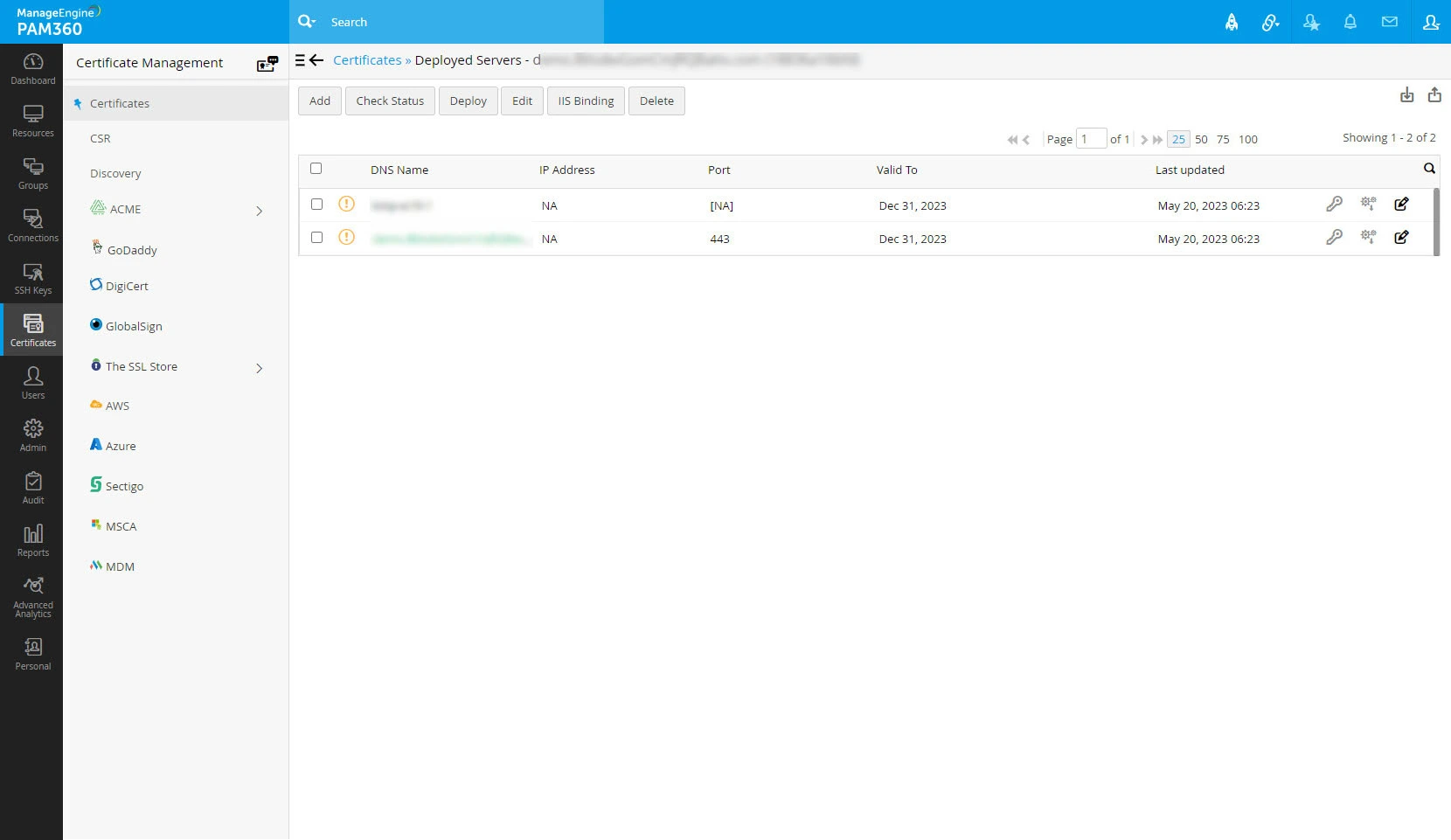
- Click edit icon corresponding to the required server to modify the server details.
- Select a certificate and click Check Status to check the sync status of the certificate.
Also, you can edit details pertaining to a particular certificate or delete irrelevant certificates by selecting the certificate and clicking the More dropdown.