Direct Inward Dialing: +1 408 916 9892
Active Directory (AD) is Microsoft's database and directory service that acts as a centralized platform for enterprises to organize their IT environments. Most corporate networks rely on AD to authenticate users and authorize their access to resources. Read on to find out why you need to audit your AD environment, the most critical activities that you must monitor, and how you can do that effectively.
Try ADAudit PlusGiven how indispensable AD is for identity and access management, it has inevitably become the target of attacks both from external threats and malicious insiders. Bad actors are relentless in their efforts to infiltrate an organization's AD as doing so would enable them to compromise business-critical resources. To defend against threats and ensure AD security, it is vital for organizations to audit and monitor everything that's happening within their AD environment. Continuous auditing and monitoring makes it easier to identify and respond to unauthorized or suspicious activities, and helps in mitigating potential damage due to a breach.
Tracking the logon and logoff activities of your AD users is the best place to start your AD auditing strategy. Excessive logon failures or logons outside business hours may indicate suspicious behavior that needs to be investigated in real time. A fool-proof record of the logon history of all your users will be of great help with forensic analysis in post-breach scenarios.
Know more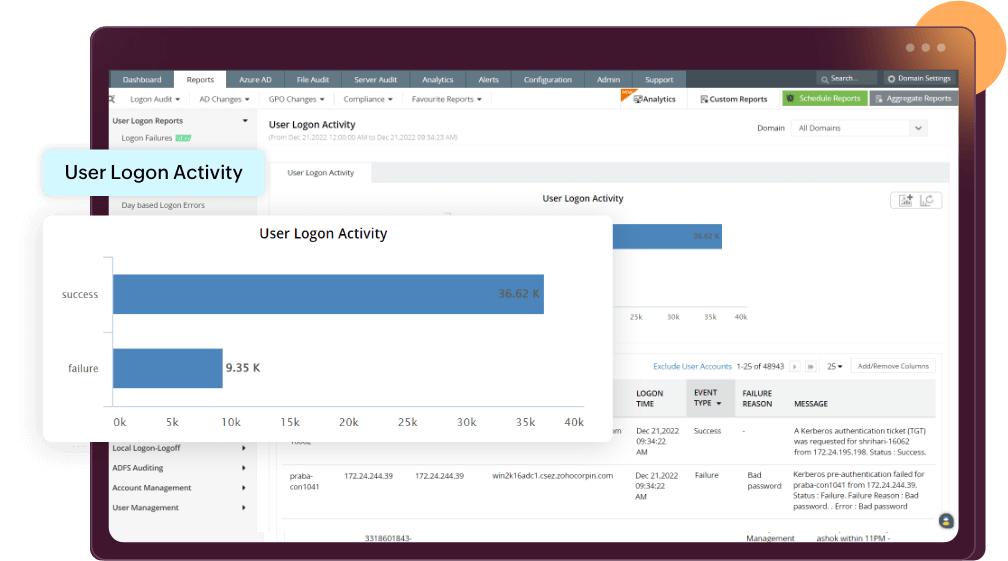
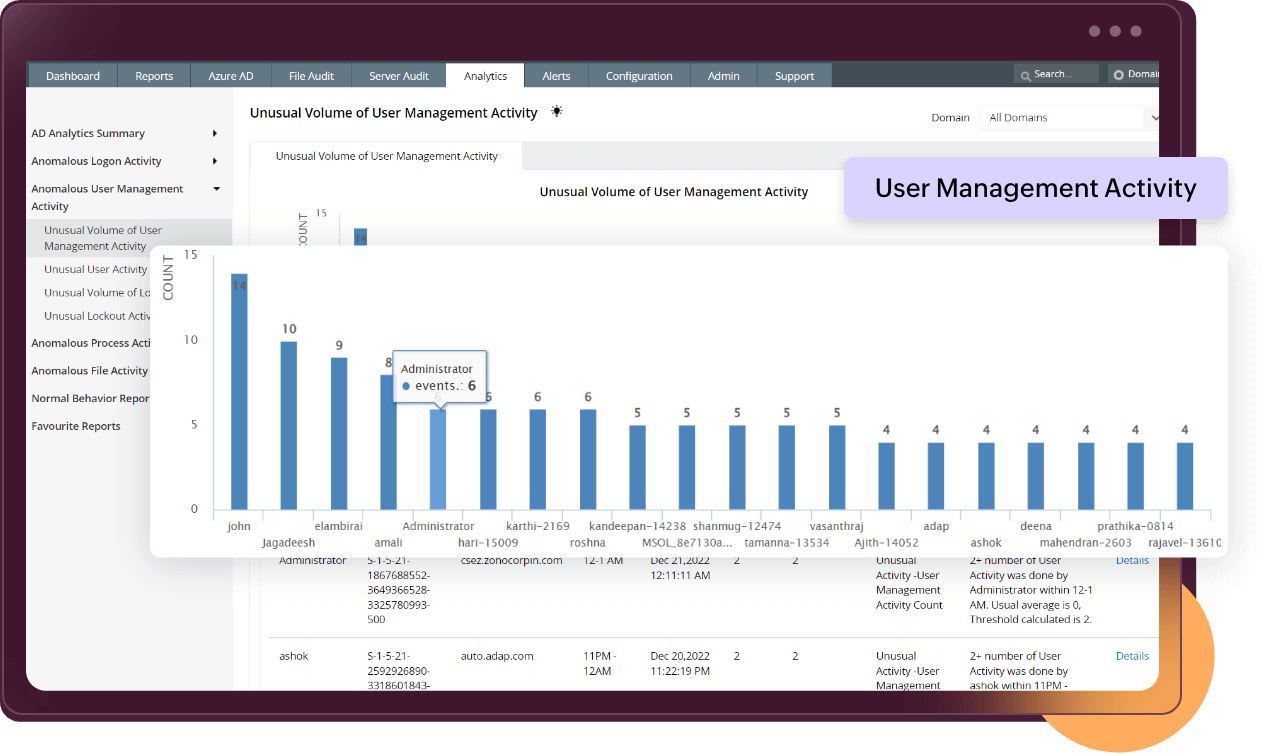
Continuous monitoring is necessary for AD objects such as users, groups, computers, OUs, and GPOs. The creation and deletion of these objects should be carefully supervised to avoid privilege abuse by malicious insiders. It is a best practice to track and review all modifications made to AD objects to ensure unauthorized changes are mitigated.
Know moreAccount lockouts are a fairly common occurrence in IT networks. Auditing account lockout events will help you identify and resolve lockouts quickly, reducing operational downtime. But, frequently locked-out accounts need closer examination since they may point to password-guessing or brute-force attacks by hackers.
Know more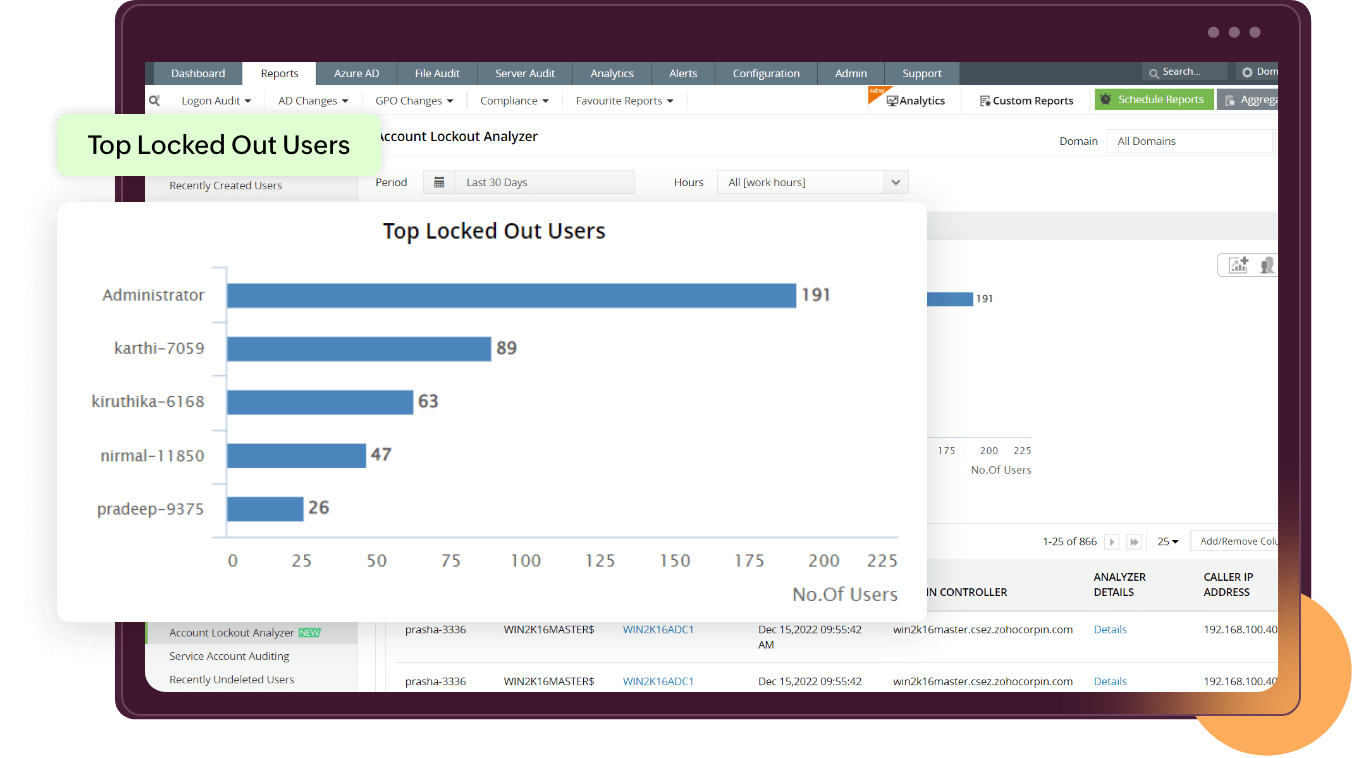
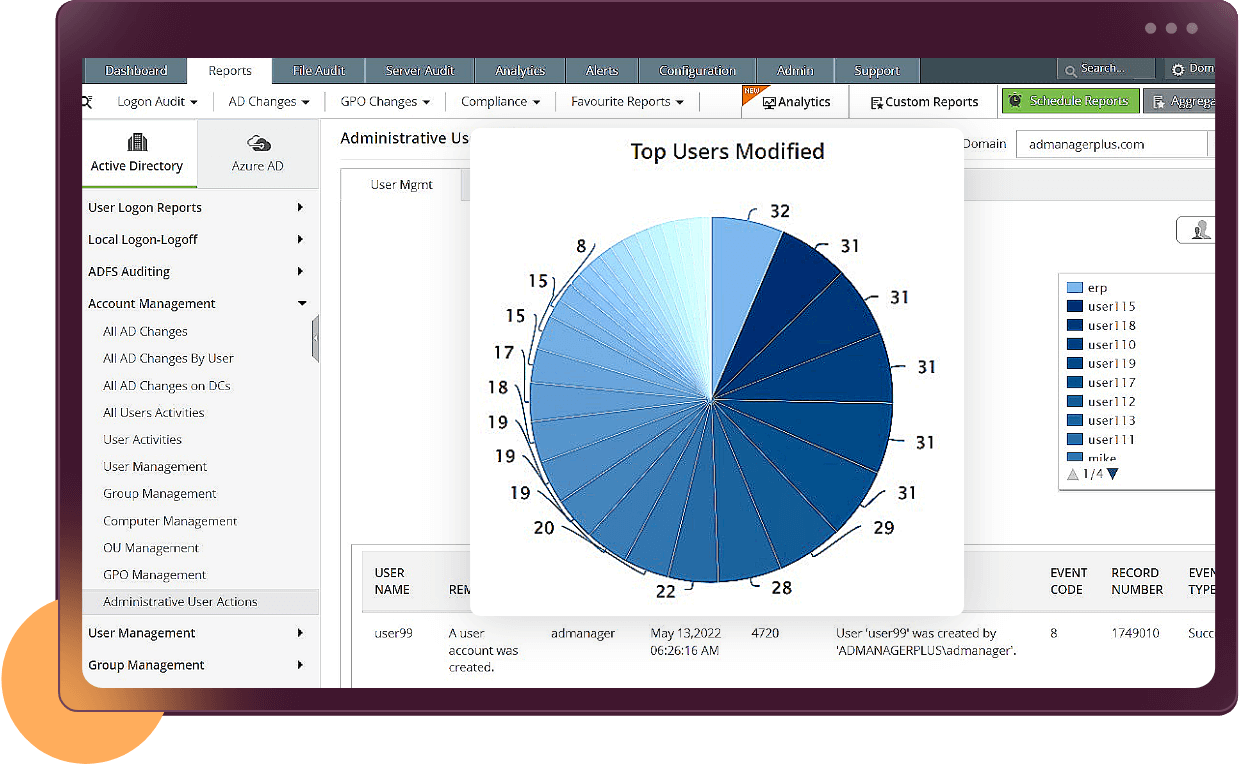
Users from the Domain Admin and Enterprise Admin groups have domain-wide or even forest-wide permissions. These privileged users can modify important GPOs like the password policy, account lockout policy, and other security settings. If these policies and settings are changed either maliciously or even accidentally, your network security will be seriously compromised. Track every activity carried out by privileged users and hold them accountable for their actions.
Know moreUser accounts that become inactive are prime targets for attackers. By compromising and taking over these accounts, attackers can lay low and avoid suspicion as they sabotage your network resources. Keeping constant tabs on the last logon details of users will enable you to identify inactive accounts in your AD. As a best practice, you can disable inactive accounts to prevent hackers from exploiting them to infiltrate your network.
Know more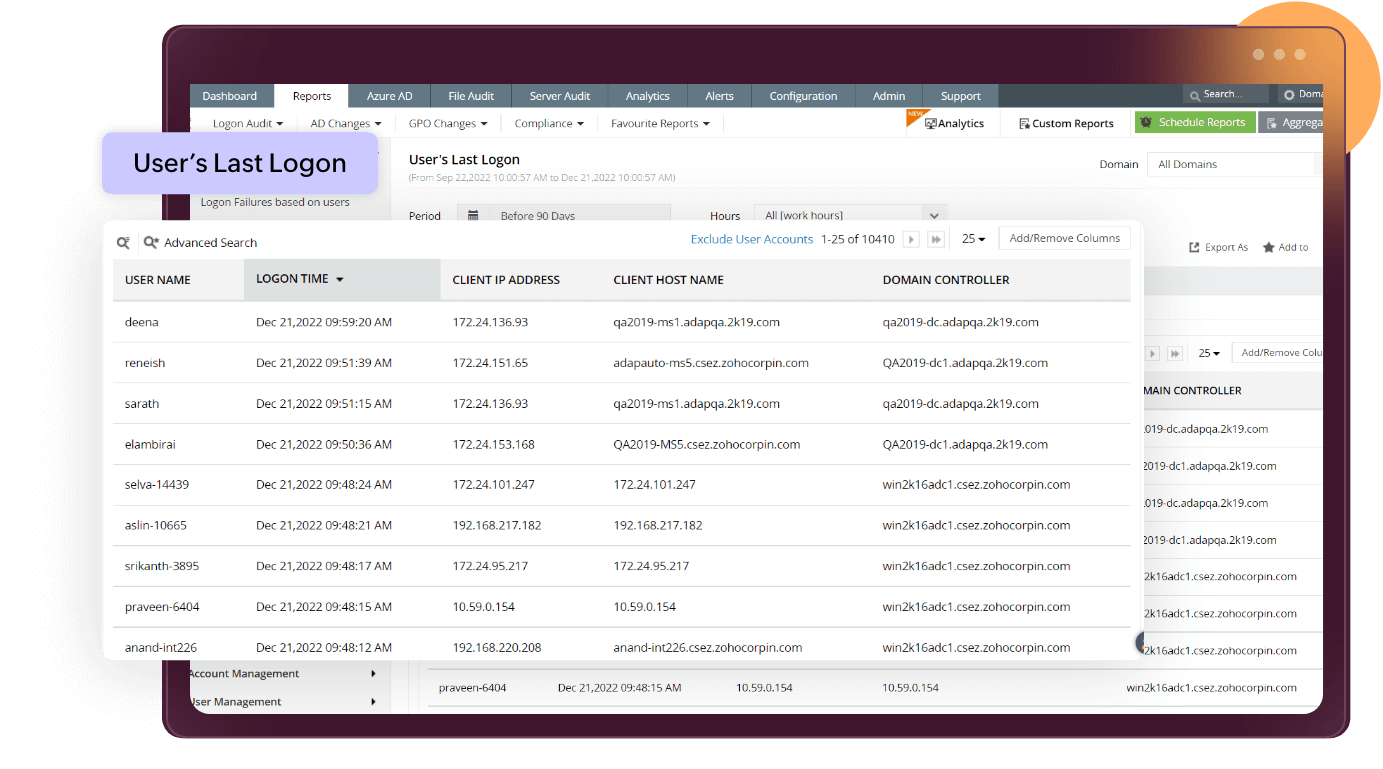
Tighten your organization's security and compliance posture by auditing your AD environment.
In this era of stringent regulations, failing to comply with regulatory mandates can attract costly penalties. Auditing your AD environment and retaining the audit data will help you reduce your risk of non-compliance and, as a result, avoid hefty fines. Additionally, by auditing your AD environment, you can keep a close watch over all activities and look for indicators of compromise. This will help avert any costs that you might otherwise incur from a cyberattack.
In today's ever-changing threat landscape, one way to ensure your preparedness against cyberthreats is by vigilantly monitoring your AD environment. For this, you will need a robust audit policy in place that separates critical events from trivial ones. Configuring advanced audit policies allows you to eliminate event noise and provides granular visibility into the activities happening within your AD. This, coupled with strategic monitoring, can help you identify threats, reduce your response time, and limit the damage in the event of a breach.
To enable auditing in your AD environment, you must configure the appropriate audit policies. Like all Group Policy settings, audit policies are configured in the Group Policy Management Console using the Group Policy Management Editor. Windows has two sets of audit policies: basic audit policies and advanced audit policies. It is recommended to configure advanced audit policies as they allow granular control over which events are logged by excluding noisy events. To access advanced audit policies:
As a prerequisite, you need to configure your security log size and retention settings to accommodate the event log data that will be generated once the audit policy is configured. The security log size and retention settings will vary depending on the size of your organization and your audit policy.
The recommended maximum security log size is 4GB.Advanced audit policies are divided into the following 10 categories with each category containing a set of audit policy settings. The recommended settings for each category will help you audit the corresponding events granularly with minimum event noise.
The Account Logon category helps audit all NTLM and Kerberos authentication events occurring in your domain. By auditing this category of events, you can keep track of the successful and failed logon attempts in your domain.
This category helps track the logon and logoff attempts to local computers. Tracking and monitoring these events will help with log forensics post attack.
The Account Management category enables you to audit all changes to your users, computers, and groups. Closely monitoring the events from this category can help you spot unauthorized changes to the above AD objects.
The Directory Service Access category helps you track the changes to OUs and GPOs in your AD environment. Besides tracking which object was accessed and by whom, you can also identify the specific object properties that were accessed.
The Object Access category is useful in tracking changes to Windows objects outside AD, such as files, folders, and printers. In addition to enabling this audit category, you will also have to enable the SACLs on the objects you want to audit. Because this category will generate many events, it is advised to enable it only on the objects for which you will need the audit data.
As the name indicates, the Policy Change category enables you to audit important policy changes on the local system.
When enabled, the Privilege Use category generates events whenever a user exercises a privilege and helps you keep an eye on your privileged users. This category generates many events that can overwhelm your security logs.
The Detailed Tracking category will help you keep track of the programs executed by users on their computers along with the duration the programs were open. You can monitor the processes that are created, terminated, and more by enabling these settings. However, this category can clog your security logs with a large volume of events.
The System audit category enables you to audit a whole host of events related to system security, including system startups, shutdowns, and restarts. You can also spot changes to important security settings made by software programs, and thwart potential attacks.
The Global Object Access auditing category allows you to apply global SACLs to every file and folder in a file system and the registry objects for an entire computer. Using this policy setting, you can monitor your files, folders, and registry objects from a central location. For the Global Object Access policy to work, the Audit File System and Audit Registry subcategories under the Object Access category have to be configured.
Apart from advanced audit policies, you will also need to configure the audit permissions (SACLs) on the AD objects that you want to monitor.
Once your audit policy and SACLs are configured, you can use Windows' Event Viewer to view the events that are logged in your AD environment.
Using native tools to configure audit policies, comb through log entries, and correlate multiple events to make sense of the activities in your AD environment can make AD auditing seem insurmountable.