Steps to view all AD users using ADManager Plus

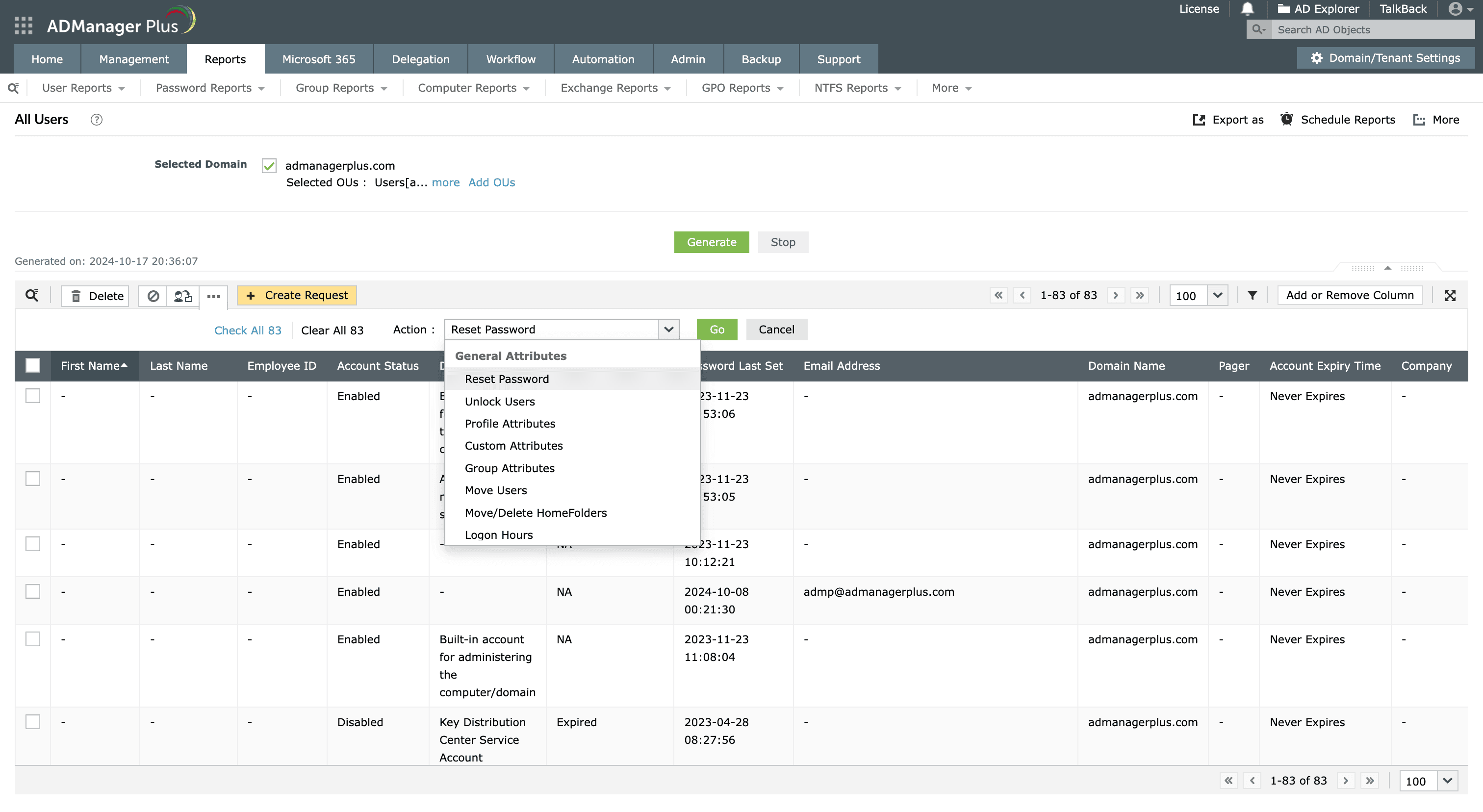
The All Users report displays the details of all users within the specified domain. Here's how to generate it:

  1. Log in to ADManager Plus.
  2. Click the Reports tab.
  3. Navigate to User Reports > General Reports > All Users.
  4. Select the domain for which you wish to generate the report.
  5. To select a specific Organizational Unit (OU), click Add OUs located beside the domain field. In the window that opens up, select the desired OUs.
  6. Click OK.
  7. Click Generate to view all the users in the specific domain.
  8. Click Add/Remove Columns to add or remove columns.
  9. Click More Actions to perform user management actions like reset password, unlock users, and more.
  10. Once the report is generated, click Export as to export the report in various formats, such as CSV PDF, XLSX, HTML or CSVDE.
How to view all users in ADManager Plus
The details of all users within the specified domain in the All Users report.

Steps to view all Active Directory groups using ADManager Plus

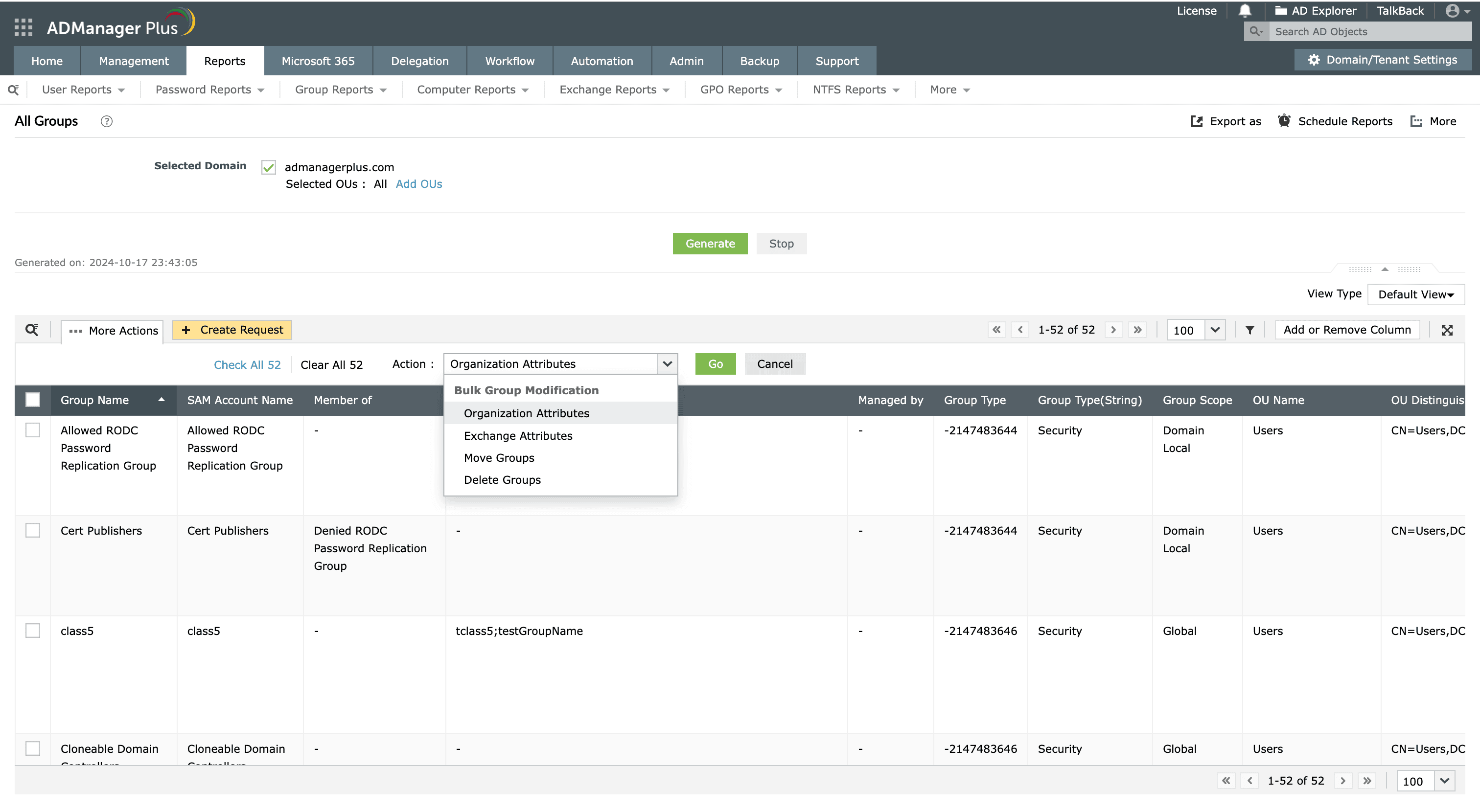
The All Groups report displays the details of all groups within the specified domain. Here's how to generate it:

  1. Log in to ADManager Plus.
  2. Click the Reports tab.
  3. Navigate to Group Reports > General Reports > All Groups.
  4. Select the domain for which you wish to generate the report.
  5. To export the groups in a specific Organizational Unit (OU), click Add OUs located beside the domain field. In the window that opens up, select the desired OUs.
  6. Click OK.
  7. Click Generate to view the report.
  8. Click More Actions to perform bulk group modifications like move groups, delete groups, and more.
  9. Once the report is generated, click Export as to export the report in various formats, such as CSV PDF, XLSX, HTML or CSVDE.
How to view All Groups report in ADManager Plus
The details of all groups within the specified domain in the All Groups report.

Steps to view all computers using ADManager Plus

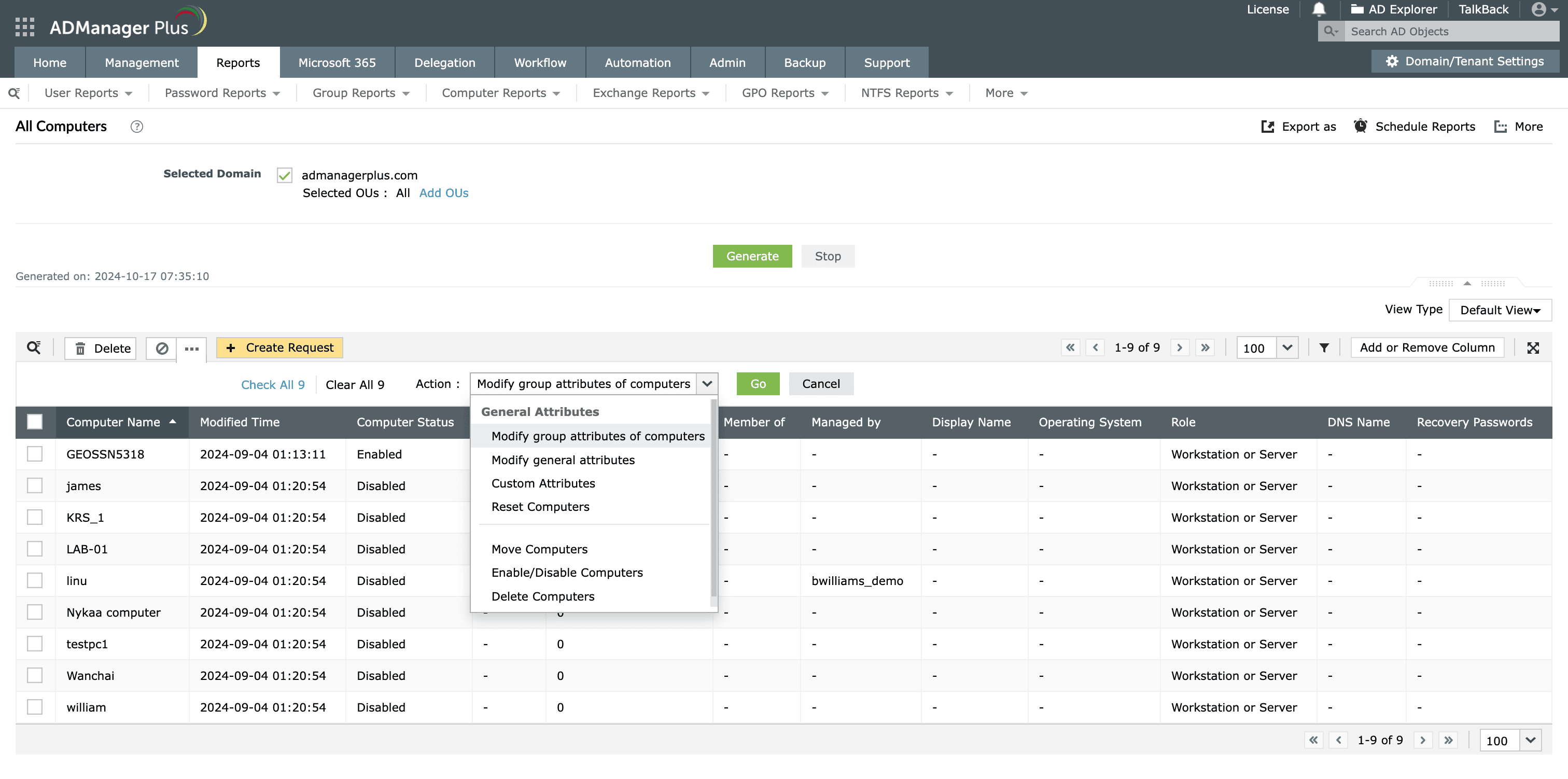
The All Computers report displays the details of all computers within the specified domain. Here's how to generate it:

  1. Log in to ADManager Plus.
  2. Click the Reports tab.
  3. Navigate to Computer Reports > General Reports > All Computers.
  4. Select the domain for which you wish to generate the report.
  5. To view the computers in a specific Organizational Unit (OU), click Add OUs located beside the domain field. In the window that opens up, select the desired OUs.
  6. Click OK.
  7. Click Generate to view the report.
  8. Click More Actions to perform computer modifications like reset computers, move computers, and more.
  9. Once the report is generated, click Export as to export the report in various formats, such as CSV PDF, XLSX, HTML or CSVDE.
How to view All Computers report in ADManager Plus
The details of all computers within the specified domain in the All Computers report.

Steps to view all OUs using ADManager Plus

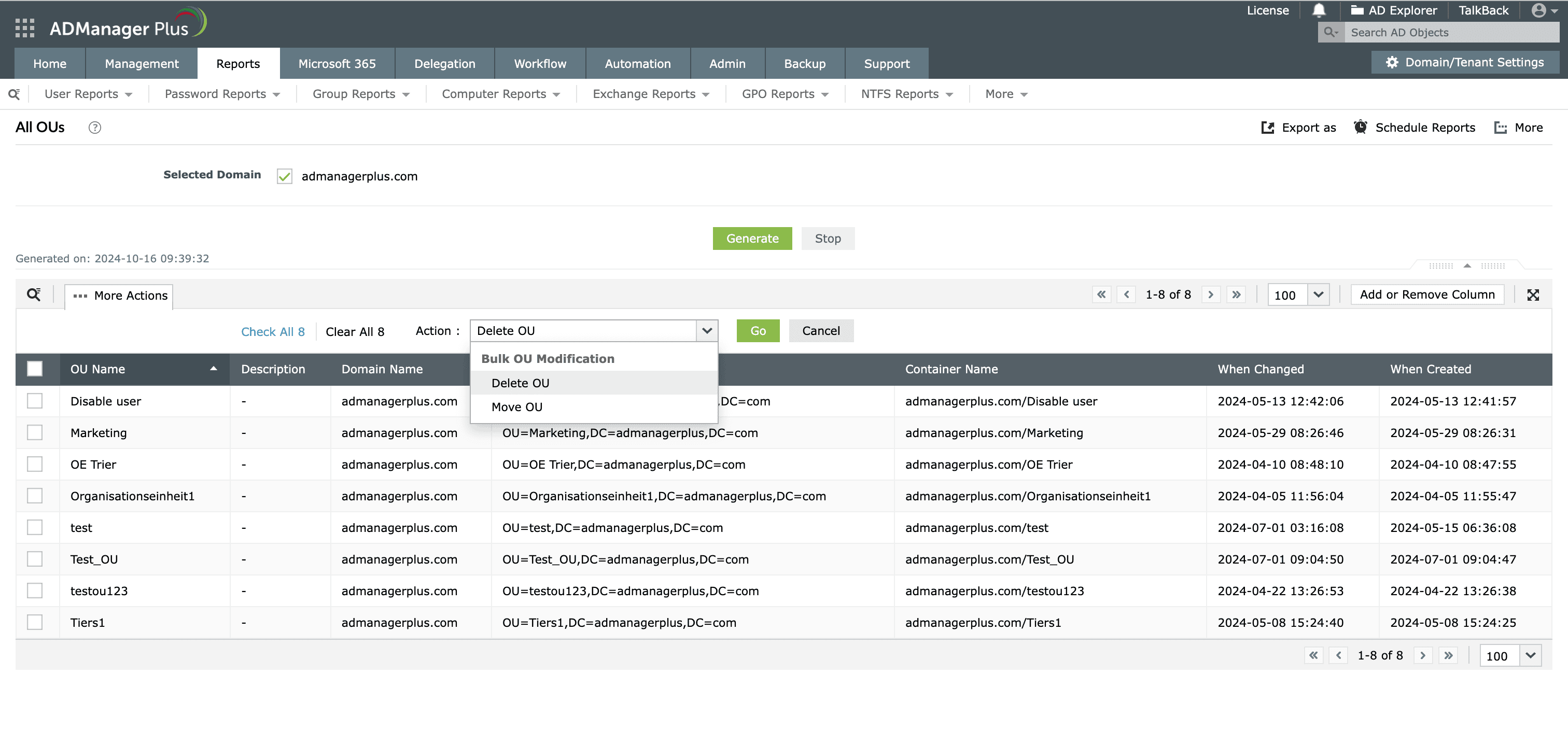
The All OUs report displays the details of all OUs within the specified domain.

  1. Log in to ADManager Plus.
  2. Click the Reports tab.
  3. Navigate to OU Reports > OU General Reports > All OUs.
  4. Select the domain for which you wish to generate the report.
  5. Click Generate to view the report.
  6. Click More Actions to perform bulk group modifications like move groups, delete groups, and more.
  7. Once the report is generated, click Export as to export the report in various formats, such as CSV PDF, XLSX, HTML or CSVDE.
How to view All OUs report in ADManager Plus
The details of all OUs within the specified domain in the All OUs report.

Other reports available in ADManager Plus

ADManager Plus offers insights into various Active Directory objects through more than 200 prepackaged Active Directory reports. These reports enable you to view, analyze, and manage the necessary Active Directory objects directly from a single console. They can also be customized to meet your organization's constantly changing requirements.

  • User reports

    User reports help you gain insights into user accounts, logon activity, account status, and more for streamlined user management.

  • Group reports

    Group reports allow you to view group memberships, recently created groups, security groups, and more to manage Active Directory group structure effectively.

  • Security reports

    Security reports help you monitor access rights, permissions, and security settings to strengthen Active Directory security.

  • GPO reports

    GPO reports help you track, monitor, and analyze group policy objects to ensure compliance.

  • Compliance reports

    Generate reports on SOX, HIPAA, and GDPR compliance, making audit preparation easier.

  • Custom reports

    Customize reports to focus on specific Active Directory data and meet your organization’s specific needs.

Benefits of using ADManager Plus as an Active Directory management tool

Centralized Active Directory management

View and manage all Active Directory objects from a single, user-friendly interface.

Automated user provisioning

Automate user provisioning to simplify the creation, modification, and deletion of Active Directory accounts.

Customizable templates

Create and modify user accounts with all the required attributes or properties in a single click.

Active Directory cleanup

Identify and remove inactive users by maintaining an organized directory.

Need further
assistance?

Fill this form, and we'll contact you rightaway.

Request Callback

  •  
  • *
     
  • *
     
  • *
     
  • *
     
  • By clicking 'Submit' you agree to processing of personal data according to the Privacy Policy.

Thank you!

We’ve received your callback request and will get back to you shortly.

ADManager Plus Trusted By

The one-stop solution to Active Directory Management and Reporting