Direct Inward Dialing: +1 408 916 9393
In today's fast-paced business space, IT administrators have to be equipped with tools that provide them with 24/7 access and control over their Active Directory (AD) environment. ADManager Plus' Android and iOS mobile apps make it easy for IT administrators to stay on top of their AD environment, always, even when they are on the go. If you are looking for tools to manage your AD from mobile devices, or if you are an existing ADManager Plus customer who hasn't tried our mobile application yet, download and check out ADManager Plus mobile app.
This guide walks you through the steps to:
For Android: Search for "ADManager Plus" in the Play Store from your Android device and install the application.
For iPhone: Search for "ADManager Plus" in the iPhone App Store and install the application.
Before configuring the ADManager Plus mobile app, host the product. This can be done over the internet or intranet.
To access ADManager Plus over the internet, register an IP address and a public hostname with your ISP. For more information on how to securely deploy ADManager Plus via the internet, refer to this e-book.
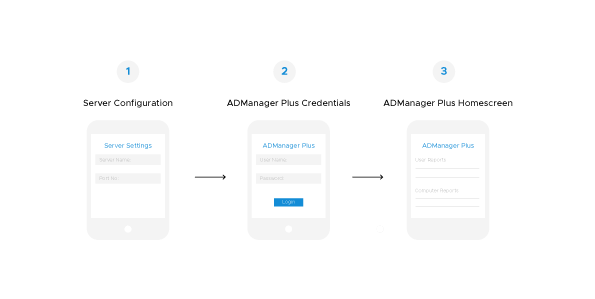
Follow these steps to configure and get started with ADManager Plus mobile apps:
In this case the mobile devices and the ADManager Plus server should be in the same network. If the mobile device is in a different network, then a VPN connection must be configured and used. Note that while establishing this VPN connection, the administrator has to comply with their organization's network security policies.
Follow these steps to configure and get started with ADManager Plus mobile apps:
The ADManager Plus mobile apps enable you to perform some of the most frequently performed AD operations from your mobile devices, and even when you are on the go. These features are common across both iOS and Android apps, and the procedure to use the features is the same.
This section list all the features available in the mobile apps, and explains the steps to use them.
ADManager Plus mobile apps enable you to perform the following AD management operations from your mobile devices:
Respond to password reset requests on the move so that users can avoid logon delays that might affect their productivity.
Enable multiple user accounts at once from your mobile app.
Disable user accounts instantly at any time from anywhere with ADManagerPlus mobile app.
Unlock locked out user accounts in bulk from your mobile device.
Delete unused or stale user accounts at any time from the mobile app.
With ADManager Plus' iOS app, you can create new user accounts in AD, Exchange Server, Office 365, Google Workspace, and Skype for Business.
Click here to know more about creating user accounts with the iOS app.

Enable computer accounts in bulk at once from the mobile app.
Disable multiple computers on the go from your mobile device.
Add and remove multiple computers to groups instantly from the mobile app.
Computers not being able to connect to the domain due to domain controller authentication issues, or credentials mismatch is a frequently faced issue. To overcome this challenge, you can reset the respective computers from your mobile device.
Delete all computers that have been inactive over a period of time from the mobile app.
Acquire crucial information regarding your AD infrastructure and objects from your mobile device. The following AD reports can be generated instantly from the mobile app:
This report lists the details of all the users in your AD. You can also perform management actions on a single user or multiple users from these reports.
To generate this report, login to ADManager Plus mobile app, and tap All Users listed under User Reports.
Use this report to obtain the list of users who have been locked out due to excessive incorrect login attempts. If needed, you can also unlock those user accounts from your mobile screen.
To generate this report, login to ADManager Plus mobile app, and tap Locked Users listed under User Reports.
List all the user accounts that have been disabled by an AD administrator, or a help desk technician. You can also enable specific users from this report.
To generate this report, login to ADManager Plus mobile app, and tap Disabled Users listed under User Reports.
To view the list of users whose passwords have expired, use this report. You can reset the passwords of multiple users at once from this report.
To generate this report, login to ADManager Plus mobile app, and tap Password Expired Users listed under User Reports.
This report lists all those users who have not logged on for a specific time period. You can either disable or delete these user accounts to clean up your AD.
To generate this report, login to ADManager Plus mobile app, and tap Inactive Users listed under User Reports.
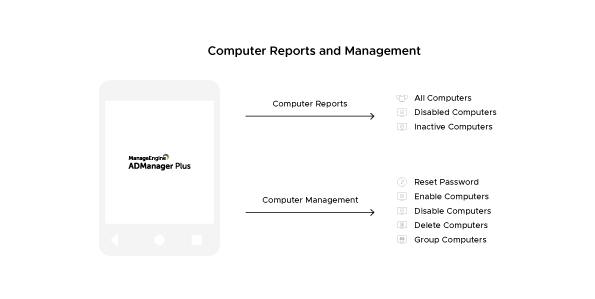
Generate the list of all computers present in your AD with this report. You can perform management actions, such as disabling, resetting, or deleting specific computers from these reports.
To generate this report, login to ADManager Plus mobile app, and tap All Computers listed under Computer Reports.
This report lists all computers that have been disabled by an administrator. You can enable specific computers from this report.
To generate this report, login to ADManager Plus mobile app, and tap Disabled Computers listed under Computer Reports.
To obtain the list of computers that have been inactive over a specific time period, use this report. You have the option of disabling or deleting them based on your organization's security policies.
To generate this report, login to ADManager Plus mobile app, and tap Inactive Computers listed under Computer Reports.
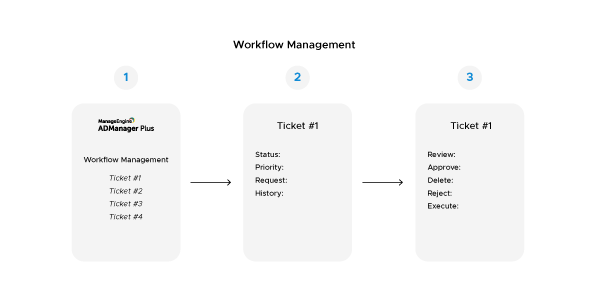
As the name indicates, you can view the details of the workflow tickets and manage them easily from the mobile app.
ADManager Plus' mobile apps host an array of important features that truly grant administrators complete and continuous control over their AD infrastructure irrespective of their place and time. If you are an existing customer of ADManager Plus, try our mobile app to experience the full potential of the product.
Select a language to translate the contents of this web page:
Fill this form, and we'll contact you rightaway.
Our technical support team will get in touch with you at the earliest."















 and select Reset Password.