Direct Inward Dialing: +1 408 916 9393
BitLocker encryption is a security feature available in Windows operating systems designed to encrypt the entire contents of a disk drive. This encryption helps protect data stored on the drive from unauthorized access, particularly if the device is lost or stolen.
BitLocker employs robust encryption algorithms to ensure data security and typically requires authentication, such as a password, PIN, or USB key, to grant access to the encrypted drive. Utilizing either 128-bit or 256-bit keys, BitLocker employs the Advanced Encryption Standard (AES), recognized as one of the most secure encryption algorithms available. This process converts data into an unreadable format, requiring a specific key for decryption, which can be unlocked by the user's password or a smart card.
You can use the following methods to enable BitLocker encryption in Windows 10, Windows 11, and all other Windows operating systems:
To enable BitLocker encryption using command line, ensure that you are logged in with the administrator account. Follow the steps given below to enable BitLocker encryption using Command Prompt.
manage-bde -status
Conversion Status: Fully Encrypted
Percentage Encrypted: 100.0%
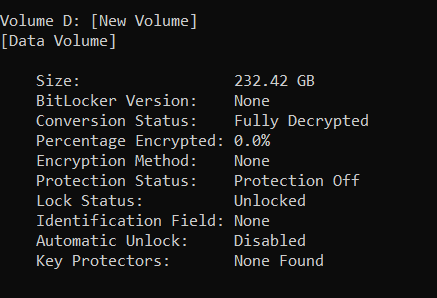
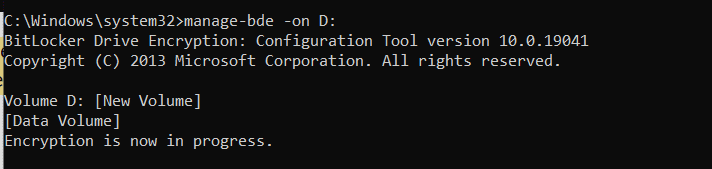
manage-bde -on <drive letter>:
For example: manage-bde -on D:
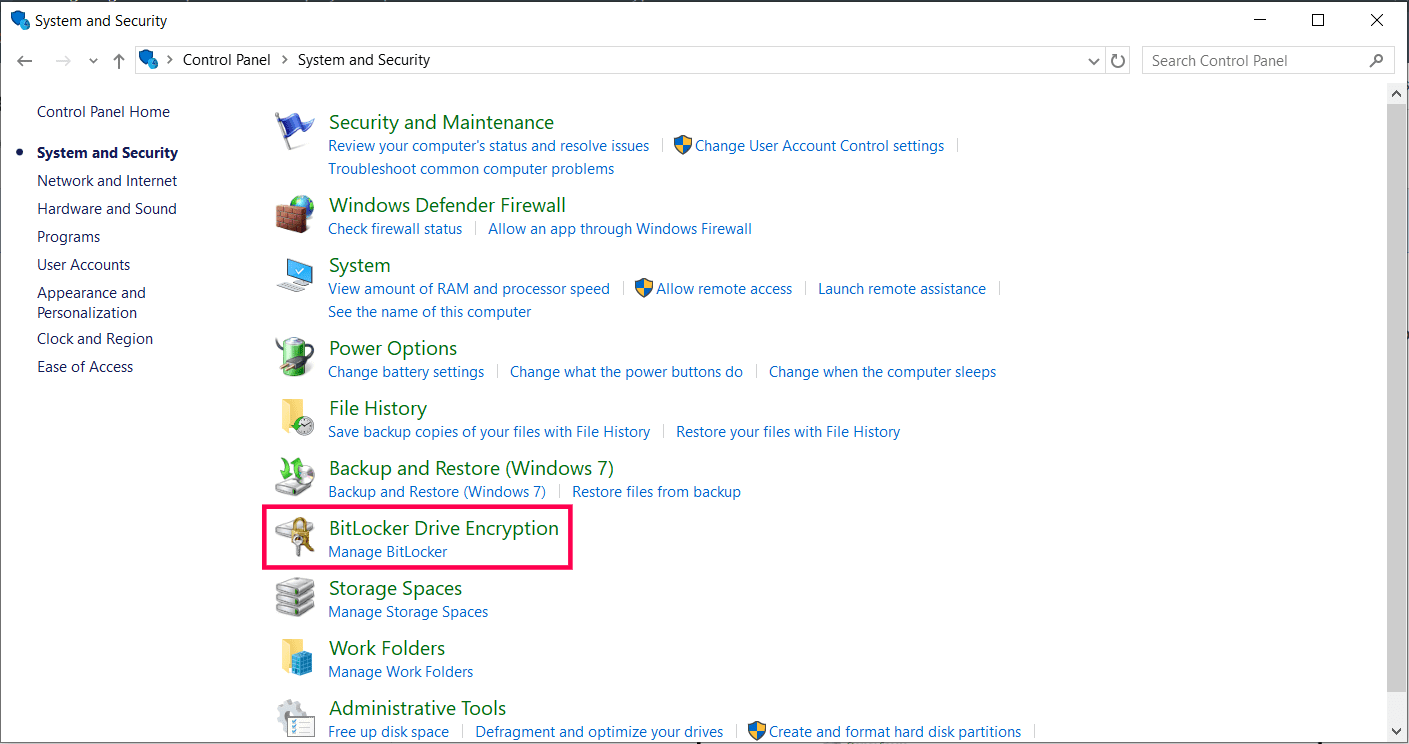
To enable bitlocker using Windows GUI mode, ensure that you have administrator credentials to enable BitLocker encryption. Follow the steps given below to enable BitLocker encryption in GUI mode.
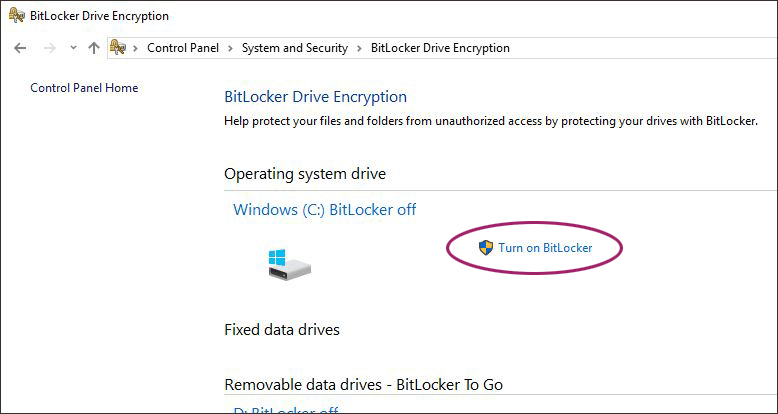
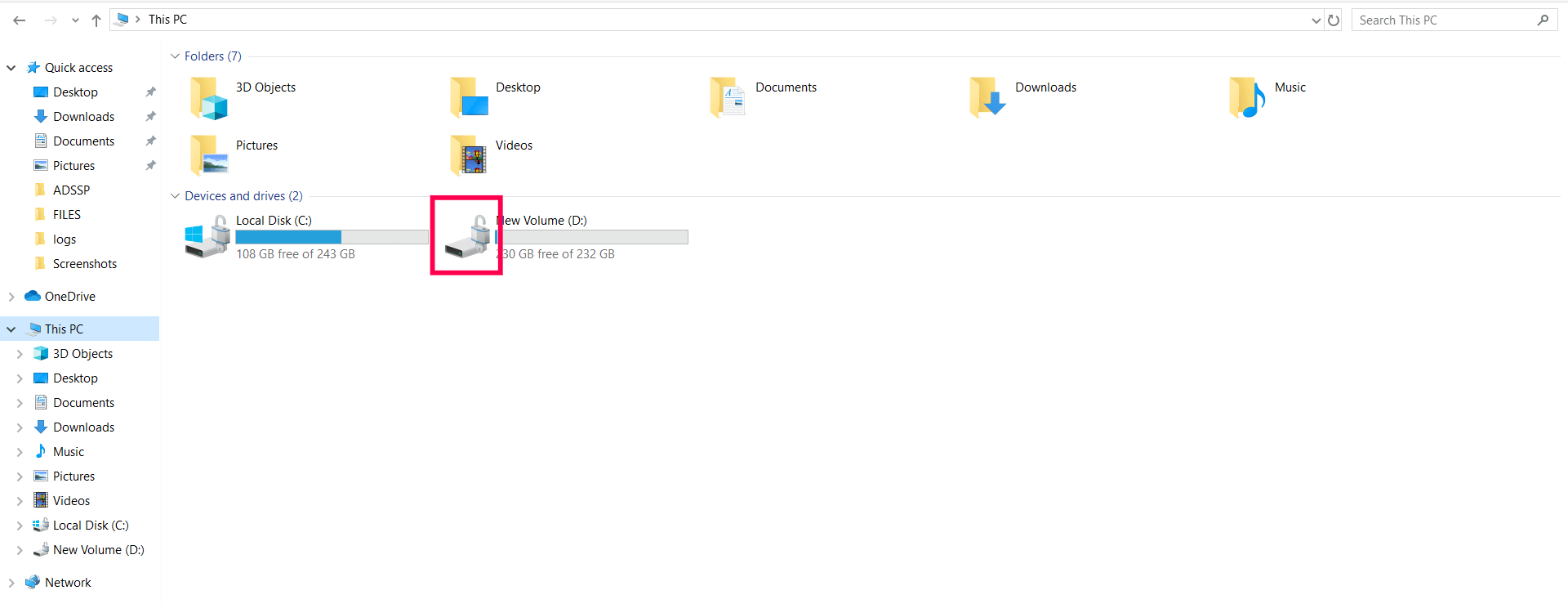
You can verify whether BitLocker encryption is enabled by checking for the BitLocker lock icon on the specific drive and accessing the drive. You can follow the same steps to enable BitLocker encryption on other drives.
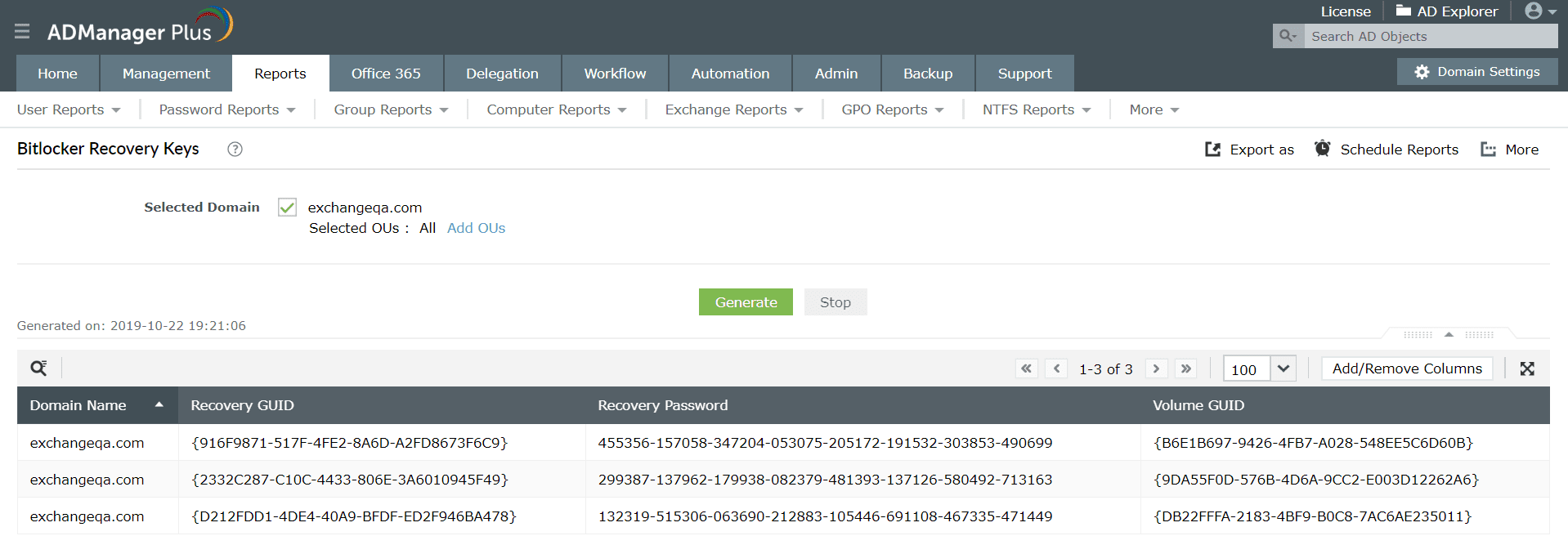
In ADManager Plus, BitLocker encryption reports typically provide insights into the status of BitLocker encryption across devices in the AD environment. Administrators can utilize these reports to monitor and manage BitLocker encryption effectively, ensuring data security and compliance with organizational policies.
The BitLocker Recovery Keys report fetches GUIDs and their associated recovery passwords for encrypted drives. These passwords serve to regain access to a drive that encounters decryption failures.
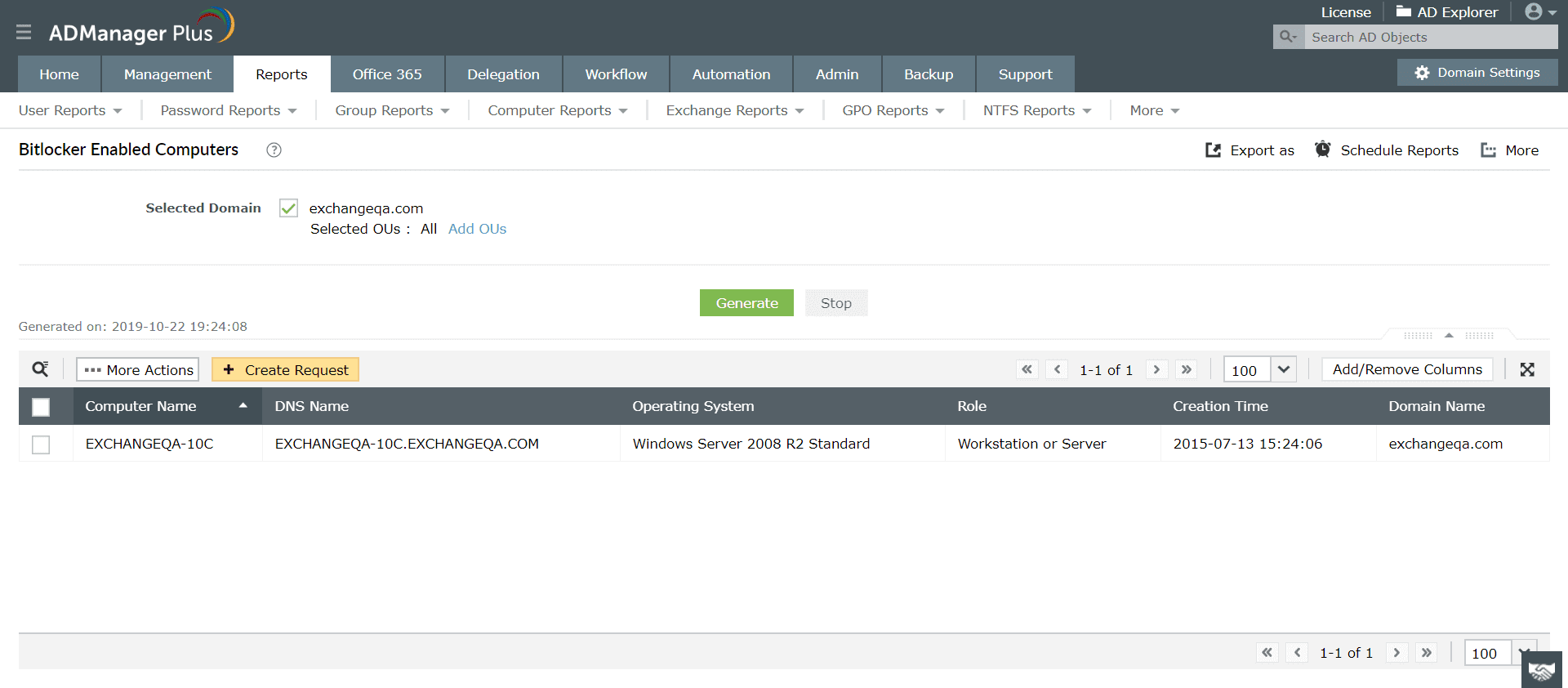
The BitLocker Enabled Computers report offers a comprehensive list of all computers where BitLocker encryption is enabled, allowing administrators to monitor and manage encryption status effectively. Further, filter your search to specifically display BitLocker-enabled computers from a specific domain or from particular OUs within a domain.
Note: These reports will be generated only for organizations that have deployed BitLocker drive encryption and chosen to back up the BitLocker recovery data to Active Directory.
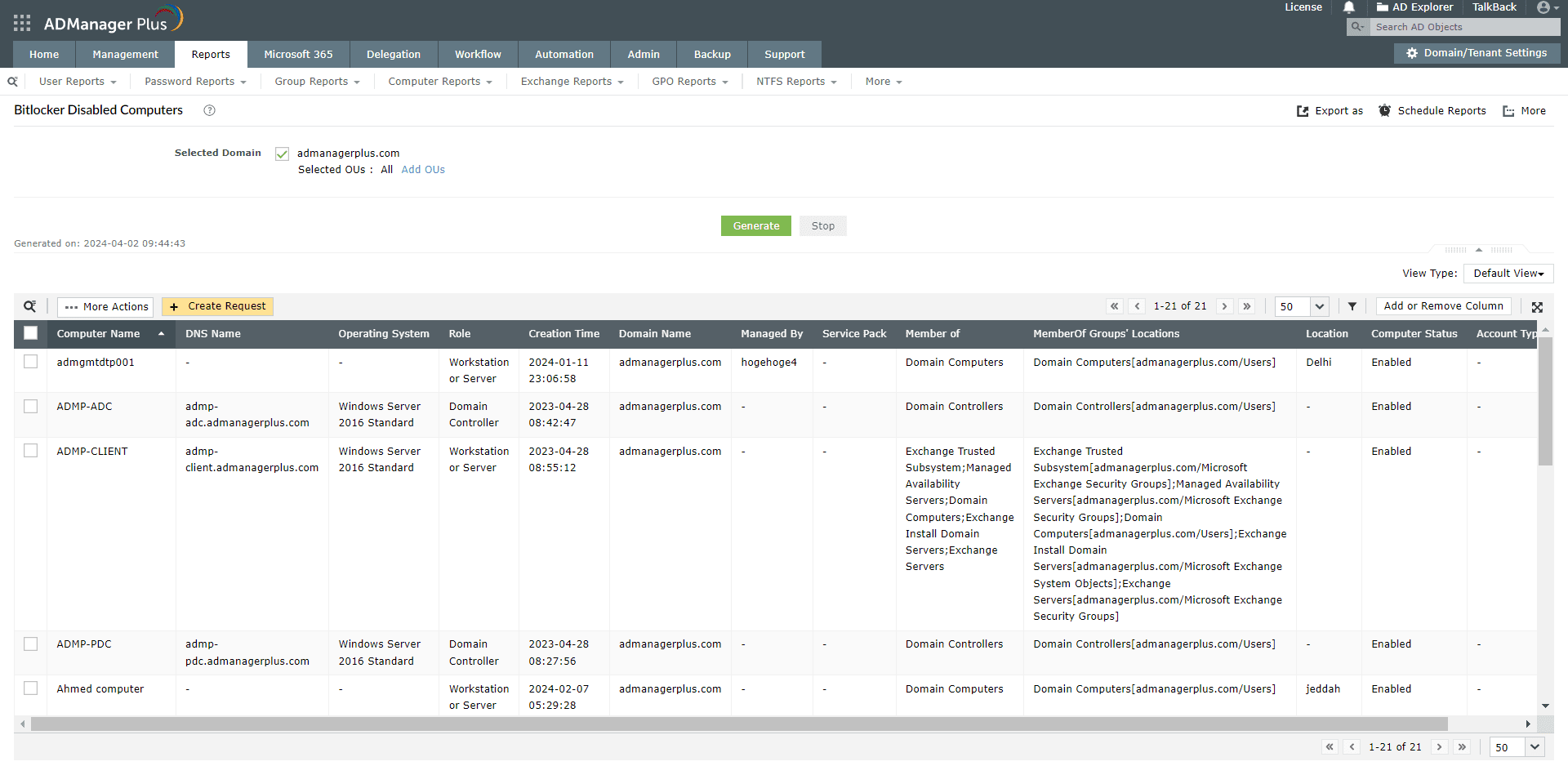
The BitLocker Disabled Computers report lists all the computers within the organization that lack BitLocker keys. Refine your search to view a list of all computers with BitLocker disabled from a specific domain or specific OUs within a domain.
Select a language to translate the contents of this web page:
Fill this form, and we'll contact you rightaway.
Our technical support team will get in touch with you at the earliest."














