How to configure high availability in Azure using a load balancer
ManageEngine ADManager Plus provides a high availability feature to ensure uninterrupted access to the product even for system and product failures. With high availability, when the ADManager Plus service on one machine fails, another instance running on a different machine automatically takes over. Since Microsoft Azure does not inherently support ADManager Plus' high availability configuration, we use a load balancer to achieve the desired output.
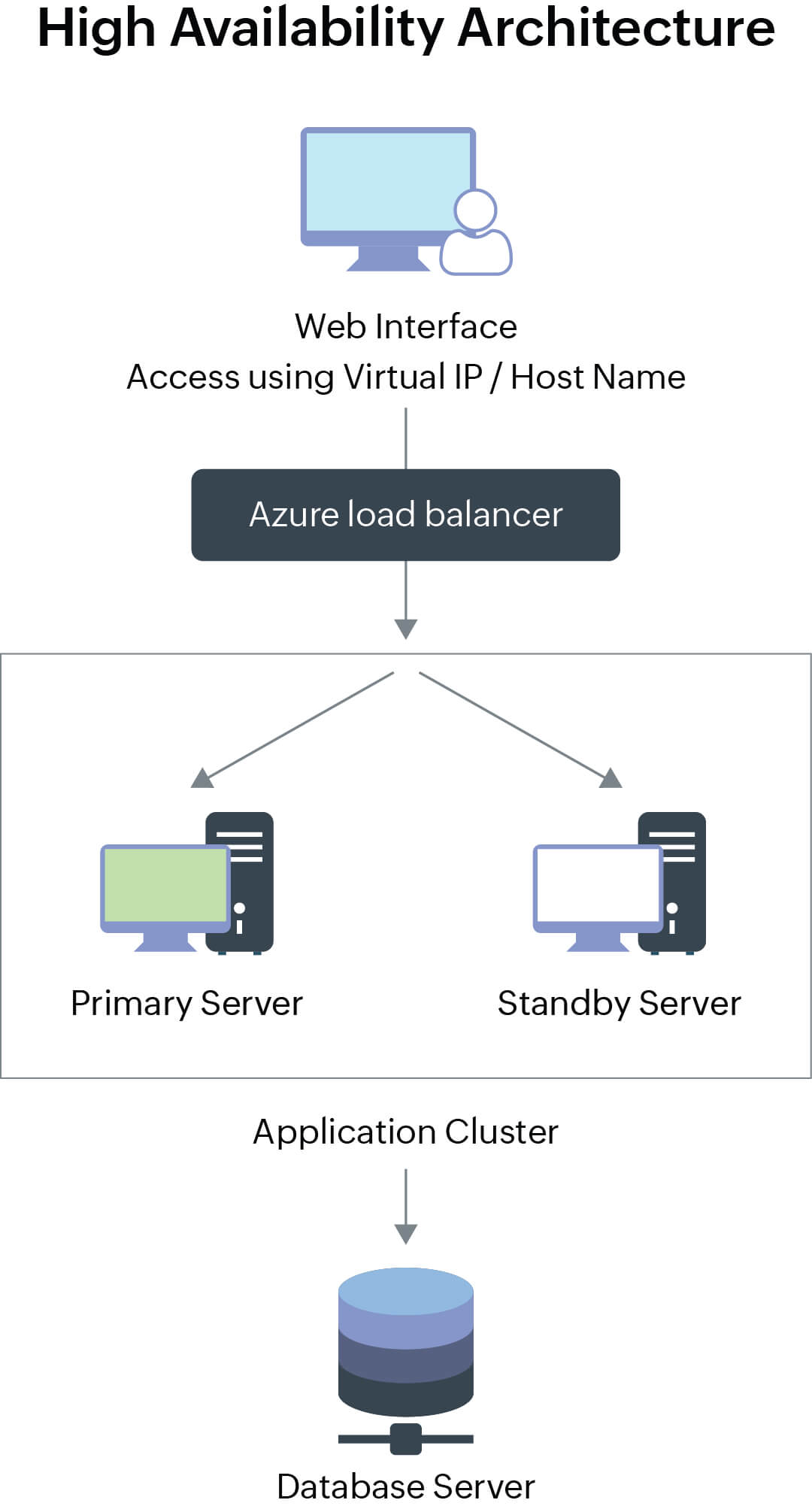
Azure does not support the use of a single IP address for two machines that are part of the same virtual network. In ADManager Plus, a single virtual IP address needs to be assigned to the primary and secondary machines while configuring high availability.
The following guide helps you configure high availability in Azure using a load balancer.
Prerequisite
Click here to get ADManager Plus from the Azure Marketplace. You must have a valid account in the Azure Marketplace to deploy ADManager Plus on Azure using any of the available models.
Configuring high availability settings in the ADManager Plus portal
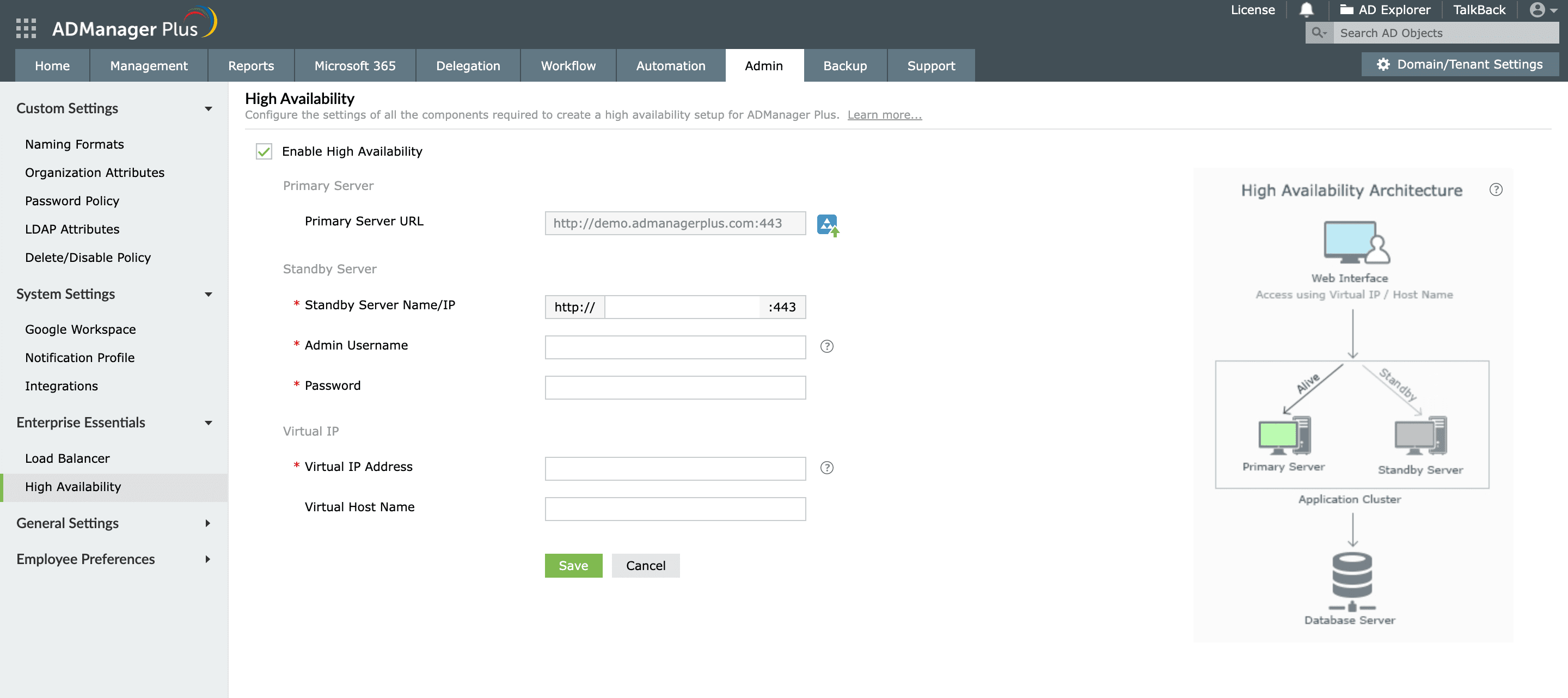
- Log on to ADManager Plus on the primary server.
- Navigate to the Admin tab and click High Availability.
- Select Enable High Availability.
- Under the Primary Server URL field, enter the URL of ADManager Plus running on the primary server.
- Under the Standby Server section, enter the:
- URL or IP address of ADManager Plus running on the standby server.
- ADManager Plus built-in administrator credentials in the standby server.
- Under the Virtual IP section, enter the below details:
- An IP using which you can access both the primary and the standby server. When this IP is used to access the product, the data is routed through the server that is available at that point in time.
Note: Only an unused IP can be used as a virtual IP. To ensure that an IP is unused, try pinging the IP using the Command Prompt. If the Request timed out error is thrown, then that IP can be used as a virtual IP.
- The Virtual Host Name, which is the alias given to a virtual IP. A virtual host name can be set by using the DNS server.
- Click Save.
Creating a load balancer in Azure
- In the search field at the top of the Azure portal, enter load balancer and select the Load balancers option.
- Click Create.
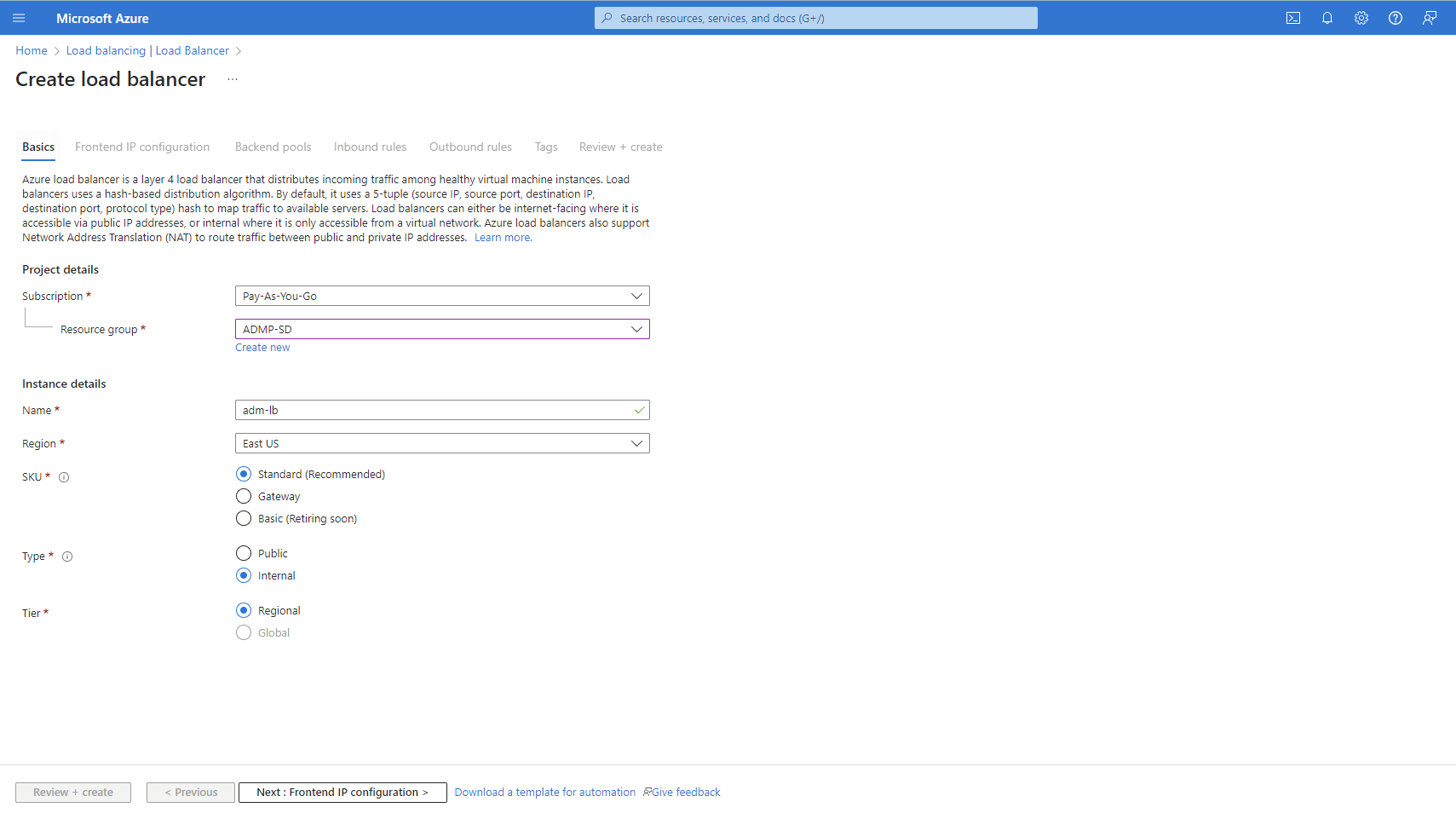
Basic configuration
- In the Basics tab, select the same resource group as that of the virtual machines.
- Enter a name in the Name field (for example: adm-lb).
- In the Region field, select the region of the virtual machines.
- For SKU, Type and, Tier, you can choose between the options provided that suit your requirements.
- After the settings on the Basics tab are configured, click Next: Frontend IP configuration at the bottom of the screen.
Frontend IP configuration
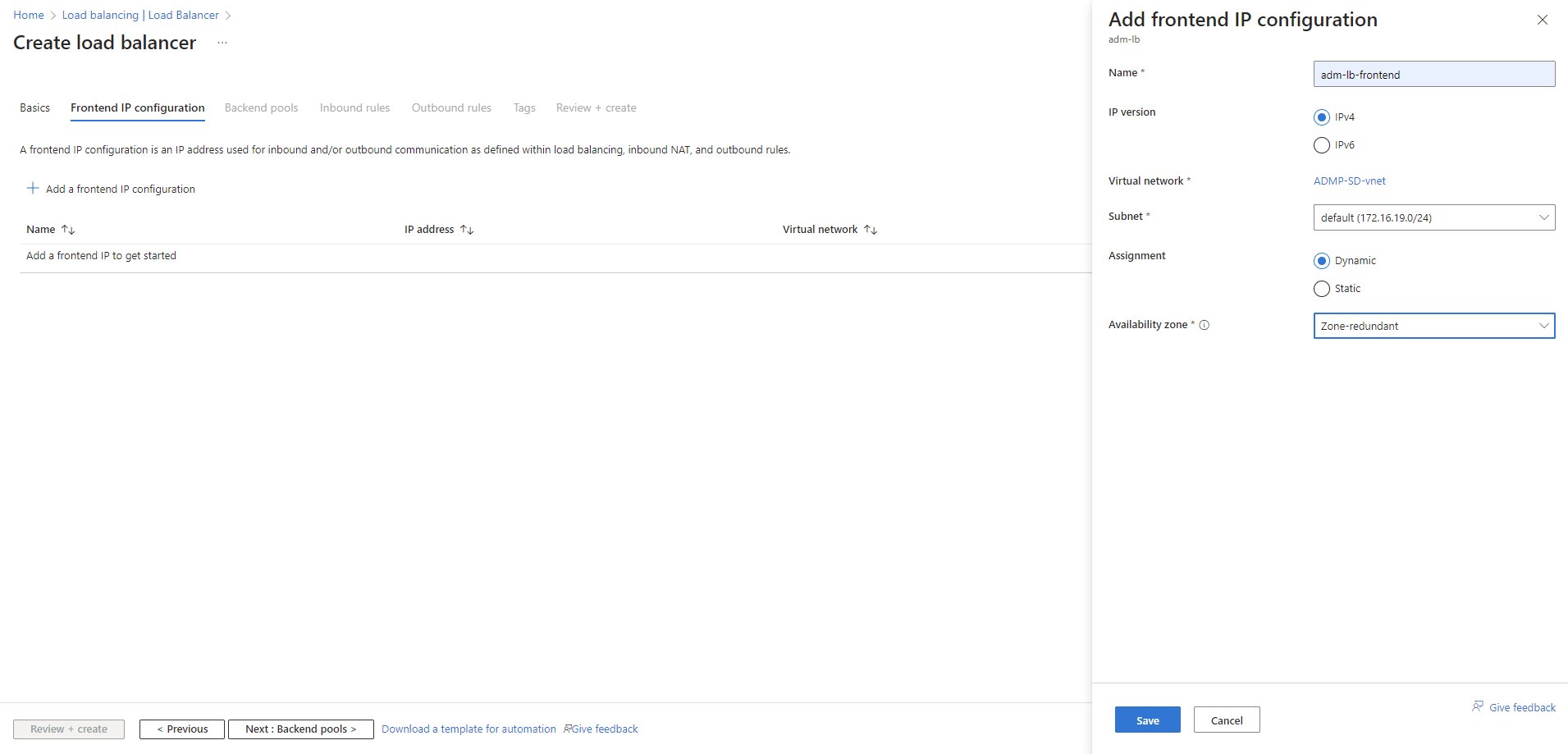
- Click Add a frontend IP configuration.
- In the Add frontend IP address tab, enter a name (for example: adm-lb-frontend) in the Name field.
Note: The frontend IP configured is the IP address that will be used to access the virtual servers hosting the ADManager Plus instance via the load balancer.
- If you have chosen Public as the Type in step 6 of Basic configuration, you can create a new public IP address by entering a name or select an IP address from the drop-down menu.
- If Internal was chosen as the Type in step 6 of Basic configuration, select a virtual network (same as that of the virtual machine) and a subnet. For Assignment, you can choose either Dynamic or Static as per your preference.
- Click Next: Backend pools.
Backend pool configuration
- Click + to add a backend pool.
- In the Name field, enter a name.
- Choose the same virtual network as that of the virtual machines.
- If Standard was the chosen option for SKU in step 6 of Basic configuration:
- Select either the NIC or IP Address radio button for Backend Pool Configuration.
- As per the option you have chosen, you can either select the virtual machines from the list or enter the IP addresses of the two virtual machines and click Add.
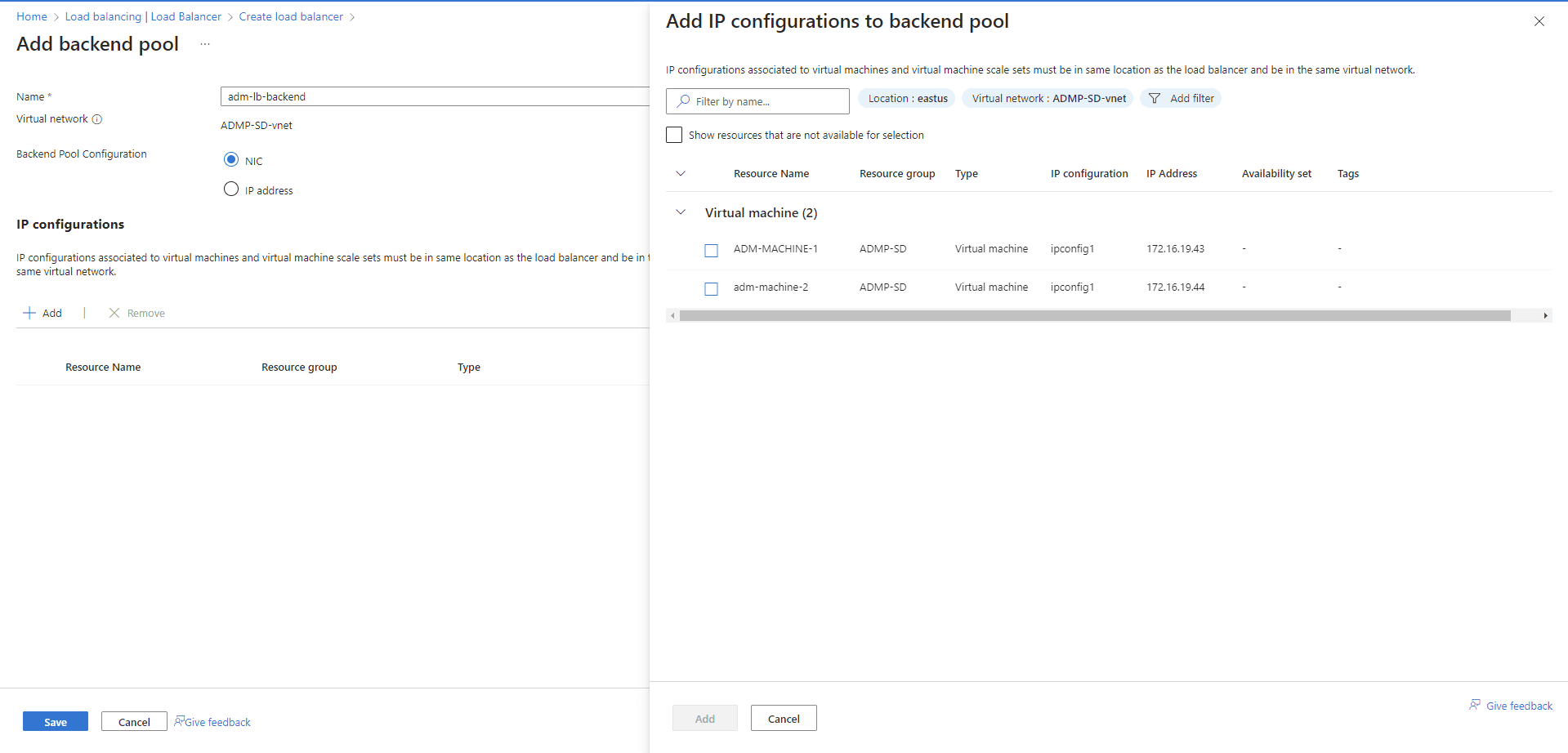
- If the option selected for SKU was Basic in step 6 of Basic configuration:
- For Associated to, choose Virtual machines from the drop-down menu.
- Click the + button and select the virtual machines from the list.
- Click Add.
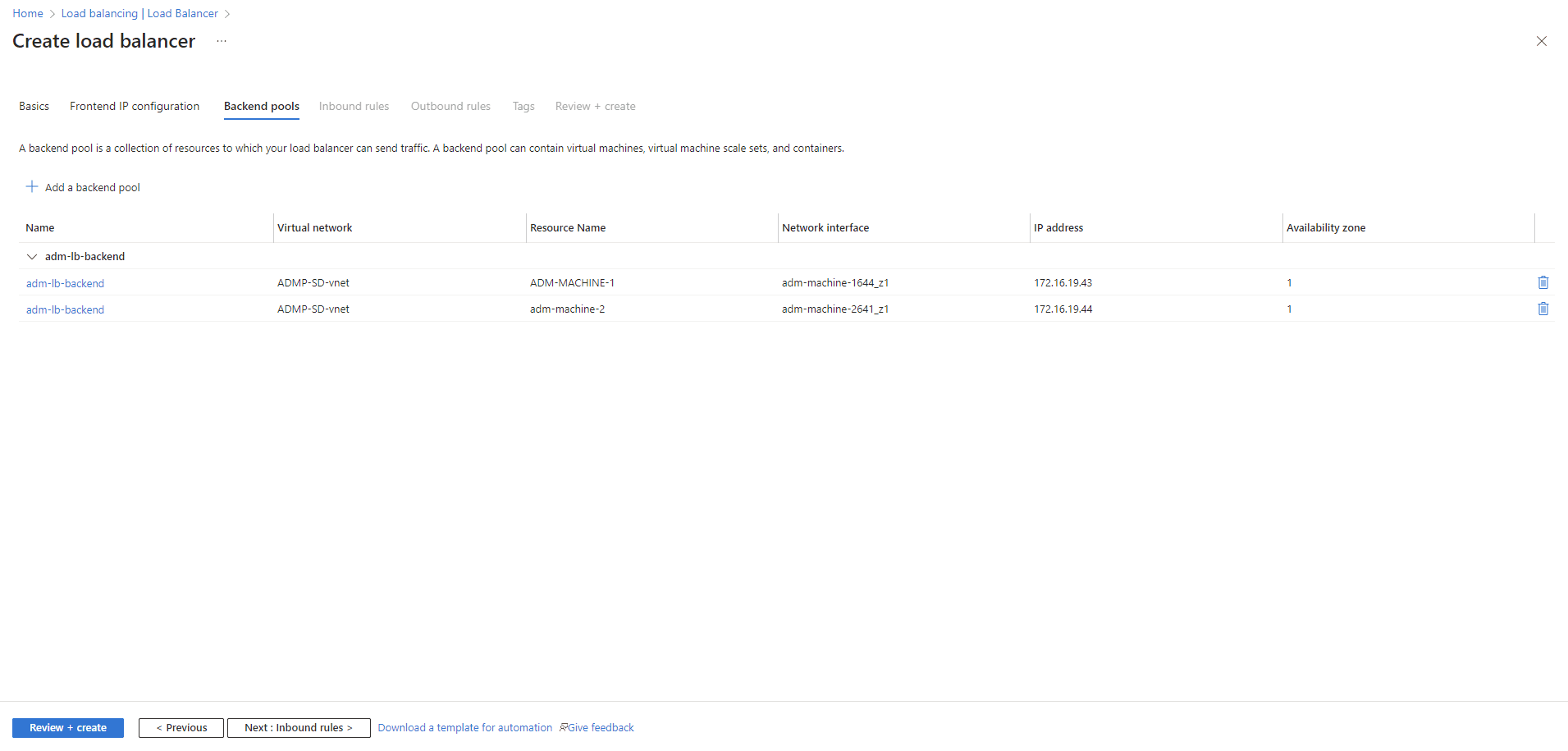
Inbound rules configuration
- Click Add a load balancing rule.
- In the Name field, enter a name (for example: adm-lb-rule).
- In the Frontend IP address drop-down menu, select the IP address configured earlier.
- Select the backend pool name entered previously from the drop-down menu (refer to step 14 in the Backend pool configuration section).
- For Protocol, choose TCP.
- In the Port field, enter a port number through which you wish to access the load balancer.
- Enter the product port number in the Backend port field.
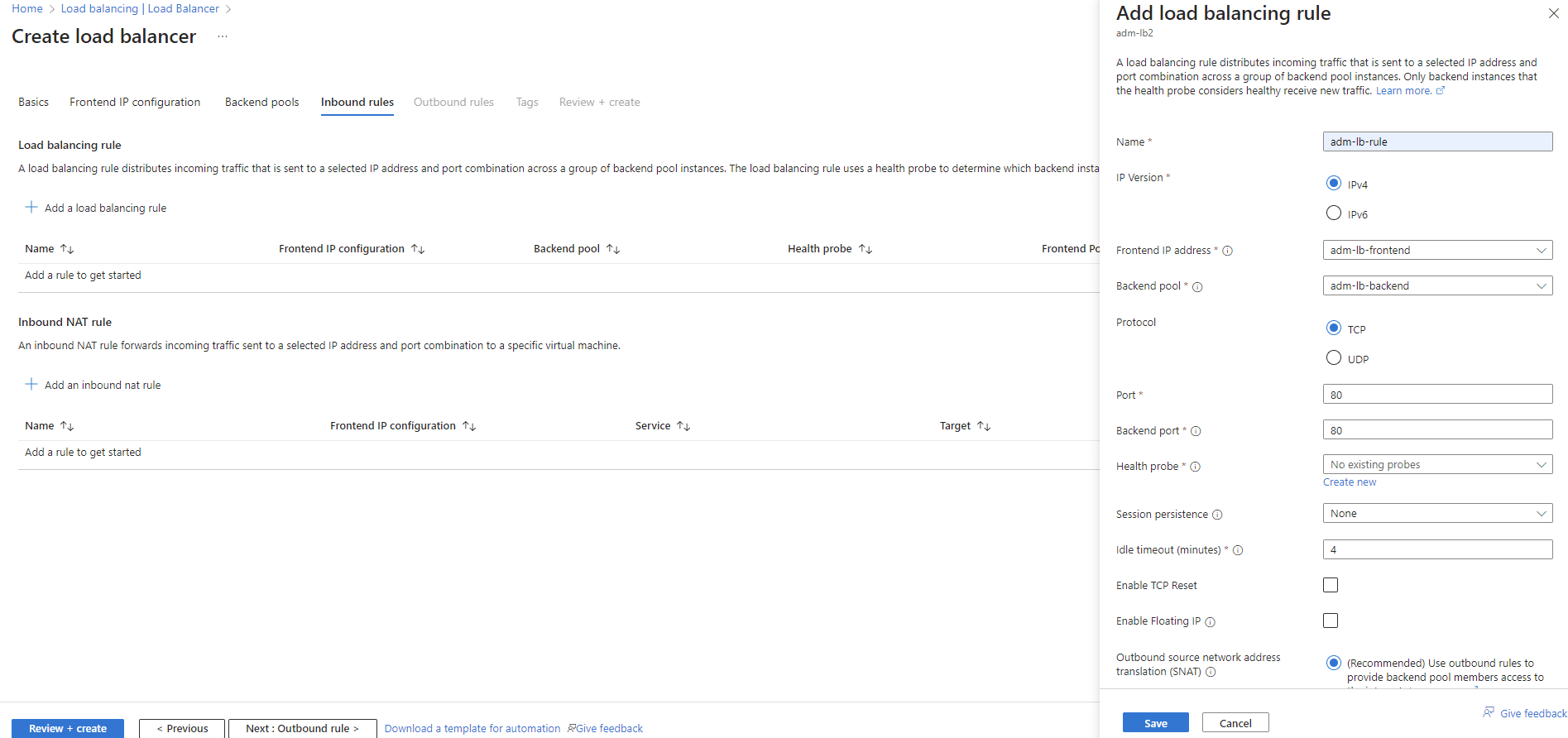
- For Health probe, select Create new and enter a name.
- Choose TCP as the protocol from the drop-down menu and enter the product port number in the Port field.
- Leave the default values for the other two settings and click OK.

- In the Session persistence field, enter the Client IP (optional).
- Retain the default options for the rest of the settings and click Add.
- Keep the default value settings in the Outbound rules and Tags tabs.
- Click the option Review + create and then click Create.
Once all the settings are configured, you will be able to access ADManager Plus through the configured frontend IP address and port.
Note: The load balancer is used for redistributing the request to the virtual machines in the backend pool. The virtual machines in the pool cannot access the load balancer in the same pool.
Select a language to translate the contents of this web page:














