Support
 
Phone Live Chat
 
Support
 
US: +1 888 720 9500
US: +1 800 443 6694
Intl: +1 925 924 9500
Aus: +1 800 631 268
UK: 0800 028 6590
CN: +86 400 660 8680

Direct Inward Dialing: +1 408 916 9393


Knowledge Base

How to create an orchestration template in ADManager Plus

Orchestration templates in ADManager Plus help you automatically perform a series of tasks in sequential order in both Active Directory (AD) and enterprise applications. These templates can be used during scheduled or event-driven automations to automate routine management tasks, such as employee onboarding and offboarding, permission management, and more. Orchestration templates can also be applied directly to users to perform cascading actions on them.

In ADManager Plus' orchestration templates, components like logic blocks, action blocks, and more can be dragged and dropped to construct a template.

Components of an orchestration template

These are the components that can be used in combination to construct an orchestration template:

  • Logic blocks: These blocks help you configure time delays between consecutive tasks and define whether tasks have to be executed based on a condition or result.
  • Custom actions: These blocks allow you to perform custom actions using custom scripts, webhook templates, and notification templates.
  • Others: Blocks specific to AD, Exchange, Google Workspace, Microsoft 365, and other applications can also be used to perform specific actions in the respective applications.

Steps to construct an orchestration template

  1. Log in to ADManager Plus and navigate to the Automation tab.
  2. In the left pane, under Configuration, click Orchestration Template.
  3. Click Create New Template.
  4. In the Template Name field, provide a suitable name for the template.
  5. Click Description to add a description for this template.
  6. In the left pane, select the block you would like to use and drag and drop it onto the window, filling in the required details.

    For instance, if you would like to add a webhook template, expand Custom Actions and drag and drop the Webhook block. In the pop-up that appears, enter a Block Name, Description, and select the desired webhook template.
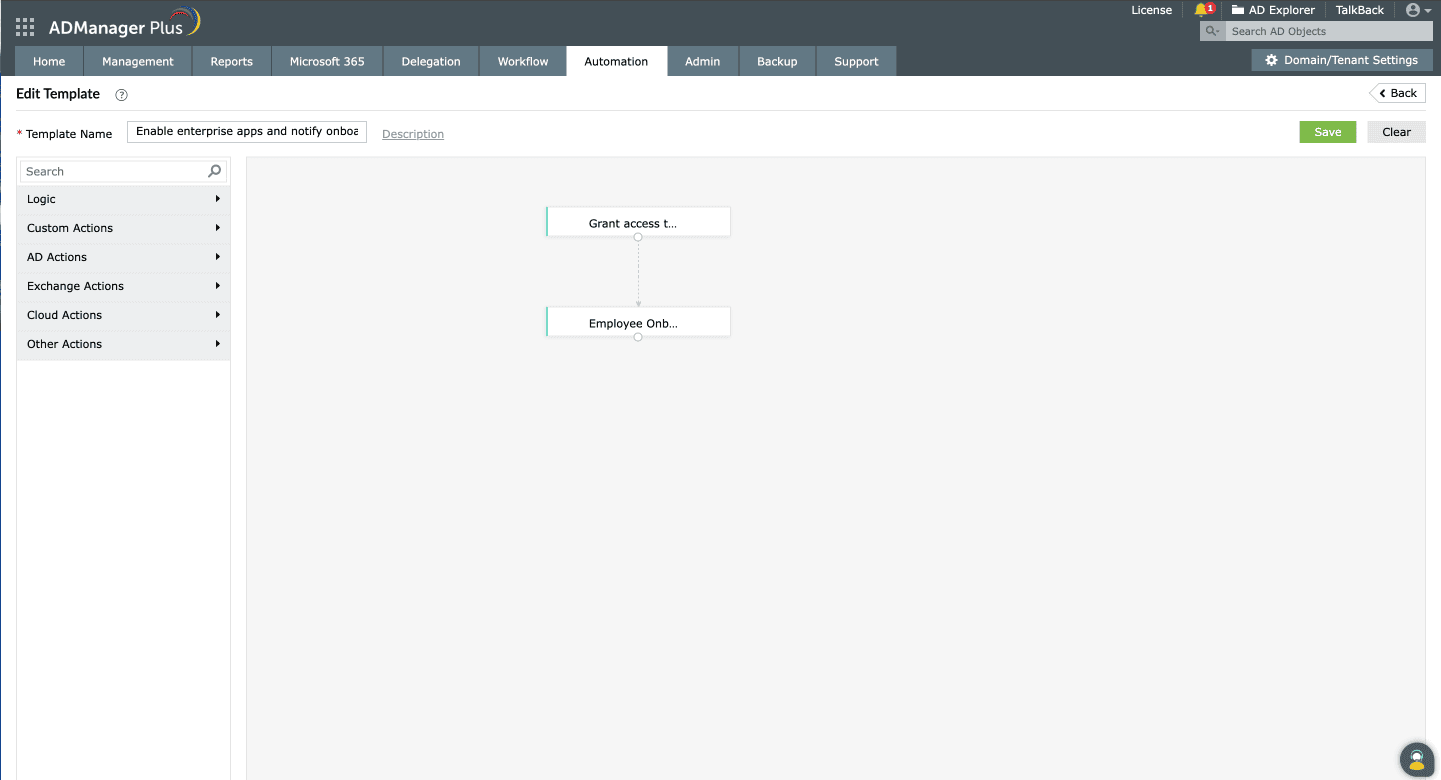
  7. Construct the desired orchestration template by dragging and dropping the desired blocks. Once done, click Save.
  8. An example of an orchestration template in ADManager Plus

Orchestration templates can be used in the following situations:


Select a language to translate the contents of this web page:

Need further assistance?

Fill this form, and we'll contact you rightaway.

Request Support

  •  
  • *
     
  • *
     
  • *
     
  • By submitting you agree to processing of personal data according to the Privacy Policy.

"Thank you for submitting your request.

Our technical support team will get in touch with you at the earliest."

ADManager Plus Trusted By

The one-stop solution to Active Directory Management and Reporting
Email Download Link email-download-top












