How to migrate GPOs using ADManager Plus
Last updated on:In this article
Migrating GPOs in Active Directory (AD) is a crucial process when a businesses transitions during a merger, acquisition, or other organizational change. GPOs help manage and enforce security settings, user configurations, and system policies. With ADManager Plus' migration feature, you can move AD GPOs across domains within a trusted forest to ensure they function seamlessly.
Steps to migrate GPOs with ADManager Plus:
- Log in to ADManager Plus.
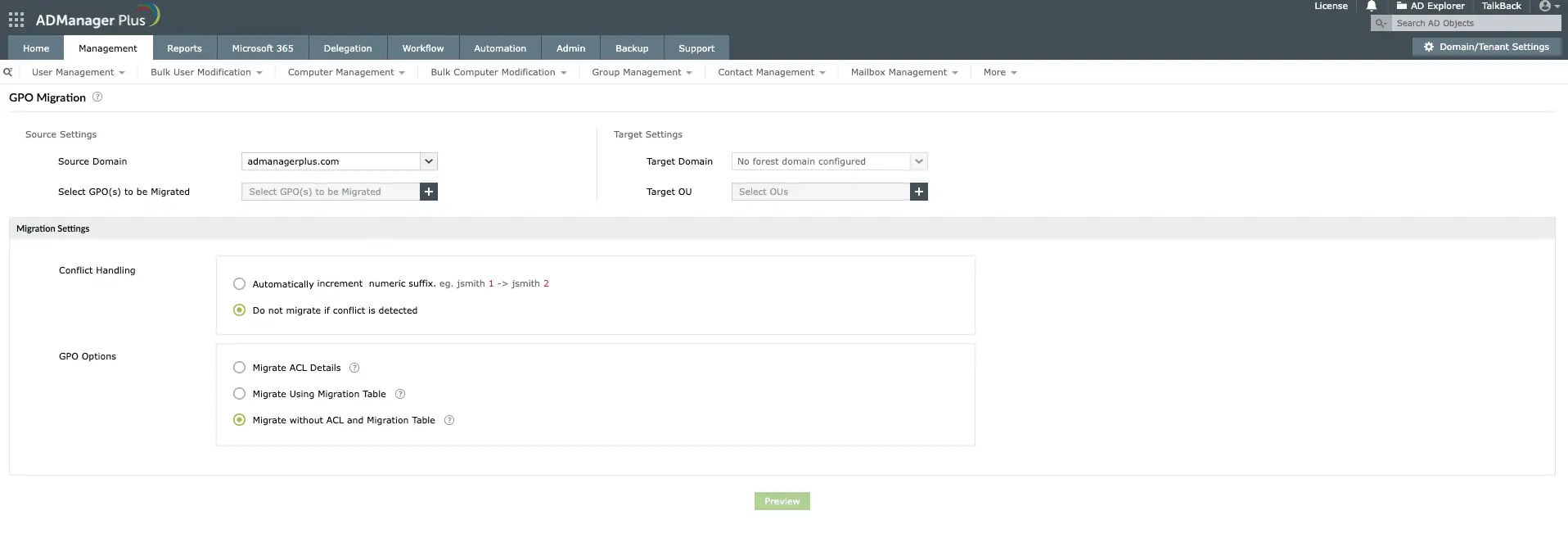
- Navigate to Management > Migration > GPO Migration.
- In the GPO Migration page, under Source Settings, select the Source Domain from which the GPOs will be selected.
- Use the Select GPO(s) to be Migrated menu to select the GPOs. Under Target Settings, choose the Target Domain and Target OU to which the GPOs will be migrated to.
- Under Conflict Handling, choose how to handle conflicts that might arise during the migration:
- Automatically increment numeric suffix: Append the conflicted GPO's name.
- Do not migrate if conflict is detected: Select this option if you do not want to migrate the duplicate GPO.
- Under GPO Options, choose an option:
- Migrate ACL Details: Copy the source GPOs' access control list to the target GPO.
- Migrate Using Migration Table: Use a migration table and map the source security principal to the target security principal during migration.
Note:
The machine needs PowerShell version 5 or above to use the migration table.
- Migration without ACL and Migration Table: Migrate the GPOs without the source access list and migration table.
- Click Preview to view and edit the conflicts and the selected GPOs. Then, click Review to view the final migration list.
- Click Migrate Now to migrate the chosen GPOs.
You have now successfully migrated your GPOs. Don't have ADManager Plus? Try a 30-day, free trial and see how efficiently you can perform your AD migration with its user-friendly and robust features.
 Free Edition