How to import users into Active Directory from CSV files
ADManager Plus allows you to import users into Active Directory from a CSV file and perform management actions on them. You can choose from the various predefined bulk user management actions in ADManager Plus and manage Active Directory users by uploading a CSV file. Here's how you can import users into Active Directory from a CSV file:
- Log in to ADManager Plus and navigate to the Management tab.
- On the User Management tab, under CSV Import, click Create Users.
- Select the desired domain and user creation template.
- Click the Import button to import a CSV file with users. You can also individually add users by clicking the Add Users button.
Note: To view a sample CSV file containing a list of users to be imported into Active Directory, click the Sample CSV file button.
- Browse and select the desired CSV file and click Import.
- Select the container where the user accounts have to be created and click Next.
- Review the user accounts and their details and click Create Users.
For more details on importing users from a CSV file, click here.
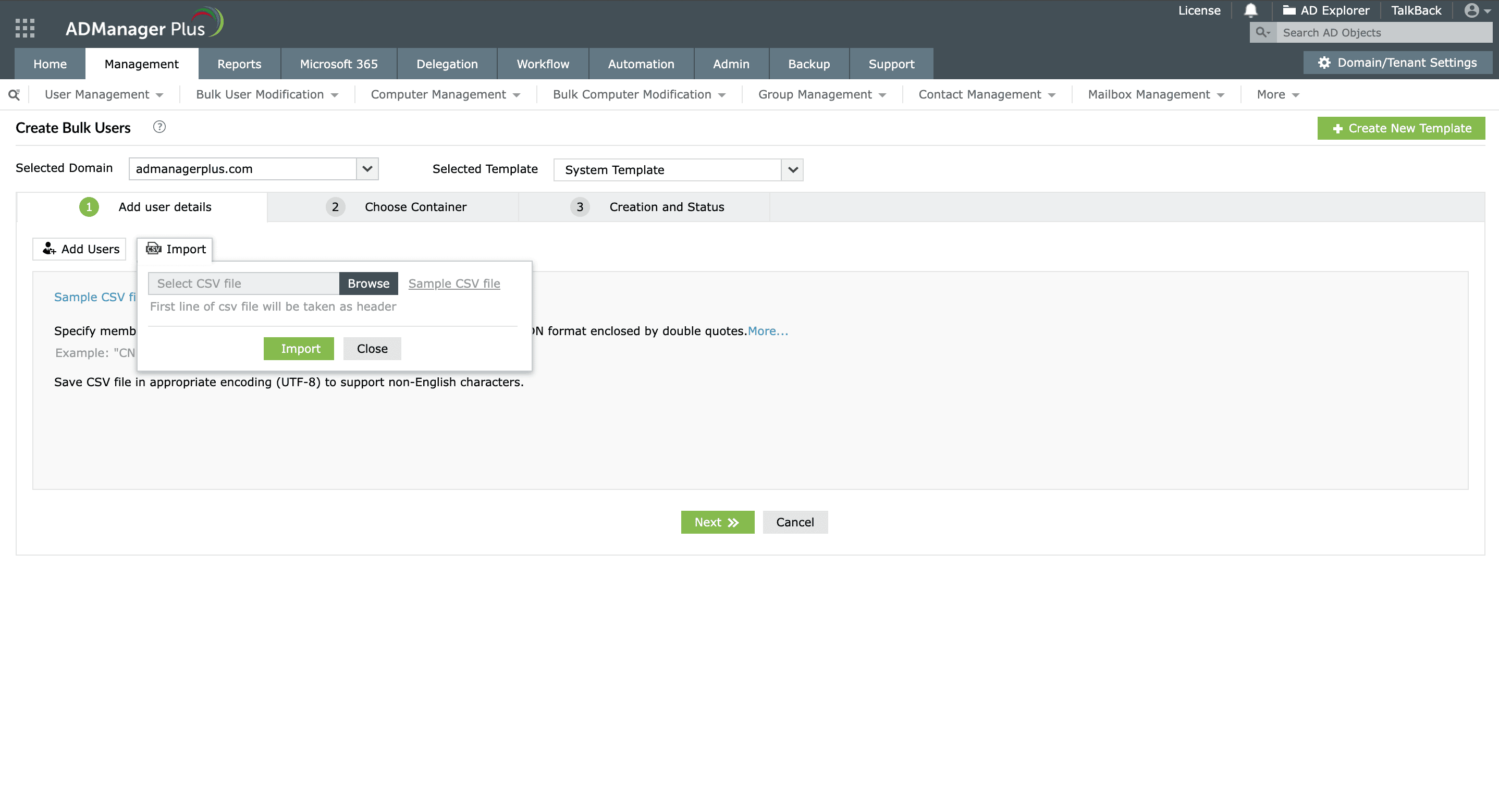 Importing user accounts into Active Directory from a CSV file using ADManager Plus
How to automatically import users into Active Directory
Using ADManager Plus, administrators can also automatically import users into Active Directory at the desired times and on the desired dates, reducing administrative overhead. To automatically import users into Active Directory:
- Log in to ADManager Plus and navigate to the Automation tab.
- Click + Create New Automation.
- Provide a name and description for the automation.
- In the Automation Category field, select User Automation.
- Select the desired domain where you would like to import users.
- In the Automation Task/Policy field, select Create Users.
- Select the desired template that you would to apply to the imported users using the drop-down list.
- In the Location of CSV field, specify the path to your CSV file.
- If you would like to execute this automation only upon approval from a stakeholder, enable the Implement Business Workflow option.
- In the Execution Time section, configure how frequently this automation must be run.
- If you would like to notify stakeholders about this automation, toggle the Enable Notification option on and select the desired Notification Template.
- Click Save & Run to execute the automation immediately.
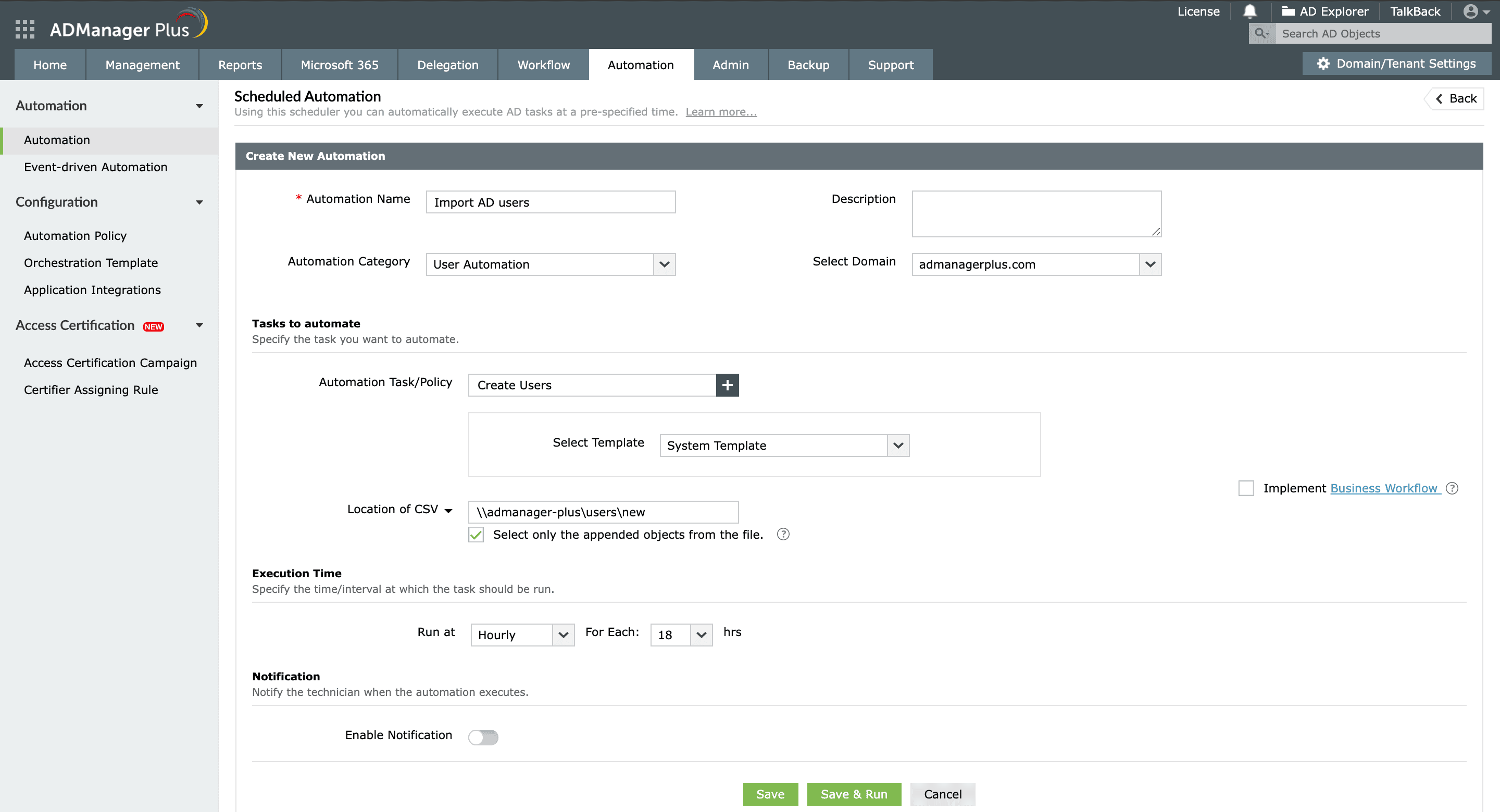 Automatically import users into Active Directory with ADManager Plus' scheduled automations
Use cases for importing users into Active Directory using ADManager Plus
Use case 1: Onboarding new employees
In scenarios where an organization hires multiple employees simultaneously, creating their Active Directory accounts can be a daunting task. The HR team can prepare a CSV file containing essential user details, such as names, usernames, email addresses, and roles, and the IT team can then upload this CSV file into ADManager Plus to create all the user accounts in bulk. This significantly streamlines the onboarding process and ensures that new hires have immediate access to the necessary resources.
Use case 2: Updating passwords in bulk
If an organization mandates a password reset for a specific group of users, the IT team can compile a CSV file containing the usernames and new passwords. Using ADManager Plus, administrators can swiftly update the passwords for all the listed users, enhancing security while minimizing the administrative burden associated with manual password changes.
Benefits of importing users into Active Directory using ADManager Plus
Simplified user provisioning
Provision users in Active Directory along with group memberships, departments, and other relevant attributes without any hassles.
Automated user provisioning
Import users in bulk from CSV files as frequently as desired with powerful automations.
Script-free user importing
Import users into Active Directory without using PowerShell scripts or other native Active Directory tools.
Bulk user importing
Import users in bulk from CSV files and quickly create or update multiple user accounts at once.














