What is a service account in Active Directory?
Think of a service account as a special login that's designed for programs rather than people. When you log into your computer with your username and password, that's your personal user account. But what happens when an application needs to run automatically in the background? That's where service accounts come in.
Unlike your personal account, a service account can't browse the web or check email. Instead, it uses cryptographic keys to authenticate securely.
Picture this scenario: you might manually upload files to cloud storage using your own login, but when a backup program needs to do the same thing every night at 2 am, it relies on a service account to get the job done.
How to create a service account in Active Directory?
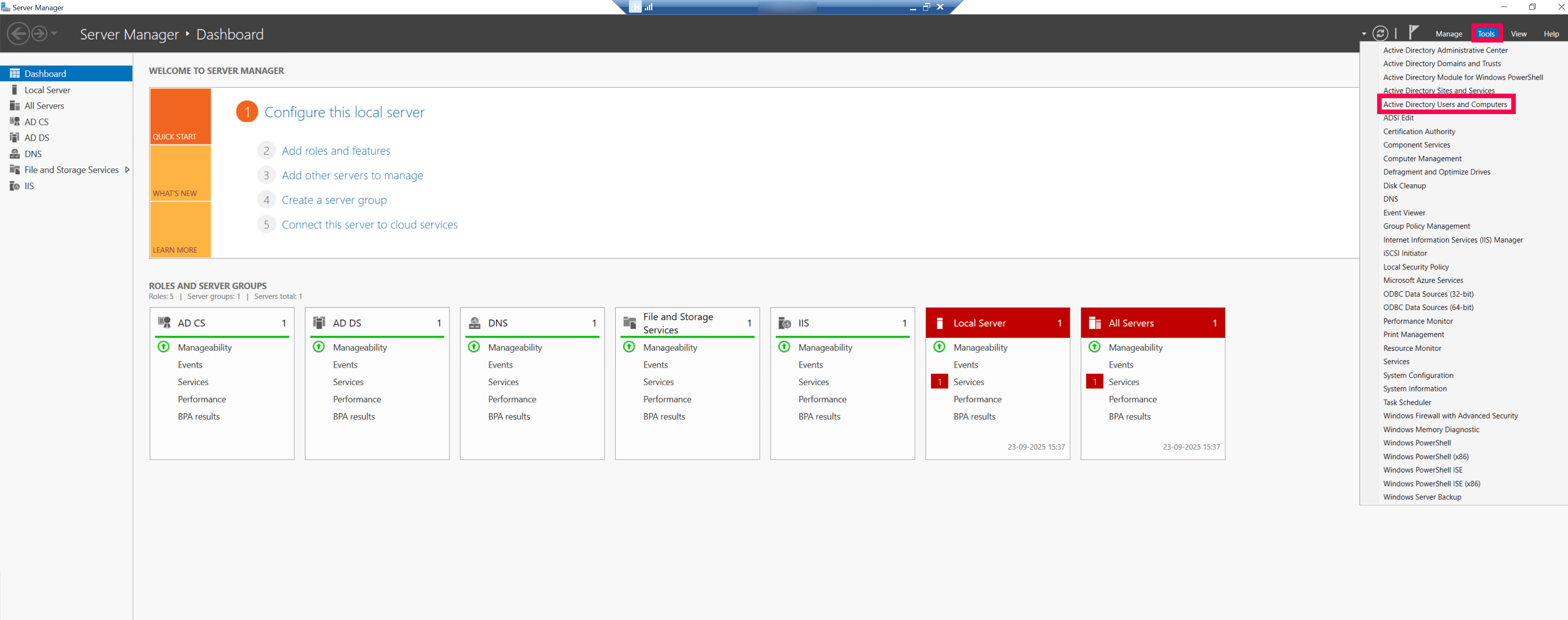
Step 1: Open Active Directory Users and Computers
Go to Server Manager, navigate to Tools, and open Active Directory Users and Computers (ADUC).
Step 2: Find the right location for the account
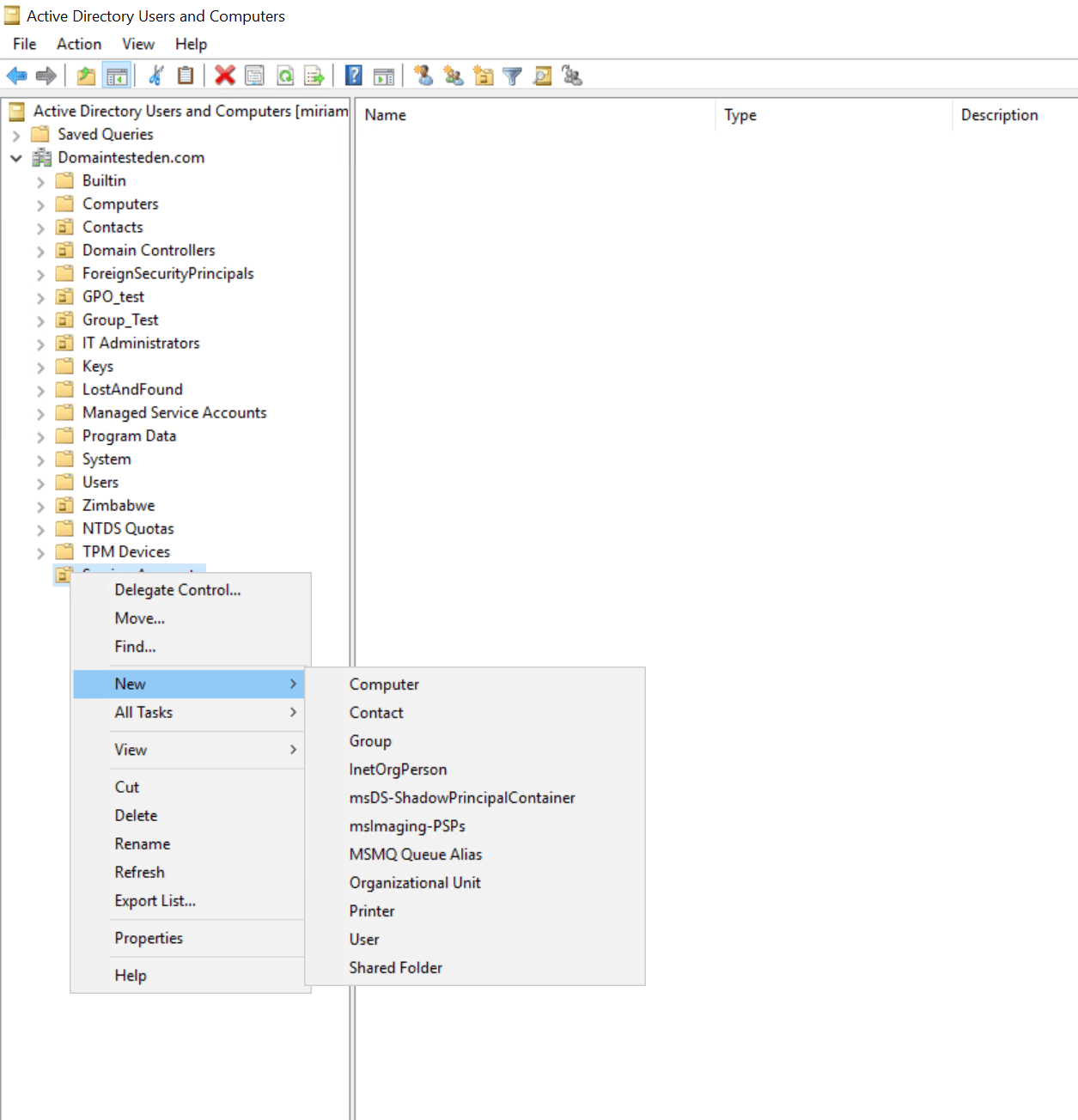
In the ADUC console, find and select the Organizational Unit (OU) where the account should live.
Pro Tip: It's a great practice to have a dedicated OU just for service accounts. This keeps service accounts organized and makes applying policies easier later.
Step 3: Create a new user
Right-click on the chosen OU, then go to New > User.
Step 4: Fill in the account details
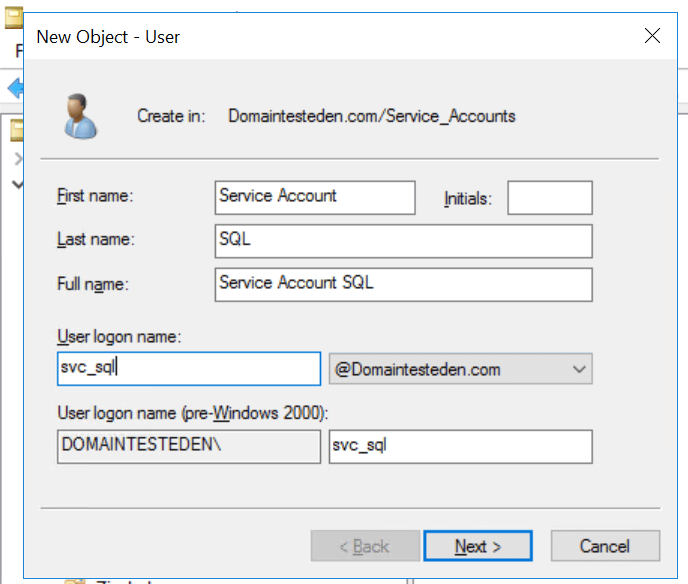
Here's where you give the account its identity:
- First Name: Use something clear such as Service Account or the app name (e.g., Backup).
- Last Name: Specify the service's function, like for SQL or Scheduled Tas'.
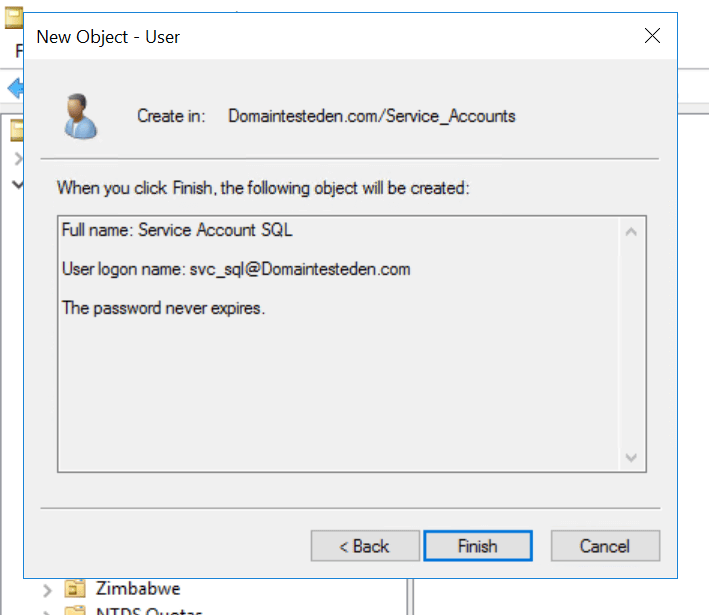
- User logon name: This is the key identifier. Make it meaningful, such as svc_SQL or backup_agent.
- Select the correct UPN suffix from the dropdown and click Next.
Step 5: Set a strong password
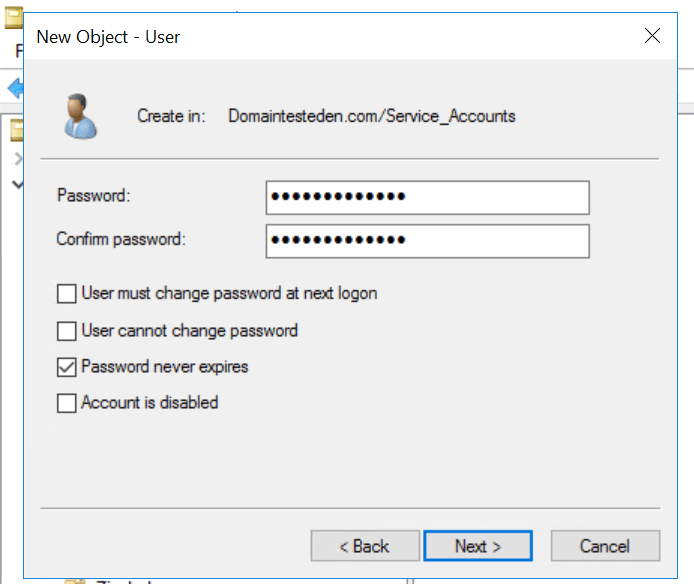
Now, set the password and adjust the critical settings:
- Enter a strong, complex password that meets your organization's policy.
- Uncheck the box for User must change password at next logon. Service accounts can't interactively log in to change passwords.
- Check the box for Password never expires. This prevents scheduled tasks or services from failing due to an expired password.
- Click Next, review the summary, and click Finish to create the account.
Step 6: Grant the necessary permissions
- Add the service account to any necessary security groups.
- Grant access to the specific files or applications it needs.
- Remember the golden rule: only give it the bare minimum permissions required to run. Don't overdo it.
How to find a service account in Active Directory?
Service accounts don't have a single, universal type in Active Directory, so they must be identified by their attributes and behavior. Here are the most effective methods, ranging from simple to advanced:
- Look for managed service accounts (MSA or gMSA): they have objectClass msDS-ManagedServiceAccount or msDS-GroupManagedServiceAccount. Use Get-ADServiceAccount to list them.
Example: Get-ADServiceAccount -Filter *
- Find accounts with Service Principal Names (SPNs) — these often back services (Kerberos principals) and are high-value:
Example: Get-ADUser -Filter {ServicePrincipalName -like *} -Properties ServicePrincipalName | Select Name,SamAccountName,ServicePrincipalName (run from a machine with the ActiveDirectory PowerShell module).
- Find accounts with PasswordNeverExpires or long-unused/forgotten accounts (common for legacy service accounts):
Example: Get-ADUser -Filter {PasswordNeverExpires -eq $true} -Properties PasswordNeverExpires,LastLogonDate | Select Name,SamAccountName,PasswordNeverExpires,LastLogonDate.
Defender for Identity and MS resources use password never expires as a discovery signal.
- Search AD descriptions and naming conventions (Description fields containing service, svc, svc-, svc_, msvc, etc.). Combine LDAP or PowerShell searches and your naming conventions to find likely matches. Many operational guides and tooling recommend this heuristic.
- Correlate with endpoints: scan server or service configurations and scheduled tasks to see which accounts are used to run Windows services or scheduled jobs; this finds hidden service accounts that AD attributes alone may miss. Tools and scripts can remotely query services and scheduled tasks.
- Use Defender for Identity or AD security tools: Microsoft Defender for Identity includes a service-account discovery feature that classifies accounts using SPNs, password never expires, MSA or gMSA object classes, etc. Use these automation features to get a prioritized list.
Notes & tips
- Treat Get-ADServiceAccount results as authoritative for managed accounts (MSA or gMSA), but remember many service accounts are just regular user accounts used by apps.
- Prioritize accounts with SPNs or high privileges — attackers target those first.
Service account vs user account
A service account is designed for running applications or automated tasks, while a user account is intended for human interactive access. Here’s a quick look at their key differences.
| Aspect | Service account | User account |
|---|---|---|
| Purpose | Runs applications, services, or automated tasks | Used by a human for interactive logins and daily activities |
| Account type | Can be Managed Service Account (MSA or gMSA) or a standard AD user repurposed | Standard AD user object |
| Usage | Non-interactive; linked to services, scheduled tasks, or background processes | Interactive; login to systems, email, apps, etc. |
| Password management | Often static, sometimes set to never expire; gMSA automates rotation | Managed by the user; subject to password policies |
| Attributes | Frequently has Service Principal Names (SPNs); may have PasswordNeverExpires | Usually no SPNs; interactive logon enabled |
| Privileges | Often over-privileged to ensure apps run (security risk) | Aligned with the user's role and least privilege model |
| Security focus | Needs monitoring for SPNs, delegation, password risks | Needs monitoring for phishing, account compromise, and misuse |
Types of service accounts in AD
Regular user accounts - The old-school method
Most organizations still use regular user accounts as service accounts. While this works, it's basically like using a hammer when you need a screwdriver. You'll spend time manually resetting passwords, dealing with privilege creep, and struggling to track what these accounts actually do.
Standalone Managed Service Accounts (sMSAs) - A step forward
Microsoft introduced these with Windows Server 2008 R2. They handle their own password changes and work well for single-server scenarios. If you're running IIS or SQL Server on one machine, sMSAs can simplify your life considerably.
Group Managed Service Accounts (gMSAs) - The current best practice
These arrived with Windows Server 2012 and solved most of the problems with traditional service accounts. They're perfect for clustered services or applications running across multiple servers. Active Directory handles password rotation automatically, which means fewer 3 am phone calls about broken services.
Virtual accounts - Local and lightweight
These exist only on individual computers and use the machine's credentials for authentication. They're great for services that don't need network access, but they won't work for enterprise applications that need to talk to other systems.
Service account vulnerabilities
Service accounts, if misconfigured or over-privileged, can become high-value targets for attackers. Let's look at the common risks and how to mitigate them.
| Attack name | How it works | Risk |
|---|---|---|
| Kerberoasting | Attacker requests Kerberos service tickets (TGS) for accounts with SPNs, harvests the tickets (encrypted with the service account's password hash) and cracks them offline to recover the plaintext password. | Compromise of service account credentials → privilege escalation, lateral movement, and potential domain-wide compromise. |
| Orphaned accounts | Decommissioned or forgotten service accounts remain active (or discoverable). An attacker locates and re-enables or reuses them to authenticate. | Silent persistent backdoor with existing permissions — often overlooked by detection and can enable long-term access. |
| Weak & static passwords | Service account passwords set to never expire, are simple, or are hard-coded in scripts/configs. Attackers crack hashes (e.g., via Kerberoasting) or read stored secrets. | Easy compromise of accounts leading to lateral movement, privilege abuse, and long-lived access that is hard to detect. |
| Excessive permissions / privilege escalation | Service accounts are granted broad rights (sometimes Domain Admin) for convenience. If an attacker compromises the service/application, they inherit those privileges. | Immediate high-impact takeover (data access, AD changes, domain compromise) and rapid propagation across the network. |
| Unconstrained Kerberos delegation | Services with delegation flags can obtain service tickets on behalf of users to any target. A compromised delegated service lets attackers impersonate users by stealing/using those tickets. | Impersonation of high-privilege users, wide lateral movement, and access to sensitive systems without needing credentials. |
| Service account credential exposure | Passwords, keys, or certificates are stored in plaintext (configs, scripts, registry) on hosts. An attacker with host access extracts these credentials and authenticates as the service account. | Direct authentication as the service account enabling lateral movement, privilege abuse, persistence, and data exfiltration. |
Service account management best practices
Organize with dedicated OUs: Put all service accounts in their own Organizational Unit. This isn't just about being neat - it makes policy application and reporting much easier. When you need to find all service accounts quickly, you'll know exactly where to look.
Follow least privilege persistently Give each account only the permissions it absolutely needs. Set up regular reviews to catch privilege creep before it becomes a problem.Don't grant service accounts with domain admin rights just to be safe.
One service, one account: Don't reuse service accounts across multiple applications. When something goes wrong, you want to know exactly which service caused the problem. Shared accounts turn troubleshooting into guesswork.
Embrace gMSAs when possible: For modern Windows environments, Group Managed Service Accounts solve most traditional issuesThey're designed specifically for this purpose.
Use meaningful names: Six months from now, will you remember what service01 does? Use a naming convention such as svc_<Application>_<Environment>. Your future self will appreciate the clarity.
Handle passwords properly: Use managed service accounts whenever possible. If you must use traditional accounts, implement proper password rotation. Setting passwords to never expire isn't security - it's procrastination.
Lock down interactive access: Service accounts shouldn't be logging into desktops. Configure the accounts to deny interactive logon rights and restrict whatthey can authenticate.
Monitor everything: Keep track of login patterns, failed attempts, and permission changes. Unusual activity often indicates either a problem or a security issue.
Clean house regularly: Review your service accounts periodically. Disable or remove accounts that are no longer needed; every unused account is a potential security risk.
How ADManager Plus helps you manage service accounts in Active Directory
ADManager Plus is an Active Directory management and reporting solution that provides specific functionalities to streamline and secure the management of service accounts. Here is how it assists:
Everything in one place:Manage service accounts across multiple domains from a single interface;no more jumping between different tools or domain controllers.
Bulk operations that save time: Need to disable fifty old service accounts? Do it all at once instead of clicking through each one individually.
Reports that actually help: Get meaningful information about service account usage, permissions, and compliance. When auditors come knocking, you'll be ready.
Smart delegation: Give helpdesk staff just enough access to handle routine tasks without handing over unnecessary permissions. Everyone stays productive without compromising security.