Delegate domain join permissions in Active Directory
Delegating permissions to join a computer to a domain might sound simple, but under the hood, it’s all about permissions, who’s allowed to do it, how it’s controlled, and why it matters. Understanding this is a key to keeping your directory both secure and well structured.
What are domain join permissions?
Domain join permissions define who can add computers to the domain and how that action is governed. You don’t want to give someone domain admin rights just to let them join a workstation, that’s like handing over your house keys because someone needs to water the plants. Instead, you can safely delegate domain join permissions to specific users or groups without giving them full administrative power.
These permissions are part of the access control list (ACL) tied to an OU or container where computer objects live. The ACL decides who can create, delete, or join computers to the domain, and these rights are usually shaped by how you delegate permissions to the technicians who manage those tasks. For instance:
Some can create and delete computer objects.
Others can only join pre-staged computers to the domain.
This fine-grained control ensures that each team does only what it’s supposed to.
Who can join computers to the domain by default?
By default, any authenticated user can join a computer to the domain, but only up to 10 devices because of the “Add workstations to domain” user right. Domain Admins and Enterprise Admins aren’t restricted and can join unlimited machines.
Before authentication, a regular user can join a device only if their credentials include the Add workstations to domain right, they haven’t exceeded the 10-device limit, and they have permission to create or update the computer object in the target OU.
In reality, many users don’t have this right at all, and even when they do, the 10-device cap, lack of OU permissions, and several underlying risk factors in AD can turn unmanaged domain joins into a security concern. Users might add devices outside IT’s control, place them in the wrong OU, or accidentally introduce non-compliant or untrusted machines.
That’s why delegation is necessary. It lets IT assign domain join rights only to approved technicians, remove the device limit, ensure computers land in the correct OU, and maintain tighter control over what gets added to the domain.
How to delegate domain join permissions in Active Directory
When you delegate domain join rights to a user, you’re essentially saying:
“This user can add computers to this OU but cannot delete or modify anything else.”
This avoids handing out domain admin rights for a simple task and keeps domain join operations controlled and secure. You can delegate these permissions in the following ways.
Using Group Policy Management Console (GPMC)
Using ADUC
Using PowerShell
Using ADManager Plus
How to delegate domain join permissions using Group Policy Management Console (GPMC)
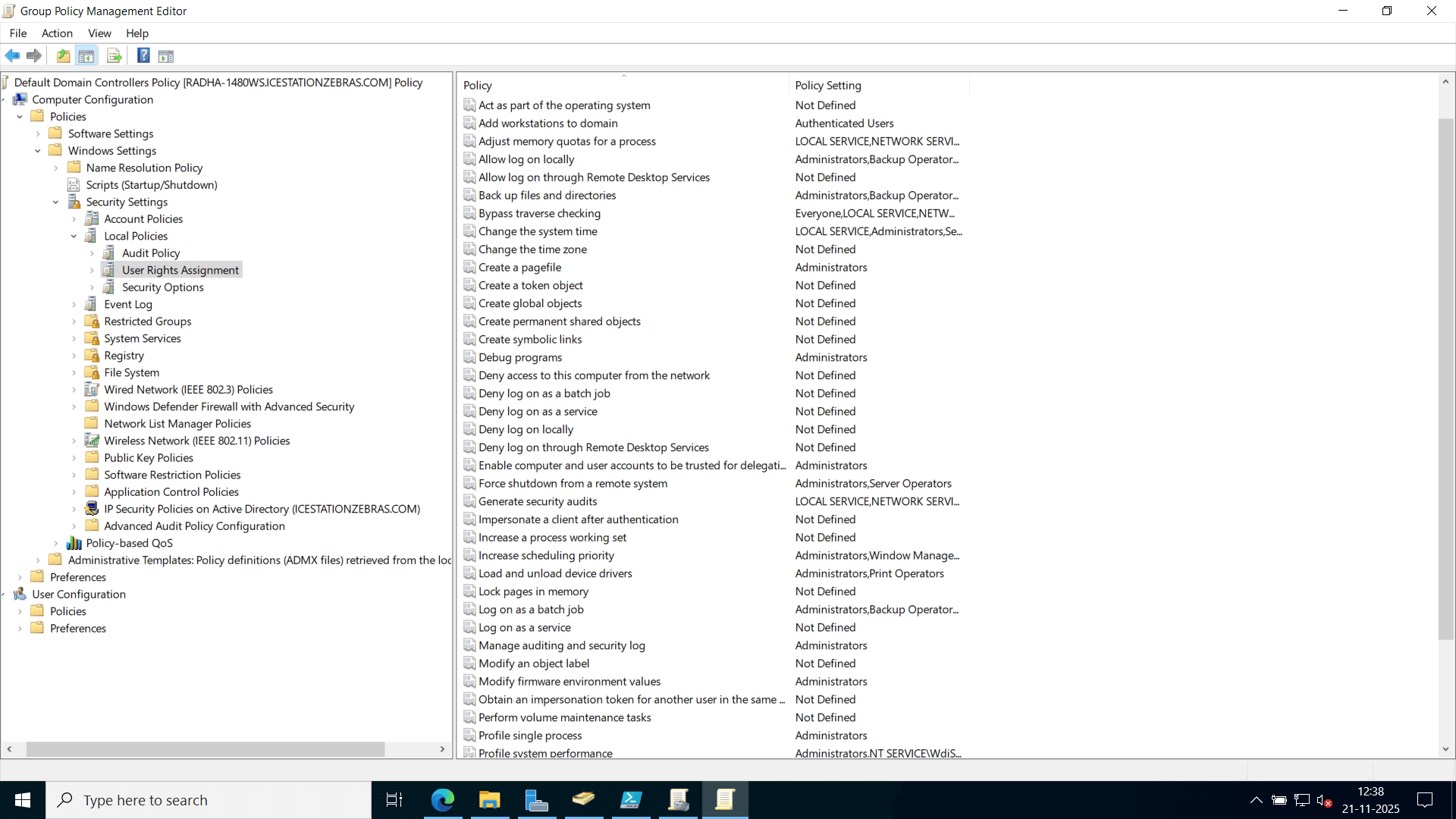
If you want users to join computers anywhere in the domain, follow the steps below. By default, users can join up to 10 devices, but you can modify this limit through PowerShell or ADSI Edit if needed.
Open GPMC.
Edit the Default Domain Controllers Policy or create a new one.
Go to Computer Configuration → Windows Settings → Security Settings → Local Policies → User Rights Assignment.
Double-click Add workstations to domain.
Add the users or groups who should have this permission.
 How to delegate domain join permissions using the Delegation Wizard in ADUC
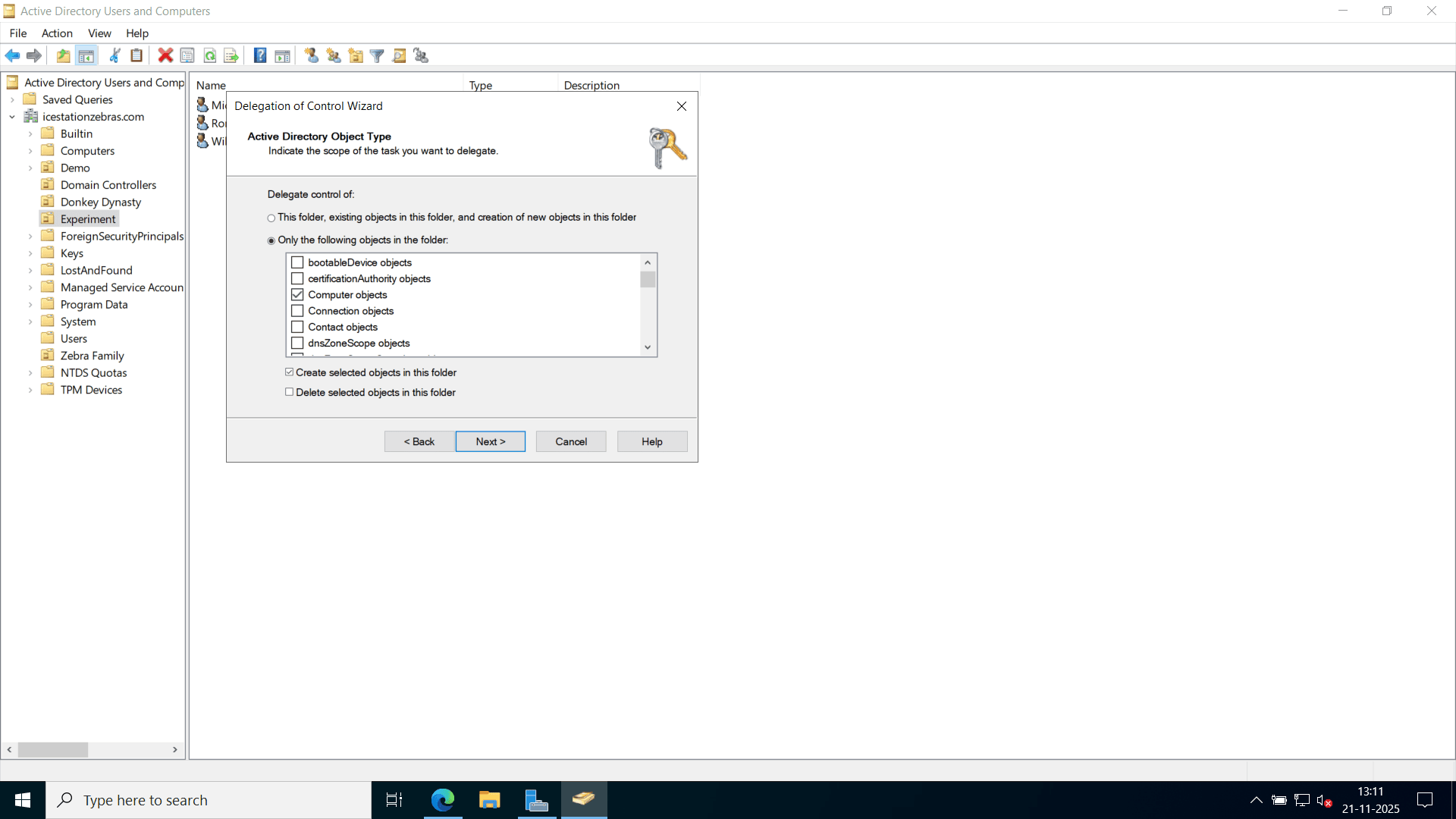
If you want users to join computers only under specific OUs:
Open Active Directory Users and Computers (ADUC).
Right-click the OU where you want to allow domain joins and select Delegate Control.
Click Next.
Add the user or group and click Next.
Choose Create a custom task to delegate and click Next.
Select Only the following objects in the folder, check Computer objects, and then select Create selected objects in this folder. Click Next.
Under Permissions, select Create all child objects or Write all properties as needed. Click Next.
Click Finish.
 How to delegate domain join permissions using PowerShell
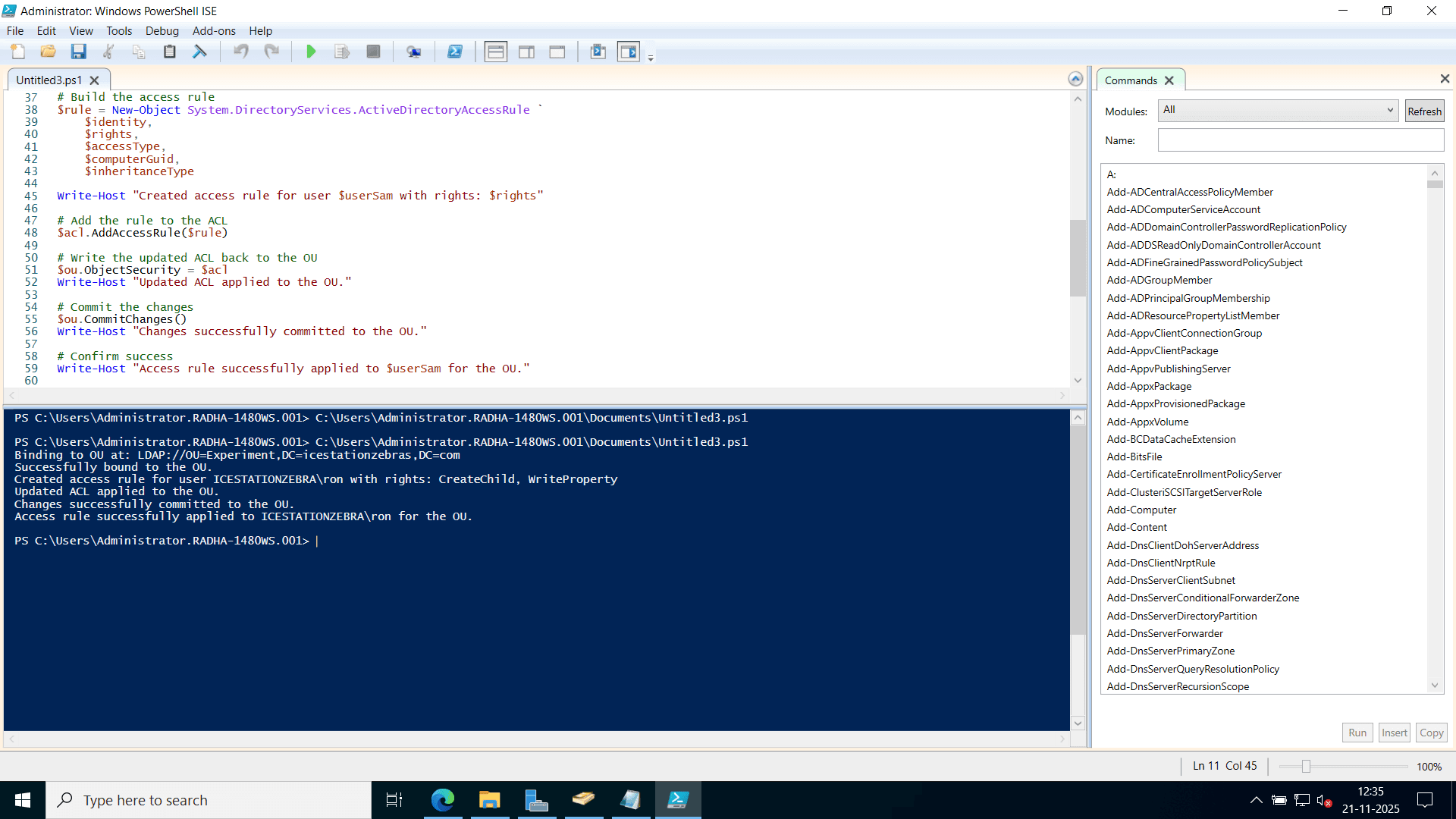
You can delegate domain join permissions with PowerShell by modifying the OU’s ACL directly. This is useful when automating bulk setups or enforcing consistent OU-level permissions.
$OU = "OU=Workstations,DC=example,DC=com"
$User = "example\UserA"
$acl = Get-ACL "AD:$OU"
$rule = New-Object System.DirectoryServices.ActiveDirectoryAccessRule `
(New-Object System.Security.Principal.NTAccount($User),
"CreateChild, WriteProperty",
"Allow",
[GUID]"bf967a86-0de6-11d0-a285-00aa003049e2") # GUID for computer objects
$acl.AddAccessRule($rule)
Set-ACL -Path "AD:$OU" -AclObject $acl
 Note:
Note:
The AD: drive is available only when the Active Directory PowerShell module is installed and loaded.
If you get an error like “A drive with the name 'AD' does not exist”, load the module using:
Import-Module ActiveDirectory
If the module isn’t installed, add the RSAT feature:
On Windows 10/11, go to Settings → Optional Features → Add a feature → RSAT: Active Directory Domain Services and Lightweight Directory Tools.
On Windows Server, install it using this command:
Install-WindowsFeature RSAT-ADDS
Troubleshooting tips
A frequent problem when delegating domain join rights is the different credentials error, which is “The user who is joining the computer has different credentials than the one who created the computer object.”
This happens because:
The computer object was pre-staged by one user, but another user is trying to join it.
The second user doesn’t have permission to update the existing object.
Solution
Give the joining user write permissions on those existing computer objects.
Alternatively, delegate Validated write to DNS host name and Validated write to service principal name. These enable the user to update attributes during the join process.
Best practices for domain join delegation
Follow least privilege: Grant join permissions only where needed, usually specific OUs, not the whole domain.
Use a service account instead of a domain admin account: Use a dedicated service account just for domain join operations.
Use pre-staged computer accounts: Create computer objects in advance and control who can join them.
Separate create and join permissions: One group manages computer creation, another handles joining to those pre-staged objects.
Audit and review regularly: Misconfigured permissions are common attack paths. Review delegated rights periodically.
Automate where possible: Manual delegation doesn’t scale well in large environments. Use active directory automation tools like ADManager Plus.
Delegate domain join permissions with ADManager Plus
Manually implementing the best practices above is time-consuming and error-prone, especially when permissions, compliance, and delegation span multiple servers and OUs. That’s where ADManager Plus comes in.
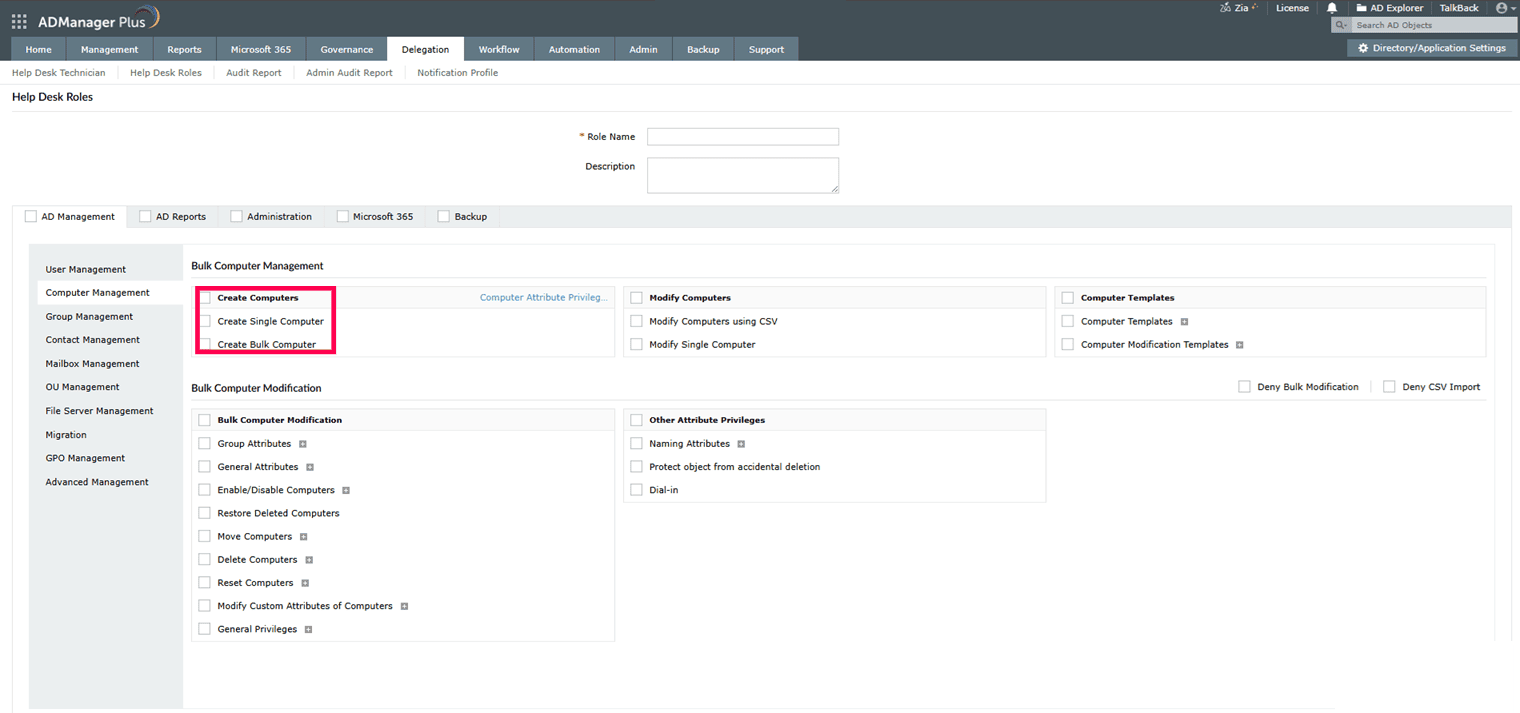
Sign in to ADManager Plus.
Go to Delegation > Help Desk Delegation > Help Desk Roles.
Click + Create New Role.
Enter a role name.
Choose Computer Management and select Create Bulk Computer and Protect object from accidental deletion.
Go to Delegation > Help Desk Delegation > Help Desk Technicians.
Click + Add New Technician to create a new technician.
Assign the newly created role to the technician for the required OU.
Benefits of using ADManager Plus to simplify delegation in Active Directory
Centralized user and computer management
Manage users, groups, and computers from one console, with the ability to create, modify, disable, or move objects across OUs without switching tools.
Access more than 200 prebuilt reports, including OU-based reports, recently modified or created objects, computers trusted for delegation, privileged access, and more.
Active Directory account provisioning templates
Use customizable templates for user and computer creation or modification to standardize provisioning, reduce errors, and speed up routine tasks.
Assign exact permissions like domain join, moving, or modifying computers without granting full admin rights, while audit reports track every delegated action and custom approval workflows enforce maker-checker control before tasks are executed.
Schedule automated AD actions and trigger workflows when specific events occur, even across multiple applications, cutting down manual effort and speeding up response times.
Detect and review privileged access, identify permission anomalies, and run access reviews to maintain least-privilege access across the environment.