User Account Control (UAC) is a Windows security feature that prompts users for permission or an administrator password before allowing changes that could affect system settings or files. While UAC helps protect against malware and unauthorized changes, enterprise environments often need to configure UAC settings centrally using Group Policy Objects (GPO) to meet specific security policies or operational requirements.
This article explains how to configure UAC group policy settings using: PowerShell, the Group Policy Management Console (GPMC), and ManageEngine ADManager Plus.
You must have Domain Administrator privileges to edit Group Policy Objects (GPOs).
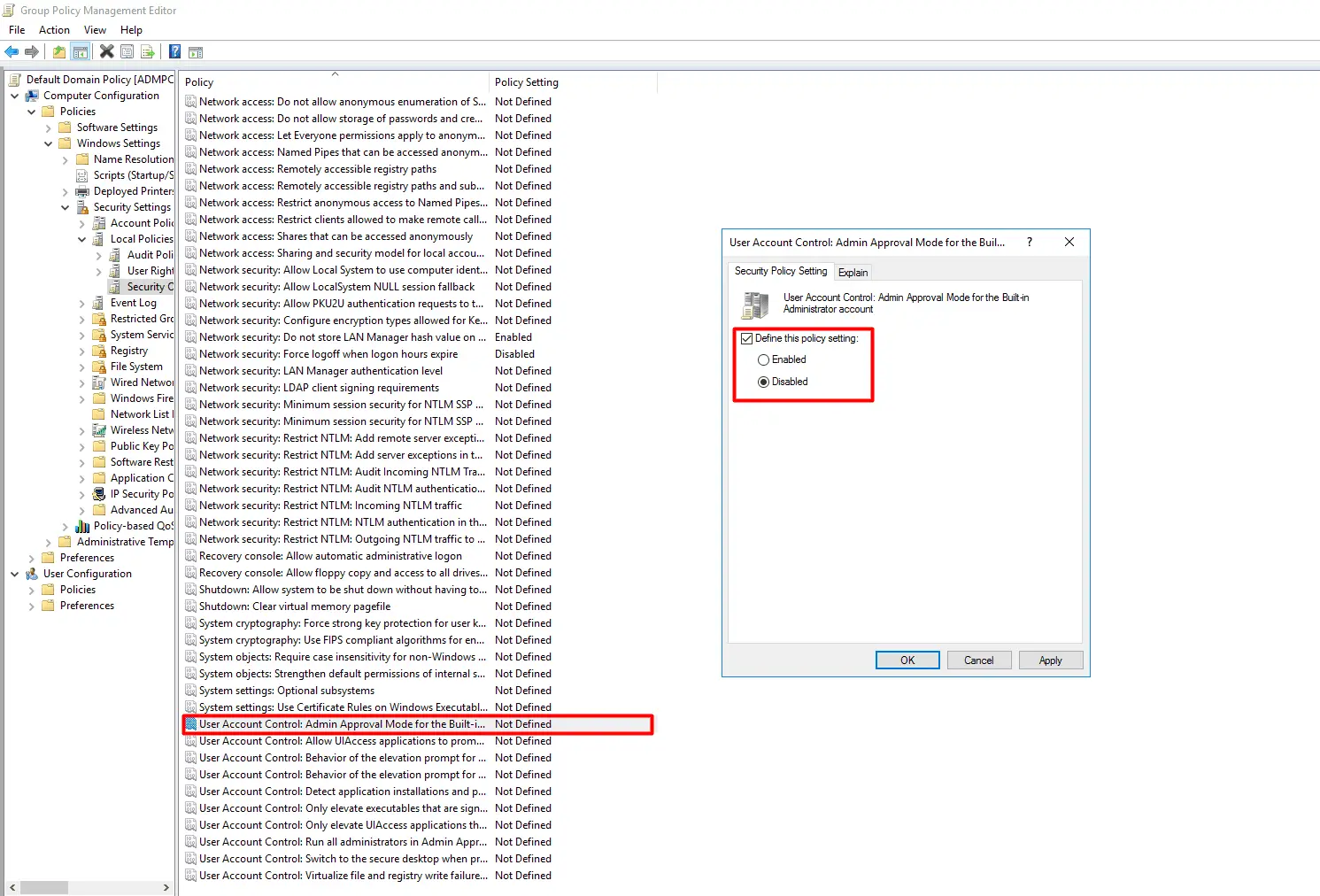
You can fine-tune individual UAC behaviors without fully disabling the feature. Within the same Security Options path, configure the following policies as needed:
User Account Control: Behavior of the elevation prompt for administrators in Admin Approval Mode — Controls how admins are prompted for elevation.
User Account Control: Behavior of the elevation prompt for standard users — Controls how standard users respond to elevation requests.
User Account Control: Detect application installations and prompt for elevation — Enables or disables prompts for software installs.
User Account Control: Only elevate UIAccess applications that are installed in secure locations — Restricts elevation to applications in protected directories.
Use the following PowerShell script to disable UAC for all users in a target OU by modifying registry settings within a GPO. To enable UAC, change the Value parameter from 0 to 1.
									Import-Module GroupPolicy

									$gpoName = "Configure UAC Settings"

									$targetOU = "OU=Workstations,DC=yourdomain,DC=com"

									# Create and Link GPO if it doesn't exist

									if (!(Get-GPO -Name $gpoName -ErrorAction SilentlyContinue)) { New-GPO -Name $gpoName }

									New-GPLink -Name $gpoName -Target $targetOU -ErrorAction SilentlyContinue

									# Disable UAC for all users (Computer Configuration)

									Set-GPRegistryValue -Name $gpoName `

									-Key "HKLM\Software\Microsoft\Windows\CurrentVersion\Policies\System" `

									-ValueName "EnableLUA" `

									-Type DWord `

									-Value 0
You can fine-tune individual UAC behaviors without fully disabling the feature. The base script structure remains the same as above with only the -ValueName and -Value parameters changed for each setting. The sections below highlight only those differences.
Controls how administrators are prompted when an operation requires elevated privileges. Change the -ValueName and -Value parameters as shown:
									-ValueName "ConsentPromptBehaviorAdmin" `
									-Value <integer>
Accepted integer values:
0 — Elevate without prompting (silently grants elevation)
1 — Prompt for credentials on secure desktop
2 — Prompt for consent on secure desktop
3 — Prompt for credentials
4 — Prompt for consent
5 — Prompt for consent for non-Windows binaries (default)
Controls how standard users respond to operations that require elevation. Change the -ValueName and -Value parameters as shown:
									-ValueName "ConsentPromptBehaviorUser" `
									-Value <integer>
Accepted integer values:
0 — Automatically deny elevation requests
1 — Prompt for credentials on secure desktop
3 — Prompt for credentials (default)
Enables or disables UAC prompts when Windows detects a software installation package. Change the -ValueName and -Value parameters as shown:
									-ValueName "EnableInstallerDetection" `
									-Value <integer>
Accepted values:
1 — Enabled: prompt for elevation when an installer is detected (default for Home editions)
0 — Disabled: no prompt (default for Enterprise editions)
Restricts access via the File Explorer to applications installed in secure directories such as Program Files or System32. Change the -ValueName and -Value parameters as shown:
									-ValueName "EnableSecureUIAPaths" `
									-Value <integer>
Accepted values:
1 — Enabled: only applications in secure locations can request UIAccess elevation (default)
0 — Disabled: any application can request UIAccess elevation regardless of install location
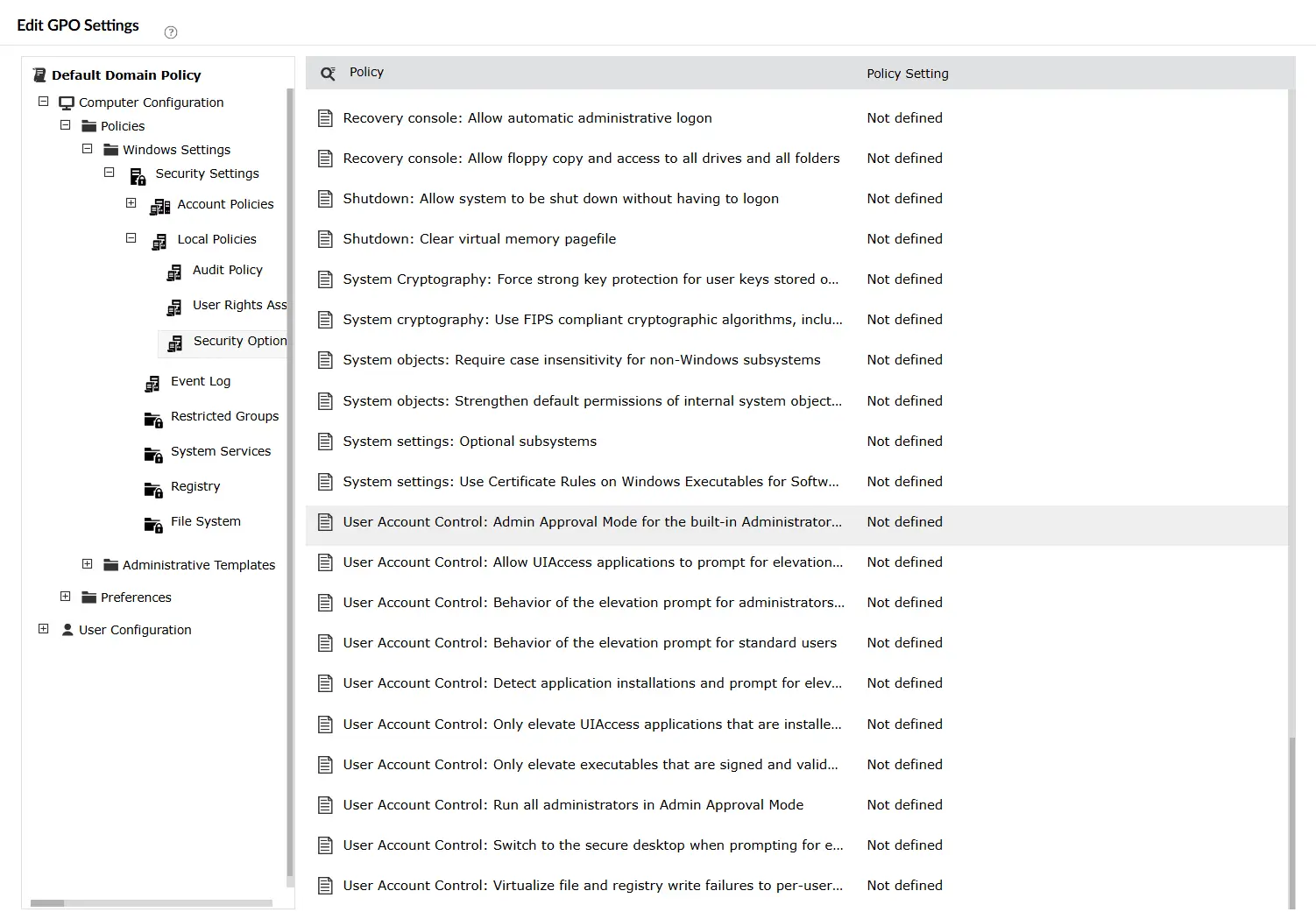
Note: To configure individual UAC behavior settings using ADManager Plus, follow the same steps above and navigate to the same Security Options path.
While PowerShell and GPMC are powerful tools, relying on them for UAC group policy settings management can present several challenges:
ADManager Plus—an AD management and reporting solution—helps admins perform GPO management tasks with a script-free, easy-to-use interface.
User Account Control (UAC) is a Windows security feature designed to prevent unauthorized changes to the operating system. It ensures that apps always run with the limited permissions of a non-administrator account, unless an administrator explicitly authorizes elevated access. This helps prevent the impact of malware by requiring a confirmation before any high-impact changes are made to the system.
UAC settings in Security Options are Computer Configuration policies and apply to machines, not individual users. To target specific machines, link the GPO to the OU containing those computers, or use Security Filtering on the GPO to limit its scope to specific machine accounts.
Disabling UAC does not directly disable Windows Defender. However, some Windows Defender features rely on UAC to prompt for elevated permissions. Disabling UAC may reduce the visibility of certain security prompts related to Defender. If you need to disable Windows Defender Group Policy settings, those are managed separately under Computer Configuration > Administrative Templates > Windows Components > Microsoft Defender Antivirus.
Yes. Since UAC GPO settings are applied at the computer level, disabling or modifying UAC behavior affects all users who log into the targeted machines, including both standard users and administrators.
Yes. UAC group policy settings are fully reversible. To re-enable UAC, set the EnableLUA registry value back to 1 within the GPO, or remove the policy entirely. Changes will apply at the next Group Policy refresh or system restart.

