A BitLocker Group Policy Object (GPO) defines how disk encryption is configured and enforced across domain-joined devices using Group Policy.
Instead of leaving encryption to individual users, organizations use Group Policy to decide how BitLocker should behave across all systems. That includes how drives are encrypted, how users unlock them, and where recovery keys are stored. The shift here is important. Encryption stops being a user action and becomes a controlled security policy driven by effective Group Policy management.
What this really means is that once a BitLocker GPO is applied, the system takes over. Users don't decide whether encryption happens or how it's configured. It's already defined.
To understand how a BitLocker GPO functions, it helps to look at how BitLocker behaves without it.
On a standalone machine, BitLocker is enabled manually. The user decides when to encrypt, how to unlock the device, and where to store the recovery key. This works for individuals, but it creates inconsistency at scale.
In a domain environment, Group Policy changes that completely. As soon as a device joins the domain and falls under a BitLocker GPO, the system begins enforcing encryption rules. It checks whether the device meets requirements like Trusted Platform Module (TPM) availability and Secure Boot, ensures recovery keys are backed up to Active Directory, and then starts encryption if everything is aligned.
So instead of asking users to enable encryption, the system quietly does it in the background. That's why BitLocker deployment via GPO is often referred to as silent or automatic encryption.
All BitLocker settings are configured in one place within Group Policy.
You'll find them under:
Computer Configuration > Policies > Administrative Templates > Windows Components > BitLocker Drive Encryption
Within this path, policies are grouped based on drive type. Operating system drives, fixed data drives, and removable drives are all handled separately. This structure matters because each type of drive carries a different risk profile and needs different controls.
BitLocker GPO settings define how encryption is applied and enforced across devices. While there are many options available, a few settings have a direct impact on security, usability, and recovery.
Recovery key backup is one of the most critical configurations in BitLocker.
Organizations should ensure that recovery information is automatically stored in Active Directory or another secure location. This guarantees that encrypted data can always be recovered if users lose access to their keys. It's also good practice to enforce policies that require the recovery key to be backed up before encryption begins, preventing devices from being locked without a recovery option.
BitLocker allows administrators to define the encryption algorithm and key length used across devices.
Most environments choose stronger options like XTS-AES 256-bit encryption for better protection, although 128-bit may still be used where performance is a concern. These settings can also be applied differently for operating system drives, fixed drives, and removable drives, giving more granular control over encryption standards.
Authentication settings determine how users unlock encrypted systems.
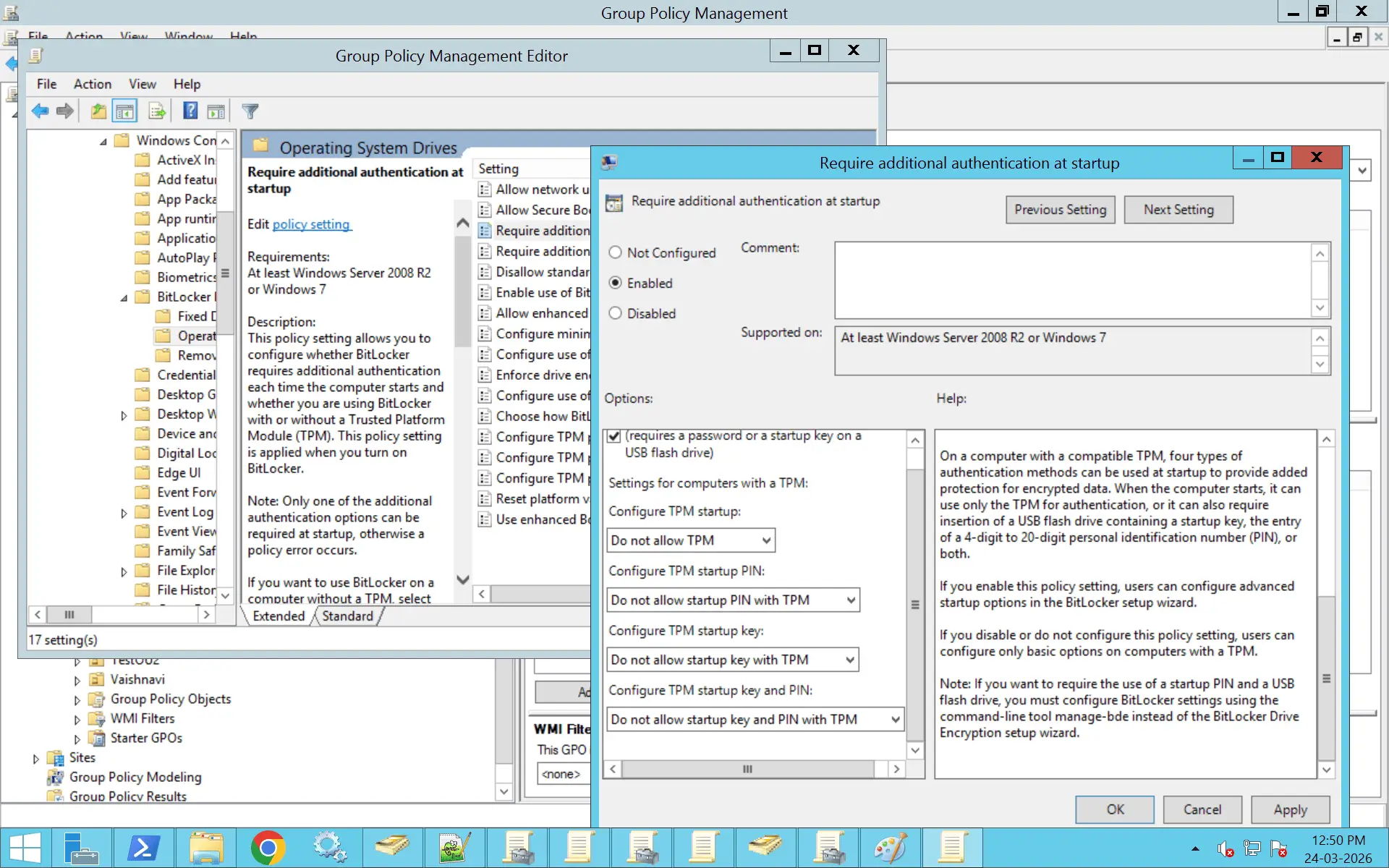
Organizations can use TPM for a seamless experience where encryption happens transparently, or require additional factors such as a PIN, password, or USB startup key for added security. These choices directly affect the balance between security and user convenience, especially for endpoint devices.
BitLocker policies also include settings that help protect against hardware-level threats.
For example, administrators can restrict direct memory access from external devices when a system is locked, reducing the risk of attacks through ports like Thunderbolt. Additional configurations, such as smart card authentication, can further strengthen access control depending on organizational requirements.
BitLocker behavior can be customized based on the type of drive being protected.
Operating system drives often require stricter controls, including pre-boot authentication and TPM validation. Fixed drives are typically encrypted silently without user interaction, while removable drives can be tightly controlled by enforcing encryption before allowing data to be written. This ensures that sensitive data remains protected even when stored on external devices.
When BitLocker is used with TPM, Platform Configuration Registers (PCRs) play a key role in system security.
PCRs are responsible for performing integrity checks during the boot process. They verify that critical components of the system, such as firmware and boot configuration, have not been altered. If these checks pass, the TPM releases the BitLocker encryption keys and the system boots normally. If not, access is blocked to prevent potential compromise.
PCR-related settings are managed through Group Policy and differ based on system firmware. Separate configurations exist for:
Each PCR corresponds to a specific integrity check, and multiple PCRs can be enabled depending on the level of validation required. While these checks strengthen security, they can also trigger BitLocker recovery if low-level system changes are detected, such as firmware updates or hardware modifications.
Because of this, organizations should ensure that recovery mechanisms are in place. Providing users or IT teams with quick access to recovery keys helps avoid disruption if a system enters recovery mode due to PCR validation.
BitLocker GPO settings are largely consistent across Windows 10 and Windows 11, but the experience is not identical.
Windows 11 devices tend to support automatic encryption more smoothly because TPM 2.0 and Secure Boot are standard. This makes silent deployment more reliable.
On Windows 10, especially with older hardware, you may run into situations where TPM is missing or not properly configured. In those cases, encryption might require manual steps or additional policy adjustments.
So while the configuration looks the same, the outcome depends heavily on the device.
Before enabling BitLocker using GPO, the environment needs to be ready.
The device must be domain-joined, since a GPO only applies to managed systems. Most modern deployments rely on TPM 2.0, which allows encryption to happen automatically without requiring user input. Secure Boot also plays a role, especially when you want silent enablement to work reliably.
Active Directory needs to be properly configured as well. If recovery key storage is not enforced or permissions are missing, devices can still encrypt but fail to back up recovery information. That becomes a serious issue the moment a system needs to be recovered.
BitLocker deployment through GPO is designed to be automatic.
On modern Windows 10 and Windows 11 systems, most of the prerequisites are already in place. TPM is available, Secure Boot is enabled, and the device is domain-joined. Once the GPO is applied, the system evaluates these conditions and begins encryption without asking the user.
Recovery keys are automatically stored in Active Directory, and encryption continues in the background. From the user's perspective, nothing really happens. From an admin's perspective, everything is controlled.
That's the core advantage of using BitLocker GPO. It scales without relying on user behavior.
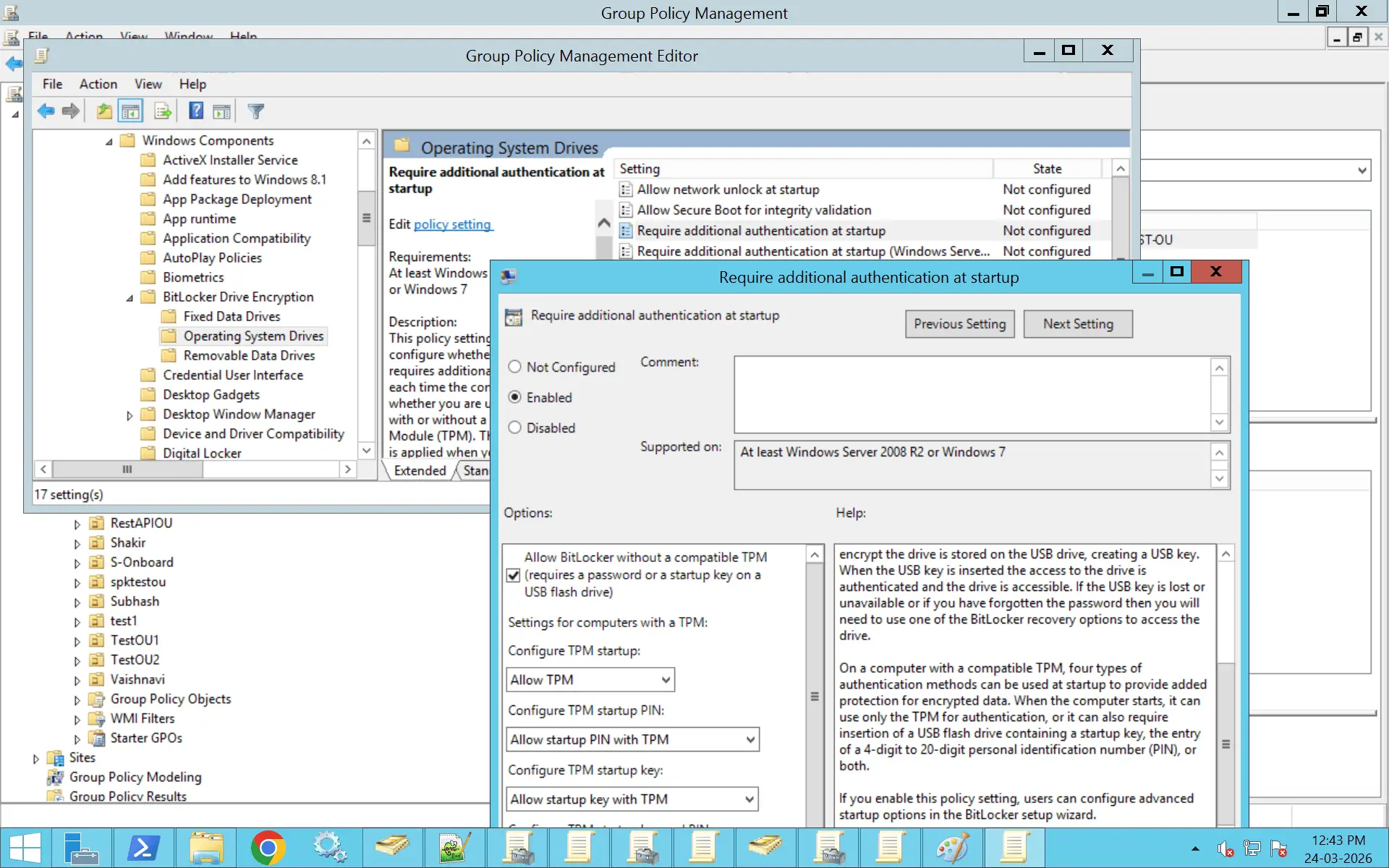
Not every system comes with TPM, especially in older environments.
In those cases, BitLocker can still be used, but it requires a different setup. You need to explicitly allow BitLocker without a compatible TPM through Group Policy. Once that is enabled, the system falls back to alternative authentication methods like a password or a USB startup key.
This approach works, but it introduces more friction compared to TPM-based encryption. That's why TPM is generally preferred wherever possible.
To decrypt the drive, run the following on the endpoint:
manage-bde -off C:
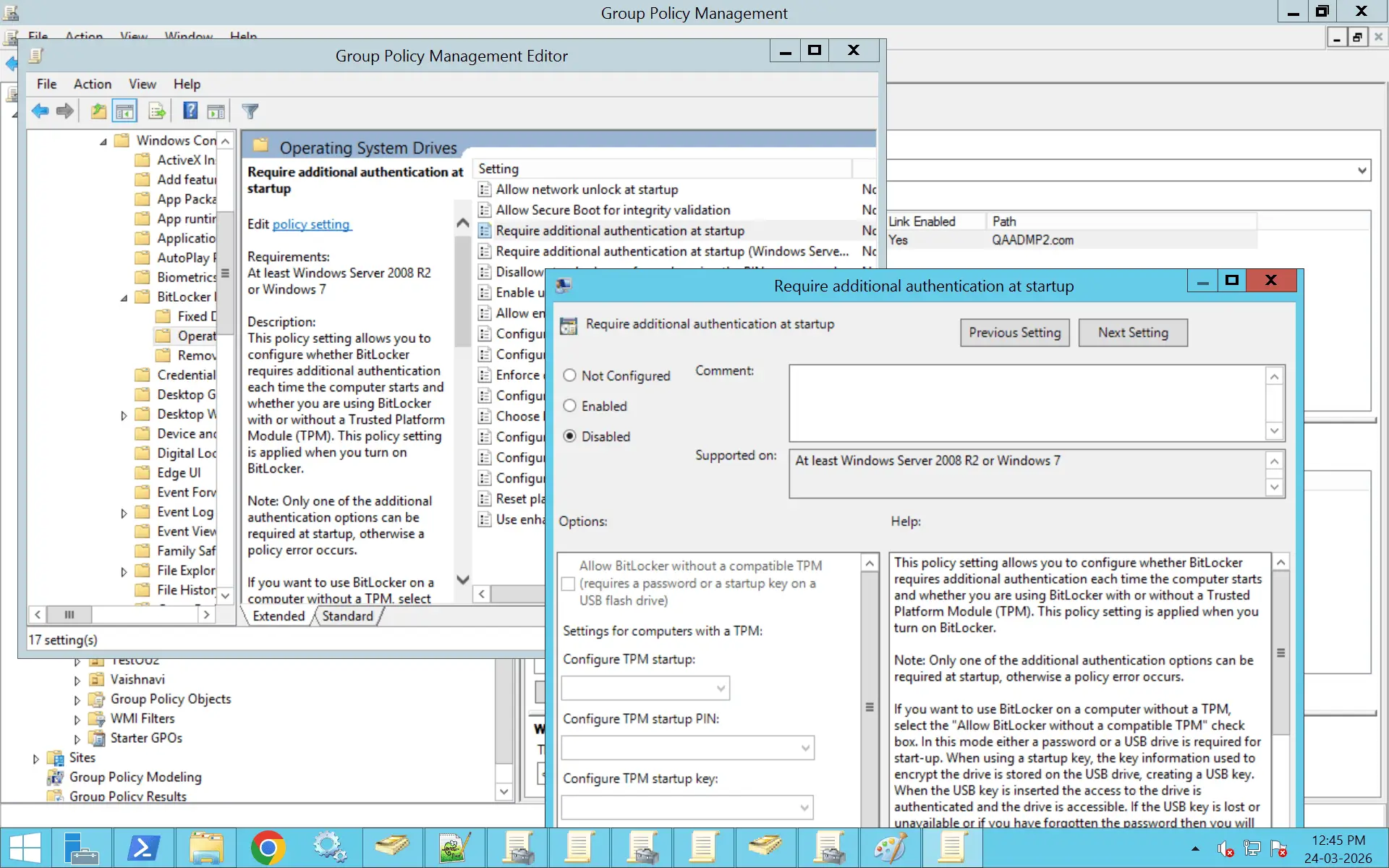
Enable-BitLocker -MountPoint "C:" -EncryptionMethod XtsAes256 -UsedSpaceOnly -TpmProtector
Enable-BitLocker -MountPoint "C:" -EncryptionMethod XtsAes256 -UsedSpaceOnly - TpmAndPinProtector -Pin (ConvertTo-SecureString "123456" -AsPlainText -Force)
Backup-BitLockerKeyProtector -MountPoint "C:"
Disable-BitLocker -MountPoint "C:"
manage-bde -off C:
This is useful when the policy is applied but encryption has not started automatically.
BitLocker can be managed through both Group Policy and Intune, and the difference comes down to where control lives.
Group Policy is tied to on-premises Active Directory. It works best for domain-joined devices and is often more predictable in traditional environments.
Intune, on the other hand, is cloud-based. It's designed for modern device management, especially in remote or hybrid setups.
Problems usually appear when both are used without a clear boundary. A device might receive conflicting policies from GPO and Intune, leading to errors like recovery keys not backing up or encryption failing silently.
The key here is consistency. Pick a primary management method per device and avoid overlapping control.
Error: BitLocker does not start even after the GPO is applied, and the drive remains unencrypted.
Solution:
Error: The device encrypts successfully, but the recovery key is not stored in Active Directory.
Solution:
Error: BitLocker shows as suspended or encryption does not complete.
Solution:
Error: External drives cannot be written to even when unlocked.
Solution:
Error: Devices continue using TPM-only authentication even after configuring TPM + PIN in GPO.
Solution:
Error: BitLocker does not start automatically even though a GPO is configured for automatic enablement.
Solution:
Error: BitLocker fails with a message indicating policy conflict during recovery key backup.
Solution:
Error: gpresult shows the GPO is applied, but BitLocker behavior does not change.
Solution:
Ensure recovery keys are stored in Active Directory before encryption starts to avoid data loss scenarios.
Standardize on XTS-AES 256 for better protection across all devices.
Use TPM and Secure Boot to automate BitLocker deployment and remove user dependency.
Do not mix GPO and Intune for BitLocker unless there is a clearly defined management strategy.
Apply BitLocker policies only to required devices to avoid unintended behavior.
Use gpresult and BitLocker status checks to ensure policies are applied correctly.
Avoid overly complex or overlapping policies that make troubleshooting difficult.
BitLocker GPO plays a direct role in compliance.
It supports data protection policies by ensuring that devices are encrypted consistently. It also helps organizations prove that encryption is enforced, not optional.
Without centralized control, encryption becomes difficult to track. With a GPO, it becomes measurable and auditable.
ADManager Plus helps you manage the Group Policy environment that BitLocker depends on, giving administrators the visibility and control needed to ensure encryption policies are applied consistently across the organization. With a centralized console, you can:
Yes. GPO can enforce BitLocker encryption on domain-joined machines by configuring policies that require encryption on operating system drives, fixed data drives, and removable drives.
You can define authentication methods such as TPM, TPM + PIN, or password, and restrict access to unencrypted drives. Once these policies are applied, any compliant device that meets requirements like TPM, UEFI, and supported Windows version will automatically begin encryption during the next policy refresh or system restart.
Note: BitLocker is supported on Windows editions such as Windows 10/11 Pro, Enterprise, and Education. Devices running Home editions do not support BitLocker.
Key BitLocker settings are located under:
Computer Configuration > Windows Components > BitLocker Drive Encryption
These are grouped based on drive types and overall controls.
For operating system drives, you define whether encryption is required, how users authenticate at startup, and how recovery options are handled, including storing recovery keys in Active Directory.
For fixed and removable drives, you can enforce encryption, define encryption methods such as XTS-AES 256, and control whether users can disable encryption.
At a broader level, you can enforce hardware-based requirements like TPM and Secure Boot, and configure behaviors such as auto-unlock and removable drive restrictions.
Together, these settings determine what gets encrypted, how access is controlled, and how recovery is managed.
For a BitLocker GPO to function correctly, permissions must be aligned across Group Policy, Active Directory, and the local system.
At the GPO level, authenticated users or a specific group must have Read and Apply Group Policy permissions. Devices must also be located in the OU where the GPO is linked.
In Active Directory, computer accounts need permission to write recovery key information to BitLocker-related objects. This is typically configured by default. Administrators or help desk users require read access to retrieve these keys when needed.
On the local machine, BitLocker must be available and not restricted by local policies. Encryption and recovery key backup are performed by the system or require administrator-level privileges to complete.
Yes, BitLocker can be enabled and managed without Group Policy.
It can be configured manually through the BitLocker interface in the Control Panel or Settings, or automated using PowerShell commands like Enable-BitLocker and manage-bde. Other tools such as Microsoft Configuration Manager, Intune, or custom scripts can also be used.
However, in domain environments, a GPO is preferred because it provides centralized control, consistent configurations, and automatic storage of recovery keys in Active Directory. Without a GPO, management becomes more manual and less standardized.
A GPO provides centralized control over how BitLocker is deployed and managed across domain-joined systems.
It allows organizations to enforce which drives must be encrypted and which encryption standards should be used. It also defines how users authenticate, whether through TPM, PIN, or passwords, and sets policies around PIN complexity or startup behavior.
From a recovery standpoint, GPO ensures that recovery keys are stored in Active Directory and defines how they can be accessed.
More importantly, it enables scalability. Instead of configuring each device individually, administrators can apply a consistent BitLocker policy across hundreds or thousands of systems, making enforcement and auditing much simpler.
Most BitLocker GPO issues come down to policy application, configuration conflicts, or missing prerequisites.
If BitLocker is not enabling, start by verifying that the GPO is applied using gpresult /h or rsop.msc. Then refresh the policies using gpupdate /force and restart the device. Check the encryption status using manage-bde -status or or by running the following PowerShell command:
Get-BitLockerVolume
If recovery keys are not being stored in Active Directory, ensure that the relevant policy is enabled and that the AD schema supports BitLocker. Also confirm that the device can reach a writable domain controller and that the computer account has permission to store recovery data.
Policy conflicts are another common issue. Multiple GPOs with overlapping or contradictory BitLocker settings can prevent proper enforcement. Reviewing GPO precedence and simplifying the configuration usually resolves this.
Finally, always verify hardware and OS requirements. Missing TPM, disabled Secure Boot, or unsupported Windows editions can prevent BitLocker policies from applying correctly.
You can verify which BitLocker policies are actually applied on a system using tools like gpresult or Resultant Set of Policy (RSoP).
One common method is to run gpresult /h C:\gpresult.html in an elevated Command Prompt. This generates a detailed HTML report that shows all applied policies. Once opened, navigate to Computer Configuration > Administrative Templates > Windows Components > BitLocker Drive Encryption to review settings for operating system, fixed, and removable drives.
Alternatively, you can run rsop.msc from the Run dialog box. This opens a graphical view of the effective policies, where you can browse to the same BitLocker sections and see which configurations are currently enforced.
If you want to check the actual encryption status of a drive rather than policy settings, you can use manage-bde -status in an elevated Command Prompt. This displays details like encryption method and protection status for each volume.
The encryption type setting in BitLocker determines whether only existing data or the entire drive is encrypted when BitLocker is enabled.
With Used Space Only encryption, BitLocker encrypts only the portions of the disk that currently contain data. This makes the initial encryption process much faster, especially on new or lightly used systems. Any new data added later is automatically encrypted as it is written.
With Full Encryption, BitLocker encrypts every sector of the drive, including free space and any residual data from previously deleted files. This provides stronger protection against data recovery techniques but takes longer to complete during the initial setup.
This setting can be configured in Group Policy under the relevant drive category (Operating System, Fixed, or Removable) using the Enforce drive encryption type policy.
Yes, BitLocker can be enforced on removable drives through Group Policy, allowing organizations to control how external storage devices are used.
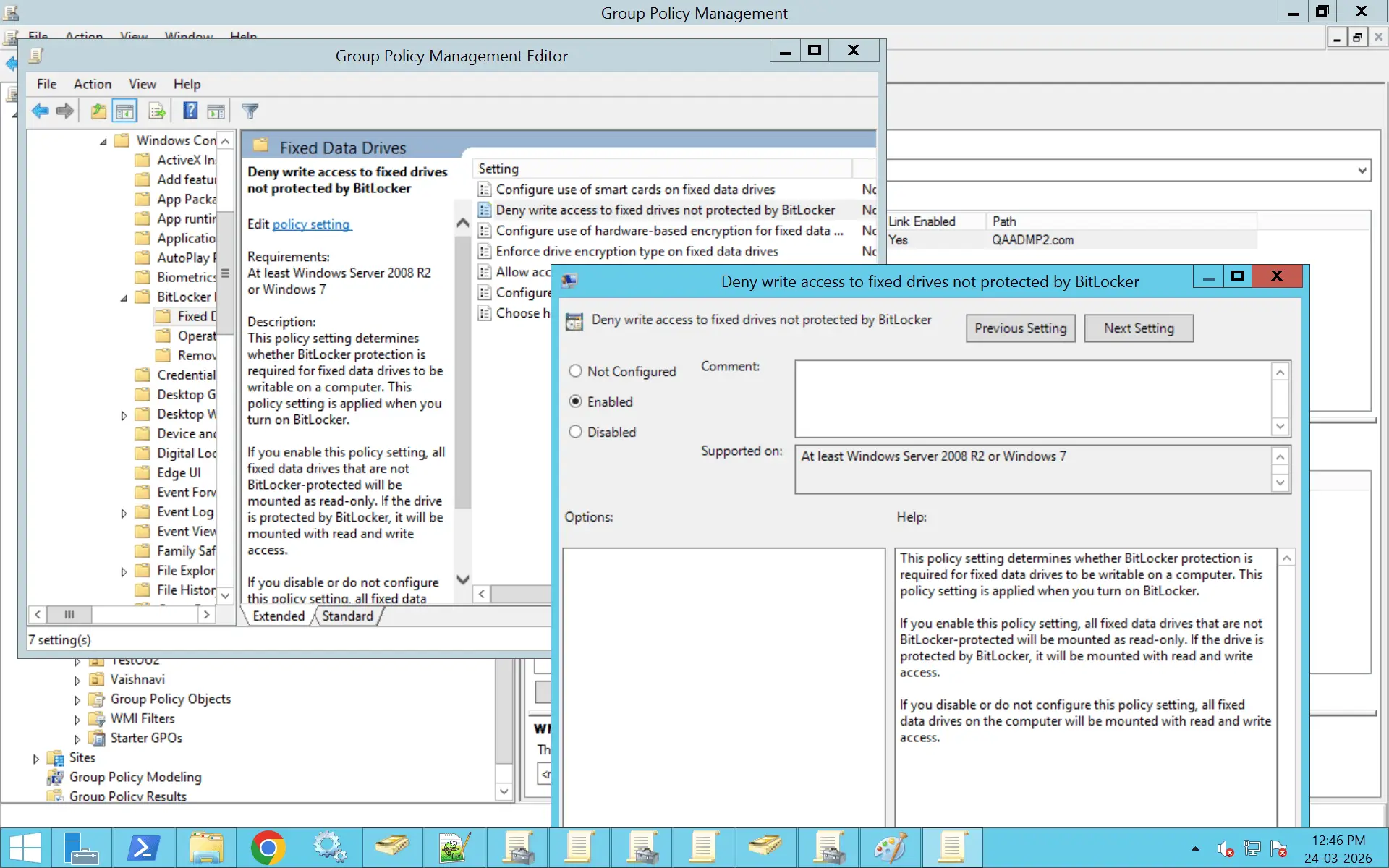
Within the Group Policy Management Editor, navigate to Computer Configuration > Administrative Templates > Windows Components > BitLocker Drive Encryption > Removable Data Drives.
From here, you can enable policies such as Deny write access to removable drives not protected by BitLocker, which ensures that users cannot write data to USB drives unless they are encrypted.
You can also configure additional settings like enforcing a specific encryption type, setting password requirements, and defining encryption standards. These controls help standardize how removable drives are secured and prevent unprotected data from leaving the organization.

