Microsoft Copilot is an AI-powered assistant integrated into Windows 11 and Microsoft Edge designed to enhance productivity. However, in corporate environments, administrators often need to disable Microsoft Copilot to prevent data leakage, maintain compliance, and ensure that sensitive organizational data is not processed by third-party AI models without explicit oversight—by any user.
While there are several ways to disable Copilot—including Microsoft Intune for hybrid machines, Windows Registry Editor changes for manual overrides, or Local Group Policy (gpedit.msc) for individual workstations—disabling Copilot in traditional office environments where computers are primarily managed via domain controllers requires a centralized and long-standing method, such as a GPO policy.
This article demonstrates how to disable Copilot using the Group Policy Management Console (GPMC), PowerShell, and ManageEngine ADManager Plus.
To ensure Microsoft Copilot is completely inaccessible in your machines, you must also disable the Copilot assistant within Microsoft Edge's sidebar.
Import-Module GroupPolicy
Use the following script with your own OUs and filters to create a new GPO, apply it to your desired users, and disable Copilot by editing the registry key HKCU\Software\Policies\Microsoft\Windows\WindowsCopilot using that GPO.
									Import-Module GroupPolicy

									$gpoName = "Disable Copilot - Org Wide"

									$targetOU = "OU=Workstations,DC=yourdomain,DC=com"

									# Create GPO if it doesn't exist

									$gpo = Get-GPO -Name $gpoName -ErrorAction SilentlyContinue

									if (!$gpo) {

										$gpo = New-GPO -Name $gpoName

									}


									# Link GPO (if not already linked)

									$link = Get-GPInheritance -Target $targetOU | Select-Object -ExpandProperty GpoLinks | Where-Object { $_.DisplayName -eq
$gpoName }
									if (!$link) {

										New-GPLink -Name $gpoName -Target $targetOU

									}


									# Disable Windows Copilot (User Scope)

									Set-GPRegistryValue -Name $gpoName `

									-Key "HKCU\Software\Policies\Microsoft\Windows\WindowsCopilot" `

									-ValueName "TurnOffWindowsCopilot" `

									-Type DWord `

									-Value 1


									# Disable Edge Sidebar Copilot (Computer Scope)

									Set-GPRegistryValue -Name $gpoName `

									-Key "HKLM\SOFTWARE\Policies\Microsoft\Edge" `

									-ValueName "HubsSidebarEnabled" `

									-Type DWord `

									-Value 0


									Write-Host "GPO configured successfully."
The following essential parameters can be used for creating and editing GPOs in PowerShell to disable Copilot.
| Parameter | Description |
| New-GPO | Creates a new GPO in the domain. |
| -Name | Specifies the display name of the new GPO. |
| -Comment | Adds an optional description to the GPO for documentation. |
| -Domain | Specifies the domain where the GPO will be created. |
| -Server | Specifies the domain controller to run the command against. |
| Set-GPRegistryValue | Edits registry-based policy settings within a GPO (computer or user configuration). |
| -Name / -Guid | Identifies the target GPO by its display name or GUID. |
| -Key | Specifies the registry key path inside the GPO (HKCU for user policies, HKLM for computer policies). |
| -ValueName | Specifies the name of the registry value that represents the policy setting. |
| -Type | Represents the registry value type, such as DWord String, MultiString, or ExpandString. |
| -Value | Includes data to assign to the specified registry value in the GPO. |
| New-GPLink / Set-GPLink | Links or modifies a GPO link to a site, domain, or OU. |
| -Target | Defines the distinguished name (DN) of the site, domain, or OU to link the GPO. |
| -Enforced | Controls whether the GPO link is enforced (Yes/No). |
| -LinkEnabled | Enables or disables the GPO link. |
| -Order | Sets the link order precedence. |
| Set-GPPermission | Grants or modifies permissions on a GPO for users, groups, or computers. |
| -TargetName | Defines the name of the user, group, or computer receiving the permission. |
| -TargetType | Specifies whether the target is a user, group, or computer . |
| -PermissionLevel | Specifies the permission level, such as GpoRead, GpoApply, or GpoEdit. |
| Get-GPOReport | Generates XML or HTML reports of a GPO's settings for review and auditing. |
| -ReportType | Specifies output format (XML or HTML). |
| -Path | Defines the output file location for the report. |
| Registry values | Defines the setting applied in the GPO. |
| TurnOffWindowsCopilot | When set to 1, disables Copilot integrated into Windows for the user. |
| HubsSidebarEnabled | When set to 0, disables the Copilot sidebar in Microsoft Edge. |
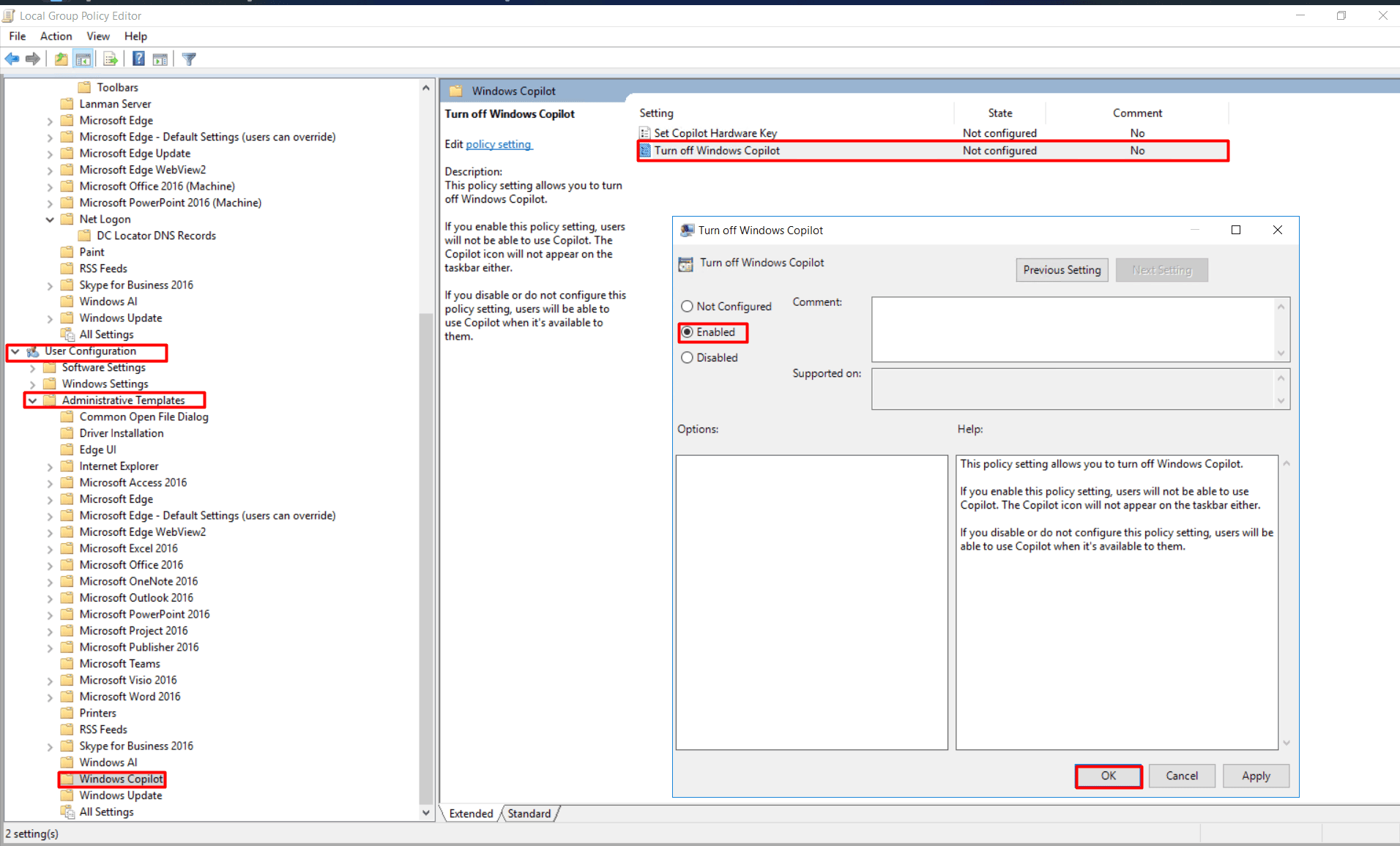
The Local Group Policy Editor (gpedit.msc) is a built-in Windows tool that allows administrators to configure policy settings on a single, stand-alone machine without needing a domain or Active Directory (AD) infrastructure. Use this method when managing individual workstations or non-domain-joined devices where deploying a domain-wide GPO is not applicable.
Steps to disable Copilot using gpedit.msc
Beyond a GPO, Copilot can also be disabled using Microsoft Intune or the Registry Editor when devices are cloud-managed, non-domain-joined, or require a quick one-off override without deploying a domain-wide policy.
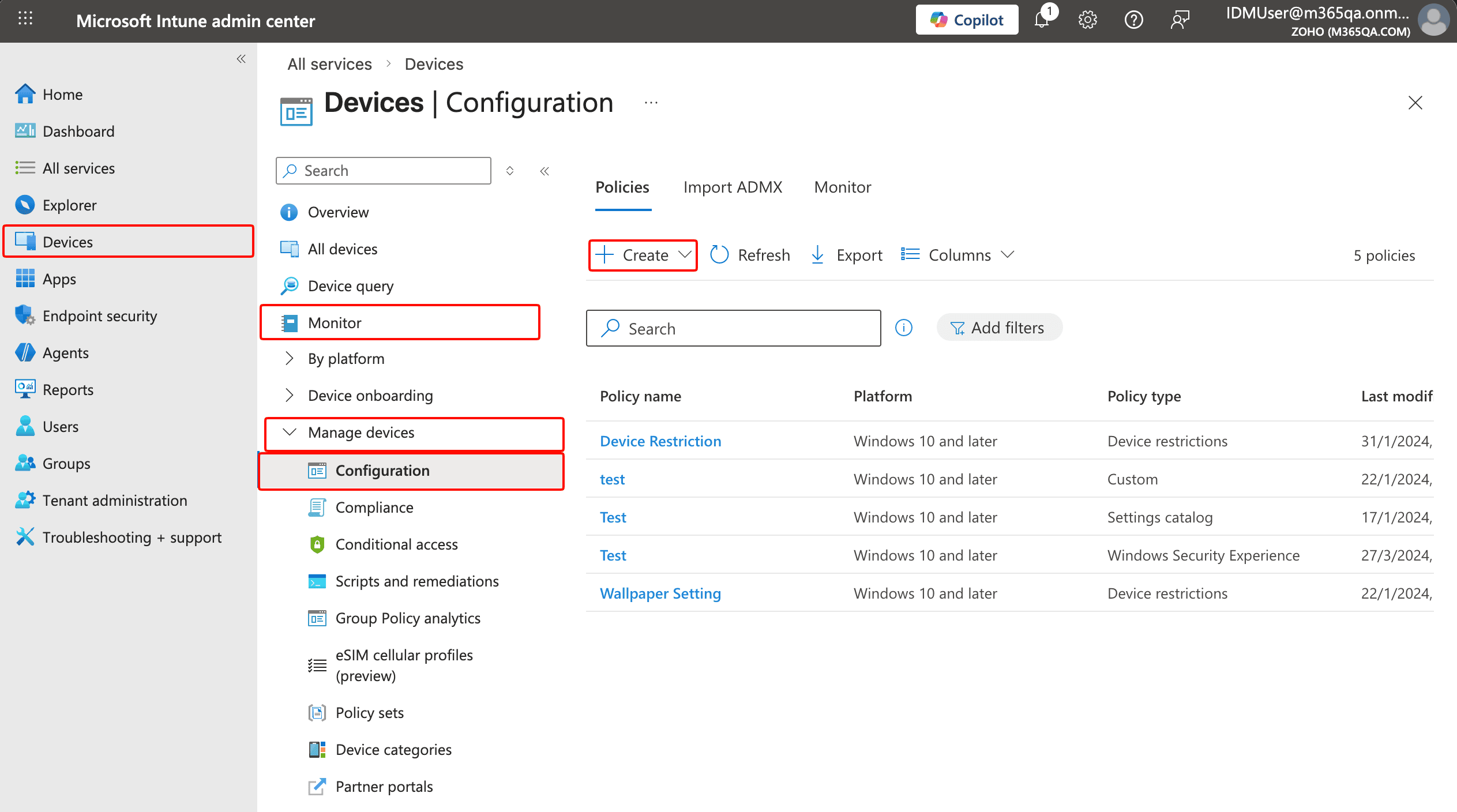
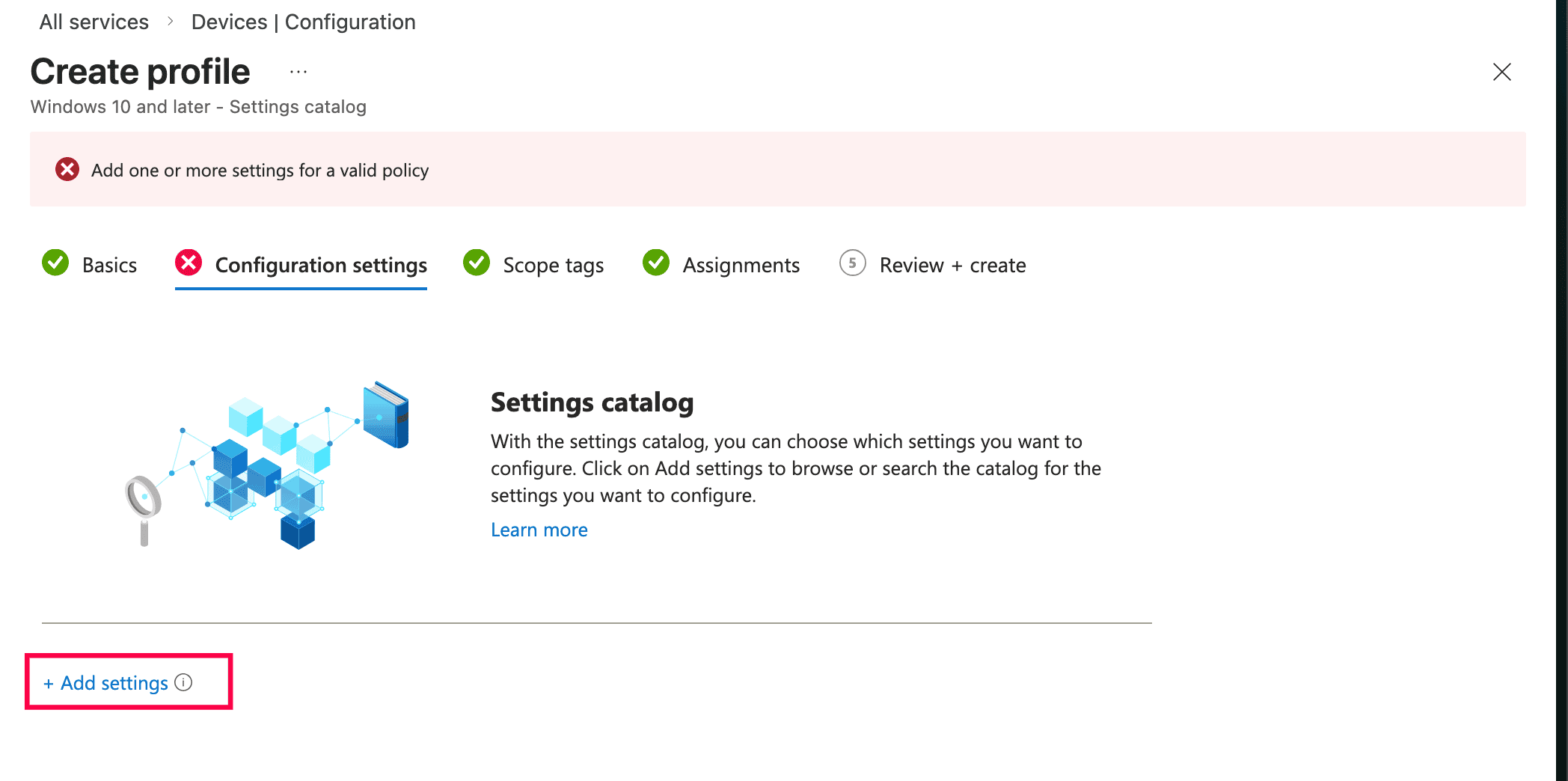
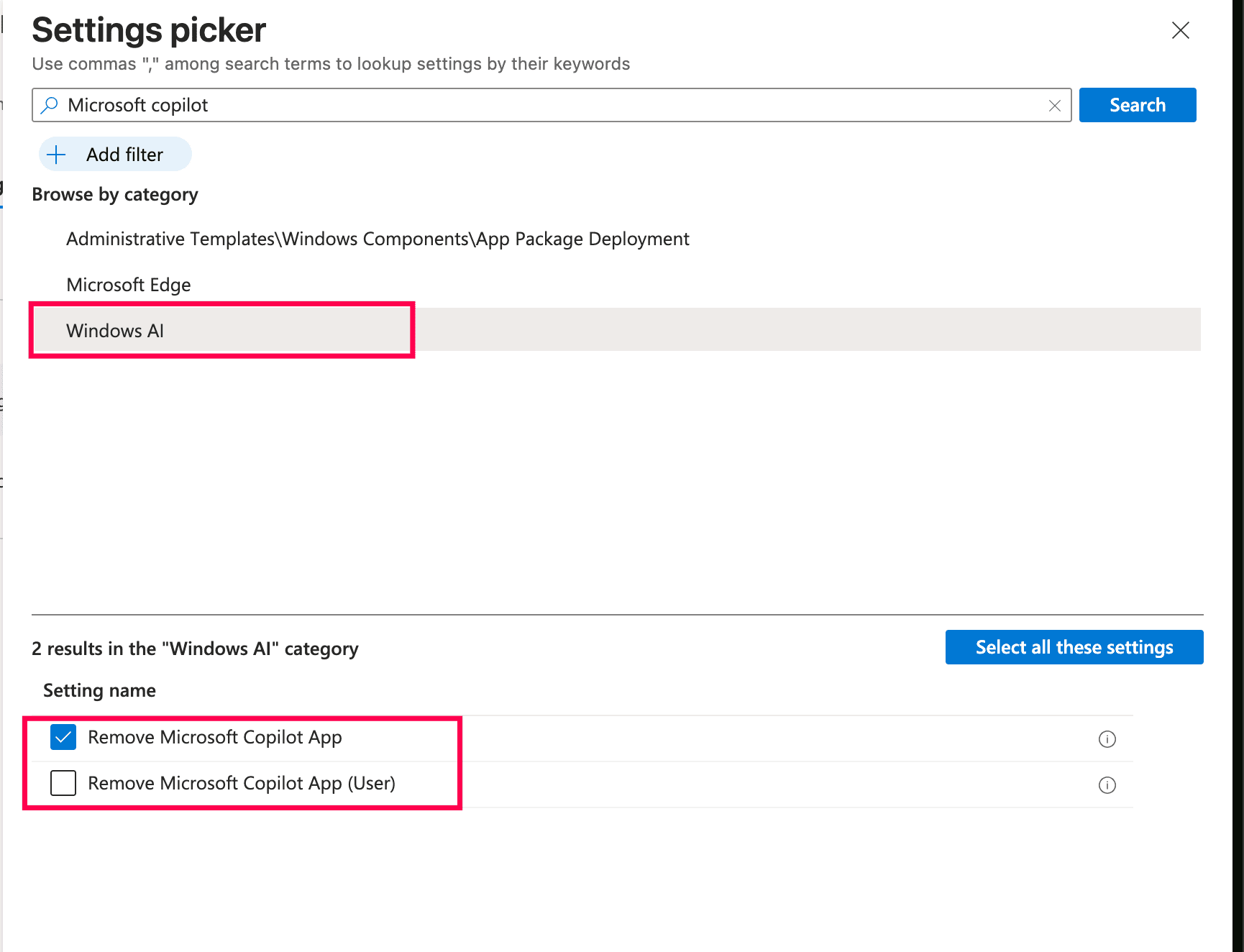
Microsoft Intune is a cloud-based endpoint management solution that allows administrators to configure and enforce policies across devices enrolled in Microsoft Endpoint Manager, including hybrid Microsoft-Entra-ID-joined machines. Use this method when managing modern or remote devices that are enrolled in Intune but may not be reachable through traditional on-premises Group Policy.
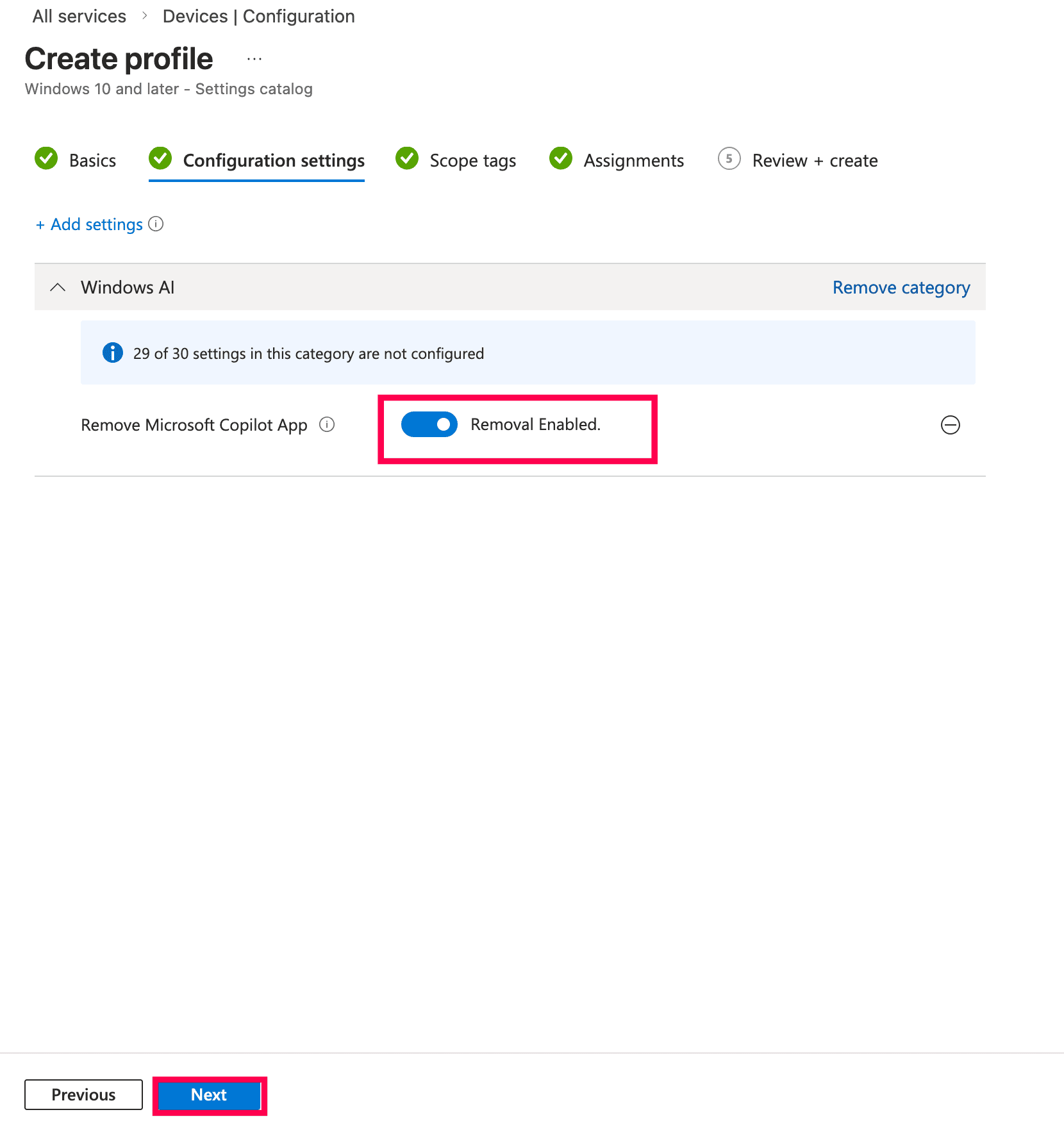
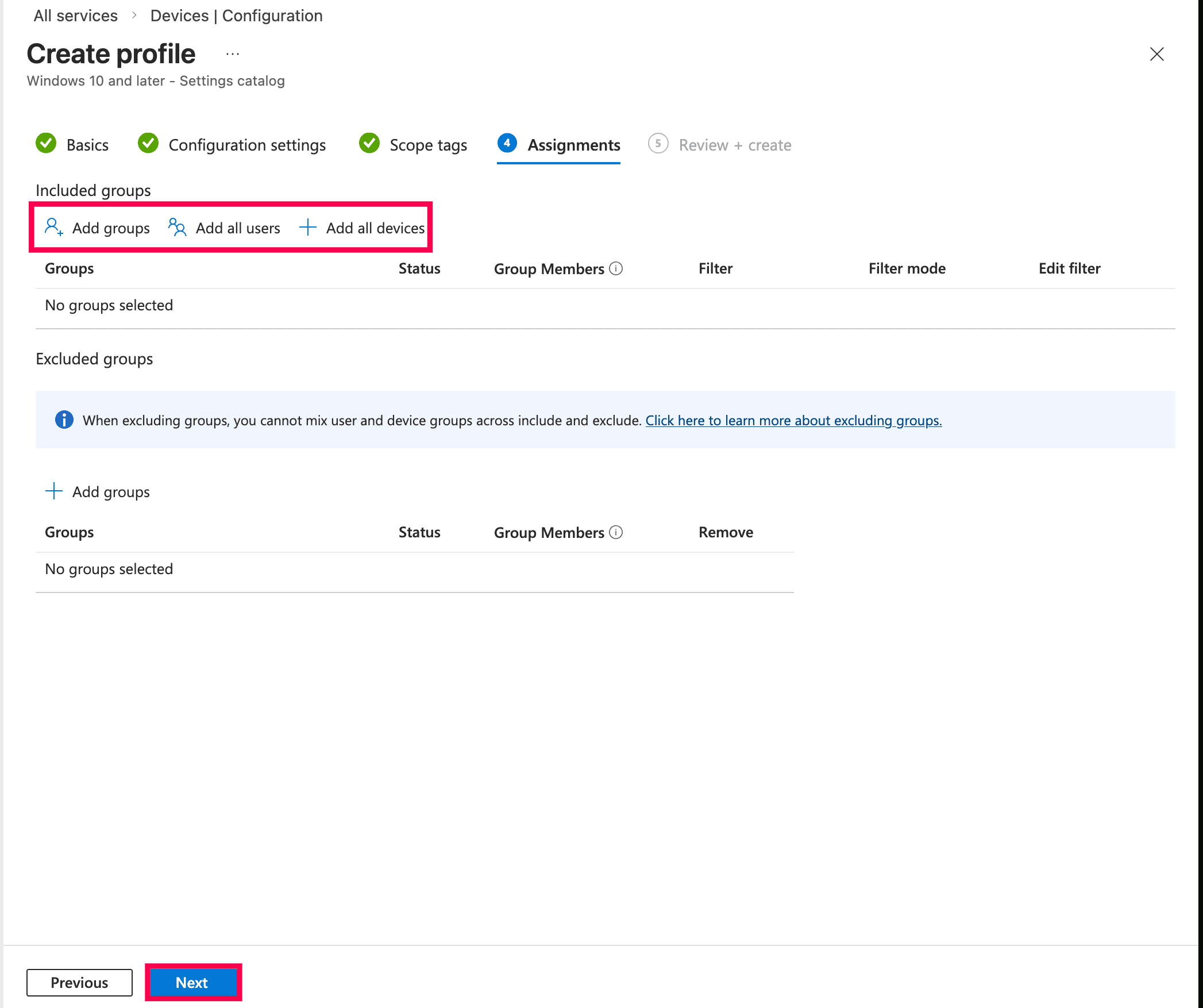
The Registry Editor is a built-in Windows utility that provides direct access to the Windows registry, where configuration settings for the operating system and applications are stored. Use this method for one-off manual changes on individual machines or when neither Group Policy nor Intune is available and you need a quick, targeted override.
Note: Registry edits made under HKEY_CURRENT_USER apply only to the currently logged-in user. To apply changes for all users on the device, the equivalent changes must be made under HKEY_LOCAL_MACHINE or applied using a login script.
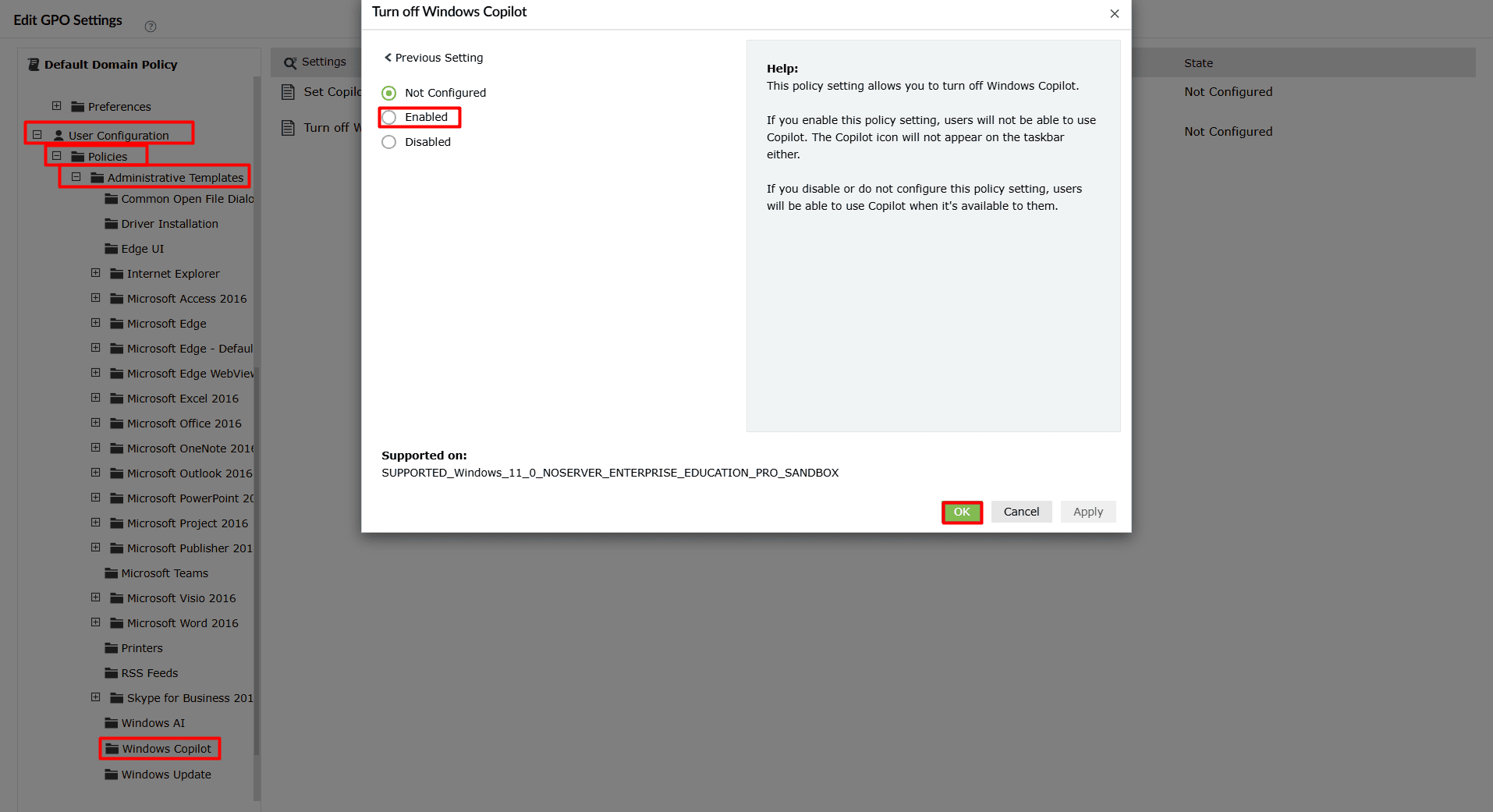
Note: To turn off Microsoft Edge sidebar Copilot using ADManager Plus, follow the same steps until step four, and then follow the same navigation as mentioned here.
While powerful, relying solely on PowerShell and the GPMC can present several challenges:
ADManager Plus , an AD management and reporting solution, helps admins perform GPO management tasks with a script-free, easy-to-use interface.
You can disable Copilot for selected users without applying the policy domain-wide.
Option 1: Link the GPO to a specific OU
Create or use an existing OU, move the required users into it, and link the Disable Copilot GPO to that OU. Since this is a User Configuration policy, it applies to users regardless of the device they sign in to.
Option 2: Use security filtering
Create a security group, add the required users to the group, and configure security filtering on the GPO to apply only to that group. This avoids moving users between OUs and offers more granular control.
No. Disabling Microsoft Copilot through Group Policy does not uninstall or permanently remove it.
The policy simply hides the interface and prevents users from accessing it. Copilot remains part of Windows 11 and Microsoft Edge.
If the policy is later set to Not Configured or is removed, Copilot becomes available again.
To disable the Copilot shortcut key in Windows without disabling Copilot:

