USB ports are essential for peripheral connectivity, but in a corporate environment, they pose significant risks for data theft and malware introduction. Administrators often need to disable USB access using Group Policy Object (GPO) to maintain strict data compliance and protect the network from unauthorized hardware.
This article demonstrates two methods to disable USB ports using the Group Policy Management Console (GPMC) and PowerShell, and ManageEngine ADManager Plus.
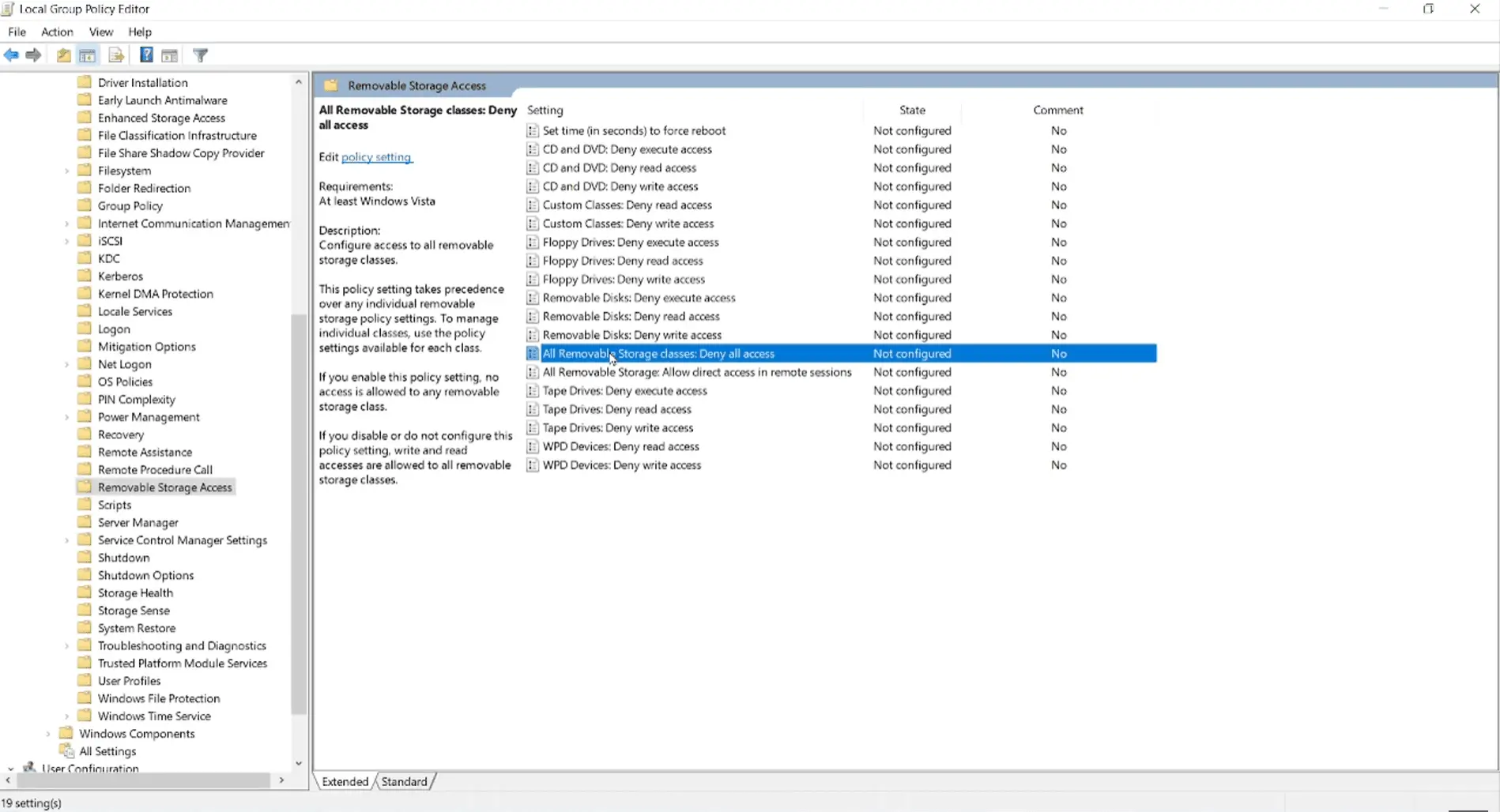
Close the editor when finished; changes will apply at the next refresh or logon/boot cycle. If you wish for your GPO changes to take effect immediately, run the "gpupdate /force" cmdlet to force update GPOs
Use the following PowerShell script to restrict the ability to read or write to USB storage devices by modifying the registry settings within a GPO.
									Import-Module GroupPolicy

									$gpoName = "Disable USB Storage Access"

									$targetOU = "OU=Workstations,DC=yourdomain,DC=com"

									# Create and Link GPO if it doesn't exist

									if (!(Get-GPO -Name $gpoName -ErrorAction SilentlyContinue)) { New-GPO -Name $gpoName }

									New-GPLink -Name $gpoName -Target $targetOU -ErrorAction SilentlyContinue

									# Deny all access to Removable Storage (Computer Configuration)

									Set-GPRegistryValue -Name $gpoName `

									-Key "HKLM\Software\Policies\Microsoft\Windows\RemovableStorageDevices" `

									-ValueName "Deny_All" `

									-Type DWord `

									-Value 1
The following PowerShelll script prevents Windows from installing drivers for USB devices and blocks any connection completely. This is useful to block USB devices that are not removable storage devices (for example, printers, speakers).
									# Prevent installation of devices using drivers that match USB classes

									Set-GPRegistryValue -Name $gpoName `

									-Key "HKLM\Software\Policies\Microsoft\Windows\DeviceInstall\Restrictions" `

									-ValueName "DenyDeviceClasses" `

									-Type DWord `

									-Value 1
The following PowerShell script allows Windows to install specific devices even if a general "Deny" policy is in place. This is essential for ensuring that approved peripherals (like a specific model of an encrypted Kingston drive or a company-issued mouse) remain functional.
									Set-GPRegistryValue -Name $gpoName `

									-Key "HKLM\Software\Policies\Microsoft\Windows\DeviceInstall\Restrictions" `

									-ValueName "AllowDeviceClasses" `

									-Type DWord `

									-Value 1
| Parameter | Description |
|---|---|
| New-GPO | |
| -Name | Specifies the display name of the new GPO. |
| -Comment | Adds an optional description to the GPO for documentation. |
| -Domain | Specifies the domain where the GPO will be created. |
| -Server | Specifies the domain controller to run the command against. |
| Set-GPRegistryValue | |
| -Name / -Guid | Identifies the target GPO by its display name or GUID. |
| -Key | Specifies the registry key path inside the GPO (HKCU for user policies, HKLM for computer policies). |
| -ValueName | Names t he registry value that represents the policy setting. |
| -Type | Identifies the registry value type such as DWord, String, MultiString, ExpandString, etc. |
| -Value | Represents the data to assign to the specified registry value in the GPO. |
| New-GPLink / Set-GPLink | |
| -Target | Displays the Distinguished Name (DN) of the site, domain, or OU to link the GPO. |
| -LinkEnabled | Enables or disables the GPO link. |
| Registry values | |
| Deny_All | When set to "1", denies all read and write access to removable storage devices for the user or computer. |
| DenyDeviceClasses | When set to "1", prevents Windows from installing drivers that match specified USB device setup classes. |
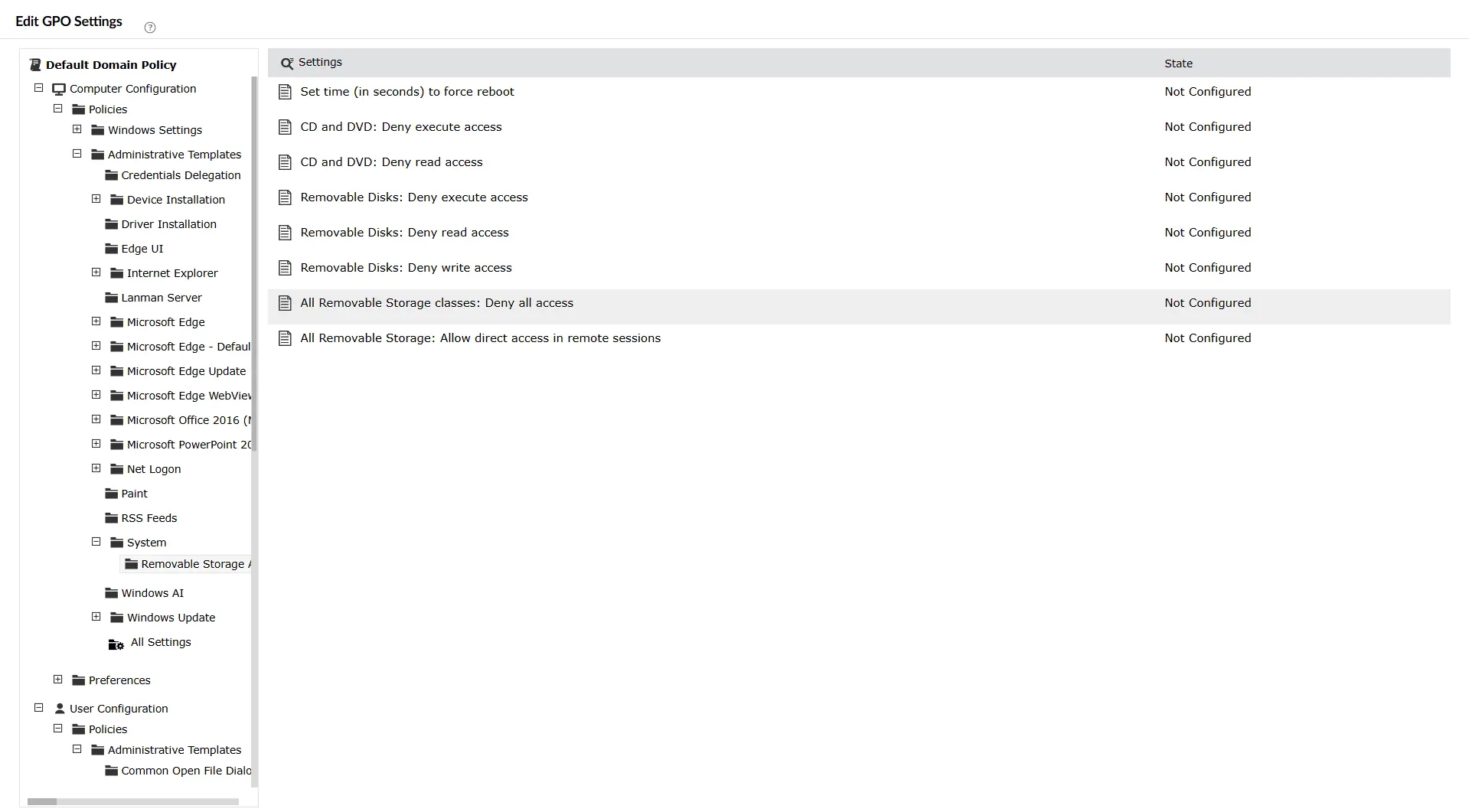
Note: To block USB device installations using ADManager Plus, follow the same steps until Step 4, and follow the same navigation as mentioned here.
While powerful, relying solely on PowerShell and GPMC can present several challenges:
ADManager Plus , an AD management and reporting solution, helps admins perform GPO management tasks with a script-free, easy to use interface.
After configuring your GPO, it is crucial to verify that the settings have successfully propagated to the end-user machines.
On a client machine, open Command Prompt as an administrator and run the gpupdate /force cmdlet.
Run rsop.msc on the client machine. This provides a graphical view of all policies currently applied to that specific computer and user. Look for the "Removable Storage Access" settings to ensure they are marked as Enabled.
To see a detailed command-line report of which GPOs are being applied, use: gpresult /r
Navigate to the following registry key to see if the GPO successfully changed the value to 1: HKEY_LOCAL_MACHINE\Software\Policies\Microsoft\Windows\RemovableStorageDevices
Error: Access is denied (when running PowerShell scripts).
Solution: Ensure you are running PowerShell as an Administrator and that the account used has "Domain Admin" or "Group Policy Creator Owner" privileges.
Error: GPO settings not appearing on the client machine.
Solution: Run gpupdate /force on the client. If it still fails, check for GPO inheritance blocks or verify that the computer is in the correct OU where the GPO is linked.
Error: USB keyboard/mouse stopped working after applying policy.
Solution: You have likely used a broad "Device Class" ID in the "Device Installation Restrictions" policy. Remove the generic USB class and specify only the "USB Storage" Class GUID: {53f5630d-b6bf-11d0-94f2-00a0c91efb8b}.
Restricting USB access allows the port and device to be detected but limits what users can do, such as blocking read/write access to removable storage. Blocking USB devices prevents specific devices from being installed or used, meaning the system denies even minimal data transfers.
Yes. you can disable USB devices using GPOs for specific users by using Security Filtering with security groups or apply the GPO only to selected OUs.
No. GPO policies do not disable the USB ports or uninstall controllers. They block access or installation based on policy settings and is reversible.
Yes. You can use Device Installation Restrictions when blocking USB device installations to allow or block devices based on hardware IDs or setup classes. This enables granular control instead of a blanket block.
No. The Removable Storage Access GPO setting only targets storage devices such as pen drives and storage disks. Keyboards and mice are unaffected unless broader device installation restrictions are configured incorrectly.

