How to set a default browser using GPO

Last updated on:

In enterprise environments, controlling the default browser ensures consistent user experience, secure browsing standards, and compatibility with internal web applications. Instead of manually configuring systems one by one, administrators can use default browser GPO settings to enforce a browser across domain-joined computers.

This guide explains how to configure a GPO to set a default browser using Group Policy Management Console (GPMC), PowerShell, and ManageEngine ADManager Plus.

Prerequisites to set a default browser using GPO

Before configuring a GPO to set the default browser using GPMC, PowerShell, or ADManager Plus, you need the following:

  • An AD account with Domain Administrator privileges.
  • A reference XML file defining the required default app associations.

Note: You can skip the reference XML if you wish to set Google Chrome as your default browser. Instead, you can download the group policy templates for Google Chrome and use that XML.

How to create a default app associations XML

A default app associations XML is an exported configuration file from Windows that contains the list of default applications in the Windows machine it's exported from. This can be imported to other machines using GPOs to apply the same default app configurations as the source machine. Configure the default browser on a reference machine, export the associations XML, and reuse that file for matching deployments.

You can create a default app associations XML by following these steps:
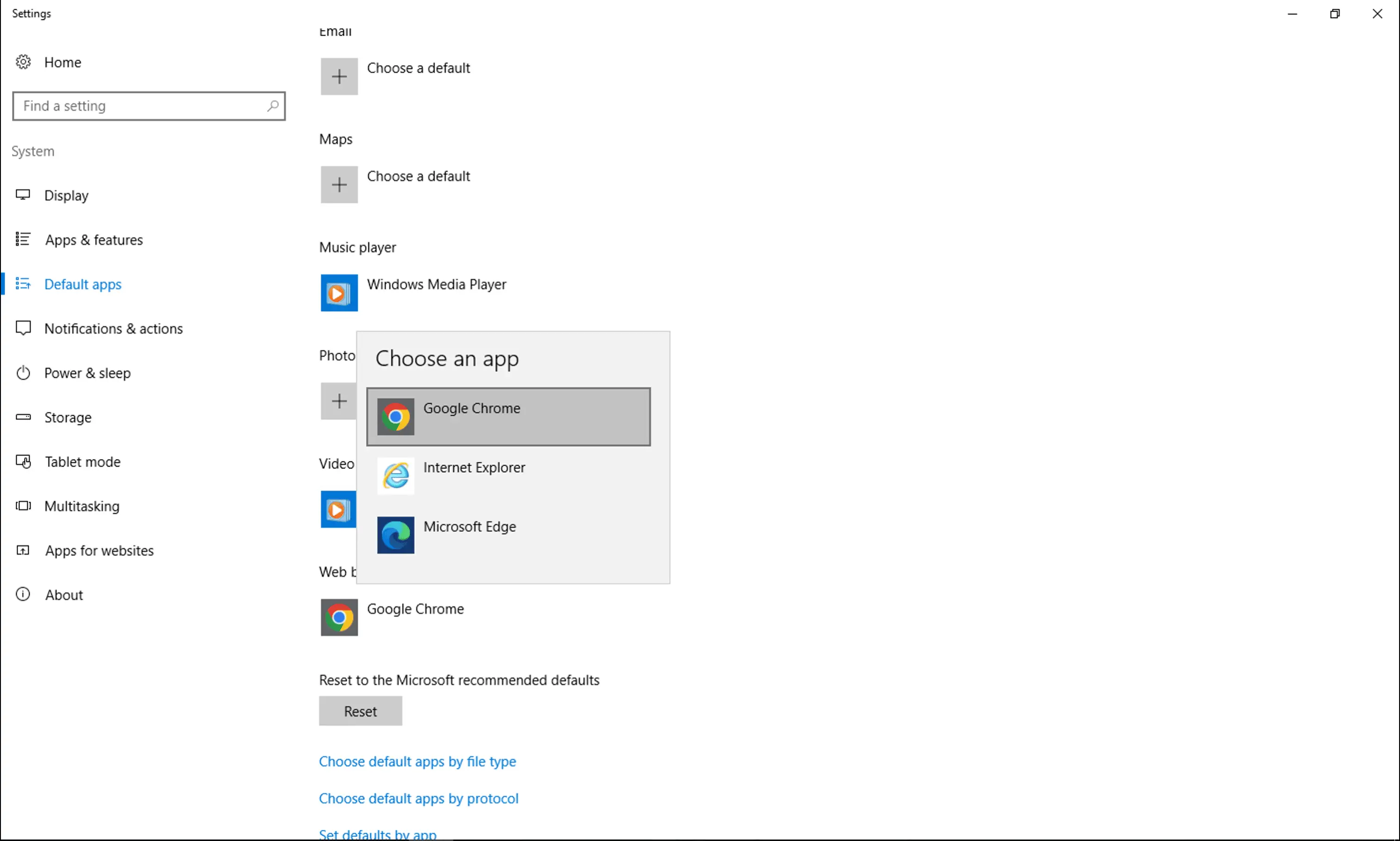
  1. On a reference computer, click Start and open the Settings app.
  2. Navigate to Apps > Default Apps.
  3. Select your preferred browser.
    The Settings app on the Default apps page, showing the Choose an app dialog.
  4. Open Command Prompt as an administrator.
  5. Run the following script:
    Dism /Online /Export-DefaultAppAssociations:C:\DefaultBrowser.xml
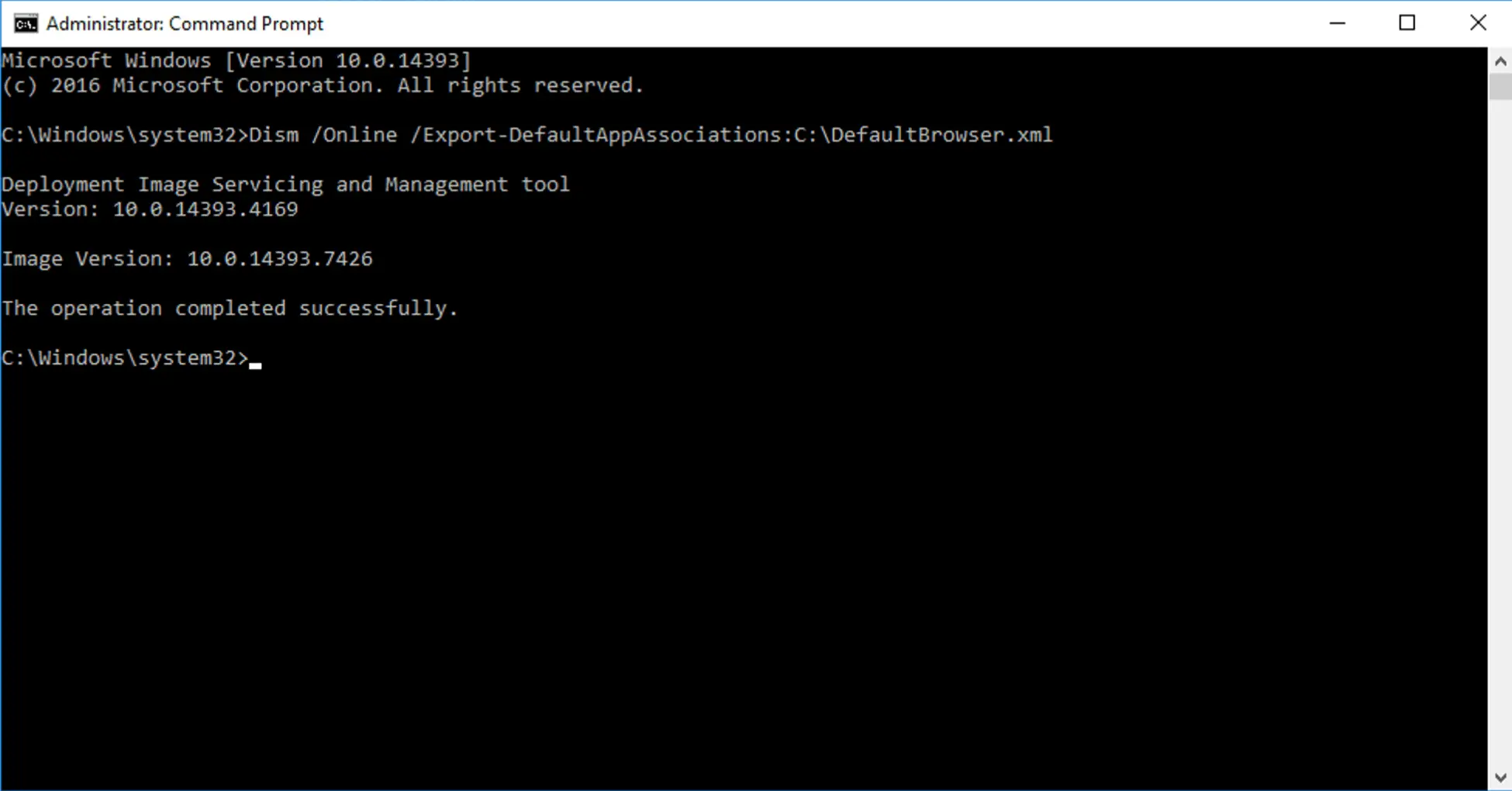
    Command Prompt running as administrator, showing the DISM command to export default app associations to an XML file.
  6. Copy the generated XML file to a shared network location (e.g., \\domain\netlogon\DefaultBrowser.xml).
  • GPMC
  • PowerShell
  • ADManager Plus
  • Limitations
  • Benefits
  • Best practices
  • FAQs
 

How to set default browser in GPO using GPMC

Prerequisites

  • You must have Domain Administrator privileges to edit GPO s.
  • A valid XML association file must be available on a shared network path.

Steps to set a default browser using GPMC

  1. Open the Group Policy Management Console (GPMC).
  2. Right-click the target OU and select Create a GPO in this domain, and Link it here....
  3. Name the GPO (e.g., "Default Browser Policy") and click OK.
  4. Right-click the new GPO and select Edit.
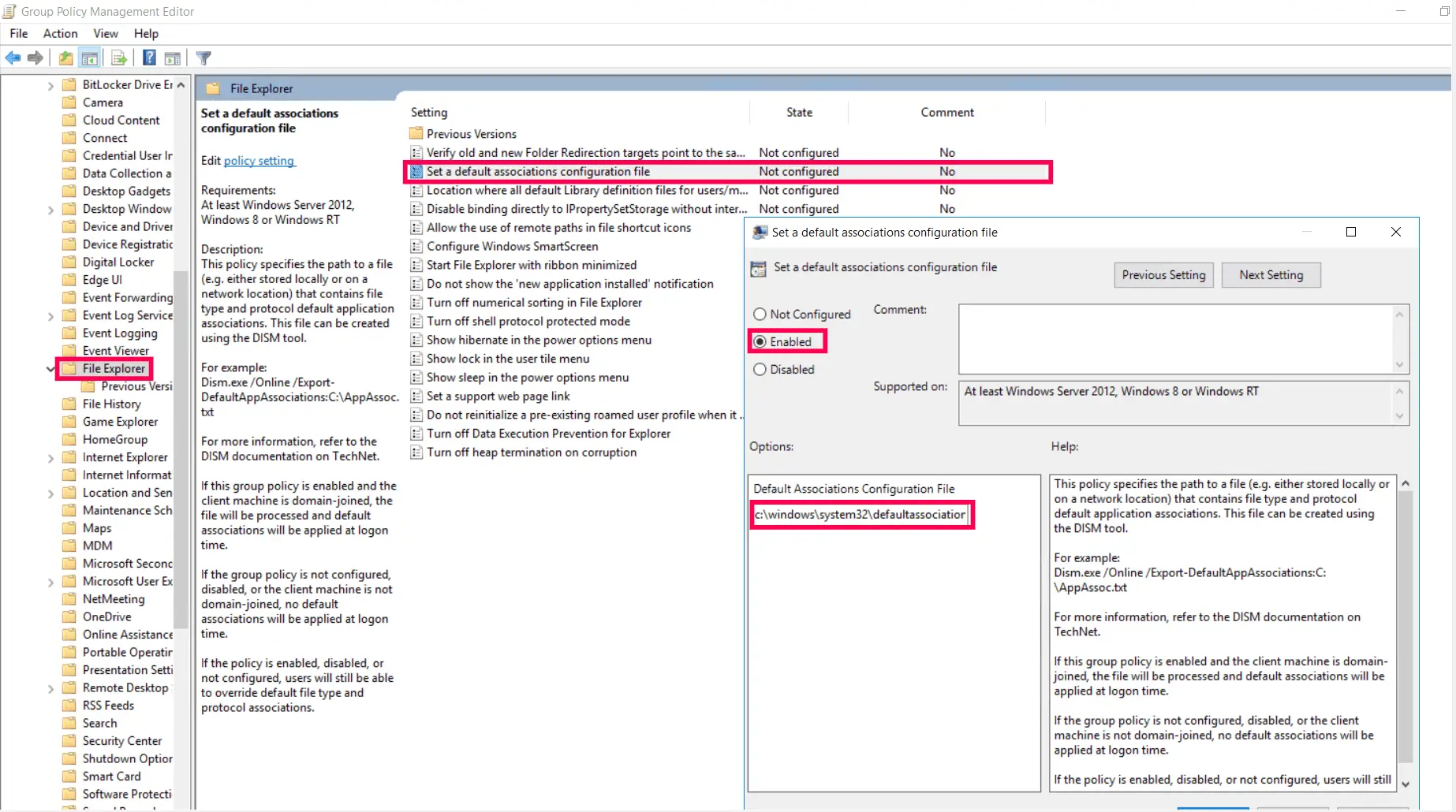
  5. Navigate to Computer Configuration > Policies > Administrative Templates > Windows Components > File Explorer.
  6. Double-click Set a default associations configuration file and set it to Enabled.
  7. In the Options box , enter the UNC path to your XML file in the Default Associations Configuration File field (e.g., \\SharedServer\Config\AppAssoc.xml).
The Group Policy Management Editor with the Set a default associations configuration file policy enabled and a local XML file path specified.

How to set default browser with GPO using PowerShell

Prerequisites

  • Ensure the Remote Server Administration Tool (RSAT) and the GroupPolicy PowerShell module are installed on your workstation.
  • Run PowerShell as an Administrator with Domain Administrator credentials.
  • Prepare a Default Associations XML file (created via Dism /online /export-defaultappassociations:C:\AppAssoc.xml) and host it on a network share accessible by all computers (e.g., \\Server\Share\AppAssoc.xml).

How to configure a default browser with GPO using PowerShell

Use the following PowerShell script to set the default browser by pointing the GPO to a centralized XML configuration file:

Import-Module GroupPolicy
$gpoName = "Set Default Web Browser"
$targetOU = "OU=Workstations,DC=yourdomain,DC=com"
$xmlPath = "\\YourServer\Share\AppAssoc.xml"

# Create and Link GPO if it doesn't exist
if (!(Get-GPO -Name $gpoName -ErrorAction SilentlyContinue)) { New-GPO -Name $gpoName }
New-GPLink -Name $gpoName -Target $targetOU -ErrorAction SilentlyContinue

# Set the path for the default associations configuration file
Set-GPRegistryValue -Name $gpoName `
-Key "HKLM\Software\Policies\Microsoft\Windows\System" `
-ValueName "DefaultAssociationsConfiguration" `
-Type String `
-Value $xmlPath
How to set a default browser with GPO using ADManager Plus

Steps to set a default browser using ADManager Plus

  1. Log in to ADManager Plus and navigate to the Management tab.
  2. In the left pane, click GPO Management.
  3. Under GPO Management, click Manage GPOs.
  4. In the Actions column of the GPO you wish to edit, click the edit icon.
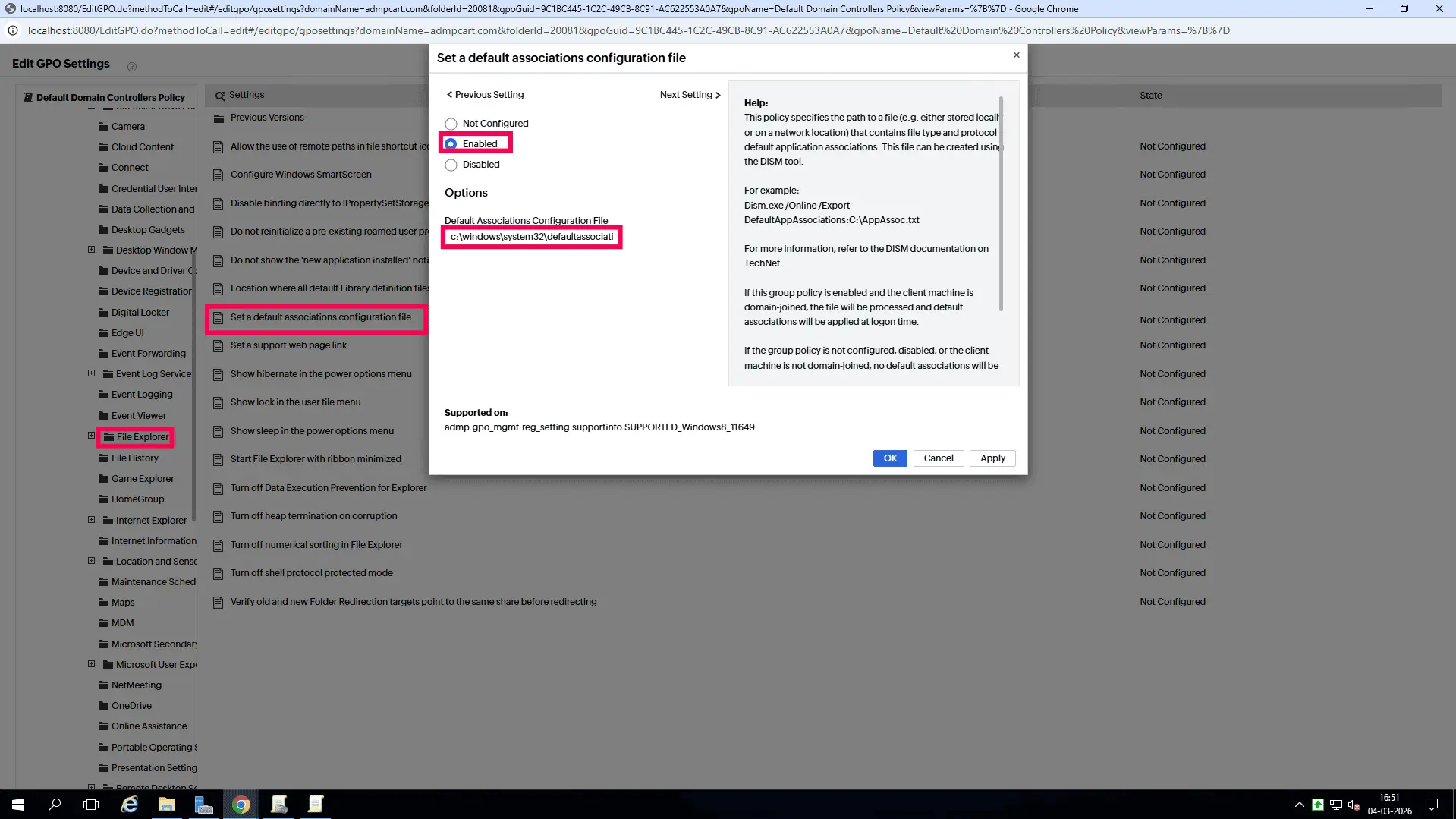
  5. Navigate to Computer Configuration > Policies > Administrative Templates > Windows Components > File Explorer.
  6. Double-click Set a default associations configuration file and set it to Enabled.
  7. Enter the network path for your XML association file and click Apply.
The ADManager Plus GPO management console showing the Set a default associations configuration file policy enabled with a network path entry.

Limitations of using native tools to edit GPOs

While powerful, relying solely on PowerShell and GPMC for delegation can present several challenges:

  • GPMC does not provide strong bulk-editing capabilities, and changing the same setting across many GPOs requires repetitive manual effort.
  • PowerShell GPO cmdlets primarily target registry-based settings, making it more challenging to configure complex or preference-based policies compared to using a graphical interface.
  • PowerShell requires familiarity with the GroupPolicy module and scripting. Mistakes in New-GPO or New-GPLink usage can result in GPOs being created in the wrong domain or linked incorrectly.
  • Native tools require specific admin privileges to edit GPOs, which can restrict delegation and increase reliance on privileged accounts.
  • Scripted changes must be carefully tested. Mistakes in Set-GPRegistryValue or link operations can introduce misconfiguration at scale.

Benefits of using ADManager Plus to edit GPOs

ADManager Plus, an AD management and reporting solution, helps admins perform GPO management tasks with a script-free, easy-to-use interface.

Best practices when configuring a default browser using GPO

Export XML from a properly configured reference machine: Always set the desired default browser on a clean, fully configured machine before running the DISM export command to ensure the XML captures accurate app associations.

Communicate per-logon reapplication behavior to users: The default associations policy reapplies at every logon, reverting any manual browser changes users make during their session.

Install browser ADMX templates only when needed: The built-in administrative templates are sufficient for setting the default browser. Only install Chrome or Edge ADMX templates if you need to manage browser-specific settings like homepages or managed bookmarks.

FAQ

This often happens if the XML file is formatted incorrectly or if the user is not a member of the domain at the time of logon. Ensure the XML is exported using the DISM tool on a reference machine that has the desired browser set correctly.

Yes. You can create separate GPOs with different XML files and link them to specific OUs (e.g., Chrome for the dev OU and Edge for the finance OU).

For the basic Set a default associations configuration file, you only need the built-in administrative templates. However, to configure specific features like a home page or managed bookmarks, you must install the specific ADMX templates for that browser.

The Set a default associations configuration file policy is enforced at every logon. While a user might change the setting during their session, it will revert to the GPO-defined default the next time they sign in.

Take the complexity out of GPO management using ADManager Plus

The one-stop solution to Active Directory Management and Reporting
Email Download Link Email the ADManager Plus download link