Group Policy Object (GPO) loopback processing changes how user policies are applied. Instead of pulling user settings from the user's organizational unit (OU), it tells Windows to apply user configuration based on the computer's GPOs.
In simple terms, the computer takes control over user settings. This allows organizations to standardize the user experience on specific machines, even if users come from different departments, roles, or OUs.
To understand loopback processing, it helps to first look at how Group Policy normally behaves.
In a standard setup, policy processing is split between the computer and the user, especially when managing how GPOs are applied across users, computers, and OUs in Active Directory. When a machine starts up, it applies computer-level policies based on where the computer object sits in Active Directory. Then, when a user logs in, Windows applies user policies based on the user's own OU and group memberships.
So the default flow looks like this:
This means the user experience is tied to who the user is, not where they log in.
With loopback enabled, this behavior changes.
The computer still processes its own policies first, but before applying user policies, Windows checks whether loopback processing is configured. If it is, the system shifts its approach and starts pulling user settings from the GPOs linked to the computer's OU instead of the user's OU.
So the flow becomes:
At this point, the decision logic flips.
That shift might seem small, but it completely changes how user environments are controlled, especially in shared or tightly managed systems.
When a user logs in, Windows completely ignores all the user's normal Group Policies. It doesn't matter which OU the user belongs to or what policies are assigned to them. Instead, the system applies only the user settings defined in the GPOs linked to the computer.
So effectively, the user's identity becomes irrelevant from a policy perspective. The machine dictates the entire experience.
Real-world example of replace mode
Imagine a shared kiosk in a public space. Different users log in throughout the day, but the organization wants:
With replace mode:
Replace mode can be used in:
Merge mode is more balanced.
Here, Windows first applies the user's normal policies (from their OU), just like it usually would. Then it applies the user settings from the computer's GPOs on top of those.
If there's a conflict, the computer's policies win.
So instead of replacing everything, Merge mode adds a layer of control without removing the user's baseline configuration.
Real-world example of merge mode
Take an RDS or Citrix server.
A user from the Finance team logs in. Normally, they would get:
With merge mode:
Merge mode can be used in:
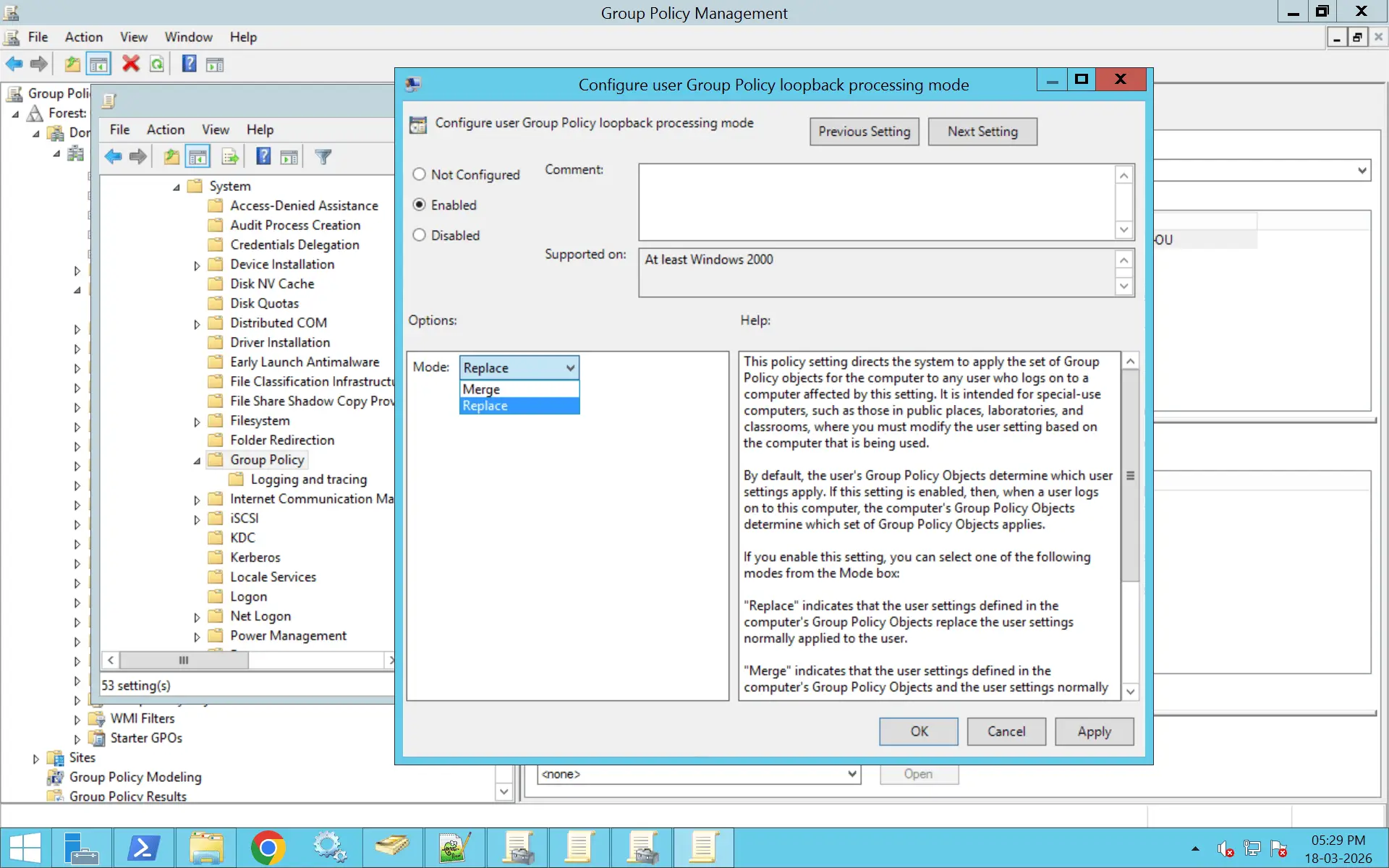
Loopback processing is configured at the computer level through Group Policy. You can either enable or disable it depending on your requirement.
Follow these steps to enable loopback processing on a Group Policy Object:
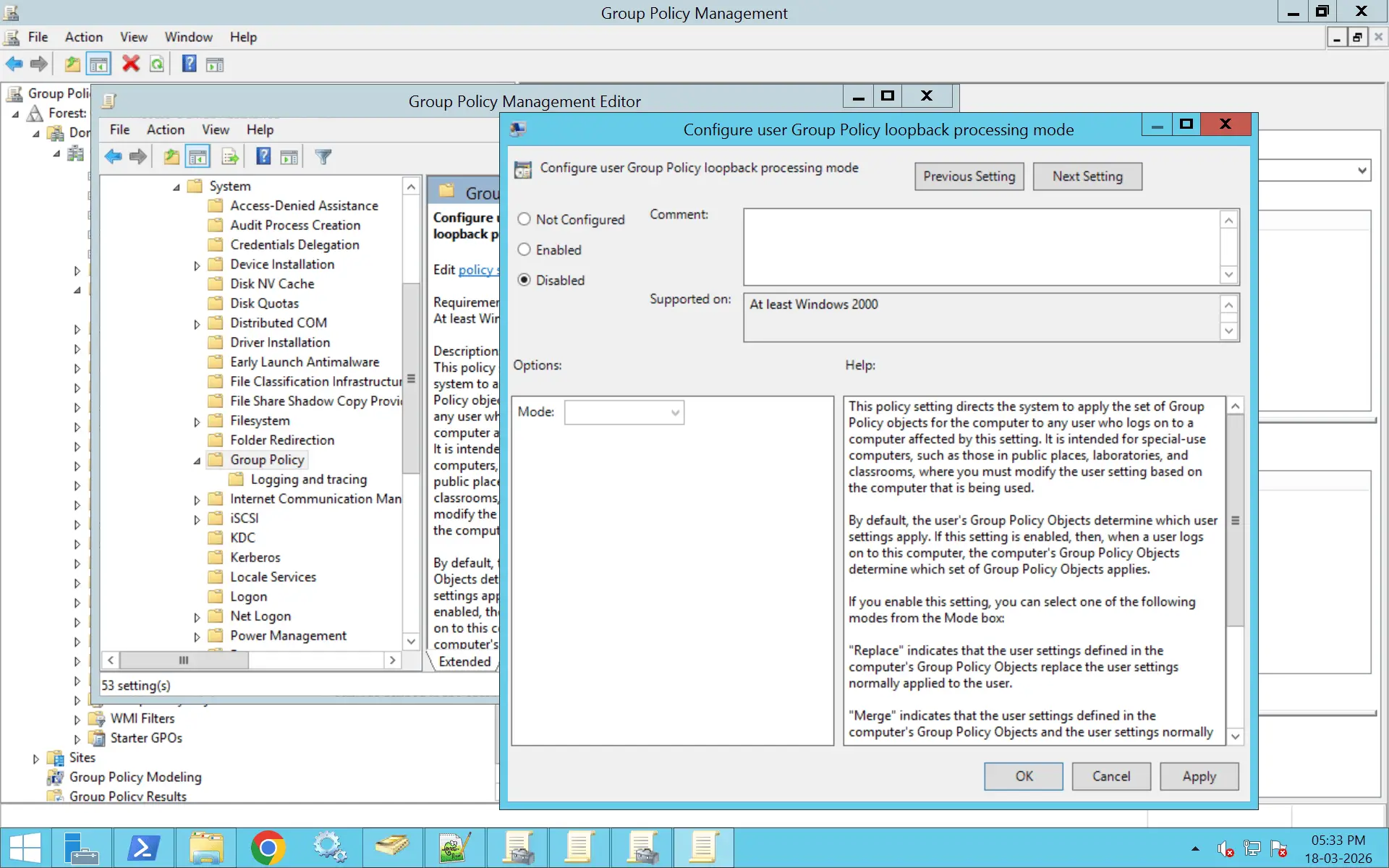
If loopback processing is no longer required, you can disable it from the same policy setting:
Loopback processing is controlled by a registry-based policy setting inside a GPO. Using PowerShell, you can configure this by updating the corresponding registry value in the GPO.
The setting path is:
HKLM\Software\Policies\Microsoft\Windows\System
Value name:
UserPolicyMode
Values:
									Set-GPRegistryValue `

									-Name "Your GPO Name" `

									-Key "HKLM\Software\Policies\Microsoft\Windows\System" `

									-ValueName "UserPolicyMode" `

									-Type DWord `

									-Value 1
									Set-GPRegistryValue `

									-Name "Your GPO Name" `

									-Key "HKLM\Software\Policies\Microsoft\Windows\System" `

									-ValueName "UserPolicyMode" `

									-Type DWord `

									-Value 2
									Set-GPRegistryValue `

									-Name "Your GPO Name" `

									-Key "HKLM\Software\Policies\Microsoft\Windows\System" `

									-ValueName "UserPolicyMode" `

									-Type DWord `

									-Value 0
One important thing to understand about loopback processing is that it does not override or bypass security filtering. This is where a lot of configurations quietly fail.
Even when loopback is enabled and correctly configured, Group Policy still follows its core rule: A policy will only apply if the object has permission to receive it.
In a loopback scenario, this creates a dual dependency. The GPO must both be linked to the computer's OU, and be accessible to the user logging in.
So both contexts matter at the same time.
What this means in practice is that the computer decides which policies to use, but the user still needs permission to actually receive those policies. If either side is misaligned—for example, if the GPO is linked correctly but the user doesn't have Apply Group Policy permission—the policy simply won't apply, even though loopback is enabled.
This is why loopback issues often feel confusing. From the outside, everything looks correct:
Yet the user still doesn't receive the expected policies.
In most of these cases, the root cause comes down to:
So when troubleshooting loopback, it's not enough to check where the GPO is linked. You also need to verify who is allowed to receive it.
Error: gpresult /h shows the loopback-enabled GPO is applied to the computer, but user settings from that GPO (or others) are not taking effect for the user.
Solution:
Computer Configuration > Policies > Administrative Templates > System > Group Policy > Configure user Group Policy loopback processing mode.
Error: User settings from the user's normal OU are being overridden or not merged as expected, even though loopback is set to Merge.
Solution: Understand that loopback Replace completely discards user settings from the user's OU and only uses GPOs from the computer's OU. Use Merge if you want both user-OU and computer-OU user settings to apply. In Merge, check that the user has Read/Apply permissions on the relevant user-setting GPOs linked to the computer's OU. There also needs to be no higher-precedence GPO in the computer's OU that is conflicting or overriding the desired settings.
Error: In gpresult /h, the user entry shows “Filtering: Denied (Security)” for one or more GPOs that should apply via loopback.
Solution: Ensure the authenticating user (or their group) has:
Error: Loopback is enabled in a domain-level GPO, so users logging into any workstation get unexpected user settings (e.g., kiosk-style or RDS-style policies on desktops).
Solution: Do not enable loopback in domain-level GPOs. Link the loopback-enabled GPO only to specific OUs (e.g., RDS servers, kiosks, lab machines).
If already done, either:
Error: Loopback works correctly on some servers/sites but not others (e.g., RDS farm, branch sites).
Solution:
Verify the following:
Error: Troubleshooting is confusing because the same GPO contains the loopback enablement and the user settings, possibly with complex security filtering.
Solution:
Separate concerns into two GPOs:
This makes it easier to see in gpresult where loopback is enabled versus which GPOs are actually applying user policies.
Error: Loopback does not behave as expected on some machines, and the local policy (gpedit.msc) has a conflicting loopback setting.
Solution:
Error: Multiple GPOs in the same OU have loopback enabled, leading to confusion over which mode and which user settings are actually dominating.
Solution:
Replace mode completely ignores user policies. Use it only where strict control is required.
Merge mode provides balance by allowing user policies while enforcing system-level overrides.
Apply loopback only to required computers. Avoid linking it at the domain level.
Avoid stacking multiple loopback GPOs. It makes troubleshooting difficult.
Validate behavior before rolling out widely. Loopback can drastically change user experience.
Use gpresult and GPMC reports regularly. This ensures policies apply as intended.
Loopback changes default behavior. Document where and why it is enabled.
ADManager Plus simplifies GPO loopback management by giving administrators the visibility and control needed to understand how policies are applied across the environment. With a centralized console, you can:
GPO loopback processing is used to apply user-specific Group Policy settings based on the computer's location in Active Directory, rather than the user's own OU.
This is commonly used in shared environments—such as Terminal or Citrix servers, kiosks, lab systems, and virtual desktops—where every user logging into the machine needs a consistent and controlled experience. It ensures that settings like desktop restrictions, application access, or printers are defined by the machine, not the user.
Loopback processing is configured under:
Computer Configuration > Policies > Administrative Templates > System > Group Policy
The setting is named “Configure user Group Policy loopback processing mode.” It must be enabled and set to either Merge or Replace for loopback to take effect on that computer or OU.
Merge mode allows the user to receive their normal user GPOs (based on their OU) along with user settings from the computer's GPOs. If there is a conflict, the computer-linked GPO takes precedence. This is useful when you want to add or override specific settings without removing the user's existing environment.
Replace mode ignores all user-linked GPOs and applies only the user settings defined in the computer's GPOs. This creates a fully controlled and consistent environment for all users logging into that machine, making it ideal for kiosks or highly restricted systems.
Loopback processing may not work due to several common reasons:
To verify, run gpresult /h on the affected system to check which GPOs are applied and whether loopback is active.
Loopback processing applies at the computer level, so there is no direct way to bypass it for specific users once it is enabled.
However, you can work around this by:
In practice, loopback is controlled per machine, not per user, so exclusions are handled through OU design and policy targeting.
Normally, Group Policies are applied based on the user's and computer's organizational unit (OU) membership in Active Directory. With loopback processing, the computer's OU determines which policies are applied to the user's session, overriding the user's OU-based policies.
Complexity can increase, especially in large environments. It's important to carefully plan and test your GPO structure to avoid conflicts or unintended policy applications. Additionally, ensure that the GPOs targeted for user sessions are correctly configured and linked.
Yes, loopback processing can be configured on hybrid domain-joined computers. When migrating GPOs to Intune, understanding how loopback processing affects user policy application is crucial to ensure a smooth transition and consistent user experience.

