Most Active Directory (AD) accounts should follow the domain's password expiration policy. However, some accounts require a password that never expires, like service accounts or accounts tied to legacy applications that break when a password changes. AD handles this with a per-user setting that frees the account from the domain policy; you can turn on this setting through a console, a single PowerShell command, or a management tool.
This guide shows how to set a user's password to never expire with the Set-ADUser cmdlet in PowerShell, with the Active Directory Users and Computers (ADUC) console, and with ManageEngine ADManager Plus, including how to apply the setting to many accounts at once. It also covers how the setting interacts with the domain password policy as well as the Microsoft Entra ID equivalent and the security trade-offs to weigh before turning it on, as a non-expiring password is a real risk if it isn't used deliberately.
PasswordNeverExpires is a per-user flag stored in the account's userAccountControl attribute. When it is $true, AD skips this account when it enforces the domain's maximum password age, so the password never expires, regardless of the policy. When it is $false, which is the default, the account follows the domain policy like any other. Because the flag lives in the userAccountControl bitmask, it is one specific bit (value 65536) being set or cleared, which is also how an LDAP query can find these accounts.
Import the AD module into your session first and confirm it loaded:
									Import-Module ActiveDirectory

									Get-Module -Name ActiveDirectory
PowerShell sets the password to never expire with a single command. The Set-ADUser cmdlet takes the account identity and the -PasswordNeverExpires parameter:
Set-ADUser -Identity "svc-backup" -PasswordNeverExpires $true
This exempts the svc-backup account from password expiration. To put the account back under the domain policy, set the same parameter to $false:
Set-ADUser -Identity "svc-backup" -PasswordNeverExpires $false
Confirm the current state by reading the PasswordNeverExpires property with Get-ADUser, which isn't returned by default and must be requested explicitly:
Get-ADUser -Identity "svc-backup" -Properties PasswordNeverExpires | Select-Object Name, PasswordNeverExpires
To apply the setting to several accounts, pipe a set of users from Get-ADUser into Set-ADUser. This example finds every enabled account in a service accounts OU and exempts each one:
									Get-ADUser -Filter 'Enabled -eq $true' -SearchBase "OU=ServiceAccounts,DC=corp,DC=com" |

									Set-ADUser -PasswordNeverExpires $true
To audit the opposite, list the accounts that already have non-expiring passwords so you can review them. An efficient way is an LDAP filter against the userAccountControl bit:
									Get-ADUser -LDAPFilter "(userAccountControl:1.2.840.113556.1.4.803:=65536)" |

									Select-Object Name, SamAccountName
Apply bulk changes carefully. Scoping the query to a specific OU of service accounts, rather than a broad filter, keeps the exemption from spreading to regular user accounts that should follow the policy.
The ADUC console sets the option through a single check box, which is the quickest route for one account:
The account is now exempt from the domain's password expiration policy. To reverse the change, clear the same check box so the password follows the domain policy again.
ADManager Plus is a unified AD, Exchange, and Microsoft 365 management and reporting tool that sets password options through a point-and-click console for one account or thousands, with no scripting.
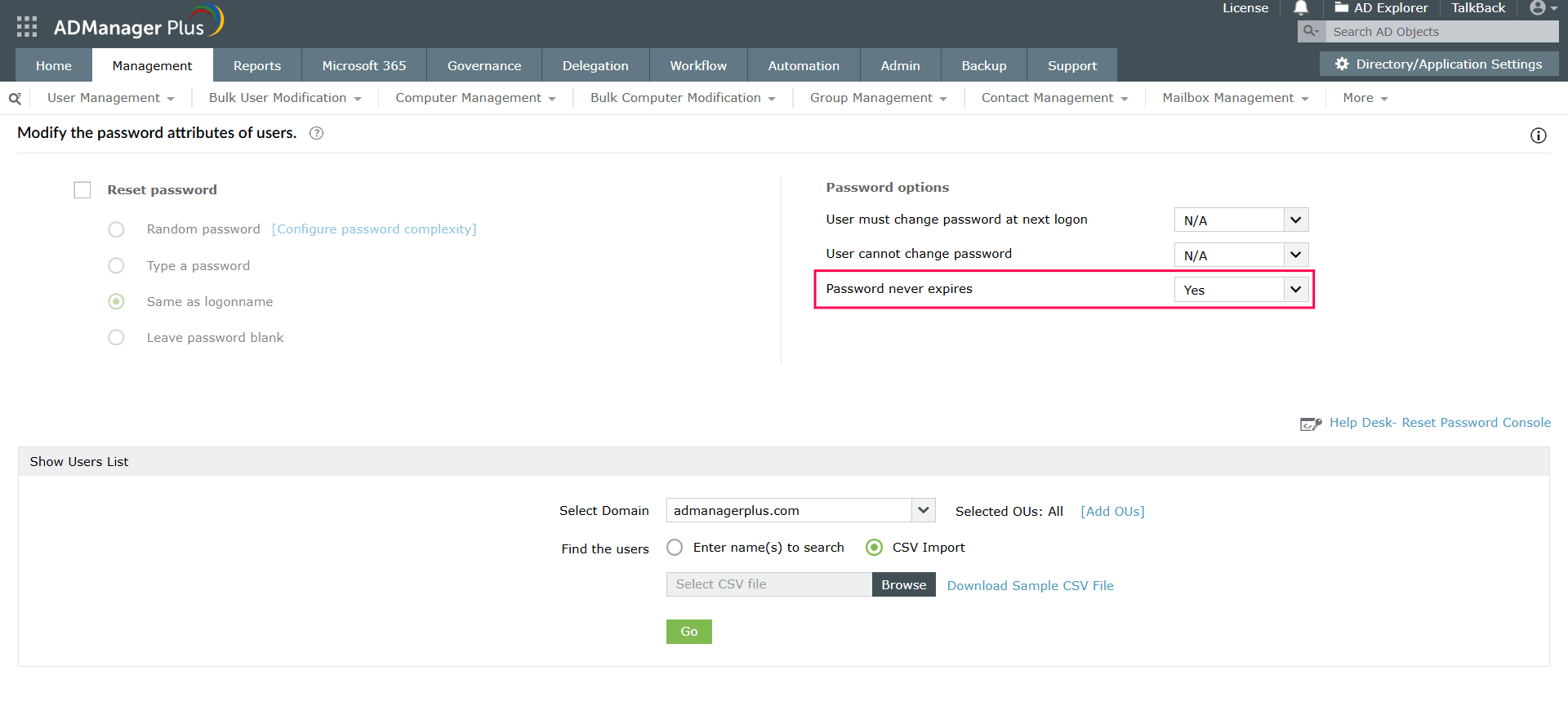
Setting a password to never expire removes one of the controls that limits how long a compromised credential stays useful, so the setting should be the exception, not the norm. Before enabling it, consider the following:
The domain password policy—which is set through Group Policy and covers the maximum password age, complexity, and password history—applies to every account in the domain by default. The PasswordNeverExpires flag is a per-user exception to the maximum password age part of that policy: An account with the flag set ignores the expiration rule while still being subject to the others, such as the complexity rule, when its password is set. This is why using the flag is the right tool for a genuine exception like a service account, rather than changing the domain policy itself, which would weaken expiration for everyone. The password history and reuse rules that are governed separately by the policy are worth keeping in place even on exempt accounts.
The required RSAT component may not be installed. On Windows 10 or 11, install it using the Add-WindowsCapability command provided in the prerequisites, then import the module again. On Windows Server, install the AD Domain Services and AD Lightweight Directory Services management tools through Server Manager or Install-WindowsFeature.
The account running the command lacks rights to modify the target user. Use an account with the required AD permissions or delegated write access to the target users. Running PowerShell as a local administrator alone does not grant permission to modify AD.
The property isn't returned by default. Add -Properties PasswordNeverExpires to the Get-ADUser command to see it.
The User must change password at next logon option conflicts with Password never expires. Clear the former in ADUC or set ChangePasswordAtLogon to $false before enabling PasswordNeverExpires.
For synchronized users, password expiration depends on the authentication method and where sign-in occurs. On-premises AD governs on-premises, pass-through, and AD Federation Services authentication, while Entra ID applies a separate expiration policy to password-hash-synchronized cloud sign-ins. Check the policies in both environments when troubleshooting.
ADManager Plus replaces scripts and repetitive console edits with a single console for AD, Microsoft 365, and Exchange management and reporting:
To give a user more time without exempting them permanently, reset the password (which restarts the maximum password age clock) or adjust the domain or fine-grained password policy's maximum password age. Setting PasswordNeverExpires to $true removes expiration entirely, which is appropriate only for accounts that genuinely need a non-expiring password, such as service accounts.
To find all users with non-expiring passwords, query the userAccountControl bit that represents the flag with an LDAP filter:
Get-ADUser -LDAPFilter "(userAccountControl:1.2.840.113556.1.4.803:=65536)"
This returns every account for which the password is set to never expire, which is useful for periodic audits. ADManager Plus provides the same list as a prebuilt password report you can schedule and export.
It removes a control that limits how long a compromised password remains valid, so you should limit it to accounts that need it (such as service or legacy application accounts) and compensate for it with MFA, managed service accounts where possible, and regular audits. Regular user accounts should follow the domain password policy.

