The Set-ADUser PowerShell cmdlet lets administrators quickly update user account attributes like passwords, managers, or settings without using the UI. It helps maintain accurate data, apply organizational policy changes, and perform bulk updates efficiently. This article includes steps and practical examples to help you manage users while ensuring security and compliance.
Import-Module ActiveDirectory
Set-ADUser -Identity "username" -Replace @{attributeName="newValue"}
The following are a few commonly used parameters with the Set-ADUser cmdlet:
| Parameter | Description |
|---|---|
| -Identity | Specifies the user account to modify. You can use the user's SAM account name, distinguished name (DN), GUID, or UPN. |
| -Replace | Updates one or more existing attribute values. Useful for changing properties like Title, Department, or ProxyAddresses. |
| -Add | Adds new values to multi-valued attributes such as ProxyAddresses or extension attributes without removing existing ones. |
| -Manager | Sets or updates the manager attribute for a user. |
| -AccountExpirationDate | Sets or modifies the date when the user account will expire. |
| -ChangePasswordAtLogon | Forces the user to change their password at the next sign-in. |
| -Credential | Runs the command using alternate credentials. |
| -Server | Specifies the domain controller or AD DS instance to connect to. |
| -PassThru | Returns the modified user object for verification or further use in scripts. |
Resets user's password and set the account option to user must change password at next logon
            Set-ADUser -Identity <sAMAccountName> -ChangePasswordAtLogon $true

			Set-ADAccountPassword -Identity <sAMAccountName> -NewPassword (ConvertTo-SecureString "NewP@ssw0rd!" -AsPlainText -Force)
Assigns or changes the manager for a user.
Set-ADUser -Identity <sAMAccountName> -Manager "cn=<managerCN>,ou=<OUName>,dc=<domain>,dc=<tld>"
Uses the -Replace parameter to update one or more attributes like Title and Department at once.
Set-ADUser -Identity <sAMAccountName> -Replace @{Title="<JobTitle>"; Department="<DepartmentName>"}
Adds or replaces proxy email addresses for a user using Set-ADUser.
Set-ADUser -Identity <sAMAccountName> -Add @{ProxyAddresses="SMTP:<PrimaryEmail>","smtp:<SecondaryEmail>"}
To replace all proxy addresses:
Set-ADUser -Identity <sAMAccountName> -Replace @{ProxyAddresses="SMTP:<PrimaryEmail>"}
Adds or modifies custom extension attributes.
Set-ADUser -Identity <sAMAccountName> -Add @{extensionAttribute1="<Value1>"; extensionAttribute2="<Value2>"}
Changes common account settings like office, description, and expiration date.
Set-ADUser -Identity <sAMAccountName> -Office "<OfficeLocation>" -Description "<DescriptionText>" -AccountExpirationDate "<MM/DD/YYYY>"
Disables user's account that's no longer active or needs to be temporarily blocked.
Set-ADUser -Identity <sAMAccountName> -Enabled $false
Changes common account settings like password options, account lockout, or expiration.
Set-ADUser -Identity <sAMAccountName> -ChangePasswordAtLogon $true
Unlocks user's account that's been locked out due to failed logon attempts.
Unlock-ADAccount -Identity <sAMAccountName>
Changes common account settings like office, description, and expiration date.
Set-ADUser -Identity <sAMAccountName> -Title "<JobTitle>" -Department "<DepartmentName>"
Solution: This happens when the value passed to -Identity isn't valid. Make sure your CSV or input variable contains the correct attribute such as SamAccountName or DistinguishedName. If you're using a script, confirm you're referencing the right column, for example, use $_.SamAccountName instead of $_.userPrincipalName if that's what your data provides.
Solution: This means you used an attribute that isn't a direct parameter of the cmdlet. Double-check the attribute name and supported parameters for Set-ADUser in Microsoft Docs. For extended attributes, use the hash table format instead. For example:
-Replace @{physicalDeliveryOfficeName='Value'} instead of calling it directly.
Solution: This usually happens when the data type doesn't match what the attribute expects. For instance, use $True or $False for Boolean properties instead of "1" or "0". For custom attributes, check their type first and make sure you're using the correct format, don't wrap Booleans or numbers in quotes.
Solution: You're trying to add more than one value to a property that only accepts one. Attributes like description or notes are single-valued. If you need to append information, join the old and new text together manually and use -Replace with the complete combined string.
Solution: The script can't connect to a domain controller. Check network connectivity, DNS resolution, and ensure Active Directory Web Services is running. If needed, try another domain controller or verify replication health using dcdiag or repadmin commands.
Solution: The account running the script lacks sufficient permissions to modify AD user attributes. Run PowerShell with a user account that has appropriate write permissions in AD, such as an account in the Account Operators or Domain Admins group.
Solution: This error often results from syntax issues in the -Filter or property parameters. Ensure all attribute names are correct, string values are enclosed in single quotes, and special characters are escaped properly.
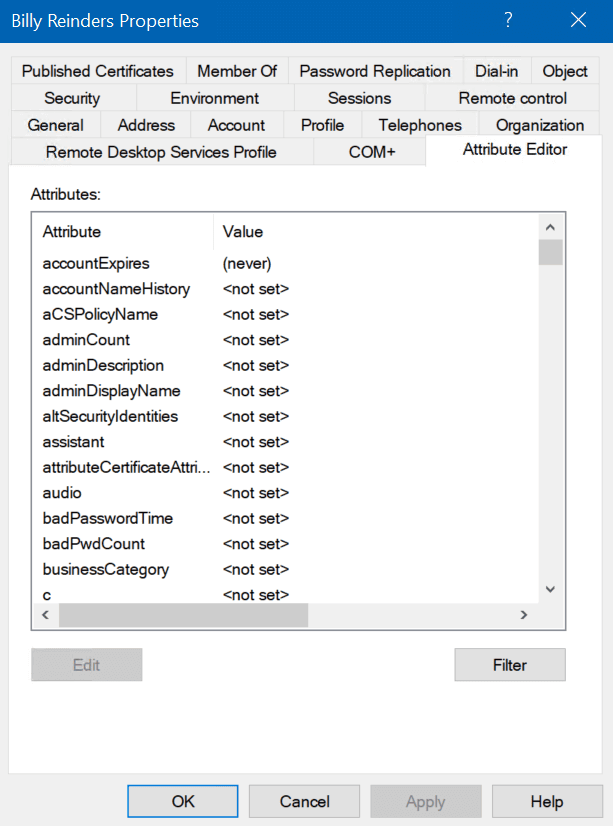
AD Users and Computers (ADUC) is a common method to update user attributes.
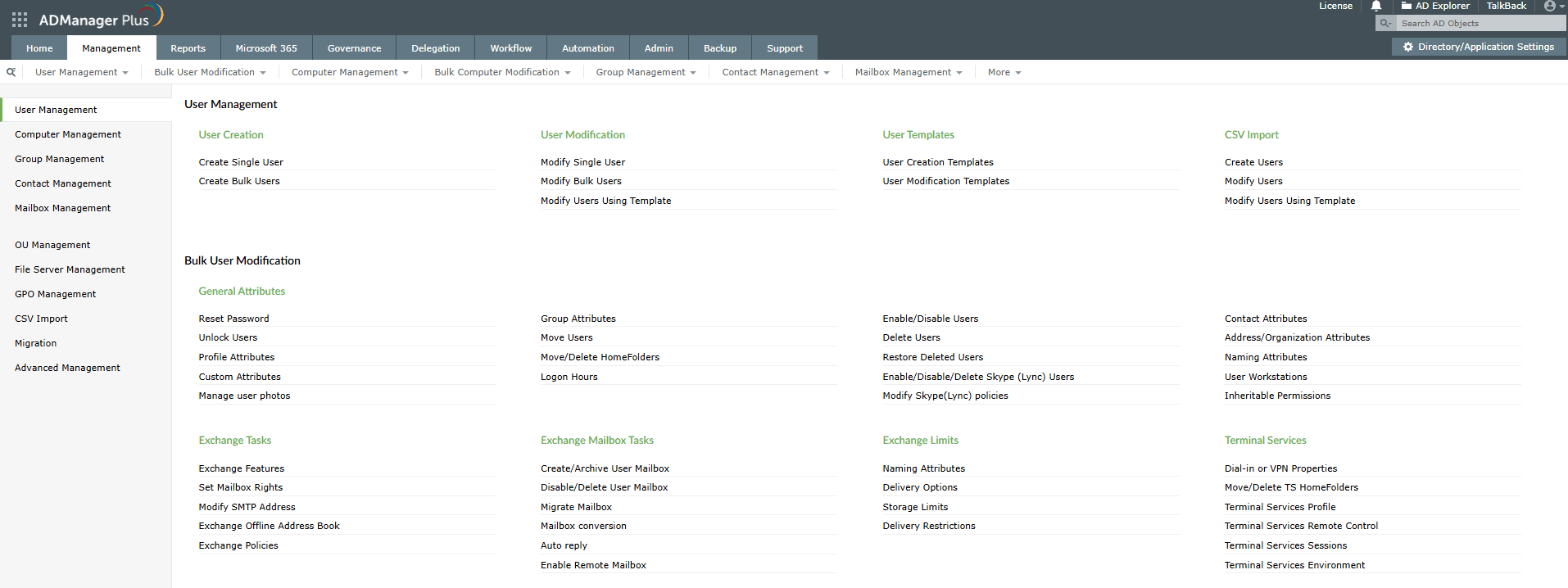
ADManager Plus streamlines the entire process, eliminating errors and providing a simple solution for all AD user management actions.
Relying only on PowerShell and ADUC to update AD user attributes has some drawbacks:
ADManager Plus makes AD management easier and faster through a single, intuitive console. Here’s why it’s a better choice for IT teams:
The Set-ADUser and Enable-ADAccount cmdlets can be used to enable an AD user. Run the command below by replacing username with the actual user logon name, distinguished name, or object GUID.
						Enable-ADAccount -Identity username

						Set-ADUser -Identity username -Enabled $true
Alternatively, script-free tools like ManageEngine ADManager Plus can be used to enable an AD user with just a few clicks.
Custom attributes (including extension or schema attributes) can be updated directly using Set-ADUser by replacing extensionAttribute1 with any schema attribute available in your AD setup and YourValue with the desired value.
Set-ADUser -Identity username -Replace @{extensionAttribute1="YourValue"}
Alternatively, tools like ManageEngine ADManager Plus let you perform the same task easily without using scripts.

