Adaptive Thresholds
Overview
Adaptive Thresholds in Applications Manager provide a dynamic way to monitor performance by adjusting threshold values based on the historical behavior of a monitored attribute. Unlike static thresholds that use fixed limits, adaptive thresholds learn from past data to establish a baseline of normal activity. This helps in accurately identifying anomalies by distinguishing between expected fluctuations and actual performance issues.
How adaptive thresholds work
Adaptive Thresholds analyze historical metric data over a defined period to understand normal behavior patterns. Based on this analysis, the system dynamically calculates acceptable limits and continuously compares incoming data against these values. Alerts are triggered only when there is a significant deviation from the expected range, ensuring meaningful alerting.
- Historical data is used to establish a baseline
- Upper and lower limits are dynamically calculated
- Incoming values are evaluated against the baseline
- Alerts are generated only for significant deviations
You can use New Threshold Profiles to apply Adaptive thresholds broadly across targets within your environment. For a Standard Threshold Profile, raw data will be assessed against the threshold limit, and an alert will be generated in every poll. For Anomaly Threshold Profiles, hourly average data is compared with the past archived data (this should be configured by the user). Adaptive thresholds are a combination of both standard and anomaly thresholds and have two categories - Automatic and Manual.
Automatic Adaptive Thresholds
Applications Manager allows you to configure alarms by associating thresholds based on anomaly detection with the help of Machine Learning. It makes use ofthe RPCA algorithm to determine the anomaly, which helps in identifying sudden or unusual spikes in the data immediately upon occurrence and triggers alerts accordingly.
Once an Automatic Adaptive profile is configured, a history of data is collected for the attribute of the monitor to understand its characteristics and behavior. After a few hours of data collection, it is compared with the current data to check for abnormalities; if an alarm is raised in case of anomalies.
If an abnormal value is detected for the attribute, with its deviation violating the threshold, then alerts will be generated, and the anomaly details will be shown in the attribute's RCA message. The RCA message will contain the anomaly details of the attribute that caused the alert by displaying the amount of deviation found between the expected and actual values. If the collected value does not have any anomalies or the deviation does not meet the 'Critical' or 'Warning' threshold, then the alarms will be cleared with 'Clear' severity.
Note: Machine Learning based anomaly detection is applicable only to Numeric attributesand does not support the following attributes:
- Health
- Availability
- String attributes
- Configuration Numeric attributes
- Configuration String attributes
Manual Adaptive Thresholds
Manual adaptive thresholds configure thresholds manually based on one of the two types: Baseline and Custom expression. Baseline compares raw data values with past archived data at every poll. Custom Expression contains some configured expressions (needs to be configured by the user from the UI), and it calculates the value for that expression and compares it with raw data at every poll.
How to configure adaptive thresholds
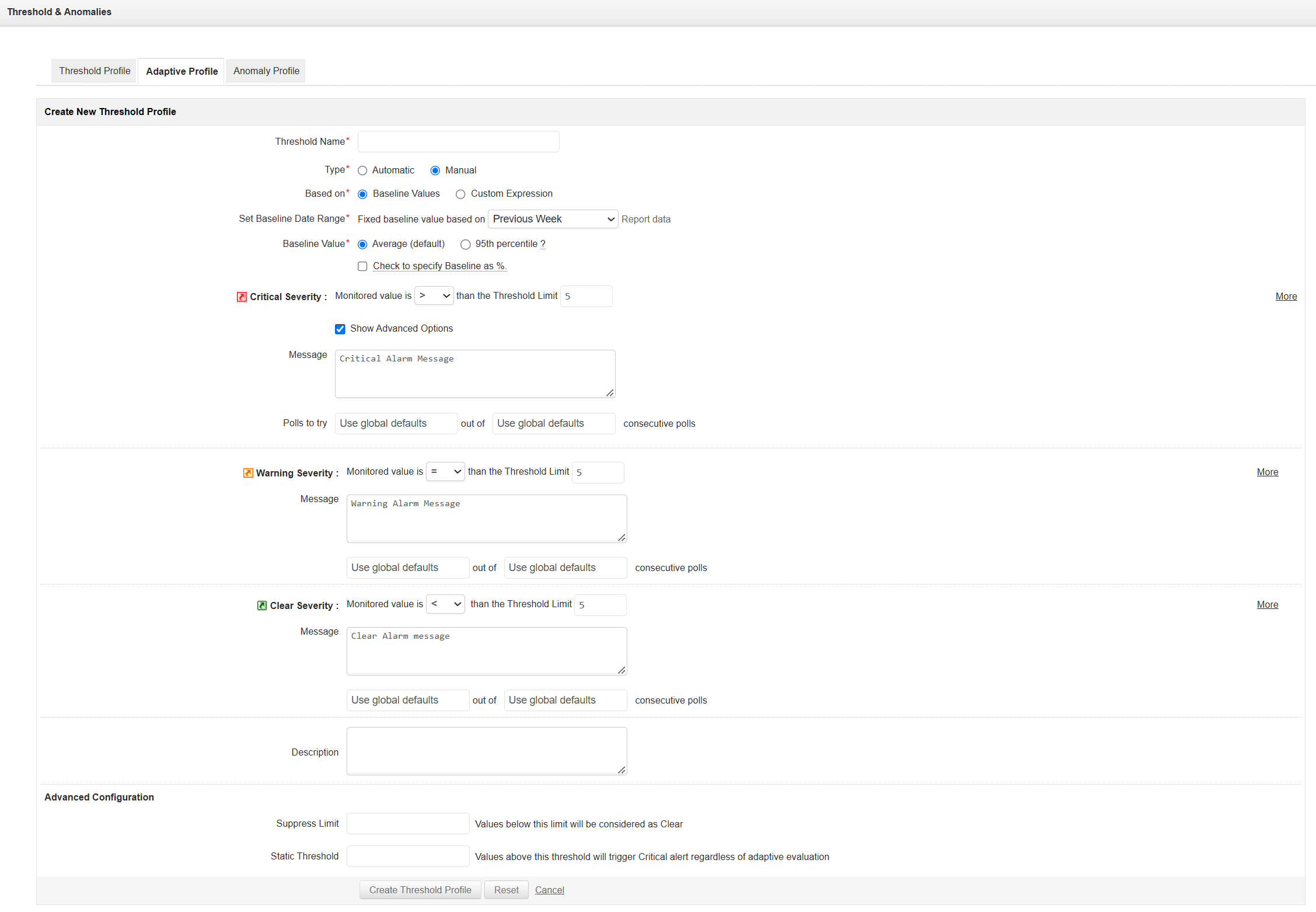
To configure adaptive thresholds, follow the steps given below:
- Go to Threshold Profile and click on New Threshold Profile.
- Click onthe Adaptive Profile tab. This opens the Create New Threshold Profile screen for Adaptive Threshold.
- Specify the Threshold Name for the adaptive profile to be created.
- Specify the type of Adaptive threshold to be created by selecting one of the following options:
Automatic: Allows you to raise alerts automatically using Machine Learning algorithms. Once selected, specify the deviation percentage for the alert to be raised for Critical, Warning, and Clear severities. Go to Step 5.
Note: In the case of Automatic adaptive profiles:
- Alarms will only get raised when the same severity occurs consecutively.
- Globally configured settings will not be applied.
- Manual: Allows you to raise alerts manually using any one of the following methods:
Baseline: You can set a fixed Baseline Date Range from the drop-down menu. Check the checkbox to specify Baseline as %. If the box is unchecked, you can enter hard-coded values instead of the percentage.
Once a Baseline formula is selected (for example, Previous Week), use the Baseline Value option to choose how the reference value for each hour is calculated from that baseline week's data:
Baseline Value Description Average(default) The reference for each hour is the average of that hour's readings across the baseline week. This is the existing behavior. 95th percentile The reference for each hour is the 95th percentile of that hour's readings across the baseline week — i.e., the high end of normal for that hour of the day. Your configured deviation conditions (for example, Critical when more than 20% above baseline) are then applied on top of the chosen reference, exactly as before.
How the 95th percentile reference is derived: For each hour of the day, Applications Manager looks at the same hour on every day of the baseline week (for example, the 2 PM reading on each of the seven days) and computes the 95th percentile of those readings. Because the reference is derived per hour, daily and business-hour patterns are respected automatically — 2 PM is judged against 2 PM history and 3 AM against 3 AM history. The reference refreshes every hour, with no manual tuning.
Using the 95th percentile instead of the average means an occasional spike in the baseline week influences the reference only partially instead of distorting it, so alerting stays resistant to one-off peaks while still flagging genuine anomalies.
Example: Profile: Baseline = Previous Week, Baseline Value = 95th percentile, Critical = > 20% above baseline, Warning = > 10% above baseline.
The 2 PM CPU readings across the baseline week were 55%, 58%, 60%, 62%, 57%, 30%, 28%.
- 95th percentile of these values ≈ 61.4%
- Warning level for 2 PM = 61.4% + 10% → 67.5%
- Critical level for 2 PM = 61.4% + 20% → 73.7%
A 2 PM reading of 70% raises a Warning; 76% raises a Critical. If one of the seven readings had been an abnormal one-time spike (say 91%), the reference would rise only partially (to ≈ 82%) rather than being pulled up to the spike.
Note:
- About a week of history is required. For newly added monitors, the profile automatically uses the average behavior until enough baseline data accumulates — no false alerts in the meantime.
- Recommended with the Previous Week baseline. For a fixed baseline week far in the past, detailed data may no longer be retained, in which case the profile falls back to the average.
- Only the 95th percentile is offered — the industry-standard choice for separating "the high end of normal" from genuine anomalies. Other percentile values (90th, 99th, etc.) are not supported.
- Existing safeguards still apply — Suppress Limit and Static Threshold are evaluated first and are unchanged.
When an alert is raised using this option, the alert/RCA message indicates that the reference was derived from the 95th percentile of the hour.
Custom expression: Users can define their own expression from the available system options provided by the Applications Manager. Here are the Available System Variables:
Use this option for Expressions Description $10D_MVA Ten-Day Moving Average $30D_MVA Thirty-Day Moving Average $6H_MVA Six-Hour Moving Average $7D_MVA Seven-Day Moving Average $LastHourValue Last Hour Average $10H_MVA Ten-Hour Moving Average
- Configure the threshold for Critical, Warning or Clear severity. You can configure the threshold for Warning and Clear severity by enabling the Show Advanced Options checkbox. Once enabled, follow the steps given below:
Specify the conditions for the
Critical rning or Clear severity. You can set the deviation percentage/monitored value of a particular severity to be > (greater than), < (less than), = (equal to), != (not equal to), <= (less than or equal to), >= (greater than or equal to) a customizable Threshold Limit. For Manual adaptive thresholds, you can set an additional condition when defining your threshold limit for each severity by clicking on the More link at the right corner of the Create New Threshold Profile table. Note:
- While configuring threshold conditions for all severities, ensure that all values within the threshold's start and end points are considered. The threshold should be set in a way that the specified values are mapped and unique based on the conditions used for all the severities.
- For example, if the value collected for the response time attribute of a Windows server monitor is 100 and the threshold condition configured for that attribute is Critical > 50, Warning = 50, Clear < 50, then the condition matches for the Critical severity alone, whereas it does not satisfy the conditions for Warning and Clear severities. As a result, only a Critical alarm is generated for that attribute.
- Specify a message that has to be appended to the alarm raised for Critical, Warning, and Clear severities.
- Specify the number of polls that have to be tried consecutively before raising an alert. For Manual Adaptive Thresholds, if you do not want to generate an alarm for the very first instance the threshold condition is crossed, you can configure the settings to examine a certain X number of polls from a Y number of consecutive polls (both numbers are customizable) before generating an alarm. For e.g., if you want an email alarm to be generated only if the CPU Disk utilization is above 100% consecutively for more than three polls out of five polls, then you can configure the number of polls to be examined out of a number of consecutive polls before generating an alarm. By default, it takes the value from Global Settings. Refer Configuring Consecutive Polls for setting configurations for individual monitors.
- Enter the description to be provided for the Adaptive Threshold Profile.
- In the Advanced Configuration section, specify the values for the following options:
- Suppress Limit: If the monitored value falls below the configured limit, the alert is automatically marked as CLEAR. This setting bypasses all adaptive or baseline threshold checks and helps avoid alerts for very small or insignificant values.
- Static Threshold: If the monitored value exceeds the configured static threshold limit, the alert is immediately marked as CRITICAL. This setting ignores adaptive threshold behavior and ensures that sudden or critical spikes are detected without delay for safety purposes.
- Click the Create Threshold Profile button to add the adaptive threshold after defining all the conditions.
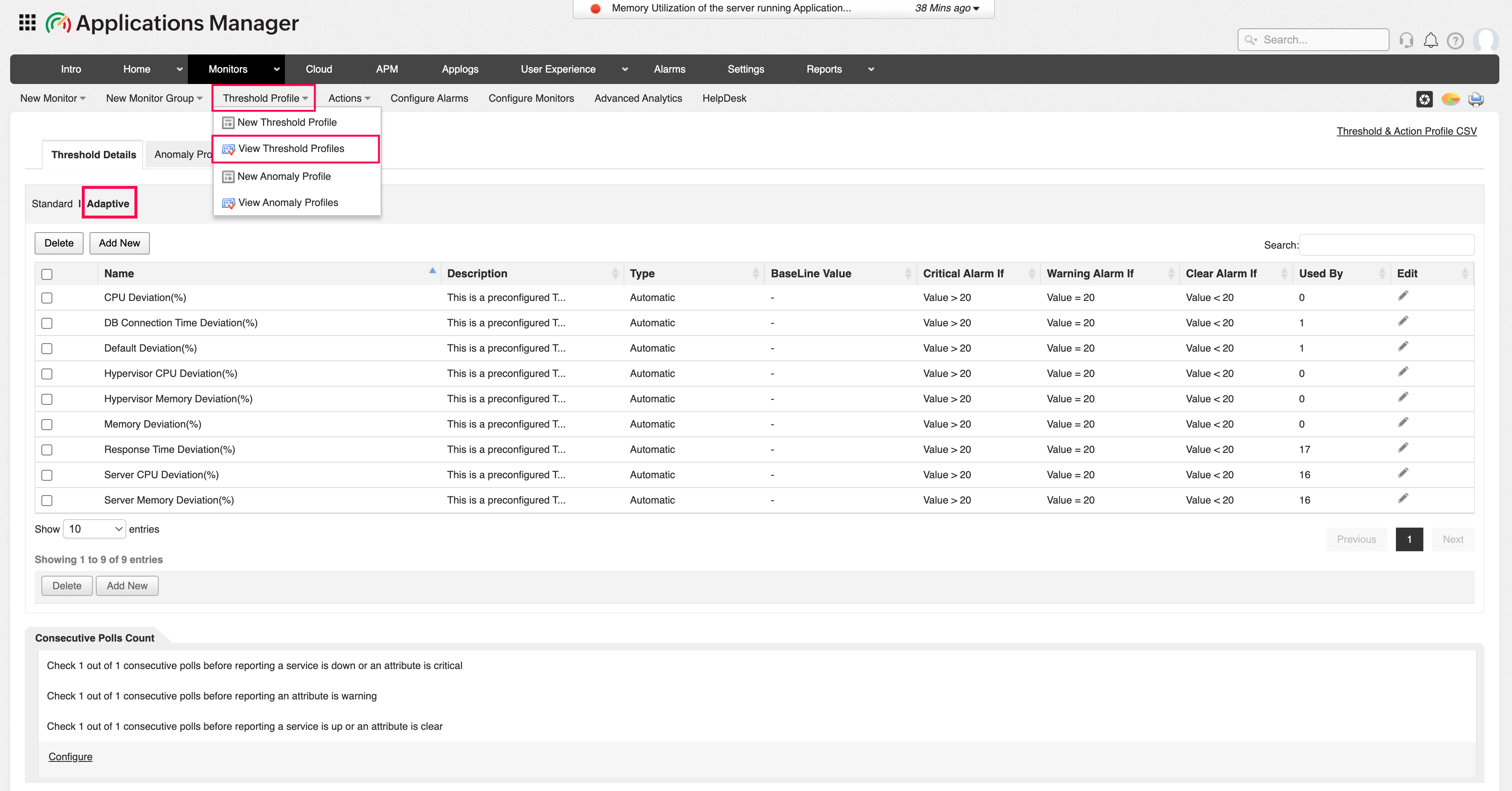
Once the threshold profile is added, go to the Threshold Profile → View Threshold Profiles → Threshold Details tab to view the newly created threshold profile. The Threshold Details tab lists all the default thresholds and newly created threshold profiles that are created in Applications Manager. Clicking on
The thresholds thus defined can be associated with the attributes for determining the status of the attributes of the Monitor Group. You can also associate thresholds and actions directly through Global Alarm Configuration instead of the individual Monitor screen. Refer to Associating Threshold and Action with Attributes for more details.
Threshold Profiles in the Enterprise Edition
You can create Threshold Profiles from the Central Server in Applications Manager, the same as in the Professional Edition, and the profiles created automatically sync with the Probe Servers. However, these profiles can only be used and cannot be edited from the Probe Servers.