Using DB Configuration Tool
- Overview
- Invoking DB Configuration tool in Windows
- Invoking DB Configuration tool in Linux
- Steps to change Applications Manager DB configuration from PGSQL to MSSQL
- Steps to change Applications Manager DB configuration from MSSQL to PGSQL
Overview
Changing the backend database server used by Applications Manager requires multiple configuration files to be updated manually. DB Configuration tool helps in reducing the manual interaction with the configuration files. It is used to change the database server configuration by obtaining credentials from you. This document explains how to change DB configuration from PGSQL to MSSQL and vice versa.
Note: DB Migration cannot be performed using this DB Configuration tool.
Invoking DB Configuration tool in Windows
- Start Command prompt with administrator privilege..
- Navigate to <Applications Manager Home>/bin.
- Execute the command DBConfiguration.bat
Invoking DB Configuration tool in Linux
- Open Terminal.
- Navigate to <Applications Manager Home>/bin>.
- Execute the command sh DBConfiguration.sh
Steps to change Applications Manager DB configuration from PGSQL to MSSQL
- Select the DB : Choose MSSQL as DB.
- Select the Driver : Select the driver to be used.(jTDS / JDBC)
- Select Authentication : In this step, you can select the type of authentication.{SQL/Windows/Kerberos (JDBC)}
- Provide the credentials with respect to the selected type of authentication. It includes mandatory credentials like Username and Password(mandatory for all authentication types except Kerberos), DB Host/FQDN(Kerberos), Port, Database name and Domain.
- Once you click OK, the database server configuration will begin with the given credentials and Authentication type.
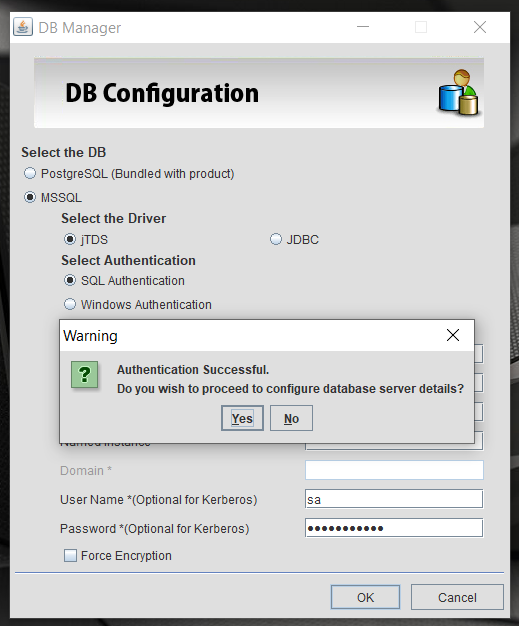
- Authentication message : On successful authentication, a pop-up message will appear where you can choose to proceed or not with configuring database server details.
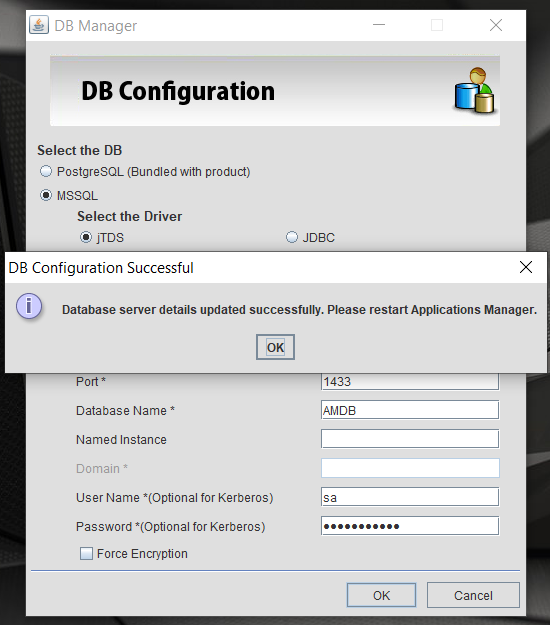
- Database server details will be configured once you click on Yes. A final message will be displayed stating "Database server details updated successfully. Please restart Applications Manager".
- If the authentication fails, you will be notified and database server configuration will not happen.
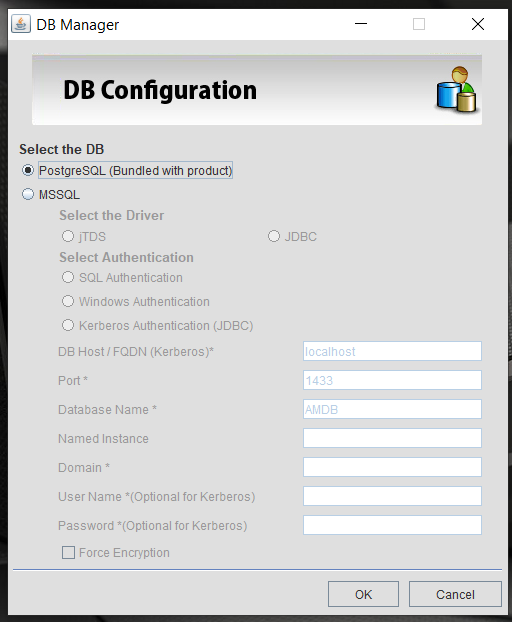
If you are choosing MSSQL follow the below steps:
Steps to change Applications Manager DB configuration from MSSQL to PGSQL
- Select the DB : Select Bundled PGSQL as DB.
- Click OK
- The files will be updated and a message will be displayed stating "Database server details updated successfully. Please restart Applications Manager".

