PAM Integration
- Overview
- Functionalities of PAM Integration
- Steps to Configure PAM Integration
- Managing PAM Integration
- Viewing PAM Shared Resources
- Syncing PAM Resources
- Viewing Sync Operation Reports
Overview
Privileged Access Management (PAM) is a cybersecurity solution designed to secure and manage privileged accounts within an organization. It enhances security, protects sensitive information, and ensures IT infrastructure integrity.
Applications Manager supports integration with PAM360 for Server monitors, providing secure credential management by centralizing resource credentials for streamlined monitoring. It ensures effective and up-to-date monitoring through credential synchronization while adhering to stringent cybersecurity standards.
Functionalities of PAM Integration
- Secure Storage: Passwords copied from the Password Manager are securely stored in the Applications Manager database.
- Resource Deletion Sync: When a resource is deleted from the Password Manager, its corresponding copy in the Applications Manager database is also deleted, ensuring the monitors remain unaffected.
- Configuration Deletion Impact: If the Password Manager configuration is deleted, all saved resources in Applications Manager will also be removed.
- Scheduled Updates: The Applications Manager database is updated at the scheduled interval only if there are password updates in the Password Manager.
Steps to Configure PAM360 Integration
You can integrate Applications Manager with PAM360 in one of two ways:
Configure Password Manager integration directly from Applications Manager
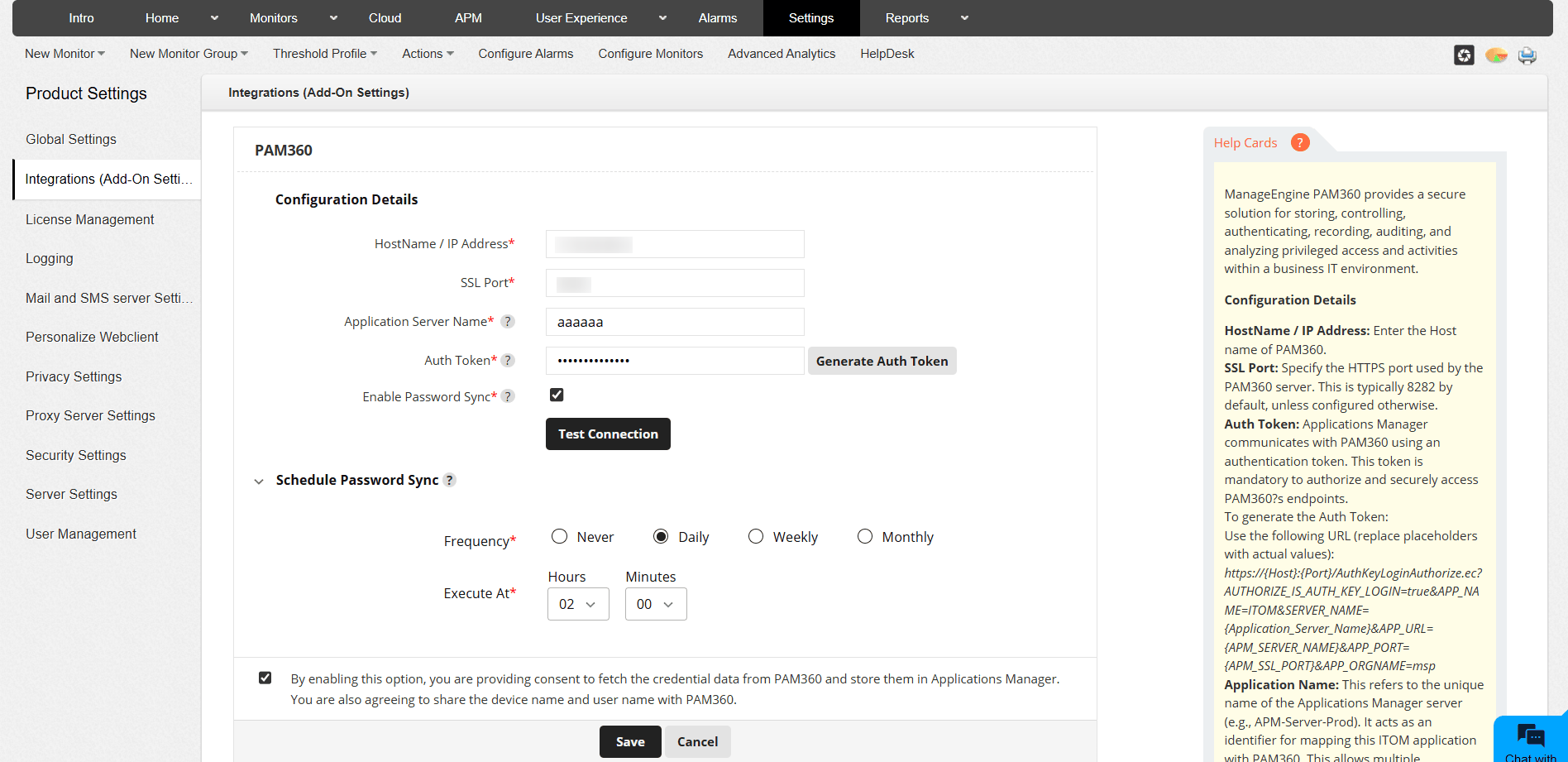
Follow the steps given below to integrate PAM360 with Applications Manager:
Configuration Details
- Log into Applications Manager and go to Settings → Product Settings → Integrations (Add-On Settings) → PAM360.
- Enter the ServerIP/DNS Name of the PAM360.
- Enter the HTTPS port of the PAM360 server in the SSL Port field.
- Provide the Auth Token (authentication token) required to access PAM360 APIs. To obtain the authentication token, access the following URL from PAM360:
https://{Host}:{Port}/AuthKeyLoginAuthorize.ec?AUTHORIZE_IS_AUTH_KEY_LOGIN=true&APP_NAME=ITOM&SERVER_NAME={Application_Server_Name}&APP_URL={APM_SERVER_NAME}&APP_PORT={APM_SSL_PORT}&APP_ORGNAME=msp
Replace the placeholders ({Host}, {Port}, etc.) with the respective PAM360 and Applications Manager server details. - Specify the Application Name to be used as an identifier within PAM360.
- Enable the Password Sync option to sync password data between PAM360 and Applications Manager.
- Use the Test Connection button to ensure that the entered configuration is correct and can establish connectivity.
Schedule
- Frequency: Schedule the synchronization frequency as Never, Daily, Weekly, or Monthly.
- Execute At: Allows setting the specific time for synchronization.
- Check the consent message box that appears at the bottom, clarifying that enabling the integration will allow Applications Manager to fetch credential data from PAM360 and share device/user details with PAM360.
- Click on Save and Sync to save the entered configuration and initiate synchronization.
Configure via PAM360
Follow the steps given below to configure the integration trigger from PAM360 to Applications Manager:
- Log into Applications Manager and go to Settings → Product Settings → Integrations (Add-On Settings) → PAM360.
- Use the Generate Key button in Applications Manager to generate the Authentication Token and make a copy of it.
- Login to PAM360 and go to Admin → Integrations → ManageEngine → ITOM → Add New Application.
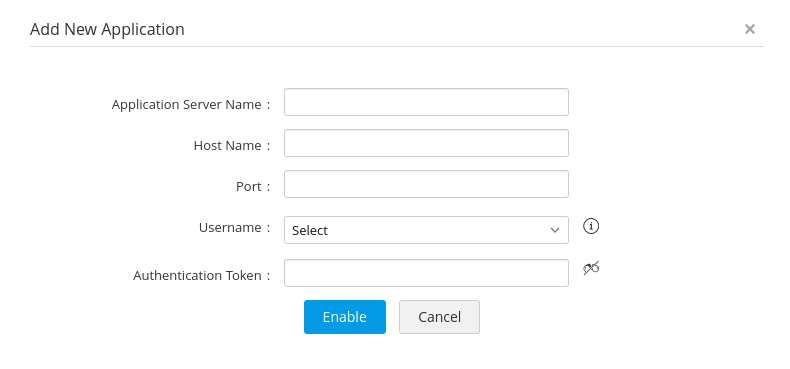
- Specify the Application Name to be used as an identifier within PAM360.
- Provide the Host Name of the server where Applications Manager is running.
- In the Port field, enter Applications Manager's SSL port.
- Select a Username from the provided dropdown.
- Enter the copied Authentication Token generated in Applications Manager.
- Click on Enable to configure PAM Integration in Applications Manager.
- Import the Applications Manager certificate into PAM360 to establish a secure connection between the two systems.
The PAM Integration will now be configured in Applications Manager. You can verify this by navigating to Settings → Product Settings → Integrations (Add-On Settings).
Managing PAM Integration
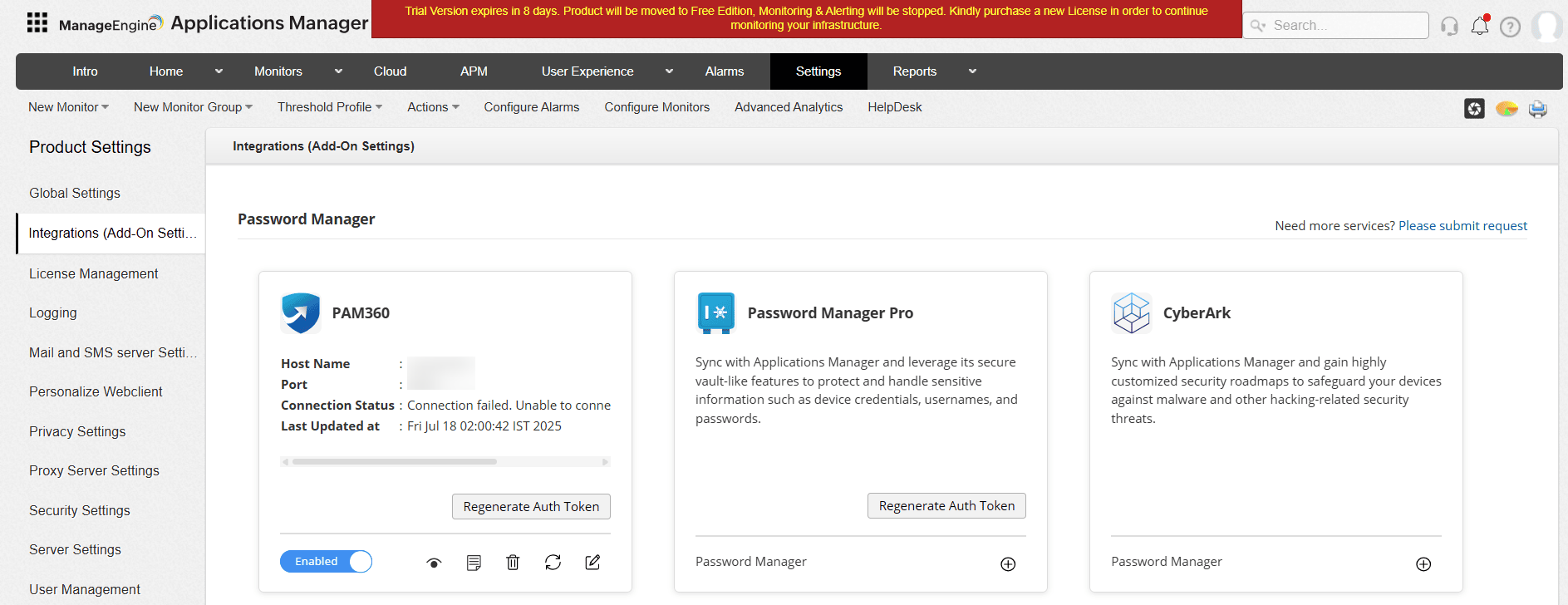
Once the integration is successful, you can manage the PAM360 configuration using the following icons available on the Integrations (Add-On Settings) page:
- Shared Resources: View detailed information on the resources shared with PAM.
- Reports: Allows you to access reports related to all the triggered Sync operations.
- Delete: Removes the PAM360 integration from Applications Manager. Use this option if the integration is no longer required.
- Fetch Data Now: Triggers a manual synchronization of the shared resource data, ensuring that the latest updates are reflected.
- Edit: Modify the integration details, such as host name, port, or authentication settings.
Viewing PAM Shared Resources
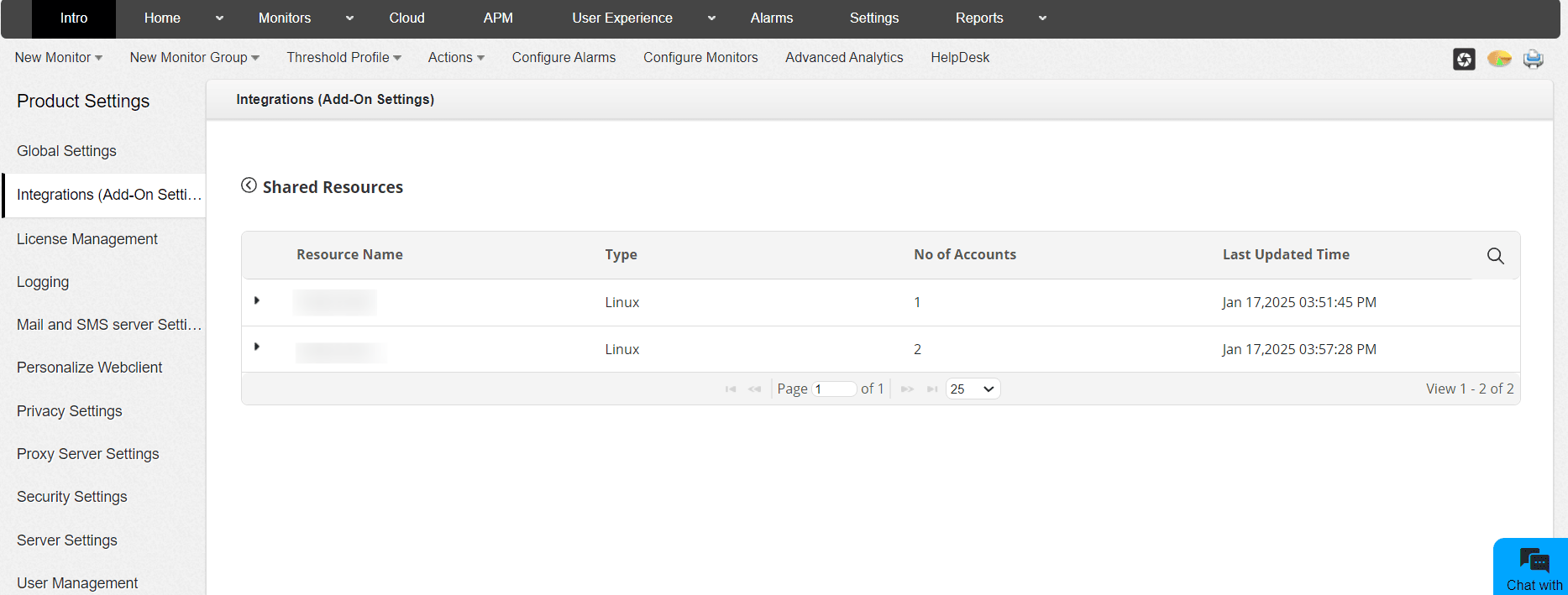
You can view the synchronized resources under Settings → Product Settings → Integrations (Add-On Settings) → Shared Resources. This page provides the following details for each resource:
- Resource Name: Displays the hostname or IP address of the resource.
- Type: Specifies the resource type (Linux/Windows).
- No. of Accounts: Shows the total number of accounts associated with the resource.
- Last Updated Time: Indicates the most recent synchronization time for the resource.
You can use the search icon at the top-right corner to filter resources by name, type, or other attributes.
Viewing Sync Operation Reports
Applications Manager provides detailed reports for all sync operations performed with PAM360. These reports can be accessed from the Integrations (Add-On Settings) page, with the PAM360 Reports icon.
The report page lists all sync tasks, whether triggered manually or scheduled, along with their statuses and timestamps.
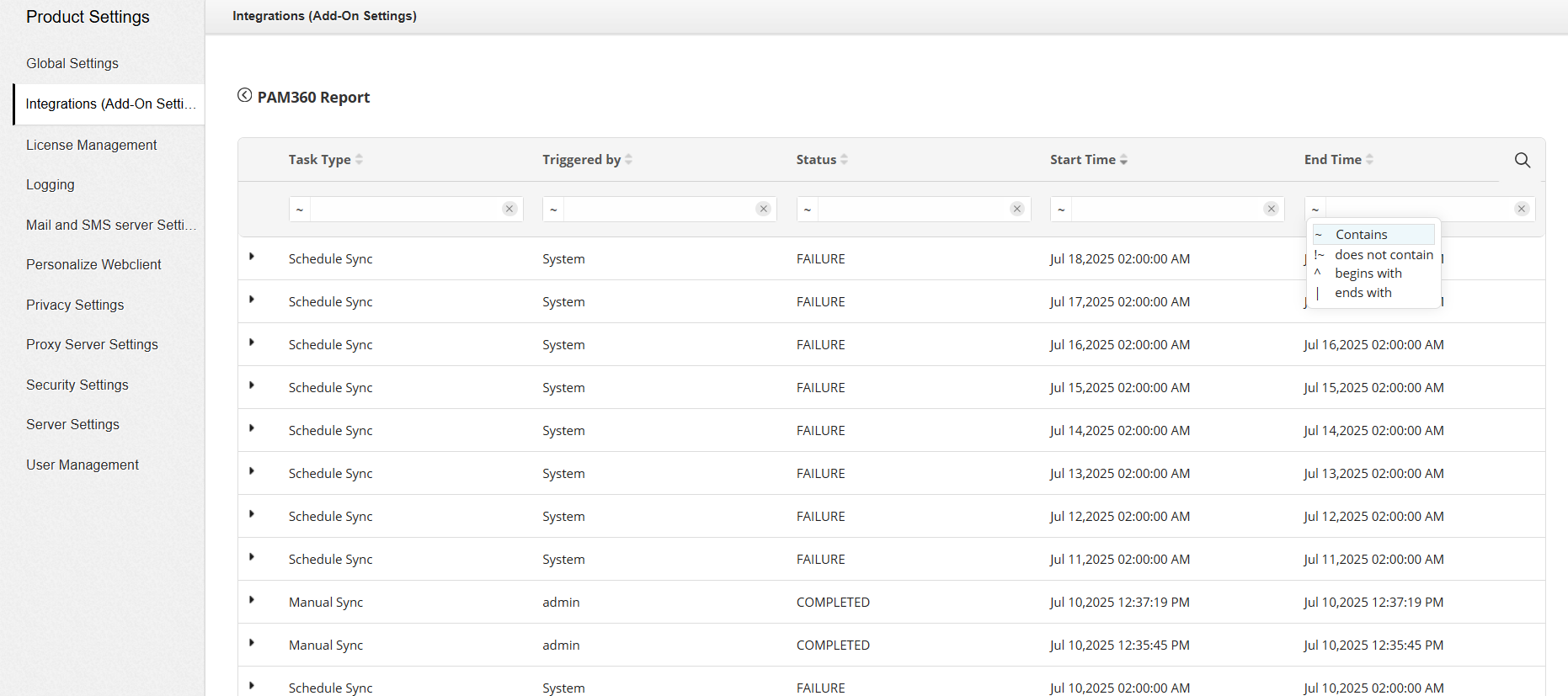
The report table includes the following columns:
- Task Type: Indicates whether the task was a Manual Sync, Schedule Sync, or Server Sync.
- Triggered By: Specifies whether the task was initiated by an admin user or the system.
- Status: Shows the outcome of the task (e.g., COMPLETED, FAILURE).
- Start Time: The exact time when the sync task began.
- End Time: The time when the sync task completed or failed.
To filter and analyze specific tasks, click on the search icon located in the top-right corner of the report. This allows you to filter tasks based on specific keywords or statuses.
Syncing PAM Resources
A sync operation will be triggered in case of the following requirements:
- Sync On Configuration
- Password Manager must be configured with the required parameters.
- Ensure that the Applications Manager server has connectivity with Password Manager.
- When a monitor is successfully added or updated, resource details (such as passwords) from Password Manager will be synced to the monitor.
- For servers configured before Password Manager integration, passwords will be synced during the scheduled interval.
- If authentication fails for a synced monitor during data collection, the sync operation for that resource will be triggered, and details will be updated if changes are detected.
- Manual Sync
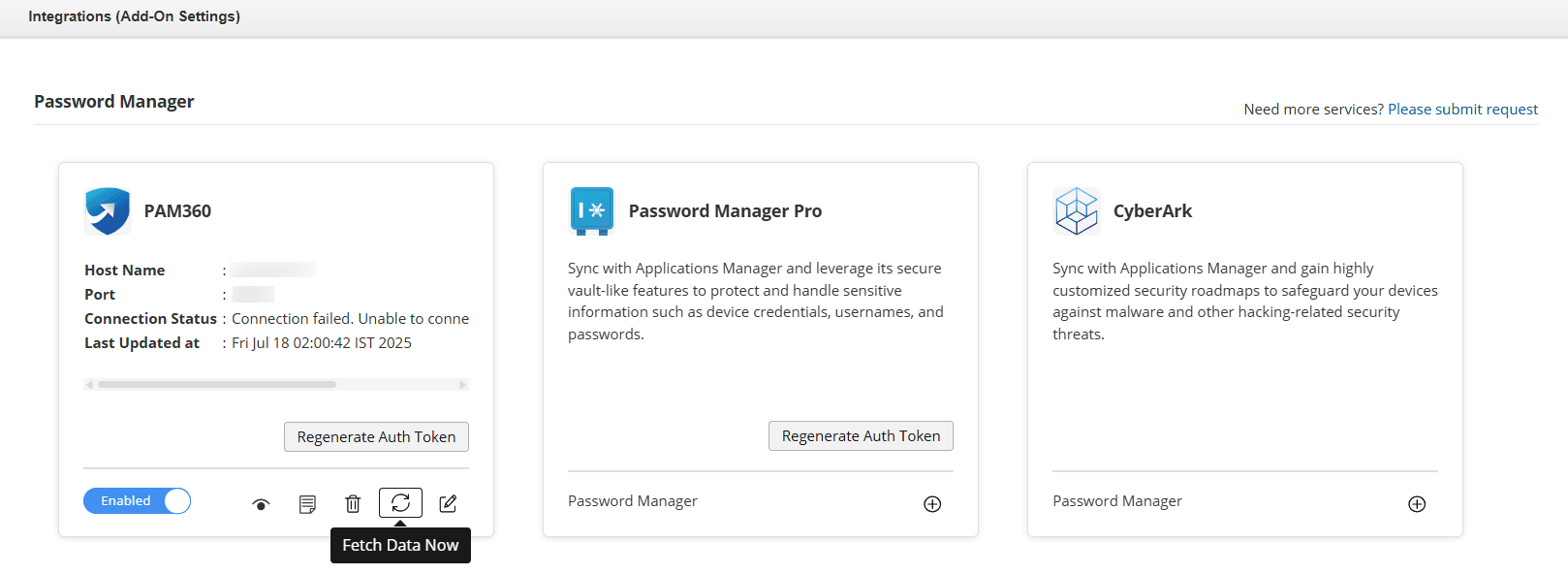
A manual sync can be initiated by manually clicking on the Sync option present on the Integration page of Applications Manager or PAM.
- Scheduled Sync
Sync operations will automatically occur for all resources at the scheduled time configured during Password Manager setup.
- Server Sync
Sync operations will be triggered for individual servers when a server monitor is either added or updated.
- Authentication Check Sync
- If an authentication error occurs for a server monitor during data collection, a sync operation will be triggered for that resource.
- This authentication check sync happens once every hour.
- Force Sync
A force sync initiated from PAM will occur in the following cases:
- When a user is updated in the PAM App Settings.
- When sync is enabled in the PAM App Settings.
- When a password is changed for a resource, provided the Apply password changes to the remote resource option is enabled during the update.

