SIEM Integration
- Overview
- Supported SIEM Integrations
- Steps to Configure SIEM Integration
- Post-Integration Configuration
- Managing SIEM Integration
Overview
Security Information and Event Management (SIEM) solutions help organizations collect, analyze, and correlate security-related logs and events from multiple systems to detect threats, meet compliance requirements, and support incident investigations.
Applications Manager supports forwarding audit and access logs, as well as alarm-generated Syslog messages, to external SIEM platforms using the standard Syslog protocol. This enables centralized visibility into monitoring activities, configuration changes, and security-related events.
Supported SIEM Integrations
Applications Manager supports the following SIEM integration options:
- Splunk (Out-of-the-box integration)
Provides native support for forwarding logs directly to Splunk using UDP/Syslog. - Custom SIEM Integration (via UDP/Syslog)
Allows Applications Manager to integrate with any SIEM product that supports Syslog, such as ManageEngine Log360, Microsoft Sentinel, and other third-party SIEM solutions.
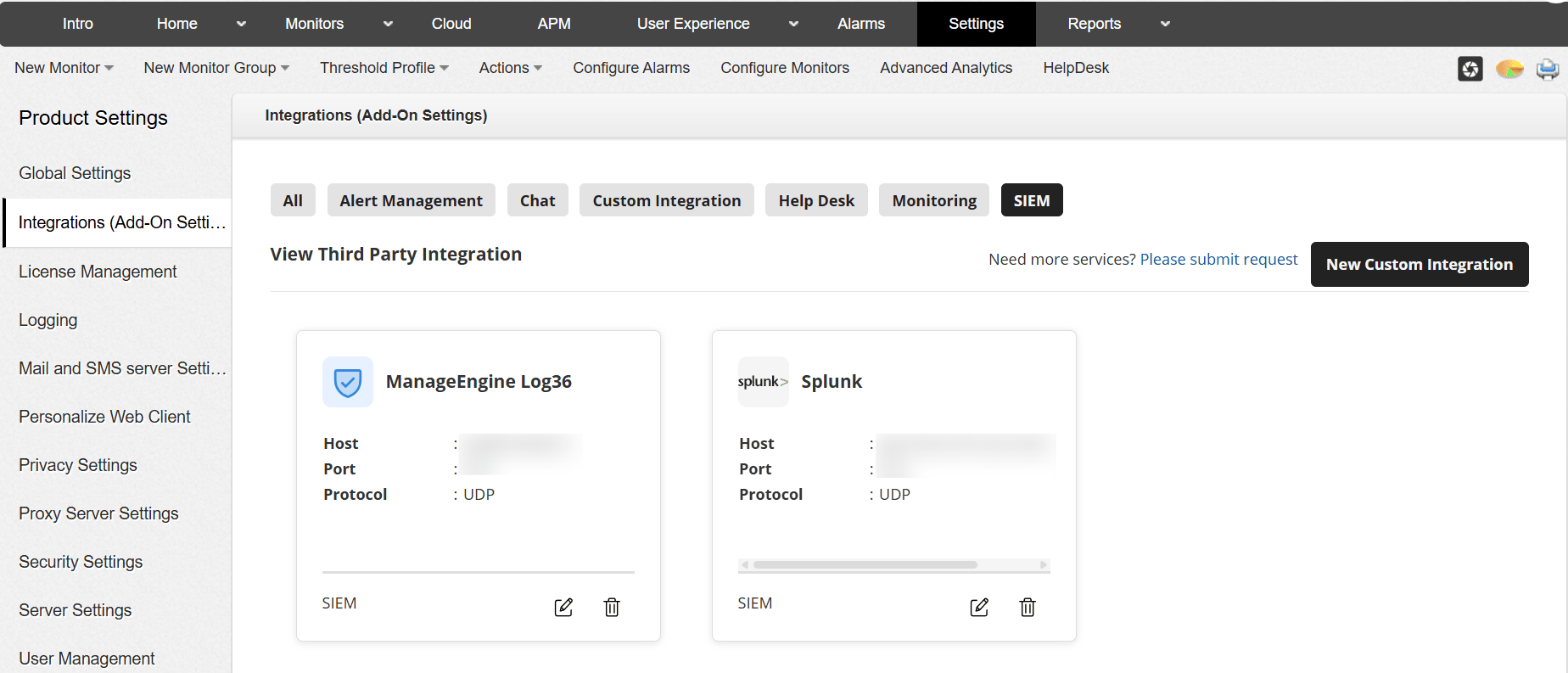
Steps to Configure SIEM Integration
You can configure SIEM integration by navigating to: Settings → Product Settings → Integrations (Add-On Settings) → SIEM.
Configure Custom SIEM Integration (Log360, Microsoft Sentinel, and others)
Use the Custom SIEM option to integrate Applications Manager with SIEM platforms that support Syslog.
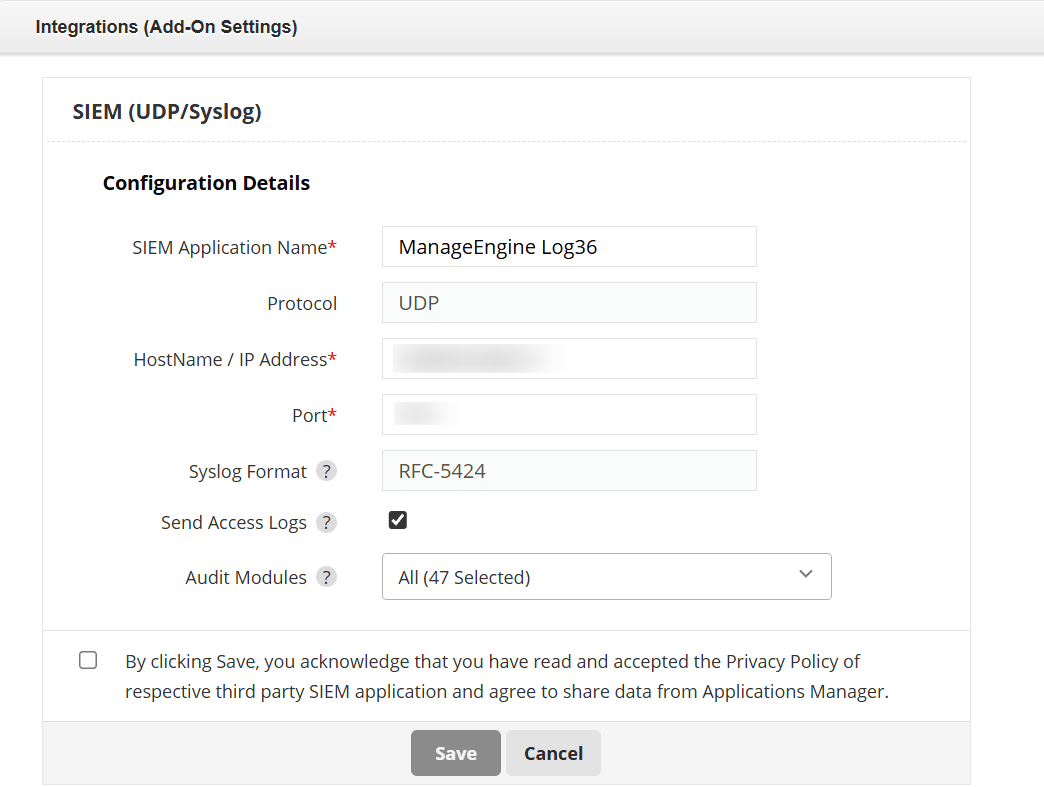
- Enter a friendly name in the SIEM Application Name field.
- Select UDP as the Protocol.
- Enter the Host Name / IP Address of the SIEM server.
- Specify the Port configured to receive Syslog data.
- Ensure the Syslog Format is set to RFC 5424.
- Enable Send Access Logs, if required.
- Select the relevant Audit Modules.
- Acknowledge the privacy policy.
- Click Save.
Once saved, Applications Manager will start forwarding audit and access logs to the configured SIEM server.
Configure SIEM Integration for Splunk (Out-of-the-box)
Applications Manager provides native support for Splunk integration using UDP/Syslog.
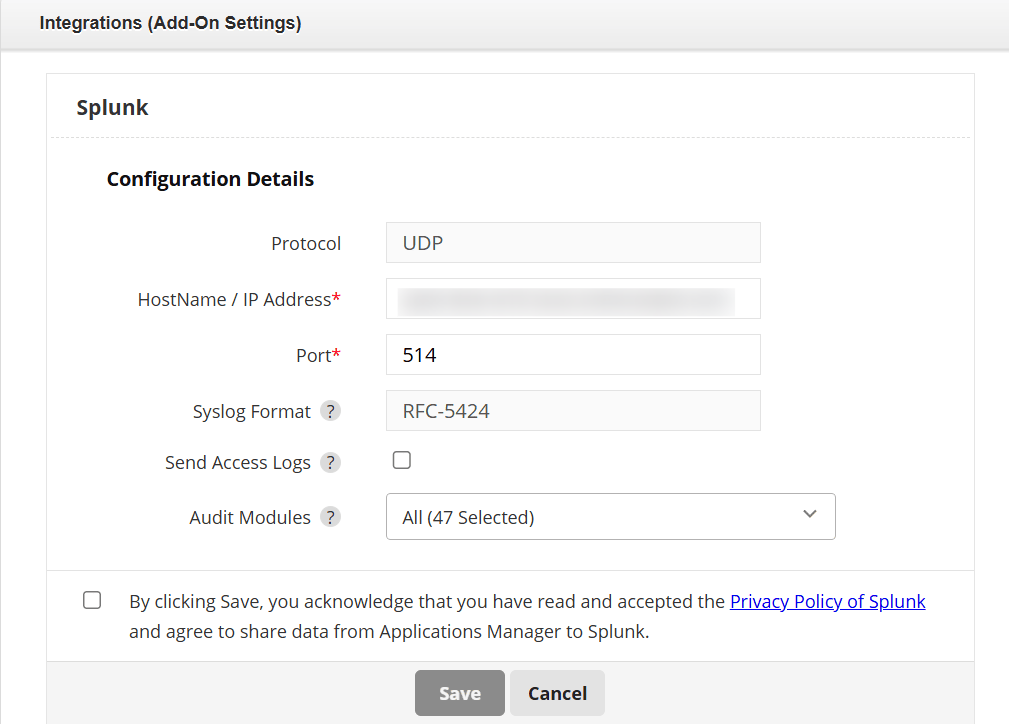
- Select Splunk as the SIEM integration option.
- Select UDP as the Protocol.
- Enter the Host Name / IP Address of the Splunk server.
- Specify the Port configured for the UDP input.
- Verify that the Syslog Format is RFC 5424.
- Enable Send Access Logs, if required.
- Select the required Audit Modules.
- Acknowledge the Splunk privacy policy.
- Click Save.
Note: Ensure network connectivity and firewall rules allow UDP traffic between Applications Manager and the SIEM server.
Post-Integration Configuration
After configuring the SIEM or Splunk integration, you must create the corresponding action and associate it with monitor attributes. This step enables Applications Manager to send Syslog messages when alarms are triggered.
- Navigate to Settings → Actions .
- Click on create a SIEM or Splunk Action based on your configured integration.
- Enter a name in the Display Name field.
- Verify the Destination Host and Destination Port .
- Select the required Syslog Format (RFC 3164 or RFC 5424).
- Choose the appropriate Severity and Facility values.
- (Optional) Enable Structured Message if structured Syslog data is required.
- In the Description field, enter the message template to be sent to the SIEM server.
- Click Save to create the action.
Managing SIEM Integration
You can manage the configured SIEM integration from the Integrations (Add-On Settings) page.
- Edit: Update server details, port, or audit module selections.
- Delete: Remove the SIEM integration if it is no longer required.
These management options help you maintain and adapt the SIEM integration as your monitoring and security requirements evolve.

