Manual Patch Deployment
Manual Deployment of patches is preferred when:
- You require granular control over every aspect of the patching process. Manual Deployment allows you to selectively choose which patches to deploy, when to deploy them, and to which systems or targets.
- The setting to disable automatic updates for software is enabled, the missing patches for that specific software will not be displayed in the Missing Patches tab. In such cases, to patch that software, you will need to navigate to the Supported Patches section and deploy the patches manually.
- Applying patches to systems that are critical to business operations, such as production servers or systems that cannot afford downtime and you feel that manual deployment allows for more careful review which can prevent unforeseen issues that might arise from an automated process.
Applies to:
- Windows
- macOS
- Linux
Installed Patches
The Installed Patches tab provides details of all the patches of applications/softwares in your network computers that are installed. To view the list of Installed Patches, follow these steps:
Click on Threats & Patches → Patches → Installed Patches.
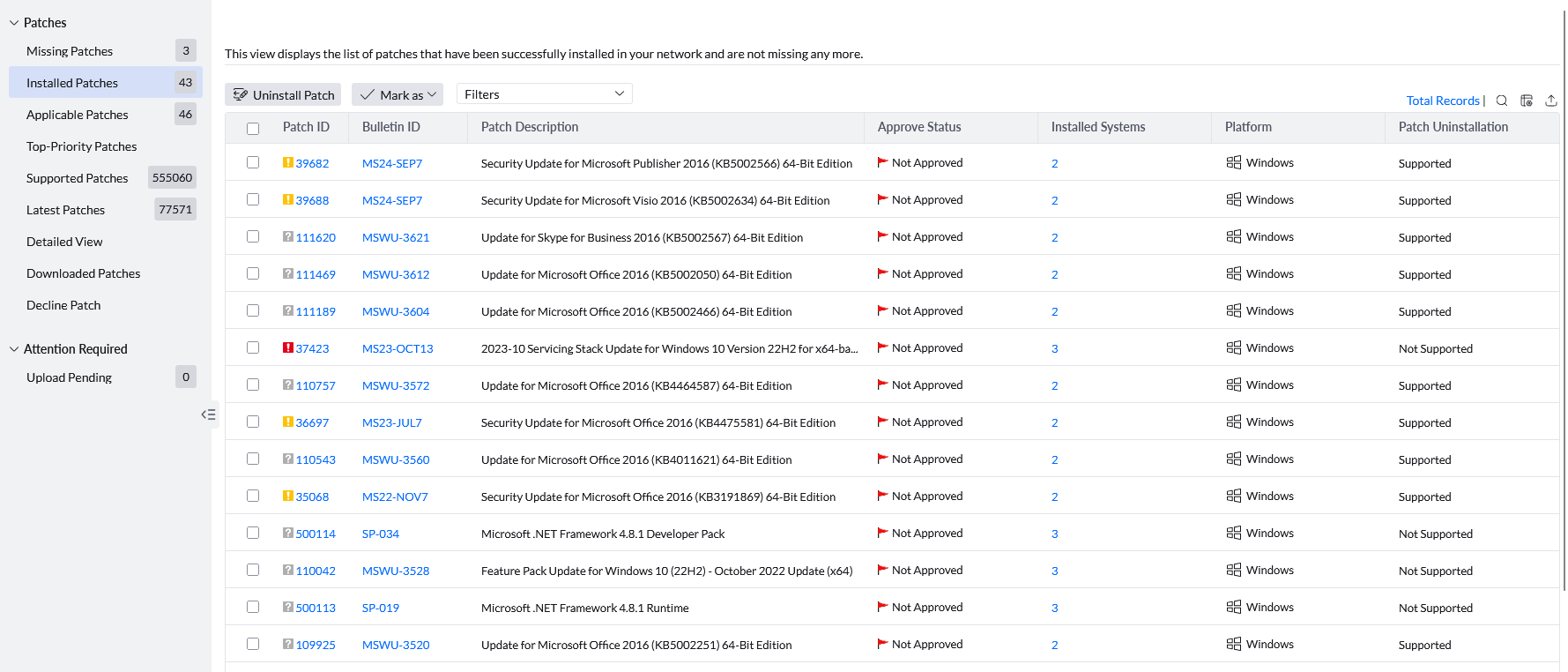
To see whether a patch on one computer was installed by Endpoint Central, navigate to Threats & Patches → Systems → By Patches, search the hostname, open the computer, then Patches → Installed. Use Column Chooser to display the required audit fields. Deployed Time is when the patch was deployed, Deployed Using is the deployment task that installed it, and Deployed By identifies the administrator who created the task. If the deployment fields are empty, Endpoint Central did not record the patch as installed through a product deployment; determine the installation source separately.
For applicable Microsoft updates, you can also verify installation on the endpoint under Settings → Windows Update → Update history or Control Panel → Programs and Features → View installed updates. Search for the corresponding KB number.
Uninstall status and history
The console displays the current patch status but does not provide a removed or uninstalled timestamp. Review dcpatchinstallaccess.log and dcpatchmgmt.log for patch deployment history. Search dcpatchinstallaccess.log for the Patch ID. If the retained log does not contain a matching product-deployment entry, Endpoint Central did not record initiating that patch action.
Missing Patches
The Missing Patches tab provides details of patches of applications/softwares in your network computers that are not installed. To view the list of Missing Patches, follow these steps:
Click on Threats & Patches → Patches → Missing Patches.
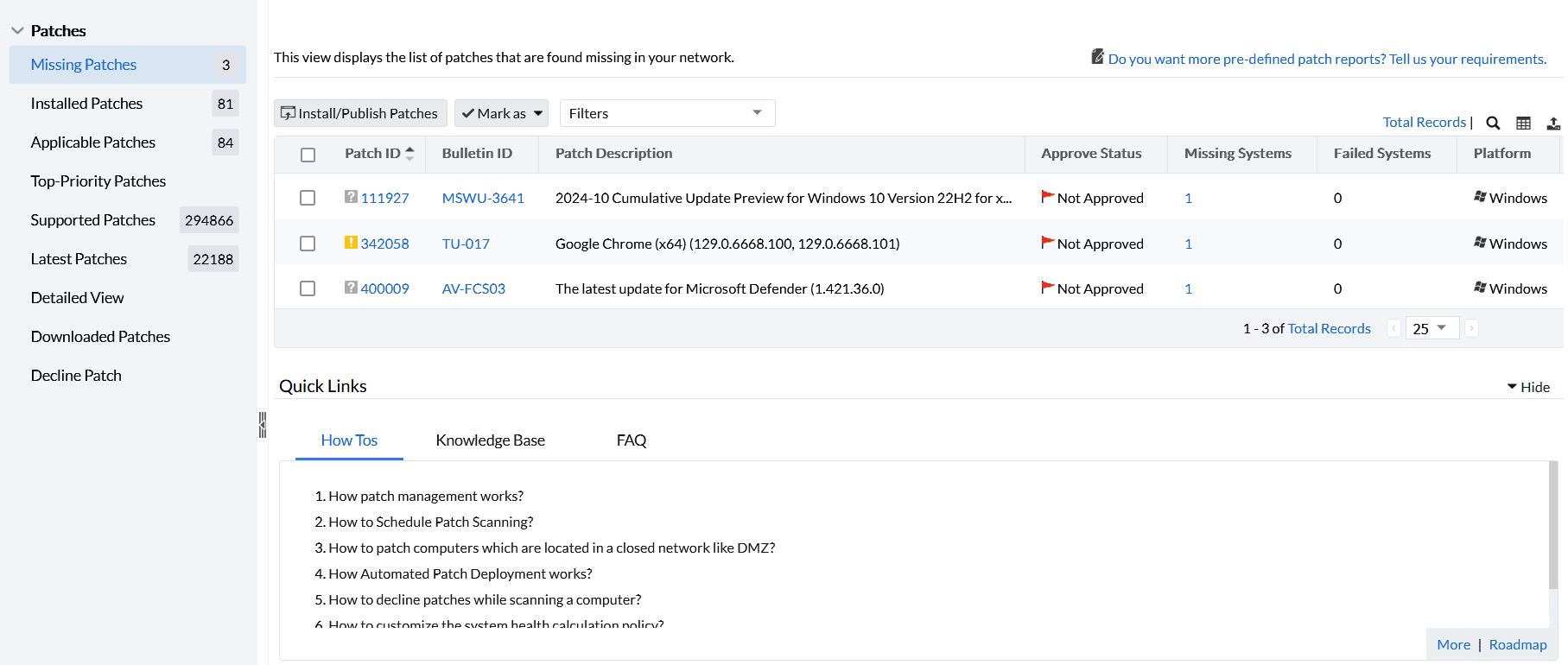
You can view the details of patches missing in your network as shown in the above image. Missing patches are further listed under specific views like patch view, computer view, and detailed view. You can also generate reports by selecting options from predefined filters. Patch criteria include application, service pack, bulletin, patch type, approval status, download time, and release date. Computer criteria include operating system and Custom Group. For example, use Release Date → Before n Days to list patches older than the specified number of days. Use the saved filter's action menu to rename or modify an existing filter. Use Column Chooser in the selected view to display the columns required for your review. Refer to the below images to know how to filter the patches.


To patch systems running on these Linux distributions, configure the Red Hat Linux Settings and SUSE Linux Settings appropriately.
You can install patches by selecting the patches to be installed by enabling the checkbox present beside the patch and clicking the Install/Publish Patches button, as shown in the image below.
Patch availability and applicability
A patch can be deployed only when it is detected as missing and applicable to the selected target. A patch that appears in Supported Patches but is not listed as missing for a device cannot be deployed to that device through the Missing Patches workflow.
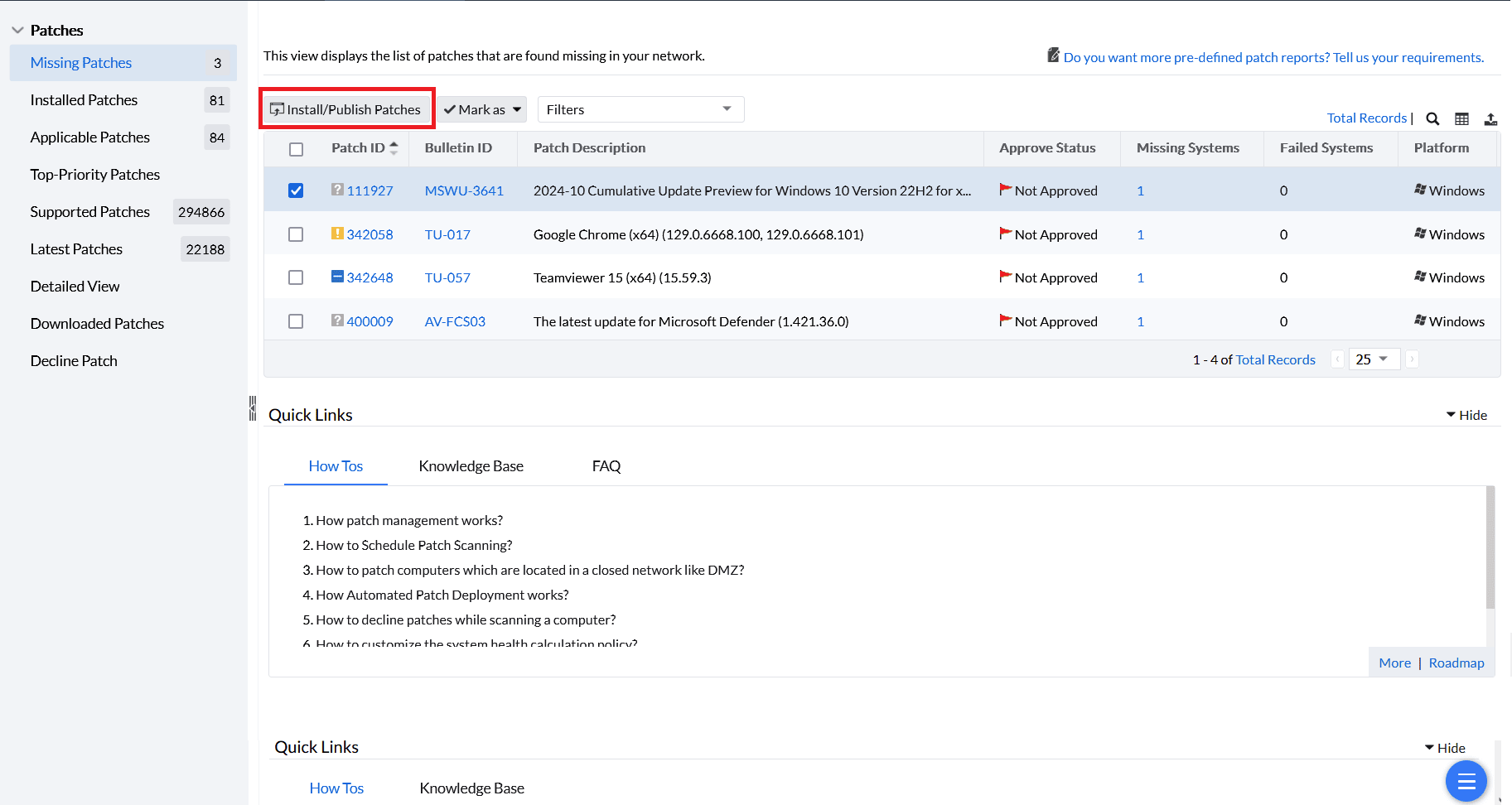
After clicking the Install/Publish Patches button, you will be redirected to the Install/Uninstall Patch window, where you will be configuring the deployment settings.
Another way for manual deployment is Threats & Patches ---> Deployment ---> Manual Deployment ---> Install/Uninstall Patch ---> Choose the desired OS. You will be redirected to the Install/Uninstall Patchwindow, where you need to select the required patches and targets.
Configuring Manual Deployment: Install/Uninstall Patch
The image below shows the Install/Uninstall Patch window.
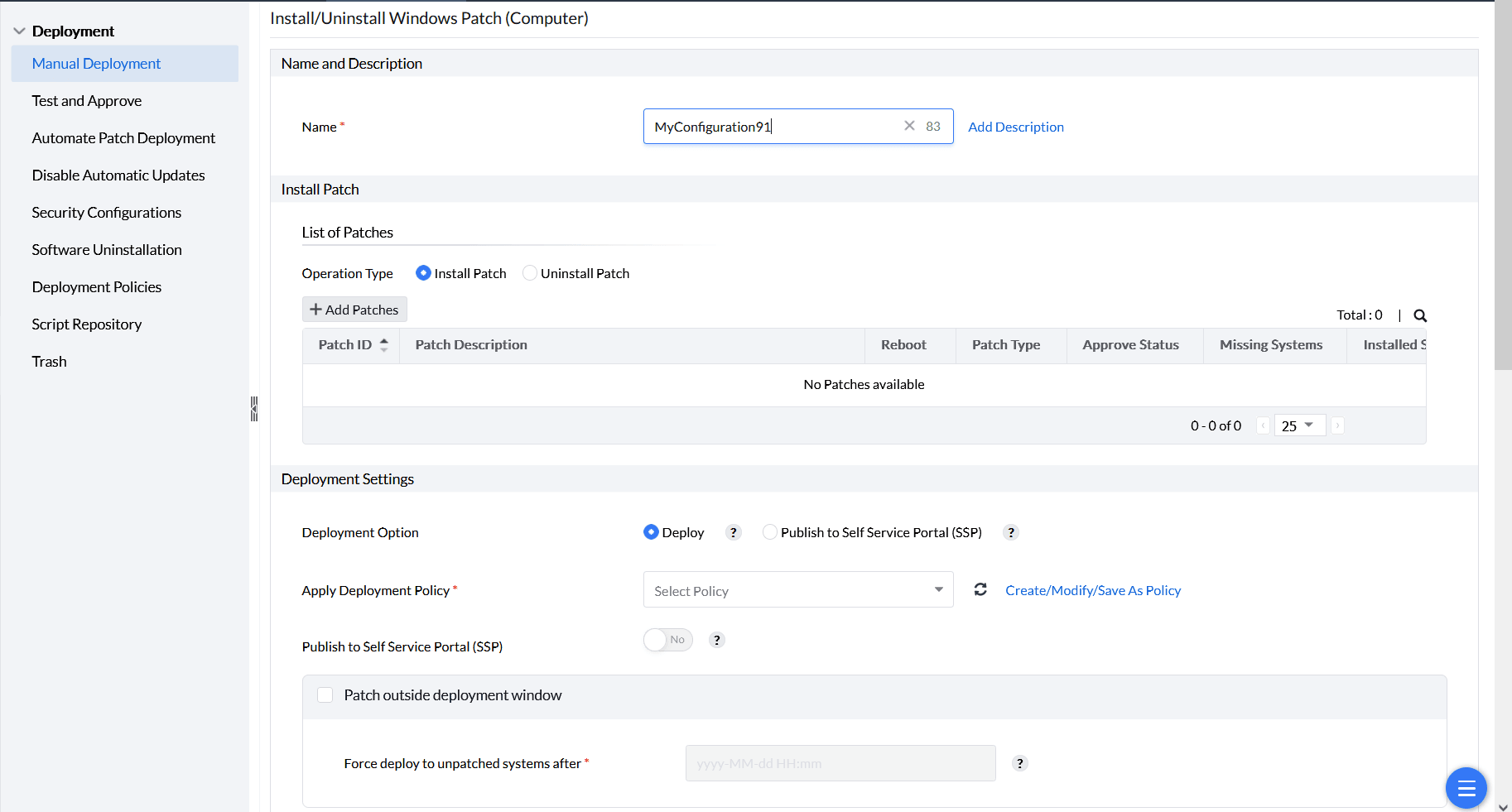
Under the Name and Add Description, give a name and description of your choice, respectively, for the configuration.
Choosing the Patches
Under the Install Patch section, under List of Patches, under the Operation Type, you can choose to either install or uninstall patches. As you want to deploy patches, select Install Patch.
Uninstall and rollback limitations
Uninstall Patch is available only for updates that support rollback. It does not downgrade macOS operating-system upgrades. Use Apple's supported recovery or downgrade process for a macOS OS upgrade.
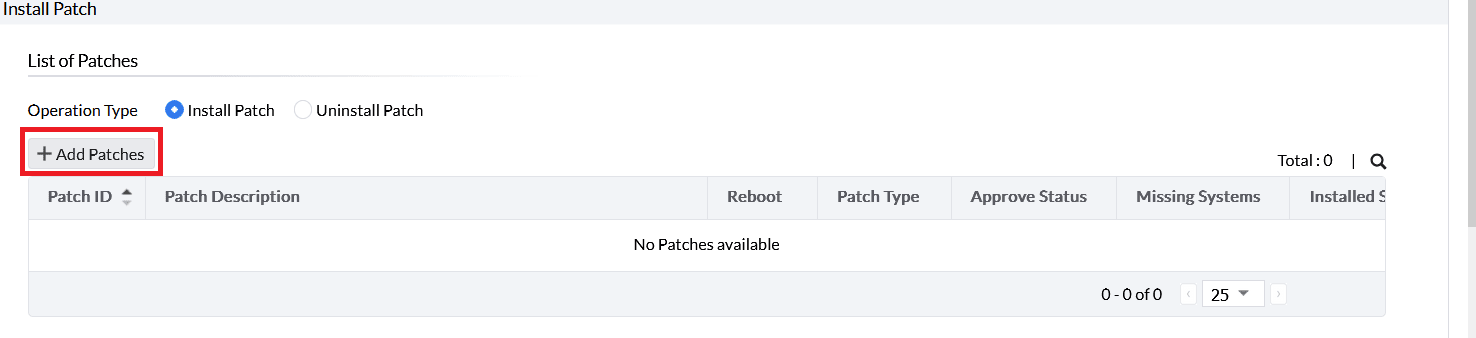
You can manually select the patches that need to be deployed. Select Add Patches; a new window Add Patches will be opened.
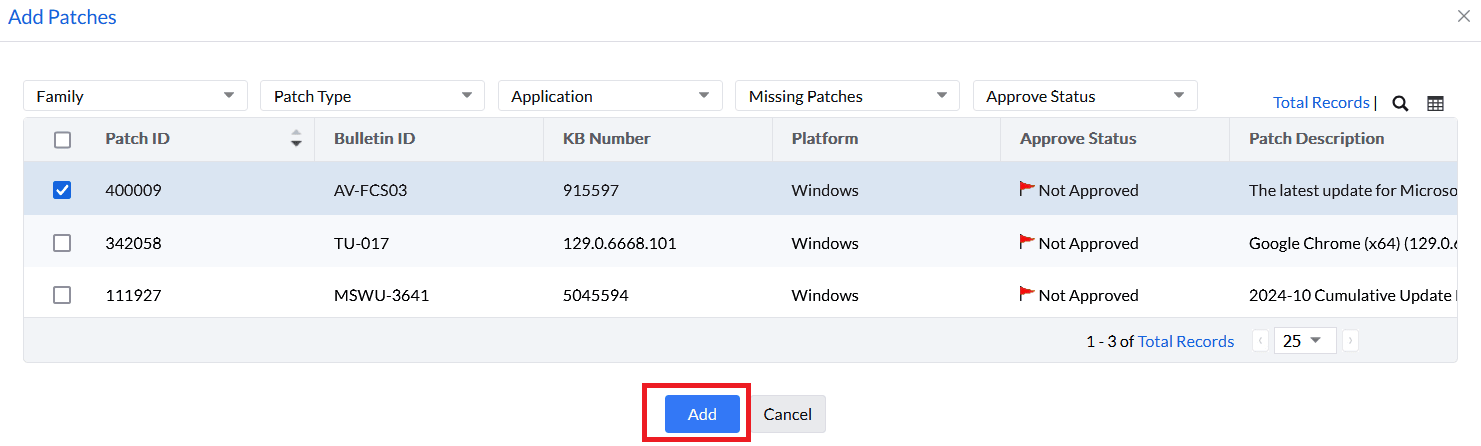
From the Add Patches window,select patches to install by enabling the checkbox beside them. There is an option to view the missing patches or all patches, which can then be filtered based on the application and service pack. After choosing the patches, click on Add
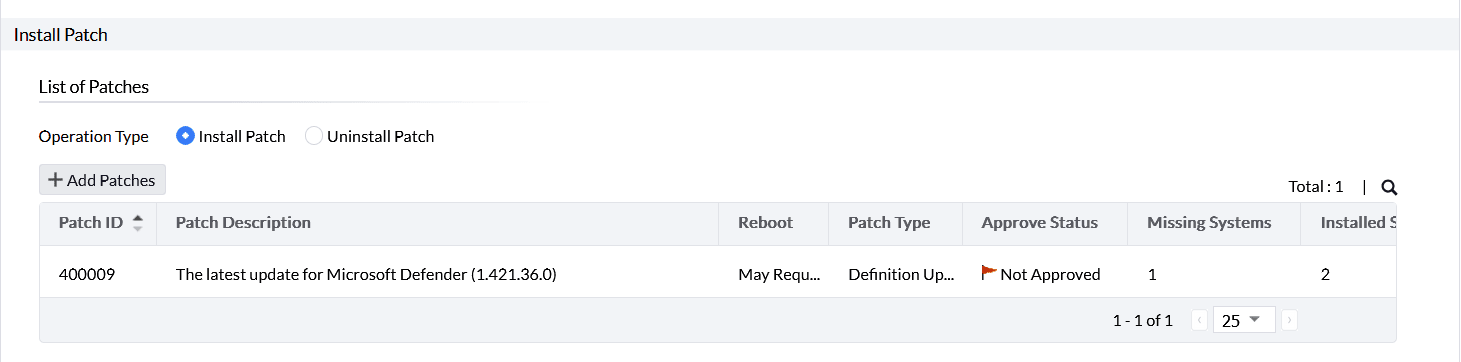
After clicking Add, you can see them listed in the table as shown in the below image.
Patch limit per deployment
A single patch deployment can include up to 500 patches. Split larger patch sets into separate deployment tasks.
Deployment Settings
After selecting the patches for deployment, configure the Deployment Settings. It comprises the following sections:
Deployment Option: Choose Deploy or Publish to Self Service Portal (SSP). Selecting Publish to Self Service Portal simplifies the deployment process by allowing administrators to publish patches to the portal, enabling users and server owners to decide if they want to install updates.To learn more about Self Service Portal, refer to this page. Click on Deploy for deploying the selected patches to the target computers.
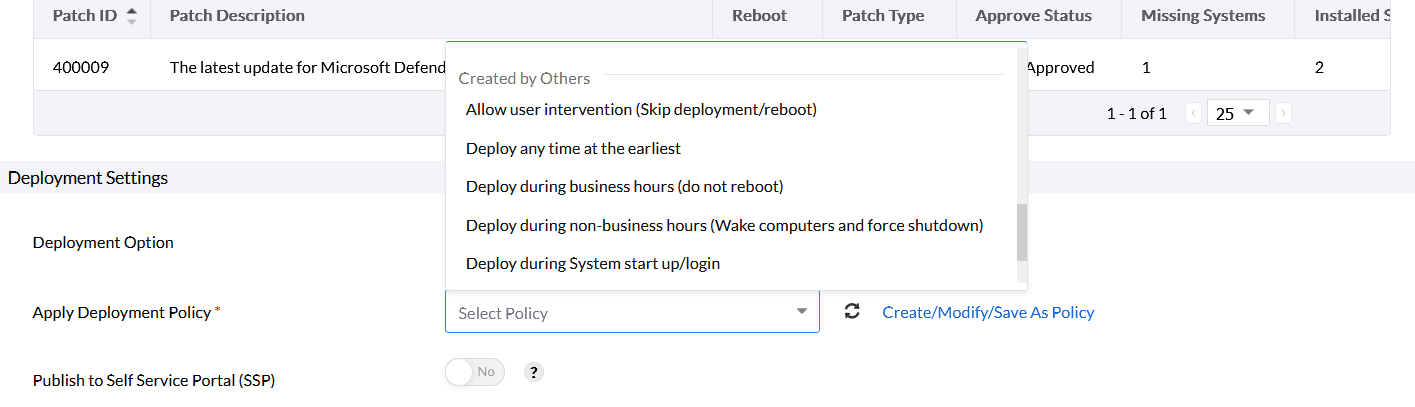
Apply Deployment Policy: If you select Deploy, choose a deployment policy under Apply Deployment Policy. Use the pre-created Deploy Anytime at the Earliest policy when the task should run at the next eligible opportunity, or select a custom policy for a controlled deployment window. By analyzing the uptime activities of your endpoints, you can create a custom deployment policy tailored to your enterprise requirements. This will be listed under Self Created. To learn how to customize the policy according to your requirements, refer to this page. Under Created by Others section, you can see the pre-created policies by other users and Endpoint Central. You can see those policies in the image below.
Publish to Self Service Portal (SSP): After choosing the deployment policy, select yes or no for Publish to Self Service Portal (SSP). If yes, patches can be scheduled for deployment and pushed to SSP simultaneously, offering flexibility in installation.
Patch outside deployment window: If a user in your Domain continuously skips the patch installation of an application during the deployment window as he/she is working on a critical business task using that application, but you want Domain computers to be up-to-date, enabling the Patch outside deployment window option will be useful. You can set a specific date and time as a grace period, after which force deployment will be initiated for systems that missed patching in the deployment schedule.
Selecting the Target Computers
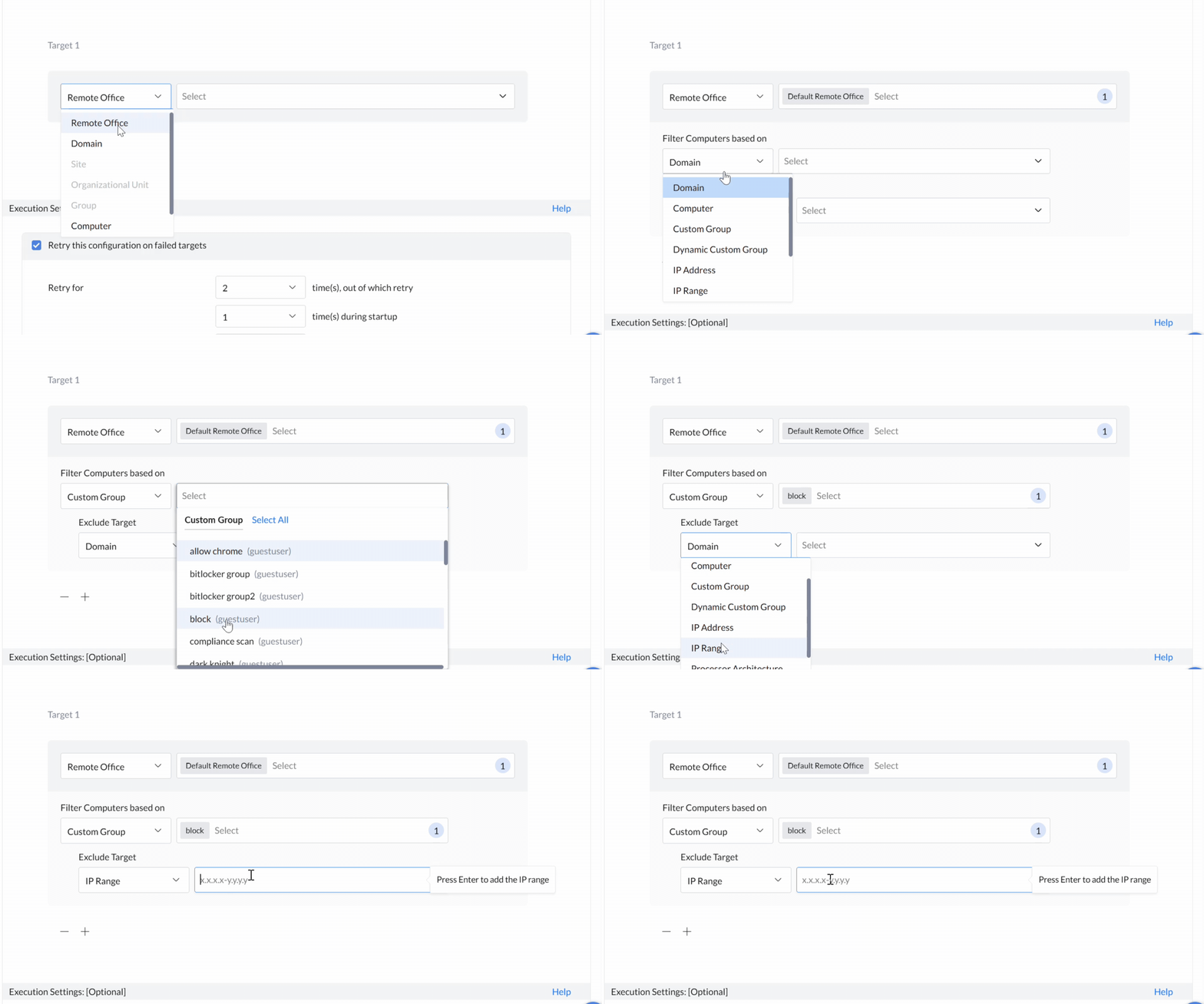
After choosing the deployment settings, you can choose to include or exclude target computers of your choice under the Define Target section as shown in the above image. To learn more about Defining Targets, refer to this page.
Execution Settings
After defining the targets of your choice, configure the Execution Settings, which is optional.
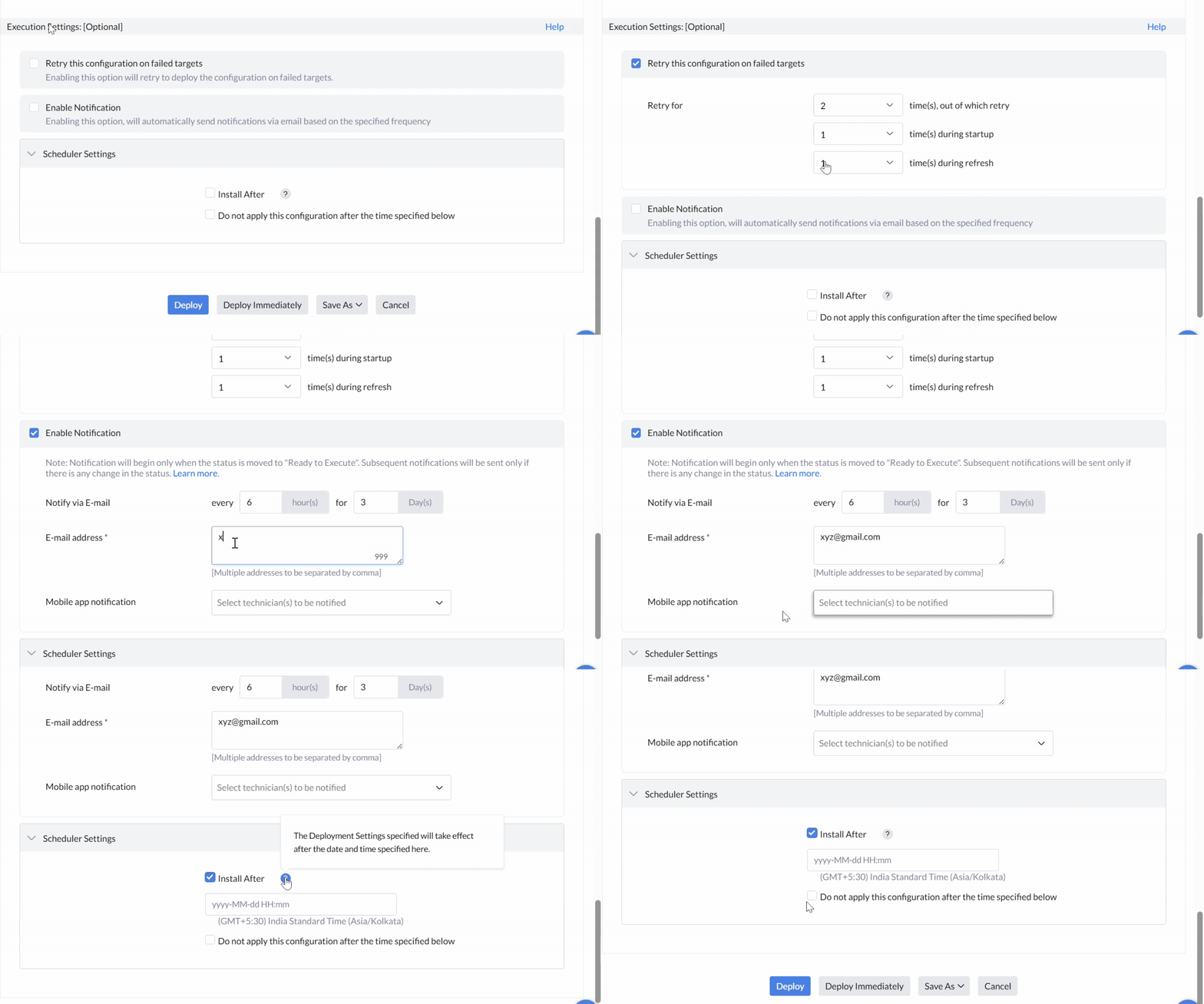
Under execution settings, the following sections are present:
Retry this configuration on failed targets: Often, patching of services/applications such as Java or .NET may fail as that particular service/application is being used by the users in other applications to perform business critical tasks and requires that particular application to be closed for patching to be successful. By enabling the Retry this configuration on failed targets, you can choose the number of times for retrying on failed computers according to your choice either during startup or at refresh cycle. To learn more about this, refer tothis page.
Enable Notifications: If you want to configure notifications about this activity, select the Enable Notifications option. To learn more about this, refer to this page.
Scheduler Settings: Under Scheduler Settings, by enabling the option Install After and specifying the date and time, the patches will be installed after the specified date and time. By enabling the option Do not apply this configuration after the time specified below and specifying the date and time, the patches will not be installed after the specified date and time.
By specifying time limits in these sections, you can set a time frame for patch deployment. This is useful for systems where critical business applications need patching only during scheduled downtime; patching at other times may affect productivity. You can ensure that patching of critical applications occurs only within this scheduled downtime window.
Also under the same settings, you have the option to Continue deployment even if some patches cannot be downloaded. Enabling this option is beneficial when most patches have already been downloaded or installed on target machines. Continuing deployment in these cases ensures that the majority of updates are applied, even if a few patches fail. Also, sometimes, network issues or connectivity problems can prevent certain patches from being downloaded. Allowing the deployment to continue despite these failures helps avoid halting the entire process while waiting for the issue to be resolved. And if the failed patches are re-downloaded successfully, they will be installed during the next refresh cycle within the deployment window.
After choosing all configuration settings, if the deployment window is open when configuring the policy and you want immediate patch deployment, select Deploy Immediately. This feature will deploy patches to a maximum of 200 computers immediately, with remaining computers deploying the patches in their subsequent refresh cycle. Select Deploy if you want deployment in their subsequent refresh cycle. If the deployment window is not open when configuring the policy, deployment will occur as per the policy regardless of whether you choose Deploy or Deploy Immediately.
Understanding patch detection results
A patch appears in Installed Patches only after it has been installed on every applicable managed endpoint. If it remains missing on one or more endpoints, locate it in Missing Patches or Detailed View and deploy it to the remaining endpoints.
Definition updates can use a static patch record while the vendor continues to release new definition versions. An update can remain visible as missing when the endpoint already has an equal or newer definition version. If deployment reports that the version already exists, restart the endpoint and run a patch scan to refresh the Missing and Installed Patches views.
A patch must be detected as missing and applicable before it can be deployed. For applications with architecture-specific installers, verify that the required base installer matches the targeted patch before deployment.
If an application update reports that the selected version is not applicable, verify the installed application version and installation scope, then deploy the current compatible package from Supported Patches. Run a Patch Database sync and a patch scan after deployment.
Some application updates can be reported as installed without appearing as separate operating-system update entries. Verify the installed application version before treating the deployment as unsuccessful.
Deployment Status
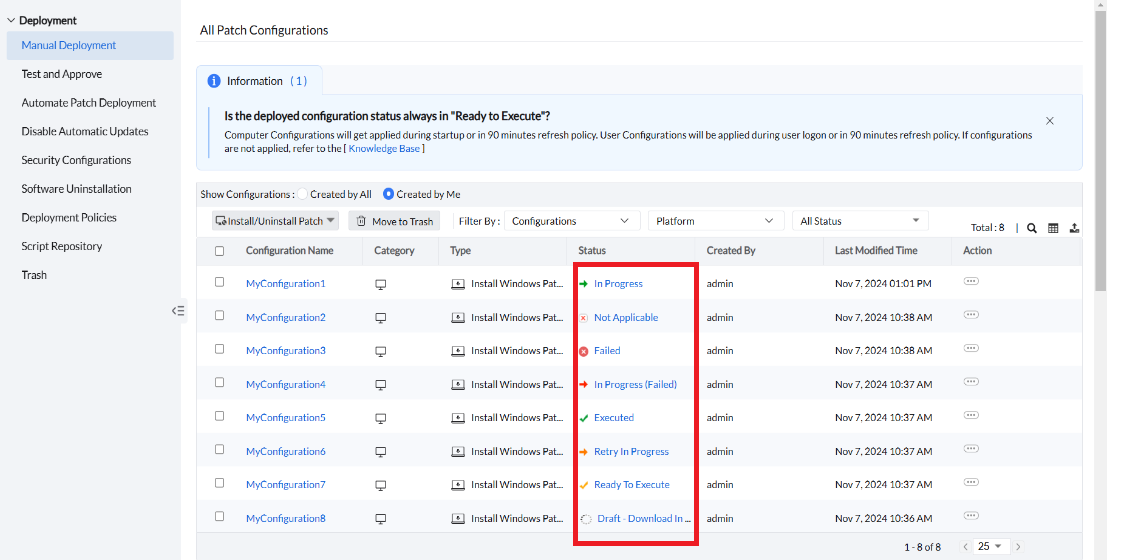
After deployment, check the configuration under Deployment > Automate Patch Deployment > System View. You can track the following states in the Status column:
Draft: Download In Progress: The patch download is in progress.
Ready: The configuration is ready for deployment, but the deployment window has not yet started.
If another deployment task is already running on a target computer, the new task remains queued until the current task finishes. Review the target's remarks before retrying or modifying the configuration.
Yet to Apply: The configuration has not yet been applied. See Yet to Apply for details.
In Progress: Patch deployment is in progress.
Executed: All patches were deployed successfully.
Retry in Progress: One or more patches failed, and the retry process is in progress.
In Progress (Failed): The deployment failed on some computers and is still in progress on others.
Failed: The deployment failed on all target computers.
Not Applicable: The selected patch is already installed, was not detected as missing, or does not match the target computer's operating system, edition, architecture, or application version. Run a patch scan before deployment and, when necessary, create separate deployment tasks for computers with different requirements.
Overridden: A later configuration with a newer version of the same patch has overridden this deployment.
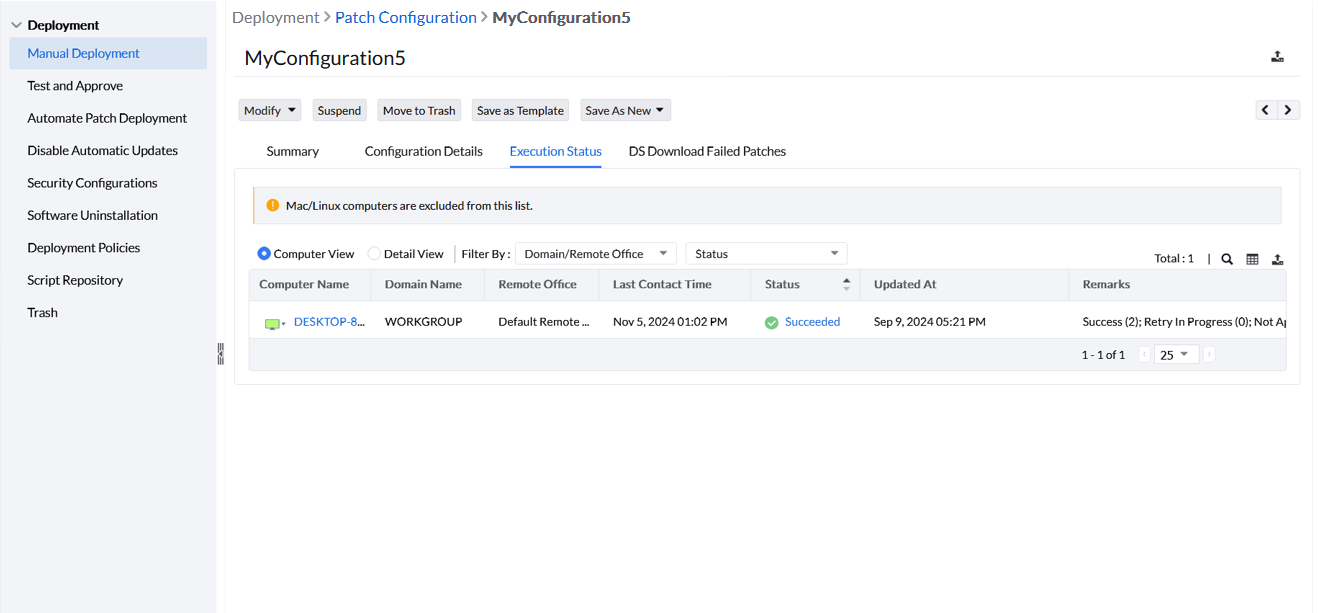
By clicking on that status, you will be redirected to the Execution Status window. Here you can see the status of each endpoint listed individually, and you can also learn the reason for displaying such status under Remarks. If all the patches have been successfully installed in that computer, it will be displayed as Succeeded under status.
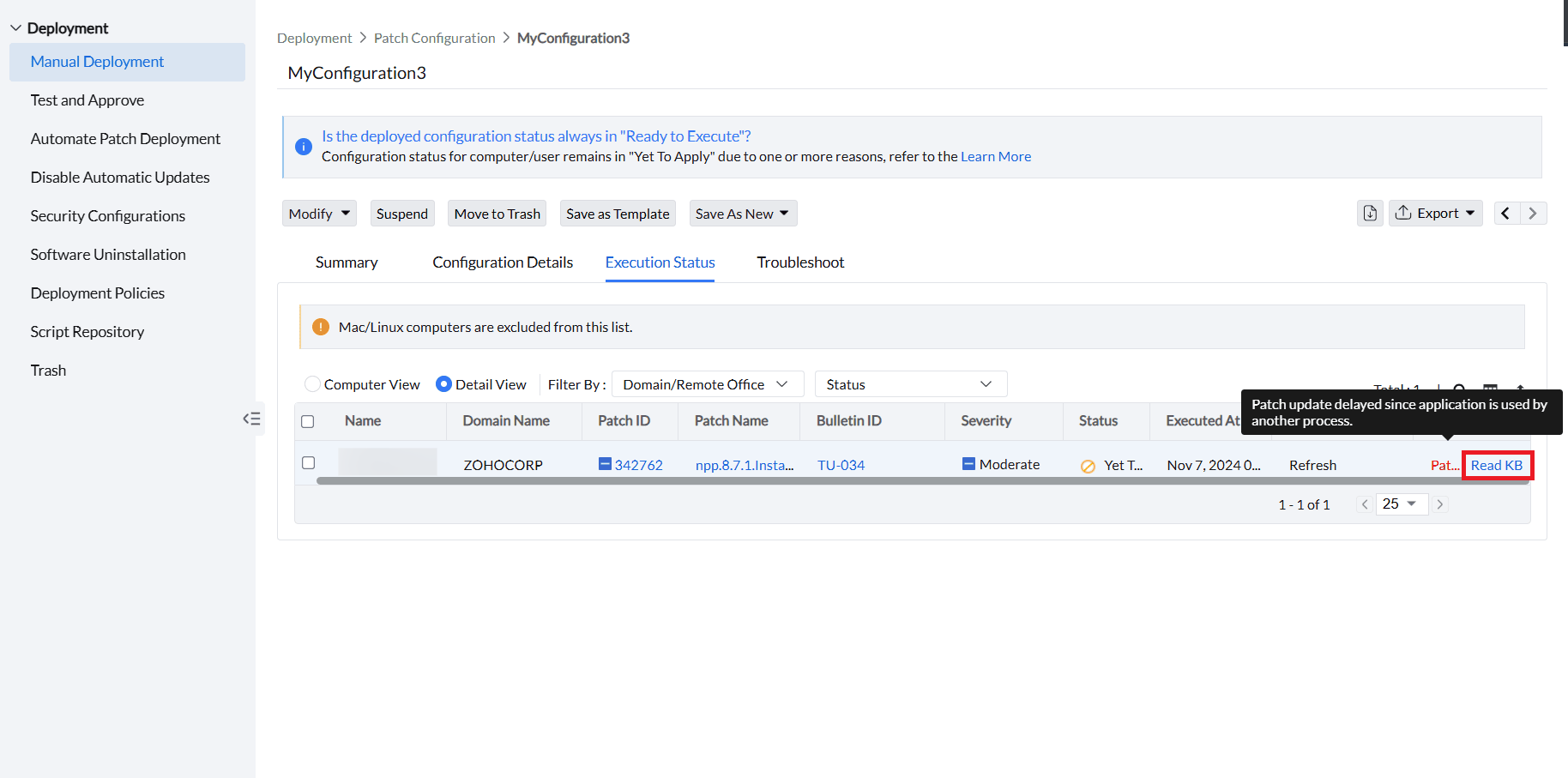
If deployment fails, click Detail View for the failed computer, then click Read KB next to the error code. For additional guidance, see Troubleshooting patch deployment errors. If the patch shows Manual Upload Required or Upload Pending, follow the vendor-download and upload workflow in Attention Required.
On the Configuration Details page, use the Export drop-down to export the deployment summary. The Modified Time column shows when the deployment status was last updated; click that value to view the status history. After you modify and save a deployment task, evaluate its deployment timing and status from the saved modification time.
After resolving the issue, open the configuration's Summary page, click Modify, select Task, and redeploy it.
Delete or Suspend Manual Patch Deployment
In scenarios where earlier manual patch deployment tasks have become redundant and new patching policies are followed, users can delete the redundant configurations. Organizations like banks have strict downtime every month dedicated to patching. If patch deployment is not performed in that window, it should be deferred to the next month. If your organization follows scheduled downtime like that, suspending configurations is useful to halt deployments when they exceed the scheduled window or when a deployment is configured incorrectly (such as installing incorrect or untested patches) and needs immediate stopping. You can also resume suspended configurations whenever needed.
Here are the steps to:
Delete Manual Patch Deployment Configurations
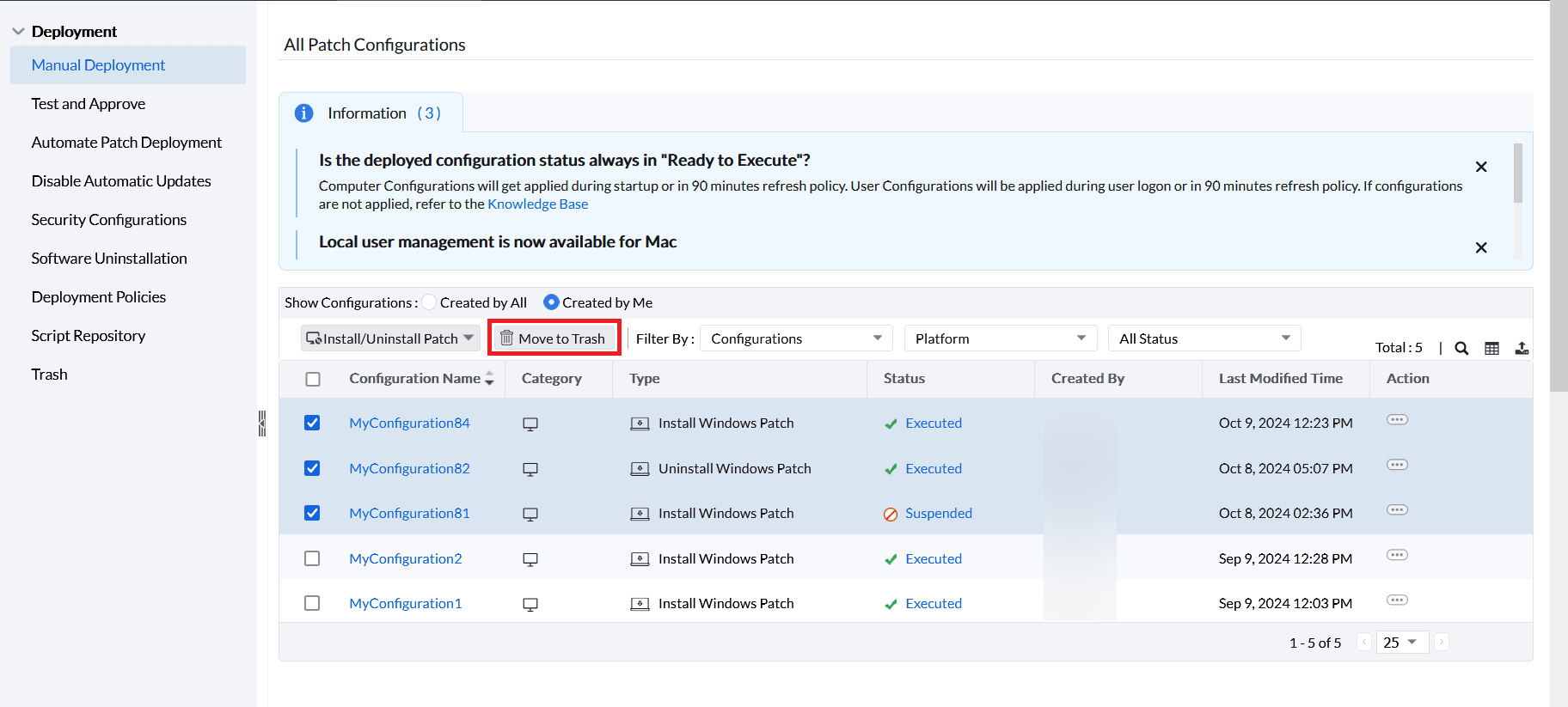
Step 1: Go to Deployment > Manual Deployment.
Step 2: Select configurations to be deleted.
Step 3: Click Move to Trash to delete selected configurations.
1.Immediately in systems connected through LAN/remote agents (except in systems with deployment in progress*).
2.As per the replication policy in systems under a distribution server.
* The machines with deployment in progress continue with the deployment, even if configurations are deleted or suspended.
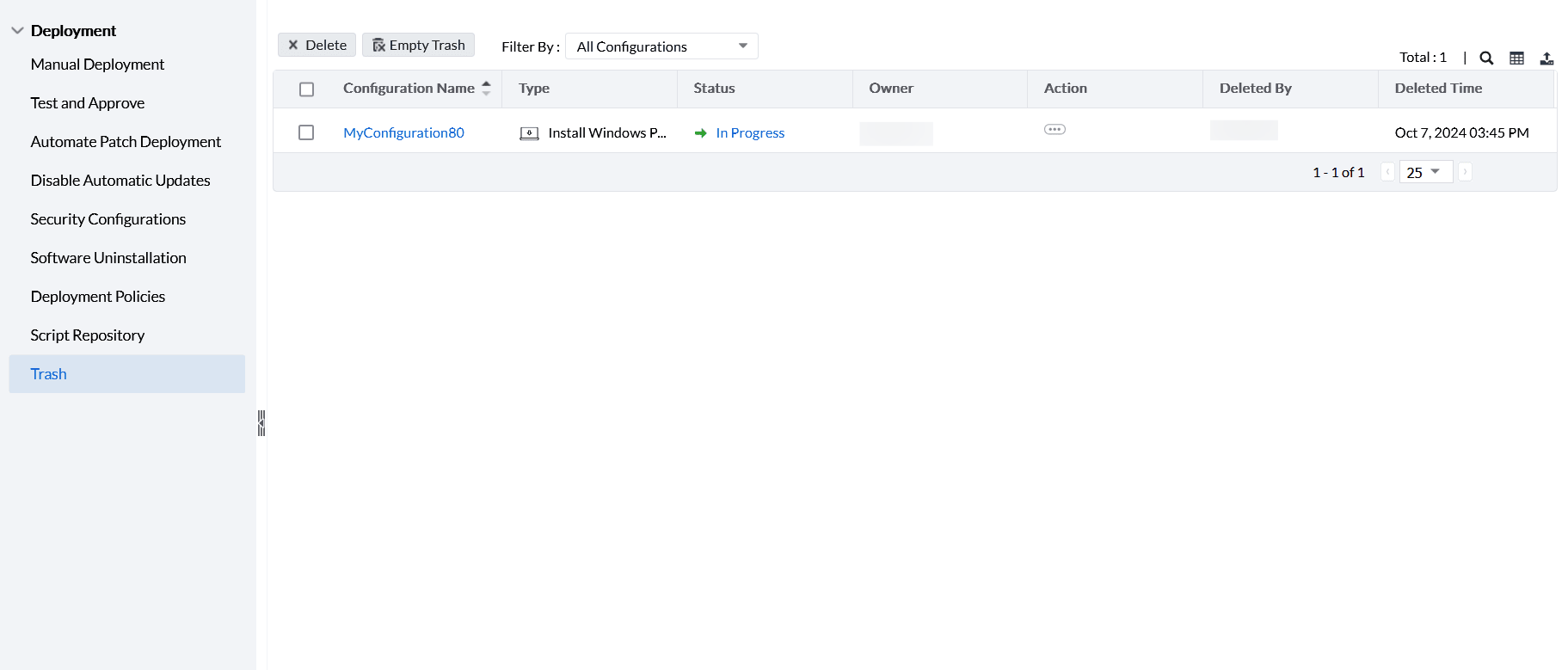
The deleted configurations can be viewed from Deployment > Trash.
In Trash, under Status, you can see the latest status of configurations before deletion.
Restore Deleted Configurations
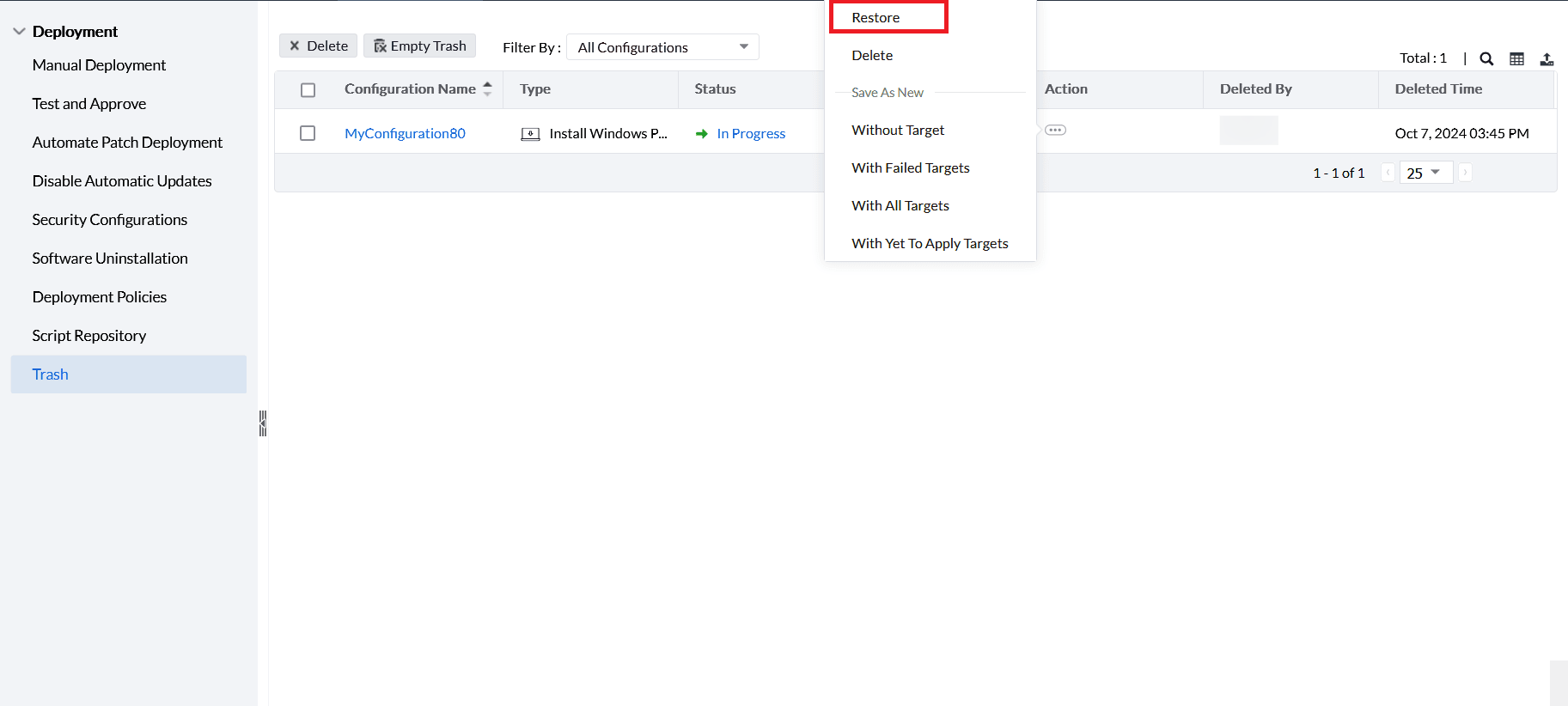
Step 1:Click Deployment > Trash.
Step 2:Click on the three horizontal dots next to the respective configurations in the Action column.
Step 3:Click Restore from the menu.
Suspend Manual Patch Deployment Configurations
Step 1:Go to Deployment > Manual Deployment.
Step 2:Click the three horizontal dots corresponding to the respective configurations in the Action column.
Step 3:Click Suspend from the menu.
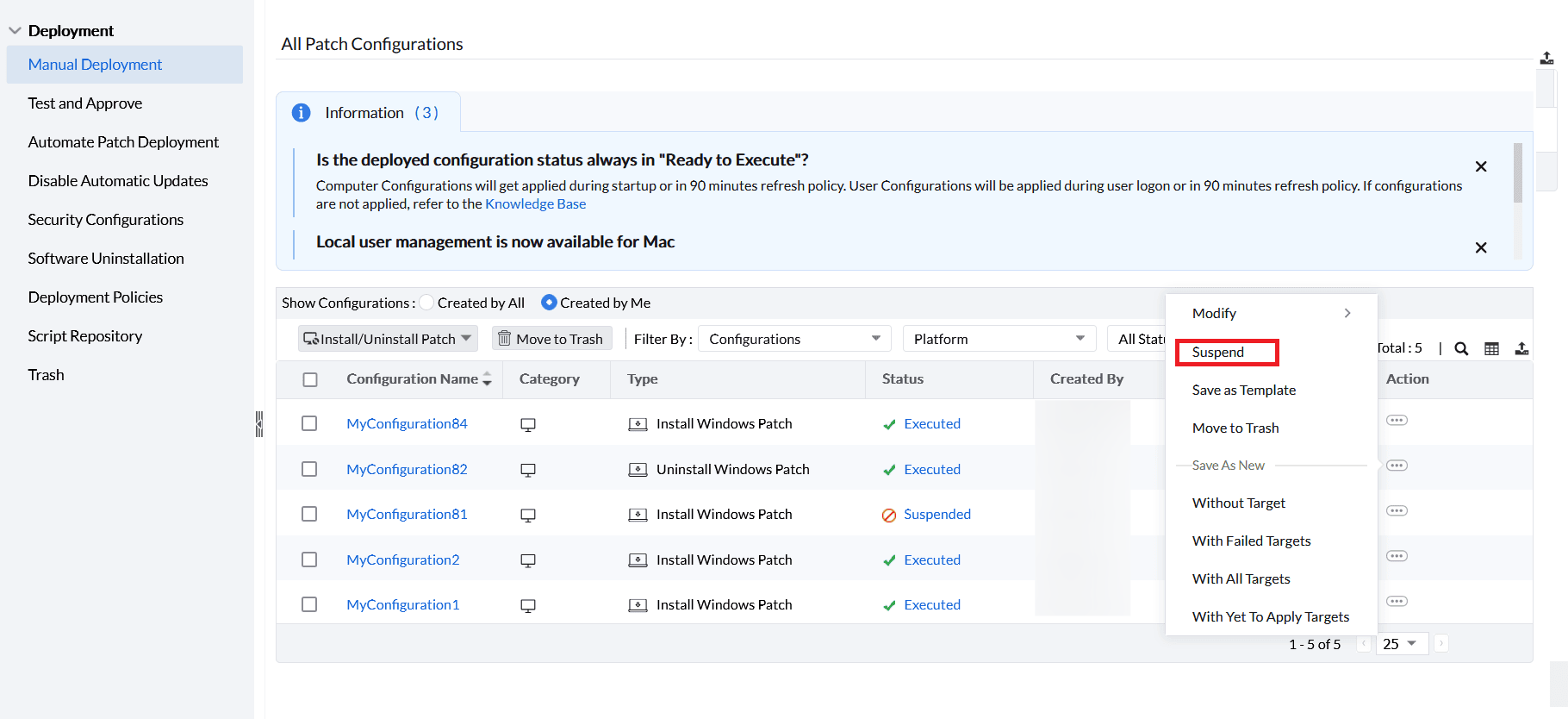
After suspending a deployment
After you suspend a deployment, another deployment is evaluated during the next agent refresh cycle. It is not processed immediately when the existing deployment is suspended.
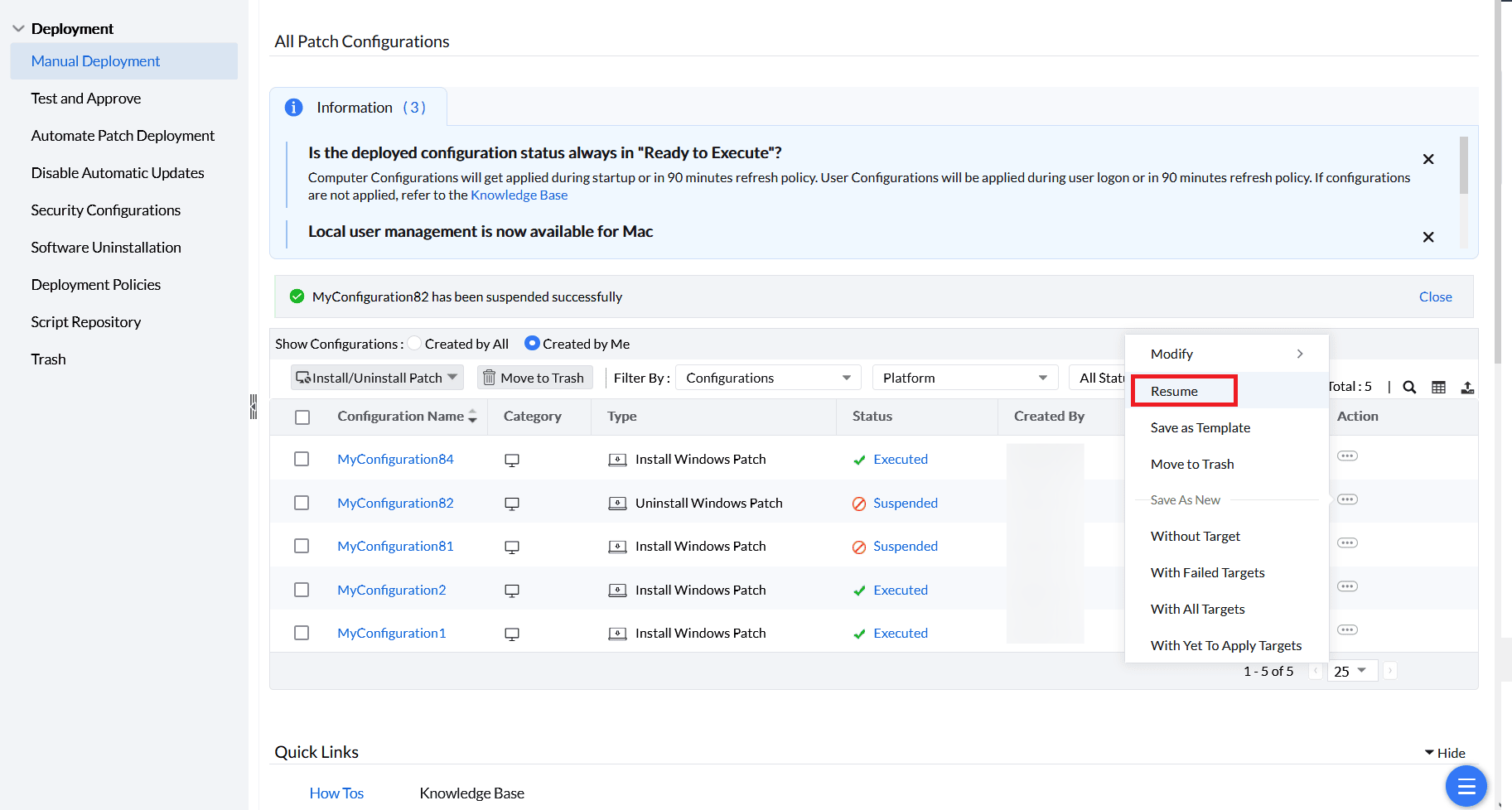
As shown in the below image, suspended configurations can be resumed by following Steps 1 & 2 and clicking Resume.
1. Immediately in systems connected through LAN/remote agents (except in systems with deployment in progress).
2. As per the replication policy in systems under a distribution server.
By clicking on Suspended, you can also see the last status of configurations before suspension.